


 Video Converter Ultimate
 Skärminspelare
 Video reparation
Bemästra hur man snabbar upp videor i Windows Media Player på bästa möjliga sätt [Evidensbaserad]
Alla videoscener skiljer sig åt i uppspelningshastighet, men de skiljer sig också åt i syfte när hastigheten ändras. När du ökar hastigheten på din video symboliserar det oviktiga och ointressanta händelser i filmen eller videon. Däremot, när du saktar ner videon, betonar det stunder eller scener som är mycket viktiga att skildra. Dessa ändringar av uppspelningshastigheten är mycket avgörande att genomföra när man redigerar eller skapar videofilmer. Läs den här artikeln för att lära användarna hur man snabbar upp videor, särskilt i några vanliga mediaspelare på datorn, som till exempel Windows Media Player.

Del 1. Windows Media Player: Hur man snabbar upp videor
Windows Media Player är en gratis mediaspelare från Microsoft som följer med varje exemplar av Windows. Den är också känd som WMP eller WM-spelare av Microsoft. Förutom att låta dem titta på foton och lyssna på musik, låter det dem också titta på videor. Rippa ljud-CD-skivor och organisera ditt musikbibliotek är båda möjligt med Windows Media Player (WMP). Den har också en redigeringsflik som hjälper till att justera videor, bilder och musik. Om du vill snabba upp en video med Windows Media Player följer du stegen här:
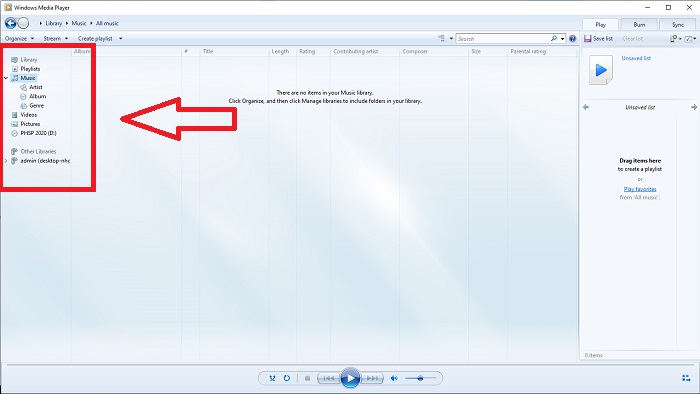
Steg 1: Öppna Windows Media Player; välj fliken Video i det vänstra hörnet.
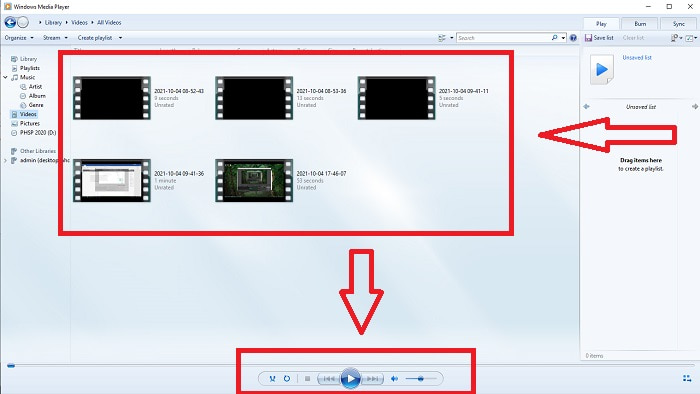
Steg 2: Spela upp videon genom att dubbelklicka med vänster musknapp eller högerklicka, eller så kan du klicka på uppspelningsknappen längst ned i mitten av gränssnittet.
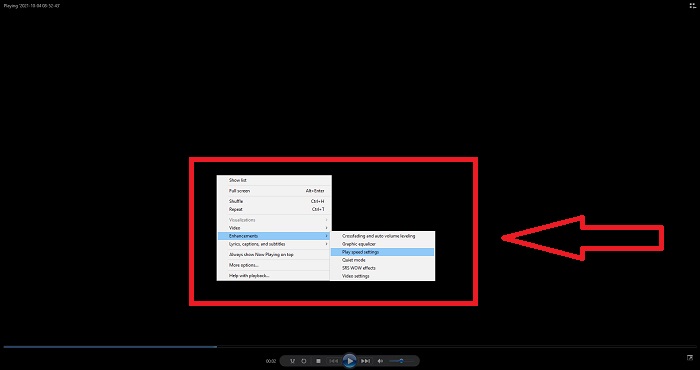
Steg 3: Högerklicka sedan på skärmen för att öppna redigeringsfliken. Fortsätt genom att klicka på Förbättringar och Inställningar för uppspelningshastighet. Därefter kan du justera uppspelningshastigheten för ditt videoklipp genom att dra i reglaget.
Del 2. Vad händer om uppspelningshastigheten i Windows Media Player inte fungerar?
När du spelar AVI-, WAV- eller MOV-videofiler kan du stöta på Windows mediaspelare och stöta på ett problem när du spelar upp filfelet. Video av medelmåttig kvalitet ses ofta i AVI-format. Andra mediaspelare har inga problem med att spela AVI. WMP, å andra sidan, kan ha en glitch när du spelar en AVI-fil. Windows Media Player stöder inte AVI-filer eftersom de är kodade med codecs. Du kan ha fått följande meddelande: Windows Media Player kan inte spela upp filen. Spelaren kanske inte stöder filtypen eller kanske inte stöder den codec som användes för att komprimera filen. Det finns två möjliga förklaringar till detta fenomen.
1. Eftersom den inte matchar den önskade filen kan Windows mediaspelare (WMP) inte stödja codec för filen.
2. Windows Media Player stöder inte komprimeringscodec.
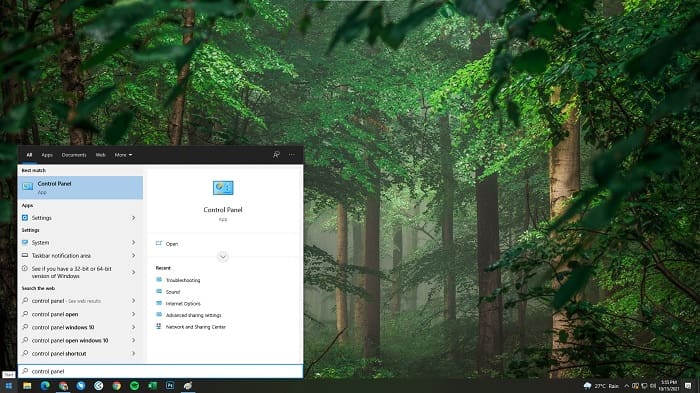
Steg 1: Öppna kontrollpanelen på din dator och leta upp Visa efter, klicka sedan på Stora ikoner för att komma åt alla kontrollpanelens fullständiga funktioner.
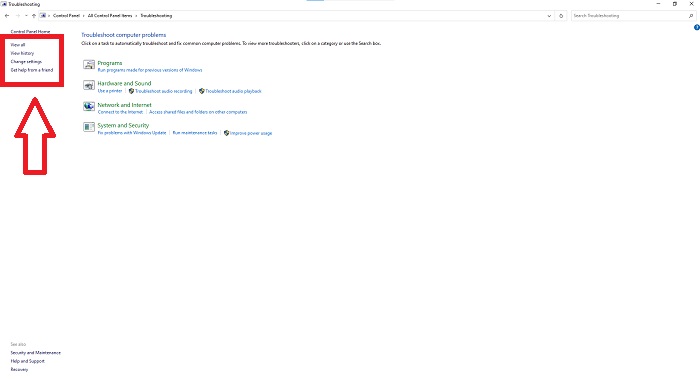
Steg 2: Fortsätt med att klicka på Felsökning. Klicka på Visa alla i det vänstra hörnet och leta upp Windows Media Player-bibliotek.
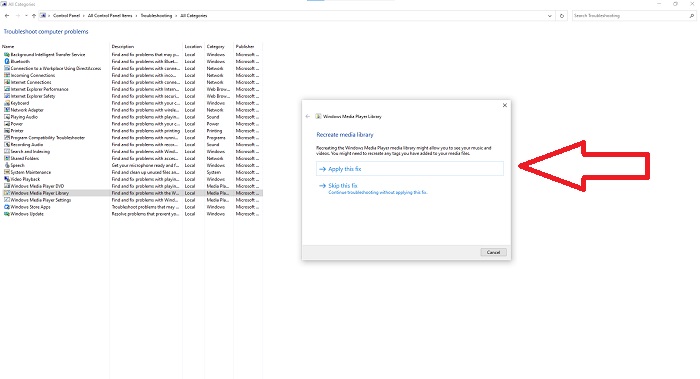
Steg 3: Felsök till sist din Windows Media Player genom att klicka på Nästa när en flik visas. Fortsätt sedan med att välja Tillämpa den här korrigeringen. När felsökningen är klar väljer du om du vill stänga felsökningen eller lämna omdömen om den.
Del 3. Ett annat genomförbart sätt att snabba upp videor
Anta att du har problem med att fixa uppspelningshastigheten för dina videor på grund av de komplicerade stegen. Dessutom, om felsökningen inte fungerar och du fortfarande inte kan spela upp videon. Det finns webbverktyg tillgängliga på internet, och några av dem måste köpas innan du får tillgång till hela verktyget. Video Converter Ultimate är det bästa alternativet för att snabba upp videor, och det är gratis att använda. Denna programvara kan redigera din video till nästa nivå, och här är stegen:
Steg 1: Välj Gratis nedladdning för att hämta programvaran direkt till din dator. Anpassa sedan inställningarna och installera programmet.
Gratis nedladdningFör Windows 7 eller senareSäker nedladdning
Gratis nedladdningFör MacOS 10.7 eller senareSäker nedladdning
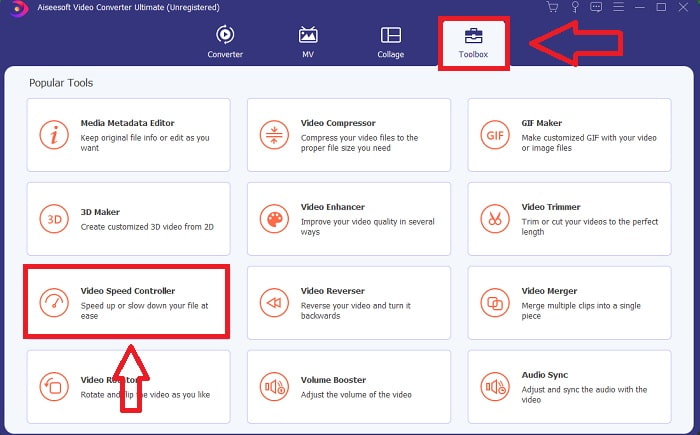
Steg 2: När programmet har installerats startar du det genom att välja alternativet Toolbox i menyraden och sedan välja Video Speed Controller i listan som visas.
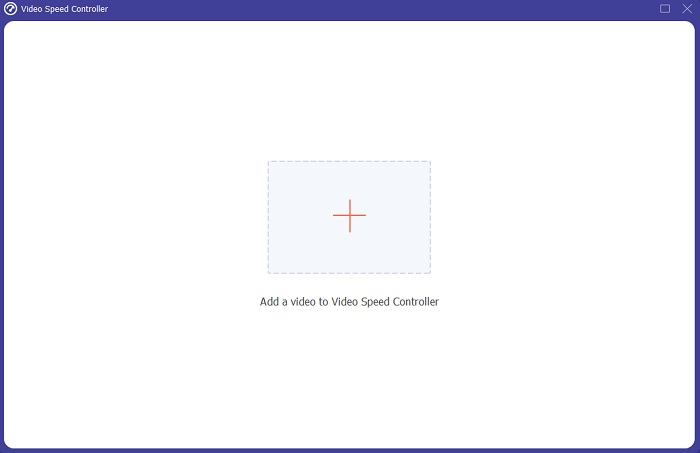
Steg 3: Klicka på +-knappen efter eget önskemål för att lägga till en fil och fortsätt sedan med att redigera videon.
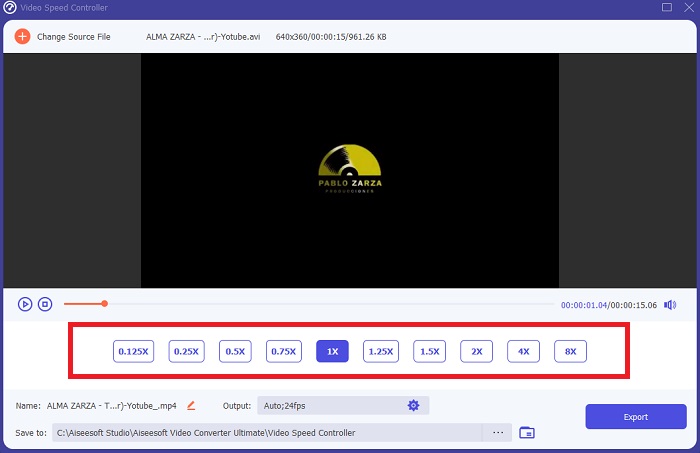
Steg 4: Välj hur många gånger videons bildhastighet ska ökas eller minskas för att ändra uppspelningshastigheten.
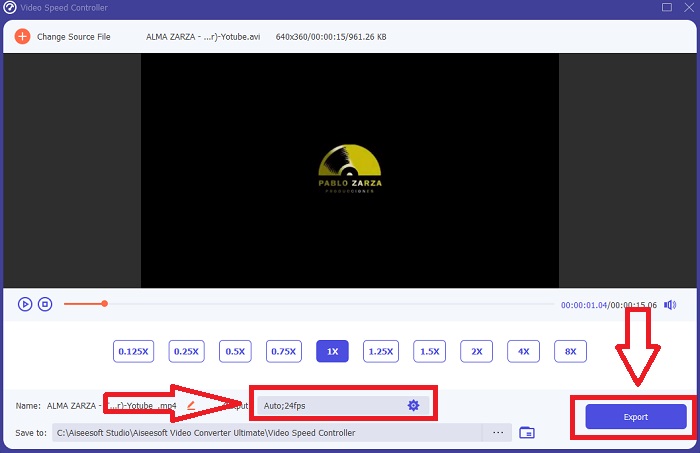
Steg 5: Genom att ändra format, upplösning, kvalitet och så vidare kan du välja önskat resultat efter att du har justerat videons uppspelningshastighet. Klicka på Export och välj sedan en plats där du vill spara ditt arbete när du är klar.
Del 4. Vanliga frågor om hur man snabbar upp videor i Windows Media Player
Hur fixar jag MP4-videor som inte kan spelas upp på Windows Media Player?
Som artikeln nämnde tidigare stöder Windows Media Player inte ett brett utbud av videoformat. Eftersom den bara stöder de flesta Windows-kompatibla format är det svårt att åtgärda fel med den här mediaspelaren. Därför behöver du lära dig hur du konverterar eller hur du spelar upp MP4-videoformat. Länken här är en användbar artikel som hjälper dig att lösa detta problem.
Hur spelar man DVD i Windows Media Player?
Vissa filmer finns på DVD, och för att spela upp dem behöver du hitta rätt mediaspelare för DVD. Windows Media Player är en av de vanligaste mediaspelarna som kan spela DVD. Dessutom erbjuder den här mediaspelaren vissa inställningar som hjälper dig att redigera medan du spelar DVD. Här finns mer information om hur du spelar DVD-skivor i Windows Media Player.
Blir filstorleken på videon mindre om du ökar uppspelningshastigheten?
Endast bildrutan kommer att delas varje gång du ökar eller minskar uppspelningshastigheten för din video. Om du ökar den 0,5 gånger snabbare, blir bilden 60 bilder per 1/120 sekund. Kort sagt, det kan inte påverka videon om inte videon redan har en låg bildfrekvens.
Slutsats
Sammanfattningsvis kan Windows Media Player vara en bristfällig programvara som bara stöder ett fåtal format. Ändå finns det vissa funktioner i den här programvaran som kan lösa problem relaterade till videoformat. Om du vill öka uppspelningshastigheten på ditt videoklipp bör du dock ladda ner Video Converter Ultimate, inte bara för att snabba upp din video. Den här programvaran kan ta din video till en helt ny nivå. Med alla tillgängliga funktioner är detta den bästa och mest lättillgängliga programvaran vi rekommenderar att du använder.
-
 WebM till GIF - 3 gratis WebM till GIF -omvandlare för att skapa dina egna GIF -filer
 Är WebM en GIF? Hur gör man en video till en GIF? Finns det någon gratis WebM till GIF -omvandlare? Det här inlägget delar 3 gratis sätt att hjälpa dig att konvertera WebM till GIF.
-
 Hur man konverterar MKV -videor till animerade GIF -filer utan Photoshop/FFmpeg
 När du har laddat ner och tittat på MKV -filmer på din dator kanske du vill dela några underbara stunder med vänner eller på Internet som GIF -filer. I den här artikeln kan du lära dig om de 2 enklaste sätten att konvertera MKV till GIF.
-
 Skapa din bästa animerade GIF via Online GIF Maker [2021]
 En informativ recension om hur man gör en GIF med dessa enkla online GIF -tillverkare som du redan stöter på eller inte på webben.
