


 Video Converter Ultimate
 บันทึกหน้าจอ
 ซ่อมวิดีโอ
วิธีเพิ่มคำบรรยายลงในวิดีโอที่คุณบันทึกลงในเดสก์ท็อป
Subtitles are the best way to translate dialogues of other countries into your native language to a text. This is created for those who don't understand the dialogues of the actor or actresses. Also, they improve the overall engagement of the audience to the film, series, and movies as well. But in some cases, the video you download has no subtitles or has a separate file for it. So, the best way to add subtitles to videos is presented in this article. So, keep on reading this write-up as we provide steps on how to insert your subtitles and what are the different tools you can use.

ส่วนที่ 1 เครื่องมือที่ดีที่สุด 4 อย่างที่คุณสามารถใช้เพื่อเพิ่มคำบรรยายลงในวิดีโอของคุณ
1. Video Converter Ultimate (Windows และ Mac)
Did you know that you can add subtitles to Video Converter Ultimate? This phenomenal converter has a lot of different features that keep us amaze every time. The overall performance of this software is phenomenal in the line of converting files, editing, making, adding and more. But for now, we will now be going to explain how to add subtitles to a video on a perfect sequence of text. In addition, this tool supports all of the subtitle formats you can use to add it to your video. So, without any more delays, let's proceed on how to add the subtitles by following this step provided only for you below.
5 Easy Steps on How to Add Subtitles on your Video with the Video Converter Ultimate
Step 1. Download the software into your Windows or Mac drive. Next, install it and do the quick set-up then click finish.
ดาวน์โหลดฟรีสำหรับ Windows 7 หรือใหม่กว่าดาวน์โหลดอย่างปลอดภัย
ดาวน์โหลดฟรีสำหรับ MacOS 10.7 หรือใหม่กว่าดาวน์โหลดอย่างปลอดภัย
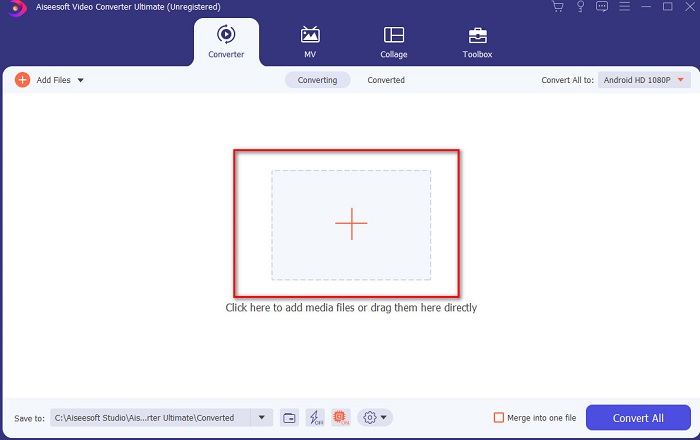
Step 2. Launch the tool, and click the plus button at the middle of the interface. Then locate the video on the folder and click Open.
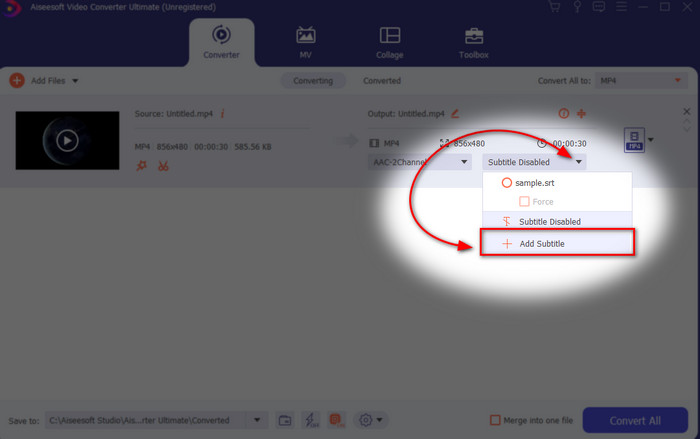
Step 3. On the interface, click the drop-down button for Subtitle and click Add Subtitle. Select the subtitle file on the file folder and click open.
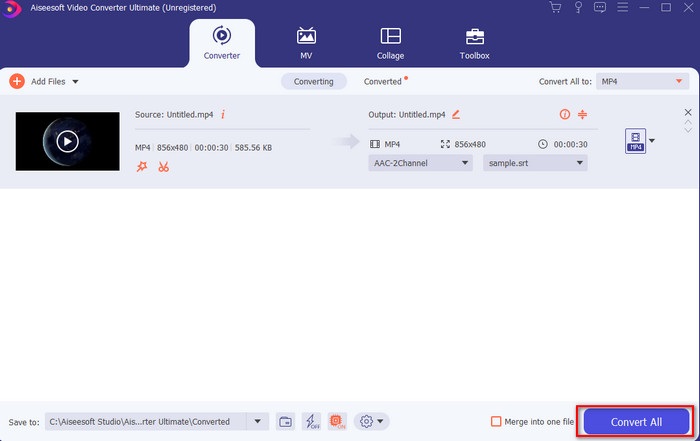
Step 4. After you add the subtitle you can now export it by clicking the Convert All.
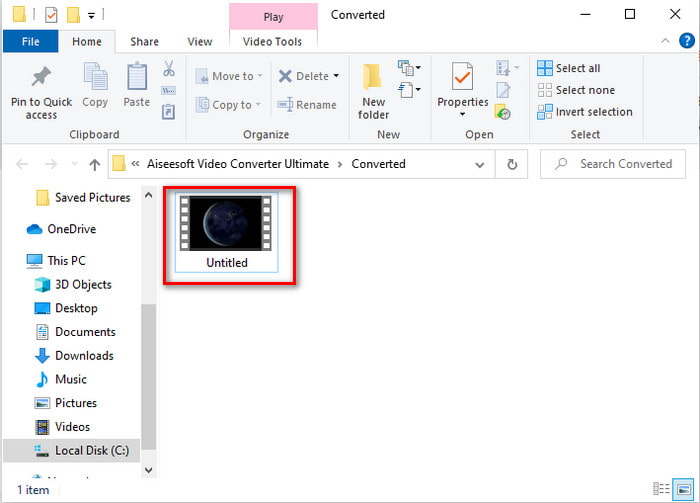
Step 5. The file explorer will pop up next to your screen with the video file that has a subtitle on it. Hit the file to watch and read the subtitle without delays.
ที่เกี่ยวข้อง:
How to Cut and Merge Songs Online
2. iMovie (Mac และ iPhone)
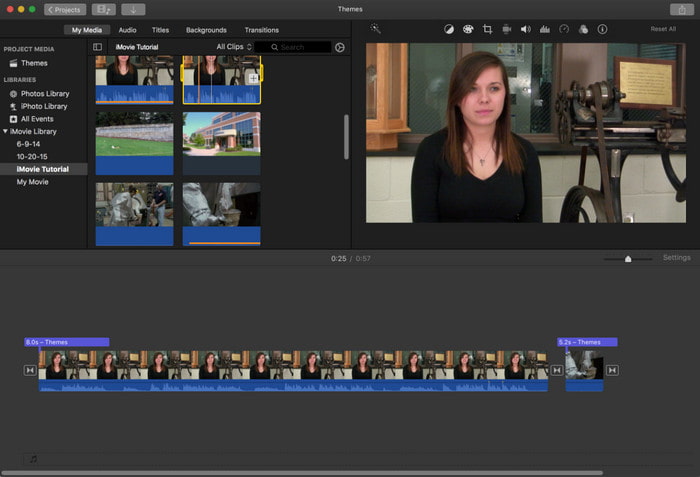
One of the best tools Apple can offer to their users, so adding subtitles to a video on iMovie is easy and free. This default tool is the best in editing and more on Mac, so adding subtitles here is easy as it is. But you can't use SRT subtitle format and add it to your video because this format is not supported by the iMovie. However, the overall performance of this Mac default editor is great to be used by anyone who is on a tight budget. Also, this tool offers a premium version that supports a lot of editing features you can use.
3. Adobe Premiere Pro (Windows และ Mac)
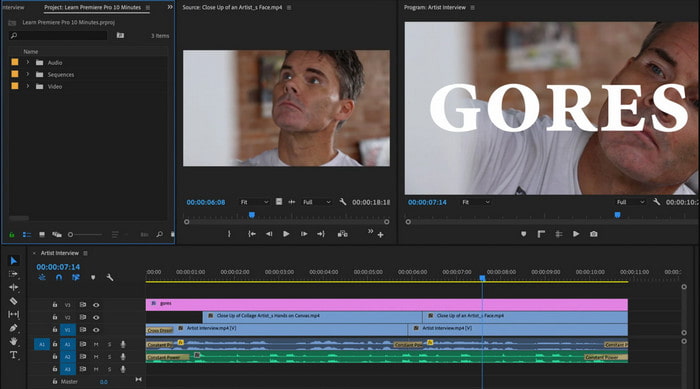
Adobe Premiere Pro offers the best editing features used by professionals in the editing industry. Also, this tool can add SRT subtitle format unlike on iMovie you can't. Moreover, this tool supports almost all of the subtitle formats you can use. Although the tool seems flawless, the price of it is enormous and if you just want to add subtitles to video on Adobe Premiere Pro this is an okay choice but not the best. Especially if you are on a tight budget and don't want to spend a lot. Also, if you are a beginner this is not the best choice because you will need a lot of time to study it first.
4. คลิดิโอ (ออนไลน์)
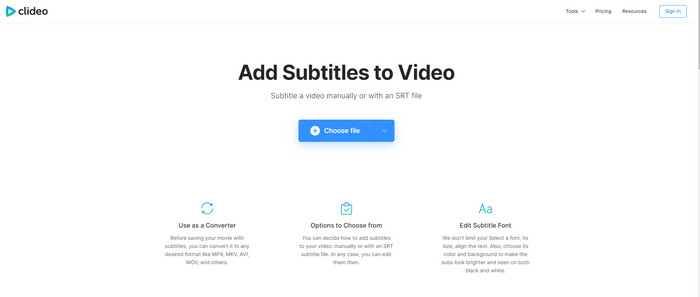
Clideo supports editing features you can use for free if you have an internet connection. This tool can be used in all devices as long as you have a browser. Although the tool is flexible the subtitle format it supports is only .srt. So, if your subtitle is not in the format of SRT then you must manually do it here which is a bit of a hassle for you. Also, the process of adding the video here will depend on your internet. With that being said, if you have a slow internet then expect a lot of time waiting than adding subtitles to video online.
ส่วนที่ 2 คำถามที่พบบ่อยเกี่ยวกับการเพิ่มคำบรรยายในวิดีโอ
รูปแบบคำบรรยายประเภทต่าง ๆ มีอะไรบ้าง
บนเว็บมีรูปแบบคำบรรยายต่างๆ มากมาย แต่รูปแบบคำบรรยายที่ใช้บ่อยที่สุดที่คุณพบคือรูปแบบคำบรรยาย SRT, WEBVTT และ SBV เนื่องจากเป็นรูปแบบที่ดีที่สุดและยืดหยุ่น คุณจึงใช้งานได้ง่าย แต่มี SSA, TTML, DFXB, TXT และอื่นๆ แม้ว่าจะใช้งานได้ดี แต่รูปแบบคำบรรยายแรกที่กล่าวถึงนั้นดีที่สุดที่คุณสามารถใช้ได้
คำบรรยายใต้ภาพและคำบรรยายต่างกันอย่างไร
แม้ว่าจะใช้รูปแบบเดียวกัน แต่ก็ยังมีความแตกต่างหลักระหว่างคำอธิบายภาพและคำบรรยาย ประการแรก คำบรรยายจะรวมอยู่ในวิดีโอเพื่อแปลภาษาพูดของนักแสดงหรือนักแสดงเป็นภาษาของผู้ชม โดยทั่วไปจะใช้สำหรับผู้ที่สามารถได้ยินเสียงแต่ไม่เข้าใจสิ่งที่พวกเขาพูด ในขณะที่คำอธิบายภาพถูกสร้างขึ้นเพื่ออธิบายสิ่งที่เกิดขึ้นและผ่านข้อความเช่นเอฟเฟกต์เสียง สิ่งเหล่านี้สร้างขึ้นสำหรับผู้ที่สามารถรับชมวิดีโอแต่ไม่ได้ยินเสียงอย่างชัดเจนหรือคนหูหนวก
พากย์ vs. ย่อย; อันไหนดีกว่า?
ผู้ดูคนอื่นบางคนชอบ Dub มากกว่า Sub ในขณะที่คนอื่นกลับตรงกันข้าม แม้ว่าจะเป็นวิธีการที่มีประสิทธิภาพในการแปลสื่อให้กับผู้ชมได้ดียิ่งขึ้น เสียงพากย์และซับมีความแตกต่างกันมาก ตัวอย่างเช่น คำบรรยายคือเวอร์ชันที่แปลของเสียงและเปลี่ยนเป็นข้อความในวิดีโอ ในขณะที่เสียงพากย์ถูกใช้โดยผู้ชมที่มีปัญหาในการอ่าน ดังนั้น แทนที่จะอ่านบริบท พวกเขาใช้เสียงพากย์เพื่อเน้นสิ่งที่พวกเขากำลังดูดีขึ้น ดังนั้นมันจึงขึ้นอยู่กับคุณว่าคุณต้องการใช้แบบใด ถ้าคุณสามารถอ่านขณะดูซับได้ดีที่สุด แต่ถ้าคุณต้องการให้เลเซอร์โฟกัสไปที่วิดีโอด้วยตัวของมันเอง ให้ใช้ dub..
สรุป
Finally, we now understand and learn how to add subtitle files to your video permanently. As we make your searching easier and present different solutions for you to use. Still, it is undeniable that the Video Converter Ultimate is the best choice on the list. Because it supports all of the subtitle formats for you to use. So, instead of a huge amount of money to the other tool that has the same function or even better than the other tool. Then why don't you acquire it first and try it for yourself? To know what we are talking about.
-
 บทช่วยสอน - 4 วิธีฟรีในการรวมวิดีโอบน iPhone เป็นวิดีโอใหม่
 อ่านและรับ 4 วิธีง่ายๆในการรวมวิดีโอบน iPhone รองรับ iPhone ทุกรุ่นและ iOS ทุกรุ่น คุณสามารถรวมวิดีโอ 2 รายการขึ้นไปบน iPhone เป็นวิดีโอใหม่ได้อย่างรวดเร็ว
-
 วิธีบีบอัดไฟล์ M4V ให้มีขนาดเล็กลง (ฟรีและออนไลน์)
 หากคุณกำลังค้นหาวิธีง่ายๆในการลดขนาดไฟล์ M4V ของคุณคุณควรเข้ามาอ่านบทความนี้ เราจะแบ่งปันวิธีที่ง่ายที่สุดในการบีบอัดไฟล์ M4V กับคุณ
-
 บีบอัด WebM - วิธีบีบอัดไฟล์ WebM ออนไลน์
 จะบีบอัดไฟล์ WebM ออนไลน์ได้อย่างไร? วิธีที่เร็วที่สุดในการบีบอัดไฟล์ขนาดใหญ่คืออะไร? โพสต์นี้บอกวิธีบีบอัด WebM ฟรี 2 วิธี
