


 Video Converter Ultimate
 บันทึกหน้าจอ
 ซ่อมวิดีโอ
แปลง MPEG เป็น AVI ด้วย 5 MPEG เป็น AVI Video Converter ที่เข้าถึงได้
MPEG เป็นหนึ่งในฟอร์แมตที่ดีที่สุดที่คุณอาจเคยพบอยู่แล้ว เพราะใช้เก็บไฟล์วิดีโอและเสียง นอกจากนี้มันไม่ใช่แค่คอนเทนเนอร์ แต่ยังใช้การบีบอัดแบบ MPEG‑1 และ MPEG‑2 อย่างไรก็ดี MPEG‑1 และ MPEG‑2 เป็นฟอร์แมตเก่าที่เคยใช้เก็บในแผ่นบลูเรย์ ดังนั้นตอนนี้เราจะอธิบายวิธีปรับปรุงด้วยการแปลงฟอร์แมตให้เป็น AVI ในรายการด้านล่าง เราจะแนะนำเครื่องมือหลายแบบที่คุณใช้เพื่อแปลง MPEG เป็น AVI ได้ พร้อมทั้งรายละเอียดเชิงลึกเกี่ยวกับ MPEG และ AVI.
ส่วนที่ 1 คำอธิบายสั้น ๆ เกี่ยวกับรูปแบบไฟล์ MPEG และ AVI
MPEG และ AVI เป็นหนึ่งในรูปแบบชั้นนำที่คุณสามารถใช้เพื่อจัดเก็บไฟล์มีเดีย แม้ว่าจะยอดเยี่ยม แต่ก็ยังมีสาเหตุบางประการที่คุณต้องใช้ตัวแปลงวิดีโอ MPEG เป็น AVI แต่สำหรับตอนนี้ เราจะอธิบายรายละเอียดมากมายเกี่ยวกับทั้งสองรูปแบบและมีแนวคิดเกี่ยวกับ MPEG และ AVI
ดังที่กล่าวไว้ก่อนหน้านี้ MPEG ไม่ได้เป็นเพียงคอนเทนเนอร์เท่านั้น แต่ยังมีคอมเพรสเซอร์ในตัวอีกด้วย โดยพื้นฐานแล้ว มันคือรูปแบบไฟล์สองวัตถุประสงค์ นอกจากนี้ รูปแบบนี้ยังเป็นรูปแบบที่ใช้กันมากที่สุดบน Blu-ray เนื่องจากคุณภาพและการบีบอัดที่มีให้ นอกจากนี้ รูปแบบ MPEG ยังแบ่งออกเป็น 6 รูปแบบ แต่เราจะพูดถึงสองรูปแบบที่ใช้กันทั่วไป นั่นคือ MPEG-1 และ MPEG-2 นอกจากนี้ MPEG-1 ยังเป็นรุ่นแรกของ MPEG รูปแบบนี้จัดเก็บความละเอียดตามมาตรฐาน แต่เมื่อเทียบกับความละเอียดของรูปแบบอื่น MPEG-1 จะน้อยกว่ามาก แม้ว่า MPEG-2 จะให้คุณภาพที่ดีกว่า MPEG-1 มาก แต่ก็ใช้งานได้ดีที่สุดกับ Blu-ray และ DVD นอกจากนี้ รูปแบบนี้มักใช้โดยสถานีโทรทัศน์ในการถ่ายโอนและเล่นวิดีโอ
แต่AVI นั้นแตกต่างจาก MPEG อย่างมากเพราะเป็นไฟล์ที่ไม่บีบอัด อีกทั้งคุณภาพของฟอร์แมตนี้ก็สูง เนื่องจากไม่ได้บีบอัดไฟล์ที่บรรจุอยู่ แม้ขนาดไฟล์จะใหญ่ แต่กลับได้รับการรองรับบนทุกแพลตฟอร์มมากกว่าไฟล์ MPEG.
ส่วนที่ 2 ตัวแปลงที่ดีที่สุด 2 ตัวที่ใช้ในการแปลงรูปแบบ MPEG เป็น AVI แบบออฟไลน์
1. FVC Video Converter Ultimate
หากคุณกำลังมองหาตัวแปลง MPEG เป็น AVI แบบสารพัดประโยชน์และใช้ดาวน์โหลดได้ด้วยแล้วล่ะก็ FVC Video Converter Ultimate ต้องเป็นเครื่องมือที่เหมาะกับคุณ เครื่องมือนี้ได้อันดับสูงในบทความเพราะฟีเจอร์และความเรียบง่ายที่มอบให้ แม้จะใช้งานง่าย แต่คุณก็สามารถได้ผลลัพธ์ที่ยอดเยี่ยมอย่างที่ต้องการ นอกจากนี้ต่างจากโปรแกรมแปลงไฟล์อื่น ๆ ซอฟต์แวร์นี้ยกระดับมาตรฐานไว้สูงมาก ดังนั้นหากคุณต้องการความสำเร็จ 100% ก่อน ระหว่าง และหลังการแปลงไฟล์ ก็จำเป็นต้องใช้เครื่องมือนี้ และตอนนี้ไปต่อกันที่คู่มือทีละขั้นตอนในการใช้ FVC Video Converter Ultimate.
ขั้นตอนที่ 1 ในการดาวน์โหลดเครื่องมือลงเดสก์ท็อปของคุณ ให้คลิกปุ่มด้านล่าง เมื่อดาวน์โหลดเสร็จให้ติดตั้ง ทำการตั้งค่าอย่างรวดเร็ว จากนั้นคลิก Start Now.
ดาวน์โหลดฟรีสำหรับ Windows 7 หรือใหม่กว่าดาวน์โหลดอย่างปลอดภัย
ดาวน์โหลดฟรีสำหรับ MacOS 10.7 หรือใหม่กว่าดาวน์โหลดอย่างปลอดภัย
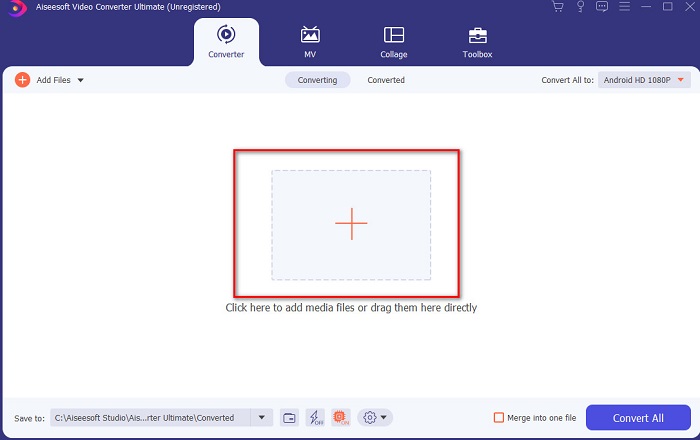
ขั้นตอนที่ 2 อินเทอร์เฟซของโปรแกรมจะมีลักษณะดังภาพ จากนั้นคลิกเครื่องหมาย + ตรงกลาง หน้าต่างโฟลเดอร์จะปรากฏขึ้นบนหน้าจอ ให้เลือกไฟล์วิดีโอ MPEG ที่ต้องการแปลง แล้วคลิก Open.
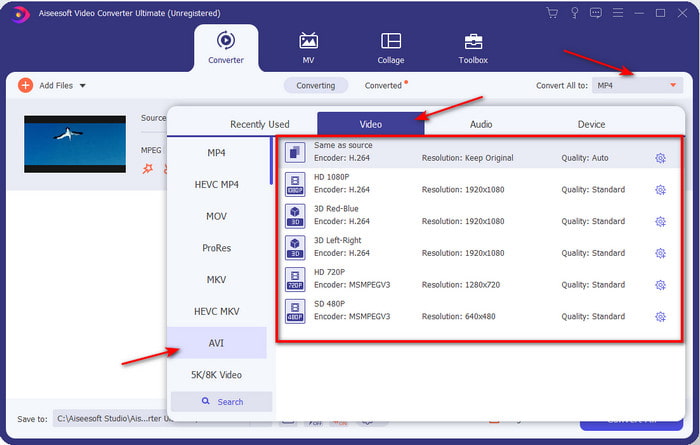
ขั้นตอนที่ 3 เมื่อไฟล์ปรากฏบนอินเทอร์เฟซแล้ว ให้คลิก Convert All to: จากนั้นหาและเลือกฟอร์แมต AVI.
ขั้นตอนที่ 4 ตอนนี้เพื่อเริ่มแปลงภาพยนตร์ MPEG‑4 เป็นฟอร์แมต AVI ให้กด Convert All.
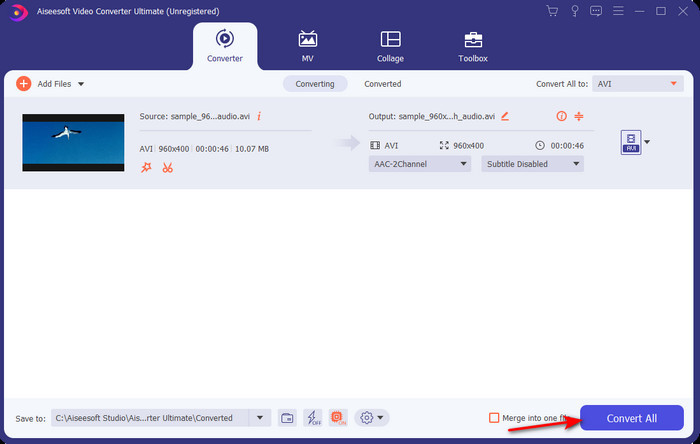
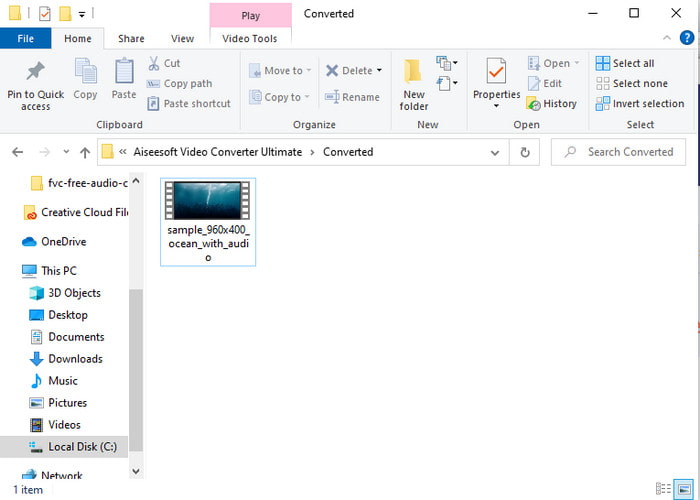
ขั้นตอนที่ 5 การดาวน์โหลดไฟล์จะใช้เวลาเพียงไม่กี่นาที เมื่อเสร็จแล้วจะมีโฟลเดอร์ที่มีไฟล์ฟอร์แมตที่แปลงแล้วแสดงขึ้นมา ตอนนี้ให้คลิกที่ไฟล์เพื่อดูไฟล์ MPEG ที่เพิ่งแปลงใหม่.
2. FFmpeg
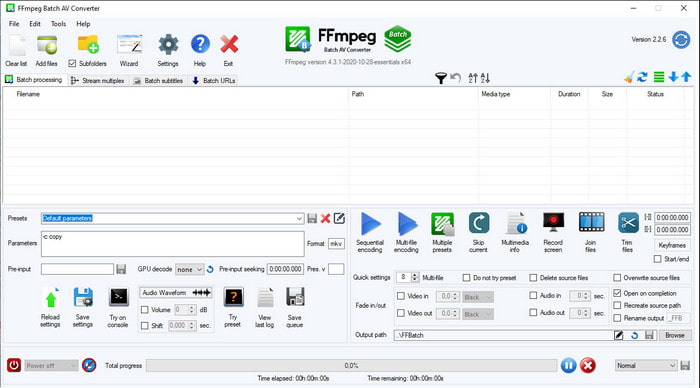
ซอฟต์แวร์อีกตัวที่อยู่ในรายการนี้คือ FFmpeg หากคุณมองหาโปรแกรมโอเพ่นซอร์ส นี่คือหนึ่งในตัวเลือกที่หาได้บนเว็บ อย่างไรก็ตาม อินเทอร์เฟซของเครื่องมือนี้ค่อนข้างเข้าใจยากทั้งสำหรับมือใหม่และมืออาชีพ กระบวนการแปลงโดยรวมทำได้ดีมากและให้ผลลัพธ์คุณภาพสูงไม่แพ้ตัวแปลงอื่น ดังนั้นหากคุณต้องการใช้ FFmpeg ในการแปลง MPEG เป็น AVI ให้ทำตามขั้นตอนเหล่านี้ เราได้เรียบเรียงให้ง่ายต่อความเข้าใจแล้ว.
ขั้นตอนที่ 1 ดาวน์โหลด FFmpeg ลงเดสก์ท็อปของคุณและสร้างโฟลเดอร์ใหม่ จากนั้นแตกไฟล์ (unzip) ลงในโฟลเดอร์นั้น.
ขั้นตอนที่ 2 ค้นหา CDM บนWindows ของคุณแล้วเปิดขึ้นมา.
ขั้นตอนที่ 3 ใช้ Command Prompt เพื่อไปยังไฟล์ จากนั้นใส่โค้ดนี้ ffmpeg -i input.mpeg -vn -ar 44100 -ac 2 -b:a 192k output.avi แล้วกด Enter บนแป้นพิมพ์เพื่อเริ่มกระบวนการ.
ส่วนที่ 3 ตัวแปลงที่ดีที่สุด 3 ตัวที่ใช้ในการแปลงรูปแบบ MPEG เป็น AVI ออนไลน์
3. โปรแกรมแปลงวิดีโอ FVC ฟรี
หากคุณมองหาตัวแปลง MPEG เป็น AVI แบบออนไลน์ที่ใช้ฟรี FVC Free Video Converter คือเว็บตัวแปลงที่น่าจะตอบโจทย์คุณ เพราะอินเทอร์เฟซของเว็บนั้นใช้งานง่าย อีกทั้งข้อดีอย่างมากของเครื่องมือออนไลน์นี้คือคุณสามารถเข้าถึงได้สะดวกผ่านเบราว์เซอร์ที่คุณชอบ นอกจากนี้การแปลงด้วยเครื่องมือนี้ไม่มีข้อจำกัด หมายความว่าคุณจะแปลงฟอร์แมตใด เมื่อไรก็ได้ อย่างไรก็ตาม คุณไม่สามารถแปลงแบบแบตช์ได้เหมือนกับใน FVC Video Converter Ultimate ตอนนี้หากคุณอยากลองใช้เครื่องมือออนไลน์นี้ ให้ทำตามขั้นตอนด้านล่าง.
ขั้นตอนที่ 1 เพื่อเข้าสู่หน้าเว็บหลักของตัวแปลง FVC คุณต้องคลิกลิงก์นี้ก่อน.
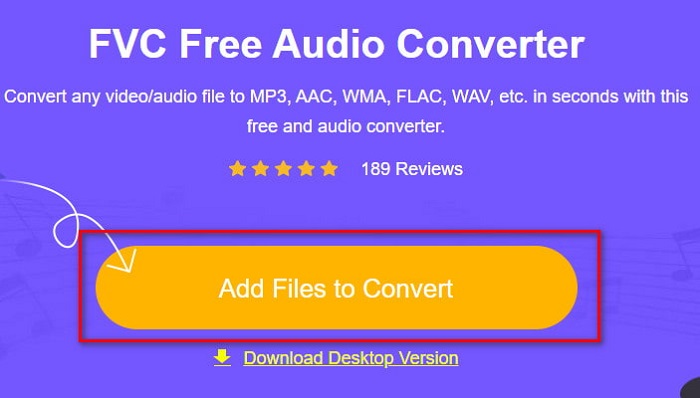
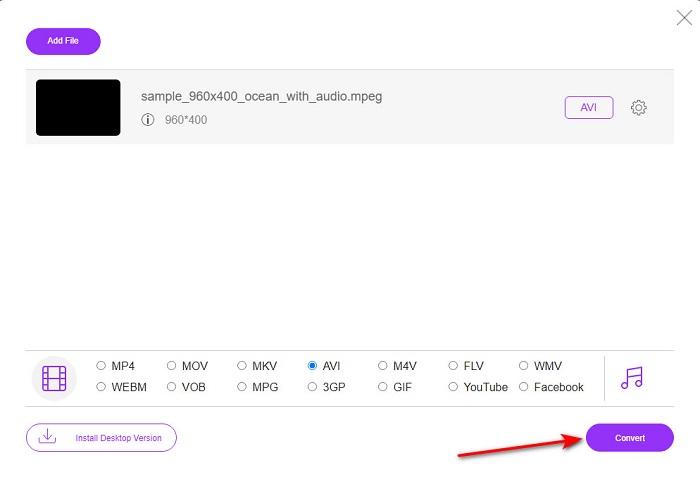
ขั้นตอนที่ 2 คลิก Add Files to Convert จากนั้นเว็บเครื่องมือจะแล็อนช์ขึ้นมาและมีหน้าต่างโฟลเดอร์ปรากฏ ให้หาไฟล์ที่ต้องการแล้วคลิก Open.
ขั้นตอนที่ 3 หลังจากเว็บเครื่องมือแล็อนช์เรียบร้อยแล้ว ให้เลือกฟอร์แมตจากตัวเลือกที่แสดงในส่วนนี้.
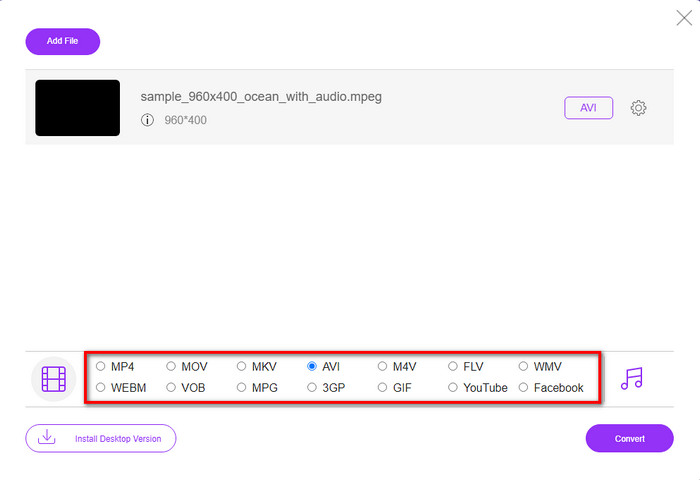
ขั้นตอนที่ 4 เมื่อคุณเลือกฟอร์แมตเรียบร้อยแล้ว ก็ถึงเวลาที่จะแปลงไฟล์ โดยการคลิกปุ่ม Convert.
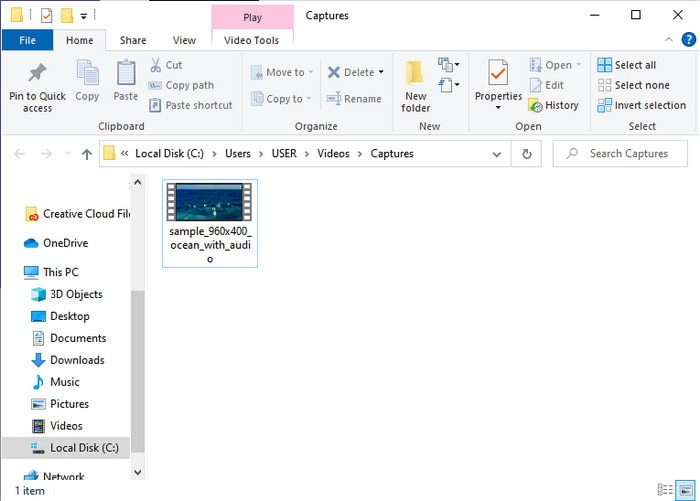
ขั้นตอนที่ 5 รอสักครู่เพื่อให้กระบวนการเริ่มต้น เมื่อเสร็จสิ้นแล้ว จะมีโฟลเดอร์แสดงขึ้นมาพร้อมไฟล์ที่คุณเพิ่งแปลง.
4. Freeconvert.com
เช่นเดียวกับเครื่องมือออนไลน์ที่กล่าวไปข้างต้น นี่คืออีกเว็บเครื่องมือออนไลน์ที่คุณใช้ได้ คือ Freeconvert.com เว็บนี้ได้รับความนิยมในหมู่ผู้ใช้อินเทอร์เน็ต มีผู้ใช้จำนวนมากชื่นชมเพราะใช้งานง่ายและมีฟังก์ชันอื่น ๆ อย่างไรก็ดี หากคุณเลือกใช้เว็บนี้ มีข้อเสียหลักคือฟอร์แมตที่รองรับมีจำกัด อีกทั้งกระบวนการแปลงไฟล์ค่อนข้างช้ากว่าที่คาดไว้ ดังนั้นหากคุณอยากรู้วิธีใช้ตัวแปลงออนไลน์ตัวนี้ ให้ทำตามขั้นตอนต่อไปนี้.
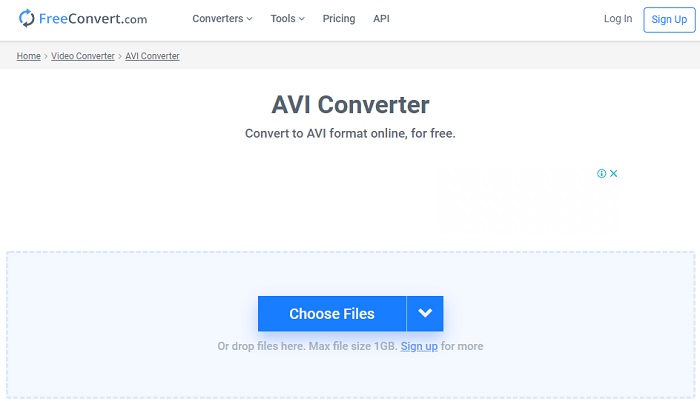
ขั้นตอนที่ 1 ค้นหาเว็บไซต์ freeconvert.com บนเบราว์เซอร์ของคุณ จากนั้นคลิก AVI ในหมวด Video Converters.
ขั้นตอนที่ 2 กด Choose File แล้วค้นหาไฟล์ MPEG ในโฟลเดอร์ที่เปิดขึ้นมา หลังจากเลือกไฟล์แล้ว ให้คลิก Convert To AVI.
ขั้นตอนที่ 3 รอให้กระบวนการอัปโหลดเสร็จ จากนั้นคลิก Download AVI เพื่อบันทึกไฟล์.
ส่วนที่ 4 คำถามที่พบบ่อยเกี่ยวกับการแปลง MPEG เป็น AVI
การแปลง MPEG สูญเสียคุณภาพหรือไม่
ขึ้นอยู่กับว่าคุณจะแปลงเป็นรูปแบบใด ดังนั้น หากคุณเปลี่ยน MPEG เป็น GIF คาดว่าจะมีการเปลี่ยนแปลงอย่างมากเพราะสนับสนุนการผสมสีน้อยกว่ารูปแบบอื่น อย่างไรก็ตาม หากคุณใช้รูปแบบอื่นที่ไม่ใช่ GIF ก็คาดว่าจะไม่มีการสูญเสีย
MPEG สูญเสียหรือสูญเสียหรือไม่?
MPEG รองรับการบีบอัดแบบ lossy ดังนั้นหากคุณใช้รูปแบบนี้ ให้คาดหวังขนาดไฟล์ที่เล็กลง แม้ว่าคุณจะมีวิดีโอและเสียงยาวก็ตาม
MPEG เป็นรูปแบบที่ดีหรือไม่?
ก่อนหน้านี้เป็นรูปแบบที่ดีที่สุดรูปแบบหนึ่งที่คุณสามารถใช้เพื่อเก็บข้อมูลบนดีวีดีของคุณได้ อย่างไรก็ตาม ในยุคนี้ MPEG ไม่ใช่ตัวเลือกที่ดีที่สุดในการจัดเก็บข้อมูล แต่ถ้าคุณต้องการเก็บไว้ในดีวีดี ซีดี หรือบลูเรย์ และถ่ายโอนข้อมูลได้เร็วกว่ามาก ตัวเลือกนี้ต้องเป็นทางเลือก
สรุป
โดยสรุปแล้ว ซอฟต์แวร์ออนไลน์และออฟไลน์ทั้งหมดที่นำเสนอในที่นี้เหมาะที่จะใช้ในการแปลงรูปแบบ อย่างไรก็ตาม มีเครื่องมือหนึ่งที่พิสูจน์ให้เห็นว่าคุณสามารถบรรลุการแปลงที่ยอดเยี่ยมได้อย่างง่ายดายด้วย FVC Video Converter Ultimate อันที่จริงเราสามารถอธิบายได้ภายใน 3 คำ ซึ่งใช้งานง่าย มีประสิทธิภาพ และปลอดภัยเช่นกัน ดังนั้น หากคุณต้องการบรรลุความยิ่งใหญ่ ให้ดาวน์โหลดเครื่องมือนี้แล้วลองใช้เลย
-
 วิธีการแปลงไฟล์ MPEG เป็น MP4 ฟรีบน Windows, Mac, Online
 อ่านและรับ 3 วิธีฟรีในการแปลงไฟล์ MPEG เป็น MP4 บนคอมพิวเตอร์ของคุณ คุณสามารถใช้ตัวแปลงวิดีโอออนไลน์และเดสก์ท็อปเพื่อเปลี่ยนรูปแบบ MPEG เป็น MP4 ได้อย่างง่ายดาย
-
 [2021] เครื่องมือที่ดีที่สุดและวิธีง่ายๆ ในการแปลง MPEG เป็น MP3
 บทความนี้กล่าวถึงวิธีการแปลงวิดีโอ MPEG ของคุณเป็น MP3 เป็นหลักโดยใช้เครื่องมือที่น่าเชื่อถือที่สุดในรายการ
-
 สอนการแปลงไฟล์ MP4 เป็น AVI ด้วยตัวแปลงวิดีโอฟรี 7 ตัว
 ต้องการรับวิธีการแปลงวิดีโอ AVI เป็น MP4 ฟรีหรือไม่ คุณไม่ควรพลาดบทความนี้ 7 วิธีในการแปลงไฟล์ AVI เป็น MP4 ฟรีบน Windows, Mac, iPhone, Android และทางออนไลน์
