


 Video Converter Ultimate
 บันทึกหน้าจอ
 ซ่อมวิดีโอ
วิธีการแปลง MTV เป็น FLV ใน 2 แนวทางที่หาที่เปรียบมิได้

ส่วนที่ 1 วิธีการแปลง MTV เป็น FLV ออฟไลน์
Video Converter Ultimate is one of the best MTV to FLV converters. You can change your video format from MTV to FLV in just a few clicks. It allows you to edit and compress MTV videos with the help of this software. This MTV-to-FLV converter is available for use on both Windows and Mac computers, and it is completely free. You can easily convert MTV files to FLV format by downloading and installing the converter app, then importing the videos you want to be converted. For a more in-depth explanation, please refer to the following guide.
Step 1: To start downloading the software, click the Free Download button below this step. After you click it, prepare to install it after a while.
ดาวน์โหลดฟรีสำหรับ Windows 7 หรือใหม่กว่าดาวน์โหลดอย่างปลอดภัย
ดาวน์โหลดฟรีสำหรับ MacOS 10.7 หรือใหม่กว่าดาวน์โหลดอย่างปลอดภัย
Step 2: After installing the software on your computer, run the software and a window will pop on your screen. The software displays the Converter interface on your screen, ready to import a file.
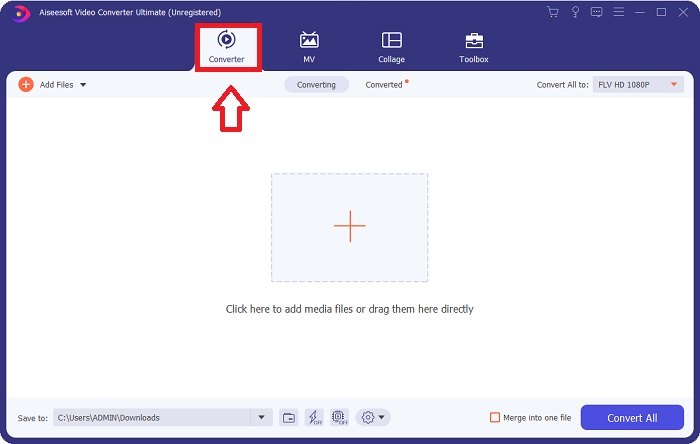
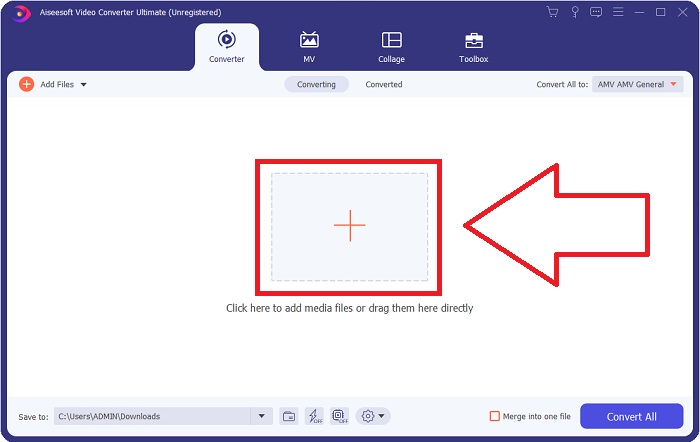
Step 3: To import a file to the software, you must click the + button in the middle of the software's window, or you can simply drag any video files.
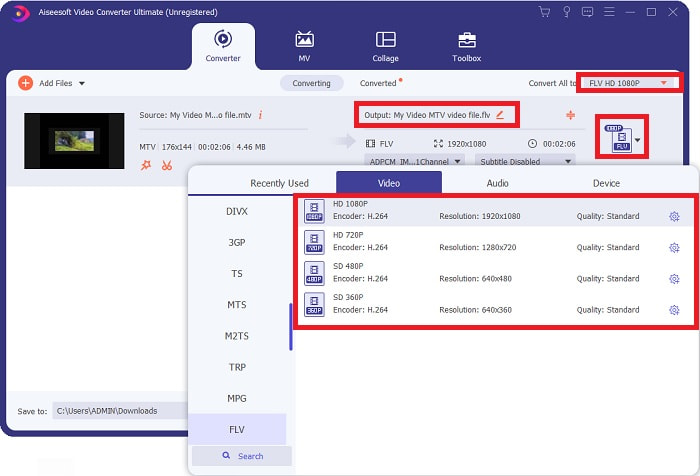
Step 4: It's time for you to choose the FLV video format, located at the right corner of the window near the video output. Click it and navigate the FLV video format and determine which quality you prefer.
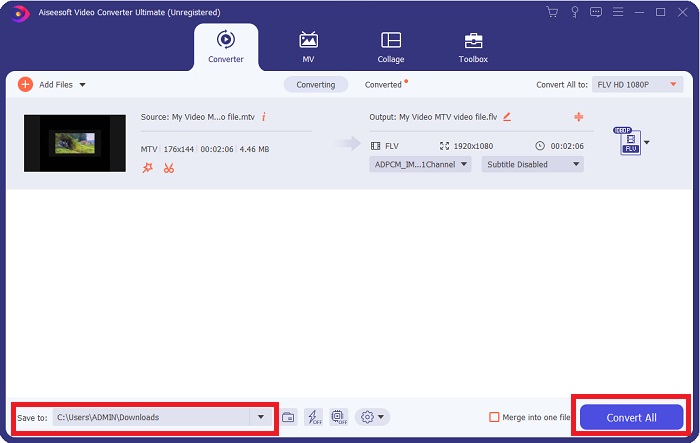
Step 5: You can now convert your file by clicking the Convert All button located at the bottom right corner of the window. And browse the location where you will transfer the converted file by clicking the drop down button near the Save to.
ส่วนที่ 2 วิธีการแปลง MTV เป็น FLV Online
Here's a free online tool for you to learn about that can convert MTV to FLV. The Free Video Converter Online can convert video and audio formats such as MP4, WMV, and ASF to various formats. You can restore your high-definition videos to popular file types in just a few clicks while maintaining their original visual quality. Converting multiple videos or audio files at once does not compromise quality. Here are the steps you need to take:
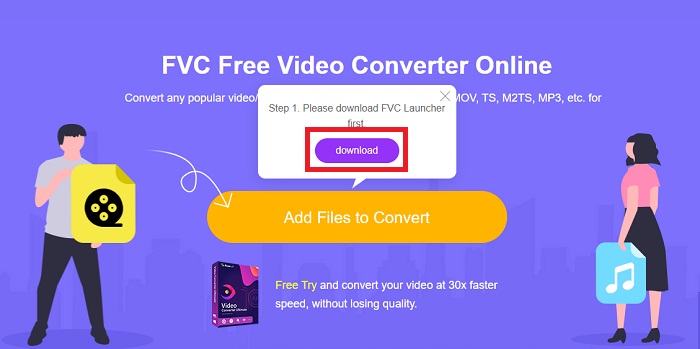
Step 1: Gain access to the main webpage of Free Video Converter Online by clicking this link. After that, you must click the Add Files to Convert button displayed on the main screen to download the launcher that will allow you to operate this online tool. After downloading, click it again to import files from your computer.
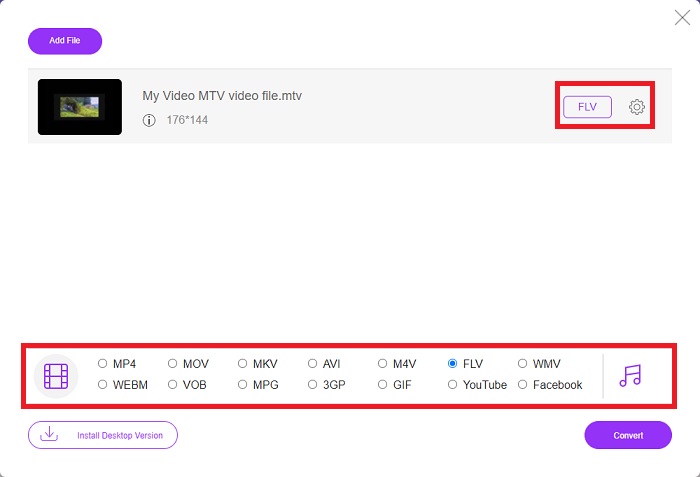
Step 2: Choose the FLV video format from the video format selection located at the bottom part of the window. If you want to know all the specifications of the output video, click the gear icon. Adjust it to your preferred settings and once you finish adjusting, click OK.
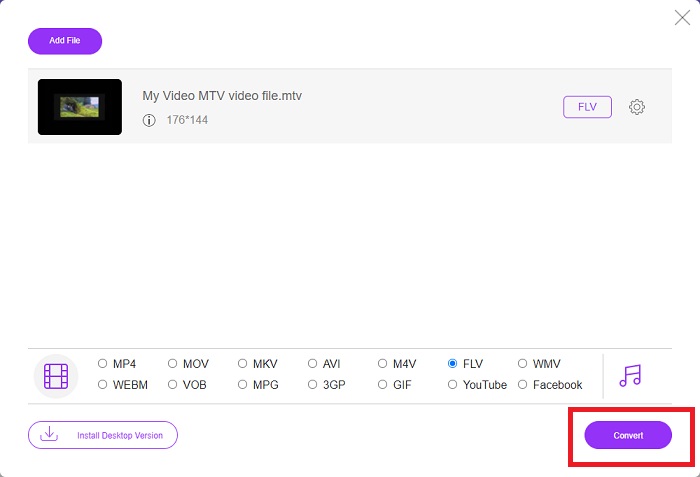
Step 3: Now that you are satisfied with all the adjustments, you can convert your MTV video format to FLV by clicking the Convert button.
ที่เกี่ยวข้อง:
ส่วนที่ 3 ขยายความรู้เกี่ยวกับ MTV และ FLV
เครื่องเล่นวิดีโอ MP4 แบบพกพาของจีนบางเครื่องใช้ความรู้มากมายเกี่ยวกับไฟล์ MTV และ FLV Video ในรูปแบบ MTV เพื่อจัดเก็บวิดีโอ ด้วยอัตรา 12 เฟรมต่อวินาที จะรวมเสียง MP3 เข้ากับภาพจำนวนหนึ่ง มีความคล้ายคลึงกันบางอย่างระหว่างไฟล์ MTV และไฟล์ AMV แต่การจัดรูปแบบแตกต่างกันเล็กน้อย เครื่องเล่น MP4 แบบพกพาราคาถูกของจีนหลายตัวไม่ได้จัดเก็บหรือเล่นวิดีโอ MP4 ในทางกลับกัน วิดีโอเอ็มทีวีจะแสดง ความละเอียดต่ำ (128x128 พิกเซล) และวิดีโอรูปแบบขนาดเล็กเป็นบรรทัดฐานของ MTV (วิดีโอหนึ่งนาทีมีข้อมูลประมาณ 24 MB) โปรแกรมเล่นสื่อไม่ต้องการพื้นที่จัดเก็บหรือพลังประมวลผลมากนัก เพื่อจัดเก็บและเล่นวิดีโอ MTV มากมาย แม้ว่ารูปแบบ MTV จะเหมือนกับรูปแบบ AMV ซึ่งเครื่องเล่นสื่อแบบพกพาของจีนก็ใช้เช่นกัน รูปแบบต่างกันมากพอที่อุปกรณ์หรือเครื่องเล่นสื่อที่รองรับ AMV ทุกเครื่องไม่สามารถเล่นไฟล์ MTV ได้
อย่างไรก็ตาม รูปแบบวิดีโอ Flash ของ Adobe Systems สามารถใช้กับวิดีโอออนไลน์บน YouTube, Hulu, Vevo และบริการสตรีมวิดีโออื่นๆ ได้มากมาย ยกเว้น iOS เกือบทุกระบบปฏิบัติการสามารถอ่านและดูไฟล์ FLV ได้โดยใช้ Adobe Flash Player (รวมถึงปลั๊กอินของเบราว์เซอร์) และซอฟต์แวร์ของบริษัทอื่น FLV สามารถเล่นบนอุปกรณ์ iPhone และ Android ผ่านซอฟต์แวร์โอเพ่นซอร์สและเบราว์เซอร์เฉพาะ Flash ยังคงสร้างปัญหาบน iOS ผู้ใช้ Jellybean เวอร์ชัน Android สามารถใช้ไฟล์ FLV ได้ เฉพาะโปรแกรมเล่น FLV เท่านั้นที่สามารถดูไฟล์ที่มีนามสกุล FLV การบันทึกหน้าจอวิดีโอ FLV สามารถทำได้โดยใช้ซอฟต์แวร์จับภาพหน้าจอและบันทึก
| นามสกุลไฟล์ | MTV | FLV |
| ประเภทไฟล์ | เครื่องเล่น MP4/MTV ภาษาจีน | ไฟล์วิดีโอแฟลช |
| พัฒนาโดย | Robert W. Pittman | Adobe Systems |
| ข้อดี | ข้อดีที่สำคัญที่สุดประการหนึ่งของรูปแบบ MTV คือความสามารถในการเล่นบนคอมพิวเตอร์ส่วนใหญ่ทั่วโลก | รูปแบบ FLV เป็นที่แพร่หลายบนอินเทอร์เน็ต เว็บไซต์หลายพันแห่งใช้งาน มันมีคุณสมบัติมากกว่านามสกุลไฟล์วิดีโออื่น ๆ อย่างมาก และสร้างไฟล์ที่เล็กกว่ารูปแบบวิดีโออื่น ๆ ส่วนใหญ่อย่างมาก วิดีโอ FLV นั้นดีสำหรับการแสดงคุณภาพที่เหมาะสมและการโหลดอย่างรวดเร็ว |
| จุดด้อย | เนื่องจากความสามารถในการปรับปรุงเสียงที่ไม่ดี จึงมีความละเอียดของภาพจำกัดและไม่สามารถแสดงวิดีโอแบบเต็มหน้าจอและแบบเต็มหน้าจอได้ | จำเป็นต้องติดตั้งปลั๊กอินแฟลชเพื่อเล่นไฟล์แฟลชแบบออนไลน์ |
| โปรแกรมที่รองรับ/เปิด | ◆ VLC Media Player ◆ เครื่องเล่นสื่อ AVS | ◆ VLC Media Player ◆ Adobe Flash Player |
ส่วนที่ 4 คำถามที่พบบ่อยเกี่ยวกับการแปลง MTV เป็น FLV
ฉันจะแปลง MTV เป็น FLV บน Mac ได้อย่างไร
คุณสามารถใช้ Video Converter Ultimate ที่กล่าวถึงข้างต้นเพื่อแปลงไฟล์ MTV ของคุณเป็น FLV ขั้นแรก คุณต้องดาวน์โหลดซอฟต์แวร์บน Mac ของคุณ แล้วเปิดใช้งานหลังจากการติดตั้ง ถัดไป เพิ่มไฟล์ของคุณลงในโปรแกรม และเลือกรูปแบบ FLV ที่คุณต้องการ ในท้ายที่สุด ให้คลิกปุ่มแปลงทั้งหมดเพื่อเริ่มการแปลงจาก MTV เป็น FLV
ฉันจะเปิดไฟล์ MTV ได้อย่างไร
ไฟล์ MTV บางไฟล์อาจไม่เล่นในเครื่องเล่นสื่อข้ามแพลตฟอร์ม VideoLAN หรือ VLC หรือเครื่องเล่นสื่อ AVS เทคโนโลยีสื่อออนไลน์สำหรับ Windows เท่านั้น ตัวอย่างเช่น ส่วนเสียงของไฟล์ MTV บางไฟล์ สามารถเล่นได้โดยใช้ VLC เท่านั้น วิดีโอ MTV สามารถแปลงเป็น AVI หรือ MP4 โดยใช้ FFmpeg, AnyMP4 Video Converter หรือ AVS Video Converter จาก Online Media Technologies แอปพลิเคชันข้ามแพลตฟอร์มทั้งหมด (Windows)
VLC สามารถแปลงวิดีโอเป็น FLV ได้หรือไม่
เล่นวิดีโอโดยใช้ VLC Media Player เลือกตัวเลือกแปลง/บันทึกจากเมนูแบบเลื่อนลงในแท็บสื่อ คุณสามารถเพิ่มไฟล์วิดีโอ .flv จากระบบได้โดยการคลิกปุ่ม 'เพิ่ม' บนหน้า Open Media
สรุป
Given all the points stated in this entire article, there are two recommended converters you should consider using, its Free Video Converter Online and the Video Converter Ultimate. As stated above, these two have shown their full potential, and it's better than another converter available online.
-
 [ออนไลน์และฟรี] 3 วิธีในการแปลง MTV เป็น AVI Hassle-Free
 คุณเคยได้ยินรูปแบบวิดีโอเช่น MTV หรือไม่? เนื่องจากคุณไม่ทราบทุกอย่างเกี่ยวกับรูปแบบนี้ และต้องการแปลงวิดีโอ MTV เป็น AVI โปรดอ่านบทความนี้อย่างละเอียดเพื่อเรียนรู้เพิ่มเติมเกี่ยวกับปัญหานี้
-
 คู่มือที่เป็นรูปธรรมเพื่อช่วยให้คุณแปลง AVI เป็น FLV ได้ฟรี
 ในการแปลง AVI เป็น FLV คุณต้องมีโปรแกรมแปลงวิดีโอที่มีประสิทธิภาพ โชคดีที่คุณสามารถเรียนรู้สองข้อและคำแนะนำทีละขั้นตอนได้จากบทความเดียวนี้
-
 2 วิธีที่ง่ายที่สุดในการแปลงไฟล์ WMV เป็น FLV บน PC/Mac
 คุณจะแปลง WMV เป็น FLV ได้อย่างไร ประการแรก คุณต้องอ่านคำแนะนำของเราและค้นหาวิธีการที่คุณชอบ จากนั้นทำตามคำแนะนำของเราเพื่อทำงานอย่างรวดเร็ว
