


 Video Converter Ultimate
 บันทึกหน้าจอ
 ซ่อมวิดีโอ


2 วิธีง่ายๆ ในการแปลง M4V เป็น WMV ได้อย่างง่ายดายและไม่สูญเสียข้อมูล
บางบริษัทมีรูปแบบการบีบอัดวิดีโอ Apple และ Microsoft ได้พัฒนาไฟล์วิดีโอสำหรับเครื่องเล่นสื่อของพวกเขาโดยเฉพาะ ดังนั้น เมื่อมีคนดาวน์โหลดหรือซื้อไฟล์ M4V จาก Apple iTunes Store และต้องการแชร์ไฟล์เหล่านี้กับเพื่อนหรือครอบครัวด้วยพีซี การแปลง M4V เป็น WMV อาจเป็นวิธีที่ดีที่สุดก่อนที่จะทำเช่นนั้น ดังนั้นเราจึงจัดเตรียมตัวแปลงที่ไม่เหมือนใครซึ่งช่วยให้งานนี้เสร็จสิ้นอย่างรวดเร็ว มีประสิทธิภาพ และไม่ยุ่งยากเป็นพิเศษ

ส่วนที่ 1 วิธีการแปลง M4V เป็น WMV อย่างง่ายดายบน Mac และ Window
Free Video Converter Ultimate เป็นโปรแกรมแปลงวิดีโอที่เรียบง่ายแต่มีประสิทธิภาพจาก FVC Studio คอมพิวเตอร์ Windows หรือ Mac ของคุณช่วยให้คุณแปลงไฟล์วิดีโอและเสียงได้ นอกจากนี้รูปแบบวิดีโอที่รองรับโดยโปรแกรมแปลงวิดีโอนี้มีความหลากหลายและครอบคลุมรูปแบบที่ใช้กันอย่างแพร่หลายที่สุด – รองรับไฟล์ยอดนิยมอย่าง MP4, FLV, M4V, WMV, TS, M2TS, ไฟล์ iPhone/Android ซอฟต์แวร์นี้ใช้เทคโนโลยี HEVC ดังนั้นคุณไม่ต้องกังวลเกี่ยวกับคุณภาพในการแปลงแบบคุณภาพสูง ในส่วนของคุณภาพ โปรแกรมนี้ยังรองรับระดับ 4K UHD อีกด้วย การใช้งานมีขั้นตอนง่าย ๆ ดังนี้:
ขั้นตอนที่ 1: ดาวน์โหลดไฟล์ .exe โดยคลิกปุ่ม ดาวน์โหลดฟรี ด้านล่างให้ตรงกับระบบปฏิบัติการของคุณ ไม่ว่าจะเป็น Windows หรือ Mac เมื่อดาวน์โหลดเสร็จแล้ว ให้เปิดไฟล์และเริ่มติดตั้งซอฟต์แวร์ จากนั้นเปิดโปรแกรมเพื่อเริ่มใช้งาน.
ดาวน์โหลดฟรีสำหรับ Windows 7 หรือใหม่กว่าดาวน์โหลดอย่างปลอดภัย
ดาวน์โหลดฟรีสำหรับ MacOS 10.7 หรือใหม่กว่าดาวน์โหลดอย่างปลอดภัย
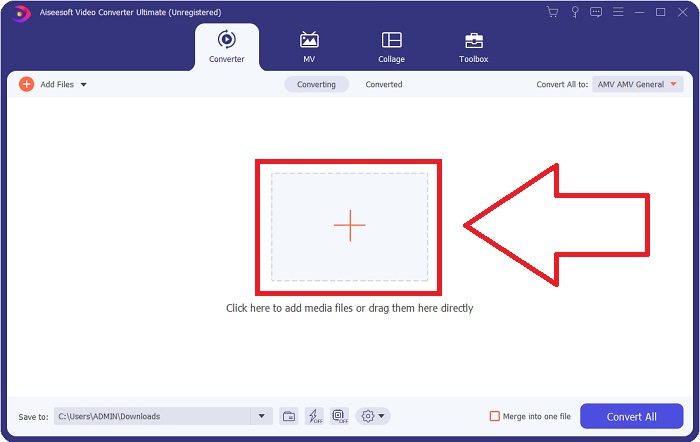
ขั้นตอนที่ 2: หน้าต่างโปรแกรมจะเปิดขึ้น และจะมีส่วนติดต่อที่มีปุ่ม + อยู่ตรงกลาง คุณต้องคลิกที่ปุ่มนี้เพื่อนำเข้าไฟล์วิดีโอที่ต้องการแปลง หรือคุณสามารถลากและวางไฟล์ได้อย่างสะดวก.
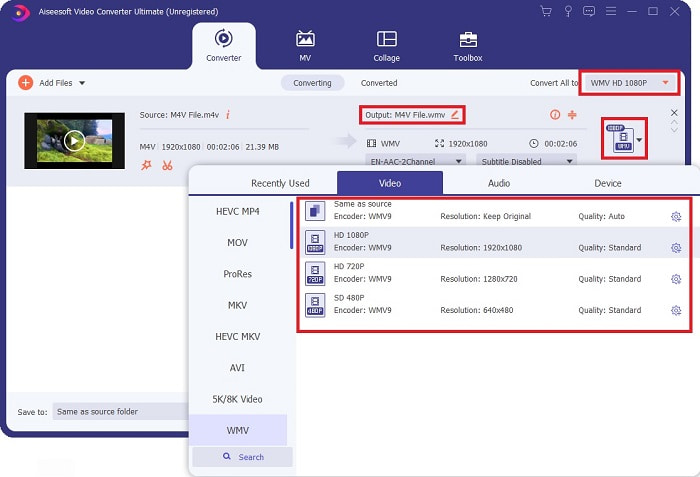
ขั้นตอนที่ 3: คุณจะเห็นไฟล์ที่นำเข้าแสดงบนหน้าอินเทอร์เฟซ ด้านขวาจะแสดงรูปแบบไฟล์วิดีโอปัจจุบัน คลิกที่ส่วนนี้ แล้วระบบจะแสดงทุกรูปแบบไฟล์ที่มีให้เลือก ในที่นี้ให้เลื่อนลงไปหา WMV หรือพิมพ์ชื่อในช่องค้นหาเพื่อให้ค้นหาได้เร็วขึ้น นอกจากนี้ยังมีตัวเลือกความละเอียดวิดีโอทั้งหมดให้เลือกทางด้านขวาของแท็บ คุณสามารถเลือกแบบที่ต้องการได้.
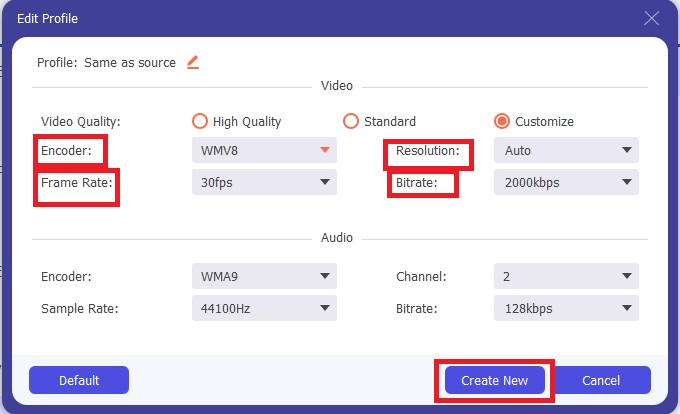
ขั้นตอนที่ 4: นอกเหนือจากการเลือกระดับคุณภาพแล้ว คุณยังสามารถแก้ไขผลลัพธ์ของวิดีโอเพิ่มเติมได้โดยคลิกที่ไอคอนรูปเฟืองทางด้านขวาของตัวเลือกคุณภาพวิดีโอที่คุณเลือก จะมีตัวเลือกการปรับแต่งต่าง ๆ เช่น อัตราเฟรม ความละเอียด บิตเรต อัตราสุ่มตัวอย่าง (sample rate) ตัวเข้ารหัส (encoder) และอื่น ๆ อีกมากมาย จากนั้นคลิกปุ่ม Create New เพื่อบันทึกการเปลี่ยนแปลง.
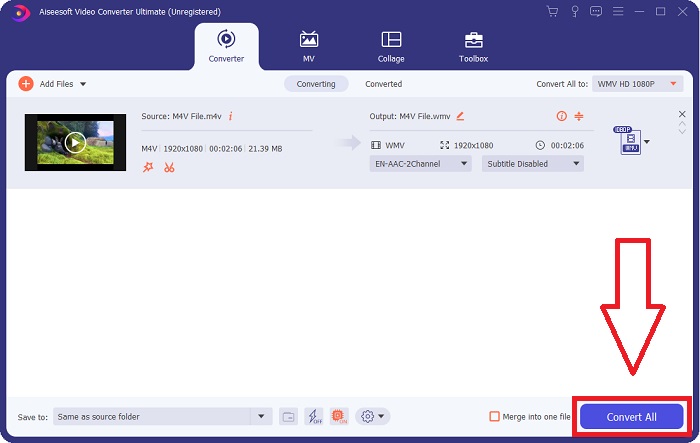
ขั้นตอนที่ 5: เพื่อสิ้นสุดกระบวนการแปลงไฟล์ ให้คลิกปุ่ม Convert All ที่มุมล่างขวาของแท็บ รอจนกว่าจะเสร็จสิ้น แล้วคุณจะได้ไฟล์ที่แปลงเรียบร้อยแล้ว.
ส่วนที่ 2 วิธีการแปลง M4V เป็น WMV โดยใช้เบรกมือ
Handbrake เป็นโปรแกรมแปลงไฟล์ยอดนิยมที่ทำงานบนแพลตฟอร์ม Windows, Mac และ Linux ผู้ใช้สามารถอัปโหลดวิดีโอในรูปแบบใดก็ได้จากแหล่ง DVD และ Blu-ray ไปยังทรานส์โค้ดเดอร์โอเพนซอร์ซนี้เพื่อแปลงเป็น WMV ขั้นตอนการแปลงนั้นรวดเร็วและง่ายดายด้วยอินเทอร์เฟซที่ใช้งานง่าย ทำตามคำแนะนำง่ายๆ เหล่านี้เพื่อแปลง M4V เป็น WMV โดยใช้เบรกมือ
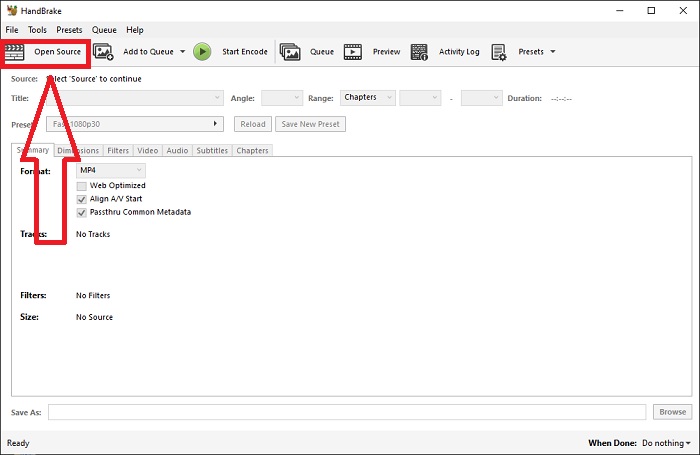
ขั้นตอนที่ 1: เปิดใช้งานโปรแกรม Handbrake บนคอมพิวเตอร์ของคุณ คลิกปุ่ม Open Source บนหน้าจอหลักเพื่อเรียกดูและเพิ่มไฟล์ WMV ที่แปลงแล้ว คุณยังสามารถลากและวางวิดีโอลงในอินเทอร์เฟซได้โดยตรง.
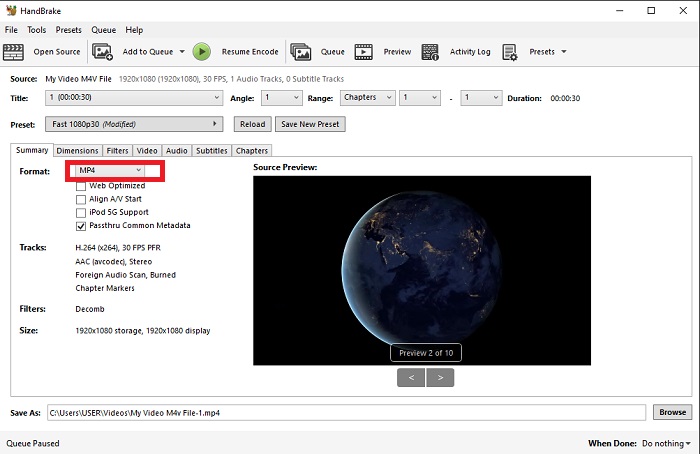
ขั้นตอนที่ 2: ไฟล์ที่เพิ่มใหม่จะแสดงในส่วน Source จากนั้นเลือก WMV เป็นรูปแบบเอาต์พุตที่ต้องการจากเมนูดรอปดาวน์ Format บนแท็บ Summary หากจำเป็นคุณสามารถปรับแต่งฟิลเตอร์ ตัวแปลงวิดีโอ (video codec) และคุณสมบัติไฟล์อื่น ๆ ได้.
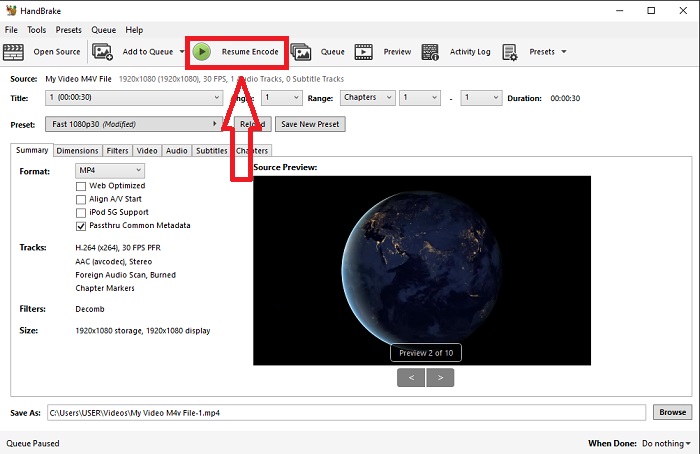
ขั้นตอนที่ 3: เลือกชื่อไฟล์เอาต์พุตและตำแหน่งจัดเก็บบนพีซีของคุณในส่วน Destination สุดท้ายคลิกปุ่ม Start Encode เพื่อแปลงไฟล์ M4V เป็น WMV.
ส่วนที่ 3 เครื่องมืออื่นที่เป็นประโยชน์ในการแปลง M4V เป็น WMV Online
ในฐานะที่เป็นเครื่องมือทางอินเทอร์เน็ตฟรี FVC Free Video Converter นั้นมีประโยชน์ MP4, MOV, MKV, AVI, M4V, FLV, WMV, WEBM, VOB, MPG, 3GP, GIF และวิดีโอที่ได้รับการอนุมัติจาก YouTube และ Facebook เป็นประเภทหนึ่งที่รองรับ นอกจากนี้ โปรแกรมแปลงวิดีโอออนไลน์ฟรีนี้ยังสามารถแปลงไฟล์เสียง ช่วยให้คุณแปลงวิดีโอหรือเพลงเป็น MP3, AAC, AC3, WMA, WAF, FLAC และรูปแบบอื่นๆ FVC Free Video Converter ยังอนุญาตให้คุณระบุไฟล์ก่อนที่จะเริ่มแปลง คุณสามารถเปลี่ยนความละเอียดของวิดีโอ อัตราเฟรม และบิตเรตของวิดีโอ ตลอดจนช่องเสียง อัตราตัวอย่าง และบิตเรตของวิดีโอ
ขั้นตอนที่ 1: คลิกที่ลิงก์นี้เพื่อไปยังเครื่องมือออนไลน์ อันดับแรกคุณต้องดาวน์โหลดตัวเรียกใช้งาน (launcher) อย่างรวดเร็ว ทำได้โดยคลิกปุ่ม Add Files to Convert ที่อยู่ตรงกลางหน้า ขั้นตอนนี้จะทำให้คุณสามารถนำเข้าไฟล์ได้.
ขั้นตอนที่ 2: คลิกปุ่มดังกล่าวอีกครั้งเพื่ออัปโหลดวิดีโอ เมื่ออัปโหลดสำเร็จ คุณจะเห็นว่ารูปแบบไฟล์ทั้งหมดถูกแสดงบนหน้าอินเทอร์เฟซ จากนั้นเลือก WMV จากรูปแบบอื่น ๆ.
ขั้นตอนที่ 3: คุณจะพบไอคอนรูปเฟืองทางด้านขวาซึ่งเป็นตัวเลือกเพิ่มเติมของซอฟต์แวร์ คลิกที่ไอคอนนี้เพื่อปรับการตั้งค่าวิดีโอและเสียง เช่น ความละเอียด อัตราเฟรม และอื่น ๆ เมื่อเสร็จแล้ว ให้คลิก OK แล้วจึงคลิกปุ่ม Convert เพื่อจบกระบวนการแปลงไฟล์.
ที่เกี่ยวข้อง:
ส่วนที่ 4 ความรู้เพิ่มเติมเกี่ยวกับ M4V และ WMV
สำหรับข้อมูลเพิ่มเติมที่คุณอาจต้องการเกี่ยวกับทั้งสองรูปแบบ คุณสามารถอ่านสิ่งที่เราให้ไว้ด้านล่าง:
M4V เป็นรูปแบบไฟล์ที่สร้างโดย Apple คล้ายกับรูปแบบไฟล์ MP4 อย่างมาก ยกเว้นว่าไฟล์ M4V อาจมีการป้องกัน Fairplay DRM ของ Apple รูปแบบ M4V สามารถพบได้ในสื่อวิดีโอที่ได้มาจากร้าน iTunes หากไฟล์ M4V มีการเปิดใช้งาน DRM บัญชี iTunes ที่ใช้ในการซื้อไฟล์จะต้องได้รับอนุญาตจากเครื่องที่เล่น
ในทางกลับกัน ไฟล์ WMV เป็นไฟล์วิดีโอที่สร้างโดย Microsoft ซึ่งโดยทั่วไปจะมีเสียง ทั้งบนแพลตฟอร์ม Mac และ PC ผู้ใช้อาจเล่นไฟล์เหล่านี้ด้วยเครื่องเล่นวิดีโอหลายตัว การป้องกันการจัดการสิทธิ์ดิจิทัล (DRM) อาจรวมอยู่ในไฟล์ WMV บางไฟล์ เพื่อป้องกันไม่ให้ผู้ใช้ทำสำเนาไฟล์ที่ซื้อจากผู้ค้าปลีกออนไลน์อย่างผิดกฎหมาย
| M4V | WMV | |
| นามสกุลไฟล์ | .m4v | .wmv |
| นักพัฒนา | บริษัท แอปเปิ้ล. | Microsoft |
| โปรแกรมสนับสนุน | ◆เครื่องเล่นสื่อคลาสสิก ◆ VLC Media Player ◆ KMPlayer ◆ผู้เล่นซูม | ◆ VLC Media Player ◆ MPlayer ◆เครื่องเล่นสื่อคลาสสิก ◆ Windows Media Player |
ส่วนที่ 5. คำถามที่พบบ่อยเกี่ยวกับการแปลง M4V และ WMV
M4V มีคุณภาพมากกว่า MP4 หรือไม่?
ตอนนี้เราทราบแล้วว่าไม่มีความแตกต่างพื้นฐานระหว่าง MP4 และ M4V หลังจากทำการเปรียบเทียบ M4V MP4 แบบเคียงข้างกัน หลังจากลบการป้องกัน DRM ออกจากไฟล์วิดีโอ M4V แล้ว ไฟล์วิดีโอ MP4 และ M4V จะเหมือนกันทุกประการ
Handbrake ลบ DRM หรือไม่
เป็นห้องสมุดสำหรับการดูดีวีดีที่เข้ารหัสด้วย Content Scramble System (CSS) ซึ่งเป็นวิธีการที่ใช้กันอย่างแพร่หลายโดยซอฟต์แวร์เครื่องเล่นฟรีเพื่อถอดรหัสดิสก์ที่ได้รับการป้องกัน มันเข้ากันได้กับ Windows, macOS, Linux และระบบปฏิบัติการต่างๆ HandBrake สามารถลบ DRM ออกจากดีวีดีและริปได้อย่างมีประสิทธิภาพ
WMV มีประโยชน์อย่างไร?
Microsoft ได้สร้างรูปแบบวิดีโอ WMV ที่ใช้กันอย่างแพร่หลายในเครื่องเล่นสื่อ Windows ไฟล์ WMV มีขนาดเล็กกว่าและบีบอัดมากกว่าไฟล์ MP4 ด้วยเหตุนี้จึงเป็นที่นิยมสำหรับการสตรีมวิดีโอทางอินเทอร์เน็ต
สรุป
มีหลายวิธีที่จะปฏิเสธไม่ได้ในการแปลง M4V เป็น WMV แต่มีเพียงไม่กี่วิธีเท่านั้นที่สามารถทำได้ในขณะที่ทำการปรับเปลี่ยนข้อกำหนดบางประการเพิ่มเติม นั่นคือเหตุผลที่เราแนะนำ Video Converter Ultimate เนื่องจากจะอยู่เคียงข้างคุณทุกเมื่อที่คุณต้องการตัวแปลง หากเวลาไม่อนุญาตให้ติดตั้งซอฟต์แวร์ คู่สัญญาออนไลน์จะพร้อมใช้งานเสมอ ช่วยเราช่วยคุณมอบประสบการณ์การตัดต่อวิดีโอที่ดีที่สุดโดยใช้ FVC Video Converter Ultimate
-
 ฟรี | 3 วิธีที่ดีที่สุดในการแปลง MP4 เป็น WMV โดยไม่สูญเสียคุณภาพ
 โพสต์นี้แชร์วิธีการแปลงวิดีโอ MP4 เป็นรูปแบบ WMV บน Mac หรือ Windows นอกจากนี้เรายังมีตัวเลือกมากมายให้คุณรวมทั้งซอฟต์แวร์เดสก์ท็อปและตัวแปลงออนไลน์บนเว็บ พร้อมที่จะรู้จักเครื่องมือแปลง MP4 เป็น WMV ที่ดีที่สุดแล้วหรือยัง?
-
 3 วิธียอดนิยมในการแปลง FLV เป็น WMV บน Windows และ Mac
 กำลังมองหาวิธีที่ดีที่สุดในการแปลง FLV เป็น WMV โดยไม่สูญเสียคุณภาพบนพีซีหรือ Mac ใช่ไหม คุณโชคดีเพราะที่นี่เราแบ่งปันสามวิธีในการทำงานอย่างง่าย
-
 คำแนะนำง่ายๆ เกี่ยวกับวิธีการเปลี่ยน GIF ของคุณเป็น WMV บน Windows/Mac
 คุณต้องการทราบวิธีการแปลงรูปแบบ GIF เป็น WMV หรือไม่? จากนั้นทำตามบทความนี้เนื่องจากจะแสดงโซลูชันต่างๆ ที่คุณสามารถเลือกได้

