


 Video Converter Ultimate
 บันทึกหน้าจอ
 ซ่อมวิดีโอ
การตรวจสอบอย่างละเอียดสำหรับซอฟต์แวร์บันทึกเสียงเพื่อบันทึกเสียงอย่างมีประสิทธิภาพ
ไม่ว่าคุณจะเป็นผู้เชี่ยวชาญหรือมือสมัครเล่น คุณจำเป็นต้องมีซอฟต์แวร์บันทึกเสียงเพื่อจัดการและขัดเกลาไฟล์เสียงให้เหมาะกับการใช้งานเฉพาะทาง นอกจากนี้ การเลือกโปรแกรมบันทึกเสียงที่เหมาะสมบนอุปกรณ์ของคุณก็เป็นเรื่องท้าทาย เพราะมีตัวเลือกมากมายในท้องตลาด แทนที่จะต้องลองโปรแกรมบันทึกเสียงหลายตัวเอง เราได้คัดเลือกโปรแกรมบันทึกเสียง 4 ตัวที่เหมาะกับความต้องการของคุณมาให้ เพื่อหลีกเลี่ยงการดาวน์โหลดหรือเข้าถึงซอฟต์แวร์ที่เป็นอันตราย รายการโปรแกรมบันทึกเสียงด้านล่างนี้ผ่านการคัดกรองอย่างละเอียดเพื่อมอบเฉพาะตัวที่ดีที่สุดให้คุณ ไม่ใช่โปรแกรมที่ประสิทธิภาพย่ำแย่.

ส่วนที่ 1 4 ซอฟต์แวร์บันทึกเสียงที่ดีที่สุดบน Windows & macOS
1. เครื่องบันทึกหน้าจอ FVC
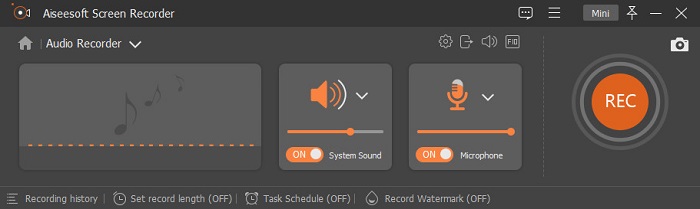
คุณจำเป็นต้องบันทึกเสียงจากคอมพิวเตอร์แต่ไม่รู้จะใช้โปรแกรมอะไรใช่ไหม หากเป็นเช่นนั้น เราขอนำเสนอโปรแกรมบันทึกเสียงที่ดีที่สุดและได้รับเลือกใช้มากที่สุดในตลาดอย่าง FVC Screen Recorder โปรแกรมนี้มีส่วนติดต่อผู้ใช้ที่ยอดเยี่ยม ช่วยให้ผู้ใช้ใช้งานซอฟต์แวร์ได้โดยไม่ต้องทำอะไรที่ซับซ้อน นอกจากนี้ ผู้ใช้มักมีปัญหาเรื่องเสียงรบกวนเบื้องหลัง ดังนั้นด้วยฟังก์ชันตัดเสียงรบกวนแบบใหม่ที่เพิ่มเข้ามา คุณจึงสามารถบันทึกเสียงได้โดยไม่ถูกรบกวนจากเสียงพื้นหลังเล็ก ๆ น้อย ๆ ยิ่งไปกว่านั้น โปรแกรมยังมีฟีเจอร์หลากหลายที่ช่วยให้คุณบันทึกเสียงได้อย่างมีประสิทธิภาพ อยากรู้หรือไม่ว่ามีอะไรบ้าง ถ้าอย่างนั้นมาดูฟีเจอร์หลักของ FVC Screen Recorder ไปพร้อมกัน.

บันทึกหน้าจอ
4,988,518+ ดาวน์โหลด- บันทึกเสียงด้วยคุณภาพเสียงที่สูงมาก
- บันทึกเสียง 24/7 ตราบใดที่คุณมีที่เก็บข้อมูลเพียงพอในไดรฟ์คอมพิวเตอร์ของคุณ..
- คุณสามารถบันทึกเสียงระบบด้วยไมโครโฟนได้พร้อมกัน
- การเพิ่มประสิทธิภาพไมโครโฟนพร้อมใช้งานเพื่อประสบการณ์การบันทึกเสียงของคุณที่ดียิ่งขึ้น
- คุณสามารถตรวจสอบเสียงของไมโครโฟนได้หากต้องการ
ดาวน์โหลดฟรีสำหรับ Windows 7 ขึ้นไปดาวน์โหลดอย่างปลอดภัย
ดาวน์โหลดฟรีสำหรับ MacOS 10.7 ขึ้นไปดาวน์โหลดอย่างปลอดภัย
ข้อดี
- โปรแกรมช่วยให้ผู้ใช้ได้สัมผัสกับความตื่นเต้นสูงในการบันทึกเสียงบน Mac หรือ Windows
- ฟีเจอร์การแก้ไขพื้นฐานพร้อมใช้งาน เช่น การตัดหรือตัดแต่งเสียง
- มีประวัติการบันทึกในตัวเพื่อค้นหาเสียงที่บันทึกไว้ได้อย่างง่ายดาย
จุดด้อย
- ไม่รองรับการเพิ่มเอฟเฟกต์เสียงขณะบันทึก
- ซื้อก่อนใช้.
2. ความกล้า
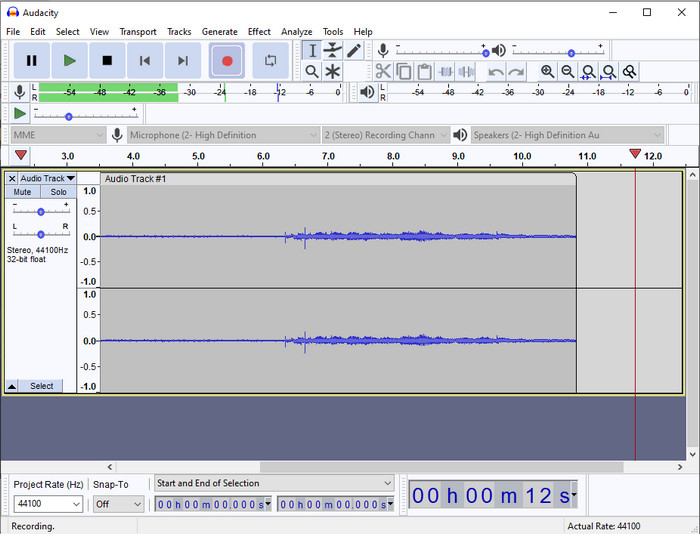
หากคุณต้องการเครื่องมือระดับมืออาชีพในการจัดการงานบันทึกเสียง Audacity คือผู้ช่วยที่เหมาะสม โปรแกรมบันทึกเสียงระดับโปรแกรมนี้ได้ช่วยเหลือพอดแคสเตอร์นับล้านคนในเส้นทางการบันทึกเสียงของพวกเขา หากคุณต้องการโปรแกรมบันทึกเสียงขั้นสูงแบบฟรี ๆ ตัวนี้เป็นหนึ่งในตัวเลือกนั้น แม้จะมีความสามารถระดับมืออาชีพในการบันทึกเสียง แต่ก็ยังใช้งานยากและต้องใช้เวลาในการทำความคุ้นเคย เนื่องจากส่วนติดต่อผู้ใช้ (GUI) ที่ไม่ค่อยดีนัก ถึงแม้จะรองรับงานบันทึกแบบมืออาชีพ แต่บางฟีเจอร์ยังต้องการการอัปเกรด เช่น ระบบตัดเสียงรบกวน อย่างไรก็ตาม Audacity ก็ยังสามารถบันทึกเสียงจากคอมพิวเตอร์ได้อย่างมืออาชีพ ซึ่งไม่ใช่โปรแกรมทุกตัวที่จะทำได้.
ข้อดี
- ดาวน์โหลดฟรีบนแพลตฟอร์มเดสก์ท็อปทั้งหมด
- มันมีคุณสมบัติการแก้ไขโดยผู้เชี่ยวชาญสำหรับมืออาชีพ
- มีคุณสมบัติขั้นสูงบางอย่างที่คุณจะต้องสร้างพอดคาสต์
จุดด้อย
- GUI ของซอฟต์แวร์ล้าสมัย
- การอัปเกรดต้องใช้คุณลักษณะบางอย่าง
- ไม่ใช่ตัวเลือกที่ดีที่สุดสำหรับมือสมัครเล่นและผู้ที่ไม่ทราบวิธีการบันทึก
3. ผู้เล่น QuickTime
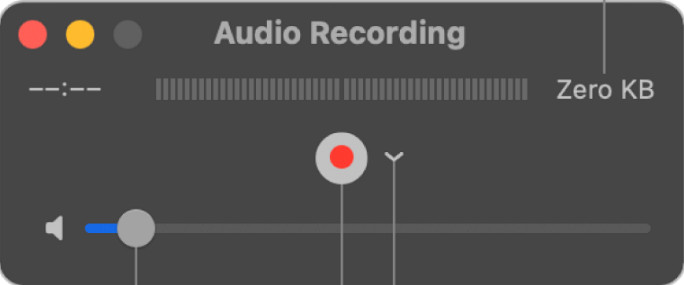
QuickTime Player ยังสามารถใช้เป็นโปรแกรมบันทึกเสียงบน Mac ได้หากคุณต้องการ แม้ว่าโปรแกรมเล่นนี้จะไม่เหมาะและไม่ค่อยมีประสิทธิภาพด้านการบันทึกเสียงนัก คุณอาจพบอาการดีเลย์และคุณภาพเสียงที่ลดลง อย่างไรก็ดี หากคุณต้องการบันทึกเสียงอย่างรวดเร็วบน Mac นี่ก็เป็นตัวเลือกหนึ่ง เพราะไม่ต้องดาวน์โหลดเพิ่มและปลอดภัยต่อการใช้งานอย่างแน่นอน แต่ถ้าคุณเป็นมืออาชีพที่กำลังมองหาโปรแกรมบันทึกเสียงที่ดีที่สุด นี่ไม่ใช่เครื่องมือที่เหมาะสำหรับคุณ.
ข้อดี
- มีอยู่แล้วใน macOS ทุกเครื่อง
- ฟรี ปลอดภัย และใช้งานง่าย
จุดด้อย
- ไม่ได้ผลเท่ากับเครื่องบันทึกเสียงอื่นๆ ในรายการนี้
- คุณภาพเอาต์พุตสุดท้ายของเสียงต่ำ
- ไม่ใช่ตัวเลือกที่ดีที่สุดสำหรับการบันทึกและแก้ไขอย่างมืออาชีพ
ที่เกี่ยวข้อง:
วิธีอัดหน้าจอพร้อมเสียงบน Mac ด้วย QuickTime
วิธีแปลงไฟล์ QuickTime ให้เป็น MP4
4. Ocenaudio
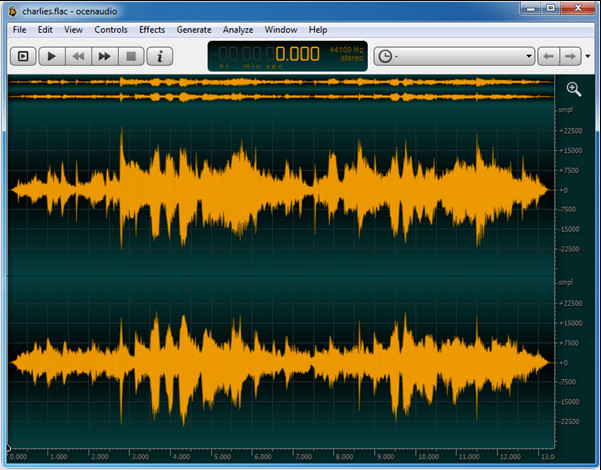
หากคุณต้องการโปรแกรมบันทึกเสียงแบบครบเครื่องสำหรับบันทึกเสียงบน Windows 10 หรือเวอร์ชันที่สูงกว่า Oceanaudio จะช่วยคุณได้ เครื่องมือนี้มีอินเทอร์เฟซคล้ายกับ Audacity แต่ส่วนติดต่อผู้ใช้ของโปรแกรมนี้เข้าใจได้ง่ายกว่า อธิบายเพิ่มเติมคือ โปรแกรมบันทึกเสียงตัวนี้มีความซับซ้อนและมีฟีเจอร์ต่าง ๆ ที่คุณจำเป็นต้องใช้ในการบันทึกเสียง แม้จะใช้ค่อนข้างยากและคุณอาจต้องดูวิดีโอสอนการใช้งาน แต่สุดท้ายแล้วก็คุ้มค่า หากคุณต้องการตัวแก้ไขเสียงที่มีอินเทอร์เฟซดีกว่า Audacity นี่น่าจะเป็นตัวเลือกของคุณ.
ข้อดี
- ใช้เทคโนโลยีขั้นสูงในการบันทึก
- เป็นทางเลือกของผู้เชี่ยวชาญในการบันทึกเสียง
- คุณสามารถฟังเสียงของคุณขณะบันทึก
จุดด้อย
- มันไม่เป็นมิตรกับผู้ใช้
- ผู้เริ่มต้นอาจสับสนขณะใช้เครื่องมือนี้
ส่วนที่ 2 แผนภูมิเปรียบเทียบเกี่ยวกับซอฟต์แวร์บันทึกเสียง
| คุณสมบัติ | เครื่องบันทึกหน้าจอ FVC | ความกล้า | โปรแกรม QuickTime Player | เครื่องเสียง |
| บันทึกเสียงระบบและไมค์ |  | | | |
| แก้ไขการบันทึก | | |  | |
| การเร่งฮาร์ดแวร์ | | | | |
| ฟังล่วงหน้าแบบเรียลไทม์ | | | | |
| บันทึกคุณภาพดั้งเดิม | | | | |
| ส่วนต่อประสานผู้ใช้ที่ดีที่สุด | | | | |
ส่วนที่ 3 คำถามที่พบบ่อยเกี่ยวกับซอฟต์แวร์บันทึกเสียง
Cinch Audio Recorder เป็นเครื่องบันทึกเสียงที่ดีที่สุดหรือไม่?
เราเพิ่งมีรีวิวล่าสุดเกี่ยวกับ Cinch Audio Recorder ดังนั้นหากคุณต้องการทราบข้อมูลเพิ่มเติมเกี่ยวกับโปรแกรมบันทึกเสียงตัวนี้ ให้คลิกที่ลิงก์นี้เพื่อเรียนรู้รายละเอียดเพิ่มเติม.
อะไรคือคุณสมบัติของเครื่องบันทึกเสียงที่ดี?
คุณจะต้องรู้มาตรฐานพื้นฐานก่อนเลือกเครื่องบันทึกเสียงที่ดี อันดับแรก ควรจะสามารถจับเสียงบนไมโครโฟนของคุณได้อย่างง่ายดาย ประการที่สอง ปลอดภัยและปราศจากมัลแวร์ ประการที่สาม หากคุณต้องการซื้อเครื่องมือ เครื่องมือควรมอบความเป็นเลิศแก่ผู้ใช้ ประการที่สี่ อัตราประสิทธิภาพหมายความว่าเครื่องมือต้องมีประสิทธิภาพมากในการบันทึก ประการที่ห้า คุณลักษณะพื้นฐานหรือขั้นสูงต้องพร้อมใช้งานเพื่อช่วยให้ผู้ใช้บันทึก ก่อนเลือกเครื่องบันทึกเสียงเพื่อช่วยคุณ คุณสามารถพึ่งพามาตรฐานเหล่านี้ได้
จะบันทึกเสียงใน Windows 10 ได้อย่างไร?
ก่อนจะเริ่มบันทึกเสียงบน Windows 10 คุณต้องเลือกโปรแกรมบันทึกเสียงที่ดีที่สุดอย่าง FVC Video Recorder โดยดาวน์โหลดลงเดสก์ท็อปของคุณ ติดตั้งโปรแกรมให้เรียบร้อย และเปิดใช้งาน จากนั้นเลือกตัวเลือก Audio Recorder แล้วคลิก คุณสามารถเปิดเสียงระบบหรือไมโครโฟนบนทูลบาร์ลอย เพื่อเพิ่มลงไปในการบันทึกได้อย่างง่ายดาย เมื่อคุณพร้อมจะเริ่มบันทึก ให้คลิกปุ่มวงกลมสีแดงเพื่อเริ่ม หากต้องการจบการบันทึก ให้คลิกปุ่มสี่เหลี่ยมเพื่อหยุด จากนั้นจะมีหน้าต่างใหม่แสดงรายการไฟล์เสียงที่คุณบันทึกไว้ทั้งหมด.
สรุป
ตอนนี้เราได้รู้จักซอฟต์แวร์บันทึกเสียงที่มีให้ใช้งานบนเดสก์ท็อปของคุณแล้ว เครื่องมือทั้งหมดที่นำเสนอที่นี่จะช่วยคุณในงานบันทึกเสียง อย่างไรก็ตาม หากคุณกำลังมองหาโปรแกรมบันทึกเสียงที่ทำงานได้ดีกว่าตัวอื่น ๆ FVC Screen Recorder น่าจะเหมาะกับคุณ ยังลังเลกับโปรแกรมบันทึกเสียงนี้อยู่หรือไม่ ถ้าเช่นนั้น การดาวน์โหลดมาทดลองใช้ด้วยตัวเองคือวิธีเดียวที่จะพิสูจน์ได้ว่ามันทำงานได้ดีอย่างที่เราอธิบายในบทความนี้หรือไม่.
-
 เครื่องบันทึกเสียง AIFF ฟรี 4 อันดับแรกที่ให้เสียงคุณภาพสูง
 บทความนี้กล่าวถึง AIFF และเครื่องมือยอดนิยมบางส่วนที่คุณสามารถใช้เพื่อสร้างรูปแบบ AIFF คุณภาพสูง
-
 3 เทคนิคที่ดีที่สุดในการบันทึกเสียงบน iPhone
 มีปัญหาเพราะคุณไม่สามารถบันทึกเสียงได้อย่างถูกต้องบน iPhone? จากนั้นอ่านบทความนี้เพื่อทราบวิธีการบันทึกเสียงบน iPhone และเครื่องมือที่มีอยู่
-
 7 ของ Magnificent Voice Recorder ที่เข้าถึงได้ในทุกแพลตฟอร์ม
 คุณต้องการเรียนรู้วิธีการบันทึกเสียงหรือไม่? จากนั้นไปที่บทความนี้ในขณะที่เราพูดถึงเครื่องบันทึกเสียงที่ดีที่สุดที่ตรงกับความต้องการของคุณ
