


 Video Converter Ultimate
 บันทึกหน้าจอ
 ซ่อมวิดีโอ
เรียนรู้วิธีแก้ไขแท็ก iD3 บน iTunes [วิธีที่เร็วและง่ายที่สุด]
iTunes เป็นซอฟต์แวร์อเนกประสงค์ที่คุณสามารถใช้เป็นทั้งเครื่องเล่นมีเดีย ไลบรารีสื่อ เครื่องมือจัดการ รวมถึงแอปไคลเอนต์สำหรับอุปกรณ์ Apple ในช่วงแรกซอฟต์แวร์นี้มุ่งเน้นเฉพาะการรวบรวมเพลงแบบชำระเงินเท่านั้น แต่เมื่อความต้องการฟีเจอร์อื่น ๆ เพิ่มมากขึ้น ระบบของโปรแกรมจึงได้รับการอัปเกรดครั้งใหญ่ ทำให้เครื่องมือนี้สามารถทำงานอื่น ๆ ได้ตามที่กล่าวมาข้างต้น ดังนั้นหากคุณต้องการรู้ว่าวิธีแก้ไขแท็ก iD3 บน iTunesต้องทำอย่างไร บทความนี้คือสิ่งที่คุณต้องการ อ่านต่อเพื่อเรียนรู้เพิ่มเติมได้เลย.

ส่วนที่ 1 วิธีที่มีประสิทธิภาพในการแก้ไขแท็ก ID3 บน iTunes โดยใช้ 3 วิธีที่แตกต่างกัน
คุณสามารถใช้สามวิธีในการแก้ไขข้อมูลเมตาของ iTunes บน Mac หากคุณไม่ทราบวิธีแก้ไขข้อมูลเมตาโดยใช้ iTunes คุณสามารถตรวจสอบขั้นตอนด้านล่างและเลือกวิธีที่คุณต้องการใช้ เรารับประกันว่าคุณจะอัปเดตข้อมูลเมตาโดยใช้ iTunes สำหรับทั้ง 3 รายการที่คุณเลือก
วิธีที่ 1. ใช้การแก้ไขบน iTunes
ขั้นตอนที่ 1. เปิดแอป iTunes บน Mac ของคุณ.
ขั้นตอนที่ 2. คลิกไฟล์มีเดียหนึ่งครั้ง จากนั้นคลิกเมนู Edit แล้วคลิก Album Info ใต้เมนูนั้น.
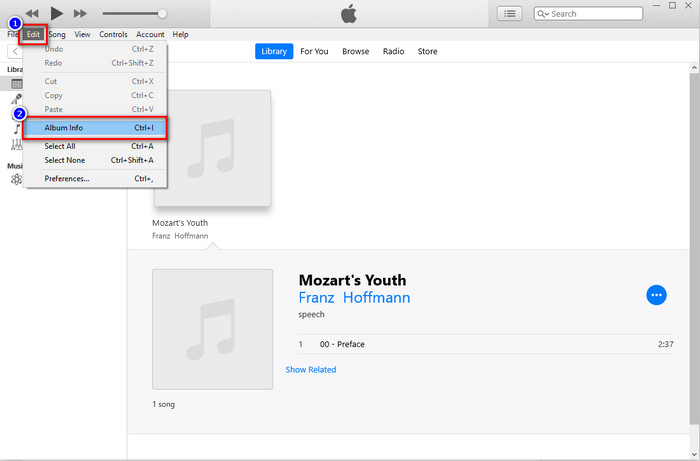
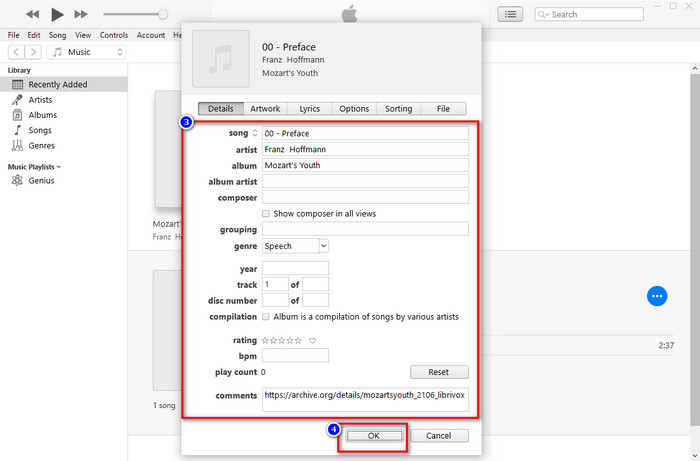
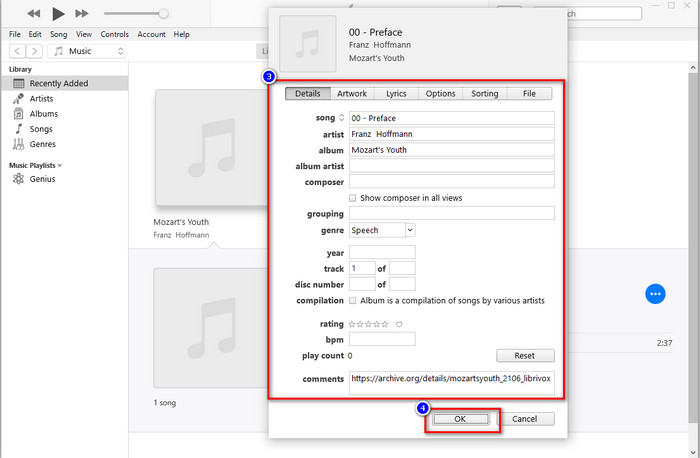
ขั้นตอนที่ 3. จะมีหน้าต่างใหม่แสดงขึ้นมาบนหน้าจอ ซึ่งคุณสามารถเปลี่ยนแท็กของไฟล์ได้ หากแก้ไขข้อมูลเรียบร้อยแล้ว ให้คลิก OK เพื่อบันทึกการเปลี่ยนแปลง.
วิธีที่ 2. ใช้คลิกขวาบน iTunes
ขั้นตอนที่ 1. เปิด iTunes แล้วค้นหาไฟล์มีเดียที่ต้องการ.
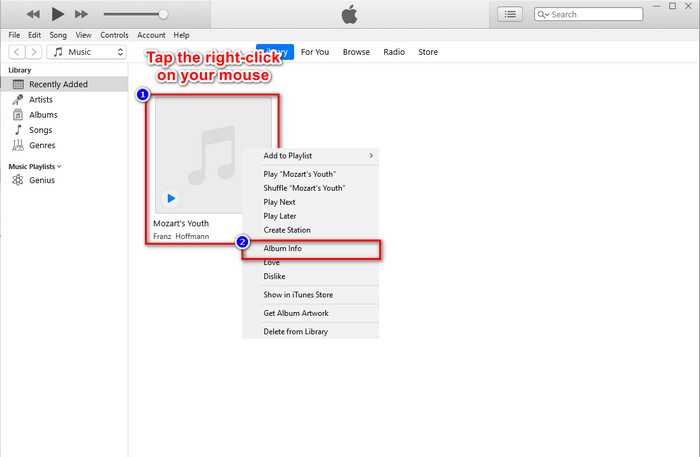
ขั้นตอนที่ 2. แทนที่จะไปที่เมนู Edit คุณสามารถกด คลิกขวา ที่เมาส์ แล้วคลิก Album Info
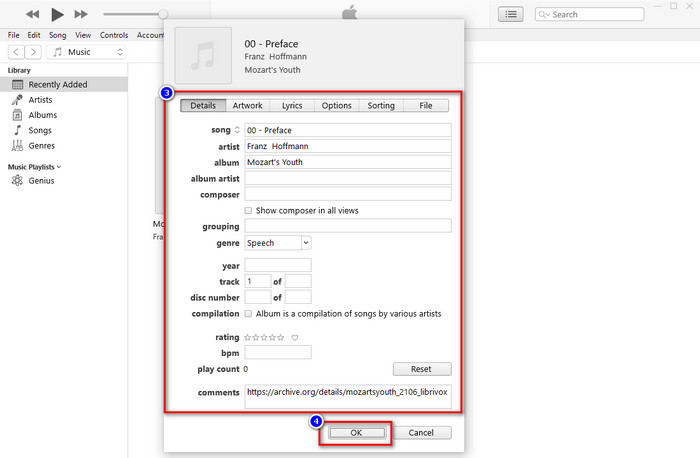
ขั้นตอนที่ 3. เปลี่ยนข้อมูลเมทาดาทาบนหน้าต่างโดยกรอกลงใน กล่องข้อความ (textbox) เพื่ออัปเดตเมทาดาทาบน iTunes เมื่อเสร็จแล้วให้คลิก OK เพื่อบันทึก.
วิธีที่ 3 ใช้จุดสามจุดบน iTunes
ขั้นตอนที่ 1. ค้นหา iTunes ใน Finder แล้วคลิกเพื่อเปิด.
ขั้นตอนที่ 2. เมื่อเปิดซอฟต์แวร์แล้ว ให้คลิกที่ไฟล์หนึ่งครั้ง จะมีไอคอน สามจุด ปรากฏบนหน้าจอ ให้คลิก และเลือก Album Info.
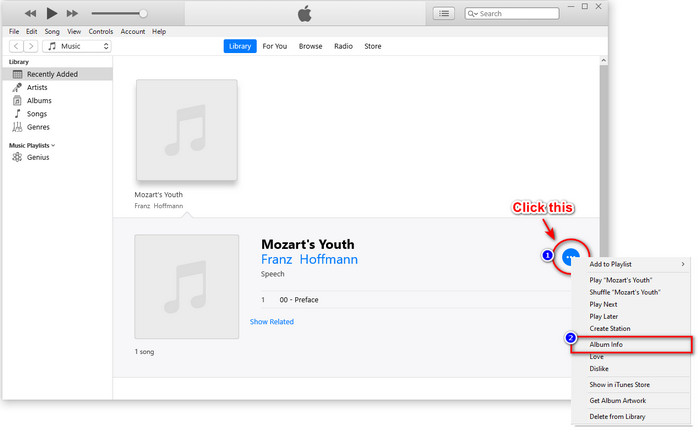
ขั้นตอนที่ 3. จะมีหน้าต่างแสดงขึ้นมาบนหน้าจอ ให้กรอกข้อมูลสำคัญที่คุณต้องการใช้เป็นแท็ก iD3 จากนั้นกด OK หากต้องการบันทึกการเปลี่ยนแปลง.
หากคุณสังเกตเห็นว่าวิธีการต่างๆ ไม่มีการเปลี่ยนแปลงอย่างมีนัยสำคัญ แต่เรายังคงรวมวิธีการทั้งหมดไว้ให้คุณเลือก แม้ว่า iTunes จะพร้อมใช้งานบน Mac แต่ Mac เวอร์ชันอัปเกรดไม่รองรับ iTunes อีกต่อไป แล้วควรใช้อะไร? โชคดีที่เรามีซอฟต์แวร์ที่คุณสามารถใช้ได้แทนการแก้ไขข้อมูลเมตาของ iTunes บน Mac หากต้องการทราบข้อมูลเพิ่มเติมเกี่ยวกับทางเลือกซอฟต์แวร์นี้ คุณสามารถอ่านต่อส่วนที่ 2 ด้านล่างและเรียนรู้วิธีใช้งาน
ส่วนที่ 2 สุดยอดทางเลือกในการแก้ไขข้อมูลเมตา MP3 บน Mac โดยไม่ต้องใช้ iTunes อย่างง่ายดาย [แนะนำ]
โดยกำเนิด iTunes ถูกครอบงำโดยคุณสมบัติที่แตกต่างกันสามประการบน Apple: เพลง พอดคาสต์ และรายการหรือภาพยนตร์ ตอนนี้ใน Mac เวอร์ชันใหม่ คุณไม่สามารถใช้ iTunes ได้เพราะถูกแทนที่ ดังนั้น คุณควรทำอย่างไรเพื่อแก้ไขข้อมูลเมตา MP3 บน Mac โดยไม่ใช้ iTunes มันยังเป็นไปได้? ด้วยความช่วยเหลือของเครื่องมือขั้นสูงสุด ทุกอย่างเป็นไปได้
FVC Video Converter Ultimate เป็นทางเลือกที่ดีที่สุดที่คุณสามารถใช้เพื่อเปลี่ยนเมทาดาทาบน Mac หรือ Windows ด้วยเครื่องมือนี้ คุณสามารถอัปโหลดไฟล์ MOV, M4V, WMV, FLV, RMVB, MP4 และฟอร์แมตอื่น ๆ ได้มากกว่า 1000 รูปแบบ แม้จะเป็นฟอร์แมตที่ไม่ค่อยพบเจอ เครื่องมือนี้ก็ยังรองรับ จุดเด่นอีกอย่างที่โปรแกรมนี้มีแต่ iTunes ไม่มี คือเครื่องมือทั้งหมดในส่วน Toolbox ที่เกี่ยวข้องกับวิดีโอ หากคุณต้องการใช้เครื่องมือสุดเจ๋งนี้บน Mac เพื่อเปลี่ยนเมทาดาทา คุณสามารถอ่านบทเรียนด้านล่างแล้วทำตามได้เลย.
ขั้นตอนที่ 1. กรุณาคลิกปุ่มดาวน์โหลดด้านล่างแล้วเลือกเวอร์ชัน Mac แต่ถ้าคุณใช้ Windows ให้คลิกปุ่มที่ตรงกับระบบของคุณ จากนั้นติดตั้งและทำตามขั้นตอนอย่างรวดเร็ว แล้วจึงเปิดโปรแกรม.
ดาวน์โหลดฟรีสำหรับ Windows 7 หรือใหม่กว่าดาวน์โหลดอย่างปลอดภัย
ดาวน์โหลดฟรีสำหรับ MacOS 10.7 หรือใหม่กว่าดาวน์โหลดอย่างปลอดภัย
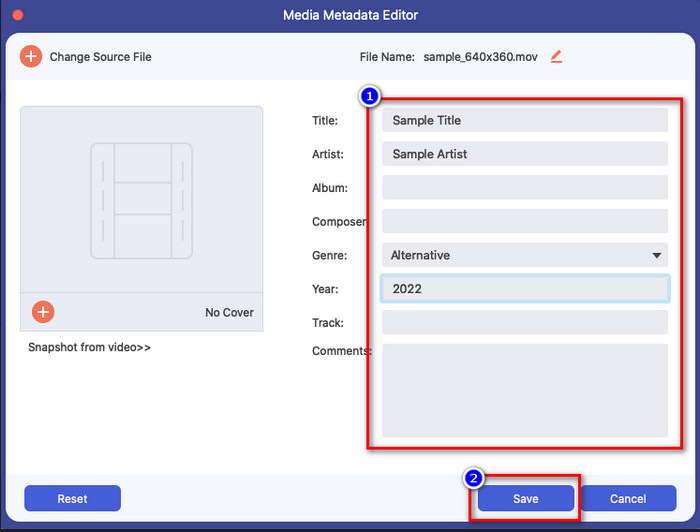
ขั้นตอนที่ 2. เปิดส่วน Toolbox ของโปรแกรมเวอร์ชัน Ultimate แล้วค้นหา Media Metadata Editor.
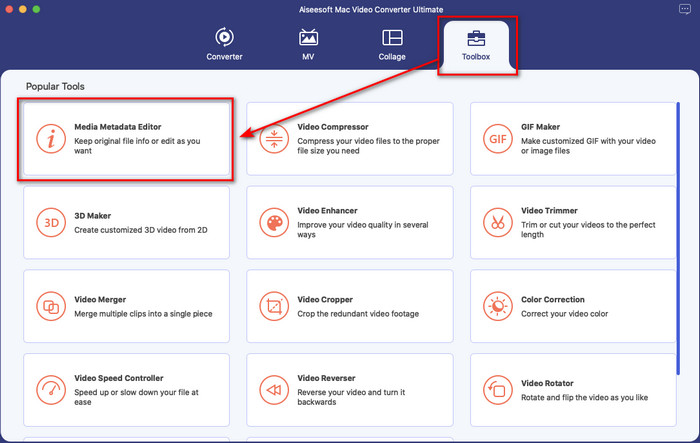
ขั้นตอนที่ 3. คลิกปุ่ม + จากนั้นโฟลเดอร์ไฟล์จะปรากฏบนหน้าจอ Mac ของคุณ ให้เลือกไฟล์มีเดีย คลิก แล้วกด Open เพื่อดำเนินการต่อ.
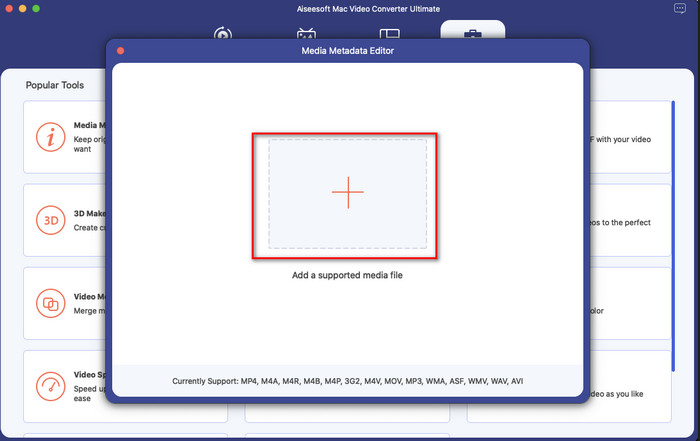
ขั้นตอนที่ 4. กรอกเมทาดาทาในแต่ละ กล่องข้อความ (textbox) ให้ครบถ้วน จากนั้นกด Save เพื่อใช้เมทาดาทาที่คุณเพิ่มทั้งหมดด้วยซอฟต์แวร์ Ultimate นี้ ง่ายใช่ไหม ขอบคุณเครื่องมือ Ultimate นี้ คุณจึงสามารถใช้ได้อย่างอิสระในต้นทุนที่ต่ำ แทนการใช้ตัวแก้ไขเมทาดาทาเพลงของ iTunes.
ข้อดี
- เสนอให้คุณอัปโหลดไฟล์มีเดียที่คุณมีได้อย่างง่ายดาย
- หนึ่งในโปรแกรมแก้ไขข้อมูลเมตาที่ดีที่สุดในปี 2022 ตามคำวิจารณ์
- มันสามารถทำการตัดต่อวิดีโอและเสียงรวมทั้งแปลง
- มีอยู่ในระบบปฏิบัติการทั้งหมด เช่น Windows 10/11 หรือ macOS
จุดด้อย
- ไม่มีในตัว ดังนั้นคุณจะต้องดาวน์โหลดเครื่องมือ
- การจัดซื้อเป็นสิ่งสำคัญในการปลดปล่อยศักยภาพของซอฟต์แวร์อย่างเต็มที่
ส่วนที่ 3 คำถามที่พบบ่อยเกี่ยวกับการแก้ไขแท็ก iD3 ใน iTunes
เหตุใดฉันจึงไม่พบ iTunes บน Mac ของฉัน
หาก Mac ของคุณเป็นเวอร์ชัน 10.14 ขึ้นไป แสดงว่าไม่มี iTunes อยู่ที่นั่นเนื่องจากแอพที่มาพร้อมเครื่องแยกออกเป็นสามเครื่องมือที่แตกต่างกัน ได้แก่ รายการหรือภาพยนตร์ เพลง และพ็อดคาสท์ อย่างไรก็ตาม คุณยังคงสามารถใช้ iTunes ใน 10.13 หรือ Mac เวอร์ชันต่ำกว่าได้
iTunes รองรับ Windows OS ในการเปลี่ยนข้อมูลเมตาหรือไม่
โชคดีที่คุณสามารถดาวน์โหลด iTunes บน Windows OS ได้หากต้องการบนเดสก์ท็อป ดังนั้น หากคุณกำลังจะใช้การเปลี่ยนแปลงข้อมูลเมตาของ iTunes บน Windows คุณสามารถทำตามขั้นตอนเดียวกันข้างต้นได้ แม้ว่ารูปภาพจะเป็นเครื่องมือใน Mac แต่ก็ยังสามารถคัดลอกขั้นตอนด้านบนเพื่อเปลี่ยนข้อมูลเมตาบนไฟล์มีเดียของคุณได้อย่างง่ายดาย
ไฟล์ของฉันบน iTunes จะถูกลบออกหรือไม่
ชื่อของแบรนด์มีการเปลี่ยนแปลง แต่ไฟล์ที่คุณมีใน iTunes อยู่ในแอพ Apple Music นอกจากนี้ บัตรของขวัญ iTunes ยังใช้ซื้อเพลงจากร้านเพลงใหม่ได้ แม้ว่าเพลง พ็อดคาสท์ และภาพยนตร์จะแยกจากกัน แต่ฟังก์ชันยังคงเหมือนเดิม แต่ GUI ของพวกเขาดีกว่า iTunes รุ่นก่อนมาก
iTunes เปิดตัวครั้งแรกเมื่อไหร่?
มันคือ 9 มกราคม 2544; Apple เปิดตัวเครื่องเล่นมัลติมีเดียที่ดีที่สุดที่มีไฟล์สื่อต่างๆ เช่น เพลง วิดีโอ และพอดแคสต์
สรุป
ตอนนี้เมื่อเรารู้แล้วว่าจะ แก้ไขแท็ก id3 บน iTunes ได้อย่างไร ก็ถึงเวลาลงมือทำตามขั้นตอนด้านบน หากคุณไม่พอใจการใช้ iTunes หรือหาไม่เจอ เราขอแนะนำให้ใช้โปรแกรมทางเลือกที่ดีที่สุดอย่าง FVC Video Converter Ultimate ด้วยเครื่องมือนี้ คุณสามารถเพิ่มหรือลบเมทาดาทาในวิดีโอหรือไฟล์เสียงใด ๆ ที่ได้รับการป้องกันด้วย DRM บน Apple ได้อย่างง่ายดาย ดังนั้นหากคุณอยากรู้จักมันให้ดียิ่งขึ้น ควรดาวน์โหลดมาติดตั้งและลองใช้งานด้วยตัวคุณเอง.
-
 ทบทวนข้อมูลเมตา FFmpeg เกี่ยวกับการใช้งานและฟังก์ชันให้สมบูรณ์
 คุณต้องการทราบวิธีใช้ตัวแก้ไขข้อมูลเมตา FFmpeg หรือไม่? แน่นอนว่าซอฟต์แวร์นี้ไม่ใช้งานง่าย แต่ด้วยบทความนี้ คุณสามารถทำให้สำเร็จได้อย่างง่ายดาย
-
 วิธีดูข้อมูลเมตาของรูปภาพและวิดีโอบน iOS อย่างง่ายดาย
 คุณต้องการทราบวิธีการดูข้อมูลเมตาบน iPhone และ iPad หรือไม่? การอ่านบทความนี้อาจช่วยให้คุณแก้ปัญหานี้ได้อย่างง่ายดาย
-
 4 ตัวแก้ไขข้อมูลเมตาของ AudioBook ที่แนะนำในปี 2022
 หากคุณไม่มีความคิดใดๆ เกี่ยวกับตัวแก้ไขแท็ก Audiobook บทความนี้จะช่วยคุณได้ รู้มากขึ้นโดยการอ่านแต่ละรายละเอียดด้านล่างและเครื่องมือที่จะใช้
