


 Video Converter Ultimate
 บันทึกหน้าจอ
 ซ่อมวิดีโอ
วิธีเปลี่ยนรายละเอียดไฟล์ใน Windows 10/11 อย่างง่ายดาย
ทุกครั้งที่เราอัปโหลดหรือดาวน์โหลดวิดีโอ รูปภาพ หรือไฟล์เสียง จะมีชุดข้อมูลหนึ่งที่ช่วยให้เราระบุได้ว่าในไฟล์นั้นคืออะไร ซึ่งเรียกว่าเมทาดาทา (Metadata) เราสามารถดูแท็กของไฟล์มีเดียต่าง ๆ ได้อย่างง่ายดายโดยไม่ต้องใช้ซอฟต์แวร์เฉพาะทาง ผ่านแอปพลิเคชันที่มีมาให้ในระบบ แต่การแก้ไขข้อมูลเหล่านี้เป็นอีกเรื่องหนึ่งที่โปรแกรมดูเมทาดาทาบางตัวบน Windows ทำไม่ได้ หากคุณอยากรู้ว่าจะเปลี่ยนรายละเอียดไฟล์บน Windows 10 หรือ 11 อย่างไร คุณต้องอ่านบทความนี้เพื่อเก็บข้อมูลสำคัญทั้งหมดที่คุณจะต้องใช้.

ส่วนที่ 1 วิธีการเปลี่ยนรายละเอียดไฟล์วิดีโอใน Windows 10 และ 11 อย่างง่ายดาย
การใช้คุณสมบัติบน Windows
ทุกคนรู้กันดีว่า หน้าต่าง Properties บน Windows ช่วยให้เราเห็นเมทาดาทาของแต่ละไฟล์ได้ โดยไม่ต้องกังวลว่าไฟล์จะรองรับหรือไม่ เครื่องมือดูและแก้ไขแท็กที่ติดมากับระบบนี้สามารถช่วยให้คุณทำงานเสร็จได้ตามต้องการ และทำงานได้อย่างสมบูรณ์แม้ไม่มีการเชื่อมต่ออินเทอร์เน็ต นอกจากนี้คุณยังไม่ต้องติดตั้งซอฟต์แวร์ใด ๆ เพิ่มเติม เพราะอย่างที่กล่าวไปแล้วว่ามันเป็นฟีเจอร์ที่ติดมากับเดสก์ท็อป Windows อยู่แล้ว.
ในทางตรงกันข้าม มีบางกรณีที่ข้อมูลเมตาที่คุณเพิ่มไม่ได้รับการบันทึกเลยในตัวฟรีนี้ คาดหวังไว้เพราะมันไม่ใช่เครื่องมือระดับมืออาชีพ อย่างไรก็ตาม ผู้ใช้ยังคงใช้คุณลักษณะเหล่านี้ โดยเฉพาะอย่างยิ่งหากพวกเขาไม่ได้แก้ไขข้อมูลเมตาบ่อยกว่าปกติ แทนที่จะดาวน์โหลดและประหยัดพื้นที่สำหรับไดรฟ์ของคุณ นี่เป็นเทคนิคในอุดมคติที่คุณควรเรียนรู้การใช้งานบน Windows หากคุณต้องการทราบวิธีการเปลี่ยนรายละเอียดไฟล์ใน Windows 10 หรือ 11 คุณสามารถทำตามขั้นตอนด้านล่าง
ขั้นตอนที่ 1. บนหน้าจอ Windows 10 หรือ 11 ของคุณ ให้ค้นหาไฟล์มีเดียใน File Explorer.
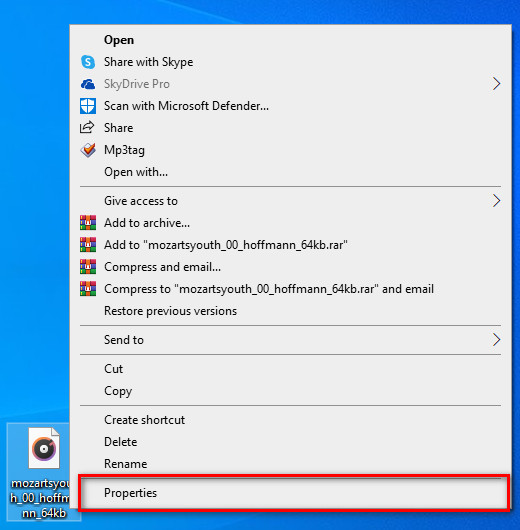
ขั้นตอนที่ 2. เมื่อค้นหาไฟล์เจอแล้ว ให้คลิกขวาที่ไฟล์นั้น แล้วไปที่ Properties.
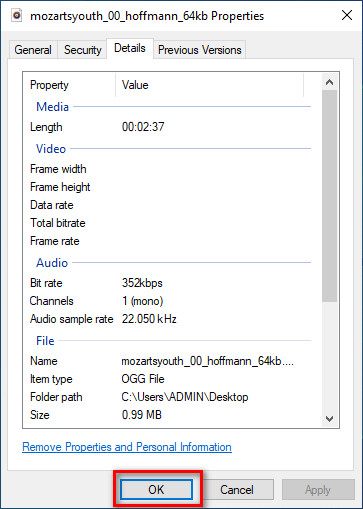
ขั้นตอนที่ 3. บนหน้าต่างที่เปิดขึ้น ให้คลิกที่แท็บ Details จากนั้นคุณสามารถเพิ่มหรือแก้ไขรายละเอียดเมทาดาทาในแต่ละช่องบน Windows ผ่าน Properties ได้ คลิก OK เพื่อบันทึกแท็ก.
การใช้ Video Converter Ultimate – ทางเลือกที่ดีที่สุดในการแก้ไขข้อมูลเมตาบน Windows 10/11
การเพิ่มปกอัลบั้มและข้อมูลสำคัญอื่น ๆ ไม่สามารถทำได้ผ่าน Properties แล้วถ้าคุณอยากเพิ่มข้อมูลเหล่านี้ต้องทำอย่างไร โชคดีที่เราพบว่า Video Converter Ultimate รองรับการใส่รายละเอียดสำคัญต่าง ๆ ให้กับไฟล์ของคุณ รวมถึงปกอัลบั้มเพื่อให้ไฟล์มีความโดดเด่น นอกจากนี้การเพิ่มเมทาดาทาลงในไฟล์ของคุณไม่จำเป็นต้องทำได้แค่บน Properties เท่านั้น แต่ยังสามารถทำได้อย่างมืออาชีพยิ่งขึ้นด้วยโปรแกรม Ultimate นี้.
มีอะไรอีก? แม้ว่าจะเป็นซอฟต์แวร์ที่ดีที่สุดสำหรับการแก้ไขและดูข้อมูลเมตา แต่ความสามารถของซอฟต์แวร์นั้นยังมีมากกว่า ซึ่งหมายความว่ามีคุณสมบัติมากกว่า หนึ่งในสิ่งที่ดีที่สุดที่คุณสามารถทำได้ด้วยเครื่องมือนี้คือการแปลงไฟล์วิดีโอเป็นรูปแบบ Windows ที่เล่นได้ เช่น WMV, AVI, MP4 และอื่นๆ อีกมากมาย นอกจากนี้ยังสามารถแปลงไฟล์หลายไฟล์พร้อมกันในขณะที่มีกระบวนการแปลงที่เร็วที่สุดที่คุณเคยสัมผัสว่าเครื่องมืออื่นไม่สามารถเสนอให้คุณได้ แม้แต่คุณสมบัติ มันไม่ดีเหรอ? ยังมีอีกมากที่จะบอก แต่วันนี้เราจะสอนวิธีเปลี่ยนรายละเอียดของไฟล์ mp3 หรือรูปแบบเสียงและวิดีโอใด ๆ ได้อย่างง่ายดายด้วยคำแนะนำที่สมบูรณ์แบบของซอฟต์แวร์ขั้นสูงสุดบน Windows และ Mac
ขั้นตอนที่ 1. กรุณาคลิกปุ่มดาวน์โหลดสำหรับ Windows หากคุณใช้ Mac ให้คลิกปุ่มสำหรับ Mac แทน ติดตั้งโปรแกรมให้เรียบร้อยแล้วเปิดขึ้นมาเพื่อเริ่มเพิ่มเมทาดาทา.
ดาวน์โหลดฟรีสำหรับ Windows 7 หรือใหม่กว่าดาวน์โหลดอย่างปลอดภัย
ดาวน์โหลดฟรีสำหรับ MacOS 10.7 หรือใหม่กว่าดาวน์โหลดอย่างปลอดภัย
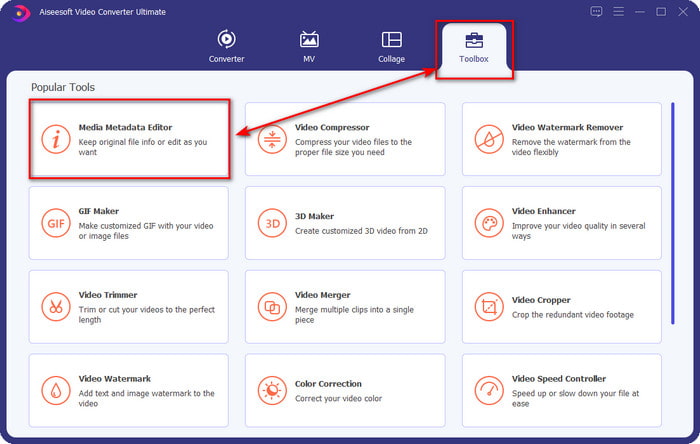
ขั้นตอนที่ 2. เมื่อเปิดเครื่องมือแล้ว ให้คลิกไปที่ Toolbox จากนั้นไปต่อที่ Media Metadata Editor.
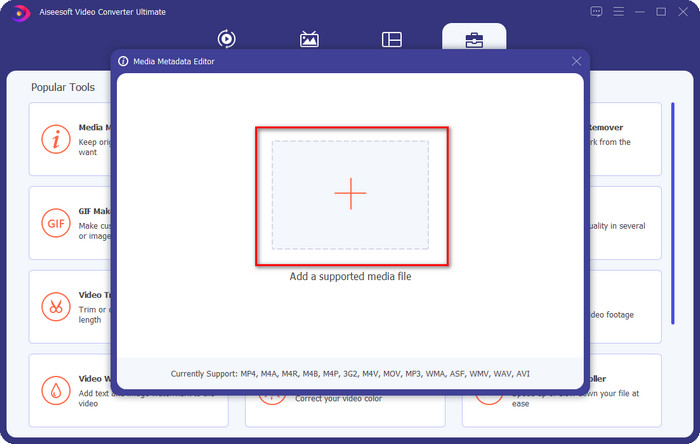
ขั้นตอนที่ 3. อัปโหลดไฟล์มีเดียใด ๆ มาที่นี่ โดยคลิกปุ่ม add เลือกไฟล์จากโฟลเดอร์ แล้วกด Open.
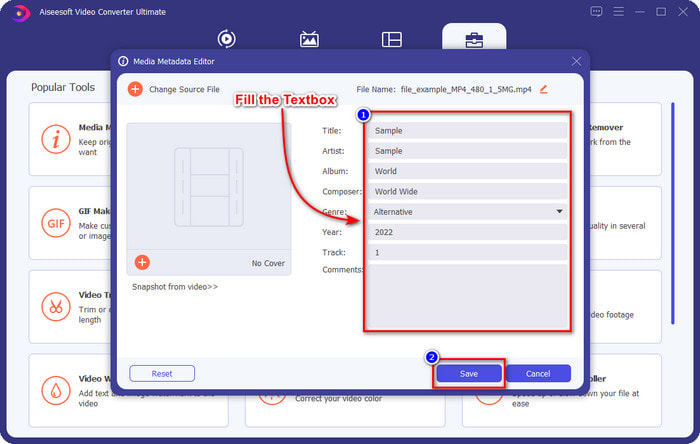
ขั้นตอนที่ 4. เพิ่มรายละเอียดสำคัญลงในแต่ละtextbox โดยกรอกข้อมูลตามที่ต้องการ หากทำทุกอย่างเรียบร้อยแล้ว ให้คลิกปุ่ม Save เพื่อบันทึกการเปลี่ยนแปลงทั้งหมดที่คุณทำด้วยเครื่องมือนี้ รายละเอียดสำคัญทุกอย่างที่คุณไม่สามารถเพิ่มผ่าน Properties จะสามารถเพิ่มได้อย่างง่ายดายด้วยซอฟต์แวร์ Ultimate นี้เพียงไม่กี่คลิก!
ที่เกี่ยวข้อง:
วิธีแก้ไขหรือแก้เมทาดาทาไฟล์ MP4
ส่วนที่ 2: ข้อใดดีกว่าในการแก้ไขไฟล์รายละเอียดใน Windows 10 และ 11
คุณยังมีความสับสนว่าคุณควรเลือกด้านใด? ในกรณีดังกล่าว แผนภูมิเปรียบเทียบด้านล่างนี้จะช่วยให้คุณเข้าใจความแตกต่างระหว่างเครื่องมือทั้งสองในแง่ของการแก้ไขข้อมูลเมตาและฟังก์ชันอื่นๆ ที่พวกเขาสามารถนำเสนอได้ อ่านต่อเพื่อตัดสินใจว่าคุณควรเลือกด้านใด
| Video Converter Ultimate – ตัวเลือกที่ดีที่สุดในการแก้ไขข้อมูลเมตาบน Windows 10/11 | VS | คุณสมบัติบน Windows |
 | ทางเลือกที่ดีที่สุดสำหรับการแก้ไขข้อมูลเมตา | |
| เพิ่มรายละเอียดที่สำคัญในข้อมูลเมตา |  |
| อัปโหลดปกอัลบั้มได้อย่างง่ายดาย | |
| ฟังก์ชันอื่นนอกเหนือจากตัวแก้ไขแท็ก ได้แก่ ตัวแปลง โปรแกรมตัดต่อวิดีโอ และอื่นๆ | |
| ใช้งานฟรี | |
ส่วนที่ 3 คำถามที่พบบ่อยเกี่ยวกับวิธีการเปลี่ยนรายละเอียดไฟล์ใน Windows 10/11
คุณสมบัติบน Windows ทำงานบน Windows เวอร์ชันที่ต่ำกว่าหรือไม่
โชคดีที่พวกเขาทั้งหมดทำงานเหมือนกับขั้นตอนที่แนะนำข้างต้น อย่างไรก็ตาม รูปลักษณ์ของพวกเขาเปลี่ยนไปเนื่องจากการอัพเดทตลอดหลายปีที่ผ่านมา แม้ว่ารูปลักษณ์จะแตกต่างกัน แต่การทำงานโดยรวมยังคงเหมือนเดิมกับขั้นตอนที่กล่าวข้างต้น ตรวจสอบคุณสมบัติบน Windows ของคุณและคัดลอกขั้นตอนข้างต้นหากคุณต้องการแก้ไขข้อมูลเมตาของไฟล์
มีวิธีใดบ้างที่ฉันสามารถเปลี่ยนข้อมูลเมตาของเพลงได้
ได้ คุณสามารถใช้ Groove Music ซึ่งเป็นแอพในตัวอื่นบน Windows ได้ แต่ก่อนที่คุณจะสามารถใช้เครื่องมือนี้ได้ คุณจะต้องดาวน์โหลดเครื่องมือนี้ก่อนเพราะไม่ได้ติดตั้งไว้ล่วงหน้าใน Windows ค้นหาบนแถบค้นหาของคุณ และเครื่องมือจะเริ่มดาวน์โหลดโดยอัตโนมัติ เปิดเครื่องมือ คลิกขวาที่ไฟล์หนึ่งครั้ง และไปที่ Get Info; ในพื้นที่นี้ ให้คุณเพิ่มหรือลบข้อมูลเมตา จากนั้นคลิก บันทึก หากคุณดำเนินการเสร็จสิ้น
การใช้คุณสมบัติเพียงพอในการเพิ่มข้อมูลเมตาหรือไม่
คุณสมบัติเพียงพอสำหรับการปรับข้อมูลเมตาพื้นฐาน เนื่องจากรองรับข้อมูลพื้นฐานที่คุณต้องการในไฟล์มีเดียของคุณ แต่สำหรับการเพิ่มรายละเอียดในเชิงลึก คุณจะต้องติดตั้งซอฟต์แวร์ที่เชื่อถือได้ซึ่งสามารถจัดการงานดังกล่าวได้อย่างง่ายดายด้วยวิธีการใดๆ อย่างไรก็ตาม Properties เป็นตัวแก้ไขแท็กที่ดี แต่ก็ไม่เหมาะกับการแก้ไขข้อมูลเมตาแบบมืออาชีพ
สรุป
ตอนนี้คุณได้อ่านมาจนถึงท้ายบทความแล้ว และเราเชื่อว่าคุณได้รู้แล้วว่าจะเปลี่ยนรายละเอียดไฟล์บน Windows 10/11 อย่างไร จากข้อมูลที่ให้ไปจะเห็นชัดเจนขึ้นว่าคุณสามารถใช้ Properties หากต้องการประหยัดพื้นที่บนไดรฟ์ Windows ของคุณ แม้ว่าฟีเจอร์ติดเครื่องตัวนี้อาจดูเรียบง่าย แต่ก็ยังใช้งานได้ดีไม่น้อย อย่างไรก็ตาม สำหรับผู้ใช้ทั้งมืออาชีพและมือใหม่ที่ต้องการใส่รายละเอียดเมทาดาทาให้ครบถ้วนยิ่งขึ้น คุณควรเลือกใช้เครื่องมือ Ultimate แทน Video Converter Ultimate มีความได้เปรียบอย่างชัดเจนในศึกโปรแกรมแก้ไขเมทาดาทาที่ดีที่สุดบน Windows คุณยังลังเลกับซอฟต์แวร์ Ultimate อยู่หรือไม่ ทางเดียวที่จะพิสูจน์ได้ว่าคุณไม่ควรลังเลอีกต่อไป ก็คือดาวน์โหลดลงไดรฟ์แล้วลองใช้งานให้เต็มที่ดู!
-
 วิธีดูข้อมูลเมตาของรูปภาพและวิดีโอบน iOS อย่างง่ายดาย
 คุณต้องการทราบวิธีการดูข้อมูลเมตาบน iPhone และ iPad หรือไม่? การอ่านบทความนี้อาจช่วยให้คุณแก้ปัญหานี้ได้อย่างง่ายดาย
-
 เทคนิคที่ดีที่สุดในการแก้ไขแท็ก iD3 บน iTunes [เคล็ดลับที่มีประสิทธิภาพ]
 ต้องการทราบวิธีการแก้ไขแท็กบน iTunes หรือไม่? ถ้าอย่างนั้นคุณก็มาถูกที่แล้ว ตามที่เราพูดถึงวิธีการต่างๆ คุณสามารถปฏิบัติตามเพื่อแก้ไขแท็กโดยใช้ iTunes
-
 วิธีแก้ไขคุณสมบัติของไฟล์ WAV บน Windows 10/11 และ Mac [แก้ไขแล้ว]
 คุณกำลังมองหาวิธีแก้ไขคุณสมบัติของไฟล์ WAV ใน Windows 10/11 อยู่หรือเปล่า? คำถามนี้จะมีคำตอบหากคุณอ่านบทความนี้ต่อไป
