


 Video Converter Ultimate
 บันทึกหน้าจอ
 ซ่อมวิดีโอ
 ดาวน์โหลดอย่างปลอดภัย
เรียนรู้วิธีเพิ่มแท็กในไฟล์โดยใช้วิธีขั้นสูงสุดในไม่กี่นาที
หากคุณโพสต์ไฟล์มีเดียออนไลน์ การใช้แท็กเพื่อปกป้องผู้ใช้ที่ต้องการอ้างสิทธิ์ความเป็นเจ้าของโพสต์ของคุณถือเป็นเรื่องที่ดี อย่างไรก็ตาม ผู้ใช้บางคนรู้วิธีลบข้อมูลเมตาจากไฟล์มีเดีย แม้ว่าจะสามารถลบได้ แต่การใส่แท็กลงในไฟล์ก็ยังเป็นมาตรการด้านความปลอดภัยที่ดี ดังนั้น ก่อนที่คุณจะโพสต์อะไรบนเว็บ ถือว่าโชคดีที่คุณได้อ่านบทความนี้ก่อน แต่ก่อนจะไปต่อ เราต้องเรียนรู้พื้นฐานของวิธีเพิ่มแท็กให้ไฟล์ภายในเวลาไม่ถึงหนึ่งนาที.

ส่วนที่ 1 Phenomenal Tag Editor เพื่อเพิ่มแท็กลงในไฟล์ได้อย่างง่ายดาย [Ultimate Software]
เราอยากให้คุณพบกับ FVC Video Converter Ultimate; ทำไม เหตุผลแรกคือเป็นเครื่องมือที่สามารถเพิ่มแท็กให้กับไฟล์สื่อใด ๆ ไม่ว่าจะเป็นรูปภาพหรือวิดีโอ ประการที่สอง แทนที่จะเรียนรู้วิธีใช้เครื่องมืออื่น เครื่องมือนี้เรียนรู้ c1urve ได้ราบรื่นกว่าที่คุณคิดในขณะที่มีผู้เชี่ยวชาญ ประการที่สาม ซอฟต์แวร์พร้อมใช้งานบนทุกแพลตฟอร์ม เช่น Windows และ Mac เพื่อให้ผู้ใช้ทั้งสองของระบบดังกล่าวสามารถสัมผัสกับประสิทธิภาพสูงสุดของตัวแก้ไขข้อมูลเมตา
คุณต้องการมากขึ้น? ผู้ใช้หลายล้านคนเห็นด้วยว่านี่เป็นทางเลือกแรกของพวกเขาในการแก้ไขแท็กในการทำงานที่เกี่ยวข้องกับเสียงและวิดีโอ และพวกเขาพอใจกับผลลัพธ์ที่ได้ อันที่จริงซอฟต์แวร์นั้นสมบูรณ์แบบตามที่เป็นอยู่โดยเริ่มจาก GUI จนถึงคุณสมบัติและฟังก์ชั่นของมัน
คุณสมบัติของ FVC Video Converter Ultimate:
รองรับรูปแบบหลากหลายที่คุณสามารถอัปโหลดและเปลี่ยนข้อมูลเมตาได้ เช่น MP4, AVI, WMV, TS, RMVB และอื่นๆ อีกกว่า 1,000 รายการ
มันมีกระบวนการที่รวดเร็วเป็นพิเศษและการเร่งด้วยฮาร์ดแวร์เพื่อช่วยให้คุณทำงานเสร็จในเวลาไม่นาน
หนึ่งใน GUI ที่ดูดีที่สุดซึ่งเป็นตัวแก้ไขข้อมูลเมตาและตัวแก้ไขที่เชื่อถือได้บนเดสก์ท็อป
มีกล่องเครื่องมืออเนกประสงค์สำหรับทำขั้นสูงและตัดต่อขั้นพื้นฐานที่สุดที่จำเป็นสำหรับวิดีโอและเสียงของคุณ
สามารถใช้ได้ทั้งบน Windows และ Mac; พวกเขามีคุณสมบัติและหน้าที่เหมือนกัน
น่าทึ่งที่เราได้เพิ่มบทช่วยสอนให้คุณเรียนรู้วิธีเพิ่มแท็กให้ไฟล์ได้ภายในพริบตาเดียว
ขั้นตอนที่ 1. คุณสามารถดาวน์โหลดซอฟต์แวร์ได้ทันทีบน Windows และ Mac โดยคลิกปุ่มดาวน์โหลด จากนั้นคลิกไฟล์ที่ดาวน์โหลดมา ตั้งค่าตามที่คุณต้องการ แล้วติดตั้ง.
ดาวน์โหลดฟรีสำหรับ Windows 7 หรือใหม่กว่าดาวน์โหลดอย่างปลอดภัย
ดาวน์โหลดฟรีสำหรับ MacOS 10.7 หรือใหม่กว่าดาวน์โหลดอย่างปลอดภัย
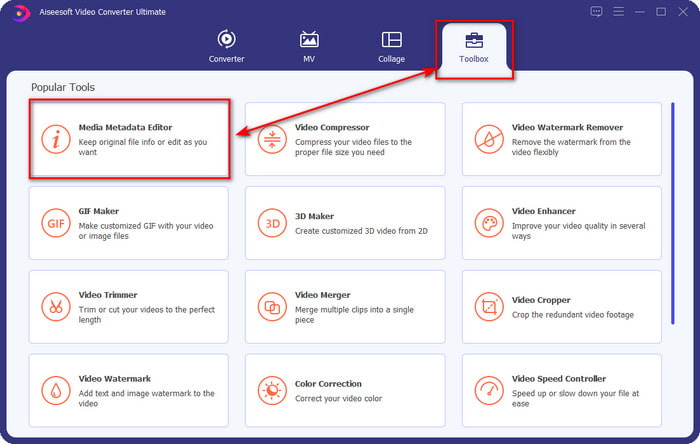
ขั้นตอนที่ 2. เปิดตัวซอฟต์แวร์โดยคลิก Start Now เมือเปิดโปรแกรมเวอร์ชัน Ultimate แล้ว ให้เปิด Toolbox โดยคลิก แล้วค้นหา Media Metadata Editor.
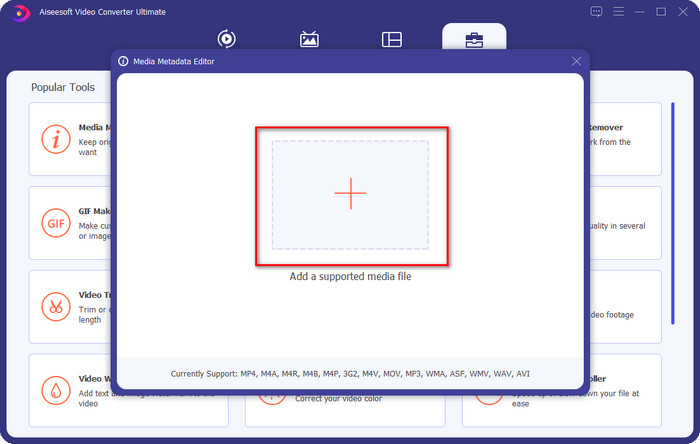
ขั้นตอนที่ 3. กดไอคอน + ค้นหาไฟล์มีเดียในตัวจัดการไฟล์ แล้วคลิก Open ถัดไป.
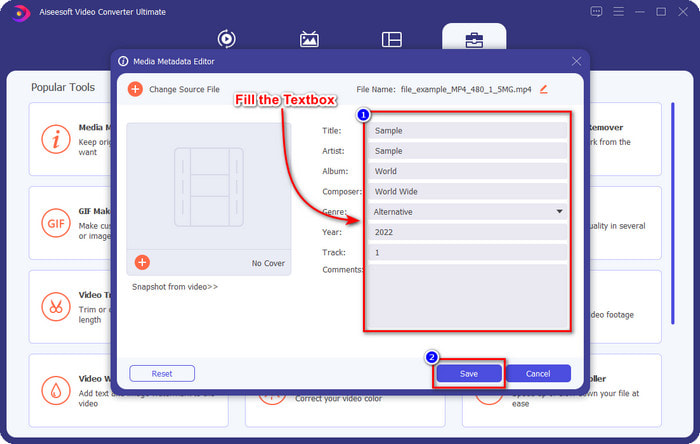
ขั้นตอนที่ 4. ใส่ข้อมูลทั้งหมดที่คุณต้องการให้เป็นเมตาดาต้าในกล่องข้อความ เมื่อกรอกข้อมูลครบแล้ว คุณสามารถคลิกปุ่ม Save ได้เลย.
ที่เกี่ยวข้อง:
วิธีเปลี่ยนรายละเอียดไฟล์ใน Windows
ส่วนที่ 2 วิธีเพิ่มแท็กลงในไฟล์โดยไม่ใช้ซอฟต์แวร์ของบุคคลที่สาม [ตัวแก้ไขแท็กในตัวบน Windows]
วิธีการเพิ่มแท็กในไฟล์ที่ประสบความสำเร็จเหล่านี้มีเฉพาะใน Windows เท่านั้น ขั้นตอนอาจแตกต่างกันไปใน Windows รุ่นที่อัปเดตในไม่ช้า หากคุณเป็น Windows 10 หรือ 11 คุณควรทราบวิธีนี้ โดยไม่ต้องกังวลใจอีกต่อไป มาเจาะลึกคุณสมบัติในตัวที่คุณสามารถใช้เพื่อเปลี่ยนหรือแก้ไขแท็กบนพีซีที่ใช้ Windows
คุณสมบัติบน Windows
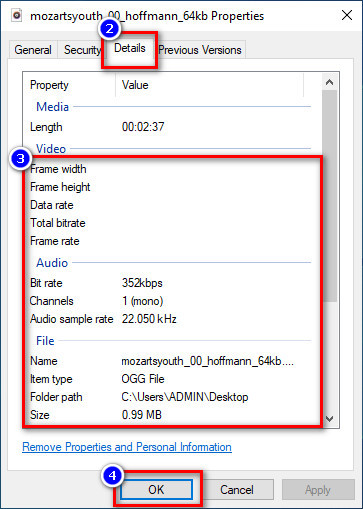
วิธีนี้ไม่ใช่วิธีใหม่สำหรับเรา เพราะเป็นวิธีที่รู้จักกันดีในการเปลี่ยนแท็กของไฟล์มีเดียบน Windows ทุกเวอร์ชัน Properties บน Windows เป็นเครื่องมือที่เรียบง่ายซึ่งทำงานพื้นฐานได้อย่างง่ายดาย นอกจากนี้ การเรียนรู้วิธีเพิ่มแท็กให้ไฟล์ก็ง่ายยิ่งขึ้นด้วยเครื่องมือนี้ หากอยากรู้เพิ่มเติม อ่านรายละเอียดด้านล่างต่อไป.
ขั้นตอนที่ 1. ค้นหาไฟล์มีเดียบนไดรฟ์ใน Windows ของคุณ.
ขั้นตอนที่ 2. คลิกขวาแล้วไปที่ Properties.
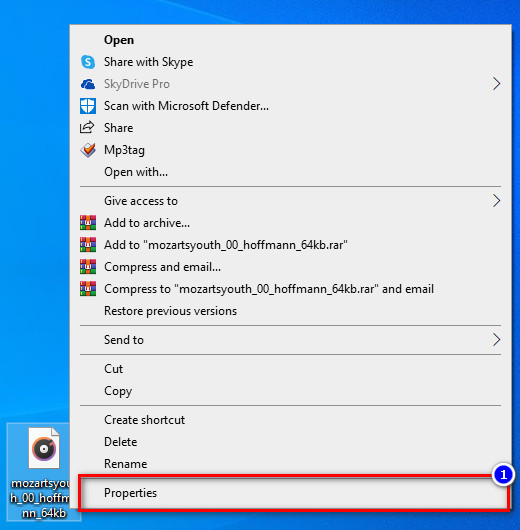
ขั้นตอนที่ 3. ภายใต้ Properties คุณจะเห็นแท็บ Details ให้เพิ่มข้อมูลหรือแท็กที่คุณต้องการ จากนั้นกด OK.
บานหน้าต่างรายละเอียด
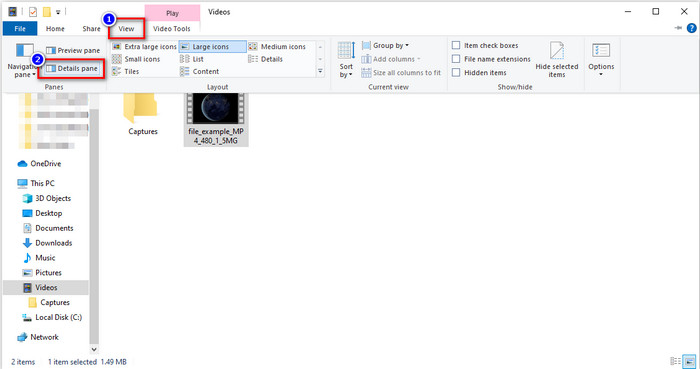
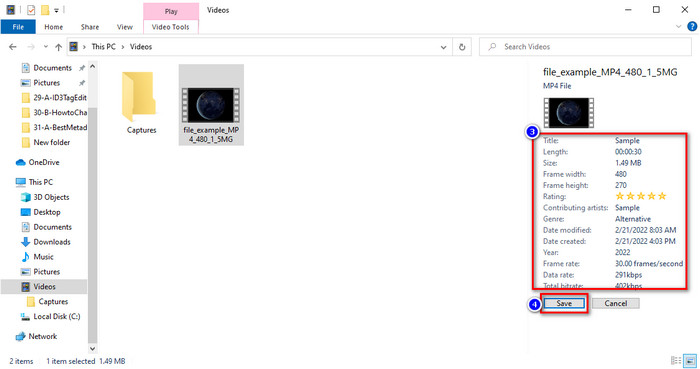
ผู้ใช้ Windows ไม่ใช่ทุกคนจะรู้ว่าเราสามารถใช้ Details Pane เพื่อปรับเมตาดาต้าของไฟล์มีเดียได้ อย่างไรก็ตาม คุณจะไม่สามารถเพิ่มข้อมูลได้มากเท่าวิธีแรก แต่ถ้าคุณอยากลองใช้วิธีนี้ ตอนนี้คุณต้องทำตามวิธีเพิ่มแท็กให้ไฟล์โดยไม่ต้องเปิดไฟล์ พร้อมขั้นตอนอย่างละเอียด.
ขั้นตอนที่ 1. เปิด File Explorer และค้นหาไฟล์.
ขั้นตอนที่ 2. คลิกเลือกไฟล์ แล้วไปที่ View เมื่อคลิก View บนแถบด้านบนแล้ว ให้คลิก Details Pane.
ขั้นตอนที่ 3. ตอนนี้คุณสามารถปรับแท็กได้ แล้วคลิก Save เมื่อทำเสร็จ.
ส่วนที่ 3 คำถามที่พบบ่อยเกี่ยวกับวิธีการเพิ่มแท็กในไฟล์
ไหนดีกว่า: ตัวแก้ไขแท็กในตัวหรือบุคคลที่สาม
เทคนิคทั้งสองในการเพิ่มหรือลบข้อมูลเมตาทำได้ดี อย่างไรก็ตาม หากเราต้องการซอฟต์แวร์ระดับมืออาชีพ เราแนะนำให้ติดตั้งเครื่องมือที่มีตัวเลือกมากกว่าที่มีอยู่ภายใน เช่นเดียวกับ FVC Video Converter Ultimate เป็นเครื่องมือของบุคคลที่สามที่สมบูรณ์แบบในการแก้ไขแท็กของไฟล์มีเดียอื่น อ่านข้อมูลด้านบนเพื่อทราบข้อมูลเพิ่มเติม
ข้อดีของการใช้ตัวแก้ไขข้อมูลเมตาในตัวคืออะไร
แทนที่จะดาวน์โหลด ติดตั้ง และตั้งค่าทั้งหมด คุณสามารถไปยังขั้นตอนการเปลี่ยนแปลงข้อมูลเมตาได้ทันที ซึ่งแตกต่างจากเครื่องมือของบุคคลที่สาม นอกจากนี้ ข้อดีอย่างหนึ่งของการใช้บิวท์อินคือใช้งานได้อย่างปลอดภัยอย่างไม่ต้องสงสัย เพราะอยู่ในไดรฟ์ของคุณแล้ว แต่อย่าลืมว่าตัวแก้ไขแท็กในตัวไม่ได้มีตัวเลือกมากมายในการแท็กไฟล์สื่อ ดังนั้นการดาวน์โหลดบุคคลที่สามที่เหมาะสมจึงเป็นสิ่งจำเป็น แต่ตรวจสอบให้แน่ใจว่าซอฟต์แวร์ที่คุณจะดาวน์โหลดนั้นปลอดภัยและมีตัวเลือกเพิ่มเติมเกี่ยวกับข้อมูลเมตา อย่างไรก็ตาม เครื่องมือแก้ไขข้อมูลเมตาในตัวมีความน่าเชื่อถือและใช้งานง่าย
ฉันสามารถแก้ไขข้อมูลเมตาออนไลน์ได้หรือไม่
ได้ คุณสามารถแก้ไขข้อมูลเมตาออนไลน์ได้ การแก้ไขข้อมูลเมตาทางออนไลน์นั้นดีกว่าการใช้แอพในตัวมาก แต่เครื่องมือเว็บบางตัวไม่ปลอดภัยในการใช้งาน ดังนั้น หากคุณใช้เครื่องมือออนไลน์ ตรวจสอบให้แน่ใจว่าเว็บมีความปลอดภัยเพื่อหลีกเลี่ยงการถูกแฮ็กหรือไวรัส และหากคุณไม่แน่ใจเกี่ยวกับเว็บไซต์ คุณสามารถอ่านบทความที่เชื่อถือได้เกี่ยวกับการตรวจทานเครื่องมือเว็บและเรียนรู้ว่าสามารถเข้าถึงได้อย่างปลอดภัยหรือไม่
สรุป
ไม่ว่าคุณจะเลือกเพิ่มเมตาดาต้าด้วยวิธีในตัวระบบหรือใช้โปรแกรมเสริม อัตราความสำเร็จในการทำให้สำเร็จนั้น 100% อย่างแน่นอน แม้ว่าเครื่องมือที่เรากล่าวถึงจะทำงานได้ดีด้วยตัวเองอยู่แล้ว แต่ก็ยิ่งดีกว่าหากคุณพึ่งพาซอฟต์แวร์ที่ดีที่สุดอย่างโปรแกรม Ultimate ทำไมจึงเป็นเช่นนั้น? เพราะมันมีความสามารถมากกว่าตัวแก้ไขแท็กแบบในตัวของ Windows หากคุณยังไม่เชื่อการรีวิวของเราเกี่ยวกับ FVC Video Converter Ultimate คุณควรติดตั้งแล้วลองใช้งานดูเองว่าทำงานได้ตามที่เราบอกไว้หรือไม่.
-
 ทบทวนข้อมูลเมตา FFmpeg เกี่ยวกับการใช้งานและฟังก์ชันให้สมบูรณ์
 คุณต้องการทราบวิธีใช้ตัวแก้ไขข้อมูลเมตา FFmpeg หรือไม่? แน่นอนว่าซอฟต์แวร์นี้ไม่ใช้งานง่าย แต่ด้วยบทความนี้ คุณสามารถทำให้สำเร็จได้อย่างง่ายดาย
-
 วิธีดูข้อมูลเมตาของรูปภาพและวิดีโอบน iOS อย่างง่ายดาย
 คุณต้องการทราบวิธีการดูข้อมูลเมตาบน iPhone และ iPad หรือไม่? การอ่านบทความนี้อาจช่วยให้คุณแก้ปัญหานี้ได้อย่างง่ายดาย
-
 เทคนิคที่ดีที่สุดในการแก้ไขแท็ก iD3 บน iTunes [เคล็ดลับที่มีประสิทธิภาพ]
 ต้องการทราบวิธีการแก้ไขแท็กบน iTunes หรือไม่? ถ้าอย่างนั้นคุณก็มาถูกที่แล้ว ตามที่เราพูดถึงวิธีการต่างๆ คุณสามารถปฏิบัติตามเพื่อแก้ไขแท็กโดยใช้ iTunes
