


 Video Converter Ultimate
 บันทึกหน้าจอ
 ซ่อมวิดีโอ
 ดาวน์โหลดอย่างปลอดภัย
เทคนิคที่ดีที่สุดในการลบลายน้ำ Animoto บนวิดีโออย่างถาวร
Animoto เป็นเครื่องมือสร้างวิดีโอบนระบบคลาวด์ที่ทุกคนสามารถใช้เพื่อสร้างวิดีโอที่ยอดเยี่ยมเพื่อสร้างความประทับใจให้กับผู้ชมที่จะดูวิดีโอ ด้วยผู้ใช้หลายล้านคน Animoto มีชื่อเสียงในด้านการตัดต่อและสร้างวิดีโอโดยไม่ต้องมีความรู้มากมายเกี่ยวกับขั้นตอนหลังการผลิต เนื่องจากมีผู้เข้าชมเว็บไซต์เป็นประจำทุกวัน ผู้ใช้หลายคนจึงสนุกกับการใช้เว็บไซต์และสร้างวิดีโอสั้นที่น่าทึ่งหลายรายการสำหรับงานนำเสนอของตน
อย่างไรก็ตาม เวอร์ชันใช้งานฟรีของเครื่องมือนี้จะทิ้งโลโก้ของเครื่องมือไว้ที่ท้ายวิดีโอ ซึ่งอาจรบกวนสายตาสำหรับบางคน และแน่นอนว่าเราควรลบมันออกเพื่อให้วิดีโอดูเรียบร้อยโดยไม่มีลายน้ำ เพื่อให้คุณได้เครื่องมือที่ใช้ลบลายน้ำ Animoto ได้ฟรี คุณจำเป็นต้องอ่านบทความนี้ต่อไปให้ทัน เพราะเราจะสรุปทุกเครื่องมือที่สามารถใช้ช่วยคุณได้ไว้ให้แล้ว.

ตอนที่ 1 วิธีลบลายน้ำออกจากวิดีโอ Animoto [ตัวลบลายน้ำที่ใช้มากที่สุดในปี 2022]
FVC Video Converter Ultimate – Ultimate Watermark Remover บน Windows และ Mac
หากคุณต้องการลบลายน้ำ Animotica คุณสามารถใช้และใช้ประโยชน์จากฟีเจอร์และฟังก์ชันทั้งหมดที่ FVC Video Converter Ultimate มีให้ได้อย่างเต็มที่ เครื่องมือนี้นำเสนอวิธีที่มีประสิทธิภาพที่สุดในการกำจัดลายน้ำบนวิดีโอของคุณ นั่นคือการลบออกโดยตรง ด้วยเครื่องมือนี้ คุณสามารถครอบโลโก้ของ Animoto ด้วยโลโก้ที่คุณออกแบบเอง เพื่อไม่ให้โลโก้ของเครื่องมือแสดงบนวิดีโอที่คุณสร้าง โดยรวมแล้วในด้านประสิทธิภาพการลบลายน้ำ เราสามารถกล่าวได้อย่างง่ายดายว่านี่คือเครื่องมือที่ดีที่สุดที่เราพบในท้องตลาด.
นอกจากนี้ นอกจากการลบและเพิ่มลายน้ำแล้ว คุณยังสามารถใช้ประโยชน์จากฟีเจอร์และฟังก์ชันอื่นๆ เช่น การแก้ไข การแปลง การสร้าง MV และอื่นๆ ในคุณสมบัติและฟังก์ชันทั้งหมด เรายอมรับได้ว่ามันเสิร์ฟจานที่ถูกต้องบนโต๊ะเพื่อจุดประสงค์สูงสุด ดังนั้น หากคุณต้องการทราบวิธีลบลายน้ำออกจากวิดีโอ Animoto คุณสามารถอ่านข้อมูลด้านล่างนี้ได้
ขั้นตอนที่ 1. กรุณากดปุ่มดาวน์โหลดด้านล่างเพื่อติดตั้งบน Windows หรือ Mac ของคุณ เลือกปุ่มที่เหมาะสมเพื่อดาวน์โหลดเวอร์ชันที่ตรงกับระบบปฏิบัติการ หลังจากนั้นให้คลิกไฟล์ที่คุณดาวน์โหลดเพื่อเริ่มการติดตั้ง ดำเนินการตามขั้นตอนการติดตั้ง แล้วเปิดโปรแกรม.
ดาวน์โหลดฟรีสำหรับ Windows 7 หรือใหม่กว่าดาวน์โหลดอย่างปลอดภัย
ดาวน์โหลดฟรีสำหรับ MacOS 10.7 หรือใหม่กว่าดาวน์โหลดอย่างปลอดภัย
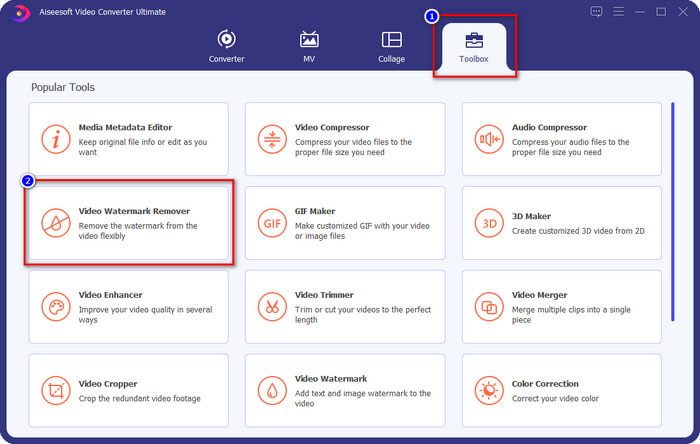
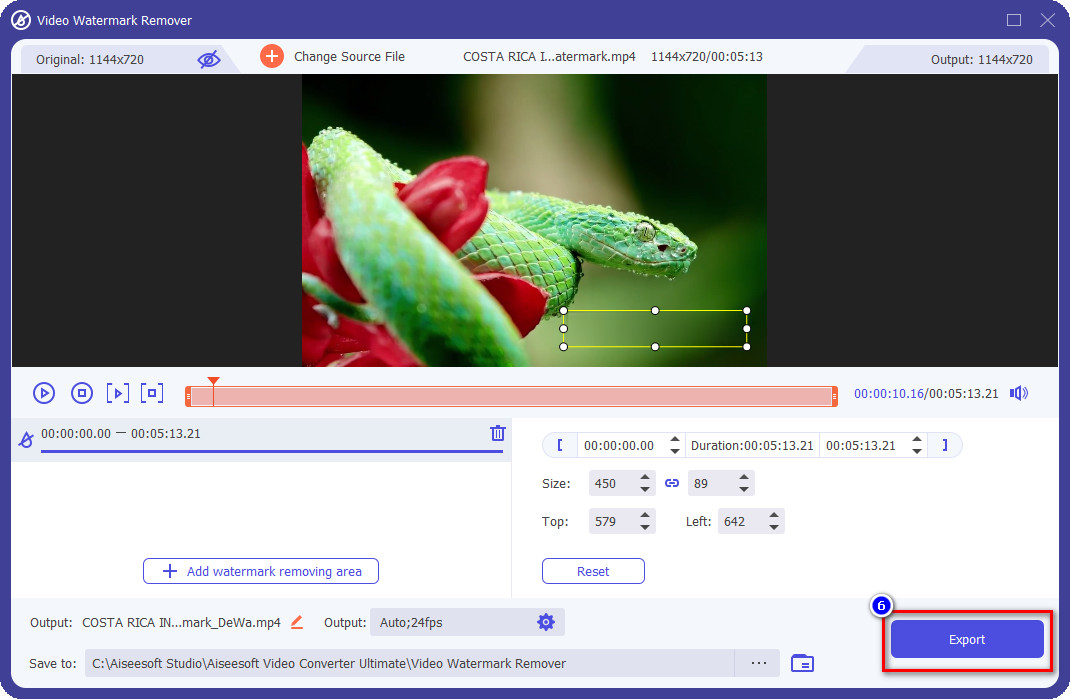
ขั้นตอนที่ 2. ไปที่เมนู Toolbox เพื่อเปิดฟังก์ชัน Video Watermark Remover ที่มีอยู่ในเครื่องมือนี้.
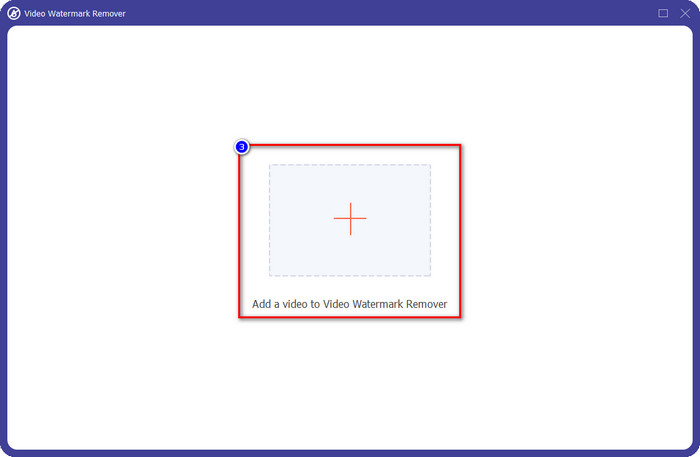
ขั้นตอนที่ 3. จากนั้นคลิกปุ่ม + ที่แสดงบนหน้าจอของคุณเพื่ออัปโหลดวิดีโอที่คุณตัดต่อใน Animoto ซึ่งมีลายน้ำอยู่.
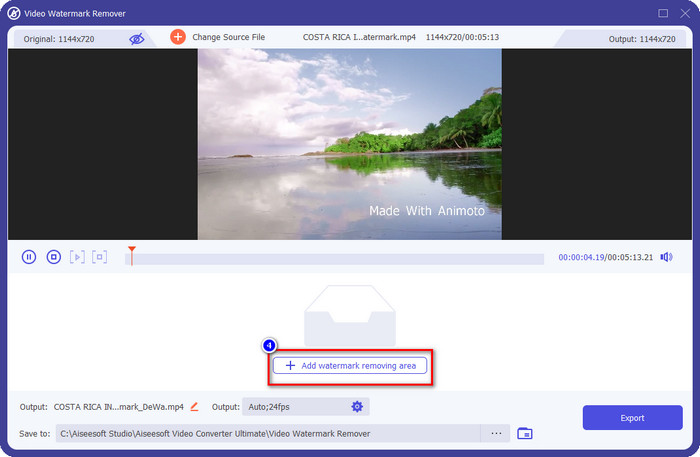
ขั้นตอนที่ 4. เมื่ออัปโหลดวิดีโอแล้ว จะมีหน้าต่างใหม่ปรากฏขึ้นบนหน้าจอของคุณ ให้คลิก Add Watermark Removing Area ที่ส่วนตรงกลางด้านล่างของอินเทอร์เฟซ.
ขั้นตอนที่ 5. กรุณาปรับกรอบเลือกให้พอดีกับตำแหน่งลายน้ำแล้ววางให้ตรง.
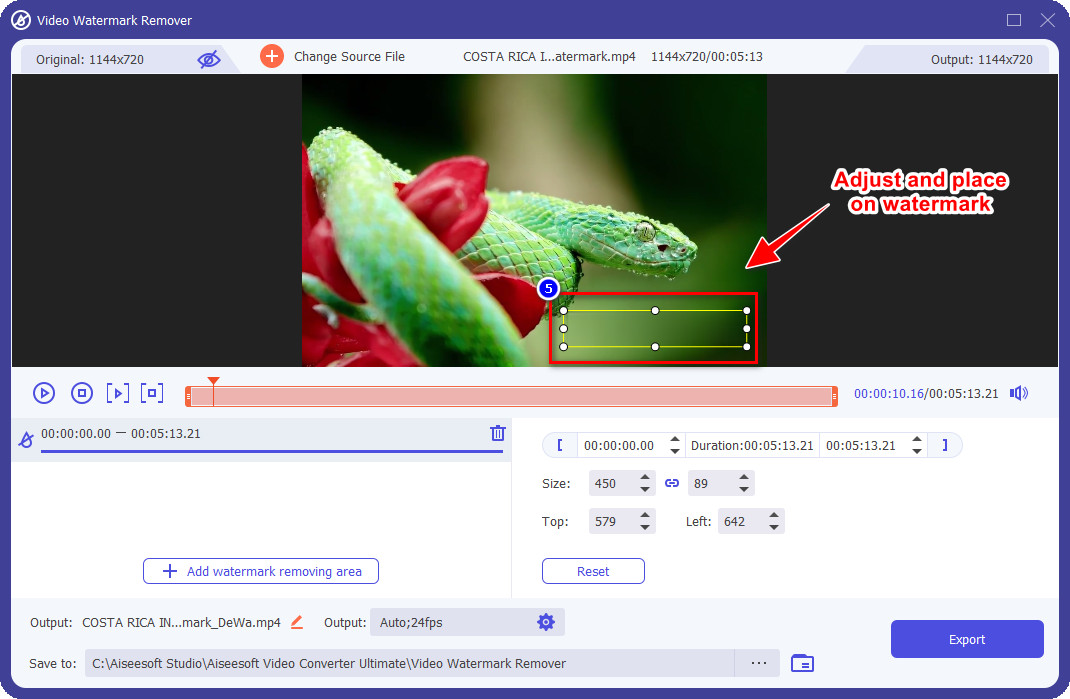
ขั้นตอนที่ 6. หลังจากจัดวางกรอบเลือกครอบลายน้ำเรียบร้อยแล้ว คุณสามารถคลิกปุ่ม Export เพื่อบันทึกวิดีโอไฟนัลที่ไม่มีลายน้ำได้.
iMovie บน Mac
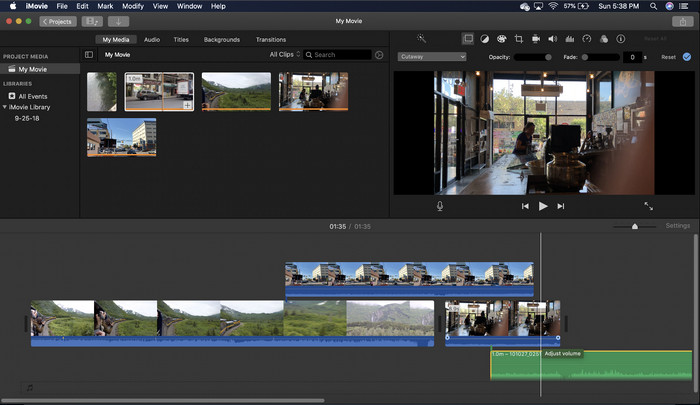
iMovie เป็นโปรแกรมตัดต่อวิดีโอยอดนิยมที่คุณสามารถใช้เพื่อลบลายน้ำบนวิดีโอของคุณโดยการครอบตัด ผู้ใช้ Mac ทุกคนสามารถใช้ประโยชน์จากศักยภาพโดยไม่ต้องดาวน์โหลดซอฟต์แวร์ลงในอุปกรณ์ของตน เนื่องจากติดตั้งไว้ล่วงหน้าแล้ว ช่วยให้คุณประหยัดเวลาในการดาวน์โหลดและติดตั้ง แม้กระทั่งในที่จัดเก็บข้อมูล แม้ว่าเครื่องมือนี้จะยอดเยี่ยมสำหรับการตัดต่อวิดีโอ แต่ฟีเจอร์การลบลายน้ำที่สนับสนุนนั้นไม่เหมือนกับเครื่องมือแรกที่มีให้ มันครอบตัดกรอบวิดีโอเพื่อลบลายน้ำในวิดีโอ ดังนั้นหากวางลายน้ำไว้ตรงกลาง คุณจะต้องครอบตัดเกือบครึ่งหนึ่งของการนำเสนอด้วยภาพของวิดีโอ
การลบลายน้ำอาจไม่ใช่ตัวเลือกที่ดีที่สุดเสมอไป แต่ถ้าโลโก้อยู่ที่ด้านท้ายของวิดีโอ คุณสามารถทำตามขั้นตอนด้านล่างเพื่อทราบวิธีลบลายน้ำ Animoto ออกจากวิดีโอโดยการครอบตัด
ขั้นตอนที่ 1. เปิดโปรแกรมตัดต่อวิดีโอบน Mac ของคุณ โดยไปที่ Finder แล้วเลือก Application จากนั้นค้นหา iMovie และดับเบิลคลิกเพื่อเปิด.
ขั้นตอนที่ 2. อัปโหลดวิดีโอที่คุณต้องการด้วยการคลิกปุ่ม import แล้วค้นหาไฟล์วิดีโอบนไดรฟ์ภายในเครื่อง.
ขั้นตอนที่ 3. เมื่ออัปโหลดวิดีโอเสร็จแล้ว ให้ลากวิดีโอที่คุณอัปโหลดลงไปยังไทม์ไลน์.
ขั้นตอนที่ 4. ที่ด้านขวาของอินเทอร์เฟซเครื่องมือ คุณจะเห็นไอคอนฟีเจอร์แก้ไขวิดีโอหลายแบบ ให้คลิกไอคอน crop จากรายการ.
ขั้นตอนที่ 5. ปรับเปลี่ยนกรอบภาพเพื่อไม่ให้มีส่วนที่เป็นลายน้ำ Animoto อยู่ในวิดีโอของคุณ.
ขั้นตอนที่ 6. คลิกปุ่ม share ที่มุมซ้ายบน แล้วเลือก Export as a Video เพื่อเริ่มดาวน์โหลดวิดีโอ.
ส่วนที่ 2 วิธีเพิ่มเติมในการบันทึกวิดีโอ Animoto โดยไม่มีลายน้ำ
ฉันสามารถบันทึกวิดีโอที่แก้ไขบน Animoto โดยไม่มีลายน้ำได้หรือไม่ คุณสามารถ. แทนที่จะใช้ซอฟต์แวร์ที่เรากล่าวถึงข้างต้น คุณซื้อค่าธรรมเนียมการสมัครสมาชิกบนเครื่องมือบนเว็บนี้เพื่อบันทึกวิดีโอที่คุณแก้ไขที่นี่ แต่คราวนี้ไม่มีลายน้ำ เพื่อช่วยคุณดำเนินการ คุณสามารถทำตามขั้นตอนต่อไปนี้ด้านล่าง
ขั้นตอนที่ 1. เปิดเบราว์เซอร์ของคุณ ค้นหา Animoto Video Editor แล้วเข้าไปยังเว็บไซต์อย่างเป็นทางการ.
ขั้นตอนที่ 2. บนเว็บไซต์หลัก ให้คลิกที่เมนู Pricing.
ขั้นตอนที่ 3. ภายใต้หน้านี้ คุณจะเห็นว่ามีการสมัครสมาชิกให้เลือก 2 แบบ คือรายเดือนและรายปี อย่าหลงกลกับราคาต่อปีที่ดูเหมือนถูกกว่า เพราะจริง ๆ แล้วคุณจะต้องจ่ายมากกว่ารายเดือน เนื่องจากแบบรายปีหมายถึงคิดเป็นรายปีเต็ม.
ขั้นตอนที่ 4. สร้างบัญชีที่นี่ แล้วเพิ่มที่อยู่สำหรับเรียกเก็บเงินและวิธีการชำระเงินที่คุณต้องการใช้ หลังจากนั้นคุณก็สามารถใช้งานเวอร์ชันโปรของเครื่องมือออนไลน์นี้ได้.
ที่เกี่ยวข้อง:
ส่วนที่ 3 คำถามที่พบบ่อยเกี่ยวกับวิธีลบลายน้ำ Animoto
Animoto และ Animotoca เหมือนกันหรือไม่?
โปรแกรมตัดต่อวิดีโอทั้งสองนี้ไม่เกี่ยวข้องกัน แต่บทความเกี่ยวกับพวกเขามักจะพูดถึงการเปรียบเทียบเครื่องมือแต่ละอย่าง และทั้งคู่เป็นทางเลือกที่ดีที่สุดสำหรับกันและกัน
การเบลอหรือครอบตัดลายน้ำ Animoto อย่างไหนดีกว่ากัน
การเบลออาจมีผลดีและผลเสียต่อวิดีโอของคุณ ด้านดีของการเบลอลายน้ำคือตาเปล่าของเรามองไม่เห็น โดยเฉพาะอย่างยิ่งหากผสมหรือกลมกลืนกับสี แต่ด้านลบของมันคือคุณจะเห็นรอยที่ตรวจสอบย้อนกลับได้หลังจากที่คุณส่งออกไปหากมันไปได้ไม่ดี ในการครอบตัดก็เหมือนกัน เมื่อคุณครอบตัดวิดีโอ จะไม่มีการเบลอหลังจากเอฟเฟกต์บนวิดีโอ แต่ขนาดเฟรมจะแคบลง
Animoto มีการชำระเงินแบบครั้งเดียวหรือไม่?
ขออภัย ไม่รองรับการชำระเงินแบบครั้งเดียว แต่ถ้าคุณต้องการราคาถูกลงและใช้งานเป็นเวลานาน เราขอแนะนำให้คุณเลือกการสมัครสมาชิกรายปีเพื่อใช้เครื่องมือเว็บเป็นเวลาหนึ่งปี จากนั้นสมัครใหม่อีกครั้งในปีถัดไปและต่อไปข้างหน้า
สรุป
คุณคิดว่าคุณจะใช้วิธีใดในการลบลายน้ำ Animoto? ไม่ว่าการตัดสินใจของคุณคืออะไร เราหวังว่าเราจะช่วยคุณแก้ปัญหาการลบลายน้ำในวิดีโอที่คุณแก้ไขบน Animoto
-
 4 วิธีที่ดีที่สุดในการเพิ่มลายน้ำบนวิดีโออย่างรวดเร็ว
 มาเรียนรู้วิธีเพิ่มลายน้ำให้กับวิดีโอบน Windows, Mac, Online, iOS และ Android พร้อมขั้นตอนโดยละเอียดหากคุณอ่านบทความนี้
-
 4 วิธีที่มีประสิทธิภาพในการลบลายน้ำ Tiktok ออกจากวิดีโอ Tiktok
 คุณต้องการลบลายน้ำ Tiktok ออกจากวิดีโอ Tiktok ที่คุณส่งออกหรือไม่? คุณสามารถทำได้ที่นี่ด้วยความช่วยเหลือของเครื่องมือที่เรานำเสนอ คุณสามารถทำได้ง่ายๆ
-
 วิธีเพิ่มลายน้ำให้กับวิดีโอใน iMovie บน Mac [All Embracing]
 คุณต้องการทราบเคล็ดลับในการเพิ่มลายน้ำให้กับวิดีโอใน iMovie หรือไม่? อย่าทำชาหกใส่ใคร และเรียนรู้โดยการอ่านบทความนี้
