


 Video Converter Ultimate
 บันทึกหน้าจอ
 ซ่อมวิดีโอ
 ดาวน์โหลดอย่างปลอดภัย
2 วิธีง่ายๆ ในการลบ Dxtory Watermark
เมื่อพูดถึงการบันทึกการเล่นเกมและแอปพลิเคชันอื่น ๆ Dxtory เป็นหนึ่งในซอฟต์แวร์บันทึกหน้าจอยอดนิยมของใครหลายคน หลายคนใช้โปรแกรมบันทึกหน้าจอนี้เพราะเป็นหนึ่งในไม่กี่แอปที่สามารถบันทึกได้สูงสุดถึง 120 fps นอกจากนี้ยังสามารถบันทึกข้อมูลวิดีโอ DirectX และ OpenGL บนระบบของคุณได้อย่างรวดเร็ว อย่างไรก็ตาม เมื่อคุณบันทึกด้วย Dxtory Screen Recorder โปรแกรมจะทิ้งลายน้ำไว้บนวิดีโอของคุณ ทำให้หลายคนพยายามหาวิธีลบลายน้ำที่น่ารำคาญนี้ออกไป บทความนี้จะแนะนำคุณว่าจะลบลายน้ำ Dxtory อย่างไรออกจากวิดีโอที่บันทึกหน้าจอของคุณ.

ส่วนที่ 1 วิธีการบันทึกหน้าจอโดยใช้ Dxtory
หากคุณกำลังค้นหาแอพพลิเคชั่นซอฟต์แวร์ที่สามารถบันทึกไฮไลท์การเล่นเกมของคุณ Dxtory เป็นแอพที่เหมาะสม Dxtory เป็นแอปที่สามารถช่วยคุณบันทึกหน้าจอขณะเล่นเกม สนทนาบทเรียนออนไลน์ หรือดูวิดีโอบนคอมพิวเตอร์ของคุณ เป็นโปรแกรมซอฟต์แวร์ที่รู้จักกันดีสำหรับการบันทึกหน้าจอ โปรแกรมบันทึกหน้าจอ Dxtory มีเครื่องมือที่จำเป็นเพื่อไปที่การตั้งค่า Global, Advanced, Hotkey, ภาพหน้าจอ, วิดีโอและเสียง ฯลฯ
นอกจากนี้ เครื่องบันทึกหน้าจอนี้ยังให้คุณถ่ายภาพหน้าจอขณะบันทึกได้อีกด้วย คุณยังสามารถแก้ไขภาพหน้าจอเหล่านั้นด้วยตัวเลือกขอบ มาตราส่วน และการตัด นอกจากนี้ยังมีการบันทึกแหล่งที่มาของเสียงหลายแหล่ง ซึ่งหมายความว่า Dxtory สามารถบันทึกเกมและเสียงไมโครโฟนได้พร้อมกัน นอกจากนี้ยังเป็นการจับภาพภาพยนตร์ที่เร็วที่สุดสำหรับแอปพลิเคชัน DirectX และ OpenGL ดังนั้น หากคุณต้องการใช้ Dxtory เพื่อบันทึกหน้าจอ ให้อ่านส่วนนี้ต่อ
วิธีบันทึกการเล่นเกมโดยใช้เครื่องบันทึกหน้าจอ Dxtory:
ขั้นตอนที่ 1. ก่อนอื่น คุณต้องดาวน์โหลด Dxtory ลงในอุปกรณ์ของคุณ แล้วทำตามขั้นตอนการติดตั้ง คุณสามารถซื้อไลเซนส์ได้เพื่อที่จะไม่มีข้อจำกัดในการบันทึก และจะไม่มีลายน้ำปรากฏบนวิดีโอเอาต์พุตของคุณ.
ขั้นตอนที่ 2. เปิดแอปที่คุณต้องการบันทึก แล้วเปิดโปรแกรม Dxtory.
ขั้นตอนที่ 3. ไปที่แท็บ Target แล้วคลิกเลือกเกมที่คุณกำลังเล่น รายชื่อโปรเซสจะปรากฏขึ้นทันทีในรายการเป้าหมาย.
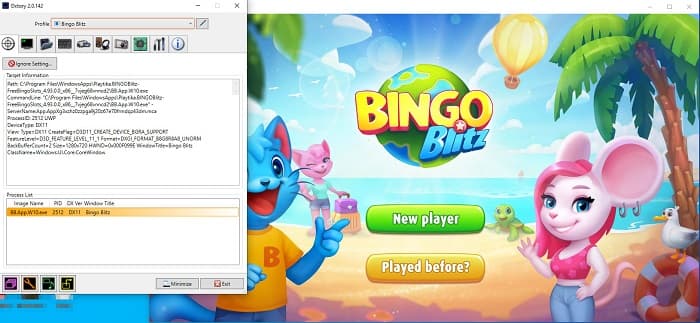
ขั้นตอนที่ 4. จากนั้นไปที่แท็บ Folder แล้วเลือกปลายทางสำหรับไฟล์ของคุณ ต่อไปให้ไปที่ Hotkeys เพื่อเลือกปุ่มลัดสำหรับกระบวนการบันทึกหน้าจอ คุณยังสามารถปรับระดับเสียงได้ด้วย.
ขั้นตอนที่ 5. ย่อหน้าDxtoryลง แล้วเริ่มเล่นเกมของคุณ คุณจะเห็นตัวเลขที่มุมซ้ายบนของหน้าจอเกมซึ่งแสดงค่า FPS กดปุ่มลัดสำหรับบันทึกวิดีโอที่คุณตั้งไว้ในแผง Hotkeys เพื่อเริ่มการบันทึก.
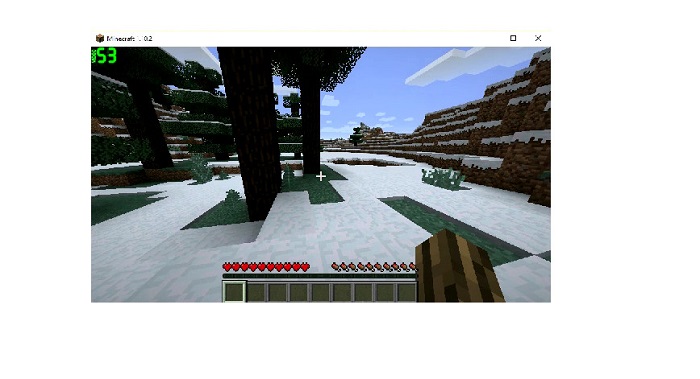
ขั้นตอนที่ 6. หากต้องการหยุดบันทึก ให้กดปุ่มเดิมที่คุณใช้เริ่มการบันทึก วิดีโอจะถูกบันทึกไปยังปลายทางที่คุณเลือกเมื่อคุณหยุดการบันทึก.
ตอนนี้คุณก็สามารถเพลิดเพลินกับการชมวิดีโอบันทึกหน้าจอของคุณได้แล้ว หากคุณไม่ได้ซื้อไลเซนส์ คุณจะเห็นลายน้ำบนวิดีโอของคุณ ดังนั้นหากคุณต้องการลบลายน้ำออกจากวิดีโอ ให้ไปอ่านในส่วนถัดไป.
ส่วนที่ 2 วิธีการลบ Dxtory Watermark โดยใช้ Ultimate Tool
หากคุณต้องการลบ Dxtory Watermark ออกจากวิดีโอบันทึกหน้าจอของคุณ คุณอาจต้องการใช้ซอฟต์แวร์ที่ยอดเยี่ยมนี้ อ่านส่วนนี้เพื่อเรียนรู้คำอธิบายทั้งหมดเกี่ยวกับเครื่องมือนี้และวิธีใช้งานสำหรับกระบวนการลบลายน้ำ Dxtory
FVC Video Converter Ultimate เป็นหนึ่งในซอฟต์แวร์ยอดนิยมที่ช่วยให้คุณลบลายน้ำออกจากวิดีโอได้ทุกประเภท มีอินเทอร์เฟซที่ใช้งานง่าย ทำให้เป็นเครื่องมือที่เป็นมิตรต่อผู้ใช้ นอกจากนี้ FVC Video Converter Ultimate ยังรองรับรูปแบบไฟล์มากมาย เช่น MP4, MKV, MOV, M4V, AVI, FLV และอื่น ๆ อีกกว่า 1000 รูปแบบ และหากคุณต้องการแอปที่มีฟีเจอร์การตัดต่อหลากหลาย เครื่องมือนี้ถือว่าเหมาะที่สุด มันมีฟีเจอร์ขั้นสูงมากมาย เช่น ตัวครอบตัดวิดีโอ เครื่องมือลบลายน้ำวิดีโอ ตัวรวมวิดีโอ ตัวตัดวิดีโอ และอื่น ๆ ในเมนู Toolbox.
ด้วยอินเทอร์เฟซการประมวลผลที่รวดเร็ว คุณสามารถลบลายน้ำที่ฝังอยู่ในวิดีโอของคุณได้อย่างง่ายดาย ดังนั้น ทำตามขั้นตอนด้านล่างเพื่อให้มีวิดีโอ Dxtory ที่ไม่มีลายน้ำ
มีสองวิธีในการลบลายน้ำ Dxtory บนวิดีโอของคุณ
วิธีที่ 1: วิธีลบลายน้ำ Dxtory โดยใช้คุณสมบัติตัวครอบตัดวิดีโอ:
ขั้นตอนที่ 1. ก่อนอื่น ติดตั้ง FVC Video Converter Ultimate บนอุปกรณ์ของคุณโดยคลิกปุ่ม Download ด้านล่างสำหรับ Windows หรือ Mac จากนั้นทำตามขั้นตอนการติดตั้งและเปิดแอป.
ดาวน์โหลดฟรีสำหรับ Windows 7 หรือใหม่กว่าดาวน์โหลดอย่างปลอดภัย
ดาวน์โหลดฟรีสำหรับ MacOS 10.7 หรือใหม่กว่าดาวน์โหลดอย่างปลอดภัย
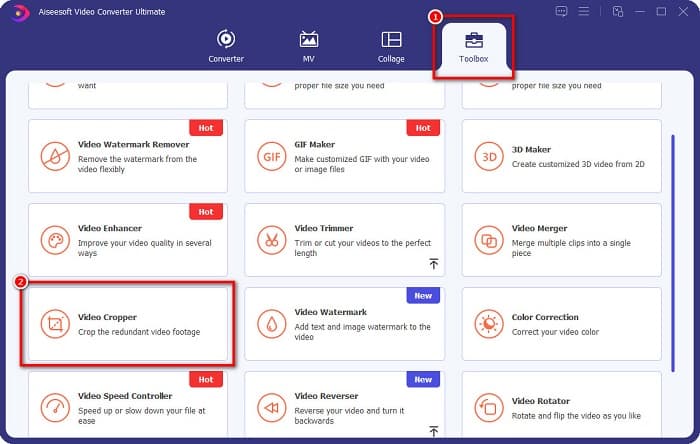
ขั้นตอนที่ 2. ที่หน้าหลัก ให้คลิกแท็บ Toolbox แล้วเลือกฟีเจอร์ Video Cropper.
ขั้นตอนที่ 3. จากนั้นคลิกปุ่มสัญลักษณ์ เครื่องหมายบวก (+) เพื่ออัปโหลดวิดีโอที่คุณต้องการลบลายน้ำ คุณยังสามารถลากและวางวิดีโอจากไฟล์ในคอมพิวเตอร์ของคุณได้.
ขั้นตอนที่ 4. ต่อไป คุณสามารถพรีวิวผลลัพธ์ของคุณได้ คุณจะเห็นกรอบครอบตัด ปรับขอบของกรอบครอบตัดจนกว่าลายน้ำจะไม่อยู่ในพื้นที่วิดีโอ.
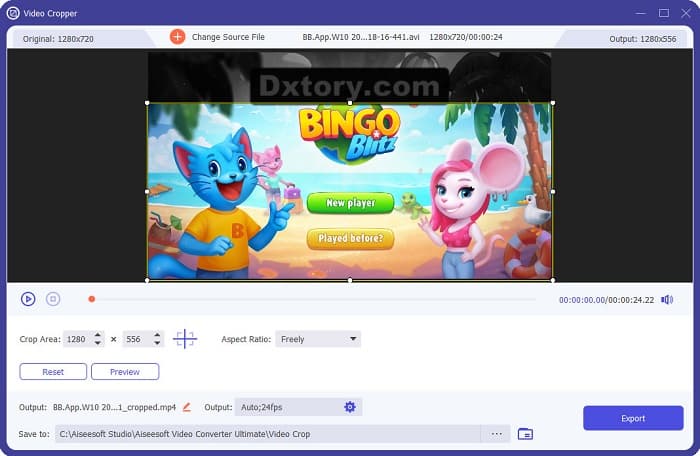
คุณสามารถปรับขนาดพื้นที่ครอบตัดได้โดยคลิกปุ่มขึ้นลงด้านล่างตัวอย่างวิดีโอของคุณ
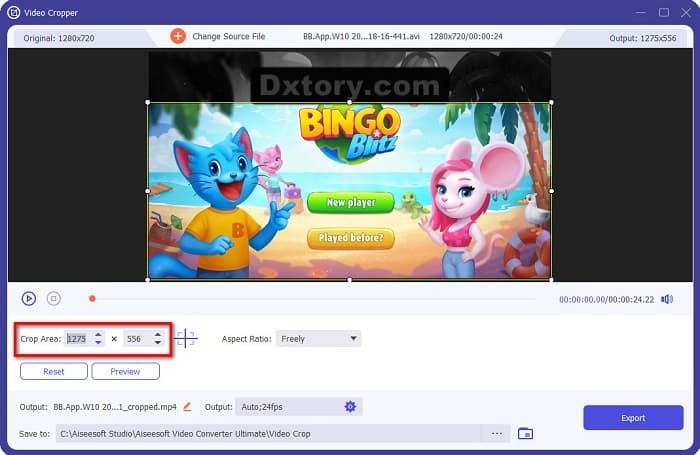
ขั้นตอนที่ 5. สุดท้าย คลิกปุ่ม Preview เพื่อดูตัวอย่างผลลัพธ์ของวิดีโอ แล้วคลิก Export หากคุณพอใจกับผลลัพธ์.
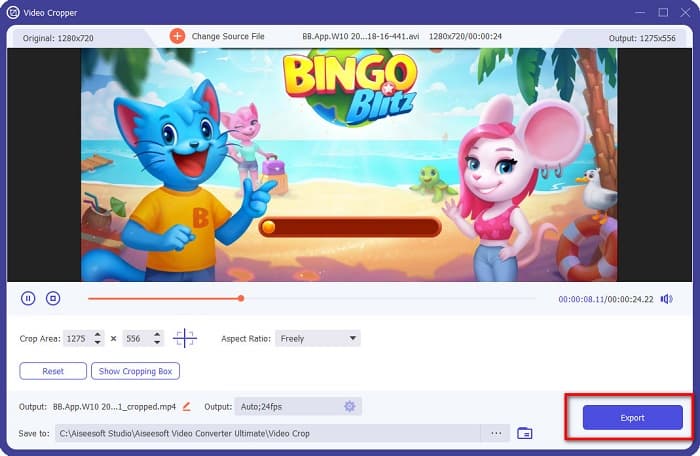
ด้วยขั้นตอนง่าย ๆ เหล่านี้ คุณสามารถลบลายน้ำ Dxtory บนวิดีโอของคุณโดยใช้คุณสมบัติ Video Cropper ของ FVC Video Converter UItimate
วิธีที่ 2: วิธีลบลายน้ำ Dxtory โดยใช้ Video Watermark Remover ของ FVC Video Converter Ultimate:
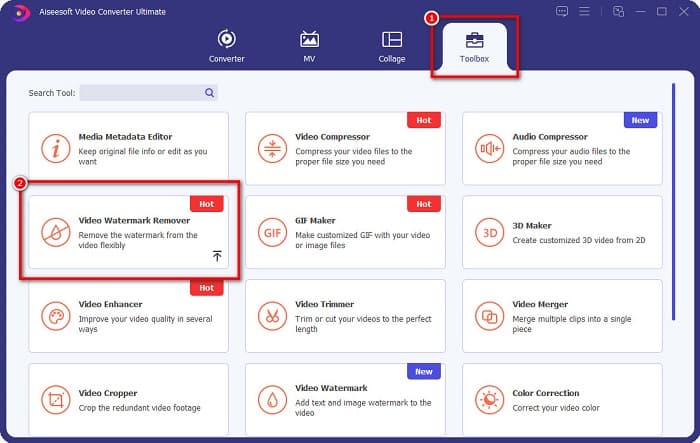
ขั้นตอนที่ 1. หากซอฟต์แวร์นี้ติดตั้งอยู่ในอุปกรณ์ของคุณแล้ว ให้เปิดแอป จากนั้นไปที่ Toolbox และเลือก Video Watermark Remover.
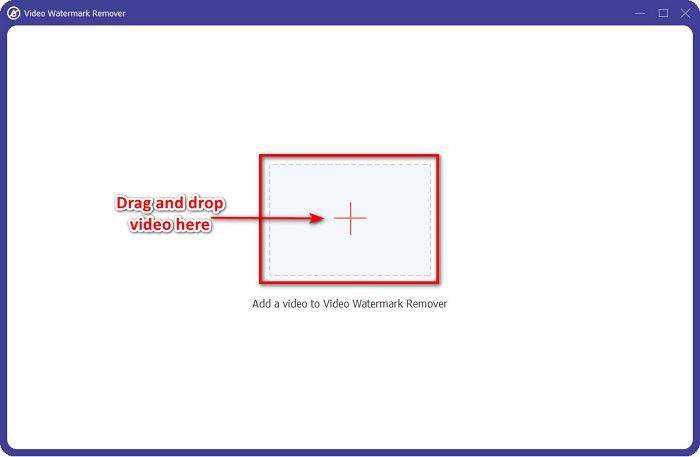
ขั้นตอนที่ 2. จากนั้นคลิกปุ่มสัญลักษณ์ + หรือ ลากและวางวิดีโอ Dxtory ของคุณลงในกล่องสัญลักษณ์ +.
ขั้นตอนที่ 3. หลังจากอัปโหลดวิดีโอแล้ว คุณจะเห็นหน้าต่างพรีวิววิดีโอของคุณ คลิกพื้นที่ Add watermark removing.
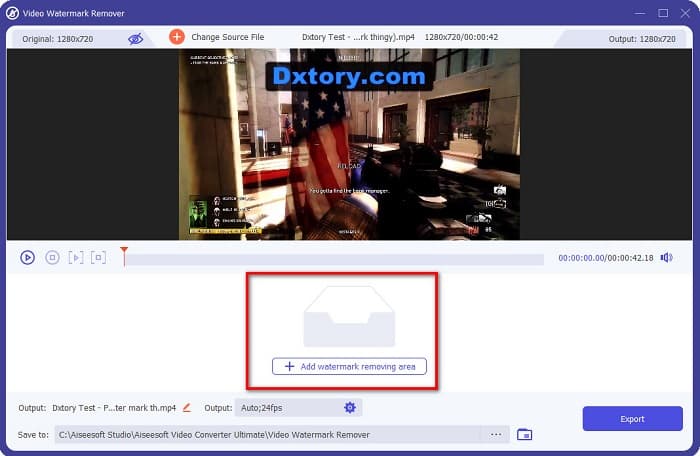
ขั้นตอนที่ 4. จากนั้นจะมีพื้นที่ลบลายน้ำปรากฏขึ้นบนวิดีโอของคุณ ให้วางกรอบนั้นทับบนลายน้ำ Dxtory.
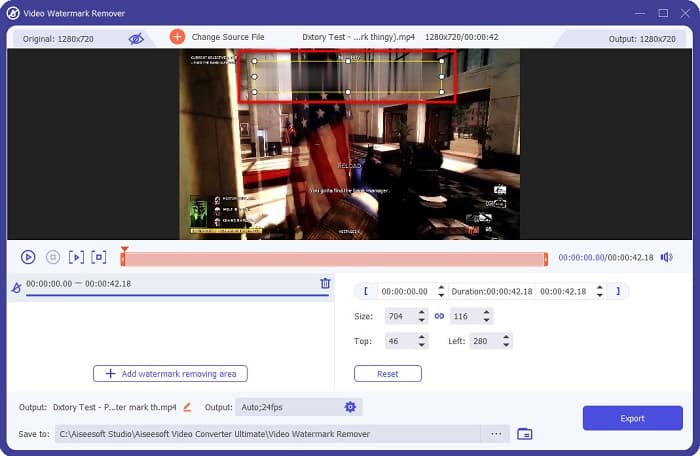
ตัวเลือกเพิ่มเติม หากมีลายน้ำสองตำแหน่งขึ้นไปในวิดีโอของคุณ ให้คลิก add watermark removing area เพื่อเพิ่มกรอบลบลายน้ำอีกอัน.
ขั้นตอนที่ 5. สุดท้าย คลิกปุ่ม Export เพื่อบันทึกวิดีโอเอาต์พุตลงในอุปกรณ์ของคุณ เพียงเท่านี้ก็เสร็จแล้ว!
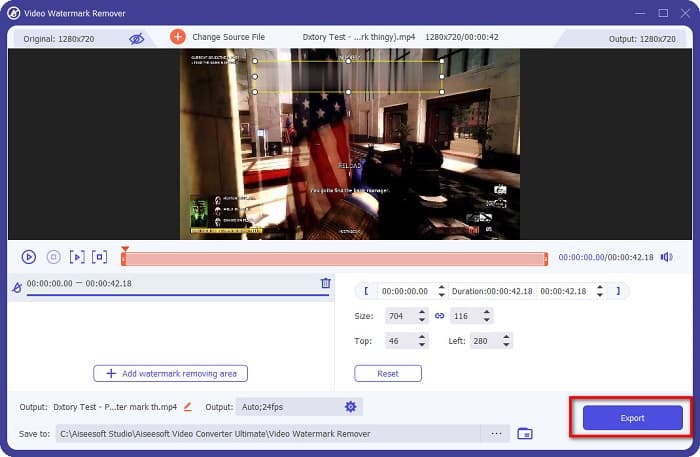
ไม่ยากเลยใช่ไหม คุณสามารถลบลายน้ำ Dxtory ออกจากวิดีโอของคุณได้ง่าย ๆ แบบนี้ นอกจากนี้คุณยังสามารถลบลายน้ำ TikTok ได้ด้วยวิธีที่คล้ายกันตามที่กล่าวไว้ข้างต้น.
ส่วนที่ 3 คำถามที่พบบ่อยเกี่ยวกับการลบ Dxtory Watermark
Adobe After Effects สามารถลบลายน้ำ Dxtory ได้หรือไม่?
ได้ Adobe After Effects เป็นโปรแกรมลบลายน้ำวิดีโอยอดนิยมที่สามารถลบลายน้ำทุกชนิดออกจากวิดีโอของคุณ (โลโก้ ข้อความ รูปภาพ) และยังสามารถลบลายน้ำ Dxtory บนวิดีโอของคุณได้ด้วย อย่างไรก็ตาม ผู้ใช้จำนวนมากพบว่ามันใช้งานค่อนข้างยาก ระบุตำแหน่งลายน้ำบนภาพของคุณ วางกล่องลบลายน้ำทับบนลายน้ำ ไปที่แผง Layer สร้าง Null Objects คลิก Save Frame as นำเข้าวิดีโอที่แก้ไขแล้ว ลดค่า Opacity ของภาพ ใช้ตัวเลือก Pick‑up whip.
คุณสามารถลบลายน้ำออกจากรูปภาพของคุณได้หรือไม่?
คุณสามารถลบลายน้ำต่าง ๆ เช่น โลโก้ ข้อความ หรือองค์ประกอบใด ๆ บนรูปภาพของคุณได้ คุณสามารถใช้FVC free watermark remover เพื่อลบลายน้ำบนรูปภาพได้ทุกชนิด.
ทำไม Dxtory ใส่ลายน้ำบนวิดีโอ?
Dxtory ใส่ลายน้ำบนวิดีโอของพวกเขาเพื่อที่คุณจะซื้อเวอร์ชันที่ต้องชำระเงิน นอกจากนี้ พวกเขายังฝังลายน้ำบนวิดีโอของพวกเขาเพื่อป้องกันไม่ให้มีลิขสิทธิ์
สรุป
จากที่กล่าวมาข้างต้น มีวิธีที่พิสูจน์แล้วหลายวิธีเกี่ยวกับวิธีลบลายน้ำ Dxtory ออกจากวิดีโอของคุณ และด้วยการใช้ FVC Video Converter Ultimate คุณสามารถลบลายน้ำที่น่ารำคาญออกจากรูปภาพของคุณได้อย่างง่ายดาย ดาวน์โหลดตอนนี้และสัมผัสกับฟีเจอร์ที่ยอดเยี่ยมของมัน.
-
 วิธีการลบลายน้ำจาก Wondershare DVD Creator อย่างง่ายดาย
 บทความนี้ครอบคลุมข้อมูลเกี่ยวกับวิธีการเอาลายน้ำออกจาก Wondershare DVD Creator ในการรับข้อมูลทั้งหมดที่คุณต้องการ คุณจะต้องอ่านสิ่งนี้
-
 วิธีลบ Coub Watermark ด้วยขั้นตอนง่าย ๆ
 เรียนรู้วิธีลบลายน้ำ coub บนวิดีโอของคุณโดยใช้ตัวลบลายน้ำยอดนิยมเหล่านี้ อ่านบทความนี้เพื่อทราบเครื่องมือที่น่าทึ่งเหล่านี้และวิธีใช้งาน
-
 วิธีลบลายน้ำ Lumion บน Windows & Mac ได้อย่างง่ายดาย
 ต้องการลบลายน้ำ Lumion เพื่อนำเสนออย่างมืออาชีพหรือไม่? มีเครื่องมือต่างๆ ที่คุณสามารถใช้ช่วยคุณกำจัดลายน้ำที่ทิ้งไว้ได้
