


 Video Converter Ultimate
 บันทึกหน้าจอ
 ซ่อมวิดีโอ
 ดาวน์โหลดอย่างปลอดภัย
วิธีที่สมบูรณ์ในการลบลายน้ำตัวกรอง Picsart บนวิดีโอของคุณอย่างมีประสิทธิภาพ
ทุกวันนี้ การมีซอฟต์แวร์ตัดต่อสื่อภาพบนเดสก์ท็อปที่ไว้ใจได้อย่าง Picsart ถือเป็นอาวุธสำคัญที่จำเป็นต้องมี ด้วยโปรแกรมนี้ คุณสามารถปรับแต่งตัวเลือกเพียงไม่กี่อย่างก็เปลี่ยนภาพธรรมดา ๆ ให้กลายเป็นภาพถ่ายที่โดดเด่นไม่เหมือนใครได้ คุณจะดึงดูดลูกค้าหรือผู้ชมได้มากขึ้นด้วยภาพที่สะดุดตาซึ่งคุณสร้างขึ้น แต่ปัญหาอย่างหนึ่งของการใช้ Picsart คือมีการใส่ลายน้ำหลังจากส่งออกไฟล์ ซึ่งค่อนข้างน่ารำคาญและรบกวนสายตาถ้าไม่ลบออก ดังนั้นหากคุณต้องการทั้งตัวซอฟต์แวร์และคู่มือสอนลบลายน้ำฟิลเตอร์ Picsart คุณต้องอ่านบทความนี้ต่อไปเพื่อเรียนรู้เพิ่มเติม!

ส่วนที่ 1 วิธีลบลายน้ำตัวกรอง Picsart โดยใช้ซอฟต์แวร์ฟรีบนเดสก์ท็อป
FVC Video Converter Ultimate - ลบลายน้ำอันดับหนึ่งบน Windows & Mac
มาเริ่มแนะนำซอฟต์แวร์ตัวแรกที่เราเลือกมาให้ ซึ่งจะช่วยและสอนวิธีลบลายน้ำ Picsart ให้คุณได้ FVC Video Converter Ultimate คืออาวุธสำคัญที่คุณควรมีไว้ใช้ลบลายน้ำบนวิดีโอได้อย่างง่ายดาย พร้อมให้ผลลัพธ์ในระดับมืออาชีพ ด้วยประสิทธิภาพและฟีเจอร์ที่เทียบไม่ติดนี้ ทำให้มีผู้ใช้จำนวนมากลองใช้งานแล้วไม่ผิดหวัง หากคุณต้องการความช่วยเหลือในการลบลายน้ำออกจากวิดีโอ ก็สามารถทำตามขั้นตอนที่เราระบุด้านล่างนี้ได้เลย.
ขั้นตอนที่ 1. ดาวน์โหลดซอฟต์แวร์เวอร์ชันสมบูรณ์ลงในอุปกรณ์ของคุณโดยคลิกปุ่มดาวน์โหลดที่เหมาะสมด้านล่าง จากนั้นติดตั้งโปรแกรมลงในคอมพิวเตอร์ แล้วคลิก Start Now เพื่อเปิดซอฟต์แวร์.
ดาวน์โหลดฟรีสำหรับ Windows 7 หรือใหม่กว่าดาวน์โหลดอย่างปลอดภัย
ดาวน์โหลดฟรีสำหรับ MacOS 10.7 หรือใหม่กว่าดาวน์โหลดอย่างปลอดภัย
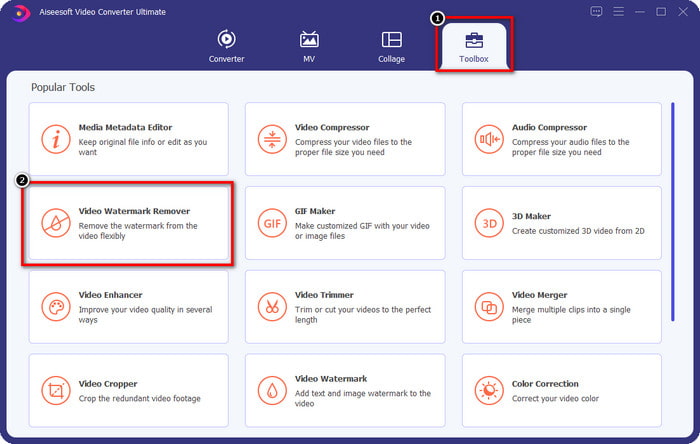
ขั้นตอนที่ 2. ในส่วน Toolbox คุณจะเห็นฟีเจอร์อื่น ๆ ที่สามารถใช้ช่วยให้วิดีโอของคุณดูโดดเด่นยิ่งขึ้น แต่สำหรับวันนี้ ให้คลิกที่ Video Watermark Remover.
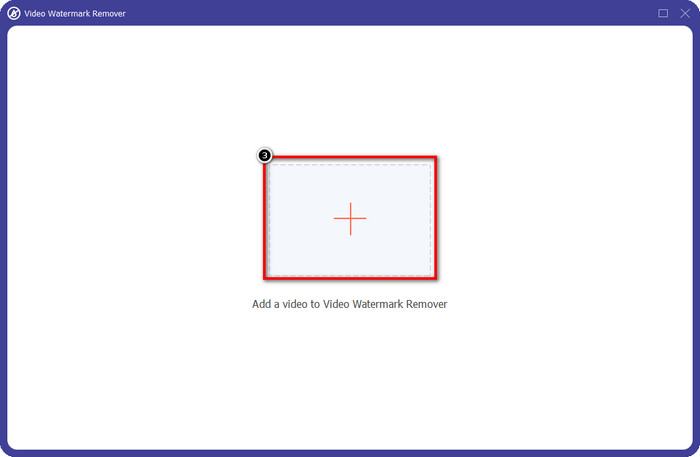
ขั้นตอนที่ 3. อัปโหลดวิดีโอที่คุณตัดต่อด้วย Picsart โดยคลิกไอคอน + จากนั้นค้นหาไฟล์ในโฟลเดอร์ที่ปรากฏบนหน้าจอ แล้วคลิก Open.
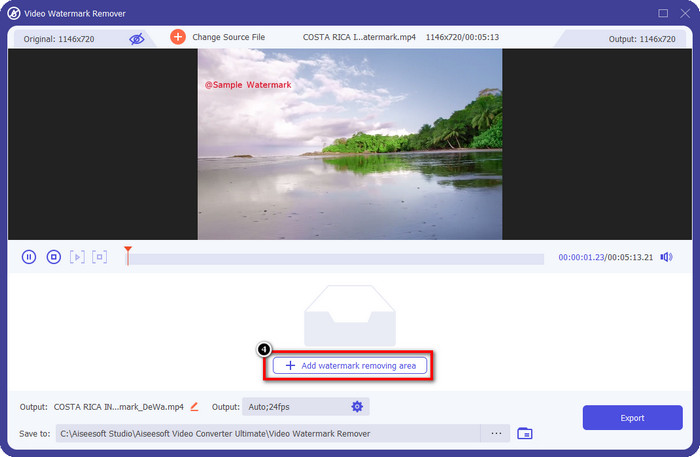
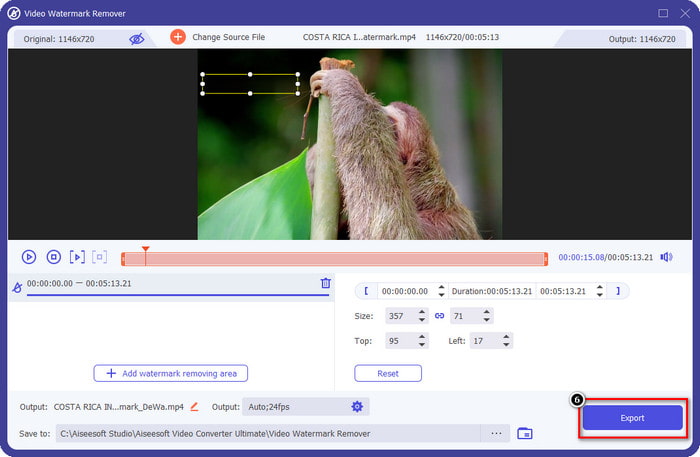
ขั้นตอนที่ 4. กดปุ่ม Add Watermark Removing Area เพื่อเพิ่มพื้นที่สำหรับลบลายน้ำที่ฝังอยู่ในวิดีโอที่คุณอัปโหลด.
ขั้นตอนที่ 5. ลากและวางกรอบเลือกไปยังตำแหน่งลายน้ำเพื่อปิดทับ คุณสามารถขยายหรือย่อขนาดกรอบได้ตามต้องการ.
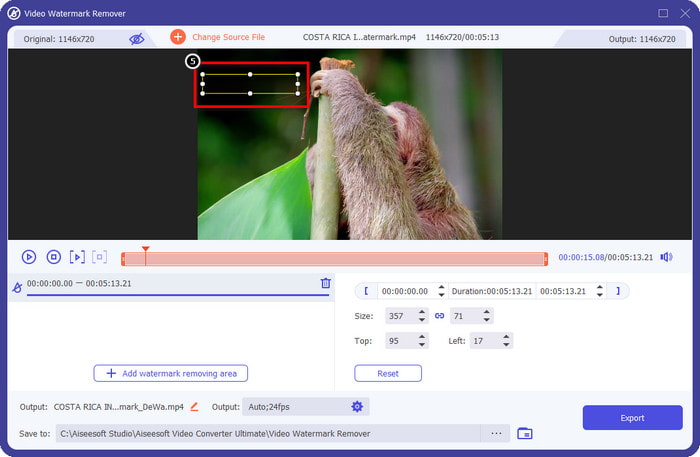
ขั้นตอนที่ 6. เมื่อปิดทับลายน้ำด้วยกรอบเลือกเรียบร้อยแล้ว ให้คลิก Export เพื่อบันทึกไฟล์ผลลัพธ์สุดท้ายลงในไดรฟ์ภายในเครื่องของคุณ.
รูปภาพบน Windows- ลายน้ำปกพร้อมการออกแบบ 3 มิติ
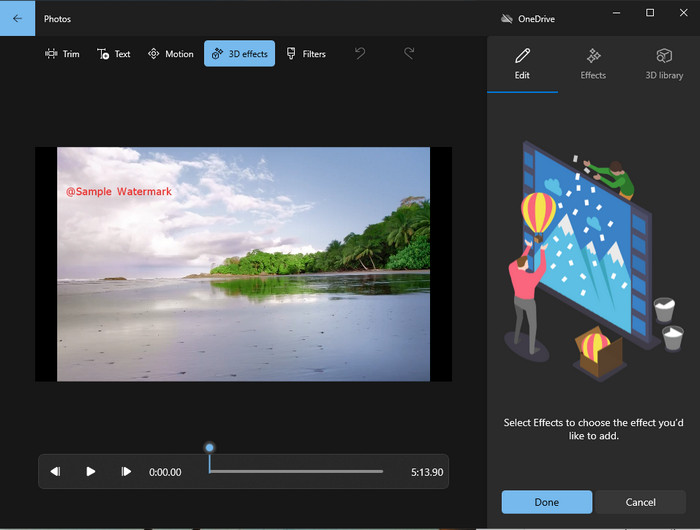
หากคุณไม่ถนัดการดาวน์โหลดซอฟต์แวร์ และคุณใช้ Windows อยู่แล้ว คุณควรลองใช้ Photos เพื่อตัดต่อและจัดการลายน้ำในวิดีโอ การเรียนรู้วิธีลบลายน้ำ Picsart ด้วยเครื่องมือนี้จะยิ่งรวดเร็วขึ้น เพราะคุณไม่ต้องเสียเวลาดาวน์โหลดแอปเพิ่มเติม แม้เครื่องมือนี้จะไม่สามารถลบลายน้ำออกจากวิดีโอได้โดยตรง แต่คุณสามารถใช้ดีไซน์ 3D มาช่วยปิดทับลายน้ำแทน ถึงอย่างนั้น ประสิทธิภาพของโปรแกรมดูและแก้ไขสื่อภาพเริ่มต้นตัวนี้ก็ถือว่าดีไม่น้อย ยังไม่มั่นใจใช่ไหม? งั้นลองอ่านขั้นตอนด้านล่างและทำตามได้เลยถ้าคุณต้องการ.
ขั้นตอนที่ 1. คลิกปุ่ม Windows บนแถบงาน แล้วค้นหาชื่อ Photos เพื่อเปิดโปรแกรม.
ขั้นตอนที่ 2. หลังจากเปิดตัวแก้ไขในตัวระบบแล้ว ให้คลิกปุ่มเครื่องหมาย + เพื่ออัปโหลดวิดีโอที่คุณต้องการตัดต่อ
ขั้นตอนที่ 3. ไปที่ 3D Effects คลิก 3D Library แล้วค้นหาดีไซน์ที่คุณต้องการใช้เพื่อปิดทับลายน้ำ จากนั้นวางดีไซน์ที่เลือกลงบนตำแหน่งที่มีลายน้ำ.
ขั้นตอนที่ 4. กด Finish Video เพื่อบันทึกผลลัพธ์สุดท้ายลงในไดรฟ์ภายในเครื่อง Windows ของคุณ.
PickFrom Blur Video Online

PickFrom Blur Video Online สามารถช่วยคุณลบลายน้ำ PicsArt ออกจากวิดีโอที่คุณมีอยู่บนเว็บได้ เครื่องมือนี้ยังไม่เป็นที่รู้จักในวงกว้างนัก แต่วันนี้เราจะมาแนะนำให้รู้จัก เราเลือกซอฟต์แวร์นี้เพราะมีประสิทธิภาพในการลบลายน้ำออกจากวิดีโอที่คุณอัปโหลด อินเทอร์เฟซใช้งานง่าย เรียบง่าย ไม่ซับซ้อน คุณจะไม่สับสนแม้เป็นมือใหม่ ดังนั้นหากคุณต้องการลบลายน้ำ มาดูขั้นตอนการใช้งานด้านล่างกันเลย.
ขั้นตอนที่ 1. เปิดเว็บเบราว์เซอร์ ค้นหาชื่อเครื่องมือ แล้วคลิกผลลัพธ์แรกเพื่อเปิดหน้าลบลายน้ำออนไลน์.
ขั้นตอนที่ 2. คลิกปุ่ม Click to Add File เพื่ออัปโหลดวิดีโอมาที่นี่.
ขั้นตอนที่ 3. ติ๊กเลือก Blur Part of the Video จากนั้นวางกรอบเลือกลงบนพื้นที่ที่มีลายน้ำ.
ขั้นตอนที่ 4. กด Start เพื่อดาวน์โหลดวิดีโอที่ไม่มีลายน้ำกลับมา.
ส่วนที่ 2 วิธีลบลายน้ำ Picsart โดยการซื้อเวอร์ชันพรีเมียม
คุณต้องซื้อซอฟต์แวร์หากคุณไม่ต้องการประสบปัญหาในการลบลายน้ำ Picsart gold คุณจะต้องเสียค่าใช้จ่ายจำนวนหนึ่งเนื่องจากคุณจะต้องจ่ายเงินก่อนจึงจะสามารถใช้งานได้ จากนั้นจึงส่งออกวิดีโอโดยไม่มีลายน้ำฝังอยู่ ดังนั้น หากคุณต้องการคำแนะนำทีละขั้นตอนในการซื้อ Picsart คุณต้องทำตามบทแนะนำถัดไปที่เราเพิ่มเข้าไป
ขั้นตอนที่ 1. เปิดเว็บไซต์ทางการของ Picsart แล้วเข้าสู่ระบบบัญชีของคุณ หากยังไม่มีบัญชี คุณต้องสมัครสมาชิกโดยการ Sign up ที่นี่.
ขั้นตอนที่ 2. บนหน้าเว็บไซต์หลัก ให้คลิกที่ Pricing เพื่อดูราคาของผลิตภัณฑ์แต่ละแบบ.
ขั้นตอนที่ 3. เลือกแพ็กเกจที่คุณต้องการแบบรายเดือนหรือรายปี จากนั้นคลิก Go to Payment.
ขั้นตอนที่ 4. กรอกรายละเอียดสำหรับการออกใบเรียกเก็บเงินให้ครบถ้วน แล้วคลิก Purchase Now.
ที่เกี่ยวข้อง:
ส่วนที่ 3 คำถามที่พบบ่อยเกี่ยวกับวิธีการลบ Picsart Watermark
ฉันสามารถซื้อ Picsart Gold แบบถาวรได้หรือไม่
ไม่รองรับการชำระเงินแบบครั้งเดียวหรือแบบแผน ดังนั้นหากคุณต้องการใช้ Picsart Gold คุณจะต้องใช้แผนรายเดือนหรือรายปี ตรวจสอบราคาสำหรับแต่ละแผนโดยไปที่เว็บไซต์ทางการ
ฉันสามารถสร้างการสมัครรับข้อมูลที่กำหนดเองบน Picsart ได้หรือไม่
ได้ คุณสามารถสร้างการสมัครรับข้อมูลสำหรับทีมบน Picsart คุณสามารถกำหนดจำนวนคนที่จะใช้แอพได้
ฉันจะเข้าถึง Picsart ได้ที่ไหน
คุณสามารถดาวน์โหลด Picsart บน Windows, Android และ iOS ขออภัย แอปไม่มีเวอร์ชัน Mac ในขณะนี้ แต่ไม่ต้องเศร้าเพราะคุณสามารถใช้ซอฟต์แวร์แก้ไขสื่ออื่น ๆ ที่มีอยู่ในระบบของคุณได้
สรุป
บทช่วยสอนที่เราสอนก่อนหน้านี้ช่วยให้คุณมีแนวคิดในการลบลายน้ำโดยใช้ PicsArt และตัวลบลายน้ำที่ดีที่สุดที่คุณสามารถใช้ได้ ตอนนี้คุณสามารถเพลิดเพลินกับวิดีโอที่คุณแก้ไขบน Picsart โดยไม่ต้องกังวลกับลายน้ำของผลิตภัณฑ์ที่จะเพิ่มลงในผลลัพธ์สุดท้าย ดังนั้น หากคุณยังไม่มั่นใจกับเครื่องมือที่เรานำเสนอ ต้องลองก่อน โดยเฉพาะ FVC Video Converter Ultimate คลิกปุ่มดาวน์โหลดและใช้งานบน Windows และ Mac ของคุณได้ฟรี จากนั้นเพลิดเพลินไปกับคุณสมบัติและฟังก์ชันต่าง ๆ ที่มีให้ซึ่งคุณสามารถใช้ประโยชน์จากมันได้
-
 วิธีลบลายน้ำ Pond5 โดยใช้เครื่องมือขั้นสูง
 เรียนรู้วิธีลบลายน้ำ Pond5 โดยทำตามขั้นตอนง่าย ๆ ด้านล่าง คุณสามารถลบลายน้ำ Pond5 บนรูปภาพของคุณได้อย่างง่ายดายโดยใช้เครื่องมือที่น่าประทับใจเหล่านี้
-
 2 วิธีที่มีประสิทธิภาพในการลบ Dxtory Watermark
 เรียนรู้วิธีลบ Dxtory Watermark โดยทำตามสองวิธีที่ดีที่สุด หากคุณกำลังค้นหาเครื่องมือที่เหมาะสมที่สุดในการลบลายน้ำ Dxtory อ่านที่นี่
-
 น้ำยาล้างลายน้ำ Arnold Maya ที่โดดเด่นที่คุณไม่ควรพลาด
 น้ำยาลบลายน้ำจำนวนมากสามารถลบลายน้ำ Arnold Maya ได้ แต่ถ้าคุณต้องการที่จะรู้ว่าอะไรคือสิ่งที่ดีที่สุดในการลบลายน้ำ Arnold Maya อ่านหน้านี้
