


 Video Converter Ultimate
 บันทึกหน้าจอ
 ซ่อมวิดีโอ
 ดาวน์โหลดอย่างปลอดภัย
เรียนรู้วิธีเกี่ยวกับวิธีปรับขนาดรูปภาพสำหรับ Instagram
Instagram เป็นแอปโซเชียลมีเดียชื่อดังที่คุณสามารถอัปโหลดและดูรูปภาพสวย ๆ จากโพสต์ของเพื่อนได้ คนรุ่นมิลเลนเนียลและผู้ใหญ่จำนวนมากนิยมใช้งานเป็นหนึ่งในแอปโซเชียลมีเดียหลัก อย่างไรก็ตาม Instagram สามารถอัปโหลดรูปแนวตั้งที่มีอัตราส่วนได้เพียง 4:5 เท่านั้น ฟีเจอร์นี้ของ Instagram จะตัดรูปภาพที่ยาวมาก ๆ ซึ่งกินพื้นที่แนวตั้งในฟีดไป แม้การที่ Instagram จำกัดขนาดความยาวแนวตั้งของรูปจะเป็นเรื่องดี แต่หลายคนก็ประสบปัญหาเวลาอัปโหลดรูปของตนเอง ในบทความนี้ เราจะช่วยคุณอัปโหลดรูปที่มีความยาวแนวตั้งมากบน Instagram ด้วยการปรับขนาดรูปภาพ โปรดอ่านบทความนี้ให้จบเพื่อเรียนรู้วิธีที่ดีที่สุดในการปรับขนาดรูปสำหรับ Instagram.

ส่วนที่ 1 วิธีปรับขนาดรูปภาพสำหรับ Instagram ออนไลน์ฟรี
การปรับขนาดรูปภาพไม่ได้หมายถึงการลดหรือปรับขนาดรูปภาพของคุณเท่านั้น หากคุณมีภาพที่พร่ามัว ก็จำเป็นต้องปรับขนาดรูปภาพของคุณด้วย และในส่วนนี้ เราจะพูดคุยและแสดงวิธีปรับขนาดรูปภาพโดยใช้แอปพลิเคชันปรับขนาดรูปภาพออนไลน์ฟรีที่ดีที่สุด
FVC Free Image Upscaler เป็นแอปออนไลน์สำหรับปรับขนาดรูปภาพ เครื่องมือปรับขนาดรูปนี้สามารถขยายรูปภาพคุณภาพต่ำของคุณได้ด้วยกำลังขยาย 2x, 4x, 6x และ 8x นอกจากนี้ คุณยังสามารถปรับขนาดรูปภาพได้โดยไม่ทำให้คุณภาพลดลง อีกทั้งยังรองรับไฟล์รูปภาพมาตรฐานส่วนใหญ่ เช่น PNG, JPG, JPEG และ BMP นอกจากนี้ยังใช้งานง่ายเพราะมีอินเทอร์เฟซที่เรียบง่าย และยังใช้กระบวนการเพิ่มคุณภาพด้วย AI ซึ่งจะตรวจจับส่วนที่เบลอของภาพโดยอัตโนมัติแล้วปรับให้คมชัดขึ้น
ยิ่งไปกว่านั้น คุณสามารถดูการเปลี่ยนแปลงที่เกิดขึ้นกับภาพได้เพราะมีฟีเจอร์พรีวิว และถึงแม้จะเป็นแอปออนไลน์ คุณก็จะไม่เจอปัญหาในการอัปโหลดรูป เนื่องจากมีความเร็วในการอัปโหลดสูง สิ่งที่ยอดเยี่ยมยิ่งกว่านั้นคือมันใช้งานได้บนเว็บเบราว์เซอร์ทุกตัว ไม่ว่าจะเป็น Google, Firefox หรือ Safari ดังนั้นหากคุณมีรูปคุณภาพต่ำที่ต้องการอัปโหลดลง Instagram ให้ทำตามขั้นตอนด้านล่างเพื่อเรียนรู้วิธีปรับขนาดรูปด้วย FVC Free Image Upscaler.
วิธีปรับขนาดรูปภาพสำหรับ Instagram โดยใช้ FVC Free Image Upscaler
ขั้นตอนที่ 1. เปิดเว็บเบราว์เซอร์ของคุณแล้วพิมพ์ FVC Free Image Upscaler ลงในช่องค้นหา คุณสามารถคลิกลิงก์นี้เพื่อไปยังหน้าเว็บไซต์หลักได้โดยตรง จากนั้นเปิดใช้งานแอปโดยคลิกปุ่ม Upload Photo.
ขั้นตอนที่ 2. หลังจากเปิดแอปแล้ว ให้คลิกปุ่ม Upload Photo เพื่อเพิ่มรูปภาพที่คุณต้องการปรับขนาด.
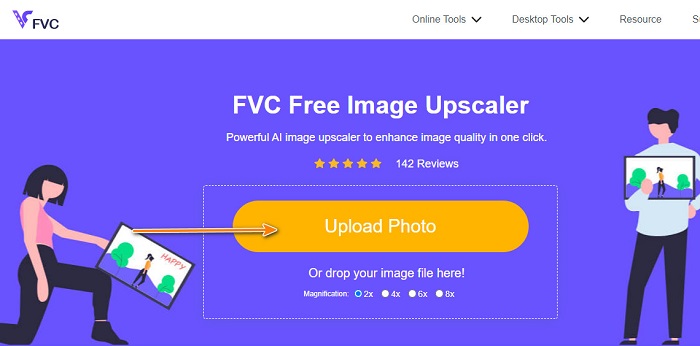
ขั้นตอนที่ 3. ทันทีที่คุณอัปโหลดรูปเสร็จ ให้เลือกกำลังขยายที่คุณต้องการสำหรับรูปของคุณ คุณสามารถเลือกได้ระหว่างการขยาย 2x, 4x, 6x และ 8x.
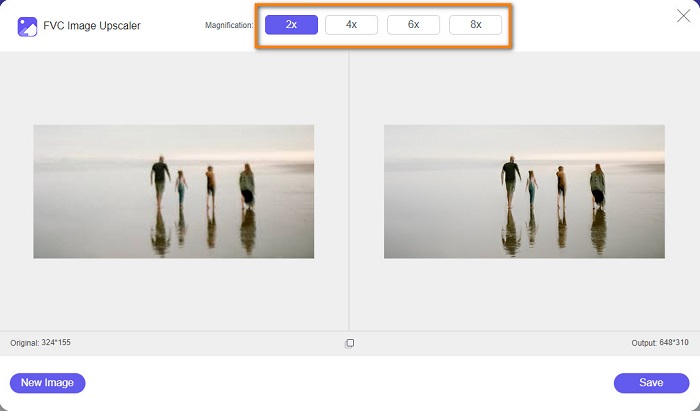
ขั้นตอนที่ 4. หลังจากเลือกกำลังขยายแล้ว คุณจะเห็นว่า FVC Free Image Upscaler ปรับขนาดรูปของคุณให้อัตโนมัติ หากต้องการตรวจสอบผลลัพธ์ ให้เลื่อนเคอร์เซอร์ไปที่รูปทางด้านขวา.
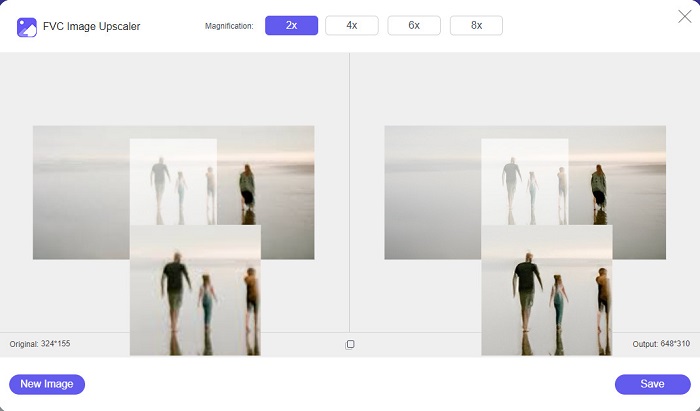
ขั้นตอนที่ 5. สุดท้ายให้คลิกปุ่ม Save ที่มุมล่างขวาของหน้าอินเทอร์เฟซเพื่อบันทึกไฟล์ผลลัพธ์ลงในคอมพิวเตอร์ของคุณ.
ส่วนที่ 2 วิธีปรับขนาดรูปภาพสำหรับ Instagram บน iPhone
วิธีปรับขนาดรูปภาพสำหรับ Instagram บน iPhone โดยใช้แอพรูปภาพ
หากคุณใช้อุปกรณ์ iPhone คุณสามารถใช้แอพรูปภาพในตัวบนอุปกรณ์ของคุณเพื่อปรับขนาดรูปภาพ เมื่อใช้โปรแกรมแก้ไขในตัวของแอพ Photos คุณสามารถครอบตัดขนาดของรูปภาพตามที่ Instagram ต้องการได้อย่างง่ายดาย ด้านล่างนี้เป็นขั้นตอนในการปรับขนาดรูปภาพสำหรับ Instagram โดยใช้ iPhone เราจะแสดงวิธีอื่นในการปรับขนาดรูปภาพโดยใช้แอปพลิเคชัน
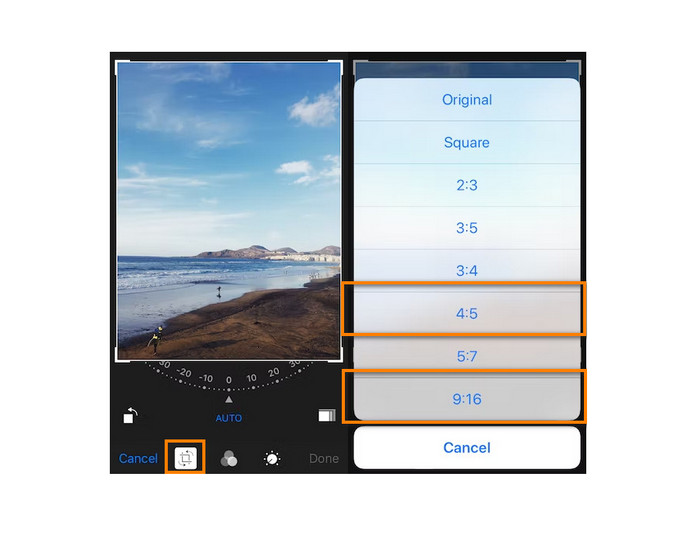
ขั้นตอนที่ 1. บน iPhone ของคุณ ให้เปิดแอป Photos แล้วค้นหารูปที่คุณต้องการปรับขนาด จากนั้นแตะปุ่ม Edit เพื่อไปยังขั้นตอนการปรับขนาดรูป.
ขั้นตอนที่ 2. จากนั้นแตะไอคอน Crop และไอคอนรูปสี่เหลี่ยมผืนผ้า ที่มุมล่างขวาของหน้าจอ.
ขั้นตอนที่ 3. เลือกอัตราส่วนที่คุณต้องการสำหรับรูปของคุณ หากต้องการอัปโหลดลง Instagram ให้เลือกอัตราส่วน 4:5 หรือ 9:16 ปรับตำแหน่งรูปตามต้องการ แล้วแตะปุ่ม Done เพื่อจบขั้นตอน.
วิธีปรับขนาดรูปภาพใน iPhone สำหรับ Instagram โดยใช้แอพ Resizer
อีกวิธีในการปรับขนาดรูปบน iPhone ของคุณคือใช้แอป Resizer Resizer เป็นแอปปรับขนาดรูปภาพที่คุณสามารถติดตั้งได้จาก PlayStore ใช้งานไม่ยากเพราะมี GUI (Graphical User Interface) ที่เรียบง่าย นอกจากนี้ยังมีฟีเจอร์ให้หมุนและครอปรูปภาพตามต้องการ คุณยังสามารถเลือกรูปแบบขนาดสำเร็จรูปได้หลายแบบ แม้กระทั่งยังสามารถกำหนดขนาดเองแบบกำหนดเองได้อีกด้วย
ยิ่งไปกว่านั้น ยังมีความเร็วในการส่งออกไฟล์ที่เร็ว ทำให้เป็นแอปที่ใช้งานสะดวก แต่อย่างไรก็ตาม ข้อเสียของ Resizer คือมีโฆษณารบกวนจำนวนมาก แต่ถึงอย่างนั้นก็ยังถือเป็นแอปปรับขนาดรูปที่ดี เพราะใช้งานได้ฟรีและใช้งานง่าย.
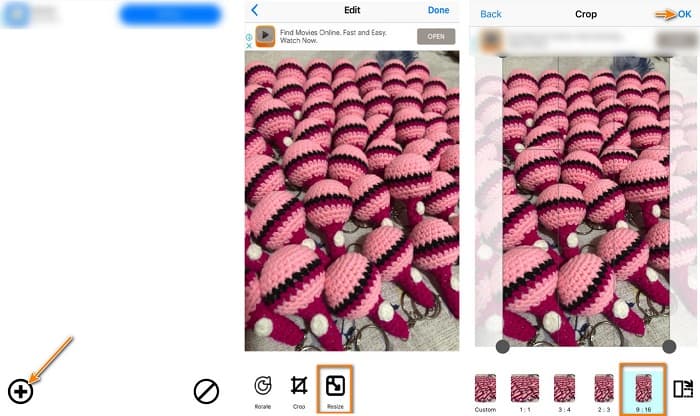
ขั้นตอนที่ 1. เริ่มต้นโดยติดตั้งแอป Resizer จาก AppStore ของคุณ แล้วเปิดแอปเมื่อการติดตั้งเสร็จสิ้น จากนั้นที่หน้าจอแรกให้แตะไอคอน + เพื่อเลือกรูปภาพของคุณ.
ขั้นตอนที่ 2. จากนั้นแตะไอคอน Resize จากตัวเลือกการแก้ไขด้านล่าง แล้วรายชื่อขนาดต่าง ๆ จะปรากฏขึ้น เลือกอัตราส่วน 9:16 แล้วไปยังขั้นตอนถัดไป.
ขั้นตอนที่ 3. หลังจากเลือกอัตราส่วนที่เหมาะสมสำหรับรูปของคุณแล้ว ให้แตะปุ่ม OK เพื่อดาวน์โหลดไฟล์ผลลัพธ์.
ส่วนที่ 3 วิธีปรับขนาดรูปภาพสำหรับ Instagram บน Android
วิธีปรับขนาดรูปภาพสำหรับ Instagram โดยใช้แอพ Gallery
นอกจากนี้ยังมีแอปพลิเคชันและวิธีการที่คุณสามารถใช้ได้หากคุณเป็นผู้ใช้ Android คุณสามารถติดตั้งแอปพลิเคชันปรับขนาดรูปภาพจำนวนมากบน Google Play หรือ Play Store ได้ฟรี แต่ถ้าคุณไม่ต้องการติดตั้งแอพและต้องการประหยัดพื้นที่บนอุปกรณ์ของคุณ คุณสามารถใช้โปรแกรมแก้ไขรูปภาพในตัวบนแอพแกลเลอรีของคุณได้ ด้านล่างนี้ เราจะแสดงขั้นตอนง่ายๆ ในการปรับขนาดรูปภาพโดยใช้โทรศัพท์ Android ของคุณ
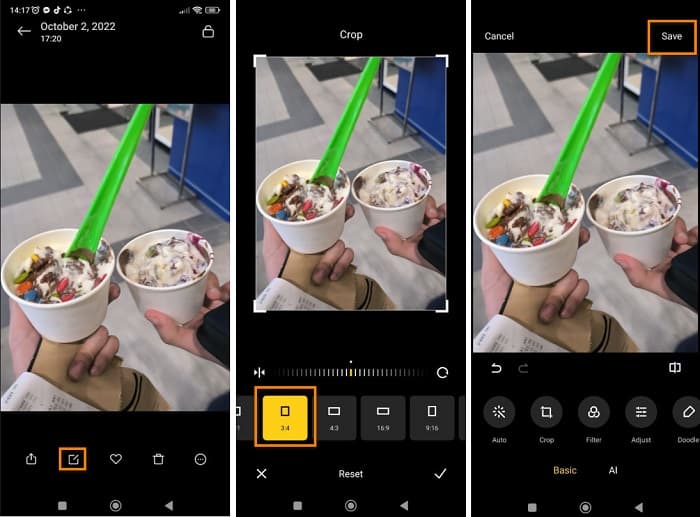
ขั้นตอนที่ 1. เปิดแอป Gallery บนโทรศัพท์ Android ของคุณ เลือกรูปที่คุณต้องการปรับขนาดสำหรับ Instagram จากนั้นแตะไอคอน Edit ที่ด้านล่างของหน้าจอ.
ขั้นตอนที่ 2. จากนั้นแตะไอคอน Crop จากตัวเลือกการแก้ไข เลือกอัตราส่วนที่คุณต้องการสำหรับรูปภาพ แตะตัวเลือก 3:4 หรือ 9:16 ซึ่งเป็นอัตราส่วนมาตรฐานสำหรับรูปบน Instagram แล้วแตะไอคอน Check.
ขั้นตอนที่ 3. หากต้องการบันทึกผลลัพธ์ ให้แตะปุ่ม Save ที่มุมขวาบนของหน้าจอ รูปที่ได้จะถูกบันทึกไว้ในแกลเลอรีพร้อมอัตราส่วนใหม่.
วิธีปรับขนาดรูปภาพสำหรับ Instagram โดยใช้ Photo & Picture Resizer
Photo & Picture Resizer เป็นแอปที่ผู้ใช้ Android จำนวนมากใช้สำหรับปรับขนาดรูปภาพ แอปนี้สามารถปรับขนาดรูปจากแกลเลอรีของคุณ หรือคุณจะถ่ายรูปแล้วปรับขนาดทันทีเลยก็ได้ อินเทอร์เฟซใช้งานง่าย ทำให้เป็นแอปที่เหมาะกับผู้เริ่มต้น นอกจากนี้ คุณสามารถเลือกรูปแบบการปรับขนาดได้ตามเปอร์เซ็นต์ กว้าง x สูง ขนาดไฟล์ หรือความละเอียด & ขนาดไฟล์ มีตัวเลือกขนาดให้เลือกมากมาย อีกทั้งยังดาวน์โหลดได้ฟรีโดยไม่ต้องสมัครหรือล็อกอินบัญชี อย่างไรก็ตาม คุณต้องเชื่อมต่ออินเทอร์เน็ตจึงจะใช้งานแอปได้ และยังมีโฆษณาน่ารำคาญจำนวนมากที่อาจรบกวนคุณขณะปรับขนาดรูป.
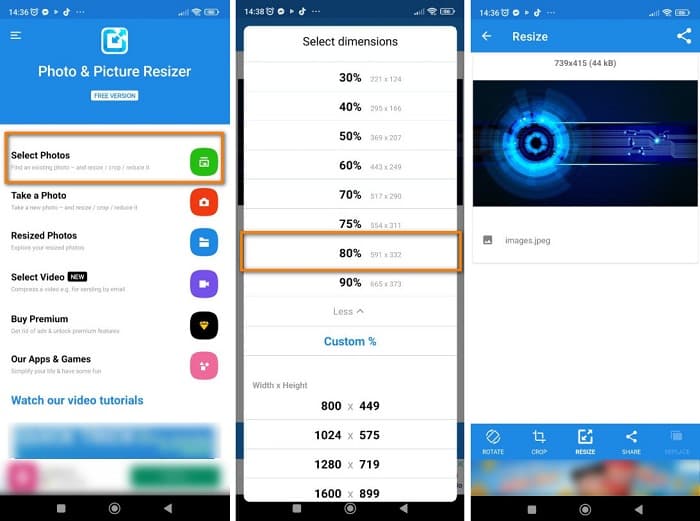
ขั้นตอนที่ 1. ติดตั้งแอป Photo & Picture Resizer บนโทรศัพท์ Android ของคุณ จากนั้นที่หน้าแรกของแอปให้แตะตัวเลือก Select Photos เพื่อเลือกรูปภาพที่คุณต้องการปรับขนาด.
ขั้นตอนที่ 2. แตะตัวเลือก Resize จากตัวเลือกด้านล่างเพื่อเริ่มปรับขนาดรูป จากนั้นเลือกขนาดใหม่ที่คุณต้องการสำหรับรูปของคุณ แตะตัวเลือก 80% ซึ่งมีค่าเท่ากับอัตราส่วน 4:5 ซึ่งเป็นมาตรฐานของ Instagram.
ขั้นตอนที่ 3. จากนั้น Photo & Picture Resizer จะบันทึกผลลัพธ์ลงในแกลเลอรีของคุณโดยอัตโนมัติ รอให้แอปอัปโหลดเสร็จ เท่านี้ก็เรียบร้อย! รูปของคุณถูกปรับขนาดแล้ว.
ส่วนที่ 4 คำถามที่พบบ่อยเกี่ยวกับวิธีปรับขนาดรูปภาพสำหรับ Instagram
การปรับขนาดภาพส่งผลต่อคุณภาพหรือไม่?
บ่อยครั้ง การลดหรือปรับขนาดขนาดหรือขนาดของภาพจะไม่ส่งผลต่อคุณภาพของภาพ อย่างไรก็ตาม การปรับขนาดรูปภาพให้ใหญ่กว่าขนาดเดิมอาจทำให้คุณภาพของรูปภาพเสียหายได้
แอพใดดีที่สุดในการปรับขนาดรูปภาพบน iPhone
PicsArt, Image Size เป็นแอปพลิเคชั่นตกแต่งรูปภาพที่ได้รับการแนะนำและใช้งานมากที่สุดสำหรับผู้ใช้ Android และ iPhone หลายคนใช้แอพนี้เพื่อปรับขนาดรูปภาพ
ฉันสามารถใช้ Instagram เพื่อปรับขนาดรูปภาพได้หรือไม่
ได้ ใช่ หากคุณต้องการปรับขนาดรูปในแอป Instagram ให้แตะตัวเลือก Edit แล้วเลือก Adjust จากนั้นใช้นิ้วจีบเพื่อซูมเข้าในภาพ และปรับรูปของคุณจนได้สัดส่วนที่ต้องการ.
สรุป
โดยสรุปแล้ว การปรับขนาดรูปสำหรับ Instagramไม่ใช่เรื่องยาก คุณเพียงแค่ต้องเลือกแอปที่จะใช้อย่างรอบคอบ วิธีใดก็ตามที่เราแนะนำไว้ด้านบนสามารถช่วยให้คุณทำตามเป้าหมายได้ แต่หากคุณต้องการใช้เครื่องมือที่ฟรีและปลอดภัยในการปรับขนาดรูปโดยไม่ทำให้คุณภาพลดลง ลองใช้ FVC Free Image Upscaler ได้เลยตอนนี้
-
 วิธีใช้ GIMP เพื่อปรับขนาดรูปภาพ: กระบวนการทีละขั้นตอน
 หากคุณต้องการปรับขนาดภาพ คุณสามารถใช้ GIMP เพื่อปรับขนาดภาพได้ อ่านคู่มือนี้อย่างละเอียดเพื่อเรียนรู้วิธีใช้ GIMP เพื่อปรับขนาดภาพออนไลน์บนพีซีของคุณ
-
 วิธีปรับขนาดรูปภาพใน Illustrator ด้วย 2 วิธีที่แตกต่างกัน
 เรียนรู้วิธีที่ดีที่สุดในการปรับขนาดรูปภาพใน Illustrator ในการเริ่มต้น ให้ดาวน์โหลดและเปิดแอพ Adobe Illustrator บนพีซีของคุณ แล้วทำตามขั้นตอนง่ายๆ เหล่านี้
-
 FastStone Photo Resizer – แอพทรงพลังสำหรับการปรับขนาดรูปภาพ
 FastStone Photo Resizer เป็นแอพที่ยอดเยี่ยมสำหรับการปรับขนาดภาพ คลิกโพสต์นี้เพื่อเรียนรู้เพิ่มเติมเกี่ยวกับ FastStone Photo Resizer และทางเลือกที่ดีที่สุดสำหรับเครื่องมือนี้
