


 Video Converter Ultimate
 บันทึกหน้าจอ
 ซ่อมวิดีโอ
 ดาวน์โหลดอย่างปลอดภัย
วิธีที่ดีที่สุดในการลบลายน้ำออกจากวิดีโอใน After Effects
การลบลายน้ำออกจากรูปถ่ายทำได้ง่ายด้วย Adobe Photoshop แต่คุณรู้หรือไม่ว่าจะลบลายน้ำออกจากวิดีโอใน Adobe After Effects ได้อย่างไร? หลายคนบอกว่ามันค่อนข้างยาก เพราะมีแอปพลิเคชันที่ใช้ลบลายน้ำจากวิดีโอได้ไม่กี่ตัว คุณถือว่าโชคดี เพราะบทความนี้จะนำเสนอวิธีที่ดีในการลบวัตถุที่ไม่ต้องการออกจากวิดีโอหรือภาพยนตร์ของคุณด้วย Adobe After Effects ไม่ว่าจะเป็นลายน้ำ โลโก้ ข้อความ สติกเกอร์ ฯลฯ นอกจากนี้ คุณยังจะได้รู้จักโปรแกรมทางเลือกที่ดีที่สุดที่ควรลองใช้ เพื่อให้คุณมีตัวเลือกหลากหลายตามความชอบของคุณ อ่านบทความเพื่อดูรายละเอียดเพิ่มเติมได้เลย.

ตอนที่ 1: วิธีลบลายน้ำออกจากวิดีโอใน After Effects
Adobe After Effects สามารถลบลายน้ำและองค์ประกอบที่น่าหงุดหงิดอื่นๆ ออกจากวิดีโอของคุณได้อย่างง่ายดาย นอกจากนี้คุณยังสามารถทำสิ่งต่าง ๆ ได้มากขึ้นด้วยเครื่องมือมากมาย After Effects เป็นหนึ่งในโปรแกรมตัดต่อวิดีโอที่เป็นที่ชื่นชอบและทันสมัยที่สุดของ Adobe ยกระดับงานของคุณไปสู่อีกระดับ เครื่องมือนี้ใช้สำหรับขั้นตอนหลังการผลิตของการสร้างภาพยนตร์ การผลิตรายการโทรทัศน์ และวิดีโอเกม ยิ่งกว่านั้น คุณสามารถพึ่งพาแอปพลิเคชันนี้สำหรับการสร้างภาพเคลื่อนไหว การทำปุ๋ยหมัก การติดตาม และการป้อนคีย์
นอกจากนี้ นักออกแบบภาพ แอนิเมเตอร์ เอเจนซี่โฆษณา นักตัดต่อวิดีโอ นักออกแบบกราฟิกเคลื่อนไหว ผู้เชี่ยวชาญด้านโซเชียลมีเดีย ผู้ผลิตวิดีโอ นักตัดต่อวิดีโอ ผู้เชี่ยวชาญด้าน UX และแอนิเมเตอร์ต่างก็ใช้ After Effects อย่างไรก็ตาม Adobe After Effects ไม่สมบูรณ์แบบสำหรับผู้ใช้ที่ไม่ใช่มืออาชีพ มีเครื่องมือมากมาย กระบวนการซับซ้อน และฟีเจอร์ขั้นสูงซึ่งสร้างความสับสน นอกจากนี้ คุณสามารถใช้การทดลองใช้ฟรีได้สูงสุดเจ็ดวันเท่านั้น คุณต้องซื้อซอฟต์แวร์เพื่อใช้ซอฟต์แวร์นี้อย่างต่อเนื่อง ทำตามขั้นตอนง่ายๆ ด้านล่างเพื่อลบลายน้ำออกจากวิดีโอ
ขั้นตอนที่ 1: ดาวน์โหลด Adobe After Effects และติดตั้งลงในอุปกรณ์ของคุณ เปิดโปรแกรม แล้วไปที่ File > Open เพื่อใส่วิดีโอที่มีลายน้ำของคุณเข้าไป.
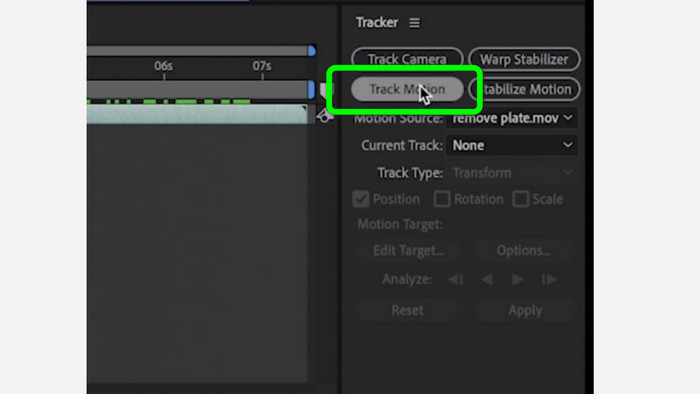
ขั้นตอนที่ 2: ไปที่ แท็บ Tracker แล้วกด Tracker motion วางกรอบติดตามลงบนบริเวณที่มีลายน้ำ แล้วกดปุ่มลูกศร Track ไปข้างหน้า.
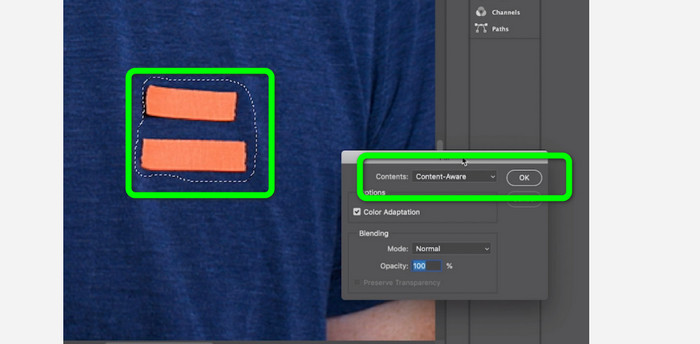
ขั้นตอนที่ 3: เลือกลายน้ำด้วยเครื่องมือ Marquee แล้วไปที่ Edit > Fill เมื่อหน้าต่างโต้ตอบปรากฏขึ้น ให้เลือก Content-aware แล้วกด OK.
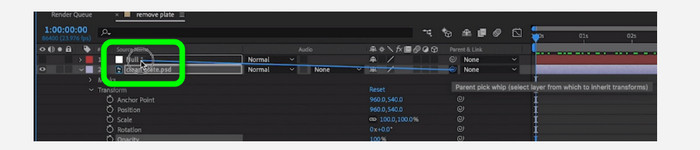
ขั้นตอนที่ 4: ลิงก์วัตถุ Null ที่ทำการ Track ไว้ เข้ากับเฟรมภาพนิ่งที่ถูกมาสก์ โดยใช้เครื่องมือ pick whip จากนั้นมันจะเชื่อมโยงกับวัตถุ Null ที่เคลื่อนไหว วิดีโอของคุณควรจะแสดงผลโดยที่ลายน้ำแทบตรวจไม่พบเมื่อคุณเล่น.
ตอนที่ 2: วิธีที่ง่ายที่สุดในการลบลายน้ำออกจากวิดีโอ
การใช้ Video Converter Ultimate
อย่างที่เรารู้กันว่า Adobe After Effects ใช้งานค่อนข้างยาก โดยเฉพาะสำหรับผู้เริ่มต้น ในกรณีนี้ แอปพลิเคชันที่ใช้ง่ายและมีประสิทธิภาพที่สุดในการลบลายน้ำออกจากวิดีโอของคุณคือ Video Converter Ultimate โปรแกรมนี้มีอินเทอร์เฟซที่เรียบง่ายและขั้นตอนที่เข้าใจได้ง่าย เหมาะกับทุกคน นอกจากลายน้ำแล้ว คุณยังสามารถลบองค์ประกอบรบกวนอื่น ๆ ได้ เช่น โลโก้ สติกเกอร์ อีโมจิ ข้อความ และอื่น ๆ กระบวนการลบของเครื่องมือนี้รวดเร็ว คุณจึงไม่ต้องรอนาน.
นอกจากนี้ยังมีคุณสมบัติมากกว่าที่คุณคิด หากอุปกรณ์อื่นไม่รองรับวิดีโอของคุณ คุณสามารถแปลงเป็นรูปแบบไฟล์อื่นได้ เครื่องมือนี้สามารถแปลงรูปแบบไฟล์วิดีโอและเสียง นอกจากนี้ หากวิดีโอของคุณเร็วเกินไปและคุณต้องการลดความเร็วลง คุณยังคงสามารถพึ่งพาแอปพลิเคชันนี้ได้เนื่องจากมีคุณสมบัติ Video Speed Controller ซึ่งคุณสามารถปรับความเร็ววิดีโอของคุณได้ตั้งแต่ 0.125x ถึง 8x เร็วขึ้น
หากต้องการลบลายน้ำออกจากวิดีโอของคุณ ให้ใช้คำแนะนำโดยละเอียดด้านล่าง
การใช้ Video Watermark Remover
ขั้นตอนที่ 1: คุณสามารถดาวน์โหลด Video Converter Ultimate บน Windows และ Mac ได้โดยคลิกปุ่มดาวน์โหลดด้านล่าง หลังจากติดตั้งเสร็จ คุณก็สามารถเปิดใช้งานได้ทันที.
ดาวน์โหลดฟรีสำหรับ Windows 7 หรือใหม่กว่าดาวน์โหลดอย่างปลอดภัย
ดาวน์โหลดฟรีสำหรับ MacOS 10.7 หรือใหม่กว่าดาวน์โหลดอย่างปลอดภัย
ขั้นตอนที่ 2: เลือกแท็บ Toolbox จากตัวเลือกสี่ตัวด้านบน แล้วคลิก Video Watermark Remover จะมีหน้าต่างใหม่โผล่ขึ้นมาให้คุณใช้งาน หลังจากติดตั้งเสร็จ คุณก็สามารถเปิดใช้งานได้ทันที.
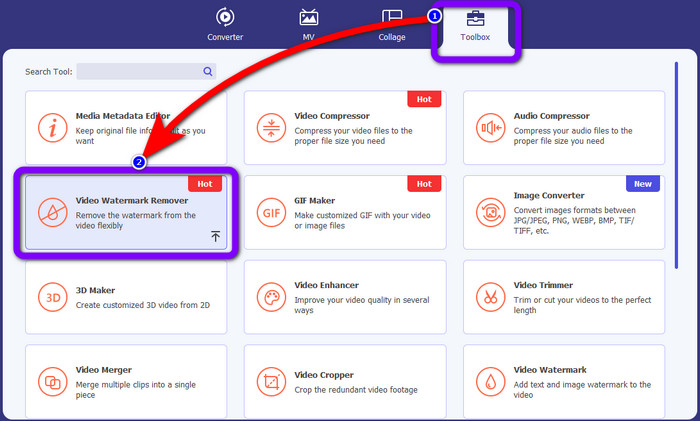
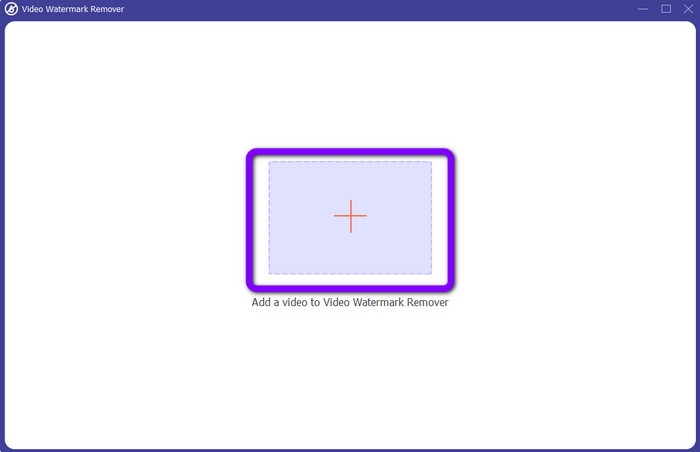
ขั้นตอนที่ 3: คลิกไอคอน Plus โฟลเดอร์ของคุณจะปรากฏขึ้น จากนั้นเลือกวิดีโอที่มีลายน้ำที่คุณต้องการลบ.
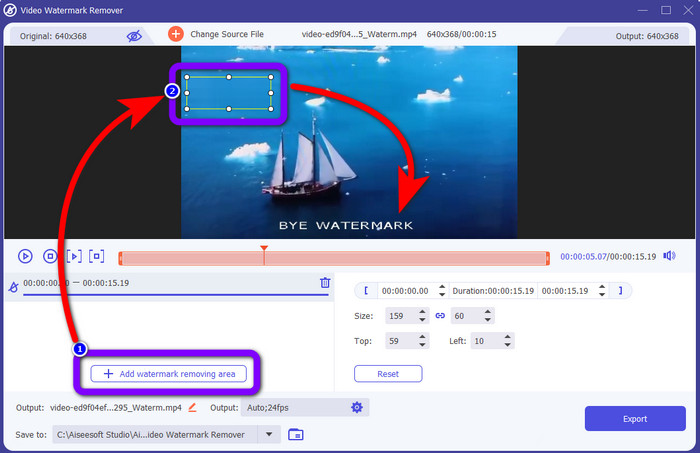
ขั้นตอนที่ 4: กดปุ่ม Add Watermark Removing Area หลังจากที่คุณใส่วิดีโอที่มีลายน้ำเข้าไปแล้ว จะมีสี่เหลี่ยมเล็ก ๆ ปรากฏบนวิดีโอของคุณ ใช้สี่เหลี่ยมนี้ครอบบริเวณลายน้ำ.
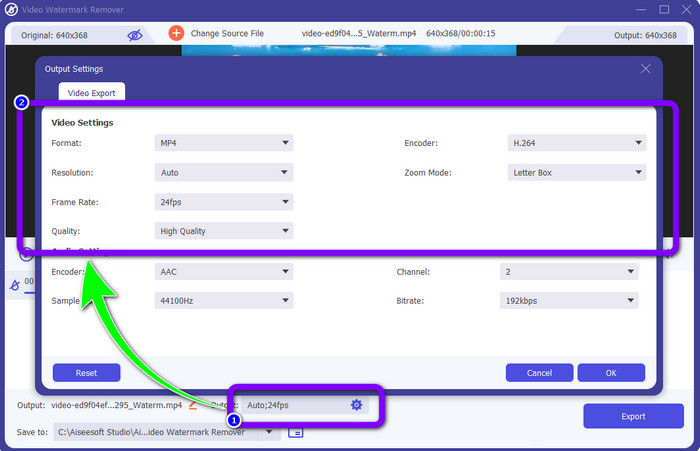
ขั้นตอนที่ 5: หลังจากครอบลายน้ำเรียบร้อยแล้ว คุณยังสามารถเปลี่ยนรูปแบบไฟล์ คุณภาพ อัตราเฟรม และความละเอียดของวิดีโอได้ด้วยการคลิกตัวเลือก Output ที่ด้านล่างของอินเทอร์เฟซ.
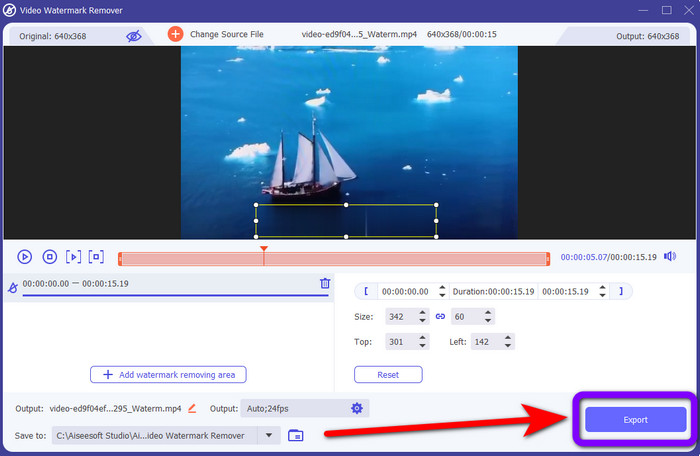
ขั้นตอนที่ 6: ขั้นตอนสุดท้าย ให้คลิกปุ่ม Export และบันทึกวิดีโอที่แก้ไขแล้วของคุณ.
การใช้ตัวครอบตัดวิดีโอ
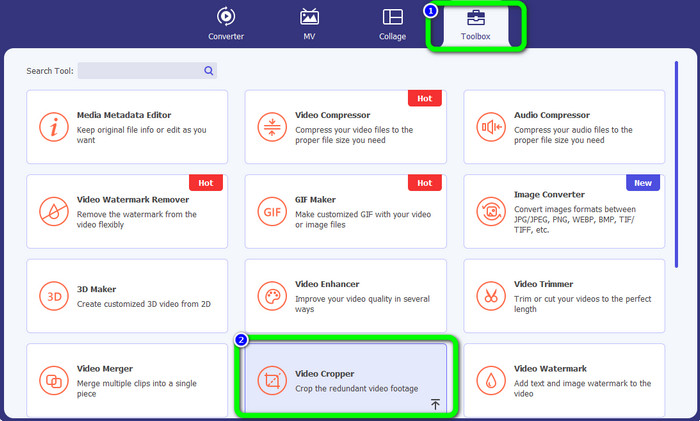
ขั้นตอนที่ 1: ไปที่แผง Toolbox แล้วเลือกเครื่องมือ Video Cropper.
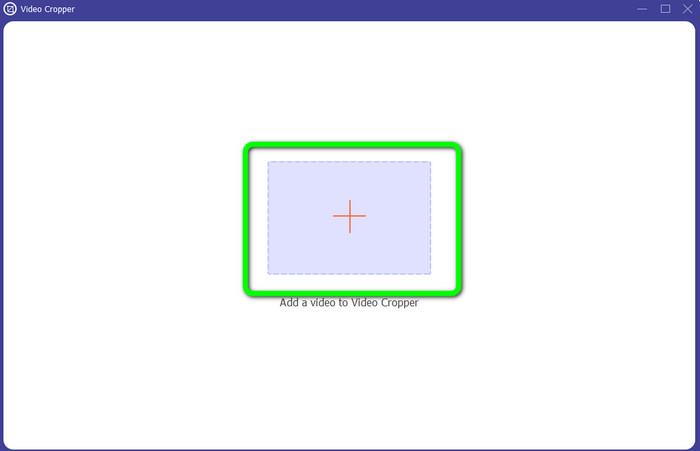
ขั้นตอนที่ 2: กดไอคอน + เพื่อเพิ่มวิดีโอที่มีลายน้ำเข้าไป.
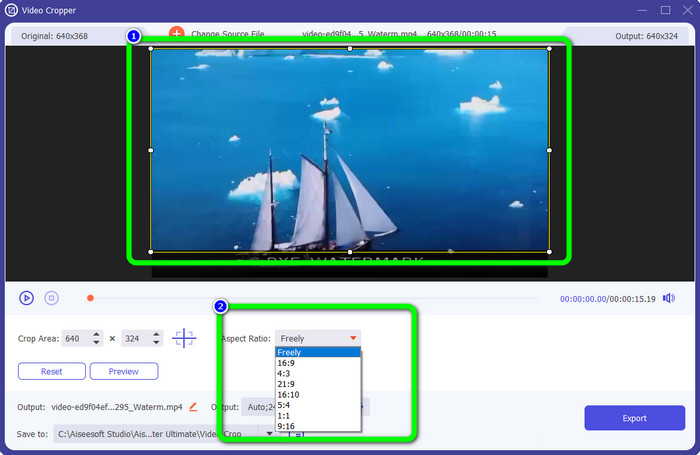
ขั้นตอนที่ 3: ในส่วนนี้คุณสามารถครอปวิดีโอเพื่อกำจัดลายน้ำได้ คุณยังสามารถไปที่ช่องด้านขวาเพื่อเลือกแบบแพตเทิร์นครอปที่คุณต้องการ.
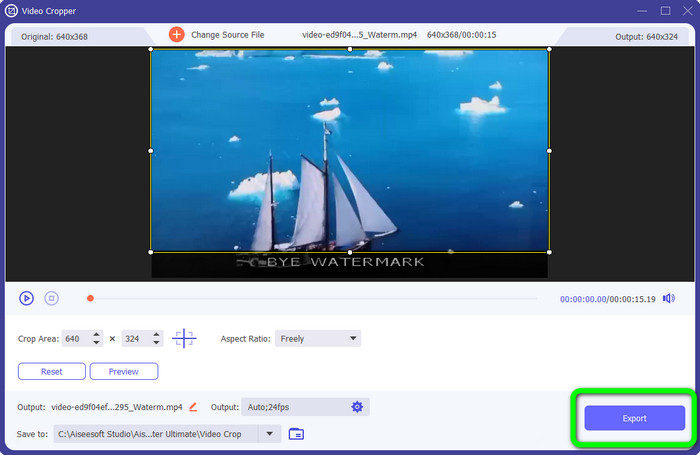
ขั้นตอนที่ 4: หากคุณครอปวิดีโอของคุณเสร็จแล้ว ให้คลิกปุ่ม Export เพื่อบันทึกวิดีโอที่ไม่มีลายน้ำ.
การใช้ Video Watermark Remover ออนไลน์
หลังจากที่คุณได้รู้วิธีที่ง่ายที่สุดในการใช้เครื่องมือออฟไลน์แล้ว ต่อไปเราจะแนะนำเครื่องมือลบลายน้ำอีกตัวที่คุณสามารถลองใช้แบบออนไลน์ได้ แอปพลิเคชันนี้คือ Video Watermark Remover Online เป็นเครื่องมือลบลายน้ำวิดีโอแบบอัตโนมัติเต็มรูปแบบตัวใหม่ ที่จะช่วยให้ชีวิตคุณสะดวกขึ้น อีกทั้งคุณยังสามารถลบองค์ประกอบต่าง ๆ ออกจากวิดีโอได้ เช่น โลโก้ ลายเซ็น วันที่ประทับ ลายน้ำ ข้อความ และอื่น ๆ ซอฟต์แวร์นี้คล้ายกับตัวลบลายน้ำตัวอื่น ๆ แต่สิ่งที่ทำให้แตกต่างคือมันสามารถลบลายน้ำได้โดยอัตโนมัติ แอปพลิเคชันนี้ถูกออกแบบมาให้ตรวจจับวัตถุแล้วแทนที่ด้วยสีที่เข้ากัน เพื่อเรนเดอร์และเติมเต็มให้ทุกอย่างดูเหมือนไฟล์ต้นฉบับ.
อย่างไรก็ตาม คุณสามารถอัปโหลดวิดีโอได้เพียงห้ารายการเท่านั้นเมื่อใช้เวอร์ชันฟรี นอกจากนี้ยังมีกระบวนการเข้ารหัสที่ช้า และคุณไม่สามารถส่งออกเป็นรูปแบบไฟล์อื่นได้ คุณต้องซื้อการสมัครสมาชิกเพื่อสัมผัสกับคุณสมบัติที่ยอดเยี่ยมเพิ่มเติมจากเครื่องมือนี้ ทำตามขั้นตอนด้านล่างเพื่อลบลายน้ำออกจากวิดีโอของคุณโดยใช้ Video Watermark Remover Online
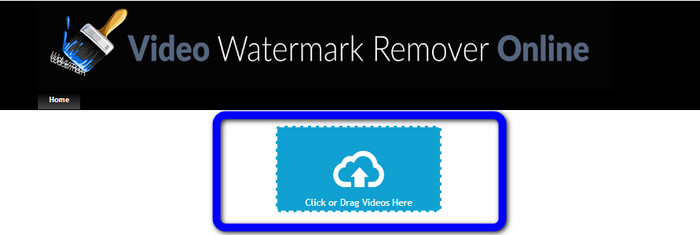
ขั้นตอนที่ 1: ไปที่เว็บไซต์ Video Watermark Remover Online คลิกที่ กล่องสีน้ำเงิน เพื่อเพิ่มวิดีโอของคุณ หรือคุณสามารถลากวิดีโอไปวางได้เช่นกัน.
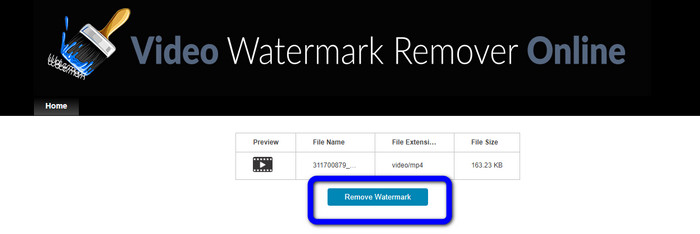
ขั้นตอนที่ 2: หลังจากประมวลผลไฟล์แล้ว ให้คลิกปุ่ม Remove Watermark จากนั้นรอให้ระบบลบลายน้ำเสร็จสิ้น บันทึกวิดีโอของคุณที่ไม่มีลายน้ำ.
ส่วนที่ 3: คำถามที่พบบ่อยเกี่ยวกับการลบลายน้ำออกจากวิดีโอ
1. ตัวลบลายน้ำวิดีโอที่ดีที่สุดสำหรับ Windows และ Mac คืออะไร
Video Converter Ultimate เป็นโปรแกรมลบลายน้ำที่ดีที่สุด มันสามารถกำจัดวัตถุที่ไม่ต้องการออกจากวิดีโอของคุณได้อย่างง่ายดาย เช่น ลายน้ำ โลโก้ สติ๊กเกอร์ ข้อความ ฯลฯ
2. โปรแกรมลบลายน้ำวิดีโอออนไลน์ปลอดภัยหรือไม่?
ไม่ใช่ทุกคนที่จะปลอดภัย หลังจากลบลายน้ำโดยใช้เครื่องมือออนไลน์แล้ว พวกเขาสามารถลบไฟล์ของคุณได้ทันที เพื่อไม่ให้ใครสามารถดูและใช้ไฟล์วิดีโอของคุณได้ อย่างไรก็ตาม แอปบางแอปไม่ปลอดภัย ดังนั้นคุณต้องตรวจสอบแอปที่คุณใช้ก่อน
3. คุณภาพของวิดีโอของฉันจะเปลี่ยนไปหลังจากนำลายน้ำออกหรือไม่
ขึ้นอยู่กับแอปพลิเคชันที่คุณใช้ หากคุณไม่ต้องการให้ส่งผลกระทบต่อคุณภาพของวิดีโอ คุณสามารถใช้ Video Converter Ultimate
สรุป
ตอนนี้คุณได้ไอเดียและเรียนรู้แล้วว่าจะลบลายน้ำออกจากวิดีโอใน Adobe After Effects ได้อย่างไร นอกจากนี้ บทความนี้ยังได้แนะนำทางเลือกที่ดีที่สุดในการลบลายน้ำด้วยวิธีที่ง่ายที่สุดให้กับคุณ และหากคุณต้องการลบองค์ประกอบที่ไม่ต้องการออกจากวิดีโออย่างมีประสิทธิภาพโดยไม่ทำให้คุณภาพลดลง คุณสามารถลองใช้ Video Converter Ultimate ได้.
-
 หลักฐานที่ชัดเจนในการทำวิดีโอสโลว์โมชั่นโดยใช้ After Effects
 ความคิดหรือความรู้สึกใด ๆ สามารถเป็นหลักฐาน gSolid ในการทำวิดีโอสโลว์โมชั่นโดยใช้ After Effects เสริมสร้างหรือปรับปรุงโดยการดูบางอย่างในแบบสโลว์โมชั่น อ่านบทความนี้เพื่อทราบวิธีสร้างสโลว์โมชั่นใน After Effects
-
 วิธีเพิ่มความเร็ววิดีโอใน After Effects [เครื่องมือเร่งความเร็วที่ดีที่สุด]
 เพิ่มความเร็วหรือลดความเร็ววิดีโอของคุณโดยใช้เครื่องมือเพิ่มความเร็ววิดีโอที่ดีที่สุด เรียนรู้วิธีเพิ่มความเร็ววิดีโอในอาฟเตอร์เอฟเฟกต์โดยอ่านบทความนี้
-
 คำแนะนำทีละขั้นตอนเกี่ยวกับวิธีการลบ Emojis จากวิดีโอ
 รู้สึกรำคาญกับอีโมจิในวิดีโอของคุณหรือไม่? โพสต์นี้จะนำเสนอขั้นตอนที่ดีที่สุดในการลบอิโมจิออกจากวิดีโอของคุณในทันทีโดยใช้เครื่องมือที่ยอดเยี่ยม
