


 Video Converter Ultimate
 บันทึกหน้าจอ
 ซ่อมวิดีโอ
 ดาวน์โหลดอย่างปลอดภัย
วิธีที่ยอดเยี่ยมที่สุดในการขยายรูปภาพสำหรับการพิมพ์
การขยายรูปภาพสามารถทำได้ 2 วิธี คุณสามารถขยายภาพถ่ายด้วยการอัปสเกล หรือด้วยการเพิ่มจำนวนพิกเซลของรูป อีกวิธีหนึ่งในการขยายรูปภาพคือการเปลี่ยนขนาดจริงหรือมิติของภาพถ่าย และในคู่มือนี้ เราจะสอนคุณทั้งสองวิธีในการขยายรูปภาพ ตามความต้องการของคุณ คุณจะสามารถหาคำตอบของข้อสงสัยได้อย่างแน่นอน อ่านคู่มือนี้เพื่อเรียนรู้วิธีขยายรูปภาพสำหรับการพิมพ์ การใช้งานออนไลน์ และออฟไลน์.

ส่วนที่ 1 ขยายภาพโดยไม่สูญเสียคุณภาพออนไลน์สำหรับการพิมพ์
ฟังดูซับซ้อนเมื่อคุณได้ยินเกี่ยวกับการขยายคุณภาพของภาพเป็นครั้งแรก แต่หลังจากอ่านโพสต์นี้แล้ว มันจะง่ายสำหรับคุณอย่างแน่นอน มีแอปพลิเคชั่นมากมายที่สามารถช่วยคุณขยายรูปภาพของคุณ แต่ปัญหาคือมีเยอะจนเลือกไม่ถูก โชคดีที่เราพบแอปพลิเคชันที่สามารถช่วยคุณขยายภาพได้อย่างง่ายดายและฟรี
FVC Free Image Upscaler เป็นแอปพลิเคชันขยายรูปภาพออนไลน์ที่ยอดเยี่ยม จุดเด่นของเครื่องมือออนไลน์คือคุณไม่ต้องดาวน์โหลด จึงช่วยประหยัดพื้นที่จัดเก็บข้อมูล คุณสามารถขยายรูปภาพของคุณด้วยเครื่องมือนี้ได้ที่ระดับ 2x, 4x, 6x หรือ 8x นอกจากนี้ยังใช้กระบวนการอัปสเกลด้วยเทคโนโลยี AI ที่จะตรวจจับส่วนที่มีคุณภาพต่ำของภาพโดยอัตโนมัติแล้วทำการปรับปรุงให้ดีขึ้น.
นอกจากนี้ ผู้เริ่มต้นยังสามารถใช้แอปพลิเคชันนี้ได้อย่างง่ายดาย เนื่องจากมีส่วนติดต่อผู้ใช้ที่ใช้งานง่าย นอกจากนี้ยังมีเอฟเฟ็กต์การแสดงตัวอย่างซึ่งช่วยให้คุณตรวจสอบผลลัพธ์ของเอาต์พุตก่อนที่จะบันทึก FVC Free Image Upscaler ใช้งานได้ฟรีบนเว็บเบราว์เซอร์ทั้งหมด เช่น Google, Firefox และ Safari
วิธีขยายรูปภาพสำหรับการพิมพ์โดยใช้ FVC Free Image Upscaler
ขั้นตอนที่ 1. ไปที่เว็บเบราว์เซอร์ของคุณแล้วค้นหา FVC Free Image Upscaler ในช่องค้นหา คุณสามารถคลิกลิงก์นี้เพื่อไปยังหน้าแรกได้โดยตรง.
ขั้นตอนที่ 2. บนอินเทอร์เฟซหลัก ให้กดปุ่ม Upload Photo เพื่อเพิ่มภาพที่คุณต้องการขยาย คุณยังสามารถใช้วิธีลากแล้ววางเพื่ออัปโหลดรูปของคุณได้.
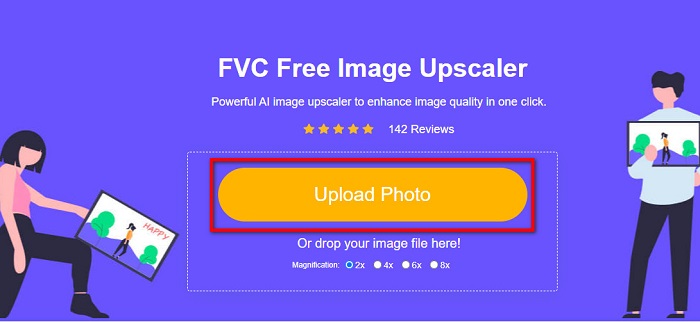
ขั้นตอนที่ 3. เมื่อไฟล์ของคุณอัปโหลดเสร็จแล้ว คุณจะถูกนำไปยังอินเทอร์เฟซอีกหน้าหนึ่ง เลือกระดับการขยายที่คุณต้องการสำหรับภาพของคุณ คุณสามารถเลือกได้ระหว่าง2x, 4x, 6x และ 8x ยิ่งภาพของคุณมีคุณภาพต่ำมากเท่าไร คุณก็ยิ่งควรเลือกระดับการขยายที่สูงขึ้น.
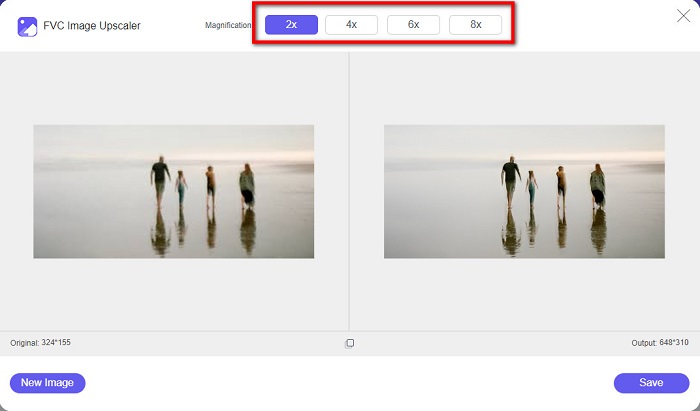
ขั้นตอนที่ 4. เลื่อนเคอร์เซอร์ของคุณไปวางบนภาพด้านซ้ายเพื่อดูผลลัพธ์ของการขยายรูป เห็นความเปลี่ยนแปลงหรือไม่ จากนั้นคลิกปุ่ม Save ที่มุมล่างขวาของอินเทอร์เฟซ เพื่อบันทึกผลงานลงในอุปกรณ์ของคุณ.
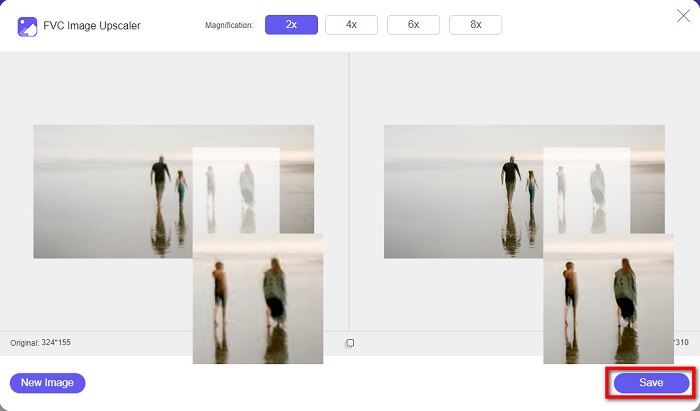
และนี่คือขั้นตอนง่ายๆ ในการขยายรูปภาพสำหรับการพิมพ์ออนไลน์โดยใช้ FVC Free Image Upscaler ง่ายเหมือนพายใช่ไหม แต่ถ้าคุณต้องการขยายรูปภาพโดยเปลี่ยนขนาดของรูปภาพ โปรดอ่านส่วนถัดไป
ตอนที่ 2 วิธีขยายภาพใน Photoshop โดยไม่สูญเสียคุณภาพ
คุณอาจเจอแอปพลิเคชั่นนี้เมื่อค้นหาวิธีขยายรูปภาพ และ Adobe Photoshop ก็เป็นแอปพลิเคชั่นแก้ไขภาพที่มีชื่อเสียงที่สุดบนอินเทอร์เน็ต Adobe Photoshop ส่วนใหญ่จะใช้โดยมืออาชีพที่มักแก้ไขรูปภาพเพื่อเผยแพร่บนแพลตฟอร์มต่างๆ ด้วยเครื่องมือและคุณสมบัติของแอปพลิเคชั่นนี้ คุณสามารถสร้างผลลัพธ์ที่น่าทึ่งได้อย่างแน่นอน แต่คุณรู้หรือไม่ว่าคุณสามารถขยายภาพด้วย Adobe Photoshop ได้เช่นกัน ใช่ คุณอ่านถูกแล้ว นอกจากนี้ยังเป็นเครื่องมือที่เหมาะสมในการขยายรูปภาพโดยไม่สูญเสียคุณภาพ ด้วย Adobe Photoshop คุณสามารถขยายภาพของคุณโดยเปลี่ยนความละเอียดหรือป้อนความกว้างและความสูงของภาพด้วยตนเอง แม้ว่า Adobe Photoshop จะเป็นแอประดับมืออาชีพ แต่คุณสมบัติการขยายนั้นใช้งานง่าย ไม่ต้องกังวลใจอีกต่อไป นี่คือขั้นตอนในการขยายภาพโดยใช้ Photoshop โดยไม่สูญเสียข้อมูล
ขั้นตอนที่ 1. ก่อนอื่น ให้ดาวน์โหลด Adobe Photoshop บนคอมพิวเตอร์ของคุณ โปรแกรมนี้มีให้ใช้เกือบทุกระบบปฏิบัติการ เช่น Windows และ macOS เมื่อคุณติดตั้งโปรแกรมเสร็จแล้ว ให้นำเข้าภาพที่คุณต้องการขยาย.
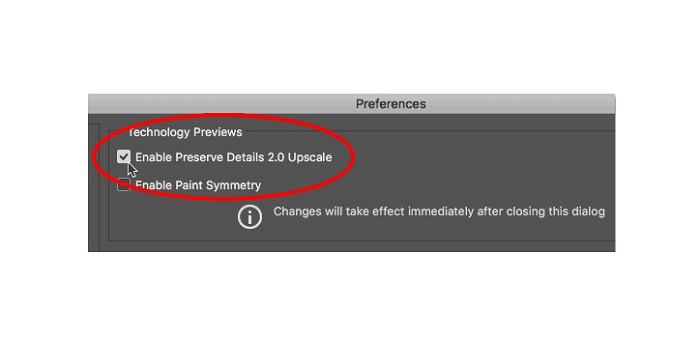
ขั้นตอนที่ 2. จากนั้นให้เปิดใช้ Preserve Details 2.0 หากคุณใช้คอมพิวเตอร์ Windows ให้ไปที่เมนูEditในMenu Bar หากคุณใช้ Mac ให้ไปที่เมนูPhotoshop CC เลือก Preferences แล้วคลิกปุ่ม Technology Previews กล่องโต้ตอบ Preferences จะเปิดไปที่ตัวเลือก Technology Previews ให้ติ๊กที่ช่องข้าง Enable Preserve Details 2.0 Upscale จากนั้นกด OK เพื่อปิดกล่องโต้ตอบของตัวเลือก Technology Previews.
ขั้นตอนที่ 3. ต่อไป เปิดกล่องโต้ตอบ Image Size โดยไปที่เมนู Image แล้วเลือกตัวเลือก Image Size.
ขั้นตอนที่ 4. เมื่อทำการขยายหรืออัปสเกลภาพใน Photoshop เราต้องการปรับมิติทางกายภาพของภาพ หรือพูดอีกอย่างคือ เราต้องการเพิ่มหรือลดจำนวนพิกเซล ดังนั้นให้แน่ใจว่าได้เลือก Resample ไว้.
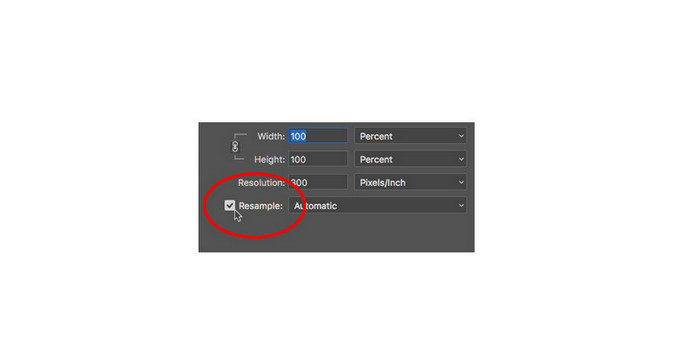
ขั้นตอนที่ 5. จากนั้นให้เปลี่ยนความสูงและความกว้างของภาพ โดยพิมพ์ค่ามิติที่คุณต้องการสำหรับรูปของคุณ ตามค่าเริ่มต้น ความกว้างและความสูงจะเชื่อมกันไว้ ดังนั้นหากคุณเปลี่ยนความกว้างของภาพ ความสูงก็จะปรับตามโดยอัตโนมัติ.
ขั้นตอนที่ 6. ขั้นตอนสุดท้าย ให้เปลี่ยน Resample Method เป็น Preserve Details 2.0 โดยปกติ Resample Method จะตั้งเป็น Automatic แต่ Photoshop จะไม่เลือก Preserve Details 2.0 ให้เองเมื่อ Resample ถูกตั้งเป็น Automatic ดังนั้นให้เปลี่ยนการตั้งค่า Resample โดยคลิกที่ Automatic แล้วเลือก Preserve Details 2.0.
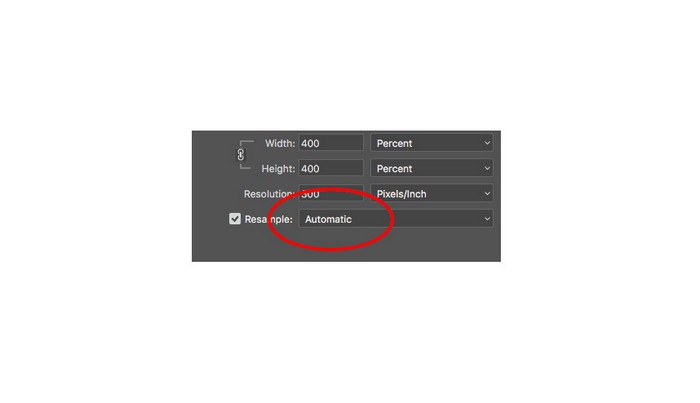
ขั้นตอนที่ 7. ตอนนี้ถึงเวลาพรีวิวผลลัพธ์แล้ว หลังจากเลือก Preserve Details 2.0 แถบพรีวิวทางซ้ายจะอัปเดตและแสดงให้คุณเห็นว่ารูปที่อัปสเกลแล้วจะมีหน้าตาอย่างไร ลากรูปของคุณด้วยเมาส์ภายในหน้าต่างพรีวิวเพื่อดูส่วนต่าง ๆ ของภาพ.
เมื่อทำตามขั้นตอนเหล่านี้ คุณจะได้เรียนรู้วิธีขยายรูปภาพสำหรับการพิมพ์โดยไม่สูญเสียคุณภาพอย่างแน่นอน
ที่เกี่ยวข้อง:
7 อันดับตัวขยายรูปภาพออนไลน์และออฟไลน์ที่ดีที่สุด
4 อันดับโปรแกรมขยาย GIF ออนไลน์และออฟไลน์ที่คุณไม่ควรพลาด
ส่วนที่ 3 คำถามที่พบบ่อยเกี่ยวกับวิธีขยายภาพโดยไม่สูญเสียคุณภาพ
ฉันสามารถขยายขนาดไฟล์ JPG ทางออนไลน์ได้หรือไม่
คุณสามารถเปลี่ยนขนาดไฟล์ภาพ JPG ของคุณด้วย FVC Free Image Upscaler ได้ เพียงเพิ่มระดับการขยายไปที่ 6x หรือ 8x เพื่อขยายขนาดของไฟล์ภาพ JPG.
Adobe Photoshop รองรับไฟล์ PNG หรือไม่
ใช่. ไฟล์ PNG ได้รับการสนับสนุนโดยหลายแพลตฟอร์ม รวมถึง Adobe Photoshop คุณสามารถนำเข้าไฟล์รูปภาพได้เกือบทุกรูปแบบด้วย Adobe Photoshop เช่น PNG, JPG, JPEG, BMP และ WebP
การขยายภาพของฉันส่งผลต่อขนาดไฟล์หรือไม่
ใช่. ขนาดไฟล์ของรูปภาพของคุณเพิ่มขึ้นเนื่องจากคุณกำลังปรับจำนวนพิกเซลทั้งหมดของรูปภาพหรือจำนวนพิกเซลในทุก ๆ นิ้ว แต่ขนาดไฟล์ก็จะเล็กลงเช่นกันเมื่อคุณลดความกว้างและความสูงของรูปภาพลง
สรุป
และทั้งหมดนี้คือวิธีขยายรูปภาพโดยไม่ทำให้คุณภาพลดลง ไม่ว่าจะเป็นวิธีออนไลน์หรือออฟไลน์ คุณก็สามารถขยายรูปได้โดยไม่กระทบต่อคุณภาพ แต่หากคุณต้องการวิธีที่ง่ายกว่าในการขยายรูปภาพ เราขอแนะนำให้ใช้ FVC Free Image Upscaler ซึ่งเป็นแอปพลิเคชันที่ใช้งานง่าย.
-
 วิธีปรับขนาดรูปภาพใน Illustrator ด้วย 2 วิธีที่แตกต่างกัน
 เรียนรู้วิธีที่ดีที่สุดในการปรับขนาดรูปภาพใน Illustrator ในการเริ่มต้น ให้ดาวน์โหลดและเปิดแอพ Adobe Illustrator บนพีซีของคุณ แล้วทำตามขั้นตอนง่ายๆ เหล่านี้
-
 6 วิธีในการปรับขนาดรูปภาพบนเว็บและออฟไลน์ [100% ทำงาน]
 ด้วยบทช่วยสอนที่เราเพิ่มในนี้ คุณสามารถปรับขนาดรูปภาพตามขนาดที่คุณต้องการได้อย่างง่ายดาย เรียนรู้วิธีการทำที่นี่!
-
 วิธีที่ดีที่สุดในการปรับขนาดรูปภาพบน iPhone ของคุณได้ฟรีและไม่ต้องติดตั้ง
 การปรับขนาดรูปภาพบน iPhone ของคุณอาจเป็นเรื่องยากที่จะเรียนรู้ โชคดีที่บทความนี้มีบทช่วยสอนเกี่ยวกับวิธีการเปลี่ยนขนาดของรูปภาพอย่างง่ายดาย
