


 Video Converter Ultimate
 บันทึกหน้าจอ
 ซ่อมวิดีโอ
 ดาวน์โหลดอย่างปลอดภัย
วิธีที่ดีที่สุดในการลบลายน้ำออกจากภาพบุคคลที่มีชื่อเสียง
Prestige Portrait เป็นเครื่องมือที่ยอดเยี่ยมสำหรับการถ่ายภาพบุคคล เกือบทุกคนใช้โปรแกรมประเภทนี้ในการถ่ายรูปให้มีคุณภาพดี อย่างไรก็ตาม หลังจากถ่ายภาพแล้ว จะมีลายน้ำ Prestige Portrait ปรากฏอยู่บนรูป ซึ่งน่ารำคาญ แต่คุณถือว่าโชคดี เพราะบทความแนะนำนี้จะมอบวิธีมากมายเกี่ยวกับวิธีลบลายน้ำออกจาก Prestige Portraitให้กับคุณ ด้วยวิธีนี้ ภาพถ่ายบุคคลของคุณจะดูน่าพอใจมากขึ้น เนื่องจากไม่มีส่วนรบกวนสายตา อย่าพลาด! อ่านบทความนี้เพื่อเรียนรู้วิธีที่มีประโยชน์เหล่านี้ที่คุณสามารถลองทำได้.

ตอนที่ 1: ภาพบุคคลอันทรงเกียรติจะเพิ่มลายน้ำให้กับภาพถ่ายดิจิทัลที่คุณซื้อ
น่าเสียดายใช่ ไม่ว่าคุณจะสั่งซื้อรูปภาพของคุณในรูปแบบสิ่งพิมพ์หรือดิจิทัล จะมีลายน้ำขนาดเล็กบนรูปภาพที่คุณซื้อ
แต่ถ้าคุณสนใจที่จะลบลายน้ำที่น่ารำคาญเหล่านี้ออกจากภาพเหมือนของคุณ เพียงอ่านส่วนต่อไปนี้ของโพสต์นี้
ตอนที่ 2: ลบลายน้ำออกจาก Prestige Portraits Online
ใช้ FVC Free Watermark Remover
วิธีที่ดีที่สุดในการลบลายน้ำ Prestige Portrait คือการใช้โปรแกรมลบลายน้ำที่ยอดเยี่ยมอย่าง FVC Free Watermark Remover เครื่องมือออนไลน์นี้สามารถลบวัตถุที่น่ารำคาญอย่างลายน้ำ โลโก้ ลายเซ็น ข้อความ และอื่น ๆ ได้ มีขั้นตอนการลบที่รวดเร็วและยังมีฟังก์ชันครอบตัดภาพให้ใช้งาน นอกจากนี้ยังรองรับไฟล์หลากหลายรูปแบบ เช่น BMP, JPG, JPEG, PNG และอื่น ๆ อีกทั้งยังสามารถใช้งานผ่านเบราว์เซอร์เกือบทุกชนิด เช่น Google Chrome, Mozilla Firefox, Microsoft Edge เป็นต้น FVC Free Watermark Remover มีอินเทอร์เฟซที่ใช้งานง่ายและขั้นตอนที่ไม่ซับซ้อน เหมาะสำหรับผู้ใช้ทุกคน.
นอกจากนี้ คุณสามารถมั่นใจในความปลอดภัยของไฟล์ของคุณได้ เนื่องจากซอฟต์แวร์นี้ไม่อนุญาตให้ผู้อื่นเห็นไฟล์ของคุณ นอกจากนั้น คุณไม่จำเป็นต้องสร้างบัญชีเพื่อใช้งาน หลังจากเยี่ยมชมเว็บไซต์แล้ว คุณสามารถใช้มันและลบวัตถุที่ไม่ต้องการออกจากภาพของคุณได้ทันที สุดท้าย โปรแกรมลบลายน้ำนี้เป็น 100% ฟรี ไม่จำเป็นต้องซื้ออะไร
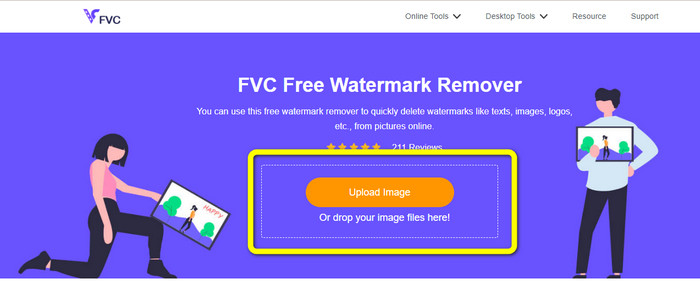
ขั้นตอนที่ 1: ขั้นแรก เปิดเบราว์เซอร์ของคุณและไปที่เว็บไซต์ FVC Free Watermark Remover จากนั้นคลิกปุ่ม Upload Image เพื่ออัปโหลดภาพถ่ายบุคคลที่มีลายน้ำ.
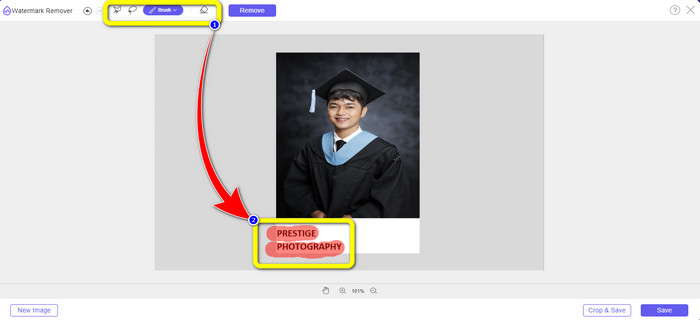
ขั้นตอนที่ 2: หลังจากอัปโหลดภาพถ่ายบุคคลที่มีลายน้ำ Prestige Portrait แล้ว ให้ไฮไลต์หรือลากคลุมบริเวณลายน้ำโดยใช้เครื่องมือลบ เช่น Lasso, Polygonal และ Brush
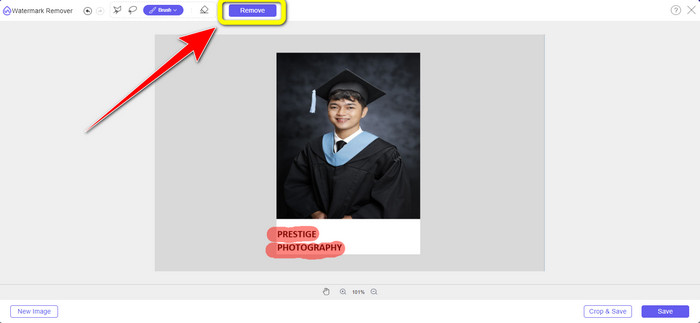
ขั้นตอนที่ 3: ขั้นตอนต่อไปคือคลิกปุ่ม Remove เพื่อลบลายน้ำออกจากภาพถ่ายบุคคลของคุณทันที เสร็จแล้วจึงไปยังขั้นตอนถัดไป.
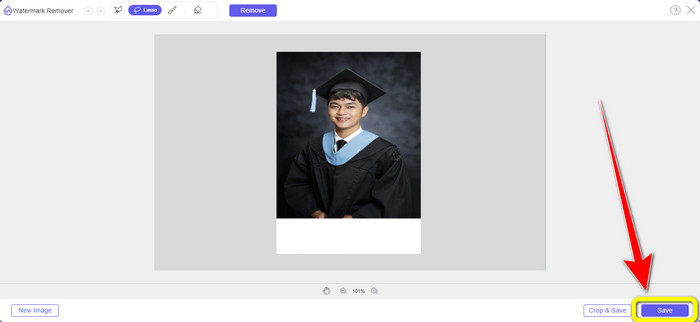
ขั้นตอนที่ 4: หลังจากลบลายน้ำเรียบร้อยแล้ว ให้คลิกปุ่ม Save เพื่อบันทึกภาพถ่ายบุคคลของคุณโดยไม่มีลายน้ำ Prestige Portrait.
การใช้ Inpaint
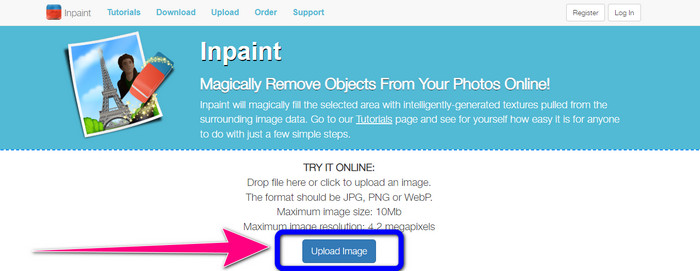
คุณต้องการเรียนรู้เพิ่มเติมเกี่ยวกับวิธีที่ง่ายที่สุดในการลบลายน้ำออกจาก Prestige Portrait หรือไม่? ลองใช้ Inpaint เป็นหนึ่งในโปรแกรมลบลายน้ำออนไลน์ที่ยอดเยี่ยมที่คุณสามารถใช้ได้ การลบลายน้ำโดยใช้ Inpaint นั้นไม่ซับซ้อน นอกจากลายน้ำแล้ว คุณยังสามารถลบองค์ประกอบต่างๆ ออกจากรูปภาพของคุณ เช่น โลโก้ สติ๊กเกอร์ อีโมจิ รูปภาพ และอื่นๆ นอกจากนี้ยังมีคุณสมบัติมากมายที่คุณสามารถเพลิดเพลินได้ คุณสามารถซ่อมแซมรูปภาพเก่า ใช้การรีทัชใบหน้าแบบดิจิทัล ลบริ้วรอยและตำหนิบนผิวหนัง ฯลฯ แอปพลิเคชัน Inpaint ใช้งานได้ทั้งแบบออนไลน์และออฟไลน์ การใช้เครื่องมือที่ดาวน์โหลดได้นั้นมีฟีเจอร์ให้มากกว่าอีกอันหนึ่ง อย่างไรก็ตาม เครื่องมือออนไลน์ของ Inpaint มีขนาดภาพสูงสุด 10MB เท่านั้น นอกจากนี้ยังรองรับไฟล์ภาพสามรูปแบบเท่านั้น เช่น PNG, JPG และ WEBP ทำตามขั้นตอนง่ายๆ ด้านล่างเพื่อลบลายน้ำออกจากภาพของคุณ
ขั้นตอนที่ 1: ไปที่เว็บไซต์ Inpaint แล้วคลิกปุ่ม Upload Image เพื่อเพิ่มภาพถ่ายบุคคลของคุณ คุณยังสามารถลากไฟล์มาวางเพื่ออัปโหลดได้เช่นกัน.
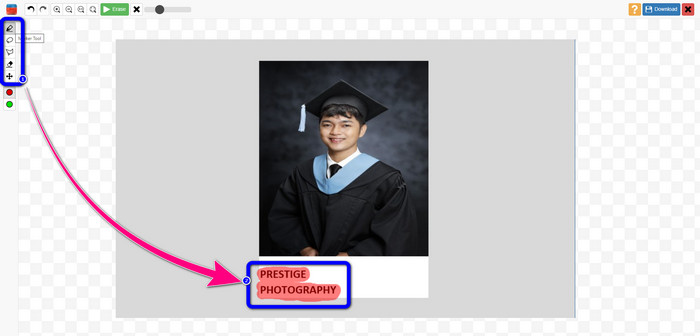
ขั้นตอนที่ 2: ขั้นตอนต่อไปคือไฮไลต์ลายน้ำในภาพถ่ายบุคคลของคุณโดยใช้เครื่องมือ Marker, Lasso หรือ Polygonal.
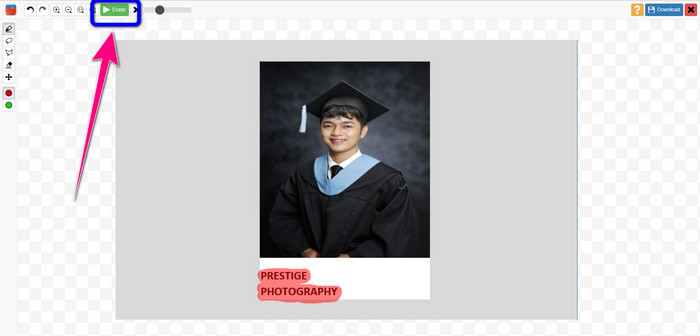
ขั้นตอนที่ 3: เมื่อไฮไลต์ลายน้ำทั้งหมดเรียบร้อยแล้ว ให้คลิกปุ่ม Erase และรอจนกว่ากระบวนการลบจะเสร็จสิ้น.
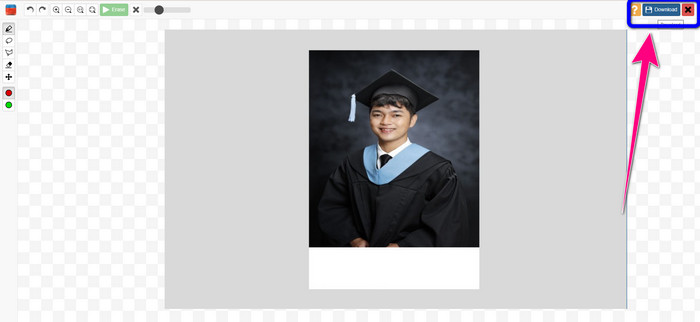
ขั้นตอนที่ 4: ขั้นตอนสุดท้าย ให้คลิกปุ่ม Download ที่มุมขวาบนของหน้าจอ หลังจากคลิกแล้ว ไฟล์จะถูกบันทึกลงในอุปกรณ์ของคุณโดยอัตโนมัติ.
การใช้ Wondershare Pixcut
หากคุณไม่ต้องการให้ภาพของคุณเบลอหลังจากการลบลายน้ำ คุณสามารถใช้ Wondershare Pixcut ได้ คุณสามารถลบวัตถุที่น่ารำคาญใด ๆ ได้อย่างง่ายดายโดยไม่สูญเสียคุณภาพของภาพถ่ายบุคคล นอกจากนี้ยังรองรับไฟล์รูปภาพเกือบทุกประเภท เช่น JPG, PNG, WEBM เป็นต้น อย่างไรก็ตาม คุณไม่สามารถใช้เครื่องมือออนไลน์นี้ได้หากยังไม่มีบัญชี คุณต้องสมัครสมาชิก Wondershare Pixcut ก่อนจึงจะใช้งานแอปพลิเคชันนี้ได้.
หากคุณต้องการใช้เครื่องมือนี้ ให้ทำตามขั้นตอนง่ายๆ ด้านล่างนี้
ขั้นตอนที่ 1: ไปที่เว็บไซต์ Wondershare Pixcut สร้างบัญชี และคลิกปุ่ม Upload Image เพื่ออัปโหลดภาพถ่ายบุคคลที่มีลายน้ำ Prestige Portrait.
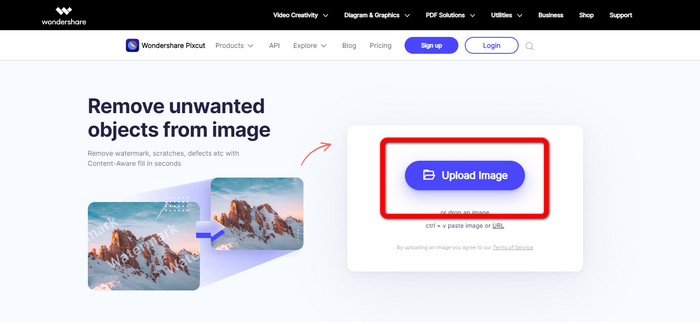
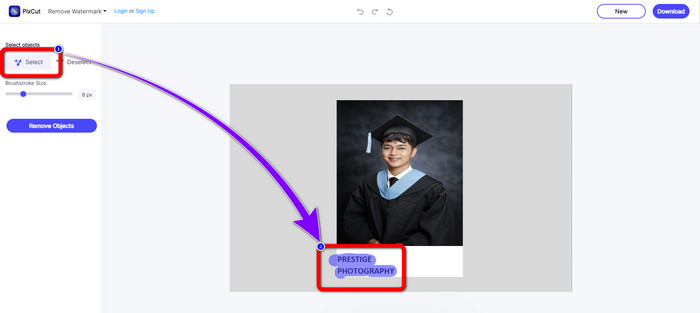
ขั้นตอนที่ 2: หลังจากอัปโหลดรูปภาพแล้ว ให้คลิกตัวเลือก Select และใช้เมาส์ไฮไลต์บริเวณลายน้ำ.
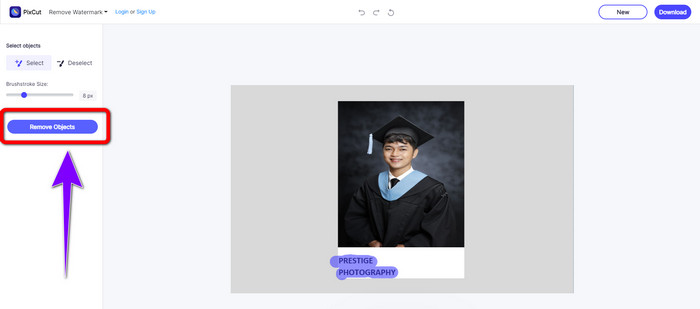
ขั้นตอนที่ 3: คลิกปุ่ม Remove Objects เพื่อลบลายน้ำที่ไฮไลต์ไว้.
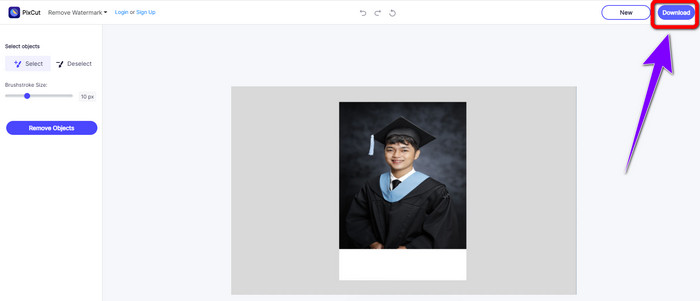
ขั้นตอนที่ 4: เมื่อไม่มีลายน้ำในภาพถ่ายบุคคลของคุณแล้ว ให้คลิกปุ่ม Download เพื่อบันทึกลงในคอมพิวเตอร์.
ตอนที่ 3: วิธีลบลายน้ำออกจากรูปภาพ Prestige Portraits ใน Photoshop
Adobe Photoshop เป็นเครื่องมือแบบออฟไลน์ที่คุณสามารถใช้เพื่อลบลายน้ำจาก Prestige Portrait ได้ มีเครื่องมือลบหลายแบบให้ใช้งาน เช่น Lasso, Brush เป็นต้น ขั้นตอนการลบลายน้ำทำได้ง่าย ไม่ต้องมีทักษะการตัดต่อขั้นสูง จึงเหมาะสำหรับผู้ใช้ทุกคน อย่างไรก็ตาม รุ่นทดลองใช้ฟรีของโปรแกรมนี้สามารถใช้ได้เพียงเจ็ด (7) วันเท่านั้น หากต้องการใช้แอปพลิเคชันที่ยอดเยี่ยมนี้ต่อไป คุณต้องซื้อซอฟต์แวร์ ซึ่งค่อนข้างมีราคาสูง หากคุณต้องการลองใช้ Photoshop ในการลบลายน้ำออกจากภาพถ่ายบุคคลของคุณ ให้ทำตามคู่มือแบบง่ายด้านล่างนี้.
ขั้นตอนที่ 1: อันดับแรก ดาวน์โหลดและติดตั้ง Adobe Photoshop บนอุปกรณ์ของคุณ จากนั้นไปที่ File > Open เพื่อเปิดไฟล์ภาพถ่ายบุคคล.
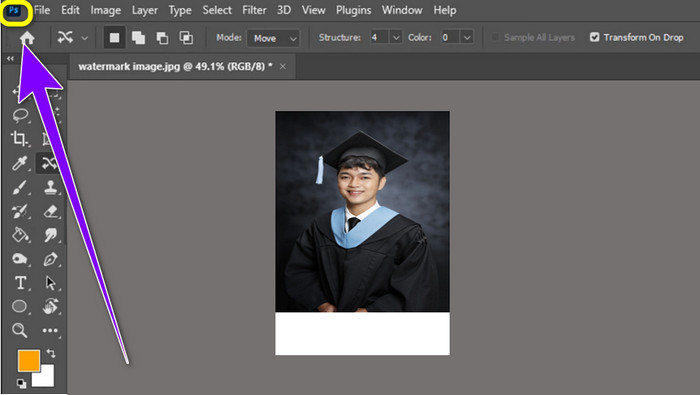
ขั้นตอนที่ 2: หลังจากเพิ่มรูปภาพแล้ว ให้คลิกเครื่องมือ Content-Aware Move Tool ใช้มันเพื่อเลือกบริเวณลายน้ำแล้วกดปุ่ม Delete.
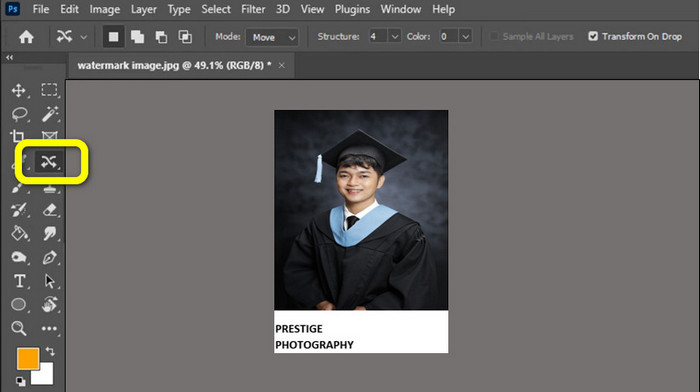
ขั้นตอนที่ 3: เมื่อลบลายน้ำ Prestige Portrait เรียบร้อยแล้ว ให้ไปที่ File > Save เพื่อบันทึกผลงานขั้นสุดท้ายของคุณ.
ตอนที่ 4: คำถามที่พบบ่อยเกี่ยวกับการลบลายน้ำออกจากภาพบุคคลที่มีชื่อเสียง
1. ข้อดีของการลบลายน้ำออกจาก Prestige Portraits คืออะไร?
การลบลายน้ำออกจาก Prestige Portraits สามารถทำให้ภาพถ่าย Portrait ของคุณสะอาดและสวยงาม ด้วยวิธีนี้ คุณสามารถดูรูปภาพของคุณโดยไม่มีองค์ประกอบรบกวน
2. สิ่งที่ควรใส่ในลายน้ำ?
เมื่อใส่ลายน้ำบนรูปภาพของคุณ คุณต้องวางไว้ในบริเวณที่ไม่รบกวนหรือกีดขวางการมองเห็นของรูปภาพ คุณต้องใช้ขนาดที่เล็ก ไม่ใหญ่เกินไป เพื่อไม่ให้กระทบต่อภาพ
3. ฉันสามารถลบลายน้ำออกจากภาพบุคคลแบบ Prestige โดยใช้โทรศัพท์ได้หรือไม่
ใช่คุณสามารถ. คุณต้องดาวน์โหลดโปรแกรมลบลายน้ำบนโทรศัพท์ของคุณ เช่น Video Eraser, PicLab, Touch ReTouch และอื่นๆ เมื่อใช้เครื่องมือเหล่านี้ คุณสามารถลบลายน้ำออกจากภาพบุคคลแบบ Prestige ได้อย่างรวดเร็ว
สรุป
จากที่เห็น จะมีหลายวิธีที่คุณสามารถเรียนรู้เกี่ยวกับวิธีลบลายน้ำออกจาก Prestige Portraitโดยใช้แอปพลิเคชันด้านบน แต่ถ้าคุณต้องการตัวลบลายน้ำ Prestige Portrait ที่มีประสิทธิภาพมากที่สุด FVC Free Watermark Remover คือคำตอบสำหรับคุณ.
-
 วิธีที่น่าทึ่งในการลบลายน้ำของ Getty Images
 จะลบลายน้ำ Getty Images ได้อย่างไร หากนี่คือคำถามของคุณ บทความนี้มีคำตอบที่ดีที่สุด อย่ากระพริบตา และเรียนรู้ขั้นตอนที่ดีที่สุดที่คุณสามารถลองได้
-
 วิธีลบลายน้ำ Canva ออกจากรูปภาพ [วิธีแบบเต็ม]
 ลายน้ำ Canva จากภาพถ่ายบางครั้งก็น่ารำคาญ หากต้องการลบให้ไปที่โพสต์นี้ เราจะแนะนำให้คุณเรียนรู้วิธีลบลายน้ำ Canva
-
 วิธีการออนไลน์และออฟไลน์เกี่ยวกับวิธีลบลายน้ำ Alamy
 หากคุณต้องการค้นหาเครื่องมือลบลายน้ำ Alamy ที่ยอดเยี่ยม คุณสามารถอ่านโพสต์นี้เพื่อเรียนรู้เกี่ยวกับสามวิธีที่มีประสิทธิภาพในการลบลายน้ำ Alamy
