


 Video Converter Ultimate
 บันทึกหน้าจอ
 ซ่อมวิดีโอ
 ดาวน์โหลดอย่างปลอดภัย
ขั้นตอนโดยละเอียดในการแปลงไฟล์ AVI เป็นรูปแบบ M4V
รูปแบบคอนเทนเนอร์มัลติมีเดีย AVI ซึ่งย่อมาจาก Audio Video Interleaved เป็นคุณสมบัติหนึ่งของซอฟต์แวร์วิดีโอบน Windows โดยอนุญาตให้เล่นข้อมูลเสียงและวิดีโอพร้อมกันภายในไฟล์เดียว ด้วยความสามารถเฉพาะตัว เช่น การควบคุมแบบซิงก์และการแสดงผลแบบเรียลไทม์ AVI จึงกลายเป็นหนึ่งในรูปแบบวิดีโอที่ถูกใช้งานมากที่สุดอย่างรวดเร็ว แต่อย่างไรก็ตาม หากคุณต้องการเล่นวิดีโอบน Mac คุณจำเป็นต้องแปลงไฟล์ AVI เป็น M4V เนื่องจาก M4V เป็นรูปแบบของ Apple ที่สามารถเล่นได้บน iTunes, Apple QuickTime Player และอุปกรณ์ iOS คุณอาจต้องการแปลงไฟล์ .avi บน Mac เป็นรูปแบบสากลอย่าง M4V เป็นครั้งคราว ในกรณีนี้จึงแนะนำให้แปลง AVI เป็น M4V เพื่อให้ทำงานได้อย่างถูกต้องบน Mac OS เราจะแสดงวิธีที่ดีที่สุดในการแปลง AVI เป็น M4V โดยใช้ทั้งโปรแกรมออนไลน์และออฟไลน์.

ตอนที่ 1: รู้เบื้องต้นเกี่ยวกับ AVI และ M4V
| AVI | M4V | |
| ชื่อไฟล์ | แทรกวิดีโอเสียง | วิดีโอ MPEG-4 |
| นามสกุลไฟล์ | .avi | .m4v |
| คำอธิบาย | รูปแบบไฟล์ AVI เป็นหนึ่งในคอนเทนเนอร์มัลติมีเดียที่ได้รับความนิยมมากที่สุดเท่าที่เคยสร้างมา ตัวย่อ AVI ซึ่งย่อมาจาก audio video interleaved เริ่มให้บริการแก่สาธารณชนโดย Microsoft ในปี 1992 โดยเป็นส่วนประกอบของเฟรมเวิร์กมัลติมีเดีย "วิดีโอสำหรับ Windows" ไฟล์ AVI ที่มีนามสกุลไฟล์ .avi สามารถมีทั้งเนื้อหาวิดีโอและเสียงที่ซิงโครไนซ์ได้เนื่องจากเป็นรูปแบบคอนเทนเนอร์ ดังนั้น ผู้เขียนสามารถแก้ไขและเข้ารหัสลำดับเสียงและวิดีโอหรือลำดับวิดีโอโดยใช้มาตรฐาน | Apple สร้างนามสกุลไฟล์ M4V ซึ่งคล้ายกับนามสกุลไฟล์ MP4 อย่างน่าทึ่ง สำหรับเนื้อหาของ iTunes Store อุปกรณ์ Apple เป็นอุปกรณ์เดียวที่สามารถเล่นไฟล์ M4V ได้ หากต้องการเล่นบนอุปกรณ์ Apple วิดีโอรูปแบบอื่นๆ เช่น MP4 และ MOV สามารถแปลงเป็น M4V ได้ ความแตกต่างหลักระหว่างรูปแบบไฟล์ M4V และ MP4 คือ รูปแบบเดิมรองรับการป้องกันลิขสิทธิ์ DRM ซึ่งห้ามการละเมิดลิขสิทธิ์เนื้อหาสื่อ คอมพิวเตอร์ต้องให้สิทธิ์โดยลงชื่อเข้าใช้บัญชี iTunes เพื่อซื้อไฟล์มีเดียเพื่อเล่นไฟล์ M4V ที่ป้องกันด้วย DRM อย่างไรก็ตาม หากไฟล์ไม่ได้รับการป้องกัน DRM ผู้ใช้สามารถเปลี่ยนชื่อนามสกุลไฟล์ M4V เป็น MP4 เพื่อให้เข้ากันได้กับอุปกรณ์ที่ไม่ใช่ของ Apple |
| พัฒนาโดย | Microsoft | บริษัท แอปเปิ้ล. |
| โปรแกรมที่เกี่ยวข้อง | VLC Media Player โปรแกรมเล่น Apple QuickTime อะโดบี พรีเมียร์ โปร 2020 Windows Media Player | KMPlayer มีเดียเพลเยอร์คลาสสิก เครื่องเล่นซูม \VLC มีเดียเพลเยอร์ |
| หมวดไฟล์ | วิดีโอ | วิดีโอ |
| ประเภทไมม์ | วิดีโอ/x-วิดีโอ | วิดีโอ/x-m4v |
ส่วนที่ 2: วิธีที่ดีที่สุดในการแปลง AVI เป็น M4V
ต้องการแปลง AVI เป็น M4V ฟรีใช่ไหม คุณสามารถใช้ FVC Free Video Converter Online ได้ เครื่องมือนี้สามารถแปลงไฟล์ AVI ของคุณเป็นรูปแบบ M4V ได้อย่างง่ายดาย นอกจากนี้ยังรองรับรูปแบบวิดีโออื่น ๆ อีกมากมาย เช่น FLV, MP4, MOV, WMA และอื่น ๆ อีกทั้งหากคุณวางแผนจะแปลงไฟล์ AVI หลายไฟล์เป็นรูปแบบไฟล์ที่ต่างกัน คุณก็สามารถใช้แอปพลิเคชันนี้ได้ เพราะรองรับการแปลงแบบแบตช์ คุณยังสามารถแก้ไขวิดีโอก่อนแปลงได้ เช่น เปลี่ยนอัตราเฟรม ความละเอียด และบิตเรต นอกจากนี้ FVC Free Video Converter Online ยังสามารถแปลงไฟล์เสียงอย่าง MP3, AAC, AC3, FLAC เป็นต้น ได้ด้วย.
คุณสมบัติ
◆ แปลงไฟล์วิดีโอได้หลายรูปแบบ เช่น M4V, AVI, MP4, MOV, VOB, FLV, WMV เป็นต้น
◆ สามารถเปลี่ยนความละเอียดของวิดีโอ อัตราบิต และอัตราเฟรม
◆ แปลงไฟล์เสียง เช่น MP3, AAC, AC3, FLAC เป็นต้น
ทำตามคำแนะนำด้านล่างเพื่อแปลง AVI เป็น M4V ได้อย่างง่ายดาย
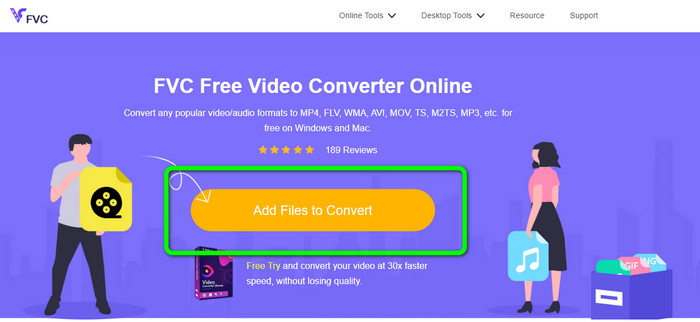
ขั้นตอนที่ 1: ก่อนอื่น เปิดเบราว์เซอร์ของคุณและไปที่เว็บไซต์ FVC Free Video Converter Online จากนั้นกดปุ่ม Add Files to Convert เพื่ออัปโหลดไฟล์ AVI ของคุณ.
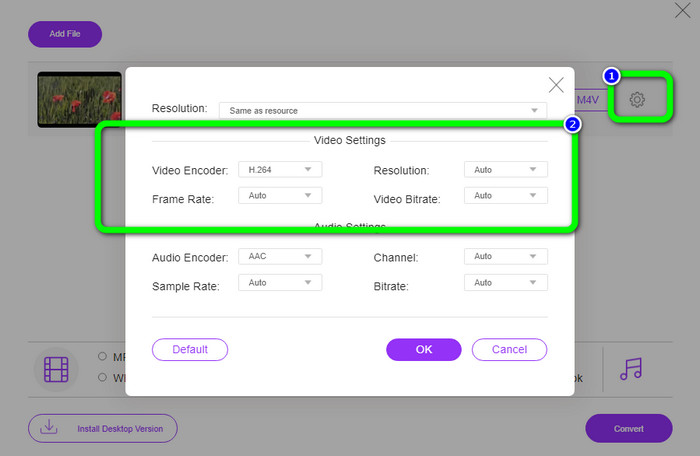
ขั้นตอนที่ 2: หากคุณต้องการเปลี่ยนความละเอียด อัตราเฟรม และบิตเรตของวิดีโอของคุณ ให้คลิกไอคอน Settings ที่ด้านซ้ายของอินเทอร์เฟซ เมื่อตั้งค่าเรียบร้อยแล้วให้กด OK.
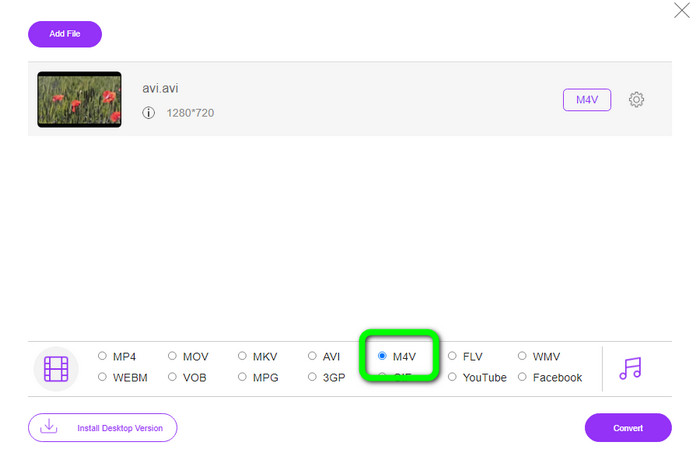
ขั้นตอนที่ 3: จากนั้นที่บริเวณด้านล่างของอินเทอร์เฟซ ให้เลือกไฟล์ M4V เป็นรูปแบบเอาต์พุต.
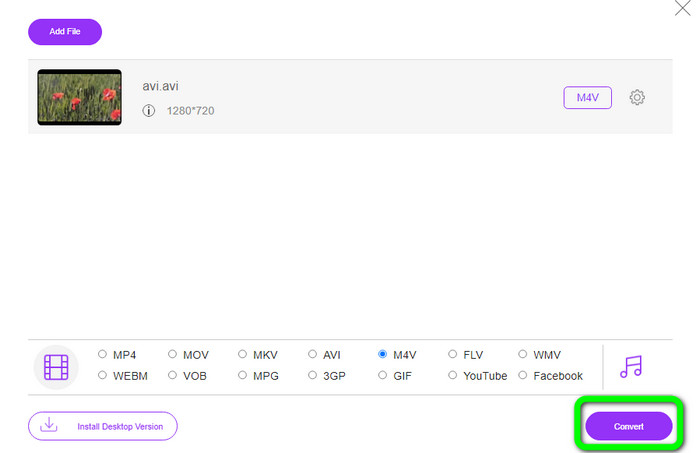
ขั้นตอนที่ 4: สุดท้าย เพื่อบันทึกไฟล์วิดีโอของคุณ ให้คลิกปุ่ม Convert รอให้กระบวนการแปลงเสร็จสิ้น แล้วดาวน์โหลดไฟล์ผลลัพธ์สุดท้ายของคุณ.
ส่วนที่ 3: วิธีง่ายๆ ในการแปลง AVI เป็น M4V บน Windows และ Mac
อีกหนึ่งโปรแกรมแปลงไฟล์ที่ยอดเยี่ยมที่คุณสามารถใช้ได้คือ FVC Video Converter Ultimate เครื่องมือนี้สามารถแปลง AVI เป็น M4V บน Windows ได้ สามารถแปลงไฟล์ของคุณได้ในทันทีเพราะมีระบบแปลงความเร็วสูงพิเศษ เร็วขึ้นถึง 30 เท่า นอกจากนี้คุณยังสามารถแปลงไฟล์หลายไฟล์พร้อมกันได้ เพราะรองรับการแปลงแบบแบตช์ อีกทั้งยังมีวิธีใช้งานพื้นฐานพร้อมอินเทอร์เฟซที่เข้าใจง่าย เหมาะอย่างยิ่งสำหรับผู้เริ่มต้น นอกจากนี้ เครื่องมือออฟไลน์ตัวนี้ไม่ได้ใช้ได้แค่บน Windows เท่านั้น แต่ยังใช้ได้บน Mac อีกด้วย ยิ่งไปกว่านั้น คุณยังสามารถปรับแต่งวิดีโอของคุณระหว่างการแปลงได้ เช่น ปรับปรุงคุณภาพ ตัดต่อ เพิ่มฟิลเตอร์ และอื่น ๆ.
คุณสมบัติเด่น
◆ แปลงไฟล์วิดีโอมากกว่า 100 ไฟล์ รวมถึง M4V, MP4, AVI, FLV, MKV, MOV, VOB, WMV และอื่นๆ
◆ สร้างภาพตัดปะด้วยเทมเพลตและฟิลเตอร์ฟรี
◆ เสนอโปรแกรมสร้างมิวสิกวิดีโอ
◆ แก้ไขวิดีโอโดยใช้ตัวเพิ่มคุณภาพวิดีโอ เครื่องมือตัดวิดีโอ ตัวลบลายน้ำ เครื่องมือบีบอัดไฟล์ เป็นต้น.
◆ แปลงรูปแบบไฟล์รูปภาพ เช่น BMP, JPG, PNG เป็นต้น
◆ เพิ่มความเร็วและลดความเร็วของวิดีโอ
ใช้คำแนะนำโดยละเอียดด้านล่างเพื่อทราบวิธีการแปลง AVI เป็น M4V บน Windows และ Mac โดยใช้ FVC Video Converter Ultimate เราจะใช้เวอร์ชัน Windows
ขั้นตอนที่ 1: ดาวน์โหลด FVC Video Converter Ultimate บน Windows หรือ Mac ของคุณโดยคลิกปุ่มดาวน์โหลด.
ดาวน์โหลดฟรีสำหรับ Windows 7 หรือใหม่กว่าดาวน์โหลดอย่างปลอดภัย
ดาวน์โหลดฟรีสำหรับ MacOS 10.7 หรือใหม่กว่าดาวน์โหลดอย่างปลอดภัย
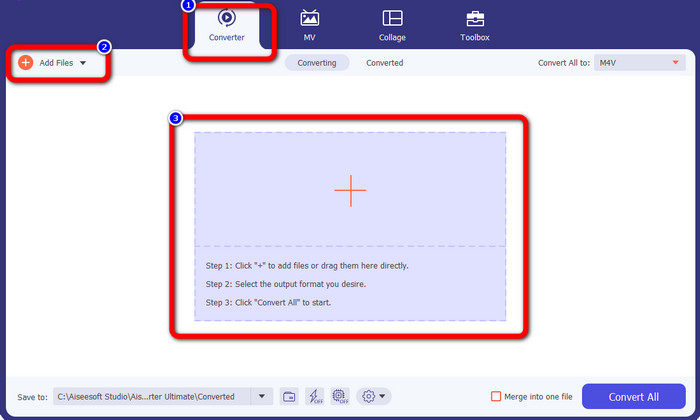
ขั้นตอนที่ 2: ไปที่แถบ Converter หลังจากเปิดโปรแกรมแล้ว จากนั้นคุณมี 3 วิธีในการใส่ไฟล์ AVI ของคุณ วิธีแรกคือคลิกปุ่ม Add File ในช่องที่สอง วิธีที่สองคือคลิกสัญลักษณ์ Plus ในช่องที่สาม และวิธีสุดท้ายคือวางไฟล์ลงตรงกลางหน้าต่างโปรแกรมโดยตรง.
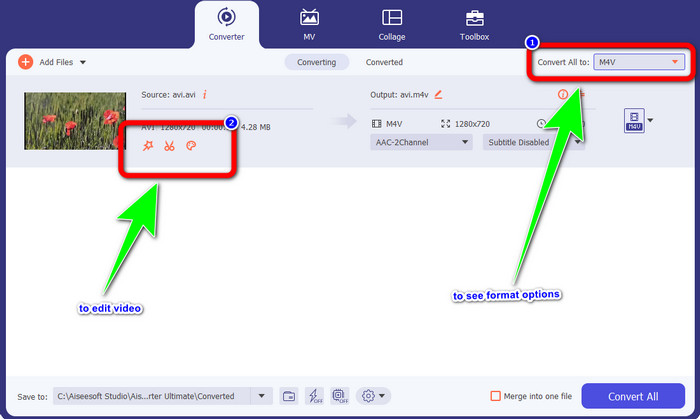
ขั้นตอนที่ 3: หลังจากเพิ่มไฟล์ AVI แล้ว ให้คลิกปุ่ม Convert All to เพื่อดูตัวเลือกรูปแบบไฟล์ และเลือก M4V เป็นรูปแบบเอาต์พุต จากนั้นหากคุณต้องการแก้ไขวิดีโอ สามารถไปที่ช่องที่สองได้ คุณสามารถใช้เครื่องมือต่าง ๆ เพื่อแก้ไขวิดีโอ เช่น เพิ่มฟิลเตอร์ หมุนและครอบตัดวิดีโอ ตัดต่อ และอื่น ๆ.
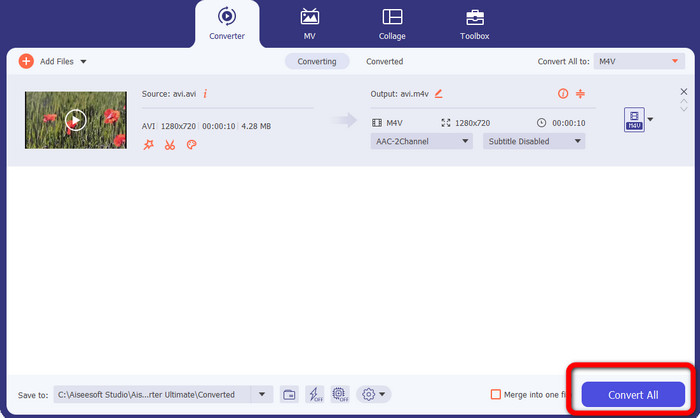
ขั้นตอนที่ 4: ขั้นตอนสุดท้าย ให้คลิกปุ่ม Convert รอให้กระบวนการแปลงความเร็วสูงเสร็จสิ้น แล้วบันทึกวิดีโอที่แปลงแล้วของคุณ.
ส่วนที่ 4: วิธีแปลง AVI เป็น M4V โดยใช้เบรกมือ
Handbrake เป็นอีกหนึ่งโปรแกรมแปลงไฟล์ที่ใช้แปลง AVI เป็น M4V ได้ฟรี สามารถแปลงไฟล์ได้หลายรูปแบบ เช่น WEBM, M4V, MP4, MKV เป็นต้น ด้วยตัวช่วยจากเครื่องมือนี้ คุณสามารถแปลงไฟล์จำนวนมากได้อย่างง่ายดาย อย่างไรก็ตาม Handbrake ค่อนข้างซับซ้อนในการใช้งาน คุณจำเป็นต้องมีความรู้เกี่ยวกับโปรแกรมนี้พอสมควร นอกจากนี้ขั้นตอนการติดตั้งยังซับซ้อน ต้องทำหลายขั้นตอนก่อนใช้งานได้ ซึ่งค่อนข้างเสียเวลาสำหรับผู้ใช้.
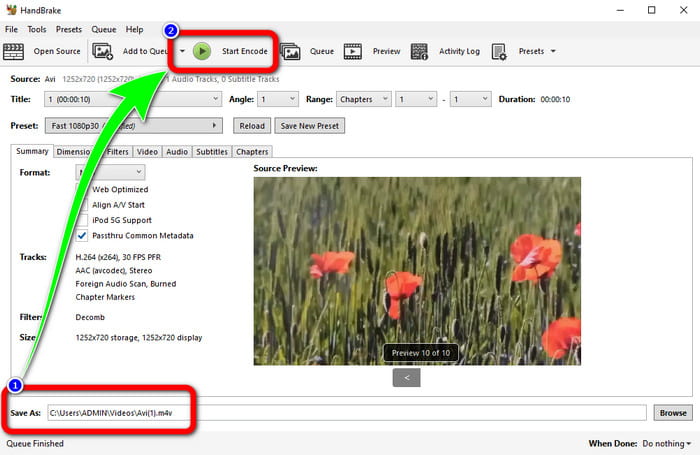
ขั้นตอนที่ 1: ดาวน์โหลด Handbrake ลงในคอมพิวเตอร์ของคุณ.
ขั้นตอนที่ 2: เลือกไฟล์ AVI ที่คุณต้องการแปลง.
ขั้นตอนที่ 3: ไปที่ส่วนฟอร์แมตแล้วเลือก M4V จากนั้นเริ่มกระบวนการแปลงโดยคลิกปุ่ม Start.
ส่วนที่ 5: คำถามที่พบบ่อยเกี่ยวกับการแปลง AVI เป็น M4V
1. วิธีแปลง AVI เป็น M4V บน Mac
คุณสามารถใช้ FVC Video Converter Ultimate ตัวแปลงนี้สามารถแปลง AVI ของคุณเป็น M4V โดยใช้ Mac ของคุณได้อย่างง่ายดาย
2. ไฟล์ AVI มีขนาดใหญ่แค่ไหน?
เนื่องจากวิดีโอ AVI ไม่มีการบีบอัด จึงใช้พื้นที่ฮาร์ดดิสก์มากขึ้น ตัวอย่างเช่น ฟุตเทจวิดีโอ AVI ขนาด 352x288 หนึ่งชั่วโมงสามารถใช้พื้นที่ฮาร์ดดิสก์ได้สูงสุด 33GB (3300 MB)
3. ไฟล์ AVI เป็นสากลหรือไม่?
ได้ ยังมีผู้ใช้รูปแบบ AVI อยู่ แม้ในปัจจุบันจะมีรูปแบบที่ทันสมัยกว่า เช่น MP4, MOV หรือ WMV เข้ามาแทนที่ เพราะ AVI มีความยืดหยุ่นสูง อุปกรณ์หรือคอมพิวเตอร์แทบทุกเครื่องสามารถเล่นไฟล์ AVI ได้.
สรุป
บทความแนะนำนี้ได้แสดงวิธีที่ยอดเยี่ยมในการแปลงไฟล์ AVI เป็น M4V ด้วยโปรแกรมแปลงไฟล์ทั้งสามตัว แต่หากคุณต้องการกระบวนการแปลงที่เร็วเป็นพิเศษ ให้ใช้ FVC Video Converter Ultimate และหากคุณต้องการวิธีที่ใช้งานง่ายกว่า ให้ใช้ FVC Free Video Converter Online.
-
 ผู้เล่น M4V 5 อันดับแรกสำหรับ Windows / Mac / Android / iOS ที่คุณควรรู้
 เมื่อคุณไม่สามารถเล่นวิดีโอ M4V บน QuickTime Player ได้ คุณควรเรียนรู้เพิ่มเติมจากเครื่องเล่น M4V ที่ยอดเยี่ยม 5 รายการสำหรับ Windows, Mac, Android และ iOS จากบทความนี้
-
 AVI VS MP4 - ความแตกต่างและความคล้ายคลึงกันระหว่างรูปแบบ AVI และ MP4
 รูปแบบวิดีโอใดดีกว่า AVI หรือ MP4 หากคุณต้องการเปรียบเทียบโดยละเอียด คุณสามารถตรวจสอบบทความ AVI VS MP4 นี้ คุณสามารถทราบความแตกต่างและความคล้ายคลึงกันระหว่าง AVI และ MP4 ได้ในหลายแง่มุม
-
 3 โปรแกรมแปลงวิดีโอที่ใช้ในการแปลง iTunes M4V เป็น AVI บน Mac
 ไม่มีความคิดที่จะแปลง MKV เป็นรูปแบบ AVI ได้อย่างไร? ในขณะที่เราอ่านบทความนี้ต่อไป เราจะรู้จักเครื่องมือ 3 อย่างที่สามารถช่วยคุณแปลงรูปแบบไฟล์นี้ได้
