


 Video Converter Ultimate
 บันทึกหน้าจอ
 ซ่อมวิดีโอ
 ดาวน์โหลดอย่างปลอดภัย
วิธีแปลง SVG เป็น PNG [คำแนะนำโดยละเอียด]
ผู้ใช้บางรายประสบปัญหาเวลาใช้ภาพ SVG ต่างจากภาพปกติ เพราะภาพบางรูปอาจขยับขึ้นด้านบนหรือสีซีดจางเปลี่ยนไป อีกทั้งภาพ SVG เป็นภาพแบบเวกเตอร์ จึงไม่เหมาะกับภาพที่มีรายละเอียดจุกจิกมาก ซึ่งถือเป็นข่าวร้ายสำหรับผู้ใช้ คุณสามารถแสดงสีและรายละเอียดได้มากกว่าด้วยภาพแบบพิกเซล เช่น PNG หากคุณต้องการเปลี่ยนรูปภาพจาก SVG เป็น PNG คุณสามารถอาศัยบทความนี้ได้ เราจะมอบวิธีขั้นสุดยอดที่คุณสามารถลองใช้ในการแปลง SVG เป็น PNG ให้คุณเอง.

ส่วนที่ 1 รายละเอียดทั้งหมดเกี่ยวกับ SVG และ PNG
| รูปแบบไฟล์ | SVG | PNG |
| นามสกุลไฟล์ | .svg | .png |
| พัฒนาโดย | สมาคมเวิลด์ไวด์เว็บ | พนง.พัฒนากรุ๊ป |
| ชื่อเต็ม | กราฟิกแบบเวกเตอร์ที่ปรับขนาดได้ | กราฟิกเครือข่ายแบบพกพา |
| คำอธิบาย | กราฟิกแบบเวกเตอร์ที่ปรับขนาดได้ SVGเป็นรูปแบบมาตรฐานที่ไม่ขึ้นกับความละเอียด Extensible Markup Language ทำหน้าที่เป็นรากฐาน (XML) ใช้ภาพเวกเตอร์และมีภาพเคลื่อนไหวบางส่วน ตามชื่อที่แนะนำ ความสามารถในการปรับขนาดเป็นข้อได้เปรียบที่สำคัญที่สุดของการใช้ไฟล์ SVG นอกจากนี้ SVG ยังมีเอกลักษณ์ตรงที่ไม่ใช่รูปแบบรูปภาพ คุณสามารถเปิดไฟล์ SVG ได้ในเบราว์เซอร์เกือบทั้งหมด เช่น Firefox, Google, Edge และอื่นๆ | ไฟล์ PNG กราฟิกเครือข่ายแบบพกพาเป็นหนึ่งในรูปแบบยอดนิยมในปัจจุบัน วิธีการบีบอัดไม่มีการสูญเสีย นอกจากนี้ มักถูกมองว่าเป็นการแทนที่รูปแบบภาพ GIF แต่ก็ยังไม่ถึงระดับการยอมรับที่รูปแบบ GIF หรือ PNG มี นอกจากนี้ คุณสามารถใช้ PNG เมื่อรูปภาพมีพื้นที่โปร่งแสง สร้างกราฟิก สร้างเว็บไซต์ หรือสร้างภาพถ่ายสามารถเพลิดเพลินได้ทั้งหมด |
ส่วนที่ 2 วิธีแปลง SVG เป็น PNG ออนไลน์
แปลง SVG เป็น PNG โดยใช้ FVC Free Image Converter
การแปลง SVG เป็น PNG ทำได้ไม่ยากเมื่อใช้ตัวแปลงรูปภาพที่เหมาะสม ในกรณีนี้ วิธีที่ดีที่สุดในการแปลงไฟล์คือใช้ FVC Free Image Converter ตัวแปลงรูปภาพออนไลน์นี้ช่วยให้คุณแปลงไฟล์ SVG เป็น PNG ได้ทันที นอกจาก SVG แล้ว ยังรองรับไฟล์นำเข้าหลายรูปแบบ เช่น JPG, TIFF, ICO, BMP และอื่น ๆ ทำให้คุณสามารถอัปโหลดภาพใด ๆ ลงในตัวแปลงนี้ได้อย่างง่ายดาย นอกจากนี้ หากคุณต้องการแปลงหลายไฟล์ในครั้งเดียวก็ทำได้ เพราะ FVC Free Image Converter มีฟังก์ชันแปลงแบบชุด ซึ่งช่วยให้คุณแปลงได้มากขึ้นและประหยัดเวลาได้มากขึ้นยิ่งไปกว่านั้น ยังมีความเร็วในการแปลงสูง สามารถแปลงไฟล์ของคุณได้ในไม่กี่วินาที และคุณสามารถใช้งานตัวแปลงรูปภาพนี้ได้บนทุกเบราว์เซอร์ ไม่ว่าจะเป็น Google, Mozilla, Edge, Explorer และอื่น ๆ นอกจากนี้ ข้อมูลของคุณยังปลอดภัยในเครื่องมือนี้ หลังจากบันทึกรูปภาพที่แปลงแล้ว เครื่องมือจะลบข้อมูลของคุณโดยอัตโนมัติ อีกทั้งไม่มีโฆษณาน่ารำคาญเด้งขึ้นมาบนหน้าจอ ทำให้คุณไม่รู้สึกรบกวนระหว่างกระบวนการแปลง ใช้ขั้นตอนง่าย ๆ ด้านล่างนี้เพื่อแปลง SVG เป็น PNG ด้วย FVC Free Image Converter.
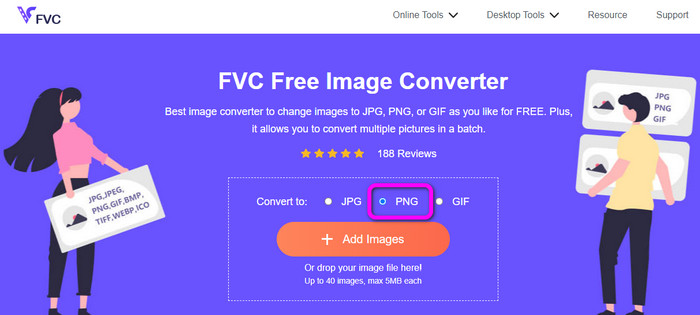
ขั้นตอนที่ 1: เปิดเบราว์เซอร์ของคุณแล้วเข้าไปที่เว็บไซต์ FVC Free Image Converter จากนั้นเลือกฟอร์แมตผลลัพธ์ที่คุณต้องการจากตัวเลือกฟอร์แมต โดยให้เลือกเป็น PNG.
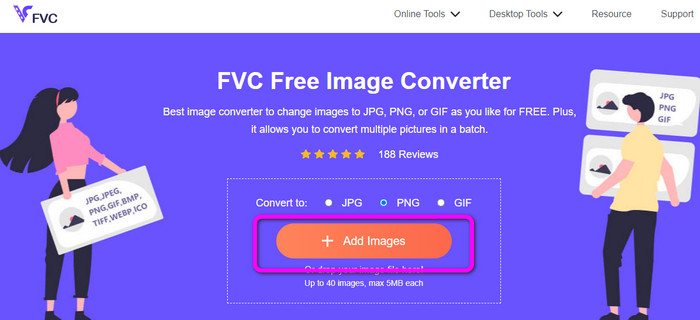
ขั้นตอนที่ 2: คลิกปุ่ม Add Files เพื่ออัปโหลดไฟล์ภาพ SVG ที่คุณต้องการแปลง คุณยังสามารถลากไฟล์ภาพไปวางลงในกล่องได้โดยตรง โปรดทราบว่าคุณสามารถเพิ่มภาพได้สูงสุด 40 ภาพ หากต้องการแปลงไฟล์ภาพหลายไฟล์พร้อมกัน ระหว่างที่อัปโหลดภาพ ระบบก็จะทำการแปลงให้โดยอัตโนมัติด้วย.
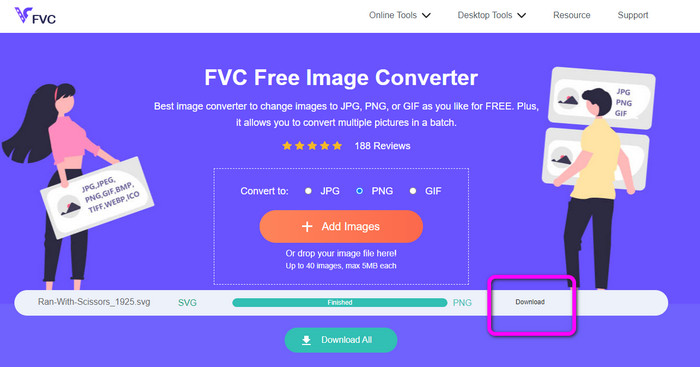
ขั้นตอนที่ 3: หลังจากกระบวนการแปลงเสร็จสิ้น ให้บันทึกรูปภาพที่แปลงแล้วด้วยการคลิกปุ่ม Download จากนั้นไปที่โฟลเดอร์ Download บนคอมพิวเตอร์ของคุณแล้วเปิดไฟล์รูปภาพที่แปลงไว้.
แปลง SVG เป็น PNG โดยใช้ Aconvert
การใช้ Aconvert เป็นอีกหนึ่งวิธีในการแปลง SVG เป็น PNG เครื่องมือออนไลน์นี้มีกระบวนการแปลงไฟล์ที่เรียบง่าย พร้อมส่วนติดต่อผู้ใช้ที่เข้าใจง่าย ทำให้ทั้งผู้ใช้ที่มีทักษะและผู้ใช้ทั่วไปสามารถใช้งานตัวแปลงนี้ได้ ตัวแปลงภาพนี้ยังช่วยให้คุณปรับคุณภาพของรูปภาพ และสามารถปรับขนาดภาพได้ นอกจากนี้ เครื่องมือนี้ยังมีฟังก์ชันแปลงแบบชุด ทำให้คุณแปลงไฟล์ภาพหลายรูปแบบได้พร้อมกัน อีกทั้ง Aconvert ยังเข้าใช้งานได้บนทุกแพลตฟอร์มออนไลน์ เช่น Google, Edge, Explorer และอื่น ๆ Aconvert ยังมีฟีเจอร์อื่น ๆ ให้ใช้งานอีกมากมาย เช่น แปลงวิดีโอ เสียง เอกสาร อีบุ๊ก และอื่น ๆ อย่างไรก็ตาม เมื่อคุณใช้เครื่องมือออนไลน์นี้ คุณอาจต้องคาดหวังว่ากระบวนการแปลงจะค่อนข้างช้า โดยใช้เวลาหลายนาทีกว่าจะได้ผลลัพธ์ตามที่ต้องการ และคุณสามารถอัปโหลดไฟล์ได้สูงสุดเพียง 200MB เท่านั้น ดูวิธีด้านล่างเพื่อเรียนรู้การแปลง SVG เป็น PNG ด้วย Aconvert.
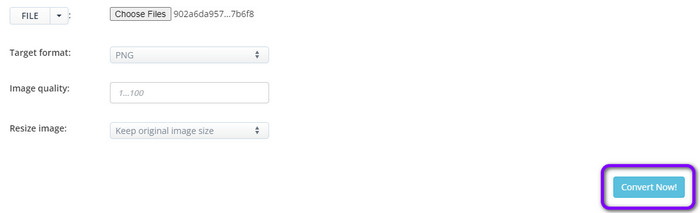
ขั้นตอนที่ 1: เปิดเบราว์เซอร์ของคุณแล้วเข้าไปที่เว็บไซต์อย่างเป็นทางการของ Aconvert จากนั้นคลิกปุ่ม Choose Files เพื่อเพิ่มไฟล์ภาพ SVG ที่คุณต้องการแปลง.
ขั้นตอนที่ 2: ไปที่ตัวเลือก Target Format เมื่อคลิกแล้ว ให้เลือกฟอร์แมต PNG คุณยังสามารถไปที่ตัวเลือก Image Quality และ Resize Image หากต้องการปรับเปลี่ยนรูปภาพเพิ่มเติม.
ขั้นตอนที่ 3: คลิกปุ่ม Convert เพื่อดำเนินการแปลง เมื่อกระบวนการแปลงเสร็จแล้ว ให้คลิกปุ่ม Download เพื่อบันทึกรูปภาพลงในคอมพิวเตอร์ของคุณ.
แปลง SVG เป็น PNG โดยใช้ CloudConvert
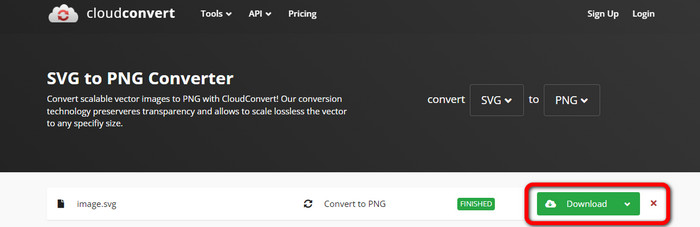
หากคุณยังมองหาตัวแปลงออนไลน์คุณภาพสูงเพื่อแปลง SVG เป็น PNG ให้ลองเข้าไปที่ Cloudconvert ตัวแปลงออนไลน์นี้ยอดเยี่ยมสำหรับการแปลงไฟล์หลากหลายประเภท เช่น MKV, FLV, AVI, WEBM และ WMV นอกจากนี้ คุณยังสามารถแปลงไฟล์จำนวนมากได้โดยไม่ลดทอนคุณภาพวิดีโอ อย่างไรก็ตาม รุ่นฟรีของซอฟต์แวร์นี้จำกัดการแปลงเพียงวันละ 25 ไฟล์ ในกรณีนี้ หากคุณต้องการแปลงไฟล์มากกว่านั้นจำเป็นต้องสมัครสมาชิก นอกจากนี้ กระบวนการแปลงอาจล่าช้าขึ้นอยู่กับความเร็วอินเทอร์เน็ตของคุณ สุดท้าย Cloudconvert รองรับประเภทไฟล์ผลลัพธ์เพียง 8 รูปแบบเท่านั้น ซึ่งไม่ค่อยเป็นผลดีต่อผู้ใช้ หากคุณพร้อมที่จะแปลงวิดีโอจากไฟล์ SVG เป็นฟอร์แมต PNG แล้ว ให้ทำตามวิธีด้านล่างนี้.
ขั้นตอนที่ 1: เข้าไปที่เว็บไซต์ CloudConvert บนเบราว์เซอร์ของคุณ จากนั้นคลิกปุ่ม Select File เมื่อหน้าต่างไฟล์ในคอมพิวเตอร์ปรากฏขึ้น ให้เปิดไฟล์ SVG ที่คุณต้องการแปลง.
ขั้นตอนที่ 2: ไปที่ตัวเลือก Convert to เพื่อดูตัวเลือกฟอร์แมต จากนั้นไปที่หมวด Image แล้วเลือกฟอร์แมตไฟล์ PNG.
ขั้นตอนที่ 3: ขั้นตอนสุดท้าย ให้คลิกปุ่ม Convert หลังจากกระบวนการแปลงเสร็จแล้ว ให้กดปุ่ม Download เพื่อเก็บไฟล์ภาพที่แปลงแล้วลงในคอมพิวเตอร์ของคุณ.
ส่วนที่ 3 วิธีแปลง SVG เป็น PNG บน Mac
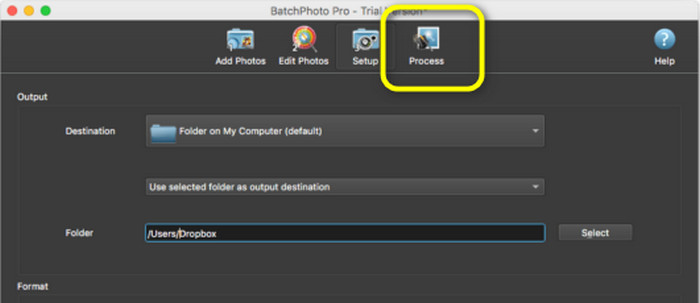
คุณต้องใช้ตัวแปลงภาพที่มีประสิทธิภาพพร้อมฟีเจอร์แก้ไขขั้นสูงเพื่อแปลง SVG เป็น PNG บน Mac ตัวเลือกที่ดีที่สุดของคุณคือ BatchPhoto Pro โดยทั่วไป BatchPhoto Pro สามารถตอบโจทย์การจัดการไฟล์ภาพของคุณได้ทั้งหมด ไม่ว่าจะเป็นภาพถ่ายทั่วไป ไฟล์ภาพ RAW หรือฟอร์แมตภาพมาตรฐานในอุตสาหกรรมอื่น ๆ มันเป็นทั้งตัวแปลงภาพแบบชุด เครื่องมือแก้ไข ปรับขนาด และใส่ลายน้ำให้รูปภาพ ตัวแปลงภาพของโปรแกรมนี้รองรับไฟล์ภาพได้มากกว่า 170 ประเภท อีกทั้งยังมีอินเทอร์เฟซที่เรียบง่าย เหมาะกับผู้ใช้ทุกระดับ คุณยังสามารถได้ผลลัพธ์การแปลงในเวลาอันสั้น อย่างไรก็ตาม หากต้องการใช้งานครบทุกฟีเจอร์ คุณจำเป็นต้องสมัครแพ็กเกจแบบชำระเงิน และโปรแกรมนี้ใช้งานได้เฉพาะบน Mac เท่านั้น หากคุณใช้ Windows ควรมองหาโปรแกรมอื่นสำหรับแปลงไฟล์ภาพจะดีกว่า.
ขั้นตอนที่ 1: ติดตั้ง BatchPhoto Pro บนเครื่อง Mac ของคุณ คุณสามารถใช้เวอร์ชันฟรีได้ จากนั้นไปที่ Add Photo เพื่อใส่ไฟล์ภาพ SVG.
ขั้นตอนที่ 2: หลังจากนั้น ให้ไปที่ตัวเลือก Setup คลิกตัวเลือก Output format เพื่อเลือกฟอร์แมต PNG.
ขั้นตอนที่ 3: สุดท้ายให้คลิกปุ่ม Process เพื่อเริ่มกระบวนการแปลง เมื่อตัวโปรแกรมทำงานเสร็จ คุณสามารถดูรูปภาพที่แปลงแล้วได้จากโฟลเดอร์ปลายทาง.
ส่วนที่ 4 วิธีแปลง SVG เป็น PNG บน Windows
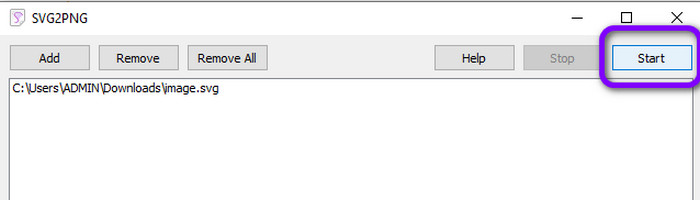
ในส่วนนี้ เราจะแนะนำวิธีออฟไลน์ที่ถูกต้องในการแปลง SVG เป็น PNG คุณต้องใช้ Fosshub สำหรับการแปลง ไฟล์ นี่เป็นอีกตัวเลือกที่ยอดเยี่ยมสำหรับการปรับเปลี่ยนฟอร์แมตรูปภาพทั้งแบบครั้งละหลายไฟล์และทีละไฟล์ ตัวแปลงนี้ยังมีฟังก์ชันแปลงแบบชุด ซึ่งช่วยให้คุณแปลงไฟล์ได้หลายไฟล์ในคราวเดียว นอกจากนี้คุณยังสามารถดาวน์โหลดมาใช้ได้ฟรี อย่างไรก็ตาม Fosshub ใช้งานได้ยาก โดยเฉพาะสำหรับผู้เริ่มต้น เลย์เอาต์และส่วนติดต่อใช้งานค่อนข้างสับสนและเข้าใจยาก อีกทั้งขั้นตอนการติดตั้งยังใช้เวลานานหลังจากดาวน์โหลดโปรแกรมแล้ว นอกจากนี้ ตัวแปลงออฟไลน์นี้ยังเหมาะแค่การแปลง SVG เป็น PNG เท่านั้น ไม่รองรับฟอร์แมตภาพอื่น ๆ หมายความว่าหากคุณต้องการแปลงรูปภาพฟอร์แมตอื่น คุณจะไม่สามารถใช้โปรแกรมนี้ได้.
ขั้นตอนที่ 1: ไปที่เว็บไซต์ Fosshub แล้วดาวน์โหลดโปรแกรม จากนั้นดำเนินการติดตั้งและรันโปรแกรมบนเดสก์ท็อปของคุณ.
ขั้นตอนที่ 2: ไปที่ด้านบนของอินเทอร์เฟซแล้วคลิกตัวเลือก Add > Add files สำหรับขั้นตอนถัดไป เมื่อหน้าต่างโฟลเดอร์ของคอมพิวเตอร์ปรากฏขึ้น ให้คลิกและเปิดภาพ SVG ที่คุณต้องการแปลง.
ขั้นตอนที่ 3: สำหรับขั้นตอนสุดท้าย ให้คลิกปุ่ม Start ที่มุมขวาบนของอินเทอร์เฟซ รอจนกว่ากระบวนการแปลงจะเสร็จสิ้น หลังจากผ่านไปไม่กี่วินาที คุณสามารถดูภาพที่แปลงแล้วได้โดยคลิกปุ่ม Open ที่มุมขวาล่างของอินเทอร์เฟซ คลิกที่นี่เพื่อเรียนรู้วิธีแปลง SVG เป็น JPG.
ส่วนที่ 5 คำถามที่พบบ่อยเกี่ยวกับการแปลง SVG เป็น PNG
1. SVG, JPG และ PNG แตกต่างกันอย่างไร
SVG เป็นรูปแบบกราฟิกที่ใช้เวกเตอร์และแสดงรูปภาพเป็นค่าตัวเลข PNG ใช้การเข้ารหัสไบนารีเพื่อบีบอัดข้อมูลรูปภาพ ในขณะที่ JPG เป็นรูปแบบภาพแรสเตอร์หรือบิตแมป รูปแบบที่เหมาะสำหรับไฟล์การออกแบบกราฟิกคือ SVG เป็นเพราะทุกคนสามารถเห็นขนาดจริงของภาพแต่ละชิ้นได้อย่างง่ายดาย
2. คุณภาพเพิ่มขึ้นเมื่อขยายไฟล์ SVG หรือไม่
ไม่ ข้อดีเกี่ยวกับรูปแบบไฟล์ SVG คือคุณสามารถขยายขนาดไฟล์ได้โดยไม่ส่งผลต่อคุณภาพของไฟล์
3. PNG หรือ SVG ดีกว่ากัน?
ขึ้นอยู่กับว่าคุณใช้ไฟล์อย่างไร หากคุณต้องการสร้างโลโก้ แผนภูมิ หรือกราฟ ให้ใช้ SVG หากคุณต้องการสร้างเลเยอร์ของรูปภาพ PNG จะดีกว่า
สรุป
SVG เป็นฟอร์แมตที่เหมาะสำหรับภาพเคลื่อนไหว เส้นกราฟิก และโลโก้ อย่างไรก็ตาม หากคุณต้องการแสดงผลและใช้งานภาพที่มีความซับซ้อน PNG จะเหมาะกว่ามาก ดังนั้น หากคุณต้องการแปลง SVG เป็น PNG ให้ใช้ FVC Free Image Converter ตัวแปลงออนไลน์นี้ช่วยให้คุณแปลงไฟล์ภาพได้อย่างตรงไปตรงมา.
-
 วิธีการที่มีประโยชน์ในการแปลง TIFF เป็น JPG/PNG อย่างง่ายดาย
 อย่าพลาดวิธีที่ยอดเยี่ยมเหล่านี้ในการเปลี่ยนรูปแบบ TIF เป็น JPG/PNG โพสต์นี้จะให้ข้อมูลที่จำเป็นที่คุณต้องรู้ รวมถึงความแตกต่างของพวกเขา
-
 วิธีแบบเต็มขนาดในการแปลง JPG เป็น PNG ออนไลน์และออฟไลน์
 กำลังมองหาวิธีที่เป็นประโยชน์ในการแปลงรูปแบบไฟล์ JPG เป็น PNG อยู่ใช่ไหม ป้ายบอกทางนี้มีคำตอบที่คุณต้องการ หากต้องการค้นพบวิธีการเหล่านี้ โปรดอ่านบทความ
-
 วิธีที่ง่ายที่สุดในการแปลงรูปแบบ BMP เป็น JPG และ PNG
 เรียนรู้วิธีที่ดีที่สุดในการแปลง BMP เป็น JPG หรือ PNG โดยใช้ตัวแปลงที่ยอดเยี่ยม คุณจะค้นพบความแตกต่างระหว่างรูปแบบไฟล์ BMP, JPG และ PNG
