


 Video Converter Ultimate
 บันทึกหน้าจอ
 ซ่อมวิดีโอ
 ดาวน์โหลดอย่างปลอดภัย
บทช่วยสอนทีละขั้นตอนเกี่ยวกับวิธีแปลง GIF เป็น JPG
GIF เป็นรูปแบบไฟล์ยอดนิยมที่เราใช้ส่งอารมณ์เว่อร์เกินจริงตามที่ต้องการ เช่น มีมต่างๆ นอกจากนี้ยังรองรับภาพเคลื่อนไหวและภาพนิ่ง แต่ไม่ใช่ทุกแพลตฟอร์มที่จะรองรับไฟล์ GIF บางครั้งคุณอาจอยากแชร์ภาพ GIF เพราะมันตลก แต่กลับส่งไม่ได้เพราะโปรแกรมหรือเบราว์เซอร์ที่ใช้ไม่รองรับรูปแบบนี้ ทำให้รู้สึกน่าหงุดหงิด หากต้องการส่งรูปภาพโดยไม่ให้เกิดปัญหา การแปลงไฟล์ GIF เป็นรูปแบบอื่นอย่างเช่น JPG จะดีกว่า เนื่องจากรูปแบบ JPG เป็นที่นิยมอย่างมาก คุณจึงใช้ได้กับทุกเบราว์เซอร์และโปรแกรม โชคดีที่ในบทความนี้ คุณจะได้เรียนรู้วิธีต่างๆ ในการแปลง GIF เป็น JPG ด้วยตัวช่วยจากโปรแกรมแปลงรูปภาพ ดังนั้นหากคุณไม่อยากเจอปัญหาเดิมๆ ในอนาคต โปรดอ่านบทความนี้และเริ่มแปลงรูปภาพของคุณได้เลย.

ส่วนที่ 1 GIF กับ JPG/JPEG
| รูปแบบไฟล์ | GIF | JPG / JPEG |
| นามสกุลไฟล์ | .gif | .jpg / .jpeg |
| พัฒนาโดย | คอมพิวเตอร์ | กลุ่มผู้เชี่ยวชาญด้านการถ่ายภาพร่วม |
| ประเภทละครใบ้ | รูปภาพ/gif | ภาพ/jpeg |
| คำอธิบาย | GIF เป็นรูปแบบไฟล์โปรดของอินเทอร์เน็ตเนื่องจากความสามารถในการสร้างภาพเคลื่อนไหว ไฟล์ GIF ใช้ภาพถ่ายบิตแมปและอนุญาตสูงสุด 8 พิกเซล/บิต นอกจากนี้ยังอนุญาตให้ 256 สีในพื้นที่สี RGB 24 บิต ภาพถ่าย GIF บางภาพไม่ได้เคลื่อนไหว | JPG ซึ่งเป็นรูปแบบไฟล์ที่นิยมในปัจจุบัน จุดประสงค์คือบีบอัดรูปภาพเพื่อลดเวลาในการดาวน์โหลดและอัพโหลด ทุกโปรแกรมสามารถเข้าถึงรูปแบบนี้ได้ สิ่งนี้ทำให้ไม่จำเป็นต้องพิจารณาวิธีการเปิดไฟล์นี้ในโปรแกรมและเบราว์เซอร์ต่างๆ |
| โปรแกรมที่เกี่ยวข้อง/เบราว์เซอร์ | Adobe Photoshop CorelDraw Corel PaintShop โปร ผ้าใบ Google Chrome อินเทอร์เน็ต เอ็กซ์พลอเรอร์ ไมโครซอฟท์ เอดจ์ | สี Adobe Photoshop โปรแกรมรูปถ่าย อีร์ฟานวิว โปรแกรมดูภาพถ่าย อินเทอร์เน็ต เอ็กซ์พลอเรอร์ มอซิลลา ไฟร์ฟอกซ์ Google Chrome |
ส่วนที่ 2 วิธีการตรงไปตรงมาในการแปลง GIF เป็น JPG ออนไลน์
วิธีแปลง GIF เป็น JPG โดยใช้ FVC Free Image Converter
FVC Free Image Converter คือเว็บแปลงรูปภาพออนไลน์ที่ดีที่สุดสำหรับแปลง GIF เป็น JPG คุณสามารถแปลงไฟล์ GIF ให้เป็น JPG ได้อย่างรวดเร็วด้วยขั้นตอนที่เรียบง่าย ด้วยวิธีการใช้งานที่ตรงไปตรงมา ทำให้เครื่องมือนี้เหมาะแม้กระทั่งสำหรับผู้เริ่มต้น นอกจากนี้ คุณยังใช้ฟังก์ชันแปลงแบบกลุ่มของ FVC Free Image Converter ได้ด้วย เครื่องมือนี้ช่วยให้คุณแปลงรูปภาพหลายไฟล์ได้ภายใน ขั้นตอนเดียว อีกทั้งยังไม่ใส่องค์ประกอบที่ไม่พึงประสงค์ลงในรูปภาพที่แปลงและบันทึกแล้ว ทำให้คุณสามารถดูรูปภาพได้อย่างสะอาดตา ยิ่งไปกว่านั้น จะไม่มีโฆษณาปรากฏบนหน้าจอระหว่างกระบวนการแปลงไฟล์ ดังนั้นคุณจึงแปลงไฟล์ได้โดยไม่ถูกรบกวน เริ่มใช้งานตามคำแนะนำอย่างง่ายด้านล่างเพื่อแปลงไฟล์ GIF ของคุณให้เป็นรูป JPG.
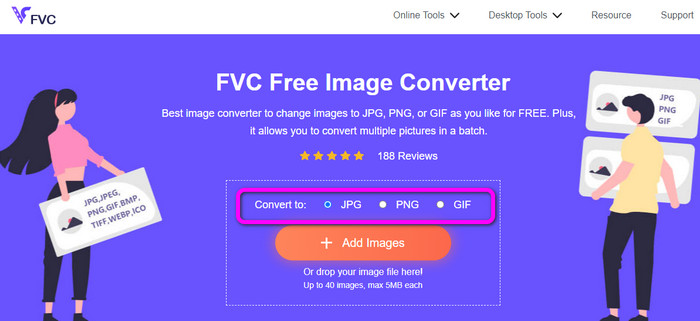
ขั้นตอนที่ 1: เข้าไปที่เว็บไซต์หลักของ FVC Free Image Converter คุณสามารถใช้เบราว์เซอร์ใดก็ได้บนคอมพิวเตอร์เพื่อเข้าใช้เว็บแปลงรูปนี้ จากนั้นคลิกเลือกรูปแบบ JPG จากตัวเลือก Convert to.
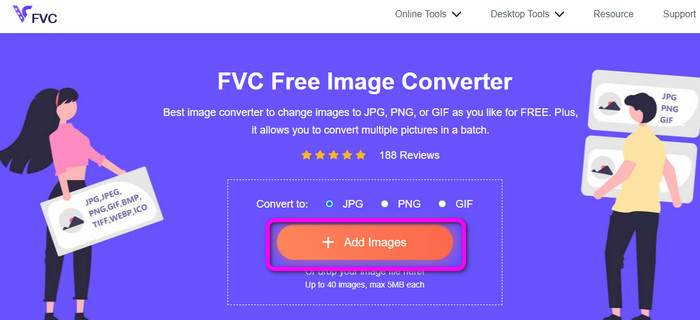
ขั้นตอนที่ 2: คลิกปุ่ม Add Images เมื่อมีหน้าต่างโฟลเดอร์เด้งขึ้นมา ให้เปิดไฟล์ภาพ GIF ที่คุณต้องการแปลง คุณยังสามารถเปิดโฟลเดอร์ในคอมพิวเตอร์แล้วลากและวางไฟล์ภาพลงในช่องได้ด้วย หากต้องการแปลงหลายไฟล์ คุณสามารถอัปโหลดภาพได้สูงสุด 40 รูป.
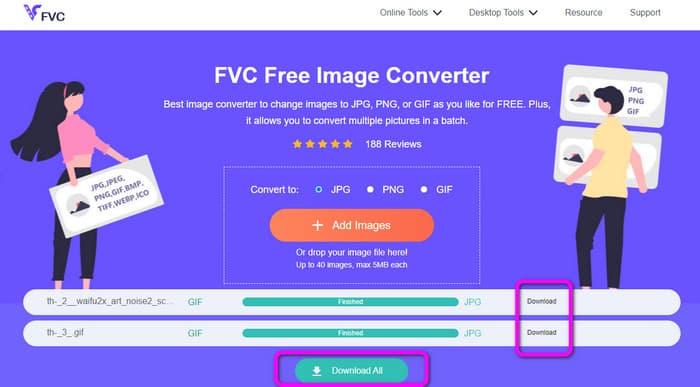
ขั้นตอนที่ 3: เครื่องมือจะทำการแปลงรูปภาพให้โดยอัตโนมัติหลังจากอัปโหลดเสร็จ เมื่อกระบวนการแปลงเสร็จสิ้น ให้คลิกปุ่ม Download All แต่ถ้าคุณต้องการบันทึกทีละภาพ ให้คลิกปุ่ม Download ที่ด้านข้าง นอกจากนี้ คุณยังใช้เครื่องมือนี้เพื่อแปลง WebP เป็น GIF ได้อีกด้วย.
วิธีแปลง GIF เป็น JPG โดยใช้ Online Convert
อีกหนึ่งเครื่องมือออนไลน์ที่มีประโยชน์สำหรับแปลง GIF เป็น JPG คือ Online Convert ด้วยความช่วยเหลือของเว็บนี้ คุณสามารถแปลงไฟล์ได้หลายประเภท รวมถึง JPG, PNG, GIF, TIFF, BMP และอื่นๆ กระบวนการแปลงทำได้รวดเร็ว แถมยังใช้งานง่าย จึงเป็นข้อดีสำหรับผู้ใช้ที่ไม่ใช่มืออาชีพ นอกจากนี้ Online Convert ยังมีฟังก์ชันแปลงแบบกลุ่ม คุณจึงเพิ่มรูปภาพมากกว่าหนึ่งไฟล์เพื่อแปลงพร้อมกันได้ คุณยังสามารถไว้ใจเครื่องมือนี้ในการแปลงวิดีโอ เสียง เอกสาร และอื่นๆ ได้อีกด้วย เครื่องมือแปลงรูปภาพออนไลน์นี้สามารถใช้ได้บนแทบทุกเบราว์เซอร์ ไม่ว่าจะเป็น Firefox, Chrome, Explorer และอื่นๆ อย่างไรก็ตาม ในการแปลงแบบกลุ่ม คุณสามารถอัปโหลดได้เพียง 3 รูปเท่านั้น หากต้องการอัปโหลดรูปภาพจำนวนมากพร้อมกัน คุณจำเป็นต้องใช้เวอร์ชันแบบชำระเงิน.
ขั้นตอนที่ 1: เปิดเบราว์เซอร์แล้วเข้าเว็บไซต์ Online Convert คลิกปุ่ม Choose Files บนหน้าเว็บเพื่ออัปโหลดภาพ GIF คุณยังสามารถลากไฟล์มาวางในกล่องสีเขียวได้เช่นกัน.
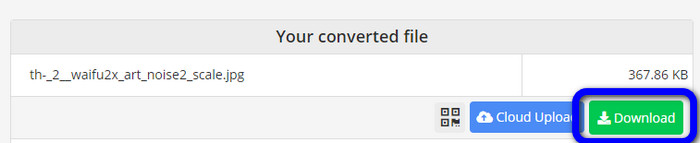
ขั้นตอนที่ 2: หลังจากอัปโหลดภาพ GIF แล้ว ให้คลิกปุ่ม Start เมื่อคลิกแล้ว กระบวนการแปลงจะเริ่มต้น จากนั้นคลิกปุ่ม Download เพื่อบันทึกภาพที่แปลงแล้วลงในคอมพิวเตอร์ของคุณ.
ส่วนที่ 3 วิธีแปลง GIF เป็น JPG ออฟไลน์อย่างรวดเร็ว
คุณยังสามารถใช้ Video Converter Ultimate เพื่อแปลง GIF เป็น JPG ได้เช่นกัน โปรแกรมออฟไลน์นี้มีวิธีการแปลงไฟล์ที่ยอดเยี่ยม อีกทั้งยังมีอินเทอร์เฟซที่เข้าใจง่าย เหมาะสำหรับผู้ใช้ที่ไม่ใช่มืออาชีพ นอกจากนี้ Video Converter Ultimate ยังมีฟังก์ชันแปลงแบบกลุ่ม หมายความว่าคุณสามารถแปลงรูปภาพหลายไฟล์ได้ในคลิกเดียว อีกทั้งกระบวนการแปลงยังรวดเร็ว ช่วยให้คุณแปลงไฟล์จำนวนมากได้อย่างรวดเร็ว ยิ่งไปกว่านั้น โปรแกรมยังรองรับรูปแบบไฟล์ภาพหลากหลาย เช่น JPG, PNG, BMP, GIF, TIFF และอื่นๆ นอกจากการแปลงไฟล์แล้ว คุณยังสามารถปรับคุณภาพรูปภาพจากการตั้งค่าเอาต์พุตได้ด้วย เพื่อให้ปรับคุณภาพรูปภาพได้ตามความต้องการ สุดท้าย Video Converter Ultimate มีให้ใช้ทั้งบน Windows และ Mac ซึ่งสะดวกต่อการใช้งาน.
ขั้นตอนที่ 1: ดาวน์โหลด Video Converter Ultimate ลงในคอมพิวเตอร์ของคุณ ด้านล่างจะมีปุ่ม Download สองปุ่ม หากคุณใช้ Windows ให้คลิกเวอร์ชันสำหรับ Windows และหากใช้ Mac ให้ใช้เวอร์ชันสำหรับ Mac จากนั้นเปิดโปรแกรมหลังติดตั้งเสร็จ.
ดาวน์โหลดฟรีสำหรับ Windows 7 หรือใหม่กว่าดาวน์โหลดอย่างปลอดภัย
ดาวน์โหลดฟรีสำหรับ MacOS 10.7 หรือใหม่กว่าดาวน์โหลดอย่างปลอดภัย
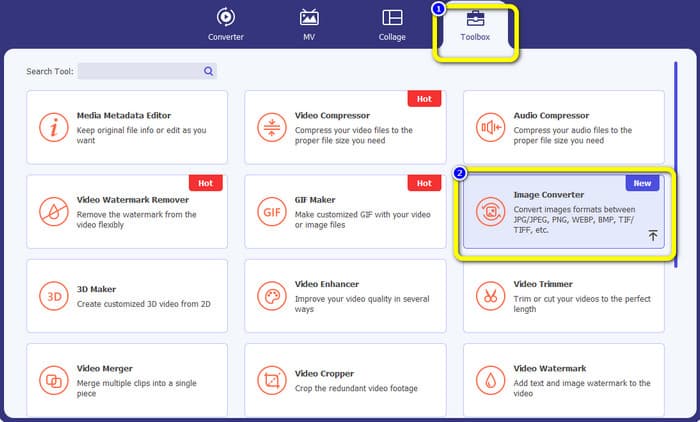
ขั้นตอนที่ 2: บนแถบเมนูด้านบน ให้คลิกที่แถบ Toolbox จากนั้นเลือกเครื่องมือ Image Converter จะมีหน้าต่างใหม่ปรากฏขึ้นบนหน้าจอ.
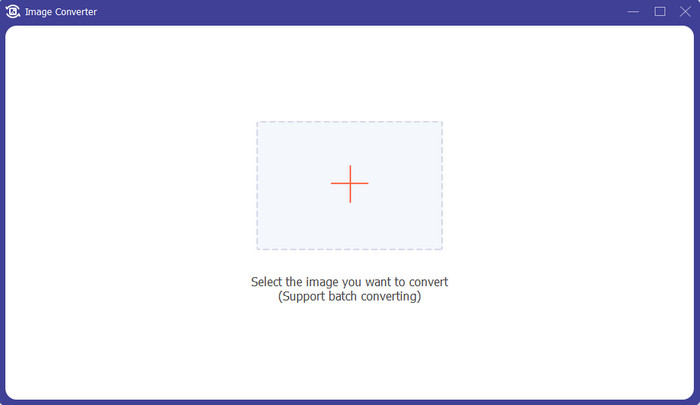
ขั้นตอนที่ 3: คลิกสัญลักษณ์ Plus ตรงกลางหน้าต่าง เมื่อมีหน้าต่างโฟลเดอร์แสดงขึ้นมา ให้เลือกไฟล์รูปแบบ GIF แล้วเปิด คุณสามารถเพิ่มไฟล์ได้มากขึ้นเพราะโปรแกรมรองรับการแปลงแบบกลุ่ม.
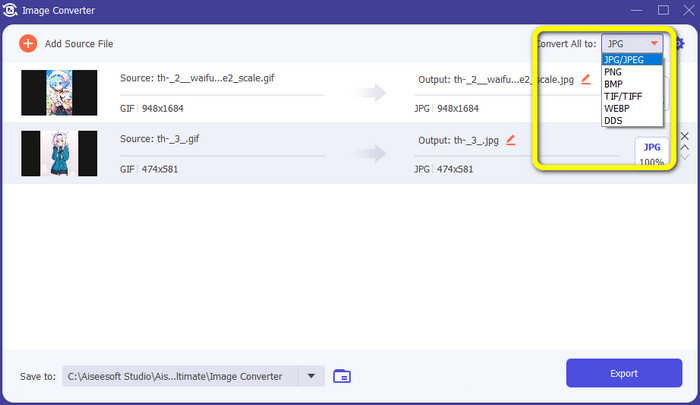
ขั้นตอนที่ 4: ไปยังส่วนด้านขวาของอินเทอร์เฟซแล้วไปที่ตัวเลือกรูปแบบไฟล์ จากนั้นเลือก JPG เป็นรูปแบบเอาต์พุตของคุณ.
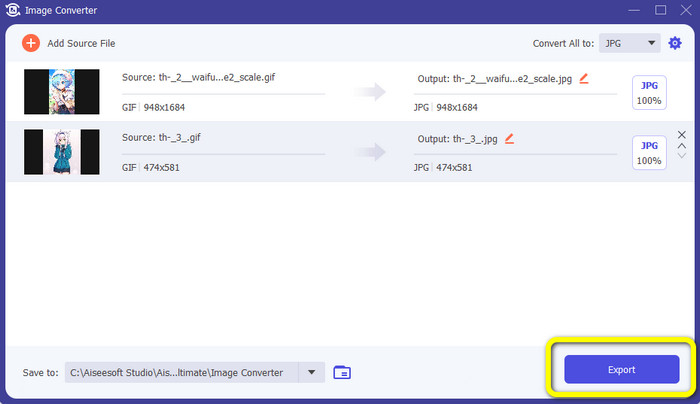
ขั้นตอนที่ 5: เมื่อเลือก JPG เป็นรูปแบบเอาต์พุตเรียบร้อยแล้ว ให้คลิกปุ่ม Export หลังจากกระบวนการเสร็จสิ้น คุณก็สามารถเปิดรูปภาพที่แปลงแล้วในโฟลเดอร์เอาต์พุตได้ทันที.
ส่วนที่ 4 วิธีแปลง GIF เป็น JPG ใน Android และ iPhone
หากต้องการแปลง GIF เป็น JPG บน iPhone และอุปกรณ์ Android ให้ใช้แอป File Converter แอปนี้ช่วยให้คุณแปลงไฟล์ต่างๆ เป็นรูปแบบ JPG ได้อย่างง่ายดาย อีกทั้ง File Converter ยังดาวน์โหลดได้ฟรี โดยมีให้บริการทั้งบน Google Play Store และ App Store อย่างไรก็ตาม ในขั้นตอนการติดตั้งอาจใช้เวลานานเกินไป อีกทั้งบางตัวเลือกก็เข้าใจได้ยาก สุดท้าย แอปจะทำงานได้ดีเมื่อมีการเชื่อมต่ออินเทอร์เน็ตเท่านั้น.
ขั้นตอนที่ 1: ไปที่ Google Play Store หรือ App Store ดาวน์โหลดแอป File Converter และเปิดใช้งานแอป.
ขั้นตอนที่ 2: บนหน้าอินเทอร์เฟซ ให้เลือกตัวเลือก Image Converter จากนั้นเลือก JPG เป็นรูปแบบเอาต์พุต.
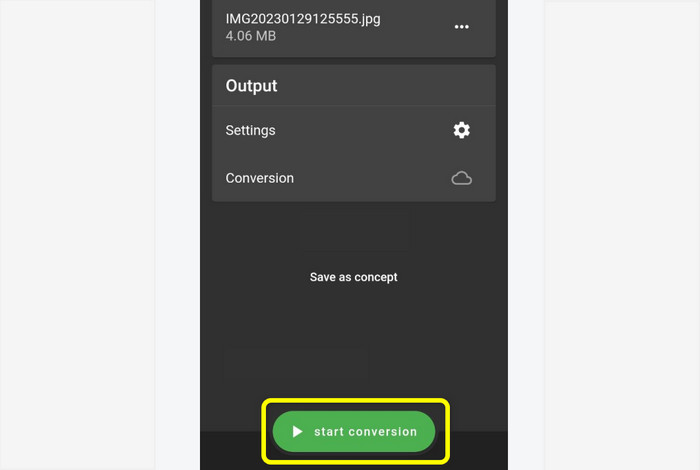
ขั้นตอนที่ 3: คลิกตัวเลือก File เพื่อเพิ่มภาพ GIF ที่คุณต้องการแปลง จากนั้นคลิกเริ่มกระบวนการ Start Conversion หลังจากนั้นคุณก็สามารถบันทึกภาพลงในแกลเลอรีได้.
ส่วนที่ 5 คำถามที่พบบ่อยเกี่ยวกับการแปลง GIF เป็น JPG
1. เป็นไปได้ไหมที่จะแก้ไขไฟล์ GIF?
แน่นอนใช่ หากคุณต้องการแก้ไขไฟล์ภาพ GIF คุณสามารถใช้เครื่องมือออฟไลน์ เช่น Video Converter Ultimate มีเครื่องมือแก้ไขต่างๆ ที่คุณสามารถใช้ได้ เช่น การหมุน การครอบตัด การเพิ่มฟิลเตอร์ และอื่นๆ
2. ฉันจะบันทึกภาพ iPhone เป็น JPG ได้อย่างไร
โดยปกติเมื่อถ่ายภาพด้วย iPhone รูปจะถูกบันทึกเป็นไฟล์รูปแบบ HEIC โดยอัตโนมัติ แต่ส่วนใหญ่แล้วอุปกรณ์อื่นๆ มักไม่รู้จักรูปแบบไฟล์นี้ คุณสามารถตั้งค่าให้บันทึกรูปภาพเป็น JPG ได้โดยไปที่การตั้งค่า iPhone เข้าไปที่ Settings > Camera จากนั้นคลิกตัวเลือกรูปแบบ (Format) แล้วเลือก Most Compatible เพื่อบันทึกรูปภาพเป็น JPG.
3. วิธีแปลง GIF เป็น JPG ใน Photoshop
เปิดโปรแกรม Photoshop บนคอมพิวเตอร์ของคุณ จากนั้นไปที่เมนู File และคลิก Open เพื่อเพิ่มไฟล์ GIF เข้าในโปรแกรม หลังจากนั้นคุณสามารถปรับแต่งรูปภาพได้ด้วยเครื่องมือแก้ไขต่างๆ ในโปรแกรม แล้วหากต้องการบันทึกรูปภาพเป็น JPG ให้ไปที่ File > Save as จากนั้นไปที่ตัวเลือกรูปแบบไฟล์แล้วเลือก JPG.
สรุป
ถือเป็นตัวเลือกที่เหมาะสมอย่างยิ่งในการแปลงGIF เป็น JPG หากคุณต้องการแชร์รูปภาพผ่านทุกเบราว์เซอร์และโปรแกรม ดังนั้น บทความนี้จึงนำเสนอวิธีที่ง่ายที่สุดในการแปลงไฟล์ภาพของคุณด้วย FVC Free Image Converter.
-
 เรียนรู้วิธีที่ง่ายที่สุดในการแปลง WebP เป็น JPG อย่างรวดเร็ว
 ให้เราทุกคนเรียนรู้วิธีที่มีประสิทธิภาพในการแปลงภาพบนเว็บเป็น JPG อย่างง่ายดาย บทความนี้จะให้ตัวแปลงรูปภาพที่ยอดเยี่ยมที่คุณสามารถใช้เพื่อแปลงไฟล์รูปภาพ
-
 เทคนิคที่ยอดเยี่ยมในการแปลง GIF เป็น M4V ทันที
 คำแนะนำนี้ให้กลยุทธ์ที่มีประสิทธิภาพสูงสุดในการแปลง GIF เป็น M4V นอกจากนี้ เราจะแนะนำตัวแปลงสองตัวที่ดีที่สุดที่คุณสามารถลองใช้ได้
-
 คำแนะนำง่ายๆ ในการแปลง GIF เป็น MKV บนเดสก์ท็อป
 มาที่บทความนี้หากคุณกำลังมองหาวิธีที่โดดเด่นที่สุดในการแปลงรูปแบบไฟล์ GIF เป็น MKV โดยใช้ตัวแปลงที่ดาวน์โหลดได้พิเศษ
