


 Video Converter Ultimate
 บันทึกหน้าจอ
 ซ่อมวิดีโอ
 ดาวน์โหลดอย่างปลอดภัย
แนะนำวิธีหมุนวิดีโอบน iPhone และ iPad ด้วยเครื่องมือที่ดีที่สุด
คุณเบื่อกับการต้องหรี่ตาเพื่อดูวิดีโอที่ถ่ายเอียงหรือกลับหัวบน iPhone อยู่หรือเปล่า? เชื่อว่าหลายคนคงเคยเจอปัญหาแบบนี้กันมาแล้วทั้งนั้น แต่ข่าวดีก็คือ คุณไม่จำเป็นต้องทนดูกับฟุตเทจเพี้ยน ๆ อีกต่อไป เพียงไม่กี่ขั้นตอนง่าย ๆ คุณก็สามารถเรียนรู้วิธีหมุนวิดีโอบน iPhone ให้แสดงผลได้ตรงตามที่คุณต้องการ ไม่ว่าคุณจะเป็นคนทำหนังมือใหม่ อินฟลูเอนเซอร์สายโซเชียล หรือแค่คนที่ชอบบันทึกช่วงเวลาแสนพิเศษ การรู้วิธีปรับทิศทางวิดีโอให้ถูกต้องถือเป็นทักษะที่มีประโยชน์มาก.
ในบล็อกโพสต์นี้ เราจะแสดงวิธีหมุนวิดีโอบน iPhone ของคุณอย่างมืออาชีพ เพื่อให้คุณสามารถแสดงฟุตเทจของคุณด้วยวิธีที่ดีที่สุดเท่าที่จะเป็นไปได้ เตรียมตัวให้พร้อมเพื่อพัฒนาเกมตัดต่อวิดีโอของคุณไปอีกขั้น!

ส่วนที่ 1 วิธีหมุนวิดีโอบน iPhone
1. ภาพถ่าย
หากคุณเป็นผู้ใช้ iPhone มีโอกาสที่คุณคุ้นเคยกับแอพ Photos อยู่แล้ว เป็นแอปที่ใช้งานง่ายสำหรับการจัดระเบียบและแก้ไขรูปภาพและวิดีโอของคุณ และเต็มไปด้วยคุณสมบัติที่ทำให้การจัดการคลังสื่อของคุณเป็นเรื่องง่าย แอพนี้ไม่ได้มีไว้สำหรับจัดระเบียบและแก้ไขรูปภาพเท่านั้น ฟีเจอร์ที่มีประโยชน์อย่างหนึ่งคือความสามารถในการหมุนวิดีโอ ซึ่งอาจช่วยชีวิตได้หากคุณเผลอถ่ายบางอย่างผิดทิศทาง ตรวจสอบขั้นตอนเพื่อเรียนรู้วิธีแปลงวิดีโอแนวตั้งเป็นแนวนอนวิดีโอของ iPhone หรือในทางกลับกัน
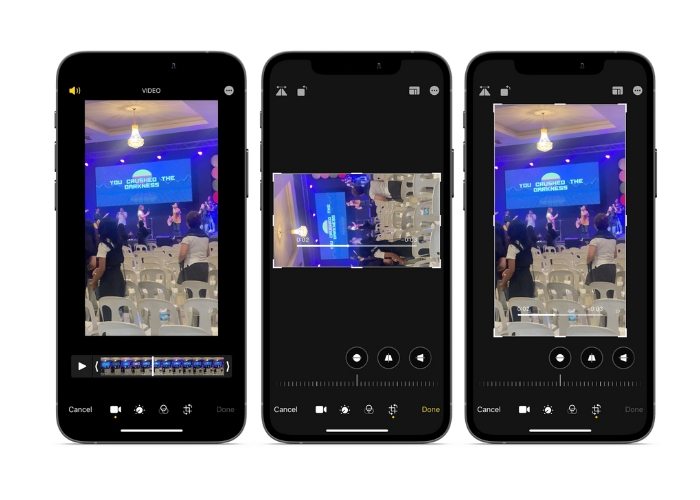
ขั้นตอนที่ 1. เปิดแอป “รูปภาพ” (Photos) บน iPhone แล้วเลือกคลิปที่คุณต้องการหมุน.
ขั้นตอนที่ 2. จากนั้นแตะปุ่ม แก้ไข ที่มุมขวาบนของหน้าจอ.
ขั้นตอนที่ 3. แตะปุ่ม ครอบตัดและหมุน ซึ่งมีลักษณะเป็นสี่เหลี่ยมจัตุรัสพร้อมลูกศรโค้งวนอยู่รอบ ๆ.
ขั้นตอนที่ 4. เพื่อหมุนวิดีโอ ให้ใช้นิ้วสองนิ้วหมุนวิดีโอไปในทิศทางที่คุณต้องการ คุณยังสามารถใช้แถบเลื่อนด้านล่างหน้าจอเพื่อปรับมุมการหมุนอย่างละเอียดได้ เมื่อหมุนวิดีโอได้ตามทิศทางที่ต้องการแล้ว ให้แตะ เสร็จสิ้น ที่มุมขวาล่างของหน้าจอ ในอีกมุมหนึ่ง แอปรูปภาพก็ทำหน้าที่เสมือนแอปหมุนวิดีโอบน iPhone สำหรับผู้ใช้ iPhone ได้เช่นกัน.
2. iMovie
สำหรับผู้สร้างภาพยนตร์ ผู้สร้างเนื้อหา หรือคนที่รักในการจับภาพช่วงเวลาพิเศษบนวิดีโอ คุณต้องลองใช้ iMovie iMovie เป็นแอปตัดต่อวิดีโอที่ทรงพลังสำหรับอุปกรณ์ Apple ที่ให้คุณสร้างภาพยนตร์ที่น่าทึ่ง ด้วย iMovie คุณสามารถหมุนวิดีโอของคุณได้อย่างง่ายดายและมั่นใจได้ว่าวิดีโอจะดูสมบูรณ์แบบสำหรับขนาดหน้าจอหรือมุมมองใดๆ หากต้องการหมุน iMovie วิดีโอบน iPhone ให้ทำตามคำแนะนำด้านล่าง
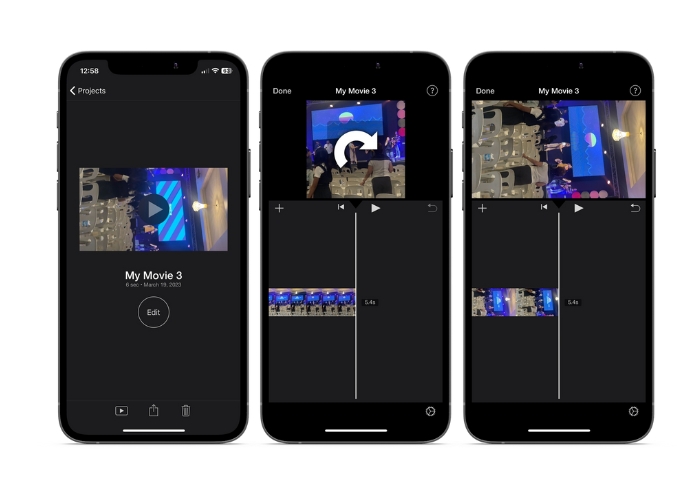
ขั้นตอนที่ 1. อันดับแรก เปิด iMovie บน iPhone ของคุณ จากนั้นเริ่มโปรเจกต์ใหม่.
ขั้นตอนที่ 2. หลังจากนั้น เลือกวิดีโอที่คุณต้องการแก้ไขจากคลังรูปภาพในเครื่อง.
ขั้นตอนที่ 3. ในแผงตัวอย่างวิดีโอ ให้วางนิ้วสองนิ้วลงบนวิดีโอ จากนั้นหมุนตามเข็มนาฬิกาหรือทวนเข็มนาฬิกาเพื่อหมุนวิดีโอ.
ขั้นตอนที่ 4. สุดท้าย ให้แตะปุ่ม เสร็จสิ้น ที่มุมซ้ายบนของหน้าจอ นี่คือวิธีทำให้วิดีโอหมุนบน iPhone ด้วย iMovie.
3. วิดีโอหมุนและพลิก
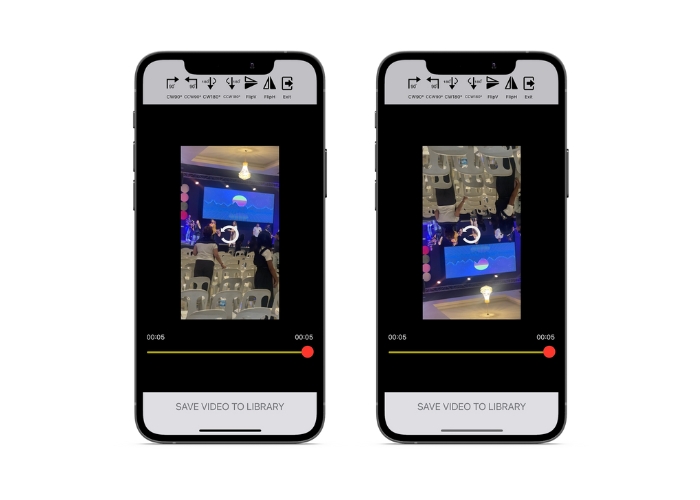
Video Rotate & Flip เป็นแอพของบริษัทอื่นที่คุณสามารถดาวน์โหลดได้จาก App Store ช่วยให้คุณสามารถหมุนและพลิกวิดีโอได้อย่างง่ายดาย เพียงเปิดแอป เลือกวิดีโอที่คุณต้องการหมุน และใช้เครื่องมือหมุนเพื่อปรับมุมของวิดีโอ คุณยังสามารถใช้เครื่องมือพลิกเพื่อพลิกวิดีโอในแนวนอนหรือแนวตั้ง เมื่อเสร็จแล้ว ให้บันทึกวิดีโอลงในม้วนฟิล์มหรือแชร์จากแอปโดยตรง
ขั้นตอนที่ 1. ติดตั้งโปรแกรมจาก Play Store เปิดแอปแล้วแตะปุ่มลูกศรชี้ขึ้นจากหน้าจอหลักเพื่อเลือกวิดีโอที่คุณต้องการหมุน.
ขั้นตอนที่ 2. เมื่อเลือกวิดีโอแล้ว วิดีโอจะปรากฏในหน้าต่างแสดงตัวอย่าง คุณสามารถใช้แผงควบคุมด้านล่างหน้าต่างแสดงตัวอย่างเพื่อหมุนวิดีโอทีละ 90 องศาไปทางขวาหรือซ้าย หรือจะพลิกกลับในแนวนอนหรือแนวตั้งก็ได้.
ขั้นตอนที่ 3. เมื่อหมุนหรือพลิกวิดีโอได้ตามทิศทางที่คุณต้องการแล้ว ให้แตะปุ่ม บันทึก เพื่อบันทึกการเปลี่ยนแปลง นี่คือวิธีทำให้วิดีโอหมุนบน iPhone ด้วยโปรแกรมนี้.
ส่วนที่ 2 วิธีหมุนวิดีโอบน iPad
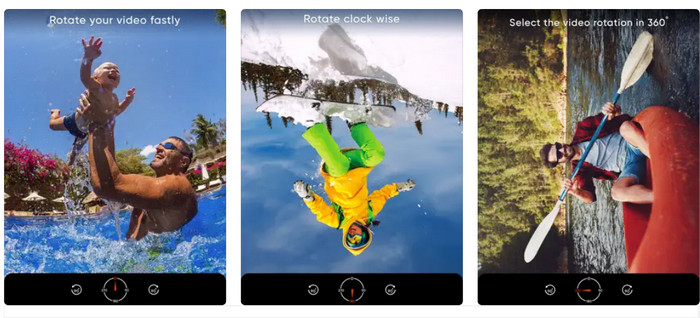
หากคุณต้องการทำงานบนหน้าจอที่ใหญ่ขึ้นอย่าง iPad คุณสามารถใช้แอป Video Rotate ได้ นี่คือแอปจากผู้พัฒนารายอื่นที่สามารถดาวน์โหลดได้จาก App Store แอปนี้ช่วยให้คุณหมุนวิดีโอได้อย่างง่ายดาย และยังสามารถพลิกวิดีโอในแนวนอนหรือแนวตั้งได้ตามต้องการ Video Rotate ไม่ได้มีแค่ฟังก์ชันหมุนวิดีโอเท่านั้น แต่ยังมีฟีเจอร์อื่นที่มีประโยชน์อีกด้วย คุณสามารถตัดส่วนวิดีโอที่ไม่ต้องการ ปรับความสว่างและคอนทราสต์ หรือแม้แต่เพิ่มข้อความหรือเอฟเฟ็กต์ต่าง ๆ ได้.
ขั้นตอนที่ 1. ดาวน์โหลดแอป Video Rotate จาก App Store และติดตั้งลงบน iPad ของคุณ.
ขั้นตอนที่ 2. เปิดแอปแล้วแตะปุ่ม Select Video เพื่อเลือกวิดีโอที่คุณต้องการหมุน คุณจะเห็นวิดีโอเล่นอยู่บนหน้าจอ.
ขั้นตอนที่ 3. หากต้องการหมุนวิดีโอ ให้ใช้ปุ่มควบคุมการหมุนที่อยู่ด้านล่างหน้าจอ คุณสามารถหมุนวิดีโอ 90 องศาไปทางซ้ายหรือขวาได้ด้วยการแตะปุ่มที่เกี่ยวข้อง นอกจากนี้ยังสามารถพลิกวิดีโอในแนวนอนหรือแนวตั้งได้ด้วยการแตะปุ่ม Flip.
ส่วนที่ 3 วิธีการหมุนวิดีโอ iPhone บนคอมพิวเตอร์
หากคุณต้องการเรียนรู้วิธีหมุนวิดีโอบนคอมพิวเตอร์ PC คุณสามารถใช้ FVC Video Converter Ultimate ได้ นี่คือโปรแกรมแปลงวิดีโอที่ครอบคลุมและหลากหลายการใช้งาน ซึ่งยังสามารถใช้เป็นเครื่องมือหมุนวิดีโอที่ทรงพลังได้อีกด้วย โปรแกรมนี้มีอินเทอร์เฟซที่ใช้งานง่าย และรองรับรูปแบบวิดีโอหลากหลายชนิด เช่น MP4, AVI, MOV และรูปแบบอื่น ๆ อีกมากมาย หากต้องการเรียนรู้เพิ่มเติมเกี่ยวกับเครื่องมือนี้ คุณสามารถดูได้จากขั้นตอนต่อไปนี้.
ขั้นตอนที่ 1. ดาวน์โหลดและติดตั้งเครื่องมือนี้
ขั้นแรก คุณต้องคว้าแอปและติดตั้งโปรแกรมบนคอมพิวเตอร์ของคุณ หลังจากนั้นให้เริ่มทันที
ดาวน์โหลดฟรีสำหรับ Windows 7 ขึ้นไปดาวน์โหลดอย่างปลอดภัย
ดาวน์โหลดฟรีสำหรับ MacOS 10.7 ขึ้นไปดาวน์โหลดอย่างปลอดภัย
ขั้นตอนที่ 2. เพิ่มไฟล์วิดีโอ
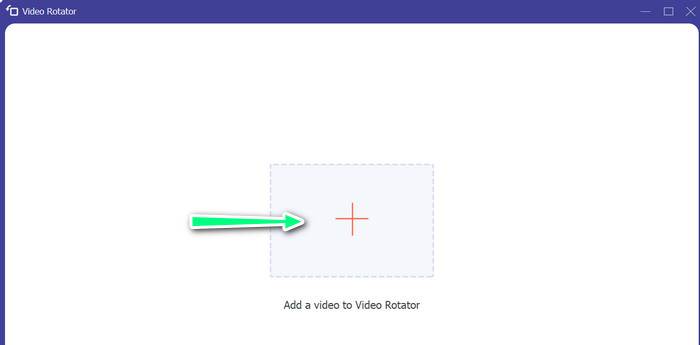
จากนั้นคลิกที่แท็บ Toolbox แล้วใช้ฟีเจอร์ Video Rotator ของโปรแกรม หลังจากคลิกตัวเลือกนี้แล้ว ระบบจะให้คุณอัปโหลดวิดีโอ ตอนนี้ให้คลิกสัญลักษณ์ บวก เพื่อเพิ่มวิดีโอที่คุณต้องการ.
ขั้นตอนที่ 3. หมุนวิดีโอ
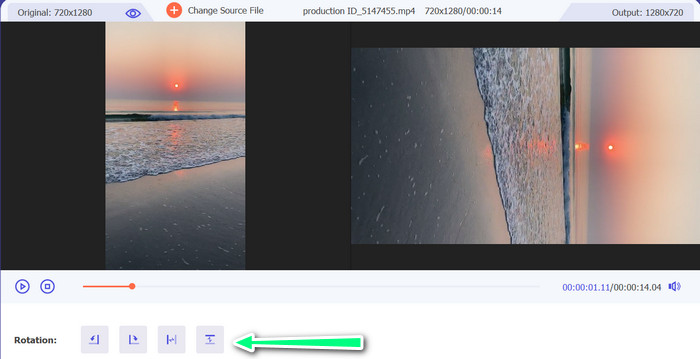
ณ จุดนี้ คลิกที่ปุ่มที่ทำให้วิดีโอหันไปทางที่คุณต้องการ เนื่องจากมีการแสดงตัวอย่างจริง คุณจึงทำการเปลี่ยนแปลงได้อย่างรวดเร็ว
ขั้นตอนที่ 4. รับไฟล์วิดีโอที่หมุนแล้ว
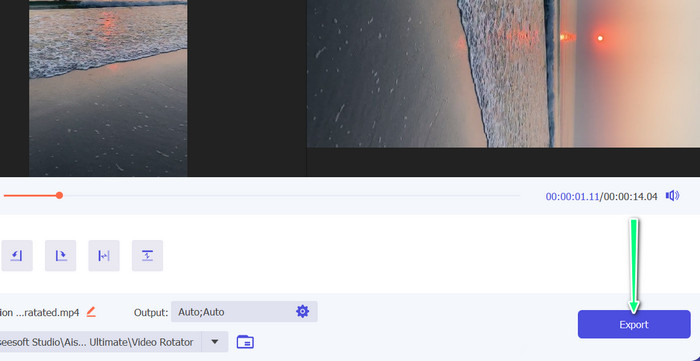
สุดท้าย คลิกปุ่ม Export เพื่อบันทึกสำเนาวิดีโอที่คุณเพิ่งแก้ไข หลังจากนั้นจะมีการแจ้งเตือนเด้งขึ้นมา และจะแสดงโฟลเดอร์ที่เก็บไฟล์วิดีโอให้คุณเห็น.
ส่วนที่ 4 คำถามที่พบบ่อยเกี่ยวกับการหมุนวิดีโอบน iPhone
ทำไมวิดีโอ iPhone ถึงไม่หมุน
อาจมีสาเหตุหลายประการที่ทำให้วิดีโอ iPhone ของคุณไม่หมุน สาเหตุที่พบบ่อยที่สุดคือเปิดการล็อกการวางแนวไว้ รูปแบบวิดีโอไม่รองรับ และอื่นๆ อีกมากมาย
จะถ่ายวิดีโอแนวตั้งบน iPhone 12 ได้อย่างไร
หากต้องการถ่ายวิดีโอแนวตั้งบน iPhone 12 ให้เริ่มต้นด้วยการเปิดแอปกล้องแล้วปัดไปทางซ้ายเพื่อสลับไปยังโหมดวิดีโอ จากนั้น แตะที่ปุ่ม 1× หรือ 2× เพื่อเลือกกล้องที่คุณต้องการใช้ จากนั้นมองหาตัวเลือกแนวตั้งเหนือปุ่มชัตเตอร์แล้วแตะเพื่อเลือก
การหมุนวิดีโอบน iPhone ของฉันจะส่งผลต่อคุณภาพหรือไม่
การหมุนวิดีโอบน iPhone โดยทั่วไปจะไม่กระทบต่อคุณภาพของวิดีโอ ตราบใดที่คุณไม่ได้มีการปรับขนาดหรือบีบอัดวิดีโอไปพร้อมกัน.
สรุป
การหมุนวิดีโอบน iPhone เป็นวิธีง่าย ๆ ที่ช่วยให้คอนเทนต์ภาพของคุณดูดีขึ้นได้ ด้วยแอปรูปภาพที่มีมาให้ในเครื่องหรือแอปจากผู้พัฒนารายอื่น คุณสามารถหมุนวิดีโอบน iPhoneให้ได้ทิศทางตามที่ต้องการ และสร้างวิดีโอที่สวยสะดุดตาได้ โดยไม่ต้องกังวลกับทิศทางของฟุตเทจดั้งเดิม.
-
 [4 วิธีแก้ไข] วิธีทำให้วิดีโอช้าลงบน iPhone อย่างมืออาชีพ
 มีปัญหาในการทำให้วิดีโอช้าลงบน iPhone หรือไม่? หากคุณพบปัญหานี้ ไม่ต้องกังวลอีกต่อไป เพราะเราจะช่วยคุณแก้ปัญหาโดยการอ่านบทความนี้
-
 วิธีย่อวิดีโอบน iPhone [บทช่วยสอนโดยละเอียด]
 คุณเป็นผู้ใช้ iPhone และต้องการตัดแต่งวิดีโอของคุณหรือไม่? ไม่ต้องกังวลอีกต่อไป ป้ายบอกทางนี้จะให้รายละเอียดทั้งหมดเกี่ยวกับวิธีตัดวิดีโอบน iPhone และ iPad
-
 แก้ไขอย่างมืออาชีพ: วิธีครอบตัดวิดีโอ iPhone ของคุณอย่างง่ายดาย
 หากคุณต้องการยกระดับทักษะการตัดต่อวิดีโอของ iPhone ไปอีกขั้น แอปครอบตัดวิดีโอคือตัวเปลี่ยนเกม เราจะกล่าวถึงแอปครอบตัดวิดีโอที่ดีที่สุดสำหรับ iPhone
