


 Video Converter Ultimate
 บันทึกหน้าจอ
 ซ่อมวิดีโอ
 ดาวน์โหลดอย่างปลอดภัย
ขั้นตอนที่ง่ายและรวดเร็วในการหมุนและพลิก GIF โดยใช้ออฟไลน์และออนไลน์
คุณกำลังตัดต่อวิดีโอในแนวนอน และต้องการใส่เอฟเฟกต์วิดีโอด้วยไฟล์ GIF อย่างไรก็ตาม GIF ที่คุณสร้างหรือดาวน์โหลดมานั้นเป็นแนวตั้ง ทำให้ไม่พอดีกับวิดีโอที่เป็นแนวนอน ตอนนี้คุณจึงต้องการหมุนและพลิก GIF บางส่วน ขณะเดียวกัน การดาวน์โหลดไฟล์จากเว็บไซต์ที่ไม่น่าเชื่อถือก็สร้างปัญหา เพราะอาจนำไวรัสเข้ามาในอุปกรณ์ของคุณ ไม่ต้องกังวล! บทความนี้จะช่วยให้คุณใช้เครื่องมือที่ดีที่สุดในการหมุนและพลิก GIF ได้ทั้งแบบออนไลน์และออฟไลน์.

ตอนที่ 1: วิธีหมุนและพลิก GIF ด้วยเครื่องมือที่ดีที่สุด [ออฟไลน์]
1. Video Converter Ultimate
นี่คือหนึ่งในเครื่องมือที่ดีที่สุดที่บทความนี้แนะนำให้ใช้ จากบรรดาเครื่องมือออนไลน์และซอฟต์แวร์ทั้งหมดที่ช่วยแก้ปัญหานี้ ให้ติดตั้ง FVC Video Converter Ultimate บนคอมพิวเตอร์ของคุณ โปรแกรมนี้มีฟีเจอร์เพิ่มประสิทธิภาพวิดีโอมากมาย หนึ่งในฟีเจอร์เหล่านั้นสามารถหมุนและพลิก GIF ตามรูปแบบที่คุณต้องการโดยไม่สูญเสียคุณภาพ ลองดูขั้นตอนด้านล่างเพื่อเรียนรู้วิธีใช้ซอฟต์แวร์นี้:
ขั้นตอนที่ 1. ดาวน์โหลดโปรแกรม
กดปุ่ม ดาวน์โหลดฟรี เพื่อดาวน์โหลดซอฟต์แวร์ลงบนเดสก์ท็อป จากนั้นติดตั้งโปรแกรมและตั้งค่าการติดตั้งตามที่ต้องการ หากทุกอย่างเรียบร้อยแล้ว ให้เปิดซอฟต์แวร์หลังการติดตั้งและคลิก เริ่มตอนนี้.
ดาวน์โหลดฟรีสำหรับ Windows 7 ขึ้นไปดาวน์โหลดอย่างปลอดภัย
ดาวน์โหลดฟรีสำหรับ MacOS 10.7 ขึ้นไปดาวน์โหลดอย่างปลอดภัย
ขั้นตอนที่ 2 เข้าถึงเครื่องมือหมุนวิดีโอ (Video Rotator)
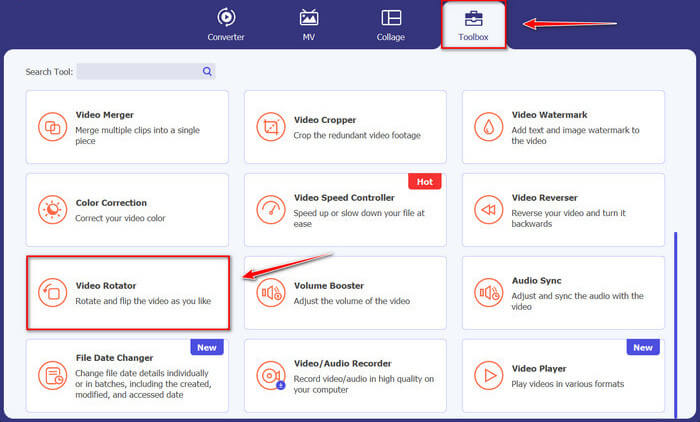
จากนั้นให้คลิกที่ฟีเจอร์ กล่องเครื่องมือ (Toolbox) เลื่อนหน้าจอลงด้านล่าง แล้วเลือก Video Rotator.
ขั้นตอนที่ 3 นำเข้าไฟล์ GIF
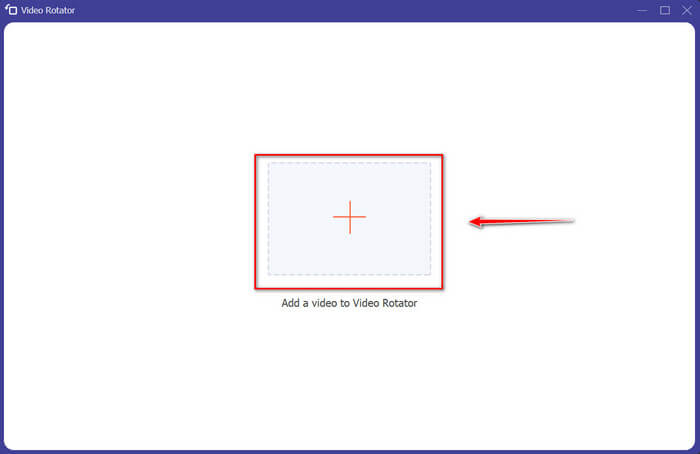
นำเข้าไฟล์ที่คุณต้องการหมุนและพลิกโดยการลากไฟล์ไปยังอินเทอร์เฟซ คุณยังสามารถคลิกปุ่ม + และเลือกไฟล์ไปยังคอมพิวเตอร์ของคุณ
ขั้นตอนที่ 4 หมุน GIF
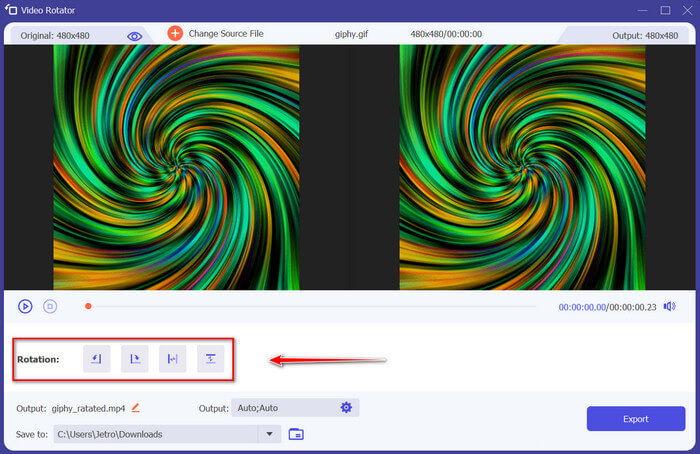
เลือกวิธีที่คุณจะพลิกและหมุน GIF ของคุณ คุณสามารถหมุนได้ 90 องศาไปทางซ้ายหรือขวา และพลิกในแนวตั้งหรือแนวนอน
ขั้นตอนที่ 5 ดาวน์โหลด GIF ที่หมุนแล้ว
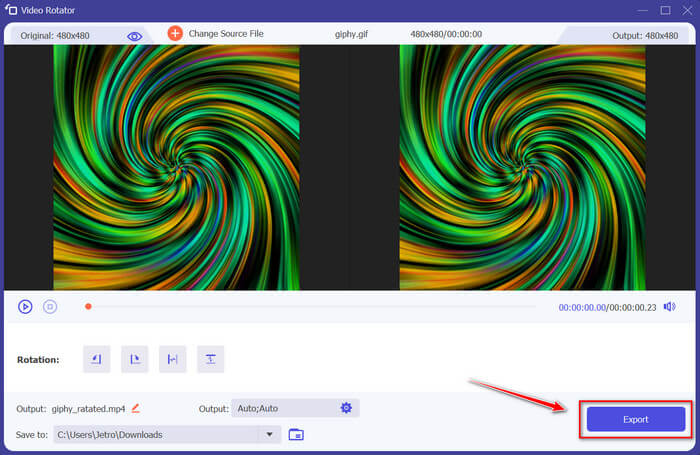
ดาวน์โหลดไฟล์ของคุณโดยคลิก ส่งออก (Export) ที่มุมล่างขวาของหน้าต่างโปรแกรม หลังจากนั้นหน้าต่างใหม่จะปรากฏขึ้นบนหน้าจอของคุณ คลิก หมุนอีกครั้ง (Rotate Again) เพื่อหมุนคลิปวิดีโออื่น หรือคลิก ตกลง (Okay) หากคุณทำเสร็จแล้ว.
2. Photoshop
เครื่องมือออฟไลน์ที่ยอดเยี่ยมอีกอย่างหนึ่งที่แนะนำให้ใช้จะช่วยให้คุณเรียนรู้วิธีหมุนและพลิก GIF เครื่องมือนี้มีขนาดใหญ่และใช้งานซับซ้อนกว่า แต่มีคุณสมบัติเหมือนกับ FVC Video Converter Ultimate ด้วย Photoshop คุณสามารถหมุนและพลิก GIF ได้อย่างมืออาชีพโดยไม่ทำให้คุณภาพลดลง ปฏิบัติตามวิธีการด้านล่างเพื่อรับความรู้เกี่ยวกับคุณสมบัติและคุณสมบัติทางเทคนิค
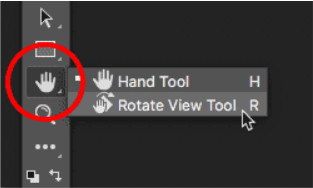
ขั้นตอนที่ 1. ดาวน์โหลดและเปิด Photoshop บนคอมพิวเตอร์ของคุณ หลังจากนั้น คลิก Hand Tool จากรายการฟีเจอร์ใน แถบเครื่องมือ (Toolbar) โดยปกติ Hand Tool จะแสดงอยู่โดยค่าเริ่มต้น และมี Rotate View Tool ซ่อนอยู่ด้านหลัง ให้คลิกค้างที่ไอคอน Hand Tool จนกว่าจะมีเมนูย่อยแสดงขึ้นมาเพื่อเลือก Rotate View Tool จากนั้นในเมนูให้เลือก Rotate View Tool.
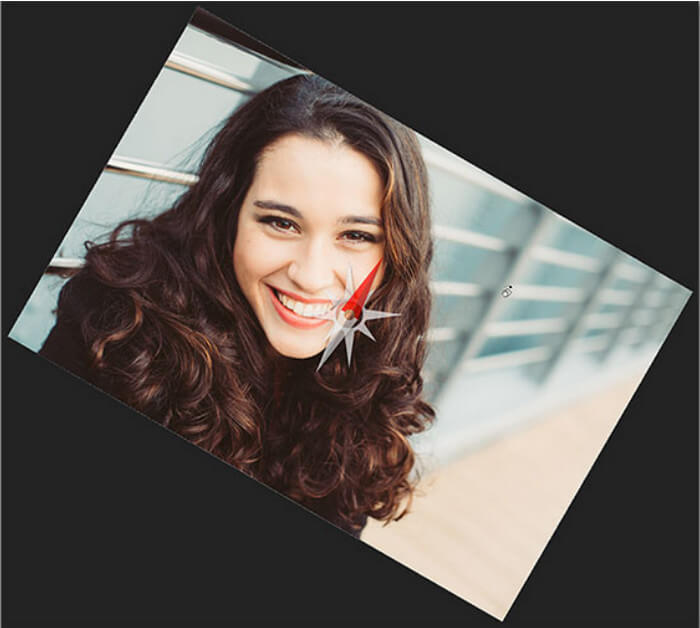
ขั้นตอนที่ 2. กดปุ่มเมาส์ซ้ายค้างไว้ขณะคลิกบนภาพด้วย Rotate View Tool จากนั้นจะมีเข็มทิศ ปรากฏขึ้นตรงกลาง หลังจากนั้น ตัวบอกทิศสีแดง ด้านบนของเข็มทิศจะชี้ไปยังด้านบนจริงของภาพเสมอ ดังนั้นแม้ว่าคุณจะหมุนมุมภาพอย่างไร คุณก็จะรู้เสมอว่าด้านไหนคือด้านบน.

ขั้นตอนที่ 3. กดค้าง ปุ่มเมาส์แล้วลากภาพเพื่อหมุนมุมมอง ลากตามต้องการทั้งตามเข็มนาฬิกาหรือทวนเข็มนาฬิกา เมื่อคุณหมุนมุมมอง เข็มทิศจะชี้ไปยังด้านบนจริงของภาพเสมอ Photoshop อนุญาตให้คุณหมุนมุมมองได้อย่างอิสระโดยค่าเริ่มต้น อย่างไรก็ตาม ถ้าคุณกดปุ่ม Shift ค้างไว้ขณะลาก มุมมองจะหมุนครั้งละ 15 องศา.
3. ภาพถ่าย
บางครั้งปัญหาง่ายๆ ก็ต้องการวิธีแก้ปัญหาง่ายๆ ด้วยเครื่องมือนี้ คุณไม่จำเป็นต้องดาวน์โหลดซอฟต์แวร์และติดตั้งแอปลงในอุปกรณ์ของคุณเพียงเพื่อหมุนและพลิก GIF เมื่อใช้โทรศัพท์ Android คุณสามารถหมุนและพลิก GIF ได้ตามสะดวก หากคุณไม่แน่ใจว่าต้องทำอย่างไร ให้ทำตามขั้นตอนทั้งหมดที่ระบุด้านล่าง:
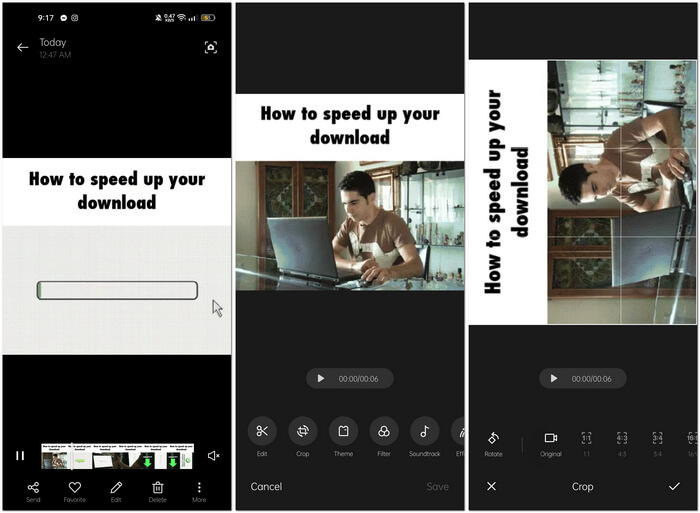
ขั้นตอนที่ 1. เปิดโทรศัพท์ของคุณแล้วค้นหาโฟลเดอร์ รูปภาพ (Photos) หรือ รูปภาพ (Image) เลือก GIF ที่คุณต้องการหมุนและพลิก จากนั้นเลือก แก้ไข (Edit) เพื่อเริ่มแก้ไข GIF ของคุณ.
ขั้นตอนที่ 2. ที่ด้านล่างของหน้าจอ ให้เลือก ครอบตัด (Crop) หลังจากเลือกคลิปแล้ว.
ขั้นตอนที่ 3. หมุน GIF ของคุณโดยการคลิก หมุน (Rotate) คุณสามารถปรับ GIF ได้เพียงแนวตั้งหรือแนวนอนเท่านั้น จากนั้นคลิกไอคอน เครื่องหมายถูก (Check) เพื่อบันทึก GIF ที่ปรับแล้ว.
ส่วนที่ 2: เครื่องมือทางเลือกออนไลน์ที่ดีที่สุดสำหรับการหมุนและพลิก GIF
1. ลูน่าพิค
เครื่องมือบนเว็บนี้เป็นตัวแก้ไขที่มีงบประมาณต่ำซึ่งครอบคลุมเครื่องมือต่างๆ ที่มีให้สำหรับเครื่องมือบนเว็บที่ใช้งานได้ฟรี ซึ่งสามารถให้มุมมองการแก้ไขแบบมืออาชีพแก่คุณ เนื่องจากเครื่องมือบนเว็บนี้ครอบคลุมรูปแบบและสื่อโซเชียลส่วนใหญ่ที่มีอยู่ การแก้ไขจึงกลายเป็นเรื่องง่ายดาย มอบประสบการณ์ที่ยอดเยี่ยมให้กับบรรณาธิการมืออาชีพบางคน คุณจะเห็นเครื่องมือที่เว็บอื่นๆ ไม่มีให้ โดยเฉพาะเครื่องมือที่ช่วยคุณหมุนและพลิก GIF อินเทอร์เฟซนั้นตรงไปตรงมาและสามารถปรับแต่งให้เหมาะกับความชอบของผู้ใช้แต่ละคนได้ ทำตามขั้นตอนด้านล่างเพื่อใช้เครื่องมือออนไลน์ที่ยอดเยี่ยมนี้
ขั้นตอนที่ 1. คลิกแท็บ อัปโหลด (Upload) ที่มุมซ้ายบนของหน้าเว็บ แล้วเพิ่มไฟล์โดยคลิก เลือกไฟล์ (Choose file).
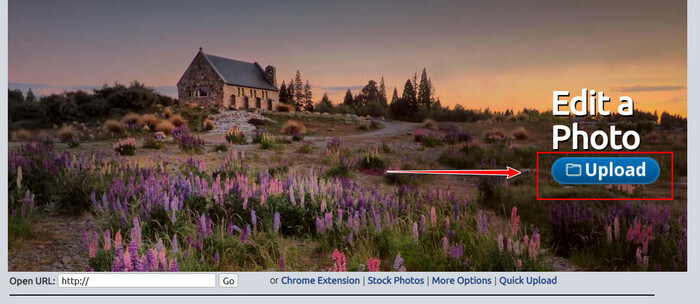
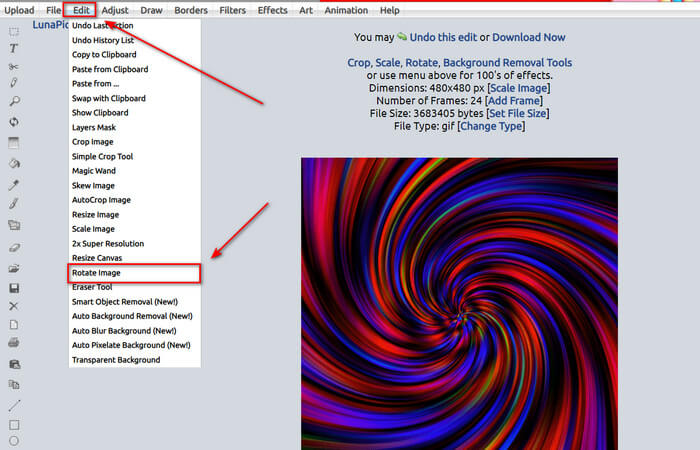
ขั้นตอนที่ 2. คุณสามารถแก้ไข GIF ของคุณได้ที่หน้าจอแรกหลังจากอัปโหลดไฟล์ แต่หากต้องการปรับการหมุนของ GIF ให้ไปต่อโดยคลิกแท็บ แก้ไข (Edit) แล้วเลือก หมุนภาพ (Rotate Image).
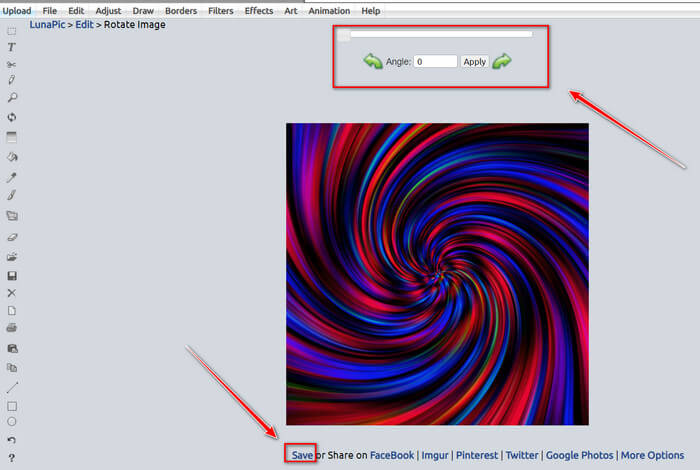
ขั้นตอนที่ 3. ปรับองศาการหมุนของ GIF โดยใส่ค่าระดับองศาที่ต้องการ หรือคลิกที่ลูกศรซ้ายและขวา จากนั้นดาวน์โหลดไฟล์โดยคลิก บันทึก (Save) ที่ส่วนล่างของหน้าจอ.
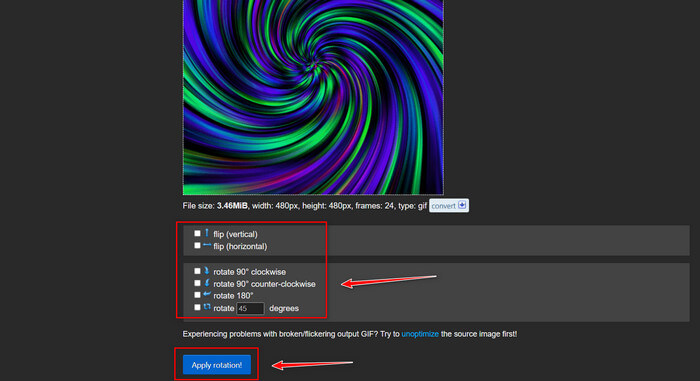
2. เอซกิฟ
Ezgif.com เป็นเครื่องมือสร้างและจัดการ GIF ออนไลน์แบบง่าย ๆ สำหรับสร้างและปรับแต่งภาพ GIF เคลื่อนไหวพื้นฐาน Ezgif สามารถปรับขนาด ครอบตัด ปรับแต่ง เพิ่มประสิทธิภาพ และย้อนภาพ GIF ได้ด้วยเครื่องมือนี้ หนึ่งในฟีเจอร์ที่ดีที่สุดคือคุณสามารถหมุน GIF ได้ด้วยขั้นตอนง่าย ๆ หากต้องการเรียนรู้วิธีใช้ ให้ทำตามขั้นตอนด้านล่างนี้:
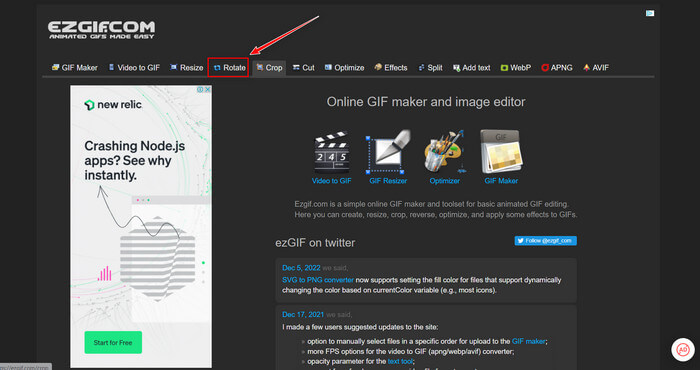
ขั้นตอนที่ 1. เลือก Rotate บน แถบเครื่องมือ (Toolbar) ที่ด้านบนของหน้าจอ.
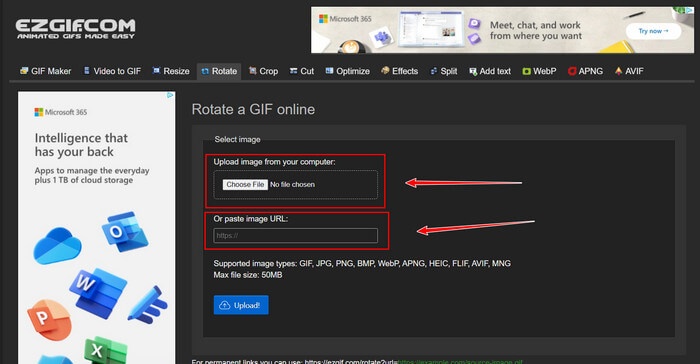
ขั้นตอนที่ 2. นำเข้าไฟล์โดยการคลิก Upload File หรือคัดลอก URL ของ GIF แล้ววางลงในช่องบนหน้าเว็บ จากนั้นคลิก Upload.
ขั้นตอนที่ 3. ทำเครื่องหมายเลือกทิศทางที่คุณต้องการหมุน GIF คุณยังสามารถใส่ค่าระดับองศาเฉพาะ เพื่อเอียงหรือหมุน GIF ตามที่คุณต้องการ จากนั้นคลิก Apply Rotation และคลิกไอคอน Save เพื่อดาวน์โหลด GIF ที่ปรับแล้ว.
ส่วนที่ 3 คำถามที่พบบ่อยเกี่ยวกับการหมุนและพลิก GIF
ฉันสามารถหมุน GIF บน iPhone ของฉันได้ไหม
เมื่อเทียบกับโทรศัพท์ Android เป็นไปไม่ได้ที่จะหมุน GIF โดยใช้ iPhone คุณสามารถหมุน GIF บน iPhone ได้โดยการดาวน์โหลดแอปของบุคคลที่สามทางออนไลน์เท่านั้น
คุณสามารถเปิด GIF วิดีโอ iPhone ได้หรือไม่
บน App Store มีแอปจากผู้พัฒนารายอื่นหลายตัวที่ให้คุณสร้าง GIF จากวิดีโอได้ เช่น MP4 to GIF คุณอาจเคยลองใช้แอปหนึ่งหรือหลายแอปบนอุปกรณ์ของคุณแล้ว ความแตกต่างของเทคนิคนี้คือ เราจะใช้แอปทางลัด (Shortcuts) ที่มีอยู่ใน iPhone หรือ iPad ของคุณ หากคุณยังไม่ทราบ Shortcuts ช่วยให้เข้าถึงเครื่องมือที่ไม่มีมาใน iOS และ iPadOS ตามปกติ.
คุณไม่สามารถใช้ GIF ในการตั้งค่า iPhone ได้อย่างไร
เลื่อนลงมาที่หน้าแอปการตั้งค่า แล้วแตะ 'การช่วยการเข้าถึง' ที่ด้านบนของหน้าจอ แตะ 'การเคลื่อนไหว' และตรวจสอบให้แน่ใจว่าไม่ได้เลือก 'ลดการเคลื่อนไหว' หากเป็นกรณีนี้ ให้ปิดการใช้งานและดูว่า GIF ใช้งานได้อีกหรือไม่
สรุป
ตลอดทั้งบทความนี้ เราได้เห็นแล้วว่าไฟล์ GIF มักต้องหมุนและพลิกทิศทาง ซึ่งเป็นสิ่งจำเป็นในการตัดต่อวิดีโอ มีหลากหลายวิธีในการทำ ทั้งแบบฟรี แบบเสียเงิน แบบออฟไลน์และออนไลน์ ซึ่งเว็บเครื่องมือและซอฟต์แวร์เหล่านี้ช่วยยกระดับการตัดต่อของคุณ แต่หากคุณต้องการเข้าถึงโปรแกรมตัดต่อที่ไม่ต้องพึ่งการเชื่อมต่ออินเทอร์เน็ต ดาวน์โหลด Video Converter Ultimate มาใช้เป็นโปรแกรมตัดต่อที่เชื่อถือได้กับไฟล์วิดีโอหลายรูปแบบ มันช่วยให้คุณตัดต่อวิดีโอแบบมืออาชีพ โดยเฉพาะการหมุนและพลิก GIF.
-
 วนลูป GIF กับ Animated GIF Looper ที่ดีที่สุดบน Windows & Mac
 ต้องการทราบเคล็ดลับสำหรับ GIF ลูปที่ดีที่สุดหรือไม่? ต้องการทำหรือไม่? ถ้าใช่ คุณมาถูกที่แล้ว ดังนั้น เรียนรู้วิธีสร้างลูปด้วย looper ที่ดีที่สุด
-
 4 วิธีที่ดีที่สุดในการลบลายน้ำออกจาก GIF [ออนไลน์และออฟไลน์]
 ต้องการลบลายน้ำออกจาก GIF หรือไม่ ด้วยเครื่องมือในบทความนี้ คุณจะได้เรียนรู้รูปแบบต่างๆ ด้วยน้ำยาล้างลายน้ำต่างๆ ที่มีอยู่ในแพลตฟอร์มของคุณ
-
 ตัวขยาย GIF ออฟไลน์และออนไลน์ 4 อันดับแรกที่คุณไม่ควรพลาด
 โพสต์นี้เหมาะสำหรับคุณหากคุณกำลังค้นหาตัวขยาย GIF ที่ดีที่สุด เราแสดงรายการเครื่องขยาย GIF แบบออนไลน์และออฟไลน์ที่มีประสิทธิภาพสูงสุดสำหรับคอมพิวเตอร์ของคุณ
