


 Video Converter Ultimate
 บันทึกหน้าจอ
 ซ่อมวิดีโอ
 ดาวน์โหลดอย่างปลอดภัย
วิธีแปลง MP3 เป็น AIFF: แนวทางออนไลน์และออฟไลน์ในอุดมคติ
การแปลงไฟล์ MP3 เป็นรูปแบบไฟล์ AIFF จะมีประโยชน์หากคุณต้องการรูปแบบเสียงคุณภาพสูงแบบไม่สูญเสียข้อมูลสำหรับการผลิตเสียงระดับมืออาชีพหรือจุดประสงค์ในการเก็บถาวร ไฟล์ AIFF เป็นไฟล์เสียงที่ไม่มีการบีบอัดซึ่งรักษาคุณภาพเสียงต้นฉบับของการบันทึก ทำให้เหมาะสำหรับการบันทึก มิกซ์ และมาสเตอร์
In this guide, we'll walk you through the steps to convert an MP3 file to an AIFF file using various software tools available for Windows and Mac. With this guide, you can easily convert your MP3 files to AIFF and preserve your recordings' original sound quality.

ส่วนที่ 1 เปรียบเทียบ AIFF กับ MP3
ตารางด้านล่างสรุปความแตกต่างที่สำคัญระหว่าง AIFF และ MP3
| AIFF | MP3 | |
| คุณภาพเสียง | รูปแบบเสียงแบบไม่สูญเสียคุณภาพสูง | รูปแบบเสียงที่สูญหาย คุณภาพต่ำกว่า AIFF |
| ขนาดไฟล์ | ขนาดไฟล์ใหญ่ | ขนาดไฟล์เล็ก |
| การบีบอัด | รูปแบบเสียงที่ไม่บีบอัด | รูปแบบเสียงที่บีบอัด |
| ความเข้ากันได้ | ความเข้ากันได้ที่จำกัดกับอุปกรณ์และซอฟต์แวร์ | เข้ากันได้อย่างกว้างขวางกับอุปกรณ์และซอฟต์แวร์ส่วนใหญ่ |
| การใช้งาน | เหมาะอย่างยิ่งสำหรับการผลิตเสียงระดับมืออาชีพ | เหมาะอย่างยิ่งสำหรับการสตรีม แชร์ และจัดเก็บเพลงออนไลน์ |
| ข้อมูลเมตา | สนับสนุนข้อมูลเมตาแบบฝังตัว | สนับสนุนข้อมูลเมตาแบบฝังตัว |
| การออกใบอนุญาต | รูปแบบที่เป็นกรรมสิทธิ์ | เปิดรูปแบบ |
ส่วนที่ 2 แปลง MP3 เป็น AIFF โดยใช้ Video Converter Ultimate
Video Converter Ultimate is an effective software tool that can convert MP3 files to AIFF format without losing the original sound quality. This program can perform the conversion process quickly, regardless of whether your device is connected to the internet. Moreover, the user-friendly interface of this application makes it straightforward and hassle-free. This software has additional features to explore to learn how to convert MP3 to AIFF through a step-by-step process.
Step 1. Grab the app's latest version
To begin converting audio files, the initial step is to acquire the most recent version of the program.Click any available Free Download buttons and install the application on your computer.
ดาวน์โหลดฟรีสำหรับ Windows 7 ขึ้นไปดาวน์โหลดอย่างปลอดภัย
ดาวน์โหลดฟรีสำหรับ MacOS 10.7 ขึ้นไปดาวน์โหลดอย่างปลอดภัย
Step 2. Add MP3 files to the tool
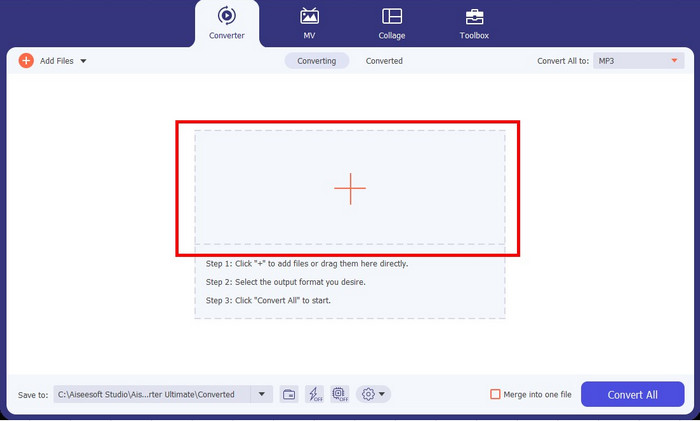
After launching the software, locate the plus sign button at the center of the interface and click on it. This will prompt you to select your MP3 files from your local folder and import them into the program for further processing.
Step 3. Choose AIFF as the output format
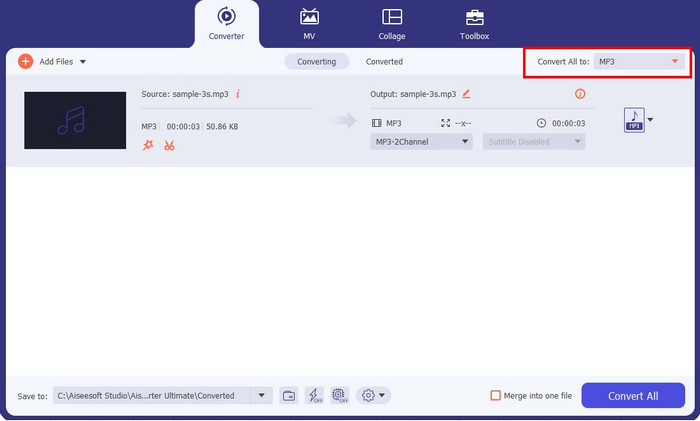
Once you have imported your MP3 files, navigate to the Profile dropdown menu and select the Audio tab. From there, choose AIFF from the list of available audio formats on the left-hand side panel. Additionally, select the desired quality for the output file.
Step 4. Begin with the conversion
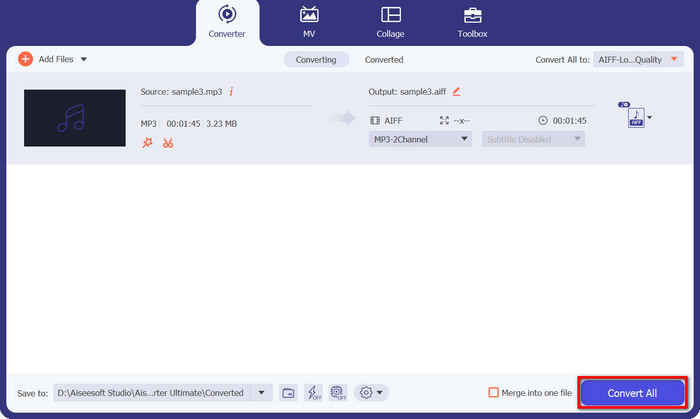
After selecting the appropriate output format and quality, initiate the conversion process by clicking on The Convert All button displayed on the left side of the interface. The program will then begin converting your MP3 files to AIFF. Once the conversion is complete, you can verify the output file by checking the tab on the same page.
ส่วนที่ 3 แปลง MP3 เป็น AIFF โดยใช้ Free MP3 Converter Online
1. CloudConvert
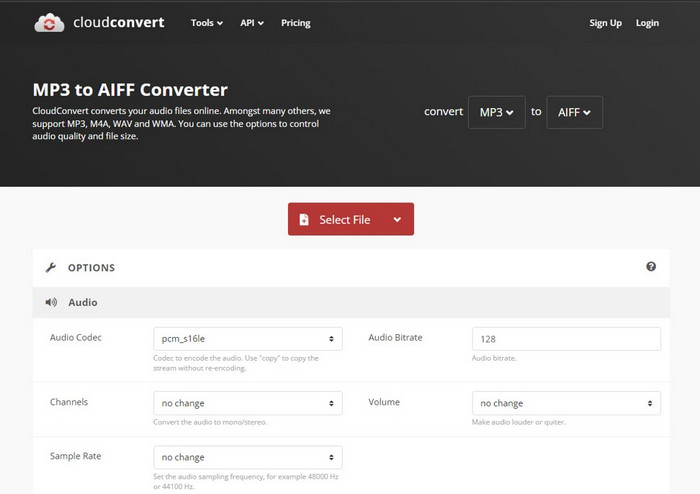
CloudConvert เป็นเครื่องมือออนไลน์ที่สามารถแปลงไฟล์ MP3 เป็นรูปแบบ AIFF นอกจาก MP3 แล้ว ยังมีความสามารถในการแปลงเป็นรูปแบบอื่นๆ เช่น MP3, M4A, WAV และ WMA ทำให้คุณมีอิสระในการเลือกรูปแบบเอาต์พุตที่ต้องการ นอกจากนี้ เครื่องมือนี้ยังให้คุณปรับแต่งคุณภาพเสียงและขนาดไฟล์ตามความต้องการของคุณ นอกจากนี้ CloudConvert ยังช่วยให้คุณสามารถแปลงไฟล์ประเภทต่างๆ รวมถึงเอกสาร วิดีโอ ebooks ไฟล์เก็บถาวร และรูปภาพ ข้อได้เปรียบที่สำคัญของการใช้ CloudConvert คือสามารถใช้งานร่วมกับอุปกรณ์เคลื่อนที่ เช่น iPhone, iPad และ Android ทำให้คุณสามารถแปลงไฟล์ได้ทุกที่ หากต้องการแปลง MP3 เป็น AIFF ออนไลน์ ให้ทำตามคำแนะนำด้านล่าง
Step 1. To begin with, access the tool's official website on your computer through any web browser.
Step 2. Click the red SELECT FILE button from the main page.
Step 3. After uploading files, Choose the output format as AIFF from the available options.
Step 4. Click the Convert button to start the conversion process.
ข้อดี
- ไม่จำเป็นต้องติดตั้งซอฟต์แวร์ใดๆ
- เมื่อใช้การเชื่อมต่ออินเทอร์เน็ต คุณสามารถเข้าถึงได้จากอุปกรณ์ใดก็ได้
จุดด้อย
- ความเร็วในการอัพโหลดและดาวน์โหลดอาจได้รับผลกระทบจากการเชื่อมต่ออินเทอร์เน็ต
- ตัวแปลงออนไลน์บางตัวอาจมีขนาดไฟล์จำกัด
2. ซัมซาร์
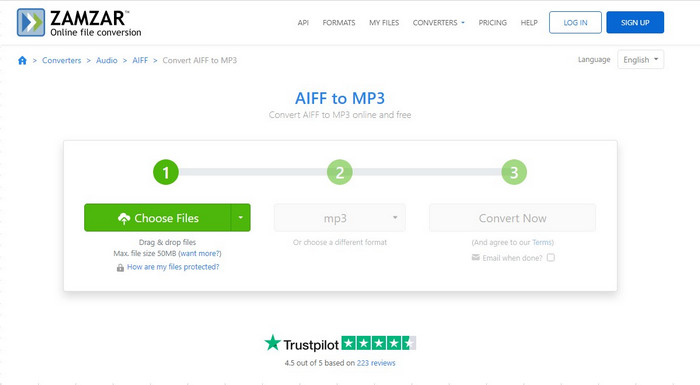
Zamzar เป็นเครื่องมือออนไลน์ที่มีประสิทธิภาพสูงซึ่งใช้งานได้ฟรีสำหรับการแปลงไฟล์ MP3 เป็นรูปแบบ AIFF นำเสนอตัวเลือกการอัปโหลดที่สะดวกสบาย ทำให้คุณสามารถนำเข้าไฟล์จากโซลูชันพื้นที่จัดเก็บในเครื่องและบนคลาวด์ เช่น Dropbox และ Google Drive ขีดจำกัดการอัปโหลดสูงสุดสำหรับผู้ใช้ฟรีคือ 50 MB แต่ถ้าคุณต้องการแปลงไฟล์ขนาดใหญ่ คุณอาจต้องลงทะเบียนบัญชี นอกจากนี้ยังมีตัวเลือกการบีบอัดเสียงอื่นๆ ที่คุณสามารถใช้ประโยชน์ได้ หากต้องการเรียนรู้วิธีใช้ Zamzar โปรดดูคำแนะนำด้านล่าง
Step 1. Go to the web browser of the program, then press the Choose Files button in green to upload your files, or use the dropdown menu to pick from various options like uploading from a URL, box, Dropbox, Google Drive, or OneDrive.
Step 2. Once done, drop down the format option and click the MP3 format. You may click the dropdown icon beside the format option to make changes.
Step 3. Finally, click the Convert button to begin converting from MP3 to AIFF.
ข้อดี
- ช่วยให้ผู้ใช้สามารถแปลงและดาวน์โหลดไฟล์โดยไม่ต้องออกจากเว็บไซต์
- เครื่องมือแปลงบนคลาวด์
จุดด้อย
- ความเร็วในการอัพโหลดและดาวน์โหลดของคุณอาจแตกต่างกันไป
- มีการจำกัดขนาดไฟล์ที่คุณสามารถแปลงได้
ส่วนที่ 4 แปลง MP3 เป็น AIFF โดยใช้ iTunes
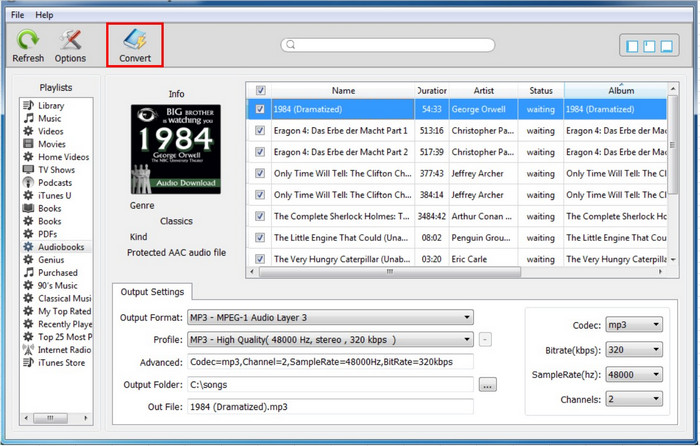
คุณสามารถใช้ iTunes ซึ่งเป็นซอฟต์แวร์เล่นสื่อและไลบรารีที่พัฒนาโดย Apple เพื่อแปลงไฟล์ MP3 เป็นรูปแบบ AIFF บนคอมพิวเตอร์ Mac และ Windows ขั้นตอนด้านล่างเพื่อแปลง MP3 เป็น AIFF โดยใช้ iTunes:
Step 1. Open iTunes on your computer.
Step 2. Click on the iTunes menu and select Preferences (Mac) or Edit and then Preferences (Windows).
Step 3. Click the General tab and the Import Settings button in the Preferences window.
Step 4. Select AIFF Encoder from the dropdown menu next to Import Using in the Import Settings window.
Step 5. Click OK to save the changes.
Step 6. Drag and drop the MP3 file you want to convert into iTunes.
Step 7. Right-click on the MP3 file and select Create AIFF Version. iTunes will create a copy of the MP3 file in AIFF format and add it to your iTunes library.
Step 8. To locate the converted AIFF file, right-click on the file and select Show in Finder (Mac) or Show in Windows Explorer (Windows).
ข้อดี
- ติดตั้งไว้ล่วงหน้าบนคอมพิวเตอร์ Mac และ Windows ส่วนใหญ่
- มีอินเทอร์เฟซที่เรียบง่ายและใช้งานง่าย
- สามารถจัดการคลังเพลงของคุณและสร้างเพลย์ลิสต์
จุดด้อย
- รองรับรูปแบบเสียงได้ในจำนวนจำกัดเท่านั้น
- อาจช้ากว่าซอฟต์แวร์แปลงเสียงเฉพาะอื่นๆ
- ไฟล์ที่แปลงแล้วอาจไม่มีคุณภาพสูงสุด
อ่านเพิ่มเติม:
Best 4 Ways to Convert AIFF to MP3 on Mac & PC
แปลง MP3 เป็น OGG เพื่อสัมผัสคุณภาพเสียงที่เหนือกว่า
ส่วนที่ 5 คำถามที่พบบ่อยของ MP3 และ AIFF
ขนาดไฟล์ระหว่าง MP3 และ AIFF แตกต่างกันอย่างไร
โดยทั่วไปไฟล์ MP3 จะมีขนาดเล็กกว่ามากเมื่อเทียบกับไฟล์ AIFF เนื่องจากไฟล์เหล่านี้ถูกบีบอัด ไฟล์ AIFF มีขนาดใหญ่กว่าเนื่องจากไม่มีการบีบอัดและมีข้อมูลเสียงมากกว่า
ไฟล์ AIFF เข้ากันได้กับเครื่องเล่นเสียงและอุปกรณ์ทั้งหมดหรือไม่
เครื่องเล่นเสียงและอุปกรณ์ส่วนใหญ่สามารถเล่นไฟล์ AIFF ได้ แต่อุปกรณ์รุ่นเก่าบางรุ่นอาจไม่รองรับรูปแบบนี้ เป็นการดีที่สุดที่จะตรวจสอบข้อมูลจำเพาะของอุปกรณ์หรือเครื่องเล่นของคุณเพื่อให้แน่ใจว่าสามารถใช้งานร่วมกันได้
มีการสูญเสียคุณภาพเมื่อแปลง MP3 เป็น AIFF หรือไม่
เมื่อแปลงรูปแบบไฟล์เสียงที่สูญหาย เช่น MP3 เป็นรูปแบบที่ไม่มีการสูญเสียข้อมูล เช่น AIFF อาจมีการสูญเสียคุณภาพบางส่วนเนื่องจากกระบวนการบีบอัดและคลายการบีบอัด อย่างไรก็ตาม เนื่องจาก AIFF เป็นรูปแบบที่ไม่สูญเสียคุณภาพ โดยทั่วไปการสูญเสียคุณภาพจึงน้อยมากเมื่อเทียบกับรูปแบบการบีบอัดอื่นๆ โปรดทราบว่าคุณภาพการแปลงขึ้นอยู่กับซอฟต์แวร์และการตั้งค่าที่ใช้ในระหว่างกระบวนการแปลง
สรุป
All the applications reviewed in this post can convert MP3 to AIFF efficiently. Typically, a desktop application is more appealing as it doesn't need internet connection. This allows you to perform the conversion process regardless of your internet connection.
-
 เครื่องบันทึกเสียง AIFF ฟรี 4 อันดับแรกที่ให้เสียงคุณภาพสูง
 บทความนี้กล่าวถึง AIFF และเครื่องมือยอดนิยมบางส่วนที่คุณสามารถใช้เพื่อสร้างรูปแบบ AIFF คุณภาพสูง
-
 ค้นหาวิธีแปลง AMR เป็น MP3 [ออนไลน์และออฟไลน์]
 มีช่วงเวลาที่ยากลำบากเพราะไม่สามารถเล่นไฟล์ .amr บนเดสก์ท็อปของคุณได้ใช่หรือไม่ จากนั้นอ่านบทความนี้เพื่อเรียนรู้วิธีแปลงรูปแบบ AMR เป็น MP3
-
 4 วิธีที่ดีที่สุดในการแก้ไขและแก้ไขข้อมูลเมตา MP3 บน Windows และ Mac
 ต้องการทราบเคล็ดลับของการแก้ไขข้อมูลเมตา MP3 อย่างง่ายดายหรือไม่? บล็อกนี้จะสอนเทคนิคต่างๆ แก่คุณด้วยเครื่องมือต่างๆ ที่คุณเข้าถึงได้ง่าย
