


 Video Converter Ultimate
 บันทึกหน้าจอ
 ซ่อมวิดีโอ
 ดาวน์โหลดอย่างปลอดภัย
Best Opus to MP3 Converter: บทวิจารณ์และการเปรียบเทียบที่ครอบคลุม
หากคุณต้องการให้เพลงของคุณใช้งานร่วมกับอุปกรณ์ได้มากขึ้น ลองพิจารณาเปลี่ยนจาก Opus เป็น MP3 ดู รูปแบบไฟล์เสียง MP3 นั้นได้รับการรองรับอย่างแพร่หลาย คุณจึงสามารถฟังไฟล์ MP3 ได้เกือบทุกที่ เพื่อให้มั่นใจว่าเพลงของคุณสามารถเข้าถึงได้บนอุปกรณ์มากที่สุดเท่าที่จะเป็นไปได้ ให้แปลงไฟล์ Opus ของคุณเป็น MP3.
ในทางกลับกัน คุณสามารถใช้ประโยชน์จากรูปแบบ Opus ได้หากคุณแปลง MP3 เป็น Opus Opus มักจะได้รับการยอมรับว่าเหมาะสำหรับการสตรีม เกมออนไลน์ และการสื่อสารด้วยเสียง เนื่องจากเสียงคุณภาพสูง การบีบอัดที่มีประสิทธิภาพ และความหน่วงที่น้อยที่สุด หากคุณแปลง MP3 เป็น Opus คุณสามารถลดขนาดได้โดยไม่สูญเสียคุณภาพเสียงที่ยอดเยี่ยม ที่กล่าวว่าคุณจะพบเครื่องมือที่คุณสามารถใช้เพื่อทำการแปลงของคุณได้ที่นี่ ตรวจสอบด้านล่าง

ส่วนที่ 1 แปลง OPUS เป็น MP3 หรือ MP3 เป็น OPUS ออนไลน์
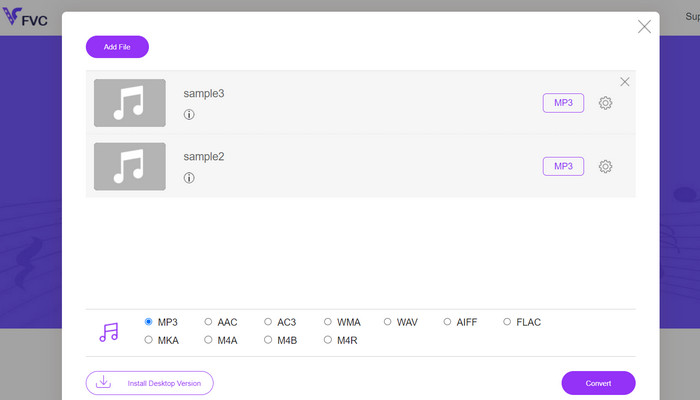
เกือบทุกไฟล์วิดีโอและไฟล์เสียงรูปแบบยอดนิยมสามารถแปลงเป็นรูปแบบที่คุณต้องการได้ด้วยความช่วยเหลือของ Free Audio Converter Online ซึ่งเป็นแอปพลิเคชันเว็บสำหรับแปลงมัลติมีเดีย ถึงจะทำงานบนเว็บ แต่คุณก็ยังสามารถแปลงวิดีโอหลายไฟล์พร้อมกันได้ โปรแกรมออนไลน์นี้ใช้งานได้หลากหลายกว่าที่คิด เพราะไม่เพียงแต่แปลงไฟล์เท่านั้น แต่ยังให้ผู้ใช้ปรับค่าพารามิเตอร์เสียงต่าง ๆ ได้อีกด้วย แอปออนไลน์นี้ไม่เพียงมีส่วนติดต่อผู้ใช้ที่เข้าใจง่าย ขั้นตอนการแปลงเองก็แทบไม่ต้องมีความรู้ด้านเทคนิค คุณสามารถดูขั้นตอนด้านล่างเพื่อเรียนรู้วิธีการทำงานของตัวแปลง Opus เป็น MP3 ออนไลน์ที่ดีที่สุดตัวนี้.
คุณสมบัติเด่น
◆ การแปลงรูปแบบไฟล์: รองรับรูปแบบยอดนิยมต่างๆ เช่น MP3, WAV, AAC, FLAC, OGG และอื่นๆ
◆ การแปลงเป็นชุด: คุณลักษณะนี้ช่วยให้คุณสามารถแปลงทั้งโฟลเดอร์หรือกลุ่มไฟล์เสียงได้ในคราวเดียว
◆ ตัวเลือกการปรับแต่ง: มีตัวเลือกการปรับแต่งเพิ่มเติม เช่น การปรับบิตเรตเสียง อัตราตัวอย่าง การกำหนดค่าช่อง หรือแม้แต่การตัดแต่งหรือแยกไฟล์เสียง
ขั้นตอนที่ 1. ก่อนอื่นให้ไปที่หน้า Free Audio Converter Online โดย FVC ที่ https://www.freevideoconverter.online/audio-converter.
ขั้นตอนที่ 2. เลือกไฟล์ Opus ที่คุณต้องการแปลงโดยคลิกปุ่ม Add Files to Convert หรือคุณอาจลากและวางไฟล์ไปยังตำแหน่งใดก็ได้บนหน้าเว็บ.
ขั้นตอนที่ 3. หลังจากอัปโหลดไฟล์แล้ว เพียงเลือก MP3 จากเมนูใต้รูปแบบ Audio เพื่อเลือกรูปแบบไฟล์ที่คุณต้องการ คุณยังสามารถแปลงไฟล์ Opus เป็น MP3 แบบแบตช์ได้โดยอัปโหลดหลายไฟล์พร้อมกัน.
ขั้นตอนที่ 4. คุณเพียงกดที่ไอคอน Settings เพื่อปรับบิตเรต อัตราการสุ่มสัญญาณ (sample rate) และตัวเลือกช่องสัญญาณของไฟล์ผลลัพธ์ จากนั้นคลิกปุ่ม Convert เพื่อเริ่มกระบวนการแปลง.
ส่วนที่ 2 แปลง OPUS เป็น MP3 หรือ MP3 เป็น OPUS ออฟไลน์
1. Video Converter Ultimate
หากคุณต้องการแปลงไฟล์วิดีโอของคุณเป็น MP3 หรือรูปแบบเสียงอื่น ๆ ไม่ต้องมองหาที่ไหนไกลไปกว่า Video Converter Ultimate โปรแกรมนี้ไม่ได้จำกัดแค่การแปลงเป็น MP3 เท่านั้น แต่ยังรองรับไฟล์หลากหลายประเภท เช่น WAV, WMA, AAC, FLAC, OGG และ RA ใช้ได้ฟรีและใช้งานง่าย นอกจากนี้กระบวนการแปลงไฟล์เสียงยังรวดเร็วมาก ทำให้คุณได้ไฟล์ที่แปลงแล้วในเวลาไม่นาน.
วิดีโอสามารถแปลงเป็นรูปแบบวิดีโอและรูปแบบเสียงอื่น ๆ ได้หลากหลาย คุณไม่จำเป็นต้องเป็นผู้เชี่ยวชาญด้านเทคโนโลยีเพื่อตั้งค่านี้ นอกจากนี้ยังใช้เวลาเพียงไม่กี่นาที แปลงไฟล์อย่างรวดเร็วและเพลิดเพลินไปกับ UI ที่ใช้งานง่าย
คุณสมบัติเด่น
◆ การแปลงคุณภาพสูง: ซอฟต์แวร์ช่วยให้มั่นใจได้ว่าเอาต์พุตมีคุณภาพสูงโดยรักษาคุณภาพวิดีโอและเสียงต้นฉบับไว้ระหว่างการแปลง รองรับการแปลงแบบไม่สูญเสียข้อมูลสำหรับบางรูปแบบ ทำให้สูญเสียคุณภาพน้อยที่สุด
◆ การแปลงเป็นชุด: Video Converter Studio เปิดใช้งานการแปลงเป็นชุด ทำให้คุณสามารถแปลงไฟล์หลาย ๆ ไฟล์พร้อมกันได้
◆ ค่าที่ตั้งไว้ล่วงหน้าเฉพาะอุปกรณ์: ซอฟต์แวร์นำเสนอค่าที่ตั้งไว้ล่วงหน้าเฉพาะอุปกรณ์ที่หลากหลาย ทำให้ง่ายต่อการแปลงวิดีโอสำหรับอุปกรณ์เฉพาะ เช่น สมาร์ทโฟน แท็บเล็ต เกมคอนโซล และอื่นๆ สิ่งนี้ทำให้มั่นใจได้ถึงความเข้ากันได้และคุณภาพการเล่นที่ดีที่สุด
ขั้นตอนที่ 1. เพื่อให้มั่นใจว่าเครื่องมือนี้ตรงตามความต้องการของคุณ ให้ลองใช้เวอร์ชันทดลองฟรีก่อน จากนั้นติดตั้งโปรแกรมบนคอมพิวเตอร์ของคุณและลองสำรวจส่วนติดต่อผู้ใช้.
ดาวน์โหลดฟรีสำหรับ Windows 7 ขึ้นไปดาวน์โหลดอย่างปลอดภัย
ดาวน์โหลดฟรีสำหรับ MacOS 10.7 ขึ้นไปดาวน์โหลดอย่างปลอดภัย
ขั้นตอนที่ 2. คลิกไอคอน Add Files หรือ Plus จากนั้นไปยังไฟล์เสียงในคอมพิวเตอร์ของคุณเพื่อนำเข้า เพียงดับเบิลคลิกไฟล์ก็จะเริ่มกระบวนการนำเข้าเข้าสู่โปรแกรมได้ อีกทางหนึ่งคือคุณสามารถลากและวางไฟล์วิดีโอจากตัวจัดการไฟล์ของคอมพิวเตอร์ลงในซอฟต์แวร์ได้เช่นกัน.
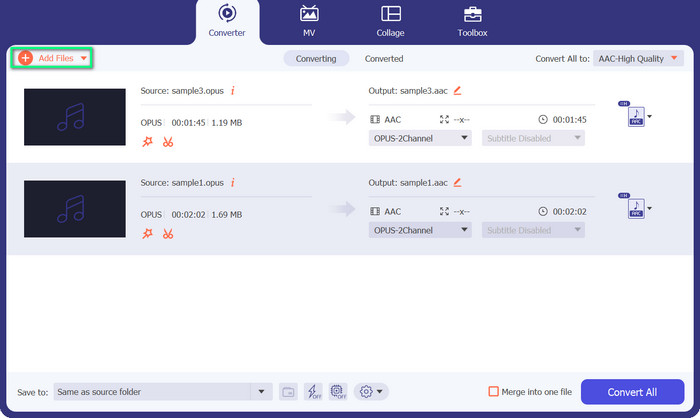
ขั้นตอนที่ 3. รูปแบบไฟล์ MP3 หรือ Opus ของไฟล์จะเห็นได้ชัดเจนทันที ตอนนี้เราจะเปลี่ยนไฟล์ Opus ให้เป็น MP3 ปุ่ม Convert All to สามารถพบได้ที่มุมขวาบนของเครื่องมือ จากนั้นให้มองหารูปแบบ Opus หรือ MP3 ในเมนู Audio แล้วเลือก Convert All เพื่อเริ่มกระบวนการแปลง.
2. วีแอลซี
VLC เป็นเครื่องเล่นสื่อหลายแง่มุมที่รวมฟังก์ชันการแปลงเสียงและวิดีโอในตัว เครื่องมือนี้มีความน่าเชื่อถือสำหรับการแปลงบทประพันธ์เป็น MP3 และรูปแบบอื่น ๆ เนื่องจากรองรับรูปแบบต่าง ๆ ส่วนต่อประสานที่ใช้งานง่าย และตัวเลือกการปรับแต่ง VLC นำเสนอกระบวนการแปลงที่มีประสิทธิภาพและคล่องตัวโดยมีความไม่สะดวกน้อยที่สุด ช่วยให้สามารถใช้งานร่วมกันได้ดีขึ้น แชร์ไฟล์ และความเพลิดเพลินในการฟังเพลงจากหลายอุปกรณ์
คุณสมบัติเด่น
◆ ความเข้ากันได้ข้ามแพลตฟอร์ม: VLC พร้อมใช้งานสำหรับระบบปฏิบัติการต่างๆ รวมถึง Windows, macOS, Linux, Android, iOS และอื่นๆ คุณสามารถเพลิดเพลินกับคุณสมบัติบนอุปกรณ์และแพลตฟอร์มต่างๆ
◆ การแปลงเสียงและวิดีโอ: VLC มีความสามารถในการแปลงในตัว ช่วยให้คุณสามารถแปลงไฟล์เสียงและวิดีโอจากรูปแบบหนึ่งเป็นอีกรูปแบบหนึ่ง
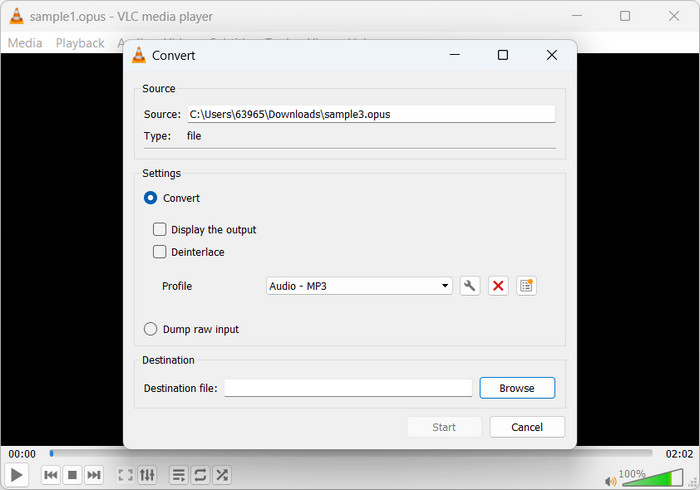
ขั้นตอนที่ 1. เปิดโปรแกรมเล่นสื่อ (มีเดียเพลเยอร์) ที่คุณชื่นชอบ เมื่อต้องการแปลงหรือบันทึกไฟล์สื่อ ให้ไปที่เมนู Media ในแถบเมนูหลักแล้วคลิก Convert/Save.
ขั้นตอนที่ 2. เลือกไฟล์ Opus ที่คุณต้องการแปลงโดยคลิกปุ่ม Add ในแท็บ File และไปยังตำแหน่งไฟล์ จากนั้นคลิกปุ่ม Convert/Save.
ขั้นตอนที่ 3. เลือก Audio - MP3 เป็นรูปแบบผลลัพธ์ของโปรไฟล์ในแท็บ Profile หากต้องการเปลี่ยนบิตเรตหรืออัตราการสุ่มสัญญาณ รวมถึงพารามิเตอร์เสียงอื่น ๆ ให้เลือกโปรไฟล์แล้วคลิกตัวเลือก Edit selected profile.
ขั้นตอนที่ 4. เลือกตำแหน่งที่คุณต้องการจัดเก็บไฟล์ MP3 หลังจากแปลงเสร็จแล้ว เพื่อเริ่มการแปลง ให้กดปุ่ม Start นั่นคือวิธีการแปลง Opus เป็น MP3 บน VLC.
3.FFmpeg
FFmpeg เป็นชุดซอฟต์แวร์โอเพ่นซอร์สและเครื่องมือบรรทัดคำสั่งที่ใช้สำหรับการจัดการข้อมูลมัลติมีเดีย ซอฟต์แวร์นำเสนอไลบรารีและโปรแกรมที่หลากหลายเพื่อจัดการเสียง วิดีโอ และรูปแบบสตรีมมิ่งที่หลากหลาย FFmpeg อำนวยความสะดวกในการแปลง Opus เป็น MP3 บนระบบ Linux
คุณสมบัติเด่น
◆ รองรับรูปแบบมัลติมีเดีย: FFmpeg รองรับรูปแบบมัลติมีเดียที่หลากหลาย รวมถึงเสียง วิดีโอ และโปรโตคอลการสตรีม
◆ การปรับแต่งและระบบอัตโนมัติ: FFmpeg มีตัวเลือกการปรับแต่งมากมายผ่านพารามิเตอร์บรรทัดคำสั่ง ช่วยให้คุณปรับแต่งกระบวนการแปลงตามความต้องการเฉพาะของคุณ
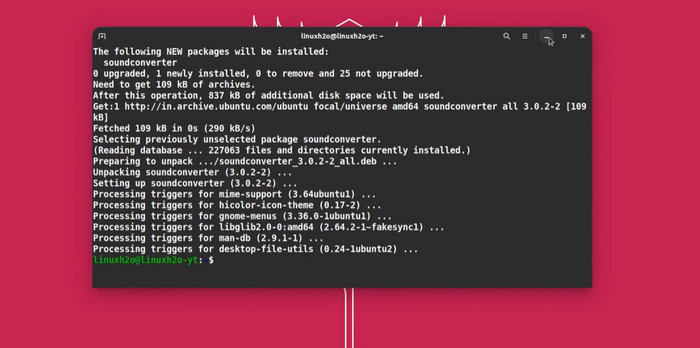
ขั้นตอนที่ 1. ติดตั้งบน Linux คุณสามารถติดตั้ง FFmpeg ผ่านระบบจัดการแพ็กเกจของดิสทริบิวชัน Linux ได้ บน Ubuntu ให้ใช้คำสั่ง sudo apt-get install ffmpeg.
ขั้นตอนที่ 2. เปิดเทอร์มินัลของ Linux ใช้คำสั่ง cd เพื่อไปยังไดเรกทอรีที่เก็บไฟล์ Opus ของคุณ หากไฟล์ Opus อยู่ในโฟลเดอร์ Music ในไดเรกทอรีบ้านของคุณ ให้ใช้คำสั่ง cd ~/Music แปลง Opus เป็น MP3 FFmpeg จะแปลง Opus เป็น MP3 ด้วยคำสั่งนี้: input.opus ffmpeg -c: a libmp3lame output.mp3
แทนที่ input.opus ด้วยไฟล์ Opus และ output.mp3 ด้วยชื่อไฟล์ MP3
ขั้นตอนที่ 3. เรียกใช้ FFmpeg FFmpeg จะอ่านไฟล์ Opus ใช้ตัวเข้ารหัส libmp3lame และบันทึกเป็นไฟล์ MP3 เวลาในการแปลงขึ้นอยู่กับขนาดและความซับซ้อนของไฟล์ Opus เทอร์มินัลจะแสดงความคืบหน้าการแปลง นั่นคือวิธีที่ FFmpeg แปลง Opus เป็น MP3.
อ่านเพิ่มเติม:
คู่มือปฏิบัติวิธีแปลงวิดีโอเป็นรูปแบบ MP3
เครื่องมือที่ดีที่สุดสำหรับแปลงไฟล์ MP3 เป็น M4R แบบแบตช์
ส่วนที่ 3 OPUS กับ MP3
ต่อไปนี้เป็นการเปรียบเทียบโดยละเอียดของรูปแบบเสียงทั้งสองในแง่ของอัตราส่วนการบีบอัด คุณภาพเสียง ความซับซ้อน และใบอนุญาต
| บทประพันธ์ | MP3 | |
| อัตราส่วนการบีบอัด | อัตราการบีบอัดสูง ทำให้ไฟล์มีขนาดเล็กลง | อัตราการบีบอัดปานกลาง ทำให้ขนาดไฟล์ใหญ่ขึ้น |
| คุณภาพเสียง | คุณภาพเสียงที่ยอดเยี่ยมแม้ในบิตเรตต่ำ | คุณภาพเสียงที่ดี แต่อาจแสดงสิ่งประดิษฐ์ที่เห็นได้ชัดเจนที่บิตเรตต่ำ |
| ความซับซ้อน | ตัวแปลงสัญญาณที่ค่อนข้างซับซ้อนเมื่อเทียบกับ MP3 | ตัวแปลงสัญญาณที่เรียบง่ายกว่า เข้าใจและนำไปใช้อย่างกว้างขวาง |
| ใบอนุญาต | Opus เป็นตัวแปลงสัญญาณเสียงแบบเปิดและไม่มีค่าลิขสิทธิ์ | MP3 มีข้อกำหนดการอนุญาตให้ใช้สิทธิบัตรสำหรับการใช้งาน |
ส่วนที่ 4 คำถามที่พบบ่อยเกี่ยวกับตัวแปลง OPUS และ MP3
บทประพันธ์ต้องการในสถานการณ์ใดมากกว่า MP3
Opus เป็นที่ต้องการในสถานการณ์ที่ต้องการเวลาแฝงต่ำ เสียงคุณภาพสูงที่อัตราบิตต่ำ เช่น การสื่อสารด้วยเสียง การประชุมทางวิดีโอ การสตรีม และแอปพลิเคชันแบบเรียลไทม์ ซึ่งการรักษาความชัดเจนและลดความล่าช้าให้เหลือน้อยที่สุดเป็นสิ่งสำคัญ
บทประพันธ์และ MP3 สามารถบรรลุความโปร่งใสได้หรือไม่?
บทประพันธ์มีศักยภาพในการทำให้เกิดความโปร่งใส ซึ่งหมายความว่าเสียงที่บีบอัดนั้นแยกไม่ออกจากต้นฉบับ อย่างไรก็ตาม MP3 มักไม่โปร่งใส และอาจสังเกตเห็นสิ่งประดิษฐ์ได้ โดยเฉพาะที่บิตเรตต่ำ
MP3 มักใช้เมื่อใด
MP3 มักใช้สำหรับการเล่นเพลงทั่วไป พ็อดคาสท์ การกระจายเสียง และแอพพลิเคชั่นอื่นๆ ที่ต้องการความสมดุลของคุณภาพเสียงที่ดีและขนาดไฟล์ที่เหมาะสม มีประวัติความเข้ากันได้ที่ยาวนานและการสนับสนุนอย่างกว้างขวาง
สรุป
การแปลง Opus เป็น MP3 นั้นเป็นประโยชน์เมื่อคุณต้องการความเข้ากันได้และการรองรับในวงกว้างของรูปแบบ MP3 แม้ว่า Opus จะให้คุณภาพเสียงสูงและบีบอัดได้อย่างมีประสิทธิภาพที่บิตเรตต่ำ แต่ MP3 เป็นรูปแบบเสียงที่เป็นที่รู้จักและได้รับการรองรับอย่างกว้างขวางบนอุปกรณ์และซอฟต์แวร์หลากหลายชนิด การแปลง Opus เป็น MP3 ช่วยเพิ่มความเข้ากันได้และทำให้ง่ายต่อการเล่นบนอุปกรณ์และแพลตฟอร์มต่าง ๆ.
-
 5 เครื่องตัด MP3 เพื่อตัดเสียงใด ๆ ได้อย่างง่ายดาย [อัปเดต 2023]
 คุณต้องการเครื่องตัด MP3 เพื่อตัดเสียงหรือไม่? ในกรณีนั้น โปรดอ่านบทความนี้เพราะเรามีเครื่องมือที่คุณสามารถพึ่งพาได้ซึ่งให้การตัดเสียงที่ง่ายดาย
-
 แปลง MP3 เป็น OGG และเพลิดเพลินกับคุณภาพเสียงที่เหนือกว่า
 ต้องการปรับปรุงคุณภาพเสียงของไฟล์เพลงของคุณในขณะที่ลดขนาดไฟล์ด้วยหรือไม่? ตัวแปลง MP3 เป็น OGG เป็นโซลูชั่นที่สมบูรณ์แบบ ตรวจสอบพวกเขาในโพสต์นี้
-
 FLAC กับ MP3: รูปแบบไฟล์เสียงใดที่ครองอำนาจสูงสุด
 โพสต์นี้จะเปรียบเทียบความแตกต่างที่สำคัญระหว่าง FLAC กับ MP3 ซึ่งรวมถึงคุณภาพเสียง ขนาดไฟล์ ความเข้ากันได้ และอื่นๆ
