


 Video Converter Ultimate
 บันทึกหน้าจอ
 ซ่อมวิดีโอ
 ดาวน์โหลดอย่างปลอดภัย
WebEx ARF Player - เล่นและแปลงไฟล์ ARF บน Windows และ Mac
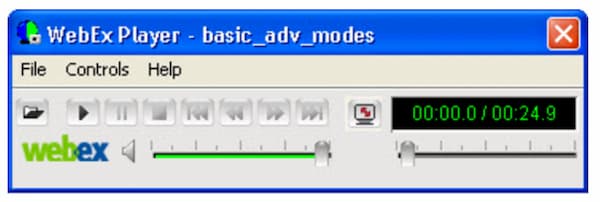
หากคุณเป็นโฮสต์การประชุม WebEx คุณจะได้รับอนุญาตให้ดาวน์โหลดไฟล์วิดีโอที่บันทึกจาก WebEx วิดีโอบันทึก WebEx ของคุณจะถูกบันทึกลงในนามสกุลไฟล์. arf ตามค่าเริ่มต้น รูปแบบ Cisco WebEx ARF ไม่ได้รับการสนับสนุนอย่างกว้างขวางสำหรับเครื่องเล่นสื่อของบุคคลที่สามจำนวนมาก หากคุณต้องการเปิดไฟล์บันทึก ARF จำเป็นต้องมีเครื่องเล่น WebEx ARF บทความนี้พูดถึงวิธีการรับและใช้โปรแกรมเล่น WebEx สำหรับการเล่น ARF เป็นหลัก เพียงแค่อ่านและปฏิบัติตาม

ส่วนที่ 1: วิธีการเปิดและแปลงไฟล์ ARF ด้วย WebEx ARF Player
Cisco WebEx เป็นเครื่องมือการประชุมทางวิดีโอและการประชุมออนไลน์สำหรับการสัมมนาผ่านเว็บเชิงโต้ตอบและกิจกรรมเสมือนจริงขนาดใหญ่ ทางไกลไม่ใช่คำถามที่ยากสำหรับเพื่อนร่วมงานทั่วโลกอีกต่อไป
หลังจากการประชุมออนไลน์คุณสามารถรับอีเมลพร้อมลิงก์ของการบันทึก WebEx คุณสามารถคลิกลิงก์และดูการประชุม WebEx ที่บันทึกไว้ได้โดยตรง ไม่จำเป็นต้องใช้โปรแกรมเล่นไฟล์ ARF
หากคุณดาวน์โหลดไฟล์ WebEx สำหรับการรับชมแบบออฟไลน์คุณจะต้องใช้โปรแกรมเล่น. ARF เพื่อเล่น WebEx เพิ่มเติม นี่คือวิธีการเล่นและแปลงไฟล์ ARF ด้วยซอฟต์แวร์ WebEx ARF Player
ขั้นตอนที่ 1: ไปที่แพลตฟอร์ม WebEx ของคุณ เลือก My WebEx, My Files และ My Recordings จากนั้นเลือกไฟล์การบันทึกของคุณ แล้วเลือก More ตามด้วย Download คุณสามารถดาวน์โหลดไฟล์ WebEx ในรูปแบบไฟล์นามสกุล .ARF ได้.
ขั้นตอนที่ 2: ไปที่ WebEx Meeting Center เลือก Support แล้วจึงเลือก Downloads จากนั้นไปที่ Recorder and Players แล้วคลิก Recording and Playback.
ขั้นตอนที่ 3: ในส่วน for .ARF ให้เลือก Download เพื่อดาวน์โหลดและติดตั้ง WebEx Player สำหรับ Windows หรือ Mac ได้ฟรี คุณสามารถใช้โปรแกรมเล่นไฟล์ ARF นี้เพื่อเปิดไฟล์ ARF บนคอมพิวเตอร์ได้ทันที คลิก Pause เพื่อหยุดชั่วคราวและเล่นไฟล์ ARF ต่อได้.
ขั้นตอนที่ 4: หลังจากเปิดโปรแกรมเล่นไฟล์ ARF บนเดสก์ท็อปแล้ว คุณสามารถเปลี่ยนรูปแบบไฟล์จาก ARF เป็น MP4 ได้ จากเมนูแบบเลื่อนลง File คุณสามารถเลือก .MP4 จากรายการ Convert Format.
ขั้นตอนที่ 5: ระบุชื่อไฟล์และโฟลเดอร์สำหรับไฟล์ที่ส่งออก คลิก OK เพื่อยืนยันและเริ่มแปลงไฟล์ ARF เป็นวิดีโอ MP4 นอกจากนี้ คุณยังสามารถแปลง ARF เป็นรูปแบบ MP4 ภายใน WebEx ARF Player ได้เช่นกัน.
ส่วนที่ 2: ทางเลือกของ WebEx ARF Player ที่ดีที่สุดสำหรับ Windows และ Mac
หากคุณกำลังมองหาโปรแกรมเล่นไฟล์ ARF อื่น ๆ คุณสามารถลองใช้ FVC Free Video Player ได้ โปรแกรมนี้สามารถเล่นไฟล์ ARF ออนไลน์ได้ฟรี หลังจากติดตั้งตัวเรียกใช้งาน (launcher) แล้ว คุณก็สามารถเล่นไฟล์ WebEx ARF ได้ภายในไม่กี่คลิก ด้วยเทคโนโลยีการเข้ารหัสเสียงล่าสุด คุณสามารถดูวิดีโอ ARF พร้อมคุณภาพเสียงแบบไม่สูญเสียได้ นอกจากนี้ยังสามารถปรับแต่งพารามิเตอร์การเล่นวิดีโอและเสียงได้อย่างยืดหยุ่น กล่าวโดยสรุป FVC Free Video Player สามารถเป็นหนึ่งในโปรแกรมเล่นไฟล์ ARF ที่ดีที่สุดสำหรับ Windows 10/8/7 และ Mac ของคุณ.
- 1. เล่นวิดีโอที่ดาวน์โหลด
- 2. รองรับรูปแบบวิดีโอและเสียงอินพุตที่หลากหลายรวมถึง WebEx ARF MP4, MOV, AVI, FLV และอื่น ๆ
- 3. ปรับปรุงคุณภาพเสียงด้วยเทคโนโลยีการเข้ารหัสเสียง DTS-HD และ Dolby TrueHD ล่าสุด
- 4. ปรับความสว่างความคมชัดและพารามิเตอร์อื่น ๆ ด้วยตัวเลือกและแถบเลื่อนที่ปรับแต่งได้
- 5. รับการเล่นวิดีโอ 3 มิติและรองรับการจับภาพหน้าจอ
ขั้นตอนที่ 1: เปิดเว็บไซต์ทางการของ FVC Free Video Player บนเบราว์เซอร์ของคุณ คลิก Play Now และ Download เพื่อติดตั้งตัวเรียกใช้งาน FVC ก่อน.

ขั้นตอนที่ 2: ในหน้าต่างโปรแกรมเล่นไฟล์ WebEx ที่ปรากฏขึ้น ให้คลิก Open File บนอินเทอร์เฟซหลัก จากนั้นค้นหาและนำเข้าการประชุม WebEx ARF ที่คุณดาวน์โหลดไว้.

ขั้นตอนที่ 3: วิดีโอ ARF จะเริ่มเล่นโดยอัตโนมัติหลังจากนำเข้าเสร็จ คุณสามารถควบคุมความเร็วการเล่นและเอฟเฟกต์วิดีโอได้ด้วยแถบเครื่องมือด้านบนและด้านล่าง.

ส่วนที่ 3: คำถามที่พบบ่อยของโปรแกรมเล่นไฟล์ ARF
จะหาเครื่องเล่น ARF สำหรับส่วนขยาย Chrome ได้ที่ไหน
คุณสามารถดาวน์โหลดส่วนขยาย Cisco WebEx จาก Chrome เว็บสโตร์ได้โดยตรง แต่ยังไม่มีส่วนขยาย Chrome สำหรับผู้เล่น ARF
มีเครื่องเล่น ARF สำหรับแอพมือถือหรือไม่?
หากคุณต้องการเล่นไฟล์ ARF และ WRF บน iPhone หรือ Android แอป VLC for Mobile สามารถเป็นตัวเลือกของคุณได้ แทนที่จะใช้แอปพกพาสำหรับเล่นไฟล์ ARF คุณสามารถแปลง ARF เป็นรูปแบบ MP4 ได้ มันสามารถทำหน้าที่เป็นแอปเล่นไฟล์ ARF บน Android และ iPhone ได้เช่นกัน อีกทั้งยังเป็น แอปเล่นเพลง ที่ดีมากด้วย.
ฉันจะแปลง ARF เป็น MP4 ได้อย่างไร
มีโปรแกรมแปลงไฟล์ ARF เป็น MP4 ออนไลน์และออฟไลน์มากมายในท้องตลาด ตัวอย่างเช่น คุณสามารถแปลงไฟล์ ARF เป็น MP4 ด้วย FVC Free Online Video Converter, Video Converter Ultimate และอื่น ๆ.
ทำไมคุณไม่สามารถดาวน์โหลดการบันทึก WebEx
เฉพาะผู้ดูแลระบบ WebEx เท่านั้นที่สามารถดาวน์โหลดไฟล์บันทึก WebEx ในขณะเดียวกันผู้ดูแลระบบ WebEx ควรเปิดใช้ตัวเลือกการดูแลระบบสำหรับ WebEx ที่ดาวน์โหลดไฟล์บันทึกไว้ล่วงหน้า
เหตุใดการแปลง WebEx จึงล้มเหลวบน Mac
โปรดทราบว่าการแปลง WebEx ARF เป็น MP4 ต้องใช้แอปพลิเคชันที่ใช้ Windows คุณควรติดตั้งตัวแปลง ARF เป็น MP4 บนคอมพิวเตอร์ Windows ของคุณ ไม่รองรับการแปลง ARF เป็น MP4 บน Mac ในปัจจุบัน โดยทั่วไปคุณสามารถเล่นการบันทึก WebEx บน Mac ได้ แต่คุณไม่สามารถแปลงไฟล์. arf เป็น MP4 และรูปแบบอื่น ๆ บน Mac ได้
นั่นคือทั้งหมดที่เกี่ยวกับบทช่วยสอนผู้เล่น WebEx ARF และทางเลือกอื่น คุณสามารถเล่นไฟล์ WebEx ARF บนคอมพิวเตอร์ Windows และ Mac ได้อย่างง่ายดาย ยิ่งไปกว่านั้นคุณสามารถแปลง WebEx ARF เป็น MP4 และรูปแบบอื่น ๆ ที่เข้ากันได้ หากคุณยังคงมีคำถามเกี่ยวกับผู้เล่น ARF คุณสามารถฝากข้อความไว้ด้านล่างหรือติดต่อเราได้ตามต้องการ
-
 ซอฟต์แวร์เครื่องเล่น MP4 ยอดนิยม 11 อันดับสำหรับ Windows และ Mac (ฟรีและจ่ายเงิน)
 อ่านและรับเครื่องเล่น MP4 ที่ดีที่สุดจากคำแนะนำของซอฟต์แวร์เครื่องเล่นวิดีโอ MP4 ล่าสุด 10 รายการ คุณสามารถเล่นไฟล์วิดีโอ MP4 บน Windows และ Mac ได้อย่างราบรื่นโดยไม่ล่าช้า
-
 8 เครื่องเล่น Adobe SWF ที่ดีที่สุดในการเปิดไฟล์วิดีโอ Flash บน Windows และ Mac
 เมื่อคุณต้องการเพลิดเพลินกับภาพยนตร์และเกม SWF บนพีซีและ Mac คุณสามารถเรียนรู้เพิ่มเติมเกี่ยวกับคุณสมบัติที่ยอดเยี่ยมของเครื่องเล่นไฟล์ SWF ที่ดีที่สุด 8 ตัวได้จากบทความ
-
 10 เครื่องเล่นวิดีโอ FLV ที่ดีที่สุดสำหรับ Windows 10/8/7, Mac, iOS และ Android ที่คุณต้องลอง (2021 ล่าสุด)
 เครื่องเล่น FLV ช่วยให้คุณเข้าถึงไฟล์ FLV บนอุปกรณ์ Windows, Mac, Android, iOS ได้อย่างง่ายดาย ตรวจสอบเครื่องเล่นไฟล์ FLV ที่ดีที่สุดที่คุณสามารถดาวน์โหลดได้ตอนนี้
