


 Video Converter Ultimate
 บันทึกหน้าจอ
 ซ่อมวิดีโอ
 ดาวน์โหลดอย่างปลอดภัย
Web Launch Recorder – 4 วิธีฟรีในการจับภาพกิจกรรมบนหน้าจอโดยไม่ต้องดาวน์โหลด
มีวิธีง่ายๆ ในการบันทึกวิดีโอ เช่น วิดีโอเกมยอดนิยม บันทึกการสนทนาทางวิดีโอ วิดีโอการประชุม และบันทึกเป็นคอลเล็กชันของคุณหรือไม่ เครื่องบันทึกการเปิดเว็บฟรีเป็นตัวเลือกแรกๆ ในการจับภาพวิดีโอบนหน้าจอ ซึ่งเป็นบริการบนเว็บเพื่อจับภาพกิจกรรมบนหน้าจอ เพียงเรียนรู้เพิ่มเติมเกี่ยวกับเครื่องบันทึกการเปิดเว็บที่ยอดเยี่ยมเพื่อเปิดใช้คุณสมบัติการบันทึกหน้าจอออนไลน์

ส่วนที่ 1: เครื่องบันทึกการเปิดเว็บออนไลน์ฟรี 4 อันดับแรก
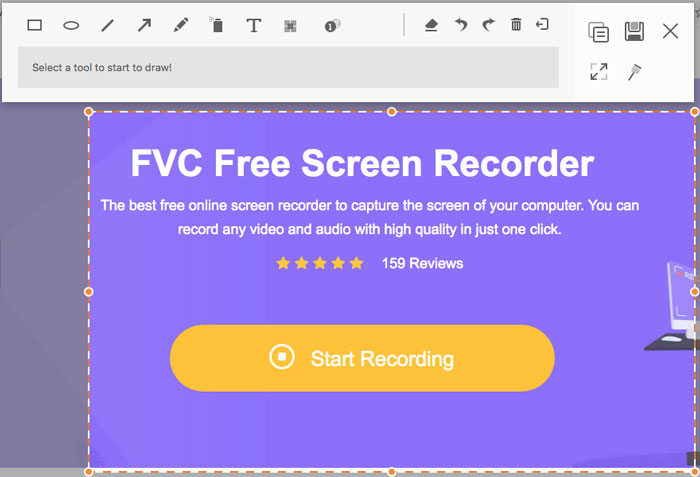
อันดับ 1: FVC Free Screen Recorder
FVC Free Screen Recorder เป็นเว็บลอนช์รีคอร์เดอร์แบบฟรีที่สามารถใช้ได้บนเว็บเบราว์เซอร์ทุกตัว ช่วยให้คุณบันทึกวิดีโอและเสียงใด ๆ ได้โดยไม่มีลายน้ำ คุณสามารถปรับแต่งพื้นที่บันทึกได้ เช่น เต็มหน้าจอหรือเลือกเฉพาะบางส่วนของหน้าจอสำหรับบันทึกวิดีโอ นอกจากนี้ยังสามารถส่งออกไฟล์บันทึกเป็นรูปแบบไฟล์ต่าง ๆ เช่น MP4 และ WMV ได้ด้วย.
1. บันทึกหน้าจอออนไลน์ฟรีโดยไม่ต้องลงทะเบียนหรือข้อจำกัดอื่นๆ
2. เพิ่มบรรทัดและข้อความแบบเรียลไทม์เพื่อใส่คำอธิบายประกอบการบันทึกหน้าจอ
3. ใส่เสียงเว็บแคมและไมโครโฟนลงใน screencast ของคุณ
4. ดูไฟล์บันทึกก่อนหน้าทั้งหมดจากรายการประวัติการบันทึก
อันดับ 2: Screencast-O-Matic
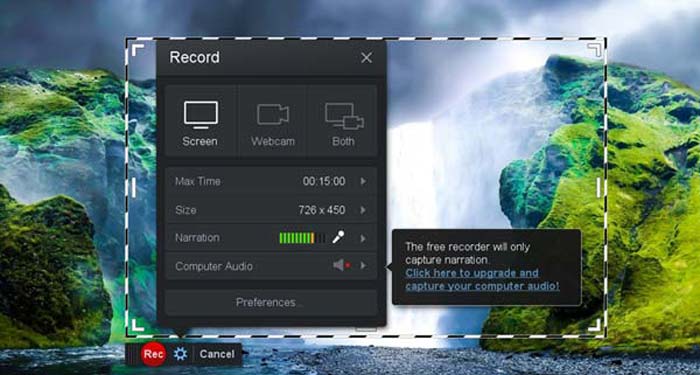
Screencast-O-Matic เป็นโปรแกรมบันทึกหน้าจอแบบเว็บเบสที่สามารถบันทึกพื้นที่ใดก็ได้บนหน้าจอของคุณอย่างง่ายดาย ช่วยให้คุณอัปโหลดวิดีโอขึ้นแพลตฟอร์มโฮสติ้งวิดีโอได้โดยตรง อีกทั้งยังมีเครื่องมือสคริปต์ ระบบสร้างคำบรรยายอัตโนมัติ และฟีเจอร์อื่น ๆ อีกมากมาย.
ข้อดี
- 1. ปรับแต่งพื้นที่บันทึก เช่น หน้าจอทั้งหมดหรือบางส่วน
- 2. อัปโหลดการบันทึกไปยัง Screencast-O-Matic, Google Drive เป็นต้น
- 3. เพิ่มคำบรรยายเสียง สต็อกเพลงและคำอธิบายภาพ และง่ายขึ้น
จุดด้อย
- 1. คุณภาพของการบันทึกไม่ดีพอ
- 2. เครื่องบันทึกหน้าจอออนไลน์นี้มีเวลาจำกัด
อันดับ 3: Clipchamp
Clipchamp เป็นเว็บลอนช์รีคอร์เดอร์ออนไลน์ฟรีที่สะดวกมาก คุณสามารถใช้บันทึกและอัปโหลดวิดีโอ รวมทั้ง บีบอัดวิดีโอ ได้โดยไม่ทำให้คุณภาพดั้งเดิมลดลง ยังมาพร้อมฟังก์ชันมากมาย เช่น การใช้ไมโครโฟนภายนอก การเลือกระดับความละเอียดต่าง ๆ เป็นต้น.
ข้อดี
- 1. บันทึกทั้งหน้าจอ พื้นที่บันทึกที่ตั้งไว้ล่วงหน้า หรือพื้นที่ที่กำหนดเอง
- 2. ช่วยให้คุณสามารถแปลงวิดีโอที่บันทึกเป็นรูปแบบวิดีโอยอดนิยมอื่น ๆ
- 3. สามารถจับภาพวิดีโอพร้อมคำบรรยายและพากย์เสียงจากไมโครโฟน
จุดด้อย
- 1. ต้องอัปเกรดเป็นเวอร์ชัน Pro เพื่อให้มีฟังก์ชันครบถ้วน
- 2. ไม่สามารถแก้ไขการบันทึกภายในไลบรารีสื่อออนไลน์ได้โดยตรง
ส่วนที่ 2: วิธีการจับภาพหน้าจอด้วย Web Launch Recorder
เมื่อพูดถึงวิธีการบันทึกวิดีโอหน้าจอด้วยเว็บลอนช์รีคอร์เดอร์ ขอใช้ FVC Free Screen Recorder เป็นตัวอย่าง คุณสามารถเรียนรู้ขั้นตอนรายละเอียดได้ดังต่อไปนี้.
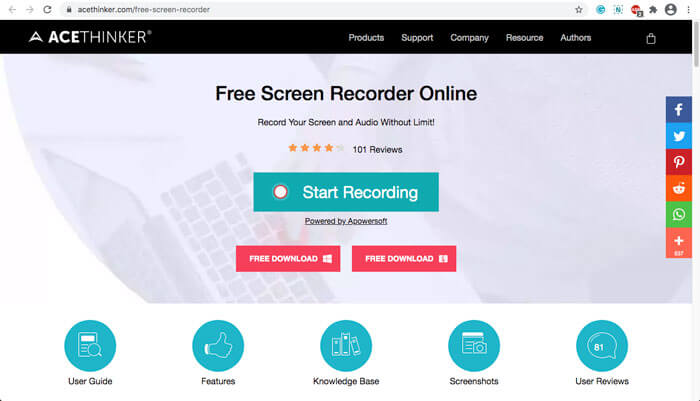
ขั้นตอนที่ 1: เมื่อต้องการบันทึกหน้าจอฟรี ให้ไปที่เว็บลอนช์รีคอร์เดอร์แล้วคลิกปุ่ม Start Recording บนหน้าแรก ระบบจะดาวน์โหลดตัวเรียกใช้งานสำหรับเว็บลอนช์รีคอร์เดอร์ ให้ติดตั้งโปรแกรมและเปิดใช้งานบนคอมพิวเตอร์ของคุณ.
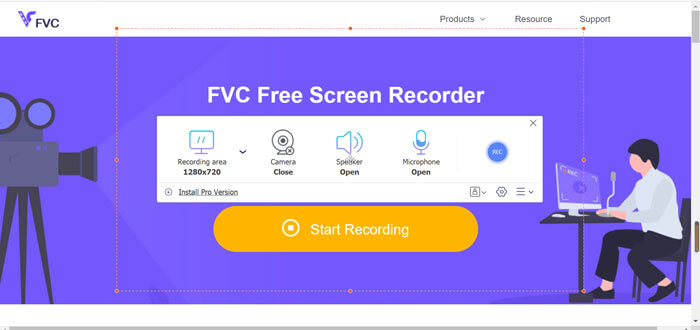
ขั้นตอนที่ 2: หลังจากเริ่มใช้งานแอปพลิเคชัน คุณจะเห็นการตั้งค่าการบันทึกของโปรแกรม ที่นี่คุณสามารถคลิกตัวเลือก Recording area เพื่อเลือกบันทึกแบบเต็มหน้าจอหรือเฉพาะบางส่วนของหน้าจอ หรือเปิดเมนู Speaker เพื่อบันทึกไฟล์เสียง หากต้องการบันทึกวิดีโอพร้อมเสียงบรรยาย เพียงเปิดใช้งานตัวเลือก Webcam.
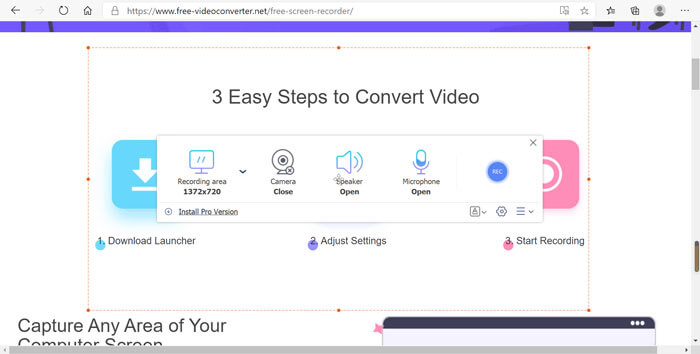
ขั้นตอนที่ 3: หากต้องการเปลี่ยนการตั้งค่าไฟล์เพิ่มเติม ให้คลิกที่ไอคอนรูป Gear มุมล่างขวาของเว็บลอนช์รีคอร์เดอร์เพื่อปรับแต่งตัวเลือกต่าง ๆ คุณสามารถเปลี่ยนตำแหน่งจัดเก็บไฟล์ที่บันทึกและรูปแบบไฟล์เอาต์พุตในหน้าต่างการตั้งค่าที่เด้งขึ้นมาได้.
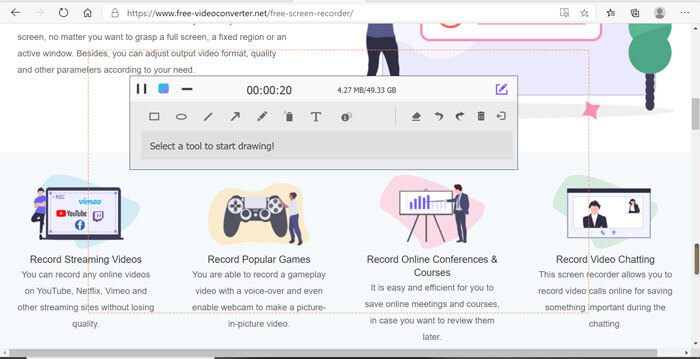
ขั้นตอนที่ 4: จากนั้นคลิกปุ่ม REC เพื่อเริ่มบันทึก เมื่อบันทึกเสร็จแล้ว ให้คลิกปุ่ม Stop เพื่อสิ้นสุดกระบวนการทั้งหมด คลิกไอคอนสามขีดที่ด้านล่างของเว็บลอนช์รีคอร์เดอร์เพื่อเปิดและจัดการรายการวิดีโอที่บันทึกไว้.
ส่วนที่ 3: คำถามที่พบบ่อยเกี่ยวกับ Web Launch Recorder
1. ฉันจะบันทึกหน้าจอด้วยเว็บแคมได้อย่างไร
เมื่อเปิดใช้งานเว็บลอนช์รีคอร์เดอร์แล้ว คุณสามารถค้นหาและเปิดใช้ฟังก์ชันเว็บแคมที่หน้าอินเทอร์เฟซ จากนั้นปรับขนาดหน้าต่างเว็บแคม กลับไปยังหน้าอินเทอร์เฟซหลักแล้วคลิกที่ไอคอน REC เพียงเท่านี้คุณก็สามารถเริ่มบันทึกภาพจากเว็บแคมที่ติดตั้งอยู่ในตัวเครื่องได้แล้ว.
2. เหตุใดการบันทึกหน้าจอของฉันจึงไม่มีเสียง
มีตัวเลือกสำหรับเสียงของระบบและไมโครโฟนบนอินเทอร์เฟซหลักของโปรแกรม คุณอาจลืมเปิดเครื่องก่อนบันทึก ก่อนบันทึก ตรวจสอบให้แน่ใจว่าได้เปิดใช้งานตัวเลือกนี้ เพื่อให้คุณสามารถบันทึกวิดีโอพร้อมเสียงได้
3. วิธีการอัปโหลดวิดีโอของฉันไปยัง YouTube?
เริ่มตัวบันทึกการเปิดใช้เว็บฟรี ค้นหาและคลิกไอคอนสามบรรทัดที่มุมล่างขวาของอินเทอร์เฟซ จากนั้นค้นหาวิดีโอที่คุณต้องการอัปโหลดจากรายการบันทึกป๊อปอัป แล้วคลิกไอคอนแชร์ด้านล่าง สุดท้าย เลือกวิดีโอจากแพลตฟอร์มสื่อ และสามารถแชร์วิดีโอที่บันทึกไปยังแพลตฟอร์มใดก็ได้
สรุป
โดยสรุป บทความนี้จะแนะนำเครื่องบันทึกการเปิดเว็บออนไลน์ฟรี 4 เครื่องที่ได้รับความนิยมสูงสุดในตลาด และแนะนำวิธีการบันทึกวิดีโอโดยละเอียดของ FVC Free Screen Recorder ซึ่งเป็นหนึ่งในแอปออนไลน์ที่ดีที่สุด สามารถช่วยให้คุณบันทึกวิดีโอและเสียงได้ฟรีโดยไม่ทำลายคุณภาพ
-
 6 เครื่องบันทึก WAV ที่ดีที่สุดที่คุณไม่ควรพลาดบนเดสก์ท็อปและออนไลน์
 ซอฟต์แวร์บันทึก WAV ที่ดีที่สุดที่เราแบ่งปันในบทความนี้มีคุณสมบัติที่มีประโยชน์มากมาย ซึ่งช่วยให้คุณบันทึกเสียงและเสียงได้เหมือนมืออาชีพ
-
 การบันทึกหน้าจอ QuickTime - บันทึกวิดีโอพร้อมเสียงบน Mac และ PC
 หน้าจอการบันทึกเสียงบน Mac มีประโยชน์ เครื่องเล่นในตัว QuickTime Player สามารถทำได้ อ่านโพสต์ของเขาและเรียนรู้วิธีจับภาพหน้าจอพร้อมเสียงบน Mac และ PC
-
 DU Recorder Review 2021: ความปลอดภัยและราคาและฟังก์ชั่นและการใช้งานและการให้คะแนน
 DU Recorder เป็นหน้าจอและเครื่องบันทึกเสียงสำหรับ iPhone และ Android ดาวน์โหลดคุ้มไหม ปลอดภัยจริงหรือ? อ่านบทวิจารณ์ฉบับเต็มเพื่อดูว่าแอปนี้เหมาะกับคุณหรือไม่
