


 Video Converter Ultimate
 บันทึกหน้าจอ
 ซ่อมวิดีโอ
 ดาวน์โหลดอย่างปลอดภัย
Video Colorizer ทำงานอย่างไร: เครื่องมือ 3 อันดับแรกที่ใช้ในปี 2023
คุณยังมีวิดีโอเก่า ๆ ที่บันทึกด้วยโทนขาวดำเหล่านั้นอยู่ไหม? แม้การหวนระลึกถึงวันวานจะทำได้เพียงแค่เปิดดูครั้งเดียว แต่ตอนนี้คุณสามารถเปลี่ยนวิดีโอของคุณให้กลายเป็นผลงานเหนือกาลเวลาด้วยการใส่สีให้มัน โชคดีที่ยุคดิจิทัลได้สร้างสรรค์นวัตกรรมเทคโนโลยีมากมาย รวมถึงเครื่องมือที่สามารถใส่สีให้กับวิดีโอขาวดำได้ คู่มือนี้จะพาคุณไปรู้จักกับโปรแกรมยอดนิยมที่ใช้สีและอัลกอริทึมอัจฉริยะ ปรับโทนสีของฟุตเทจของคุณได้อย่างลื่นไหลไร้รอยต่อ.

ส่วนที่ 1 ระบายสีวิดีโอออฟไลน์
การแปลงฟิล์มเก่าให้กลายเป็นเวอร์ชันมีสีนั้นไม่ควรเป็นเรื่องยุ่งยากอีกต่อไป เพียงใช้ซอฟต์แวร์ทรงพลังอย่าง Video Converter Ultimate แม้เครื่องมือนี้จะถูกใช้หลัก ๆ สำหรับการแปลงไฟล์วิดีโอและเสียง แต่มันก็มาพร้อมกับเครื่องมือตัดต่อวิดีโอที่ช่วยให้คุณชุบชีวิตวิดีโอขาวดำให้กลับมามีสีสันได้ นอกจากนี้ Video Converter Ultimate ยังมีแผงพรีวิวแบบเรียลไทม์ให้คุณดูการเปลี่ยนแปลงที่ทำระหว่างขั้นตอนการตัดต่อได้ทันที ยิ่งไปกว่านั้น คุณยังสามารถครอป หมุน และเพิ่มฟิลเตอร์มากมายให้กับฟุตเทจของคุณ เพื่อเพิ่มความสร้างสรรค์ให้โดดเด่นขึ้น ทำตามคำแนะนำง่าย ๆ ด้านล่างเพื่อใส่สีให้วิดีโอขาวดำด้วยเครื่องมือที่ยอดเยี่ยมนี้.
ขั้นตอนที่ 1 เปิดโปรแกรมใส่สีวิดีโอที่ดีที่สุด
ขั้นแรก ดาวน์โหลดตัวติดตั้ง Video Converter Ultimate โดยคลิกระบบปฏิบัติการที่ดีที่สุดสำหรับอุปกรณ์ของคุณ หลังจากนั้นให้เรียกใช้วิซาร์ดการติดตั้งเพื่อเปิดโปรแกรมบนคอมพิวเตอร์ของคุณ
ดาวน์โหลดฟรีสำหรับ Windows 7 ขึ้นไปดาวน์โหลดอย่างปลอดภัย
ดาวน์โหลดฟรีสำหรับ MacOS 10.7 หรือใหม่กว่าดาวน์โหลดอย่างปลอดภัย
ขั้นตอนที่ 2 นำเข้าไฟล์เข้าสู่โปรแกรม
จากนั้นไปที่ส่วน MV ของ Video Converter Ultimate เพื่อเข้าใช้โปรแกรมตัดต่อวิดีโอ จากตรงนั้น คลิกปุ่ม เครื่องหมายบวก เพื่ออิมพอร์ตฟุตเทจต้นฉบับของคุณ และรอให้โหลดขึ้นบนหน้าจอ.
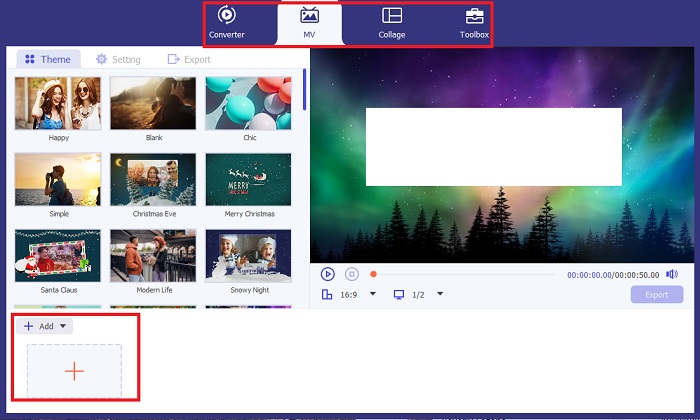
ขั้นตอนที่ 3 ใส่สีให้ฟุตเทจ
หลังจากอัปโหลดไฟล์ของคุณแล้ว ให้เพิ่มการปรับแต่งสีโดยการลากลูกศร นอกจากนี้ยังมีตัวกรองที่กำหนดไว้ล่วงหน้าเพื่อเพิ่มเอฟเฟกต์ทันทีให้กับวิดีโอของคุณ
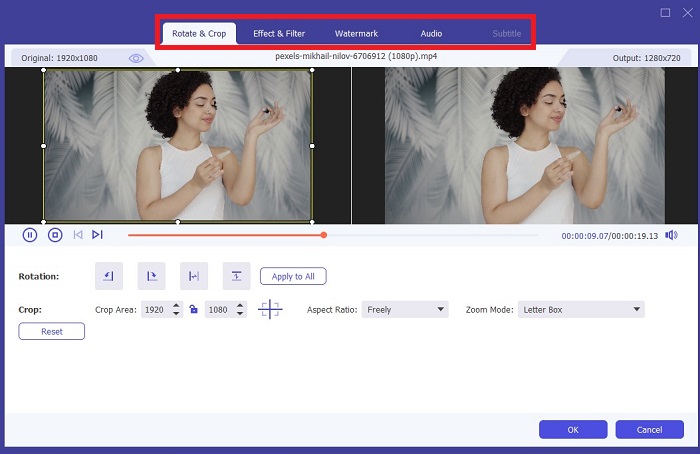
ขั้นตอนที่ 4 บันทึกผลงาน
เมื่อคุณพอใจกับวิดีโอที่ใส่สีเรียบร้อยแล้ว ให้กดปุ่ม Export เพื่อดำเนินการขั้นตอนสุดท้าย ต่อไปให้เปลี่ยนค่า fps ชื่อไฟล์ ความละเอียด และรูปแบบไฟล์ จากนั้นกด Start Export เพื่อบันทึกผลงานลงในโฟลเดอร์ภายในเครื่องของคุณ.
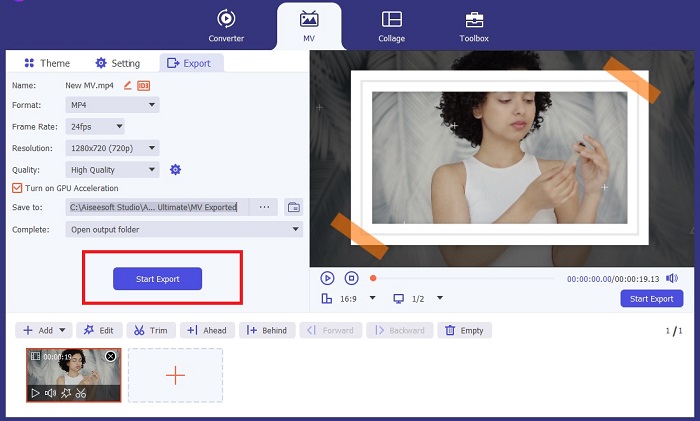
ส่วนที่ 2 ระบายสีวิดีโอออนไลน์ฟรี
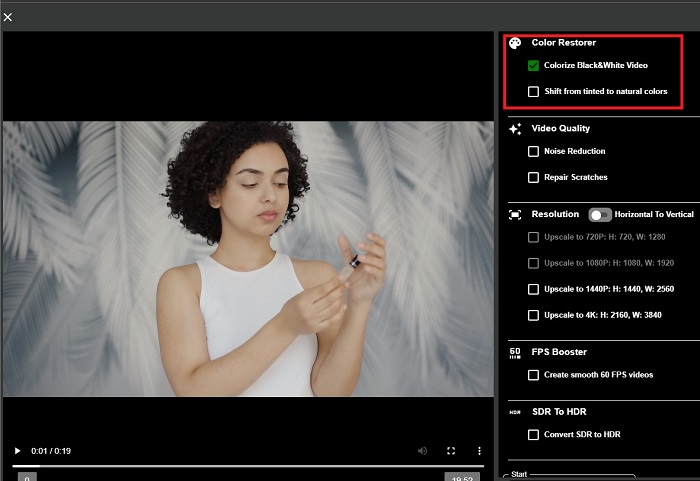
เครื่องมือออนไลน์เป็นวิธีที่ดีหากคุณไม่มีพื้นที่เก็บข้อมูลสำหรับติดตั้งโปรแกรมออฟไลน์ ด้วยการใช้เทคโนโลยี AI วิดีโอหรือภาพถ่ายที่น่าเบื่อของคุณจะกลับมามีชีวิตอีกครั้งทันที PickFrom เป็นวิดีโอออนไลน์ที่ให้สีฟรี ซึ่งจะช่วยให้ผู้ใช้เพิ่มสีสันให้กับวิดีโอโดยใช้อัลกอริธึมการปรับเทียบสี ใช้งานได้บนเว็บเบราว์เซอร์ส่วนใหญ่ รวมถึง Opera, Chrome, Safari และ Internet Explorer ยิ่งไปกว่านั้น โปรแกรมนี้ยังมีความปลอดภัย 100% เปอร์เซ็นต์ ต้องขอบคุณช่องทางการเข้ารหัสข้อมูลเพื่อป้องกันการบุกรุกข้อมูล
ขั้นตอนที่ 1 อันดับแรก เปิดเว็บเบราว์เซอร์ของคุณแล้วไปที่เว็บไซต์ PickFrom จากนั้นไปที่ส่วน Video Colorizer แล้วคลิก Add Files เพื่ออัปโหลดวิดีโอต้นฉบับของคุณ.
ขั้นตอนที่ 2 หลังจากอัปโหลดวิดีโอแล้ว เครื่องมือจะสร้างวิดีโอใส่สีด้วย AI ให้คุณโดยอัตโนมัติ คุณยังสามารถกดเมนูดรอปดาวน์ใน Settings ของเครื่องมือ Colorize Video แล้วเลือกระดับความละเอียดของไฟล์ระหว่าง 780p และ 1080p ได้.
ขั้นตอนที่ 3 สุดท้าย เลือกรูปแบบ Output ของไฟล์โดยคลิกขยายแท็บ Format คุณสามารถเลือกระหว่าง MP4, AVI และ MKV เมื่อพอใจกับผลลัพธ์แล้ว ให้คลิกปุ่ม Start เพื่อดาวน์โหลดวิดีโอขาวดำที่ถูกใส่สีเรียบร้อยแล้วของคุณ.
ส่วนที่ 3 ระบายสีวิดีโอบนมือถือ
เปลี่ยนภาพของคุณอย่างชาญฉลาดโดยใช้เครื่องมือแอปพลิเคชันที่พัฒนาโดย Google ชื่อ Colorize! ตามชื่อเลย โปรแกรมนี้เป็นตัวเลือกที่ยอดเยี่ยมสำหรับผู้ใช้ iOS และ Android ในแง่ของการใส่สีให้กับฟุตเทจเก่าของคุณ ยิ่งไปกว่านั้น คุณยังสามารถขยายแอปวิดีโอขาวดำให้มีสีได้โดยการเพิ่มฟิลเตอร์และเอฟเฟกต์พิเศษให้กับเอาท์พุตของคุณ และโดยการปรับแต่งอัตราส่วนการเลือกของเอาท์พุตของคุณ ต่อไปนี้เป็นคำแนะนำโดยย่อในการเพิ่มสีให้กับวิดีโอขาวดำด้วยแอปพลิเคชันมือถือนี้
ขั้นตอนที่ 1 คลิกปุ่ม Upload บนโปรแกรม แล้วเลือกไฟล์วิดีโอขาวดำที่คุณต้องการปรับแก้.
ขั้นตอนที่ 2 ระหว่างที่กำลังอัปโหลด เครื่องมือจะใส่สีให้โปรเจกต์ของคุณโดยอัตโนมัติ โดยใช้เวลามากน้อยขึ้นอยู่กับความยาวหรือขนาดไฟล์.
ขั้นตอนที่ 3 เมื่อภาพที่ถูกใส่สีปรากฏขึ้นแล้ว คุณสามารถปรับรายละเอียดของภาพได้โดยไปที่ส่วน Enhance คุณสามารถปรับโทนสี (hue) ความอิ่มสี (saturation) และความสดของสี (vibrance) ของภาพได้ จากนั้นแตะปุ่ม Download เพื่อบันทึกไฟล์ลงอุปกรณ์ของคุณ.
อ่านเพิ่มเติม:
วิธีปรับวิดีโอให้สว่างขึ้นอย่างมีประสิทธิภาพในไม่ถึงหนึ่งนาที
5 สุดยอดโปรแกรมตัดต่อวิดีโอบน Windows พร้อมทริกสำหรับมือโปรและมือใหม่ [2023]
ส่วนที่ 4 คำถามที่พบบ่อยเกี่ยวกับซอฟต์แวร์วิดีโอ AI Colorize
ผู้คนใช้สีสันให้กับวิดีโอเก่าๆ อย่างไร
การปรับสีวิดีโอและภาพถ่ายขาวดำสามารถทำได้ผ่านเครื่องมือปรับแต่งดิจิทัล เช่น โปรแกรมปรับสีวิดีโอหรือโปรแกรมตัดต่อวิดีโอ บางครั้งคุณต้องปรับการตั้งค่าด้วยตนเองเพื่อให้ได้ตามที่คุณต้องการ หรือใช้ซอฟต์แวร์วิดีโอปรับสีด้วย AI
เป็นไปได้ไหมที่จะปรับสีวิดีโอขาวดำ?
แน่นอน ใช่แล้ว! วันนี้การแก้ไขโทนสีภาพของวิดีโอของคุณคือ 100% ตามคำแนะนำ ควรปรับสีวิดีโอของคุณให้เป็นมาตรฐานก่อนที่จะแก้ไข
เหตุใดฉันจึงต้องปรับเกรดวิดีโอ?
การจัดระดับสีเป็นกระบวนการสำคัญที่ผู้สร้างภาพยนตร์ต้องดำเนินการเมื่อทำการสรุปเอาต์พุต ด้วยกระบวนการนี้ พวกเขาจะได้โทนสีที่สม่ำเสมอเพื่อเพิ่มเอฟเฟกต์ภาพที่โดดเด่นให้กับผู้ชม
การปรับสีภาพถ่ายและวิดีโอใช้เวลานานเท่าใด?
ตราบใดที่คุณมีเครื่องมือที่เหมาะสมบนอุปกรณ์ของคุณ การปรับสีรูปภาพและวิดีโอเก่าก็สามารถทำได้ทันที ในทางกลับกัน ให้พิจารณาขนาดและความยาวของวิดีโอของคุณ
วิดีโอที่มีสีของฉันแม่นยำหรือไม่?
โปรแกรมปรับสีวิดีโอช่วยให้คุณได้สีที่เกือบจะแม่นยำของวิดีโอ คุณยังอาจขอคำแนะนำจากผู้เชี่ยวชาญเพื่อช่วยคุณระบุสีดั้งเดิมโดยการจับคู่วิดีโอ
สรุป
จบเพียงเท่านี้! ตอนนี้เมื่อคุณได้เรียนรู้วิธีใส่สีให้วิดีโอขาวดำที่ดีที่สุด 3 วิธี ทั้งบนซอฟต์แวร์ออฟไลน์ ออนไลน์ และบนมือถือแล้ว การตัดสินใจก็ไม่ใช่เรื่องยากอีกต่อไป ด้วยโปรแกรมใส่สีวิดีโอด้วย AI เครื่องมือจะเติมสีลงในวิดีโอของคุณโดยอัตโนมัติ แต่ก็จะไม่เปิดให้คุณปรับตั้งค่าสีสำคัญ ๆ ได้มากเท่ากับโซลูชันออฟไลน์อย่าง Video Converter Ultimate.
-
 วิธีที่ปราศจากปัญหาในการแปลงรูปภาพเป็นขาวดำ
 คุณต้องการทำให้ภาพถ่ายของคุณดูย้อนอดีตหรือไม่? เรามีคำตอบให้คุณ โพสต์นี้จะเสนอวิธีที่น่าทึ่งในการแปลงภาพสีเป็นขาวดำ
-
 คู่มือแนะนำการใช้งาน: 7 Volume Booster ที่ดีที่สุดในทุกแพลตฟอร์ม
 ต้องการทราบตัวเพิ่มระดับเสียงที่มีให้บริการบนพีซี, Mac, ออนไลน์, Android และ iOS หรือไม่? จากนั้นอ่านบทความนี้พร้อมกับเครื่องมือต่างๆ ที่คุณสามารถเลือกได้
-
 ตัวปรับขนาดวิดีโอ Instagram อันดับต้น ๆ เพื่อปรับแต่งเนื้อหา Instagram ของคุณ
 ดูคำแนะนำของเราในการปรับขนาดวิดีโอสำหรับ Instagram เรียนรู้วิธีขัดเกลาเนื้อหาของคุณและเพิ่มการมีส่วนร่วมบนแพลตฟอร์มโซเชียลมีเดียที่ได้รับความนิยมมากที่สุดในโลก
