


 Video Converter Ultimate
 บันทึกหน้าจอ
 ซ่อมวิดีโอ
 ดาวน์โหลดอย่างปลอดภัย
การแก้ไขข้อผิดพลาด 0xc00d36e5 อย่างรวดเร็วเพื่อให้วิดีโอของคุณเล่นอีกครั้ง
กำลังพยายามเล่นวิดีโอแต่มีรหัสข้อผิดพลาด 0xc00d36e5 ปรากฏขึ้น และขึ้นข้อความว่าไฟล์ไม่สามารถเล่นได้ น่าหงุดหงิดใช่ไหม? โดยเฉพาะอย่างยิ่งเวลาที่เตรียมตัวจะทำงานหรือดูวิดีโอเรียบร้อยแล้ว แต่อย่าเพิ่งเครียด! เรามีวิธีแก้ปัญหาให้คุณ ไม่ว่าจะเป็นการใช้เครื่องมือซ่อมแซมวิดีโออัตโนมัติหรือการแก้ไขด้วยตนเอง บทความนี้ได้รวบรวมทุกแนวทางไว้อย่างครบถ้วนให้คุณแล้ว ต่อไปในหัวข้อถัดไป เราจะพาคุณไปดูทั้งวิธีอัตโนมัติและวิธีแบบแมนนวล เพื่อให้คุณมีตัวเลือกหลายรูปแบบให้เลือกใช้ มาดูวิธีแก้ปัญหาเหล่านี้ไปทีละขั้นตอน เพื่อให้คุณกลับมาดูวิดีโอได้อย่างราบรื่นโดยไม่มีการสะดุดอีกต่อไป.

ส่วนที่ 1 เหตุใดวิดีโอของคุณจึงได้รับรหัสข้อผิดพลาด 0xc00d36e5
รหัสข้อผิดพลาด 0xc00d36e5 เกี่ยวข้องกับปัญหาการเล่นสื่อบน Windows โดยทั่วไปข้อผิดพลาดนี้บ่งชี้ว่าไฟล์สื่อที่คุณพยายามเล่นเข้ากันไม่ได้กับเครื่องเล่นสื่อหรือมีปัญหากับตัวไฟล์เอง อาจแนะนำว่าไฟล์เสียหาย ไม่อยู่ในรูปแบบที่รองรับ หรือมีปัญหากับตัวแปลงสัญญาณที่จำเป็นสำหรับการเล่น
ต่อไปนี้คือสาเหตุทั่วไปบางประการที่ทำให้วิดีโอของคุณได้รับรหัสข้อผิดพลาด 0xc00d36e5:
ความเข้ากันได้ของรูปแบบไฟล์
ความไม่เข้ากันของรูปแบบวิดีโอส่งผลต่อความสามารถในการเล่นไฟล์วิดีโอหรือไฟล์เสียงที่คุณกำลังเล่น
ไฟล์เสียหาย
ไฟล์สื่อที่เสียหายอาจทำให้ไม่สามารถเล่นได้
ปัญหาเรื่องโค้ดेक
ตัวแปลงสัญญาณเป็นส่วนประกอบซอฟต์แวร์ที่เข้ารหัสและถอดรหัสไฟล์มัลติมีเดีย หากตัวแปลงสัญญาณที่จำเป็นหายไปหรือล้าสมัย อาจทำให้เกิดข้อผิดพลาดในการเล่นได้
ปัญหาจากโปรแกรมเล่นสื่อ
เครื่องเล่นสื่ออาจล้าสมัยหรือกำหนดค่าไม่ถูกต้อง
ส่วนที่ 2 วิธีการด่วนในการแก้ไขข้อผิดพลาด 0xc00d36e5
การใช้เครื่องมือซ่อมแซมวิดีโอเป็นวิธีที่รวดเร็วและมีประสิทธิภาพในการแก้ไขรหัสข้อผิดพลาด 0xc00d36e5 เครื่องมือเหล่านี้มีขั้นตอนการซ่อมแซมอัตโนมัติที่สามารถตรวจพบและแก้ไขปัญหาทั่วไปในไฟล์วิดีโอได้อย่างรวดเร็ว โดยต้องใช้ความรู้ด้านเทคนิคเพียงเล็กน้อยด้วยหน้าตาโปรแกรมที่ใช้งานง่าย หนึ่งในเครื่องมือซ่อมแซมวิดีโอที่ดีที่สุดและหลากหลายที่สุดที่สามารถใช้ได้ในปัจจุบันคือ FVC Video Repair เครื่องมือนี้พิสูจน์แล้วว่าเป็นทางออกที่มีประสิทธิภาพสำหรับการซ่อมแซมวิดีโอที่พบรหัสข้อผิดพลาด 0xc00d36e5 โดยเชี่ยวชาญในการซ่อมแซมวิดีโอที่เล่นไม่ได้เนื่องจากปัญหาต่าง ๆ เช่น ความเสียหายของอุปกรณ์หรือการล่มของระบบ และยังรองรับรูปแบบไฟล์วิดีโอหลากหลาย นอกจากนี้ ด้วยการใช้ระบบอัลกอริทึม AI รุ่นใหม่ล่าสุด FVC Video Repair สามารถซ่อมแซมไฟล์แบบอัตโนมัติเต็มรูปแบบ พร้อมส่วนติดต่อผู้ใช้ที่เป็นมิตรและมีอัตราความสำเร็จสูง หากต้องการใช้เครื่องมือนี้ ให้ทำตามขั้นตอนด้านล่าง:
ขั้นตอนที่ 1 อันดับแรก ดาวน์โหลดซอฟต์แวร์โดยคลิกที่ปุ่มดาวน์โหลดฟรี.
ดาวน์โหลดฟรีสำหรับ Windows 7 หรือใหม่กว่าดาวน์โหลดอย่างปลอดภัย
ดาวน์โหลดฟรีสำหรับ macOS 10.7 หรือใหม่กว่าดาวน์โหลดอย่างปลอดภัย
ขั้นตอนที่ 2 หลังจากติดตั้งเสร็จแล้ว ให้เปิดโปรแกรม จากนั้นคลิกปุ่ม เครื่องหมายบวกสีแดง เพื่อเพิ่มวิดีโอที่มีรหัสข้อผิดพลาด 0xc00d36e5 และเพิ่มวิดีโอตัวอย่างโดยคลิกปุ่ม เครื่องหมายบวกสีน้ำเงิน.
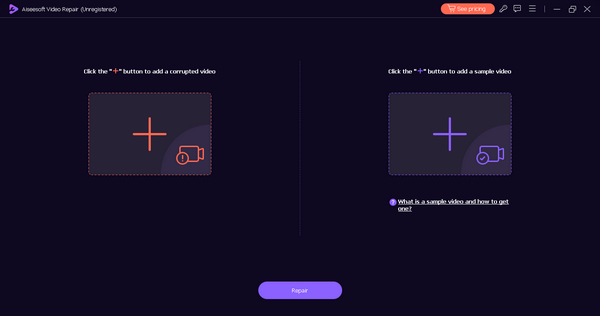
ขั้นตอนที่ 3 คลิกปุ่ม ซ่อมแซม เพื่อเริ่มกระบวนการซ่อมแซม.
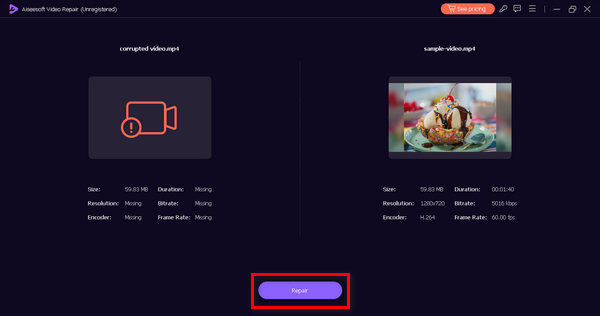
ขั้นตอนที่ 4 สุดท้าย คลิกปุ่ม ดูตัวอย่าง เพื่อตรวจสอบว่ารหัสข้อผิดพลาด 0xc00d36e5 หายไปแล้วหรือยัง และวิดีโอเล่นได้อย่างราบรื่นหรือไม่ หากทุกอย่างเรียบร้อยแล้ว คุณสามารถบันทึกไฟล์ได้.
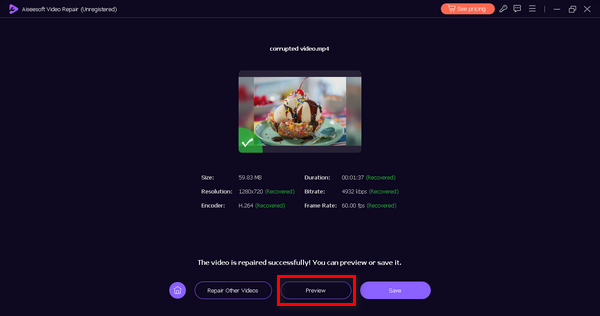
FVC Video Repair นับว่าเป็นตัวเลือกที่เชื่อถือได้และมีประสิทธิภาพในการแก้ปัญหา วิดีโอเล่นไม่ได้ หรือรหัสข้อผิดพลาดวิดีโอ 0xc00d36e5 และช่วยให้การเล่นวิดีโอกลับมาเป็นปกติลื่นไหลอีกครั้ง.
ส่วนที่ 3 2 วิธีการแก้ไขข้อผิดพลาด 0xc00d36e5 ด้วยตนเอง
ต่อไปนี้เป็นวิธีการด้วยตนเองที่คุณสามารถทำได้เพื่อแก้ไขรหัสข้อผิดพลาดวิดีโอ 0xc00d36e5 อย่างมีประสิทธิภาพ:
วิธีที่ 1: การอัปเดต Windows
การอัปเดตระบบปฏิบัติการ Windows ยังสามารถอัปเดต Windows Media Player และมีส่วนช่วยในการแก้ไขรหัสข้อผิดพลาด 0xC00D36E5 Windows Media Player ได้รับการบูรณาการอย่างใกล้ชิดกับสถาปัตยกรรมระบบโดยรวม และการอัปเดตระบบปฏิบัติการมักจะรวมถึงการปรับปรุง การแก้ไขจุดบกพร่อง และคุณลักษณะใหม่สำหรับส่วนประกอบต่างๆ รวมถึงการเล่นสื่อ ด้านล่างนี้เป็นกระบวนการทีละขั้นตอนในการอัปเดตหน้าต่างของคุณ:
ขั้นตอนที่ 1 ก่อนอื่น ไปที่การตั้งค่า (Settings) แล้วคลิก ระบบ (Systems).
ขั้นตอนที่ 2 คุณจะเห็น Windows Update ที่มุมขวาของหน้าจอ ให้คลิกเข้าไป.
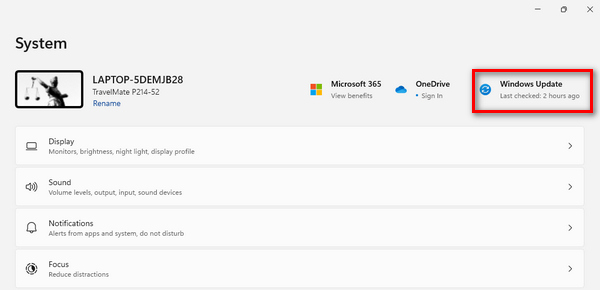
ขั้นตอนที่ 3 จากนั้นคุณจะเห็นปุ่มที่เขียนว่า Check for Updates ให้คลิกที่ปุ่มนั้น.
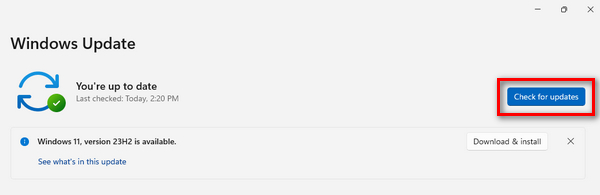
ขั้นตอนที่ 4. จากนั้นให้ ดาวน์โหลดและติดตั้ง (Download and Install) การอัปเดตใหม่.
ด้วยการทำให้ Windows ของคุณทันสมัยอยู่เสมอผ่านทาง Windows Update คุณมั่นใจได้ว่า Windows Media Player ได้รับการปรับปรุงล่าสุด รวมถึงตัวแปลงสัญญาณที่อัปเดต การปรับปรุงความเข้ากันได้ และการเพิ่มประสิทธิภาพโดยรวม
วิธีที่ 2: การอัพเดตไดรเวอร์การ์ดแสดงผล
การอัปเดตไดรเวอร์การ์ดแสดงผลถือเป็นสิ่งสำคัญ เนื่องจากการเล่นวิดีโอต้องอาศัยการประมวลผลกราฟิกที่เหมาะสมเป็นอย่างมาก ไดรเวอร์จอแสดงผลที่ล้าสมัยหรือเข้ากันไม่ได้อาจทำให้เกิดข้อผิดพลาดระหว่างการเล่นวิดีโอ ด้านล่างนี้เป็นกระบวนการทีละขั้นตอนในการอัพเดตไดรเวอร์การ์ดแสดงผล:
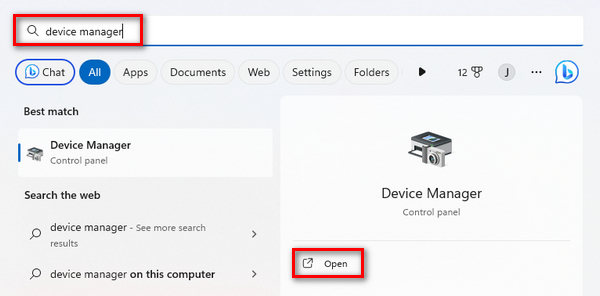
ขั้นตอนที่ 1 ไปที่เมนู Start คุณจะเห็นช่องค้นหา ให้พิมพ์ว่า Device Manager แล้วคลิก Open.
ขั้นตอนที่ 2 จากนั้นคลิกที่ Display Adapter แล้วคลิกขวาและเลือก Scan for Hardware Changes.
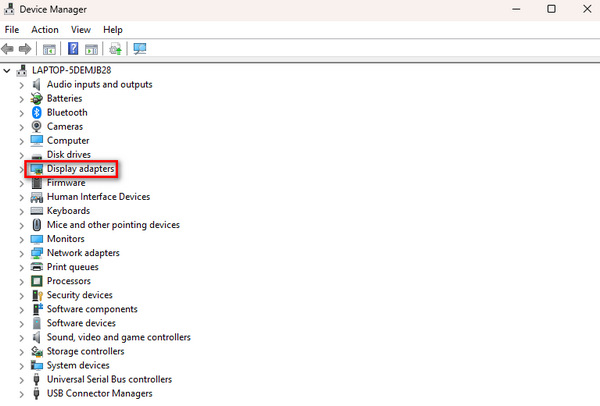
หากไม่มีการเปลี่ยนแปลงในฮาร์ดแวร์การ์ดแสดงผลของคุณ คุณสามารถข้ามขั้นตอนต่อไปนี้ได้
ขั้นตอนที่ 3 หากต้องการอัปเดตตัวแสดงผล (display adapter) ให้คลิกขวาที่อุปกรณ์นั้น แล้วคลิก Update Driver.
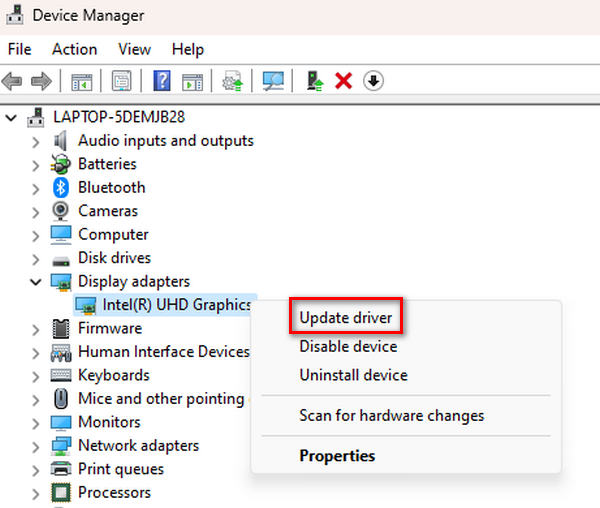
ขั้นตอนที่ 4. จากนั้นคลิกSearch Automatically for Driver.
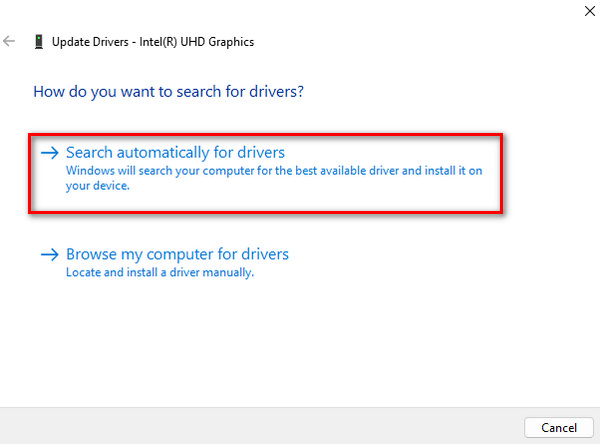
ด้วยการอัปเดตไดรเวอร์ ผู้ใช้สามารถแก้ไขปัญหาที่เกี่ยวข้องกับการเรนเดอร์และการแสดงผลวิดีโอ รวมถึงปัญหา บัฟเฟอร์วิดีโอ และรหัสข้อผิดพลาดวิดีโอ 0xC00D36E5 พร้อมทั้งช่วยปรับปรุงประสบการณ์การเล่นสื่อโดยรวมบนระบบของตน.
ส่วนที่ 4. คำถามที่พบบ่อยเกี่ยวกับข้อผิดพลาด 0xcd00d36e5
เหตุใดวิดีโอจึงไม่สามารถใช้งานได้?
วิดีโออาจไม่สามารถใช้งานได้เนื่องจากสาเหตุหลายประการ เช่น ไฟล์เสียหาย รูปแบบที่เข้ากันไม่ได้ สื่อจัดเก็บข้อมูลเสียหาย หรือปัญหาเกี่ยวกับเครื่องเล่นสื่อ นอกจากนี้ ปัญหาเครือข่าย การดาวน์โหลดที่ไม่สมบูรณ์ หรือการหยุดชะงักระหว่างการโอนไฟล์อาจทำให้วิดีโอใช้งานไม่ได้
เหตุใดวิดีโอของฉันจึงเล่นไม่ได้
วิดีโอของคุณอาจไม่สามารถเล่นได้เนื่องจากปัจจัยต่างๆ เช่น การทุจริต ตัวแปลงสัญญาณหายไป หรือรูปแบบที่เข้ากันไม่ได้ ความเสียหายของอุปกรณ์ ระบบล่ม หรือการโจมตีของไวรัสอาจทำให้วิดีโอไม่สามารถเล่นได้ ในกรณีเช่นนี้ การใช้เครื่องมือซ่อมแซมวิดีโอหรือการอัพเดตเครื่องเล่นมีเดียและส่วนประกอบของระบบมักจะสามารถแก้ไขปัญหาได้
ฉันจะกู้คืนวิดีโอที่ไม่สามารถเล่นได้อย่างไร
การกู้คืนวิดีโอที่ไม่สามารถเล่นได้สามารถทำได้หลายวิธี การใช้เครื่องมือซ่อมแซมวิดีโอเป็นแนวทางทั่วไป เครื่องมือเหล่านี้จะวิเคราะห์และแก้ไขปัญหาภายในไฟล์วิดีโอโดยอัตโนมัติ หรือคุณสามารถลองอัปเดตเครื่องเล่นสื่อ ตรวจสอบความเข้ากันได้ของไฟล์ หรือซ่อมแซมไฟล์ด้วยตนเองโดยใช้คำสั่งหรือซอฟต์แวร์พิเศษ หากคุณมีข้อมูลสำรอง การคืนค่าจากเวอร์ชันก่อนหน้าอาจเป็นทางเลือกเช่นกัน
การหยุดชะงักของการถ่ายโอนไฟล์มีบทบาทอย่างไรในกรณีที่วิดีโอไม่พร้อมใช้งาน
การหยุดชะงักของการถ่ายโอนไฟล์อาจทำให้วิดีโอใช้งานไม่ได้อย่างมาก หากเกิดการหยุดชะงักในระหว่างกระบวนการถ่ายโอน อาจทำให้การดาวน์โหลดไม่สมบูรณ์หรือไฟล์วิดีโอเสียหายได้ ปัญหาเครือข่ายหรือการหยุดกะทันหันระหว่างการคัดลอกหรือย้ายวิดีโอไปยังตำแหน่งจัดเก็บข้อมูลอื่นอาจส่งผลให้สูญเสียความสมบูรณ์ของข้อมูล ทำให้วิดีโอไม่สามารถเล่นได้ การดูแลให้การถ่ายโอนไฟล์มีความเสถียรและไม่สะดุดสามารถบรรเทาปัญหานี้ได้
สรุป
โดยสรุปแล้ว การจัดการกับข้อผิดพลาด 0xc00d36e5 ไม่ใช่เรื่องยากเมื่อคุณมีข้อมูลวิธีการแก้ไขที่ถูกต้อง อย่างไรก็ตาม วิธีแก้ไขจะแตกต่างกันไปตามสาเหตุของข้อผิดพลาด ดังนั้นการทำความเข้าใจต้นตอของปัญหาจึงเป็นเรื่องสำคัญ.
-
 แก้ไขข้อผิดพลาด 0xc00d36c4 ด้วย 3 วิธีการพิสูจน์แล้ว [2024]
 พบรหัสข้อผิดพลาดวิดีโอ 0xc00d36c4 ขณะเล่นวิดีโอหรือไม่ ปฏิบัติตามคำแนะนำของเราสำหรับขั้นตอนที่รวดเร็วในการแก้ไขปัญหาและเพลิดเพลินกับการเล่นวิดีโออย่างต่อเนื่อง
-
 วิธีแก้ไขรหัสข้อผิดพลาดวิดีโอ 224002 อย่างรวดเร็วอย่างมีประสิทธิภาพ
 คุณกำลังประสบปัญหาในการค้นหาวิธีแก้ปัญหาที่ดีที่สุดในการแก้ไขรหัสข้อผิดพลาด 224002 อย่างรวดเร็วหรือไม่? เรียนรู้ได้ในบทความนี้และแก้ไขได้ด้วยตัวเองอย่างง่ายดาย
-
 วิธีแก้ไขรหัสข้อผิดพลาด 102630 อย่างรวดเร็วและด้วยตนเอง
 อย่าปล่อยให้รหัสข้อผิดพลาด 102630 มาทำลายประสบการณ์การรับชมของคุณ! เรียนรู้วิธีแก้ไขด้วยคำแนะนำที่เป็นประโยชน์ของเรา ปฏิบัติตามคำแนะนำที่ครอบคลุมเหล่านี้เพื่อการแก้ไขอย่างรวดเร็ว
