


 Video Converter Ultimate
 บันทึกหน้าจอ
 ซ่อมวิดีโอ
3 วิธีในการลบข้อความออกจากรูปภาพ Photoshop
การเพิ่มข้อความลงในรูปภาพสามารถยกระดับการสื่อสารและความคิดสร้างสรรค์ได้อย่างมาก ทำให้สามารถถ่ายทอดข้อความได้อย่างชัดเจนและง่ายดายยิ่งขึ้น อย่างไรก็ตาม สถานการณ์อาจเกิดขึ้นเมื่อจำเป็นต้องลบข้อความออกด้วยเหตุผลหลายประการ ไม่ว่าคุณจะทำงานกับเครื่องมือระดับมืออาชีพ เช่น Photoshop เลือกใช้ PicsArt ที่มีความอเนกประสงค์ หรือสำรวจโซลูชันออนไลน์ เช่น FVC Online Watermark Remover ไม่ต้องกังวลอีกต่อไป บทความนี้ออกแบบมาเพื่อช่วยคุณกำจัดข้อความออกจากรูปภาพได้อย่างมีประสิทธิภาพ ไม่ว่าจะเป็นสำหรับซอฟต์แวร์หรือเครื่องมือบนเว็บ
กำลังครุ่นคิดเกี่ยวกับคำถามว่าจะลบตัวอักษรออกจากรูปภาพอย่างไรใช่ไหม? บทความนี้มีหัวข้อย่อยที่จะช่วยให้คุณเรียนรู้ขั้นตอนแบบทีละขั้นที่ออกแบบมาให้เหมาะกับแต่ละแพลตฟอร์ม ช่วยให้คุณจัดการกระบวนการได้อย่างมั่นใจและได้ภาพที่ดูเนี้ยบอย่างราบรื่น ลบตัวอักษรได้ในพริบตาเพียงอ่านบทความนี้ต่อไป แล้วคุณจะสัมผัสได้ถึงความสะดวกสบายของการลบข้อความ และยกระดับคุณภาพคอนเทนต์ภาพของคุณได้ตั้งแต่วันนี้!

ส่วนที่ 1. วิธีลบข้อความออกจากรูปภาพใน Photoshop
Adobe Photoshop มีชื่อเสียงในฐานะขุมพลังสำหรับการแก้ไขภาพ เมื่อลบข้อความออกจากรูปภาพใน Photoshop สิ่งสำคัญคือต้องจำไว้ว่าต้องทำงานกับเลเยอร์ที่ซ้ำกันและอื่นๆ ซึ่งจะทำให้แน่ใจได้ถึงการรักษาภาพต้นฉบับของคุณ ทำให้คุณสามารถทดลองและทำการเปลี่ยนแปลงได้โดยไม่ต้องแก้ไขไฟล์ต้นฉบับ แต่ในกรณีนี้ คุณจะได้เรียนรู้ความสามารถของเครื่องมือ Content-Aware Fill ใน Photoshop เพื่อลบข้อความที่ไม่ต้องการออกจากรูปภาพของคุณ
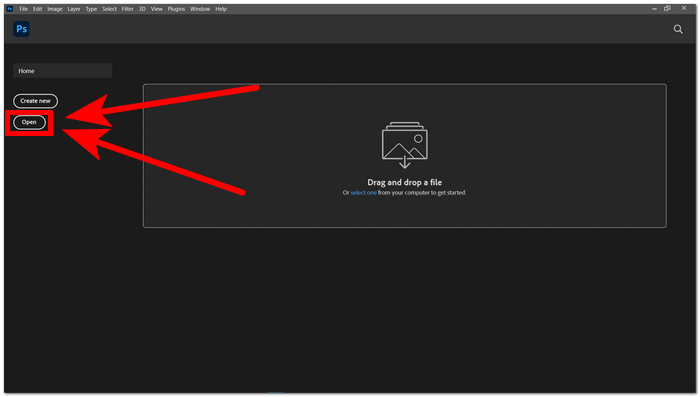
ขั้นตอนที่ 1 เปิด Adobe Photoshop จากเดสก์ท็อปของคุณ หากคุณยังไม่มีซอฟต์แวร์นี้ สามารถไปที่เว็บไซต์ทางการของพวกเขาเพื่อติดตั้งได้ เมื่อติดตั้งเสร็จแล้ว ให้เปิดโปรแกรมขึ้นมา และจากในอินเทอร์เฟซ ให้เปิดรูปภาพที่คุณต้องการลบตัวอักษรออก.
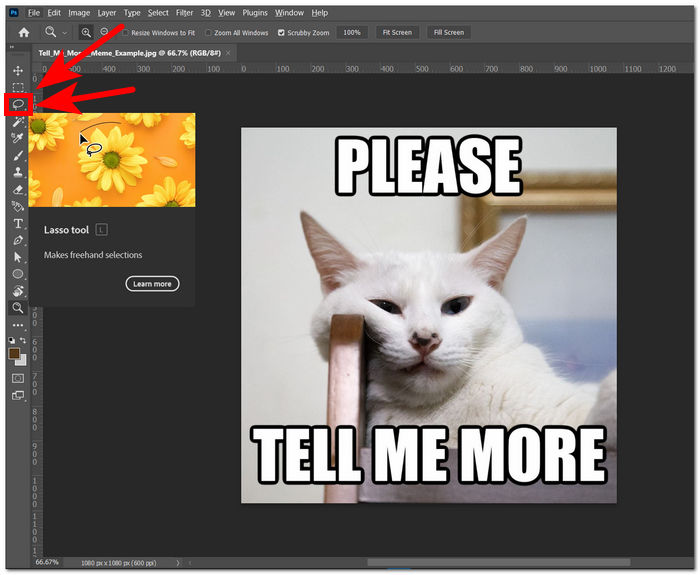
ขั้นตอนที่ 2 เมื่อรูปภาพของคุณถูกโหลดเข้ามาในโปรแกรมแล้ว ให้เลือกLasso Tool ที่อยู่ในแถบเครื่องมือด้านซ้ายมือ.
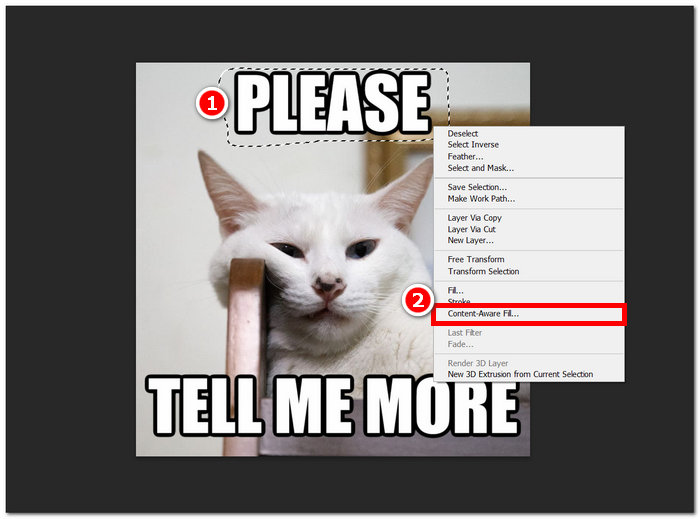
ขั้นตอนที่ 3 จากนั้นคุณต้องไล่เส้นหรือวงล้อมข้อความที่ไม่ต้องการในรูปภาพของคุณ หลังจากไล่เส้นข้อความที่ไม่ต้องการเสร็จแล้ว ให้คลิกขวาที่เมาส์และเลือก Content-Aware Fill ในเมนูตั้งค่า.
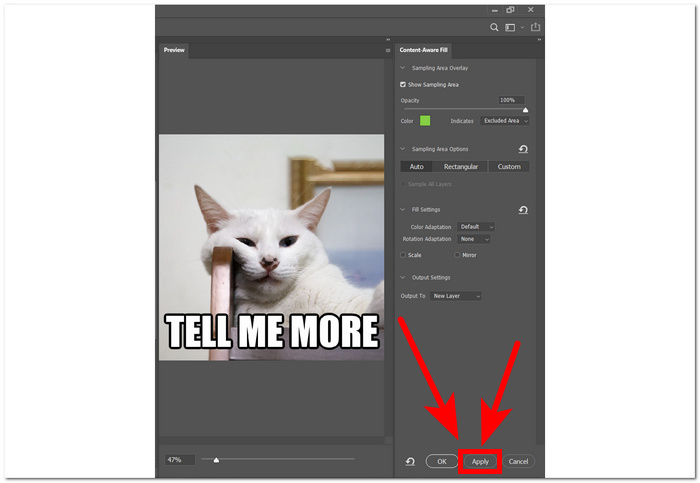
ขั้นตอนที่ 4 หลังจากเลือก Content-Aware Fill แล้ว คุณจะสามารถพรีวิวผลลัพธ์หลังจากลบข้อความออกจากรูปภาพได้ เมื่อคุณพอใจกับผลลัพธ์แล้ว ให้คลิกที่ Apply เพื่อบันทึกการเปลี่ยนแปลง.
การทำขั้นตอนป้องกันไว้ล่วงหน้าเช่นนี้แสดงให้เห็นถึงความเป็นมืออาชีพในการแก้ไขภาพใน Photoshop ช่วยให้คุณมีสภาพแวดล้อมที่ปลอดภัยและยืดหยุ่นสำหรับการลองสร้างสรรค์ นอกจากนี้ หลังจากลบข้อความออกแล้ว คุณยังสามารถใช้ Photoshop เพื่อเปลี่ยนพื้นหลังรูปภาพของคุณ ได้อีกด้วย.
ส่วนที่ 2 วิธีลบข้อความออกจากรูปภาพออนไลน์
ไตร่ตรองคำถามว่าจะลบข้อความออกจากรูปภาพได้อย่างไรฟรี? FVC Online Watermark Remover เป็นเครื่องมือลบข้อความหรือลายน้ำบนเว็บที่จะลบข้อความที่ไม่ต้องการในภาพของคุณได้อย่างรวดเร็วและฟรี เครื่องมือดังกล่าวรองรับรูปแบบที่มีแนวโน้มว่าจะใช้ในภาพใด ๆ มากที่สุด เครื่องมือนี้รวมเข้ากับ AI เพื่อลบข้อความออกจากรูปภาพอย่างรวดเร็วและปลอดภัยเพื่อให้ได้ผลลัพธ์ที่แม่นยำ
ขั้นตอนที่ 1 ไปที่เว็บไซต์ทางการของ FVC Online Watermark Remover.
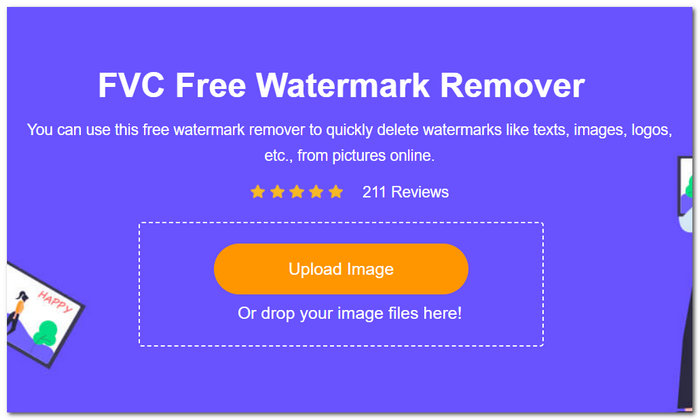
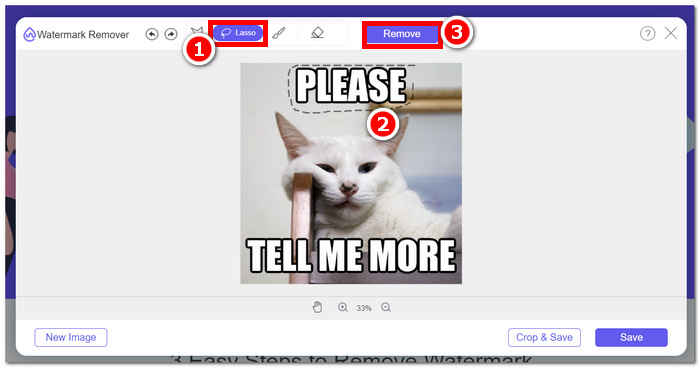
ขั้นตอนที่ 2 บนหน้าเว็บไซต์ ให้อัปโหลดรูปภาพของคุณในช่องอัปโหลดรูปภาพ เมื่อรูปภาพถูกอัปโหลดแล้ว ให้เลือกเครื่องมือ Lasso ที่อยู่บริเวณด้านบนของหน้าจอ แล้วไล่เส้นเครื่องมือนี้ล้อมรอบข้อความที่คุณต้องการลบ.
ขั้นตอนที่ 3 หลังจากไล่เส้นล้อมรอบข้อความที่ไม่ต้องการเสร็จแล้ว คลิกปุ่ม Remove เพื่อให้ระบบลบข้อความออกจากรูปภาพโดยอัตโนมัติ.
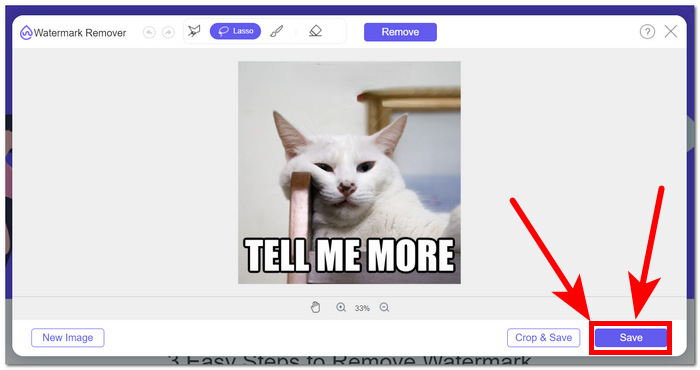
ขั้นตอนที่ 4 เมื่อเครื่องมือลบข้อความออกจากรูปภาพของคุณเสร็จแล้ว ให้คลิกที่ Save เพื่อดาวน์โหลดรูปภาพกลับมาที่เดสก์ท็อปของคุณ.
โดยสรุป เครื่องมือออนไลน์อย่าง FVC Online Watermark Remover เป็นตัวช่วยที่ดีเยี่ยมสำหรับทุกคนที่เพิ่งเริ่มแก้ไขงานดิจิทัล และผู้ที่ต้องการลบข้อความโดยไม่ต้องดาวน์โหลดซอฟต์แวร์และใช้เครื่องมือมากมาย กล่าวคือ การใช้เครื่องมือที่สะดวกและช่วยคุณประหยัดเวลานั้นถูกต้องเท่านั้น นั่นคือจุดแข็งประการหนึ่งของการใช้เครื่องมือออนไลน์
ส่วนที่ 3. วิธีลบข้อความออกจากรูปภาพโดยใช้ Adobe Illustrator
Adobe Illustrator ซึ่งส่วนใหญ่ได้รับการยอมรับว่าเป็นโปรแกรมแก้ไขกราฟิกแบบเวกเตอร์ มีความสามารถรอบด้านในการขยายยูทิลิตี้ไปยังงานแก้ไขภาพเฉพาะ สิ่งนี้ขยายขอบเขตการบังคับใช้ให้เกินกว่าขอบเขตของกราฟิกแบบเวกเตอร์ โดยเฉพาะอย่างยิ่ง Illustrator พิสูจน์ได้ว่ามีประโยชน์เป็นพิเศษเมื่อต้องเผชิญหน้ากับรูปภาพที่เชื่อมโยงทั้งองค์ประกอบข้อความและเวกเตอร์ การผสานรวมความสามารถในการแก้ไขเวกเตอร์และข้อความได้อย่างราบรื่นทำให้ผู้ใช้สามารถจัดการองค์ประกอบการออกแบบที่หลากหลายภายในแพลตฟอร์มเดียว ทำให้ Illustrator เป็นตัวเลือกที่ต้องการสำหรับผู้ที่ทำงานในโครงการที่ต้องการการผสมผสานระหว่างความแม่นยำของกราฟิกและองค์ประกอบข้อความ
ขั้นตอนที่ 1 เปิดรูปภาพของคุณใน Illustrator หากคุณยังไม่มีซอฟต์แวร์ Adobe Illustrator ให้ไปที่เว็บไซต์ทางการของพวกเขาเพื่อดาวน์โหลดและติดตั้งก่อน เมื่อโปรแกรมติดตั้งเรียบร้อยแล้ว จึงเปิดโปรแกรมและโหลดรูปภาพของคุณเข้าไป.
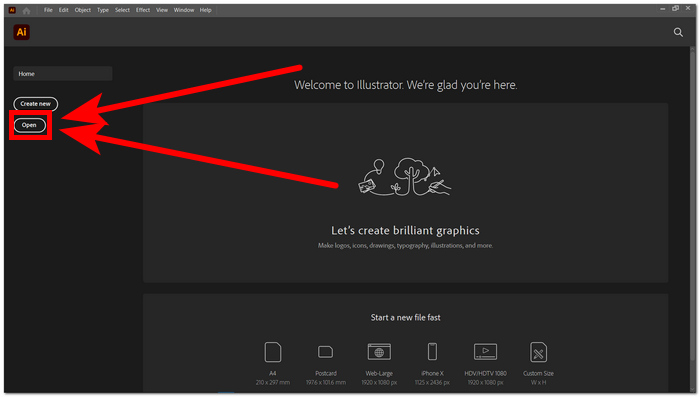
ขั้นตอนที่ 2 เมื่อรูปภาพของคุณถูกโหลดเข้ามาในโปรแกรมแล้ว ให้คลิกที่เมนู Window ซึ่งอยู่บริเวณมุมซ้ายบนของหน้าจอ ภายใต้เมนู Window ให้คลิกที่ Image Trace.
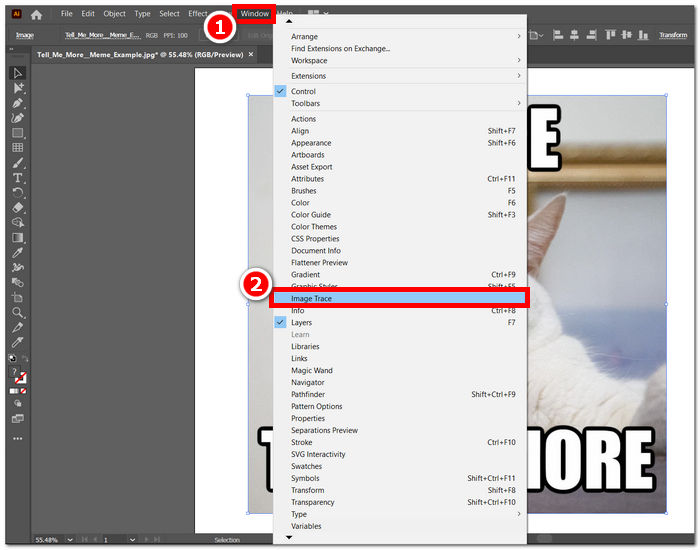
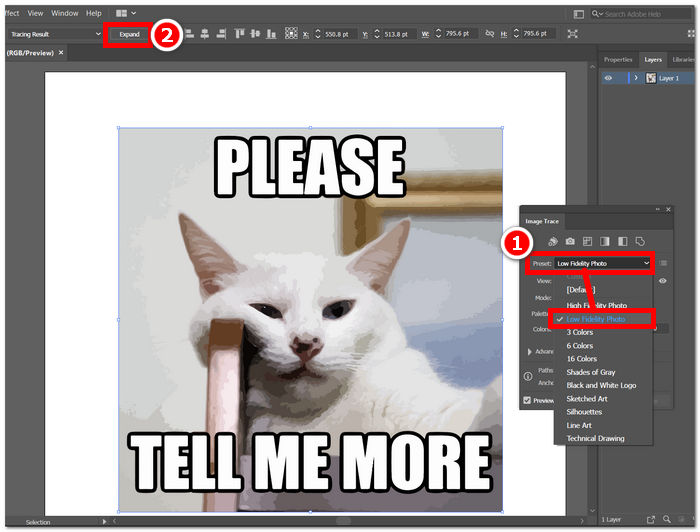
ขั้นตอนที่ 3 จะมีกล่องการตั้งค่าของ Image Trace เด้งขึ้นมา ใต้ช่อง Preset ให้เลือก Low Fidelity Photo จากนั้นปุ่ม Expand จะปรากฏขึ้นที่มุมซ้ายบนของหน้าจอ เพียงคลิกที่ปุ่มนั้นเพื่อดำเนินการต่อ.
ขั้นตอนที่ 4 ตอนนี้คุณสามารถลบข้อความในรูปภาพได้ด้วยตนเอง โดยดับเบิลคลิกที่ข้อความแต่ละส่วน แล้วกดปุ่ม Del บนแป้นพิมพ์ เมื่อคุณลบข้อความทั้งหมดด้วยตนเองเสร็จแล้ว ก็สามารถบันทึกไฟล์ลงบนเดสก์ท็อปได้ เพียงไปที่เมนู File ที่มุมซ้ายบนของหน้าจอแล้วคลิก Save.
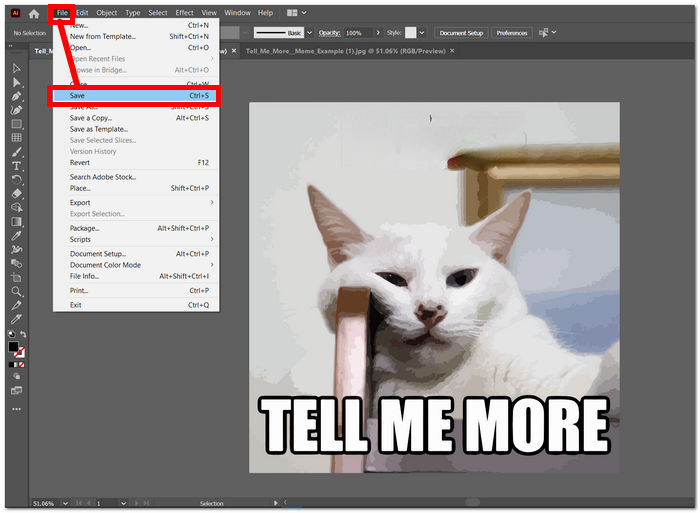
การใช้ Adobe Illustrator เพื่อลบข้อความออกจากรูปภาพไม่ใช่การใช้งานหลักของโปรแกรม เพราะโปรแกรมนี้เน้นด้านกราฟิกแบบเวกเตอร์เป็นหลัก คุณยังสามารถ ปรับขนาดรูปภาพใน Illustrator ได้อย่างง่ายดาย จุดแข็งของ Adobe Illustrator อยู่ที่การจัดการรูปทรงและมิติของวัตถุ จึงไม่สามารถลบหรือกำจัดข้อความออกจากรูปภาพได้อย่างสมบูรณ์โดยใช้ Illustrator เพียงอย่างเดียว คุณจำเป็นต้องใช้ซอฟต์แวร์ Adobe ตัวอื่นร่วมด้วยเพื่อให้ลบข้อความออกจากรูปภาพได้อย่างหมดจด.
ส่วนที่ 4. วิธีลบข้อความออกจากรูปภาพโดยใช้ PicsArt
PicsArt มีชื่อเสียงในด้านความสามารถในการตัดต่ออย่างสร้างสรรค์ โดยทำงานเป็นแพลตฟอร์มบนมือถือและบนเว็บ หากต้องการลบข้อความออกจากรูปภาพโดยใช้ PicsArt ผู้ใช้สามารถใช้ประโยชน์จากคุณสมบัติที่เป็นมิตรต่อผู้ใช้ได้ ผู้ใช้สามารถเปิดภาพในแอพ PicsArt และใช้เครื่องมือ เช่น ยางลบหรือเครื่องมือแปรง เพื่อลบข้อความที่ไม่ต้องการอย่างพิถีพิถัน การปรับตัวเลือกความโปร่งใสและการผสมผสานช่วยให้มั่นใจได้ถึงผลลัพธ์ที่ราบรื่น ช่วยเพิ่มคุณภาพของภาพโดยรวม
ขั้นตอนที่ 1 ไปที่ PicsArt เครื่องมือลบข้อความบนเว็บ คุณสามารถเปิดด้วยเบราว์เซอร์ใดก็ได้บนเครื่องของคุณ
ขั้นตอนที่ 2 เมื่อหน้าเว็บไซต์โหลดเสร็จแล้ว ให้อัปโหลดรูปภาพไปยังช่อง Text Remover.
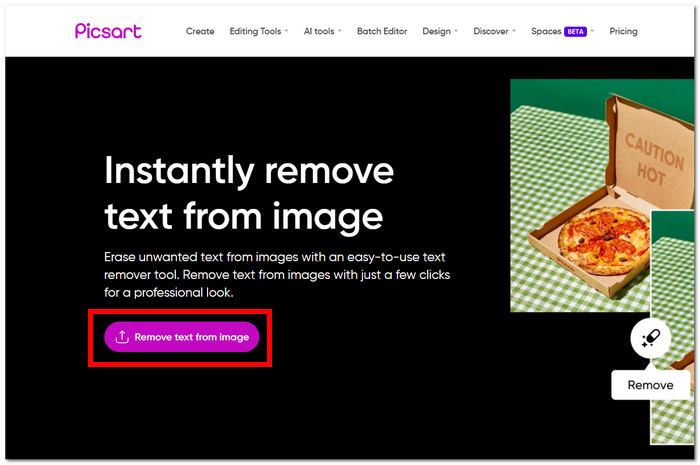
ขั้นตอนที่ 3 ในอินเทอร์เฟซของเครื่องมือ ให้เลือกเครื่องมือ Remove แล้วลบข้อความบนรูปภาพของคุณโดยการไล่เส้นครอบข้อความที่ไม่ต้องการ.
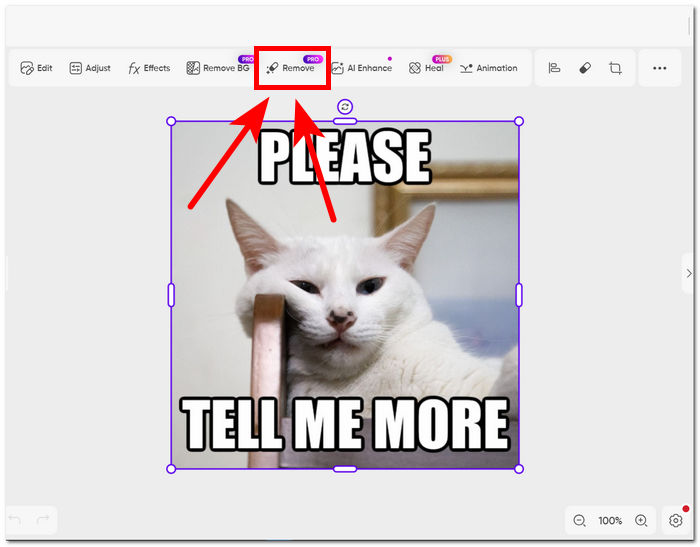
ขั้นตอนที่ 4 เมื่อไล่เส้นข้อความเสร็จแล้ว ให้คลิก Remove เพื่อลบข้อความออกจากภาพของคุณ จากนั้นคลิก Export เพื่อบันทึกไฟล์รูปภาพที่ไม่มีตัวอักษรลงในเดสก์ท็อปของคุณ.
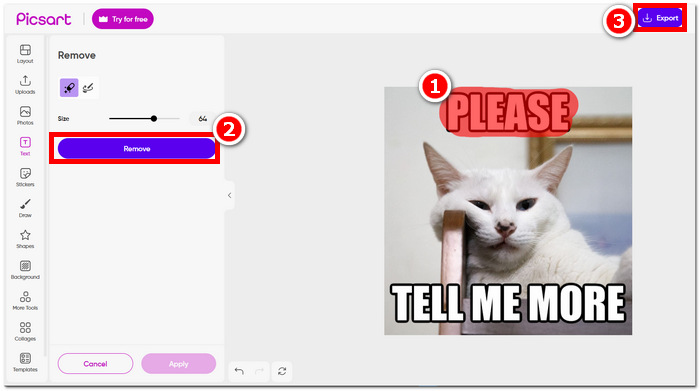
ในทางกลับกัน แพลตฟอร์มนี้อาจเสนอวิธีที่สะดวกและตรงไปตรงมาในการลบข้อความในรูปภาพของคุณ มันยังต้องมีการสมัครสมาชิกเพื่อส่งออกภาพโดยสมบูรณ์โดยไม่มีลายน้ำของภาพ ด้วยความสามารถของแพลตฟอร์ม ผู้ใช้จึงสามารถได้ภาพที่สะอาดตาและสวยงามปราศจากการทำลายข้อความที่ไม่ต้องการ
ส่วนที่ 5. คำถามที่พบบ่อยเกี่ยวกับการลบข้อความออกจากรูปภาพ
คุณสามารถลบข้อความออกจากรูปภาพบน iPhone ได้หรือไม่?
ใช่ คุณสามารถลบข้อความออกจากรูปภาพบน iPhone ได้โดยใช้แอพอย่าง TouchRetouch หรือ Adobe Photoshop Express ซึ่งทั้งสองแอพมีให้ใช้งานบน App Store เพียงติดตั้งแอปที่เลือก เปิดภาพของคุณ และใช้เครื่องมือที่มีให้เพื่อลบข้อความที่ไม่ต้องการได้อย่างง่ายดาย ยกระดับประสบการณ์การแก้ไขบนมือถือของคุณด้วยแอปพลิเคชันที่เป็นมิตรต่อผู้ใช้เหล่านี้
จะลบข้อความออกจากรูปภาพใน MS Word ได้อย่างไร?
ใน MS Word การลบข้อความออกจากรูปภาพนั้นทำได้ง่าย: เลือกรูปภาพ ไปที่เมนูรูปแบบ และเลือกลบพื้นหลัง หลังจากนั้น ให้ครอบตัดหรือปรับรูปภาพด้วยตนเองตามความจำเป็นเพื่อกำจัดข้อความที่ไม่ต้องการและได้ผลลัพธ์ตามที่ต้องการ กระบวนการที่ตรงไปตรงมานี้ช่วยให้สามารถลบข้อความได้อย่างมีประสิทธิภาพโดยตรงภายในสภาพแวดล้อม MS Word ที่คุ้นเคย
ฉันจะลบการเติมออกจากข้อความใน Illustrator ได้อย่างไร
หากต้องการยกเลิกการเติมข้อความใน Illustrator เพียงเลือกข้อความและไปที่แผงลักษณะที่ปรากฏ จากนั้นคลิกที่ตัวเลือกความทึบและลดขนาดเพื่อทำให้ข้อความโปร่งใส กระบวนการที่ตรงไปตรงมานี้ช่วยให้คุณได้รับความโปร่งใสในระดับที่ต้องการสำหรับข้อความที่เลือกใน Illustrator
จะลบข้อความออกจากรูปภาพได้อย่างไร?
การลบข้อความออกจากรูปภาพสามารถทำได้ผ่านซอฟต์แวร์แก้ไขภาพ เช่น Adobe Photoshop เพียงเปิดภาพและใช้เครื่องมือที่เหมาะสมเพื่อลบข้อความออกได้อย่างราบรื่น กระบวนการนี้ช่วยให้สามารถลบข้อความที่ไม่ต้องการออกจากรูปภาพได้อย่างแม่นยำและมีประสิทธิภาพ
ฉันจะลบข้อความออกจากรูปภาพโดยไม่เบลอได้อย่างไร
หากต้องการลบข้อความออกจากรูปภาพโดยไม่ทำให้เบลอ ให้ใช้เครื่องมือ เช่น โคลนสแตมป์หรือแปรงรักษาในซอฟต์แวร์แก้ไขภาพ เช่น Photoshop คุณสมบัติเหล่านี้ช่วยให้คุณสามารถแทนที่ข้อความด้วยพื้นหลังโดยรอบได้อย่างราบรื่น โดยรักษาความชัดเจนและความสมบูรณ์ของภาพ วิธีนี้ช่วยให้มั่นใจได้ถึงผลลัพธ์ที่สะอาดและเป็นมืออาชีพโดยไม่กระทบต่อคุณภาพโดยรวม
สรุป
ไม่ว่าคุณจะเป็นนักออกแบบกราฟิกมืออาชีพหรือเพียงแค่คนชอบแต่งรูปทั่วไป การรู้วิธีลบข้อความออกจากรูปภาพก็ถือเป็นทักษะที่มีคุณค่า ด้วยเครื่องมือที่เหมาะสมอย่าง Photoshop, FVC, Adobe Illustrator และ PicsArt คุณสามารถเลือกวิธีการที่เข้ากับสไตล์การทำงานและความถนัดของคุณได้ ลองใช้เทคนิคเหล่านี้เพื่อสร้างสรรค์ภาพที่ดูสะอาด เรียบร้อย และปราศจากสิ่งรบกวนสายตาจากข้อความที่ไม่ต้องการ.
-
 วิธีลบพื้นหลังออกจากรูปภาพโดยใช้ GIMP
 เริ่มต้นใช้งาน GIMP และกระบวนการลบพื้นหลังออกจากรูปภาพทีละขั้นตอน ค้นพบวิธีที่มีประสิทธิภาพในการสร้างภาพที่โปร่งใสโดยใช้ GIMP วันนี้!
-
 วิธีการที่ยอดเยี่ยมในการใช้ GIMP เพื่อลบลายน้ำออกจากรูปภาพ
 คุณต้องยอมรับว่าภาพที่ไม่มีลายน้ำจะทำให้สายตาของผู้ชมพึงพอใจมากกว่า อ่านโพสต์นี้เพื่อเรียนรู้เกี่ยวกับวิธีลบลายน้ำโดยใช้ GIMP
-
 วิธีการใช้ Photoshop เพื่อลบข้อความออกจากรูปภาพ
 ลองใช้เทคนิคที่น่าทึ่งนี้เกี่ยวกับวิธีลบข้อความออกจากรูปภาพใน Photoshop สิ่งนี้จะช่วยให้คุณกลายเป็นผู้เชี่ยวชาญในการลบองค์ประกอบที่ไม่ต้องการเหล่านี้
