


 Video Converter Ultimate
 บันทึกหน้าจอ
 ซ่อมวิดีโอ
 ดาวน์โหลดอย่างปลอดภัย
จับภาพหน้าจอใน VLC Media Player ได้อย่างง่ายดาย
Capturing screenshots while watching videos is a convenient way to preserve memorable moments or extract valuable information. It becomes a way of taking a specific moment to video to preserve that moment. VLC Media Player is a user-friendly video player that works on Windows, macOS, or Linux. VLC provides built-in functionality to capture frames with precision. Unlike many other media players, VLC simplifies the process, requiring just a few clicks or keystrokes to grab the desired image. By mastering this feature, users can quickly compile a collection of snapshots from their favorite videos. In this article, we'll explore the step-by-step process of how to take VLC screenshots to empower users in harnessing the screenshot capabilities of VLC Media Player, enriching their multimedia experience with ease. Continue reading this article to find out how to take screenshots via shortcuts and a menu, VLC strengths and limitations, and alternative software.

ส่วนที่ 1 วิธีการจับภาพหน้าจอใน VLC
การจับภาพหน้าจอใน VLC Media Player ทำได้ง่ายๆ โดยใช้ปุ่มลัดหรือตัวเลือกเมนู คุณสามารถใช้ทั้งสองวิธีเพื่อจับภาพเฟรมจากวิดีโอของคุณได้อย่างง่ายดาย ด้วยการกดแป้นพิมพ์ไม่กี่ครั้ง คุณก็สามารถจับภาพและบันทึกภาพช่วงเวลาที่คุณชื่นชอบได้ คุณสมบัติจับภาพหน้าจออเนกประสงค์ของ VLC ช่วยเพิ่มประสบการณ์มัลติมีเดียของคุณ ช่วยให้คุณสามารถเก็บฉากที่น่าจดจำได้อย่างง่ายดาย
ขั้นตอนในการจับภาพหน้าจอใน VLC โดยใช้ปุ่มลัด:
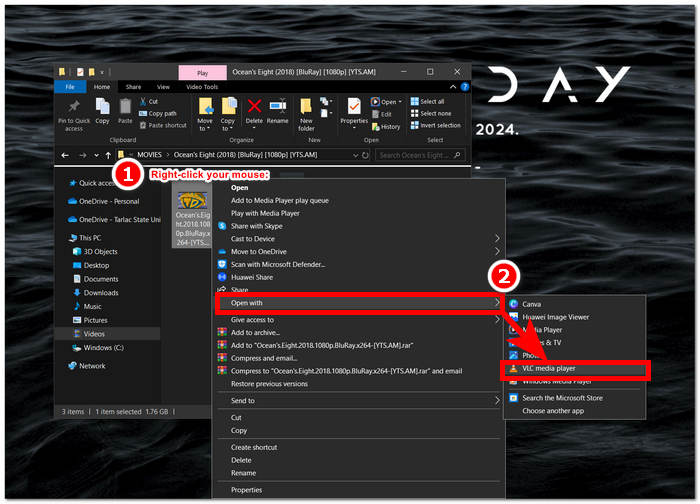
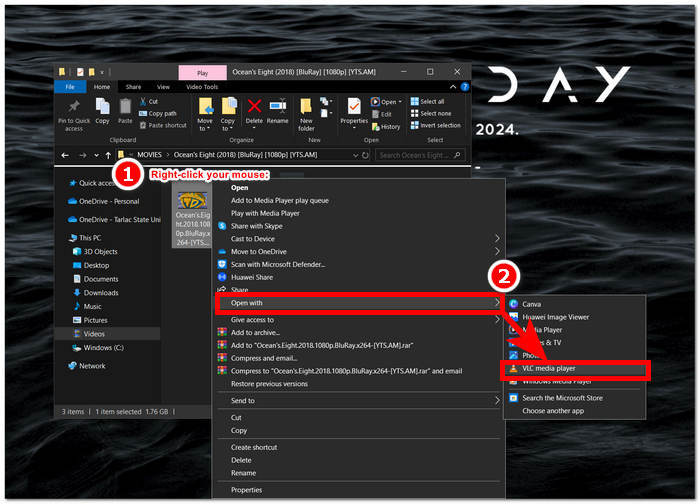
Step 1. Open the video from your desktop by right-clicking your mouse and choosing the VLC Media Player.
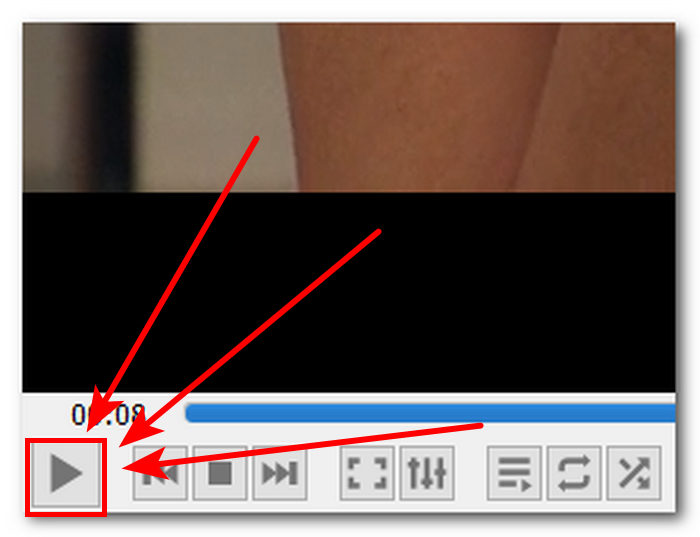
Step 2. Play your video or go through the part where you want to take a screenshot and click the Pause button.
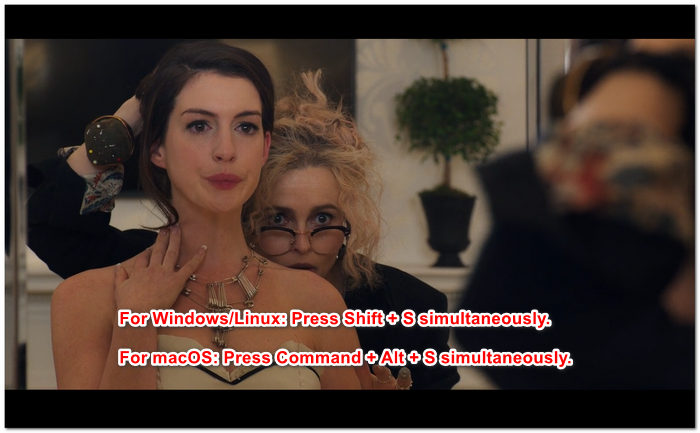
Step 3. To take a screen using shortcut keys for Windows/Linux, press Shift + S simultaneously, while for macOS, press Command + Alt + S simultaneously.
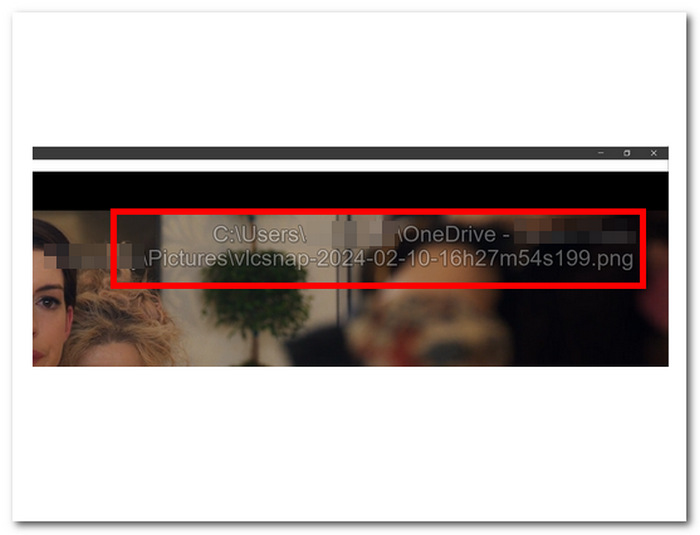
Step 4. Once you press the shortcut keys, a text will appear on the right corner of your screen indicating the location of the VLC screenshot folder. Just follow it, and you'll be able to view all your screenshots.
ขั้นตอนในการจับภาพหน้าจอใน VLC ผ่านเมนู:
Step 1. Locate and open your video using the VLC Media Player on your desktop.
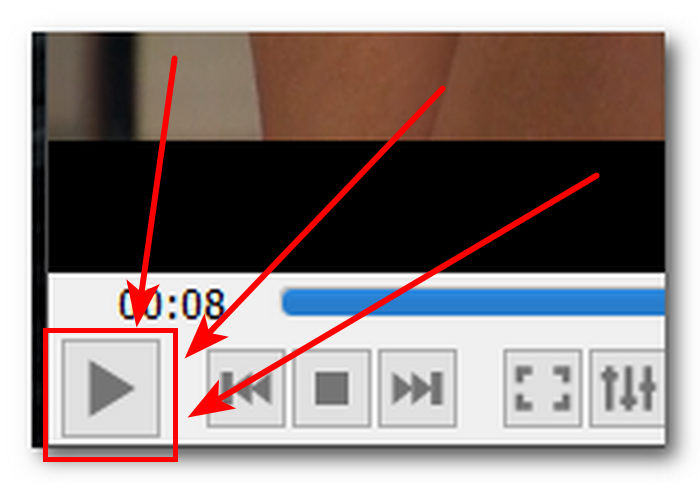
Step 2. Click the Pause button located on your lower-left screen, to pause to the part you want to take a screenshot.
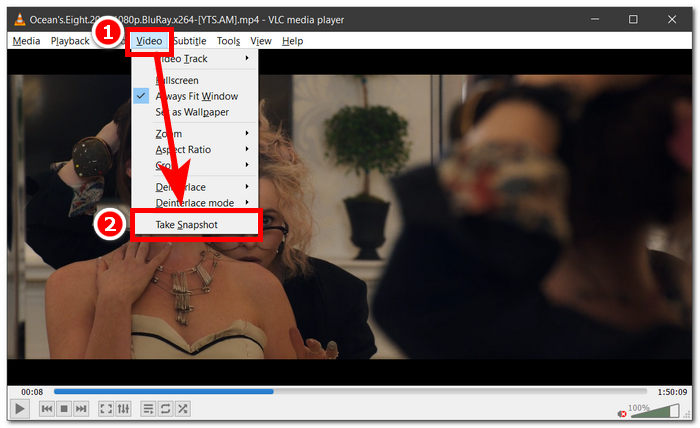
Step 3. Once your video is paused, click on the Video settings located in the upper-left corner of the media player.
Step 4. Locate the Take Snapshot in the setting and click on it to take a screenshot of your video.
It doesn't matter which method you choose, as VLC lets you take screenshots easily, enabling users to save their favorite moments from videos with minimal effort. Whether you like using VLC screenshot shortcut keys or prefer menu options, VLC guarantees a smooth experience when capturing snapshots.
ส่วนที่ 2 จุดแข็งและขีดจำกัดของภาพหน้าจอ VLC
ภาพหน้าจอ VLC มีสองวิธีในการจับภาพวิดีโอทุกประเภทที่เล่นในเครื่องเล่นสื่อ VLC อย่างปฏิเสธไม่ได้ VLC Media Player โดดเด่นในจุดแข็งและอาจทำให้ผู้ใช้สงสัยในข้อจำกัดของมัน ดังนั้นเราจึงแสดงจุดแข็งและข้อจำกัดบางประการของ VLC Media Player ไว้ด้านล่างนี้
Strengths of VLC Screenshot:
◆ มีอินเทอร์เฟซที่ใช้งานง่ายและพร้อมใช้งานสำหรับการถ่ายภาพสแนปชอต
◆ มีทั้งปุ่มลัดและตัวเลือกเมนูเพื่อเพิ่มความสะดวก
◆ มีการตั้งค่าที่ปรับแต่งได้สำหรับการปรับรูปแบบและคุณภาพของภาพ
◆ เก็บช่วงเวลาโปรดและเพิ่มประสบการณ์มัลติมีเดียได้อย่างง่ายดาย
Limits of VLC Screenshot:
◆ ไม่มีเครื่องมือแก้ไขขั้นสูงสำหรับการปรับแต่งภาพที่ถ่ายไว้
◆ ซอฟต์แวร์จับภาพหน้าจอโดยเฉพาะอาจมีระดับความแม่นยำที่สูงกว่าเมื่อเปรียบเทียบกับเครื่องมือนี้
◆ ไม่สามารถจับภาพหน้าจอของแผ่น DVD หรือแผ่น Blu-ray ที่เข้ารหัสได้เนื่องจากการคุ้มครองลิขสิทธิ์
◆ เมื่อเปรียบเทียบกับเครื่องมือจับภาพหน้าจอแบบพิเศษแล้ว มีการควบคุมและการปรับแต่งที่จำกัด
◆ สำหรับความต้องการการแก้ไขที่ซับซ้อนมากขึ้น ผู้ใช้อาจจำเป็นต้องใช้ซอฟต์แวร์ภายนอก
◆ เครื่องมือนี้เหมาะอย่างยิ่งสำหรับข้อกำหนดการจับภาพหน้าจอขั้นพื้นฐาน ไม่ใช่งานแก้ไขขั้นสูง
ภาพหน้าจอของ VLC Media Player อาจใช้เส้นทางเพียงแค่จับภาพหน้าจอเท่านั้น และไม่รวมถึงคุณสมบัติอื่น ๆ ที่ผู้ใช้อาจจำเป็นต้องใช้เพื่อวัตถุประสงค์อื่น โปรดทราบว่า VLC Media Player เป็นเครื่องเล่นวิดีโอ ไม่ใช่เครื่องมือซอฟต์แวร์จับภาพหน้าจอ นั่นเป็นเหตุผลว่าทำไมภาพหน้าจอพื้นฐานจึงเป็นสิ่งที่มันทำ
ส่วนที่ 3 ทางเลือกที่ดีที่สุดสำหรับภาพหน้าจอ VLC
Screen Recorder is a software that lets users take screenshots of their favorite frames in a video. The software is composed of advanced features and can be used as a Video Recorder, Audio Recorder, and Game Recorder. This tool has indeed got the best screen recording and screenshot capabilities that are accessible to Windows and Mac computers. As a powerful software, it offers features that are not within the capabilities of VLC Media Player screenshots. Features like a Scrolling Window that lets you screenshot a long post in one frame which is good for those reading websites and documents, as well as Popup Menu Capture that lets you screenshot menu windows of any kind hassle-free.
Step 1. Go to the Screen Recorder website to download and install the software.
ดาวน์โหลดฟรีสำหรับ Windows 7 ขึ้นไปดาวน์โหลดอย่างปลอดภัย
ดาวน์โหลดฟรีสำหรับ MacOS 10.7 ขึ้นไปดาวน์โหลดอย่างปลอดภัย
Step 2. On your desktop, once the software has finished installing, launch the app.
Step 3. In the software interface, click on the Snapshot button to take a screenshot of your screen.
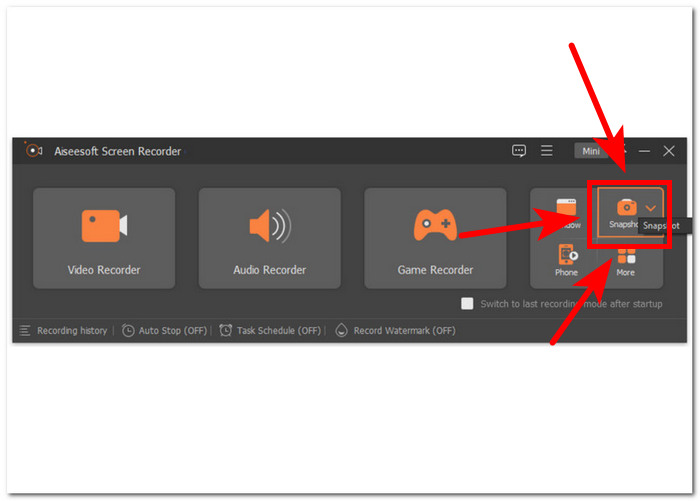
Step 4. You have the flexibility to choose the desired screenshot area, whether it is an active window or a freehand area. Once you have selected the area, you can click on Save to store the snapshot in a suitable image format.
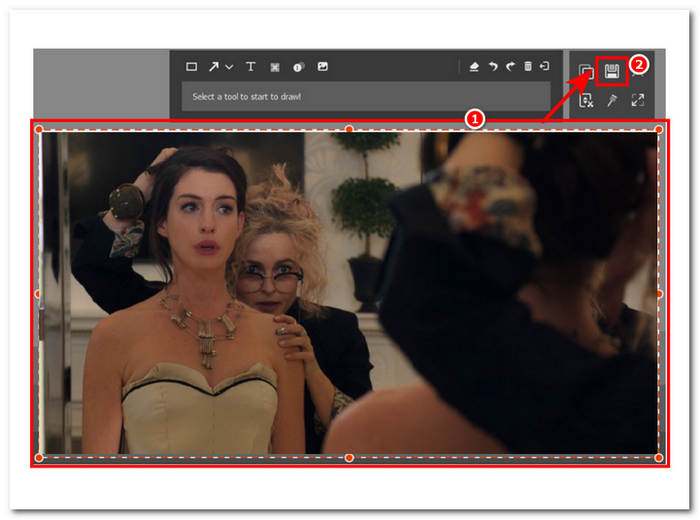
โดยสรุป Aiseesoft Screen Recorder เป็นซอฟต์แวร์อเนกประสงค์เมื่อพิจารณางานต่างๆ เช่น การบันทึกหน้าจอและภาพหน้าจอในเวลาเดียวกัน VLC Media Player และ Aiseesoft Screen Recorder นำเสนอการควบคุมปุ่มลัดเพื่อจับภาพหน้าจอได้อย่างง่ายดายเพียงใช้คีย์บอร์ดของคุณ ทั้งสองให้ผลลัพธ์ที่ยอดเยี่ยมในแง่ของการถ่ายภาพหน้าจอ แต่ Aiseesoft Screen Recorder เป็นมากกว่าการถ่ายภาพหน้าจอ ดังที่แสดงให้เห็นด้วยคุณสมบัติที่พบในซอฟต์แวร์
ส่วนที่ 4. คำถามที่พบบ่อยเกี่ยวกับวิธีการจับภาพหน้าจอใน VLC Media Player
ตำแหน่งเริ่มต้นสำหรับภาพหน้าจอ VLC อยู่ที่ไหน
ภาพหน้าจอ VLC จะบันทึกตำแหน่งตามค่าเริ่มต้นในโฟลเดอร์ Pictures บนคอมพิวเตอร์ของคุณ หากต้องการเปลี่ยนแปลง ให้ไปที่เครื่องมือ > การตั้งค่า > วิดีโอ และเลือกโฟลเดอร์ใหม่ภายใต้ไดเร็กทอรี Video Snapshots
ฉันสามารถจับภาพหน้าจอหลายภาพติดต่อกันได้หรือไม่
ได้ คุณสามารถจับภาพหน้าจอได้หลายภาพโดยทำซ้ำขั้นตอนนี้สำหรับแต่ละเฟรมที่ต้องการ อย่างไรก็ตาม ไม่มีคุณสมบัติในตัวสำหรับการจับภาพหน้าจอหลายภาพโดยอัตโนมัติตามช่วงเวลาที่กำหนด
VLC รองรับการจับภาพหน้าจอของการสตรีมวิดีโอหรือไม่
ได้ คุณสามารถจับภาพหน้าจอของการสตรีมวิดีโอใน VLC Media Player ได้โดยใช้วิธีการเดียวกับที่อธิบายไว้ข้างต้น เพียงหยุดวิดีโอชั่วคราวในช่วงเวลาที่ต้องการแล้วถ่ายภาพ อย่างไรก็ตาม โปรดจำไว้ว่าคุณภาพของภาพหน้าจออาจขึ้นอยู่กับแหล่งสตรีมมิ่งและความเร็วการเชื่อมต่ออินเทอร์เน็ตของคุณ
มีข้อจำกัดในการจับภาพหน้าจอใน VLC Media Player หรือไม่?
ข้อจำกัดประการหนึ่งคือ คุณไม่สามารถจับภาพหน้าจอของแผ่น DVD หรือแผ่น Blu-ray ที่เข้ารหัสได้ เนื่องจากมาตรการคุ้มครองลิขสิทธิ์ นอกจากนี้ คุณลักษณะภาพหน้าจอของ VLC อาจทำงานไม่ราบรื่นกับตัวแปลงสัญญาณวิดีโอหรือแหล่งสตรีมมิงบางตัว ส่งผลให้เกิดปัญหาความเข้ากันได้
ฉันสามารถจับภาพหน้าจอของวิดีโอในโหมดเต็มหน้าจอได้หรือไม่
ได้ คุณสามารถจับภาพหน้าจอของวิดีโอในขณะที่เล่นในโหมดเต็มหน้าจอใน VLC Media Player ได้ เพียงกด Shift + S บนแป้นพิมพ์หรือไปที่วิดีโอ > ถ่ายภาพสแนปชอตจากแถบเมนูขณะที่วิดีโออยู่ในโหมดเต็มหน้าจอ ซึ่งจะทำให้คุณสามารถจับภาพหน้าจอของเฟรมที่ต้องการได้โดยไม่ต้องออกจากการเล่นแบบเต็มหน้าจอ
สรุป
In conclusion, capturing screenshots in VLC Media Player provides a straightforward way to preserve memorable moments or extract valuable information from videos. VLC's user-friendly interface makes it a popular video player choice for users across different platforms. Whether using shortcut keys or menu options, VLC simplifies the process, allowing users to capture and save snapshots of their favorite scenes effortlessly. However, for users seeking more advanced features such as precise editing or capturing scrolling windows, alternative software like Aiseesoft Screen Recorder offers a comprehensive solution. By understanding the strengths, limitations, and alternatives to VLC screenshots, users can enhance their multimedia experience and efficiently manage their screenshot needs.
-
 วิธีถ่ายภาพหน้าจอแบบเลื่อนใน Windows 10/11 ได้อย่างง่ายดาย
 ปลดปล่อยศักยภาพสูงสุดของการจับภาพหน้าจอโดยการเรียนรู้ภาพหน้าจอแบบเลื่อนบน Windows 10/11 ค้นหาซอฟต์แวร์และส่วนขยายเว็บที่มีประโยชน์เหล่านี้เพื่อใช้งาน
-
 วิธีถ่ายภาพหน้าจอแบบเลื่อนบน Mac ในเวลาไม่กี่นาที
 อย่าชำระสำหรับการจับภาพบางส่วน! เรียนรู้ขั้นตอนง่ายๆ ในการถ่ายภาพหน้าจอแบบเลื่อนบน Mac จับภาพหน้าเว็บหรือเอกสารทั้งหมดได้อย่างง่ายดายในเวลาไม่นาน
-
 วิธีจับภาพหน้าจอใน Windows Media Player อย่างมีประสิทธิภาพ
 ค้นพบวิธีที่ง่ายที่สุดในการจับภาพหน้าจอใน Windows Media Player ได้อย่างง่ายดาย ยกระดับประสบการณ์การจับภาพหน้าจอของคุณด้วยคำแนะนำที่ครอบคลุมของเรา
