


 Video Converter Ultimate
 บันทึกหน้าจอ
 ซ่อมวิดีโอ
 ดาวน์โหลดอย่างปลอดภัย
วิธีจับภาพหน้าจอ Google Maps: วางแผน ภาพหน้าจอ และสำรวจ
Google Maps โดดเด่นในฐานะสัญลักษณ์แห่งความยอดเยี่ยมด้านการนำทาง ไม่ว่าคุณจะวางแผนทริปขับรถครั้งต่อไป ออกสำรวจเส้นทางเดินเขาใหม่ ๆ หรือเพียงแค่นำทางฝ่าป่าคอนกรีตในเมือง Google Maps ก็กลายเป็นเครื่องมือที่ขาดไม่ได้สำหรับนักเดินทางและนักสำรวจทั้งหลาย แต่จะเกิดอะไรขึ้นเมื่อคุณเจอเส้นทางที่ใช่หรือค้นพบสถานที่ลับสุดพิเศษเข้าโดยบังเอิญ? การบันทึกช่วงเวลาเหล่านี้เป็นสิ่งสำคัญ และนั่นคือเหตุผลที่การรู้ว่าจะแคปหน้าจอ Google Maps อย่างไรจึงมีความหมาย ในบทความนี้ เราจะพาคุณไปดู 3 วิธีในการวางแผนการเดินทางอย่างมีประสิทธิภาพ เตรียมภาพแคปหน้าจอสำคัญ ๆ ไว้ให้พร้อมด้วยซอฟต์แวร์และอุปกรณ์พกพา แล้วออกเดินทางผจญภัยได้อย่างลื่นไหลไร้สะดุด รออะไรอยู่ล่ะ? มาขึ้นรถต่อและอ่านต่อไปเพื่อปลดล็อกศักยภาพสูงสุดของ Google Maps และการแคปหน้าจอไปพร้อมกัน.

ส่วนที่ 1 วิธีจับภาพหน้าจอ Google Maps บน Windows/Mac ด้วยโปรแกรมบันทึกหน้าจอ
จะจับภาพหน้าจอ Google Maps ได้อย่างไร? หากต้องการแคปหน้าจอ Google Maps คุณสามารถใช้ซอฟต์แวร์อย่าง FVC picked Screen Recorder เครื่องมือนี้ใช้งานได้ง่ายและช่วยให้คุณจับภาพทุกอย่างที่แสดงบนหน้าจอของคุณ สามารถดาวน์โหลดได้ฟรีทั้งบนคอมพิวเตอร์ Mac และ Windows จึงเป็นตัวเลือกที่ยอดเยี่ยมสำหรับการจับภาพหน้าจอ Google Maps และกิจกรรมอื่น ๆ.
ขั้นตอนที่ 1. ติดตั้งเครื่องมือแคปหน้าจอ Google Maps ตัวนี้ โดยไปที่เว็บไซต์ทางการของผู้พัฒนาแล้วดาวน์โหลดซอฟต์แวร์หากคุณยังไม่ได้ติดตั้ง.
ดาวน์โหลดฟรีสำหรับ Windows 7 ขึ้นไปดาวน์โหลดอย่างปลอดภัย
ดาวน์โหลดฟรีสำหรับ MacOS 10.7 ขึ้นไปดาวน์โหลดอย่างปลอดภัย
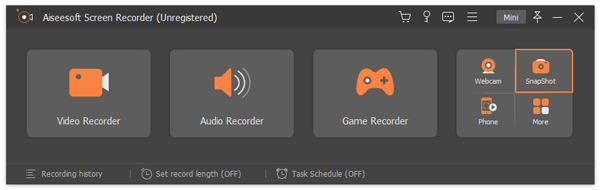
ขั้นตอนที่ 2. เปิดซอฟต์แวร์บนคอมพิวเตอร์ของคุณ จากนั้นเลือก Snapshot ที่หน้าหลักเพื่อจับภาพ Google Maps ตามที่คุณต้องการ.
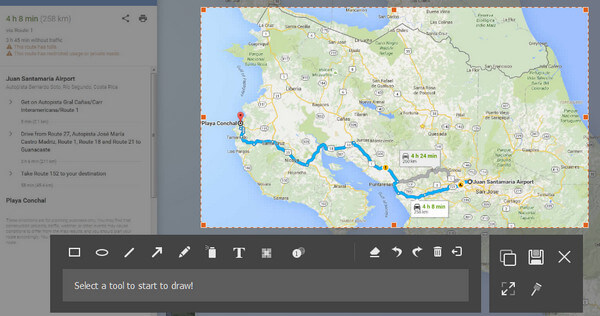
ขั้นตอนที่ 3. เพื่อเลือกพื้นที่ที่ต้องการจับภาพ ให้เลื่อนเมาส์ไปยังบริเวณที่ต้องการแล้วคลิกซ้ายหนึ่งครั้ง.
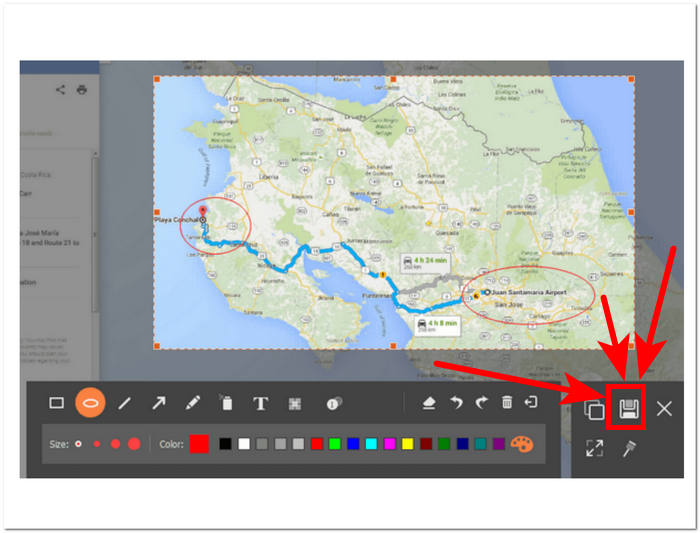
ขั้นตอนที่ 4. คุณสามารถแก้ไขภาพหน้าจอของคุณได้โดยการเพิ่ม/วาดรูปร่างและข้อความลงไปเพื่อไฮไลต์หรือเน้นตำแหน่งต่าง ๆ และเมื่อพอใจแล้ว ให้คลิกปุ่ม Save ที่มุมล่างขวาของเครื่องมือ.
เครื่องมือจับภาพหน้าจอนี้เป็นซอฟต์แวร์อเนกประสงค์สำหรับการจับภาพหน้าจอ ไม่เพียงแต่ช่วยให้ผู้ใช้สามารถจับภาพหน้าจอได้ แต่ยังบันทึกหน้าจอ เสียง และเกมอีกด้วย เป็นเครื่องมือที่สะดวกซึ่งสามารถขยายให้ใหญ่สุดสำหรับงานจับภาพหน้าจอต่างๆ นอกเหนือจากการจับภาพหน้าจอ Google Maps
ส่วนที่ 2 วิธีจับภาพหน้าจอ Google Maps ด้วยเครื่องมือ Snipping และทางลัด
หากต้องการจับภาพหน้าจอ Google Maps คุณสามารถใช้เครื่องมือสนิปและทางลัดเริ่มต้นของคอมพิวเตอร์ได้ ช่วยให้คุณสามารถจับภาพเนื้อหาบนหน้าจอของคุณได้อย่างง่ายดายโดยไม่ต้องใช้ซอฟต์แวร์เพิ่มเติมใดๆ อย่างไรก็ตาม สิ่งสำคัญที่ควรทราบก็คือ วิธีการนี้ไม่มีคุณลักษณะการแก้ไขใดๆ ดังนั้นคุณจะไม่สามารถเพิ่มไฮไลต์หรือคำอธิบายประกอบใดๆ ลงในภาพหน้าจอของคุณ และในกรณีนี้ ลงใน Google Maps ของคุณ
Windows
ขั้นตอนที่ 1. เปิด Google Maps จากเบราว์เซอร์ในเครื่องของคุณและค้นหาสถานที่หรือเส้นทางที่คุณต้องการจับภาพ.
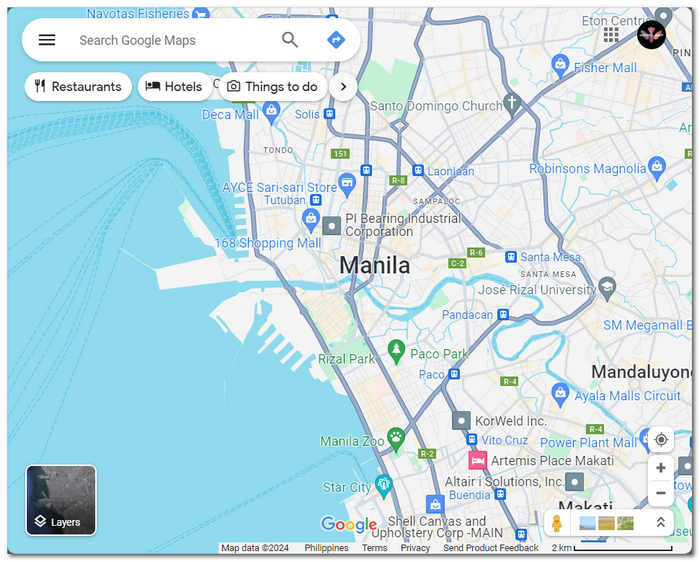
ขั้นตอนที่ 2. เปิดเครื่องมือ Snipping Tool โดยค้นหาจากเมนู Start หรือกดปุ่ม Windows Logo Key + Shift + S บนคีย์บอร์ดพร้อมกัน.
ขั้นตอนที่ 3. เลือกหนึ่งในสี่โหมดที่มีให้ ได้แก่ Rectangular Mode, Freedom Mode, Window Mode หรือ Fullscreen Mode
หากคุณต้องการจับภาพหน้าจอแบบเลื่อนบน Windows ให้ดูได้ที่นี่.
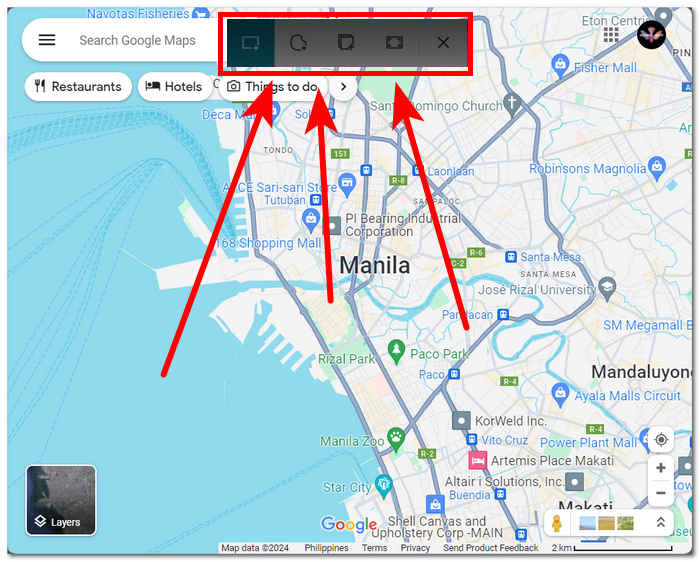
ขั้นตอนที่ 4. เมื่อคุณจับภาพหน้าจอเสร็จแล้ว สามารถบันทึกหรือวางลงในอีเมลหรือแพลตฟอร์มส่งข้อความใด ๆ ได้ด้วยการกด Ctrl + V.
Mac
ขั้นตอนที่ 1. เปิด Google Maps ใน Safari แล้วไปยังแผนที่ที่คุณต้องการ.
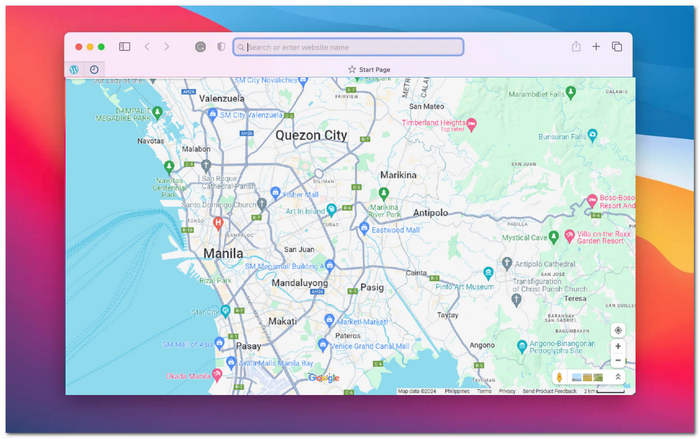
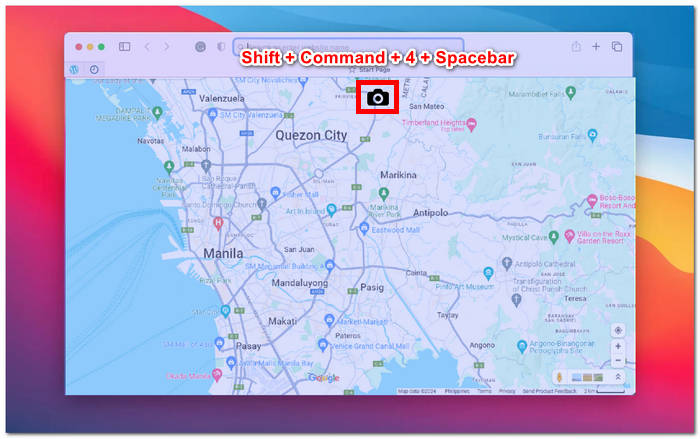
ขั้นตอนที่ 2. กดปุ่ม Shift + Command + 4 + Spacebar ค้างไว้พร้อมกัน เคอร์เซอร์ของคุณจะเปลี่ยนเป็นไอคอนกล้องโดยอัตโนมัติ.
ขั้นตอนที่ 3. คลิกที่ หน้าต่าง Safari เพื่อจับภาพแผนที่ Google ตามที่ต้องการ.
ขั้นตอนที่ 4. เมื่อมีภาพตัวอย่างขนาดเล็กของภาพหน้าจอปรากฏขึ้นบนหน้าจอ ให้คลิกเพื่อแก้ไขและบันทึกลงในที่จัดเก็บภายในเครื่องของคุณ ง่ายแค่นั้นเอง!
สำหรับการจับภาพหน้าจอแบบเลื่อนบน Mac เพื่อใช้กับ Google Maps ดูได้ที่นี่.
เมื่อถ่ายภาพหน้าจอของ Google Maps คุณอาจใช้เครื่องมือสนิปเริ่มต้นที่ได้รับจากคอมพิวเตอร์ของคุณ ซึ่งสามารถประหยัดเวลาและหลีกเลี่ยงความจำเป็นในการดาวน์โหลดซอฟต์แวร์หรือใช้เครื่องมือของบุคคลที่สาม อย่างไรก็ตาม เครื่องมือสนิปเริ่มต้นเหล่านี้ไม่มีคุณสมบัติการแก้ไข หากคุณต้องการแก้ไขภาพหน้าจอ คุณจะต้องดาวน์โหลดซอฟต์แวร์เพิ่มเติมเพื่อจุดประสงค์นั้น หรือที่ดีกว่านั้นคือดาวน์โหลดเครื่องมือซอฟต์แวร์ที่มีทั้งการจับภาพหน้าจอและการแก้ไขในครั้งเดียว เช่น โปรแกรมบันทึกหน้าจอที่แนะนำ FVC
ส่วนที่ 3 วิธีจับภาพหน้าจอ Google Maps บน iPhone/Android
การจับภาพหน้าจอ Google Map บนอุปกรณ์ Android หรือ iPhone เป็นวิธีที่สะดวกในการบันทึกมุมมองแผนที่หรือเส้นทางเพื่อใช้อ้างอิงในภายหลัง โดยคุณต้องทำตามขั้นตอนตรงไปตรงมาบางส่วนที่พบในบทความนี้ ไม่ว่าคุณจะใช้ Android หรือ iPhone การถ่ายภาพหน้าจอของ Google Maps เป็นเรื่องง่ายพร้อมคำแนะนำที่ถูกต้อง
Android
ขั้นตอนที่ 1. บนอุปกรณ์ Android ของคุณ ให้เปิดแอป Google Map.
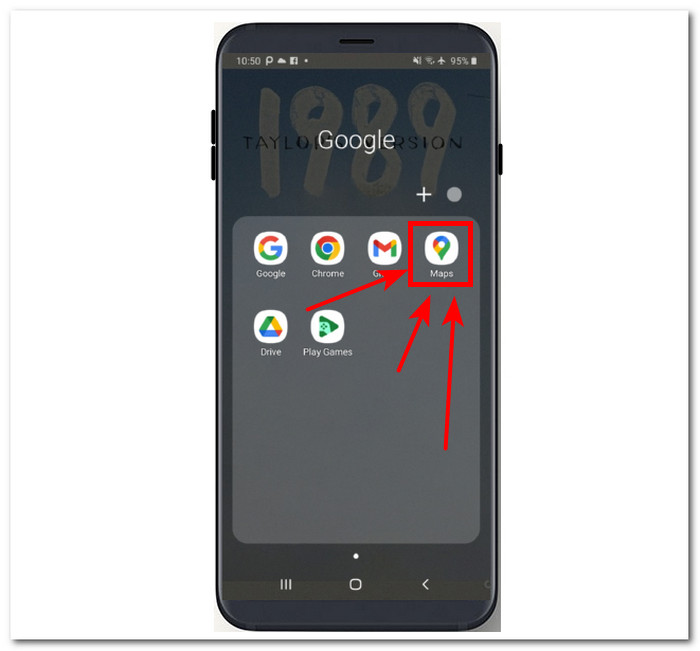
ขั้นตอนที่ 2. เลื่อนไปยังตำแหน่งบนแผนที่ที่คุณต้องการจับภาพ.
ขั้นตอนที่ 3. เพื่อจับภาพหน้าจอ ให้กดปุ่ม ลดเสียง (Volume Down) และ ปุ่มเพาเวอร์ (Power) พร้อมกัน.
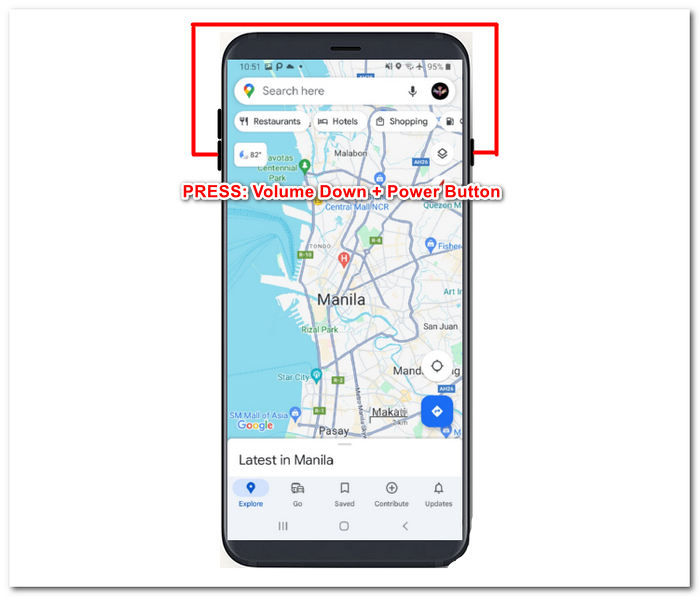
ขั้นตอนที่ 4. ภาพหน้าจอ Google Map ของคุณจะถูกบันทึกไว้ในแกลเลอรีของอุปกรณ์โดยอัตโนมัติ เพื่อให้คุณเปิดดูและแชร์ได้ตามต้องการ.
ไอโฟน
ขั้นตอนที่ 1. บน iPhone ของคุณ ให้เปิดแอป Google Map.
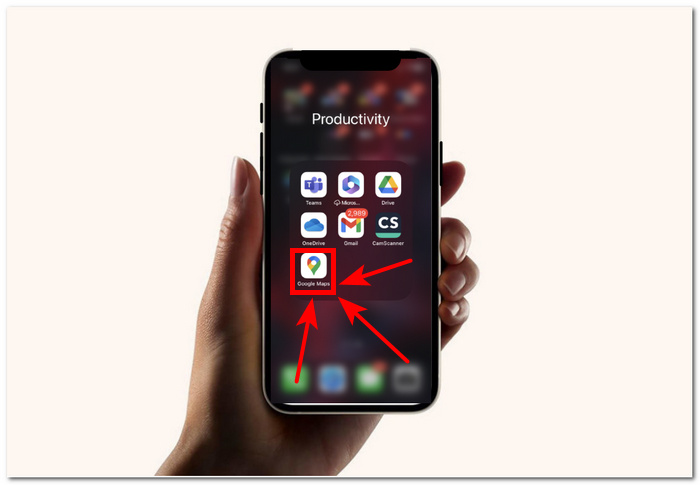
ขั้นตอนที่ 2. เลื่อนไปยังตำแหน่งที่คุณต้องการจับภาพ.
ขั้นตอนที่ 3. กดปุ่ม เพิ่มเสียง (Volume Up) + ปุ่มเพาเวอร์ (Power) พร้อมกันเพื่อถ่ายภาพหน้าจอ.
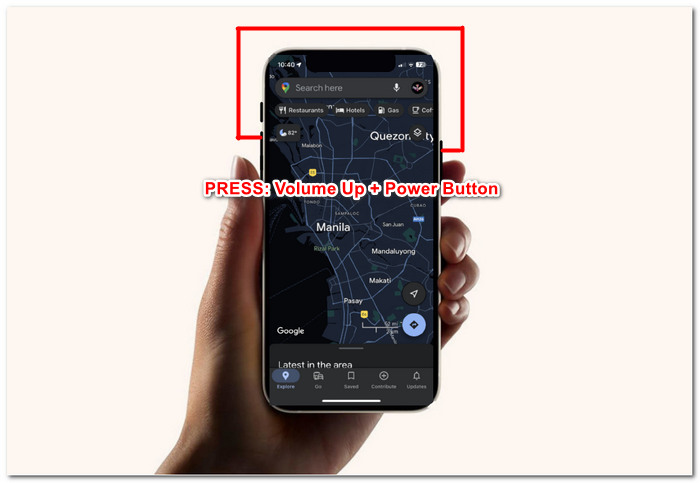
ขั้นตอนที่ 4. ภาพหน้าจอจะถูกบันทึกเป็นไฟล์ JPG ลงในแอป Photos หรือ Gallery ของคุณโดยอัตโนมัติ.
หากต้องการจับภาพหน้าจอของ Google Maps วิธีที่เร็วและตรงไปตรงมาที่สุดคือการใช้อุปกรณ์เคลื่อนที่ของคุณ วิธีนี้ทำให้คุณสามารถจับภาพหน้าจอได้ทันที ซึ่งเป็นประโยชน์ โดยเฉพาะอย่างยิ่งสำหรับผู้ใช้ที่ใช้งานอุปกรณ์เคลื่อนที่ตลอดเวลาและชอบวิธีนี้มากกว่าการใช้คอมพิวเตอร์
ส่วนที่ 4 คำถามที่พบบ่อยเกี่ยวกับวิธีการจับภาพหน้าจอ Google Maps
ฉันสามารถจับภาพหน้าจอ Google Maps บนคอมพิวเตอร์ของฉันได้หรือไม่
ใช่ มีหลายวิธีในการจับภาพหน้าจอของ Google Maps บนคอมพิวเตอร์ของคุณ คุณสามารถใช้เครื่องมือจับภาพหน้าจอเริ่มต้นที่มีอยู่ในอุปกรณ์ของคุณหรือเลือกใช้ซอฟต์แวร์บุคคลที่สาม วิธีการเหล่านี้ใช้งานง่ายและสามารถวางใจได้ในการจับภาพแผนที่ที่ต้องการบนคอมพิวเตอร์ของคุณอย่างรวดเร็ว
การจับภาพหน้าจอ Google Maps ถูกกฎหมายหรือไม่
เมื่อถ่ายภาพหน้าจอของ Google Maps เพื่อการใช้งานส่วนตัว โดยทั่วไปแล้วจะถือว่าถูกกฎหมาย อย่างไรก็ตาม สิ่งสำคัญคือต้องทราบว่าการใช้ภาพหน้าจอเหล่านี้เพื่อวัตถุประสงค์ทางการค้าหรือการแจกจ่ายโดยไม่ได้รับอนุญาตอาจเป็นการละเมิดข้อกำหนดในการให้บริการหรือกฎหมายลิขสิทธิ์ของ Google
ฉันสามารถจับภาพพื้นที่เฉพาะของ Google Maps ได้หรือไม่
ใช่ เครื่องมือจับภาพหน้าจอจำนวนมากมีตัวเลือกในการจับภาพพื้นที่เฉพาะของหน้าจอ ซึ่งจะมีประโยชน์มากเมื่อคุณต้องการจับภาพพื้นที่เฉพาะ เช่น Google Maps คุณสมบัตินี้ช่วยให้คุณจับภาพหน้าจอเฉพาะส่วนของหน้าจอที่คุณต้องการจับภาพ แทนที่จะจับภาพทั้งหน้าจอ ทำให้ง่ายต่อการเน้นรายละเอียดที่สำคัญได้ง่ายขึ้น
มีข้อจำกัดหรือข้อจำกัดในการจับภาพหน้าจอ Google Maps หรือไม่
แม้ว่าโดยทั่วไปคุณจะสามารถจับภาพ Google Maps เพื่อการใช้งานส่วนตัวได้ แต่โปรดคำนึงถึงข้อกำหนดในการให้บริการของ Google หลีกเลี่ยงการใช้ภาพหน้าจอเพื่อวัตถุประสงค์ทางการค้าโดยไม่ได้รับอนุญาตอย่างเหมาะสม และเคารพลิขสิทธิ์หรือข้อจำกัดการใช้งาน
ฉันสามารถจับภาพ Street View จาก Google Maps ได้หรือไม่
Google Maps ไม่มีตัวเลือกโดยตรงในการถ่ายภาพ Street View แต่เพื่อให้ได้ภาพหน้าจอคุณภาพสูงของ Google Maps คุณสามารถใช้ซอฟต์แวร์บันทึกหน้าจอเพื่อบันทึกมุมมองถนนในขณะที่คุณนำทางผ่านมัน
สรุป
การแคปหน้าจอ Google Maps เป็นวิธีที่ยอดเยี่ยมสำหรับนักเดินทาง นักผจญภัย และผู้ใช้ทั่วไปในการสำรวจโลกโดยไม่จำเป็นต้องใช้อินเทอร์เน็ต ถือเป็นความรู้พื้นฐานอย่างหนึ่งเมื่อพูดถึงการนำทางและการสำรวจ เพราะช่วยให้เข้าถึงแผนที่ละเอียด เส้นทาง และข้อมูลการจราจรแบบเรียลไทม์ มีหลากหลายวิธีให้คุณจับภาพหน้าจอ Google Maps แบบคมชัด ไม่ว่าคุณจะใช้คอมพิวเตอร์หรืออุปกรณ์พกพา คุณสามารถใช้ซอฟต์แวร์เฉพาะอย่าง FVC picked Screen Recorder หรือใช้เครื่องมือและคีย์ลัดที่มีมาให้ในตัวบนอุปกรณ์ Windows, Mac, Android และ iPhone วิธีเหล่านี้ทำให้การบันทึกมุมมองแผนที่ที่สมบูรณ์แบบเป็นเรื่องง่ายกว่าที่เคย.
-
 วิธีจับภาพหน้าจอแบบเลื่อนบน Firefox ได้อย่างง่ายดาย
 เรียนรู้การเลื่อนภาพหน้าจอบน Firefox เพื่อจับภาพหน้าเว็บทั้งหมดทันที ปฏิบัติตามบทช่วยสอนทีละขั้นตอนง่ายๆ ของเราเพื่อเรียนรู้วิธีใช้คุณสมบัตินี้
-
 คำแนะนำทีละขั้นตอนสำหรับภาพหน้าจอใน VLC Media Player
 เรียนรู้ขั้นตอนง่ายๆ ในการถ่ายภาพหน้าจอ VLC ได้อย่างง่ายดาย ปฏิบัติตามคำแนะนำของเราเพื่อการถ่ายภาพสแนปช็อตที่รวดเร็วและง่ายดายผ่านปุ่มลัดและการตั้งค่าเมนู
-
 วิธีจับภาพหน้าจอใน Windows Media Player อย่างมีประสิทธิภาพ
 ค้นพบวิธีที่ง่ายที่สุดในการจับภาพหน้าจอใน Windows Media Player ได้อย่างง่ายดาย ยกระดับประสบการณ์การจับภาพหน้าจอของคุณด้วยคำแนะนำที่ครอบคลุมของเรา
