


 Video Converter Ultimate
 บันทึกหน้าจอ
 ซ่อมวิดีโอ
 ดาวน์โหลดอย่างปลอดภัย
เรียนรู้วิธีแก้ไขภาพหน้าจอบน Windows/Mac/ออนไลน์/Android/iOS [คู่มือปี 2025]
การแก้ไขภาพหน้าจอบนอุปกรณ์แต่ละแบบจะมีวิธีที่แตกต่างกันเล็กน้อย ไม่ว่าคุณจะใช้ Mac, Windows, iPhone หรืออุปกรณ์ Android บทความนี้ได้รวบรวมวิธีไว้ให้คุณแล้ว เราเตรียมวิธีและเทคนิคหลายแบบเพื่อช่วยให้คุณแก้ไขภาพหน้าจอที่บันทึกไว้ได้อย่างง่ายดาย ช่วยให้คุณปรับแต่งงานภาพของคุณได้อย่างมั่นใจและแม่นยำ บทความนี้จะช่วยให้คุณมีความรู้เพียงพอที่จะยกระดับภาพหน้าจอของคุณไปอีกขั้น ไม่ว่าคุณจะเป็นมือใหม่ที่ต้องการวิธีแบบทีละขั้นตอน หรือเป็นผู้ใช้ที่มีประสบการณ์และต้องการปรับฝีมือให้เฉียบคม บทความนี้ตอบโจทย์คุณแน่นอน.

ส่วนที่ 1: วิธีที่ดีที่สุดในการแก้ไขภาพหน้าจอบน Mac และ Windows [ดีที่สุดสำหรับมือใหม่]
ทั้ง Windows และ Mac มีเครื่องมือบันทึกภาพหน้าจอในตัวที่ผู้ใช้สามารถใช้แก้ไขภาพได้ภายหลัง อย่างไรก็ตาม วิธีเหล่านี้ไม่มีฟีเจอร์ขั้นสูงเท่ากับการใช้เครื่องมือจากผู้พัฒนารายอื่น FVC Screen Recorder เป็นหนึ่งในเครื่องมือที่ดีที่สุดในการแก้ไขภาพหน้าจอบน Mac และ Windows ได้อย่างราบรื่น นี่คือโปรแกรมบันทึกหน้าจอที่มีฟังก์ชันครบถ้วนซึ่งช่วยให้คุณบันทึกทุกอย่างบนหน้าจอได้ และยิ่งไปกว่านั้น ยังยอดเยี่ยมมากสำหรับใช้แก้ไขภาพหน้าจอของคุณ คุณสามารถวาด เปลี่ยนขนาด เพิ่มข้อความ รูปทรง รูปภาพ และอื่น ๆ ได้.
ขั้นตอนที่ 1 ก่อนอื่นให้ดาวน์โหลดและติดตั้ง FVC Screen Recorder บนอุปกรณ์ Mac หรือ Windows ของคุณ.
ดาวน์โหลดฟรีสำหรับ Windows 7 ขึ้นไปดาวน์โหลดอย่างปลอดภัย
ดาวน์โหลดฟรีสำหรับ MacOS 10.7 ขึ้นไปดาวน์โหลดอย่างปลอดภัย
ขั้นตอนที่ 2 จากนั้นเปิดโปรแกรมขึ้นมา แล้วคลิกไอคอน Snapshot ที่มุมด้านขวา จากนั้นเลือก Screen Capture.
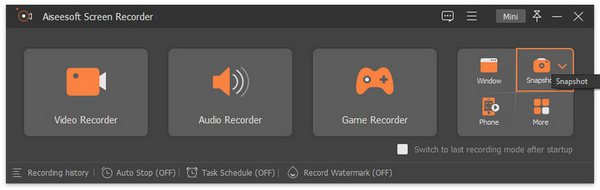
ขั้นตอนที่ 3 ตอนนี้ให้ลากเคอร์เซอร์เพื่อเลือกพื้นที่หน้าจอบน Mac หรือ Windows ของคุณที่ต้องการบันทึกภาพหน้าจอ.
ขั้นตอนที่ 4 จากนั้นหากต้องการแก้ไขภาพหน้าจอ ให้คลิกที่เมนูซึ่งคุณจะพบไอคอนรูปทรงสี่เหลี่ยม ข้อความ และเพิ่มรูปภาพ นอกจากนี้ยังมีเมนูแบบดรอปดาวน์สำหรับดินสอ วงรี เส้น ลูกศร และแอร์บรัช คุณสามารถเลือกใช้ตามความต้องการในการแก้ไขของคุณได้อย่างอิสระ.
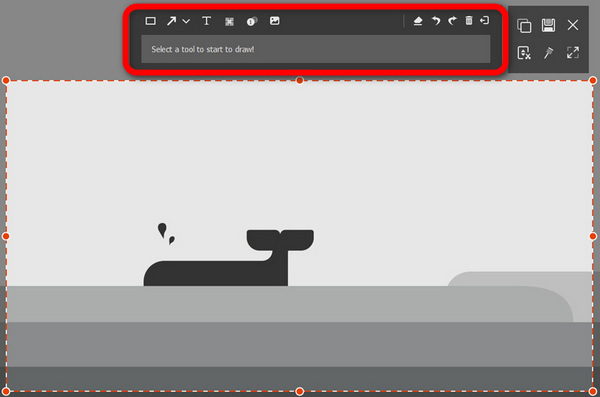
ขั้นตอนที่ 5 เสร็จแล้วให้คลิกปุ่ม Save เพื่อบันทึก.
แม้ว่า Windows และ Mac จะมีเครื่องมือจับภาพหน้าจอขั้นพื้นฐาน แต่ก็ขาดคุณสมบัติการแก้ไขขั้นสูง ดังนั้นการบันทึกหน้าจอ FVC จึงเป็นวิธีที่ดีที่สุดในการแก้ไขภาพหน้าจอได้อย่างราบรื่น เพียงไม่กี่ขั้นตอน คุณสามารถจับภาพ แก้ไข และปรับปรุงภาพหน้าจอของคุณอย่างสร้างสรรค์ได้อย่างง่ายดาย
ส่วนที่ 2: วิธีแก้ไขภาพหน้าจอบน Mac ด้วยการแสดงตัวอย่าง
การแสดงตัวอย่างเป็นเครื่องมือในตัวบน Mac ซึ่งเป็นตัวเลือกที่ยอดเยี่ยมสำหรับการแก้ไขภาพหน้าจอ ประกอบด้วยเครื่องมือแก้ไข เช่น การเพิ่มข้อความ การครอบตัด และการปรับขนาด ทั้งหมดนี้อยู่ในอินเทอร์เฟซที่ใช้งานง่าย นอกจากนี้ เนื่องจากเป็นเครื่องมือในตัวที่ใช้ระบบปฏิบัติการ macOS จึงไม่จำเป็นต้องดาวน์โหลดซอฟต์แวร์เพิ่มเติม
หากต้องการแก้ไขภาพหน้าจอของคุณบน Mac โดยใช้การแสดงตัวอย่าง ให้ทำตามขั้นตอนด้านล่าง:
ขั้นตอนที่ 1 ก่อนอื่นให้เปิดแอป Preview บน Mac ของคุณ แล้วเปิดไฟล์ภาพหน้าจอที่ต้องการแก้ไขหลังจากคุณถ่ายภาพหน้าจอบน Mac แล้ว.
ขั้นตอนที่ 2 คลิกตัวเลือก Show Markup Toolbar ตรงมุมขวาบนของหน้าจอเพื่อแสดงเมนูดรอปดาวน์ที่มีเครื่องมือต่าง ๆ สำหรับแก้ไข ที่นี่คุณสามารถใช้เครื่องมือเลือกแบบต่าง ๆ ลบพื้นหลัง ใช้เครื่องมือสเก็ตช์ วาดรูปทรง และเพิ่มข้อความหรือลายเซ็นลงในภาพหน้าจอของคุณได้.
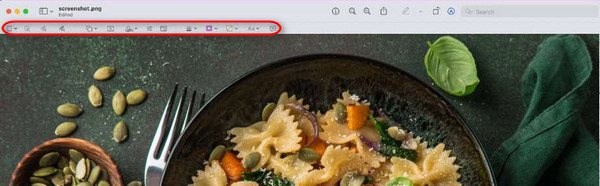
ขั้นตอนที่ 3 เมื่อตกแต่งแก้ไขเรียบร้อยแล้ว ให้ไปที่แถบ File แล้วเลือกตัวเลือก Save เพื่อยืนยันและบันทึกภาพหน้าจอที่แก้ไขแล้ว.
ด้วยการแสดงตัวอย่าง คุณจะได้รับเครื่องมือแก้ไขอย่างง่ายดายสำหรับภาพหน้าจอบน Mac สะดวกและมีมาในตัว แต่ไม่มีคุณสมบัติขั้นสูงที่พบในซอฟต์แวร์อื่น
ส่วนที่ 3: วิธีแก้ไขภาพหน้าจอบน Windows ด้วย Snipping Tool
Snipping Tool ช่วยให้ผู้ใช้สามารถจับภาพและแก้ไขภาพหน้าจอได้ เครื่องมือนี้ยังสมบูรณ์แบบหากเป้าหมายหลักของคุณคือการแก้ไขภาพหน้าจอบน Windows เนื่องจากมีอินเทอร์เฟซที่เรียบง่าย ทำให้ผู้ใช้สามารถแก้ไขภาพหน้าจอได้โดยไม่จำเป็นต้องใช้ซอฟต์แวร์บุคคลที่สาม
หากต้องการแก้ไขภาพหน้าจอของคุณบน Windows ให้ทำตามขั้นตอนด้านล่าง:
ขั้นตอนที่ 1 ก่อนอื่นให้เปิดโปรแกรม Snipping Tool บน Windows โดยค้นหาจากช่องค้นหาในเมนู Start จากนั้นพิมพ์ค้นหา Snipping Tool.
ขั้นตอนที่ 2 ตอนนี้ให้ถ่ายภาพหน้าจอโดยคลิกปุ่ม New.
ขั้นตอนที่ 3 หลังจากถ่ายภาพหน้าจอแล้ว ให้แก้ไขโดยใช้ Menu ด้านบน ที่นั่นคุณสามารถวาด ไฮไลต์ และครอปภาพของคุณได้.
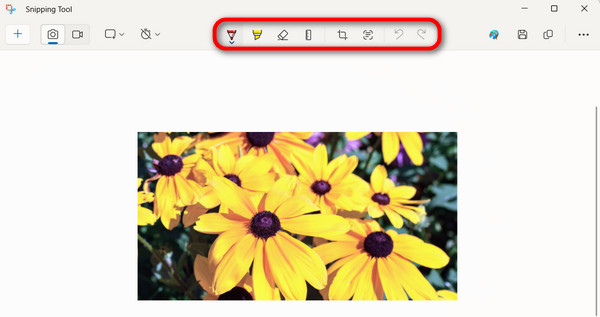
ขั้นตอนที่ 4 เมื่อต้องการบันทึก ให้เข้าเมนู File แล้วเลือก Save As จากตัวเลือกดรอปดาวน์.
แท้จริงแล้ว การใช้ Snipping Tool บน Windows เป็นยูทิลิตี้ในตัวที่มีประโยชน์สำหรับการจับภาพและแก้ไขภาพหน้าจอ อย่างไรก็ตาม ผู้เริ่มต้นจะประสบปัญหาในการนำทาง
ส่วนที่ 4: วิธีแก้ไขภาพหน้าจอบน iPhone โดยใช้เครื่องมือเริ่มต้น
การแก้ไขภาพหน้าจอบน iPhone โดยใช้เครื่องมือเริ่มต้นเป็นวิธีที่ง่ายและสะดวกที่สุดในการแก้ไขภาพหน้าจอบน iPhone คุณสามารถทำได้ทันทีหลังจากจับภาพหน้าจอโดยไม่ต้องใช้แอปเพิ่มเติม ด้วยฟีเจอร์นี้ คุณสามารถทำอะไรได้มากมาย เช่น เพิ่มฟิลเตอร์ เอฟเฟกต์ ข้อความ คำอธิบาย ลายเซ็น การเปลี่ยนความทึบและขนาด และอื่นๆ อีกมากมาย โดยทำตามขั้นตอนด้านล่าง:เครื่องมือในตัวของ iPhone เพื่อ แก้ไขภาพหน้าจอใช้งานง่าย แต่อาจจะไม่สะดวกในการใช้นิ้วเพื่อดูรายละเอียดบางอย่าง
การแก้ไขภาพหน้าจอบน iPhone โดยใช้เครื่องมือเริ่มต้นเป็นวิธีที่ง่ายและสะดวกที่สุดในการแก้ไขภาพหน้าจอบน iPhone คุณสามารถทำได้ทันทีหลังจากจับภาพหน้าจอโดยไม่ต้องใช้แอปเพิ่มเติม ด้วยฟีเจอร์นี้ คุณสามารถทำอะไรได้มากมาย เช่น เพิ่มฟิลเตอร์ เอฟเฟกต์ ข้อความ คำอธิบาย ลายเซ็น การเปลี่ยนความทึบและขนาด และอื่นๆ อีกมากมาย โดยทำตามขั้นตอนด้านล่าง:เครื่องมือในตัวของ iPhone เพื่อ แก้ไขภาพหน้าจอใช้งานง่าย แต่อาจจะไม่สะดวกในการใช้นิ้วเพื่อดูรายละเอียดบางอย่าง
ขั้นตอนที่ 1 อันดับแรกให้บันทึกภาพหน้าจอของวัตถุหรือหน้าจอที่คุณต้องการจับภาพบน iPhone ก่อน.
ขั้นตอนที่ 2 จากนั้นคุณจะเห็นภาพตัวอย่างเล็ก ๆ ปรากฏบนหน้าจอ ให้แตะที่ภาพนั้น.
ขั้นตอนที่ 3 ตอนนี้คุณจะเห็นเครื่องมือต่าง ๆ ภายในหน้าจอ Markup เช่น การเพิ่มข้อความ วาดรูปทรง ไฮไลต์ส่วนสำคัญ ครอป และปรับขนาดภาพ คุณสามารถใช้เครื่องมือเหล่านี้ตามต้องการเพื่อแก้ไขภาพหน้าจอบน iPhone ของคุณ.
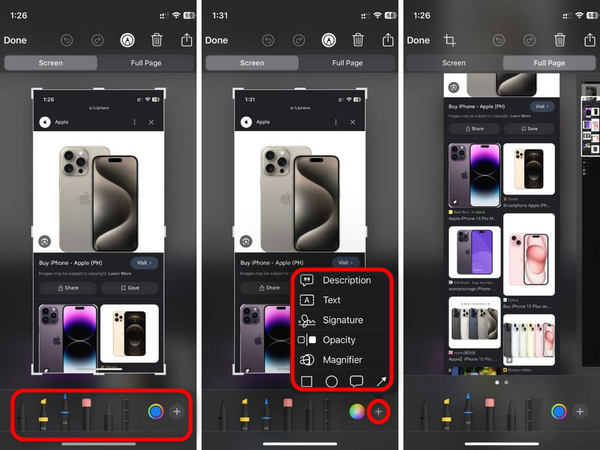
ขั้นตอนที่ 4 หากแก้ไขเสร็จแล้ว ให้แตะปุ่ม Done เพื่อบันทึกลงในแอป Photos.
เครื่องมือในตัวของ iPhone สำหรับแก้ไขภาพหน้าจอนั้นใช้งานง่าย แต่อาจจะไม่สะดวกในการใช้นิ้วเพื่อดูรายละเอียดบางอย่าง
ส่วนที่ 5: วิธีแก้ไขภาพหน้าจอบน Android โดยใช้โปรแกรมแก้ไขในตัว
เช่นเดียวกับ iPhone คุณสามารถแก้ไขภาพหน้าจอของคุณบน Android หลังจากถ่ายภาพหน้าจอได้อย่างง่ายดาย เหมาะที่สุดสำหรับผู้ใช้ Android ที่ต้องการปรับแต่งการแก้ไขภาพหน้าจอจากอุปกรณ์ Android ของตน ด้วยฟีเจอร์นี้ ผู้ใช้สามารถครอบตัด เพิ่มข้อความ ไฮไลต์ วาด และอื่นๆ อีกมากมาย
ขั้นตอนที่ 1 ก่อนอื่นคุณต้องจับภาพหน้าจอบนอุปกรณ์ Android ของคุณก่อน เมื่อจับภาพแล้ว ผลลัพธ์จะปรากฏบนหน้าจอคล้ายกับอุปกรณ์ iOS ให้แตะที่ภาพตัวอย่างนั้นเพื่อเข้าสู่หน้าต่างแก้ไข.
ขั้นตอนที่ 2 เมื่อเข้าสู่หน้าต่างแก้ไขแล้ว คุณสามารถใช้เครื่องมือต่าง ๆ เพื่อปรับแต่งได้ ตัวเลือกที่พบบ่อย ได้แก่ การครอปภาพ เพิ่มข้อความ วาดด้วยปากกาสไตลัสหรือใช้นิ้ว วางฟิลเตอร์ และปรับความสว่างหรือคอนทราสต์.
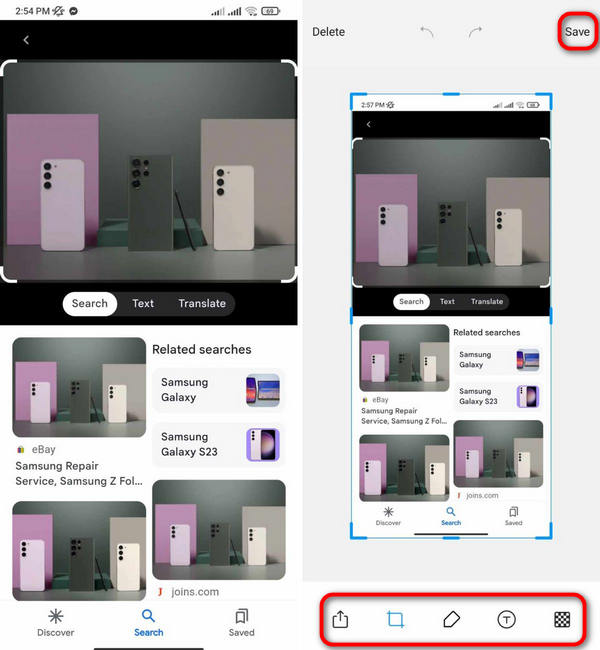
ขั้นตอนที่ 3 เมื่อได้ผลลัพธ์ตามต้องการแล้ว เพียงแตะไอคอนบันทึก (Save) เพื่อดาวน์โหลดเวอร์ชันภาพหน้าจอที่แก้ไขแล้วเก็บไว้ในอุปกรณ์ Android ของคุณอย่างง่ายดาย.
ดังนั้น การใช้โปรแกรมแก้ไขในตัวบนอุปกรณ์ Android จึงให้ความสะดวกในการแก้ไขภาพหน้าจอบนอุปกรณ์ของคุณโดยตรง อย่างไรก็ตาม หากต้องการคุณสมบัติการแก้ไขขั้นสูง คุณอาจต้องลองใช้แอปแก้ไขของบุคคลที่สาม
ส่วนที่ 6: คำถามที่พบบ่อยเกี่ยวกับการแก้ไขภาพหน้าจอ
ฉันสามารถใช้แอปแก้ไขของบริษัทอื่นแทนโปรแกรมแก้ไขในตัวบน Android ได้หรือไม่
ใช่. คุณสามารถใช้แอปแก้ไขของบุคคลที่สามได้หากต้องการคุณสมบัติเพิ่มเติมหรืออินเทอร์เฟซอื่น อย่างไรก็ตาม ตัวแก้ไขในตัวมอบความสะดวกและการผสานรวมกับคุณสมบัติอื่น ๆ ของ Android
การแก้ไขภาพหน้าจอส่งผลต่อคุณภาพหรือไม่
การแก้ไขภาพหน้าจอโดยทั่วไปจะไม่ส่งผลกระทบต่อคุณภาพมากนัก โดยเฉพาะอย่างยิ่งหากใช้ฟังก์ชันการแก้ไขพื้นฐาน เช่น การครอบตัดและการเพิ่มข้อความ อย่างไรก็ตาม การแก้ไขอย่างละเอียด เช่น การกรองหรือการปรับขนาดอย่างหนัก อาจทำให้คุณภาพของภาพลดลงเล็กน้อย
เป็นไปได้ไหมที่จะแก้ไขภาพหน้าจอบนคอมพิวเตอร์ Windows โดยไม่มีซอฟต์แวร์บุคคลที่สาม
ใช่. สามารถแก้ไขภาพหน้าจอบนคอมพิวเตอร์ Windows โดยไม่ต้องใช้ซอฟต์แวร์บุคคลที่สาม Windows มียูทิลิตี้ในตัวที่เรียกว่า Paint ซึ่งช่วยให้คุณสามารถแก้ไขภาพหน้าจอขั้นพื้นฐานได้ เช่น การครอบตัด การเพิ่มข้อความ และการวาดรูปร่าง นอกจากนี้ Windows เวอร์ชันใหม่ยังมีเครื่องมือ 'Snip & Sketch' ซึ่งมีตัวเลือกการแก้ไขขั้นสูงเพิ่มเติม
สรุป
โดยสรุป การเรียนรู้วิธีแก้ไขภาพหน้าจอบนแพลตฟอร์มต่าง ๆ จะช่วยให้คุณปรับแต่งรูปภาพได้อย่างสะดวก ไม่ว่าคุณจะใช้ Mac, Windows, iPhone หรือ Android บทความนี้มีวิธีการแบบทีละขั้นตอนที่ออกแบบมาเฉพาะสำหรับแต่ละแพลตฟอร์ม ตั้งแต่การใช้เครื่องมือในตัวเครื่องไปจนถึงแอปของผู้พัฒนารายอื่นอย่าง FVC Video Repair คุณมีทุกอย่างที่ต้องใช้ในการตกแต่งภาพหน้าจอของคุณให้สมบูรณ์แบบ เริ่มแก้ไขด้วย FVC Video Repair ได้เลย แล้วปลดปล่อยความคิดสร้างสรรค์ของคุณ!
-
 คู่มือทีละขั้นตอนในการจับภาพหน้าจอบน Dell [2025]
 เรียนรู้วิธีถ่ายภาพหน้าจอบนคอมพิวเตอร์ Dell พร้อมคำแนะนำทีละขั้นตอนของเรา เพิ่มประสิทธิภาพและประหยัดเวลาด้วยกระบวนการง่ายๆ นี้ อ่านเลย!
-
 วิธีจับภาพหน้าจอบน HP ได้อย่างง่ายดาย [คู่มือปี 2025]
 เรียนรู้วิธีถ่ายภาพหน้าจอบนคอมพิวเตอร์ Dell พร้อมคำแนะนำทีละขั้นตอนของเรา เพิ่มประสิทธิภาพและประหยัดเวลาด้วยกระบวนการง่ายๆ นี้ อ่านเลย!
-
 จับภาพวิดีโอได้อย่างง่ายดายด้วยคู่มือพื้นฐานนี้ [2025]
 เรียนรู้วิธีถ่ายภาพหน้าจอจากวิดีโอด้วยวิธีง่ายๆ เหล่านี้ได้อย่างง่ายดาย ทำตามคำแนะนำของเราและเริ่มจับภาพหน้าจอวิดีโอโปรดของคุณทันที!
