


 Video Converter Ultimate
 บันทึกหน้าจอ
 ซ่อมวิดีโอ
 ดาวน์โหลดอย่างปลอดภัย
วิธีการบีบอัดไฟล์ MP3: ลดขนาดไฟล์ของคุณ
MP3 ซึ่งเป็นรูปแบบไฟล์เสียงที่ได้รับความนิยมมากที่สุดในปัจจุบัน เป็นที่รู้จักในเรื่องความง่ายในการแจกจ่ายและความเข้ากันได้อย่างกว้างขวาง ผู้สร้างเนื้อหาและบล็อกเกอร์จำนวนนับไม่ถ้วนเลือกใช้รูปแบบ MP3 เพื่อแบ่งปันผลงานดนตรีและเพลงของพวกเขา อย่างไรก็ตาม บางครั้งคุณอาจพบไฟล์ที่มีขนาดใหญ่เกินไปและดาวน์โหลดช้ามาก และไฟล์ดังกล่าวอาจใช้หน่วยความจำของคอมพิวเตอร์ของคุณมาก ทำให้การทำงานของอุปกรณ์ของคุณช้าลง ในกรณีนี้ คุณต้องใช้เครื่องมือระดับมืออาชีพเพื่อช่วยคุณลดขนาดไฟล์ของคุณ
ทุกวันนี้มีโปรแกรมบีบอัดไฟล์ระดับมืออาชีพมากมายในท้องตลาด จนอาจทำให้คุณลังเลว่าจะเลือกตัวไหนให้เหมาะกับตัวเอง ในบทความนี้ เราจะแนะนำเครื่องมือ 4 ตัวที่จะช่วยให้คุณบีบอัดไฟล์ MP3 ได้ในสถานการณ์ที่แตกต่างกันไป หวังว่าคุณจะได้รับประโยชน์จากเนื้อหาที่เราแบ่งปันนี้.

ส่วนที่ 1. บีบอัดไฟล์ MP3 ด้วยโปรแกรมบีบอัดเสียงระดับมืออาชีพ
หากคุณกำลังมองหาเครื่องมือระดับมืออาชีพสำหรับการบีบอัดไฟล์ MP3 ขอแนะนำให้ลองใช้ Video Convert Ultimate เครื่องมือแก้ไขไฟล์มัลติมีเดียแบบครบวงจร ตามชื่อของโปรแกรม มันรองรับการแปลงไฟล์ระหว่างฟอร์แมตต่าง ๆ กว่า 100 แบบ และระหว่างกระบวนการแปลง คุณยังสามารถปรับแต่งไฟล์ให้เป็นไปตามความต้องการของคุณได้อีกด้วย นอกจากนี้ ยังมีฟังก์ชันอื่น ๆ อยู่ในกล่องเครื่องมือ ไม่ว่าจะเป็นตัวบีบอัดเสียง ตัวบีบอัดวิดีโอ เครื่องมือลบลายน้ำ เครื่องมือเพิ่มคุณภาพวิดีโอ เป็นต้น โปรแกรมนี้ได้รับความไว้วางใจจากผู้ใช้ทั่วโลก และมีความปลอดภัยที่ได้รับการรับรอง เรามั่นใจว่าคุณจะประทับใจกับประสิทธิภาพสูงและคุณภาพของไฟล์ที่โปรแกรมนี้ประมวลผล นอกจากนั้น หน้าตาโปรแกรมที่เรียบง่ายก็เป็นอีกหนึ่งเหตุผลที่เรานำมาแนะนำ.
ดาวน์โหลดฟรีสำหรับ Windows 7 หรือใหม่กว่าดาวน์โหลดอย่างปลอดภัย
ดาวน์โหลดฟรีสำหรับ MacOS 10.7 หรือใหม่กว่าดาวน์โหลดอย่างปลอดภัย
หากคุณต้องการบีบอัด MP3 ด้วย FVC Video Convert Ultimate ให้ทำตามขั้นตอนต่อไปนี้
ขั้นตอนที่ 1 ดาวน์โหลดและติดตั้ง FVC Video Convert Ultimate บนคอมพิวเตอร์ของคุณ.
ขั้นตอนที่ 2 เปิดโปรแกรมขึ้นมาแล้วคลิกที่ Toolbox จะมีเครื่องมือต่าง ๆ ปรากฏขึ้นบนหน้าจอ ให้หา Audio Compressor จากนั้นคลิกเข้าไป.
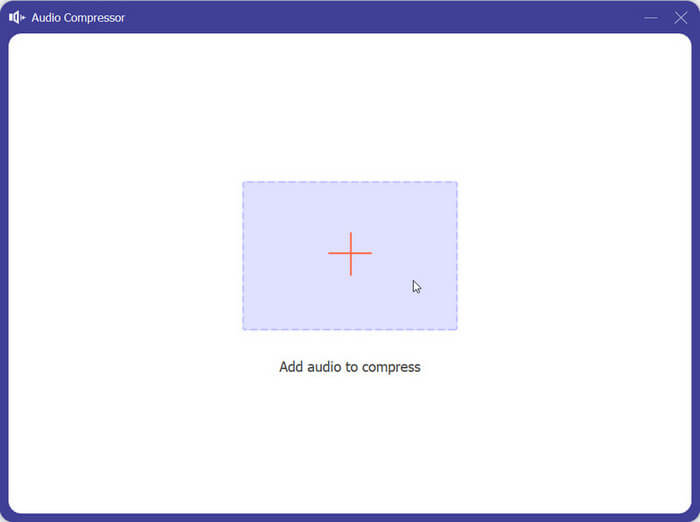
ขั้นตอนที่ 3 เมื่อเข้าสู่หน้าต่าง Audio Compressor แล้ว ให้คลิกปุ่มเครื่องหมายบวกบนหน้าจอเพื่อเพิ่มไฟล์ MP3 ที่คุณต้องการบีบอัด.
ขั้นตอนที่ 4 ปรับค่า Size ตามความต้องการของคุณ ระบบจะแสดงเปอร์เซ็นต์การบีบอัดไฟล์ให้คุณเห็นโดยตรง.
ขั้นตอนที่ 5 คลิกเมนูแบบดรอปดาวน์ถัดจาก Save to เพื่อเลือกโฟลเดอร์ที่ต้องการเก็บไฟล์ที่บีบอัดแล้ว จากนั้นคลิก Compress เพื่อบันทึกการเปลี่ยนแปลง.
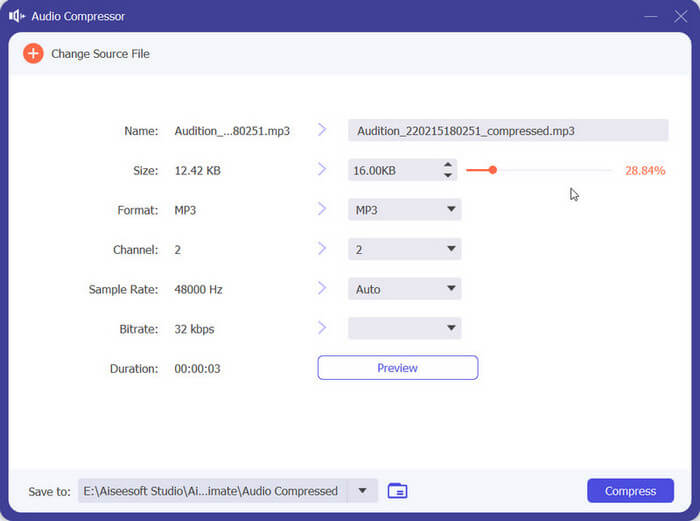
แน่นอนว่าไม่มีเครื่องมือใดที่สมบูรณ์แบบ เครื่องมือนี้มีข้อบกพร่องหลายประการ คุณไม่สามารถดูตัวอย่างเอฟเฟกต์เสียงที่ถูกบีบอัดก่อนส่งออกไฟล์ได้ อย่างไรก็ตาม เครื่องมือจะแสดงเปอร์เซ็นต์การบีบอัดให้คุณเห็นโดยตรง และจัดการไฟล์ได้อย่างมีประสิทธิภาพ ดังนั้น หากคุณไม่พอใจ คุณสามารถย่อขนาดไฟล์ MP3 อีกครั้งได้
ส่วนที่ 2. การบีบอัด MP3 ใน Audacity
หากคุณต้องการซอฟต์แวร์ตัดต่อเสียงขั้นสูง Audacity คือทางเลือกที่ดีที่สุด มันเป็นเครื่องมือที่พัฒนามาเพื่อบันทึกและตัดต่อเพลงโดยเฉพาะ นอกจากจะรองรับการบันทึกพอดแคสต์ พากย์เสียง และบันทึกเมโมแล้ว คุณยังสามารถตัดต่อความยาวไฟล์เสียง เพิ่มเอฟเฟ็กต์พิเศษ ลดขนาดไฟล์ MP3 แปลงฟอร์แมต และอื่น ๆ อีกมากมาย เครื่องมือ อัดเสียง และตัดต่อเสียงตัวนี้เปิดให้ใช้งานฟรีทั้งหมด และปัจจุบันรองรับทั้งระบบ Windows, macOS และ Linux คุณสมบัติเหล่านี้ทำให้มันโดดเด่นในรายการแนะนำของเรา.
ต่อไปนี้คือการดำเนินการที่คุณควรใช้ในการบีบอัดไฟล์ MP3 ด้วย Audacity
ขั้นตอนที่ 1 ดาวน์โหลด Audacity ลงบนอุปกรณ์ของคุณจากแหล่งดาวน์โหลดอย่างเป็นทางการ.
ขั้นตอนที่ 2 หลังจากเปิดโปรแกรมบนคอมพิวเตอร์แล้ว ให้อัปโหลดไฟล์เสียง MP3 ที่คุณต้องการแก้ไข.
ขั้นตอนที่ 3 คลิก Edit > Preference จากนั้นเลือก Quality.
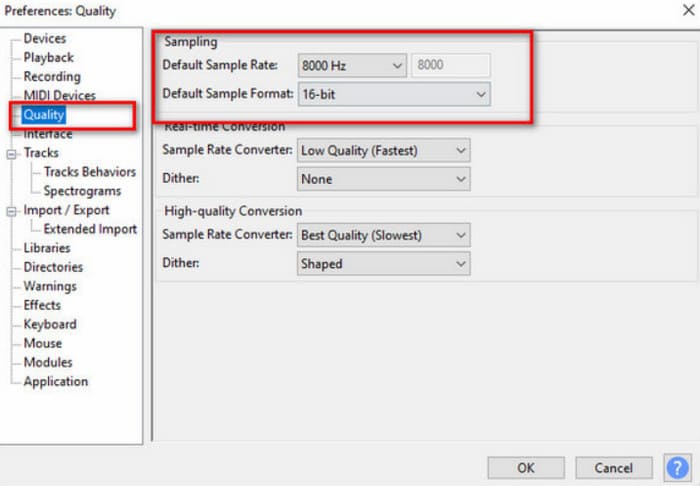
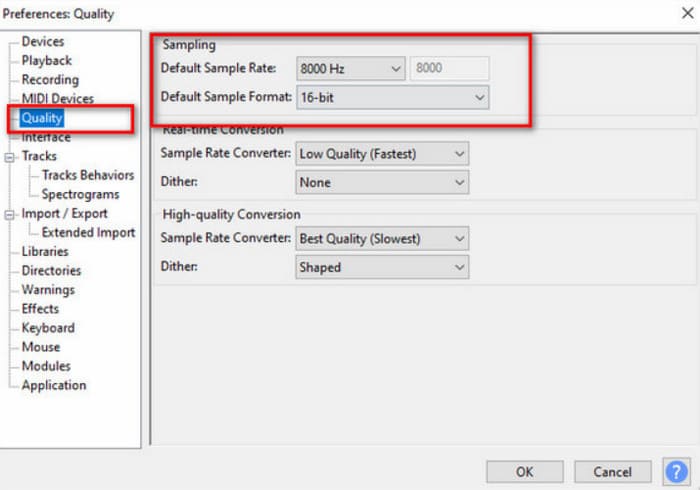
ขั้นตอนที่ 4 เพื่อบีบอัดไฟล์เสียงที่คุณเพิ่มเข้าไป ให้ลดค่า Default Sample Rate และเปลี่ยนค่า Default Sample Format.
ข้อเสียที่เห็นได้ชัดของ Audacity คือความไม่เรียบง่ายในการใช้อินเทอร์เฟซ อาจไม่เป็นมิตรกับผู้เริ่มต้นใช้งาน และยากที่จะค้นหาฟีเจอร์ที่คุณต้องการและระบุวิธีใช้ให้แน่ชัด
ส่วนที่ 3. บีบอัด MP3 ด้วย QuickTime บน Mac
พัฒนาโดยบริษัท Apple QuickTime Player ถูกใช้หลัก ๆ สำหรับเล่นไฟล์เสียงและวิดีโอหลากหลายฟอร์แมต มักถูกตั้งเป็นโปรแกรมเล่นสื่อเริ่มต้นบนระบบ macOS แม้อาจไม่มีฟีเจอร์ขั้นสูงเท่ากับโปรแกรมตัดต่อสื่อระดับมืออาชีพบางตัว แต่ก็ยังเป็นตัวเลือกที่เชื่อถือได้สำหรับงานเล่นไฟล์สื่อและปรับแต่งพื้นฐาน นอกจากนี้ คุณยังสามารถอัดหน้าจอด้วย QuickTime ได้ด้วย หากคุณต้องการเครื่องมือบีบอัดไฟล์ MP3 บน Mac ที่เข้ากันได้อย่างสมบูรณ์กับ macOS ให้ลองใช้ QuickTime Player โดยทั่วไปคุณไม่ต้องดาวน์โหลดหรือติดตั้งอะไรเพิ่มเติม เพียงหาโปรแกรมนี้บนอุปกรณ์แล้วเปิดขึ้นมา.
ที่นี่เราจะแนะนำขั้นตอนโดยละเอียดในการบีบอัด MP3 ด้วย QuickTime
ขั้นตอนที่ 1 เปิด QuickTime Player บนคอมพิวเตอร์ของคุณ.
ขั้นตอนที่ 2 คลิกเมนู File แล้วเลือก Open File เพื่ออัปโหลดไฟล์ MP3 ของคุณ.
ขั้นตอนที่ 3 จากนั้นไปที่แท็บ File อีกครั้ง คลิกแล้วเลือก Export ในเมนูดรอปดาวน์ ที่นี่คุณสามารถเลือกตัวเลือกการส่งออกที่ต้องการได้.
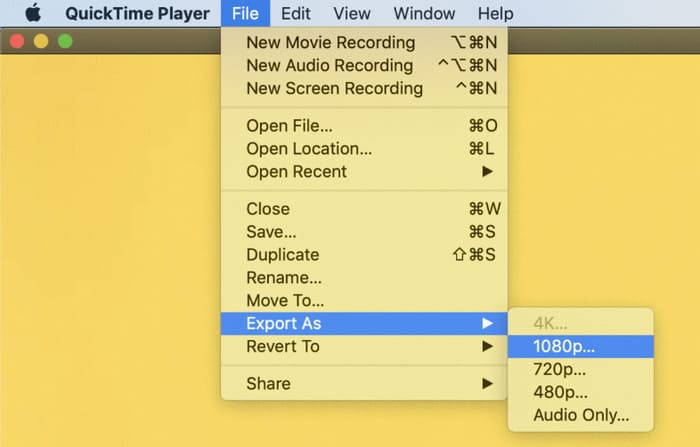
แม้ว่า Quick Time Player จะรองรับการบีบอัดไฟล์เสียง แต่ซอฟต์แวร์บีบอัดเสียงเฉพาะอาจให้การควบคุมการตั้งค่าการบีบอัดที่จำกัด ซึ่งอาจส่งผลให้มีความยืดหยุ่นน้อยลงเมื่อปรับพารามิเตอร์ต่างๆ เช่น บิตเรต อัตราการสุ่มตัวอย่าง หรือตัวเลือกโคเดก
ส่วนที่ 4. การบีบอัดไฟล์ MP3 ออนไลน์
หากคุณต้องการเพลิดเพลินกับการบีบอัดไฟล์ MP3 ที่ไม่หนักเกินไป เครื่องมือออนไลน์จะเป็นตัวเลือกที่ดีกว่าซอฟต์แวร์เดสก์ท็อป FreeConvert MP3 Compressor คุ้มค่าที่จะลองใช้ เนื่องจากเป็นหนึ่งในเครื่องมือแก้ไขมัลติมีเดียออนไลน์ที่ได้รับความนิยมมากที่สุด แม้ว่าจะเป็นเครื่องมือออนไลน์ แต่ก็ไม่ด้อยประสิทธิภาพเมื่อต้องจัดการกับไฟล์ MP3 ขนาดใหญ่ คุณสามารถรับไฟล์เสียงที่ประมวลผลแล้วได้ภายในไม่กี่วินาที ความสะดวกในการใช้งานเป็นหนึ่งในเหตุผลหลักที่เราแนะนำ หากเราต้องการบีบอัดไฟล์ MP3 โดยไม่สูญเสียคุณภาพ เราไม่จำเป็นต้องกระโดดข้ามหน้าใดๆ ทุกอย่างสามารถทำได้บนเว็บเพจเดียว เพื่อปกป้องความเป็นส่วนตัวของคุณ ไฟล์ที่คุณอัปโหลดจะถูกลบภายในไม่กี่ชั่วโมง
ทำตามขั้นตอนต่อไปนี้เพื่อบีบอัด MP3 ออนไลน์ด้วย FreeConvert MP3 Compressor
ขั้นตอนที่ 1 เข้าเว็บไซต์ FreeConvert MP3 Compressor ด้วยเบราว์เซอร์ของคุณ.
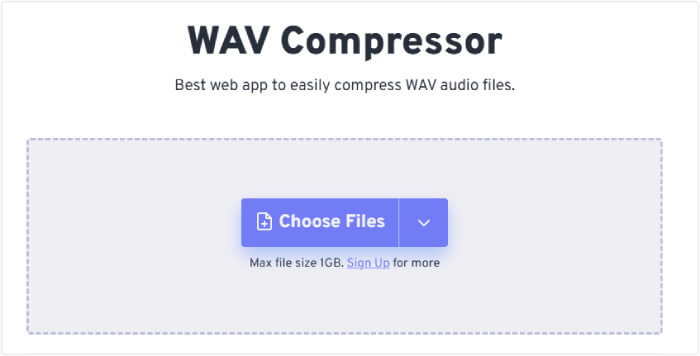
ขั้นตอนที่ 2 คลิก Choose Files เพื่ออัปโหลดไฟล์เสียง MP3 ของคุณ.
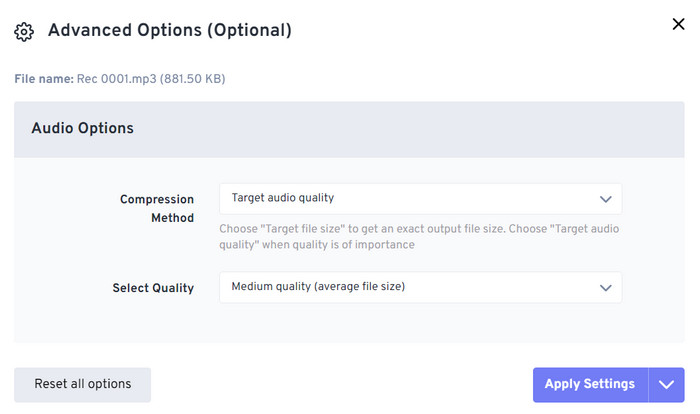
ขั้นตอนที่ 3 หลังจากเพิ่มไฟล์แล้ว คลิก Advanced settings (option) จะมีหน้าต่างเล็ก ๆ ปรากฏขึ้น คุณสามารถเปลี่ยนค่า Compression Method จากนั้นคลิก Apply Settings.
ขั้นตอนที่ 4 คลิก Compress เพื่อเริ่มกระบวนการบีบอัด.
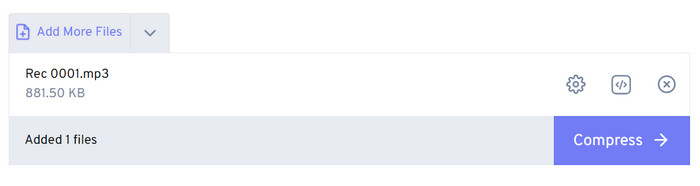
ขั้นตอนที่ 5 สุดท้ายคลิก Download เพื่อดาวน์โหลดไฟล์ MP3 ที่บีบอัดแล้วมายังอุปกรณ์ของคุณ.
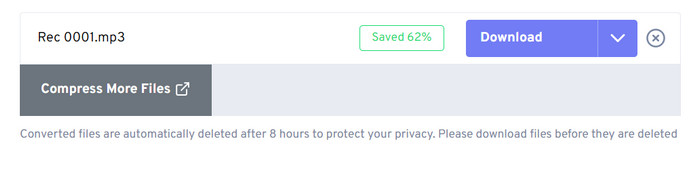
แม้ว่า FreeConvert MP3 Compressor จะทำงานได้ดีในทุกด้าน แต่ผู้ใช้สามารถใช้งานได้เฉพาะเพื่อบีบอัดไฟล์เสียงที่มีขนาดไม่เกิน 1GB เท่านั้น หากต้องการใช้สำหรับไฟล์ MP3 ขนาดใหญ่ เราต้องจ่ายเงิน
ส่วนที่ 5. คำถามที่พบบ่อยเกี่ยวกับการบีบอัดไฟล์ MP3
การบีบอัดไฟล์ MP3 ทำให้คุณภาพลดลงหรือไม่?
กระบวนการนี้อาจส่งผลให้คุณภาพเสียงลดลง โดยเฉพาะหากระดับการบีบอัดสูง ระดับการบีบอัดที่สูงขึ้นจะส่งผลให้คุณภาพเสียงลดลง ในขณะที่ระดับการบีบอัดที่ต่ำลงจะรักษาคุณภาพเสียงให้ดีขึ้น เราควรหาจุดสมดุลระหว่างการลดขนาดไฟล์และการรักษาคุณภาพเสียงที่ยอมรับได้เมื่อบีบอัดไฟล์ MP3
สามารถแตกไฟล์ MP3 ได้หรือไม่?
เมื่อไฟล์ MP3 ถูกบีบอัดแล้ว จะไม่สามารถแตกไฟล์กลับเป็นไฟล์เดิมได้อย่างสมบูรณ์ กระบวนการบีบอัดเกี่ยวข้องกับการทิ้งข้อมูลเสียงบางส่วน หากคุณต้องการปรับปรุงคุณภาพเสียงของไฟล์ MP3 คุณควรเริ่มต้นด้วยไฟล์ต้นฉบับที่มีคุณภาพดีที่สุดก่อนจะแปลงเป็น MP3
การบีบอัดไฟล์เสียงมากเกินไปจะส่งผลอย่างไร?
การบีบอัดไฟล์เสียงมากเกินไปอาจทำให้คุณภาพเสียงลดลง ทำให้เสียงดูผิดเพี้ยน นอกจากนี้ยังอาจทำให้เกิดเสียงรบกวนและผิดเพี้ยนในสัญญาณเสียง เพื่อหลีกเลี่ยงปัญหาดังกล่าว สิ่งสำคัญคือต้องหาจุดสมดุลระหว่างการลดขนาดไฟล์และการรักษาคุณภาพเสียงที่ยอมรับได้เมื่อบีบอัดไฟล์เสียง
สรุป
หากคุณต้องการบีบอัดไฟล์ MP3 ของคุณ เรามั่นใจว่าคุณจะพบคำตอบที่ต้องการในบทความนี้ เราได้อธิบายรายละเอียดเกี่ยวกับเครื่องมือ 4 ตัวที่คุณสามารถใช้ได้ ไม่ว่าคุณจะต้องการใช้โปรแกรมบนเดสก์ท็อป ทำการบีบอัดแบบออนไลน์ ใช้คอมพิวเตอร์ Windows หรือ Mac คุณก็สามารถทำได้ตามคำแนะนำของเรา หากกังวลว่าจะทำผิดขั้นตอน ให้ทำตามคู่มือแบบทีละขั้นที่เราให้ไว้ ซึ่งจะช่วยให้คุณหลีกเลี่ยงปัญหาส่วนใหญ่ได้ เรายังได้รวบรวมและตอบคำถามที่พบบ่อยเกี่ยวกับการบีบอัดไฟล์ MP3 ไว้ให้แล้ว หวังว่าคุณจะพบคำตอบที่ต้องการจากส่วนนี้เช่นกัน.
-
 วิธีลบพื้นหลังออกจากรูปภาพ: เครื่องมือที่ไม่ยุ่งยาก
 ค้นพบเครื่องมือหกประการเพื่อลบพื้นหลังออกจากรูปภาพได้อย่างง่ายดาย บอกลาการแก้ไขที่ซับซ้อนและลบพื้นหลังรูปภาพได้อย่างง่ายดายเลยวันนี้!
-
 เครื่องมือลดขนาด KB/MB ของรูปถ่าย: 3 เครื่องมือบีบอัดข้อมูลที่ต้องมี
 ไม่มีไอเดียว่าจะใช้โปรแกรมลดขนาดรูปภาพแบบใดเพื่อตอบสนองความต้องการในการแปลงไฟล์ของคุณ ในรีวิวนี้ คุณจะได้เรียนรู้เครื่องมือ 3 ตัวที่จะช่วยให้คุณย่อขนาดรูปภาพได้อย่างง่ายดาย
-
 3 วิธีสุดยอดในการบีบอัด SVG [ออนไลน์และออฟไลน์]
 ต้องการบีบอัดไฟล์ SVG แต่ไม่รู้ว่าต้องทำอย่างไร? ในบทความนี้ เราจะแนะนำเครื่องมือ 3 ตัวและสอนขั้นตอนโดยละเอียดเกี่ยวกับวิธีการใช้งานอย่างง่ายดาย
