


 Video Converter Ultimate
 บันทึกหน้าจอ
 ซ่อมวิดีโอ
 ดาวน์โหลดอย่างปลอดภัย
วิธีการตัดแต่งไฟล์ WAV บน Windows/Mac/ออนไลน์
การใช้เครื่องมือตัดหรือครอป (Trim/Cut) ในการแก้ไขไฟล์ WAV เป็นหนึ่งในวิธีทำให้ไฟล์สั้นลงและเก็บเฉพาะส่วนที่คุณต้องการ ในบทความนี้ เราจะมาดู 3 วิธีในการตัดแต่งเสียง WAV โดยใช้เครื่องมือครอบจักรวาลที่ใช้งานง่าย ซอฟต์แวร์ขั้นสูง และเครื่องมือบนเว็บเบราว์เซอร์.

ส่วนที่ 1. ตัดแต่งไฟล์ WAV ด้วยเครื่องตัด WAV ระดับมืออาชีพ [ดีที่สุดสำหรับทุกกรณี]
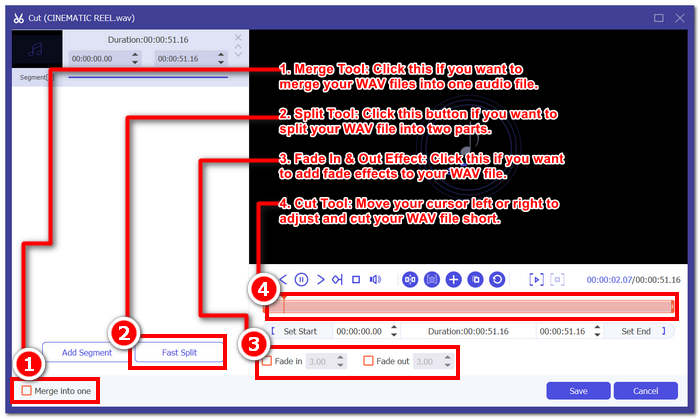
FVC-picked Video Converter Ultimate เป็นโปรแกรมตัดต่อไฟล์ WAV แบบครบฟังก์ชันที่สามารถดาวน์โหลดได้ฟรีทั้งบน Windows และ macOS ซอฟต์แวร์นี้มีฟีเจอร์สำหรับการตัดและครอปไฟล์ WAV เช่น การแบ่งไฟล์อย่างรวดเร็วด้วยเครื่องมือ Split การเพิ่มและรวมคลิปเสียง การตั้งค่าเวลาเริ่มต้นและสิ้นสุดของไฟล์เสียงอย่างแม่นยำ และการใส่เอฟเฟกต์เฟด นอกจากนี้ เครื่องมือยังแสดงระยะเวลาของไฟล์แบบเรียลไทม์ เพื่อให้คุณเห็นความแตกต่างก่อนและหลังการตัดไฟล์ WAV ให้ได้ความยาวตามที่ต้องการ.
ข้อดี
- เครื่องมือตัดไฟล์ WAV ประมวลผลความเร็วสูง
- สามารถนำมาใช้เป็น โปรแกรมแก้ไข WAV และเพิ่มระดับเสียง
- สามารถรวมไฟล์ WAV ที่คุณตัดแต่งได้ด้วยการคลิกเพียงครั้งเดียว
- เป็นเครื่องมือที่ปลอดภัยไม่มีโฆษณาหรือไวรัส
จุดด้อย
- เวอร์ชันฟรีไม่สามารถเปิดใช้การแปลงที่เร็วขึ้น 120 เท่าได้
ขั้นตอนที่ 1 ดาวน์โหลดโปรแกรมตัดไฟล์ WAV จากลิงก์ดาวน์โหลดด้านล่างแล้วติดตั้งลงบนเดสก์ท็อปของคุณ เมื่อติดตั้งเสร็จแล้วให้เปิดโปรแกรม.
ดาวน์โหลดฟรีสำหรับ Windows 7 หรือใหม่กว่าดาวน์โหลดอย่างปลอดภัย
ดาวน์โหลดฟรีสำหรับ MacOS 10.7 หรือใหม่กว่าดาวน์โหลดอย่างปลอดภัย
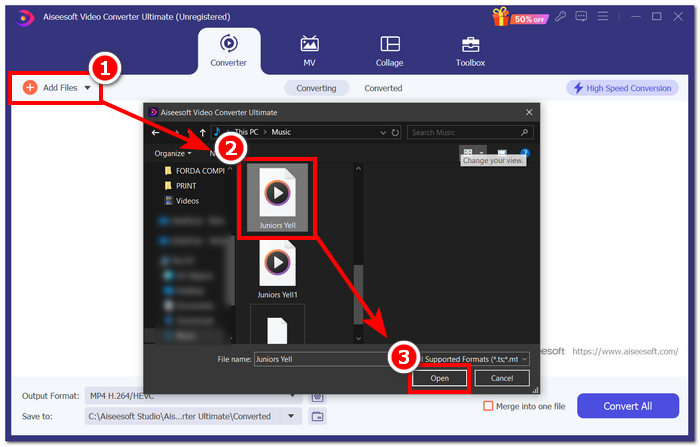
ขั้นตอนที่ 2 คลิกปุ่ม Add Files ที่มุมบนซ้ายของโปรแกรมเพื่อโหลดไฟล์ WAV ที่คุณต้องการตัด.
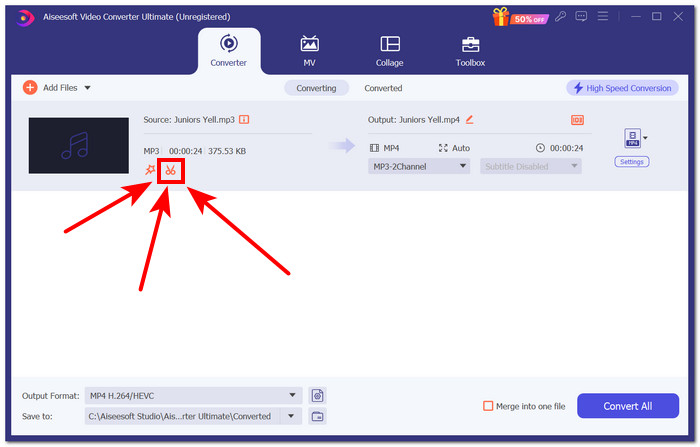
ขั้นตอนที่ 3 เพื่อเริ่มตัดไฟล์ WAV ให้คลิกที่เครื่องมือ Cut (ปุ่มรูปกรรไกร) ที่อยู่ถัดจากไฟล์ WAV ของคุณ.
หน้าต่างใหม่จะเปิดขึ้น ในหน้าต่างนั้น คุณจะพบฟีเจอร์ทั้งหมดของเครื่องมือตัด รวมถึงเครื่องมือตัดแต่งด้วย
ขั้นตอนที่ 4 หากต้องการตัดหรือครอปให้ไฟล์ WAV สั้นลง ให้ลากเคอร์เซอร์บนแทร็กจากซ้ายไปขวาเพื่อกำหนดช่วงที่ต้องการตัดให้สั้นลง.
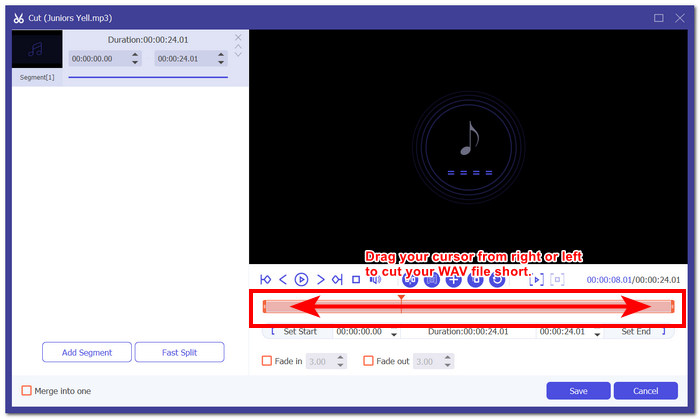
เมื่อคุณตัดไฟล์ WAV เสร็จแล้ว ไฟล์ควรมีลักษณะดังนี้ หากต้องการดูระยะเวลาแบบเรียลไทม์ ให้ดูที่มุมซ้ายบน ที่นั่น จะแสดงจุดเริ่มต้นและจุดสิ้นสุดของการตัด และแสดงระยะเวลาใหม่ของคุณ โดยไม่รวมส่วนที่คุณเพิ่งตัดออก
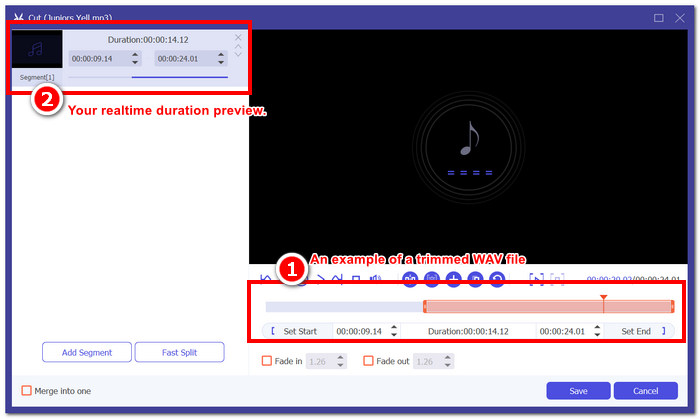
ขั้นตอนที่ 5 เมื่อคุณพอใจกับไฟล์ WAV ที่ตัดเรียบร้อยแล้ว ให้คลิกปุ่ม Save ที่ด้านล่างของโปรแกรม จากนั้นคลิกปุ่ม Convert All เพื่อดาวน์โหลดไฟล์ลงในโฟลเดอร์ดาวน์โหลดของคุณ.

เมื่อต้องการมองหาโปรแกรมตัดไฟล์ WAV ที่ดีที่สุดสำหรับทั้งมืออาชีพและผู้เริ่มต้น แนะนำให้ใช้ FVC-picked Video Converter Ultimate ซอฟต์แวร์นี้จะทำหน้าที่เป็นทั้งเครื่องมือตัดไฟล์ WAV และซอฟต์แวร์สำหรับ แก้ไขไฟล์ WAV นอกจากนี้ยังควรกล่าวด้วยว่า เครื่องมือนี้ไม่ได้ทำได้แค่ตัดไฟล์ WAV เท่านั้น ผู้ใช้ยังสามารถแบ่งไฟล์อย่างรวดเร็วเพื่อการตัดที่แม่นยำ เพิ่มและรวมคลิปเสียงภายในไฟล์ WAV รวมถึงส่งออกไฟล์ด้วยเทคโนโลยีประมวลผลความเร็วสูง.
ส่วนที่ 2. ตัดแต่งไฟล์ WAV ด้วย WAV Cutter แบบโอเพ่นซอร์สและฟรี [สำหรับผู้ใช้ขั้นสูง]
ยกระดับประสบการณ์การตัดแต่งไฟล์ WAV ของคุณไปสู่อีกระดับด้วย Audacity ซอฟต์แวร์ระดับมืออาชีพแต่ฟรีและเป็นโอเพ่นซอร์ส ซอฟต์แวร์ยอดนิยมนี้ใช้งานได้กับ Windows และ macOS ทำให้เป็นหนึ่งในซอฟต์แวร์ที่เป็นที่ต้องการในแง่ของกระบวนการตัดต่อขั้นสูง Audacity ช่วยให้ผู้ใช้สามารถเลือกส่วนที่ต้องการตัดหรือเล็มไฟล์ได้โดยใช้แว่นขยายในตัวเพื่อขยายแทร็ก นอกจากนี้ยังมีปุ่มเฉพาะสำหรับการตัดไฟล์ WAV ทันทีที่เรียกว่า 'I-beam' ซอฟต์แวร์นี้เหมาะสำหรับผู้ที่ต้องการการตัดแต่งขั้นสูง เนื่องจากช่วยให้ผู้ใช้สามารถดูเวฟฟอร์มของแทร็กไฟล์ WAV ได้อย่างใกล้ชิด ซึ่งสามารถใช้เพื่อดูและตัดไฟล์ได้อย่างแม่นยำ
ข้อดี
- ซอฟต์แวร์เครื่องมือแก้ไขและตัดแต่ง WAV ใช้งานได้ฟรี
- สามารถใช้งานเป็นเครื่องมือตัดแต่ง WAV แบบหลายแทร็กได้
- นำเสนอไลบรารีเอฟเฟกต์เสียงของบุคคลที่สามมากมาย
- สามารถซิงโครไนซ์การแก้ไขเสียงของคุณไปยังแทร็กอื่นได้
จุดด้อย
- ผู้ใช้อาจพบว่าการนำทางซอฟต์แวร์ทั้งหมดเป็นเรื่องยาก
ขั้นตอนที่ 1 ติดตั้ง Audacity จากเว็บไซต์ทางการ เมื่อติดตั้งเสร็จแล้วให้เปิดโปรแกรมบนเดสก์ท็อปของคุณ.
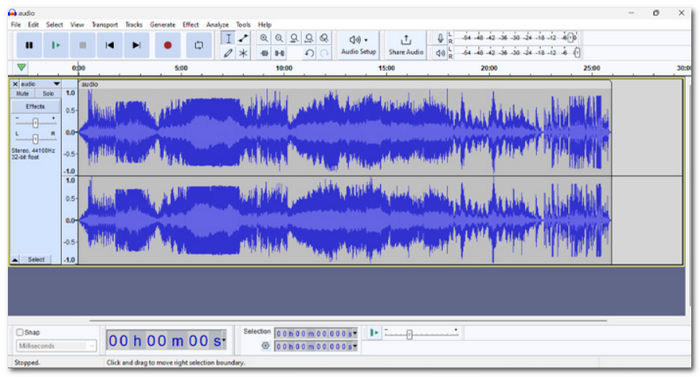
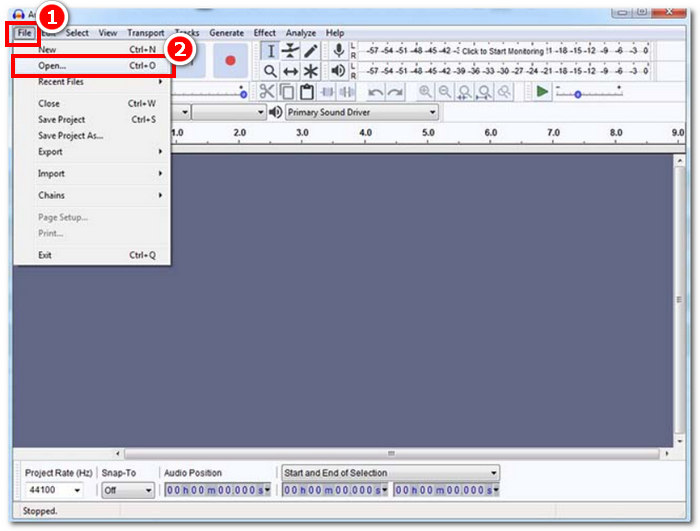
ขั้นตอนที่ 2 เปิดโปรแกรมแล้วนำเข้าไฟล์ WAV ของคุณโดยคลิกเมนู File > Open ที่มุมบนซ้าย.
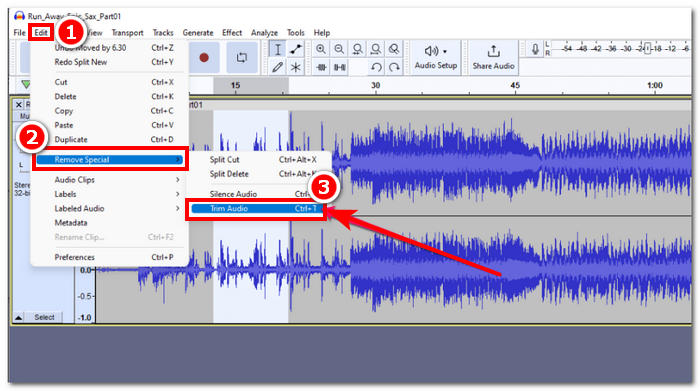
ขั้นตอนที่ 3 เมื่อไฟล์ WAV ของคุณถูกอัปโหลดเข้าโปรแกรมแล้ว ให้เลื่อนไปยังส่วนของไฟล์ที่คุณต้องการตัด จากนั้นคลิกเมนู Edit ที่มุมบนซ้าย แล้วไปที่หัวข้อ Remove Special ภายใต้ส่วนนี้ให้คลิก Trim Audio เพื่อทำการตัดไฟล์ WAV ของคุณอย่างมีประสิทธิภาพ.
ขั้นตอนที่ 4 เมื่อคุณพอใจกับการตัดไฟล์ WAV แล้ว ให้ส่งออกและบันทึกไฟล์ไปยังโฟลเดอร์ดาวน์โหลดที่กำหนดไว้ โดยคลิกเมนู File ที่มุมบนซ้ายของโปรแกรม จากนั้นคลิก Export > Export as WAV ไฟล์จะถูกบันทึกลงในโฟลเดอร์ดาวน์โหลดของคุณโดยอัตโนมัติ.
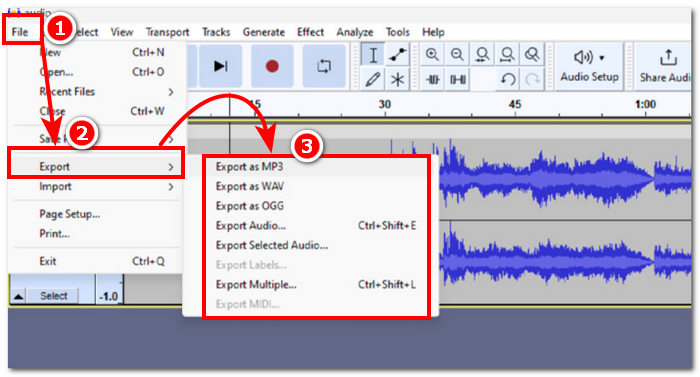
Audacity มีศักยภาพที่จะเป็นโปรแกรมตัดแต่ง WAV ที่ดีที่สุดในรายการ แต่ผู้ใช้ทั่วไปไม่สามารถเข้าถึงได้ ทำให้เป็นเครื่องมือสำหรับผู้ใช้ขั้นสูงเท่านั้น แม้จะมีคุณสมบัติขั้นสูงในการตัดแต่งและแก้ไขเสียง แต่ก็ทำงานได้ค่อนข้างดีและสามารถจัดการกับความต้องการในการแก้ไขไฟล์ WAV ขั้นพื้นฐานไปจนถึงขั้นสูงได้ ดังนั้นการลองใช้ Audacity จึงต้องมีความรู้เกี่ยวกับซอฟต์แวร์และคุ้นเคยกับคุณสมบัติทั้งหมด เพื่อหลีกเลี่ยงความสับสนและสับสนกับอินเทอร์เฟซของมัน
ส่วนที่ 3. ตัดแต่งไฟล์ WAV ออนไลน์ [ขั้นตอนง่ายๆ]
อีกวิธีหนึ่งในการตัดแต่งไฟล์ WAV ออนไลน์คือผ่าน Aconvert ซึ่งเป็นโปรแกรมตัดแต่งไฟล์ WAV บนเว็บฟรี ผู้ใช้สามารถอัปโหลดไฟล์ WAV ได้อย่างง่ายดายในเครื่องมือ เลือกตำแหน่งที่ต้องการเริ่มตัดและป้อนระยะเวลาที่เหมาะสม เพียงเท่านี้คุณก็ตัดแต่งไฟล์ WAV ของคุณเสร็จเรียบร้อยแล้ว คำแนะนำทีละขั้นตอนพร้อมข้อดีและข้อเสียจะแสดงไว้ด้านล่างเพื่อช่วยให้คุณเข้าใจเครื่องมือออนไลน์นี้ได้ดีขึ้นและใช้งานอย่างมีประสิทธิภาพ
ข้อดี
- เครื่องมือออนไลน์ที่เรียบง่ายและใช้งานง่าย
- การตัดแต่งไฟล์ WAV อย่างรวดเร็ว
- คุณสามารถป้อน URL เพื่ออัพโหลดไฟล์ WAV ของคุณได้
จุดด้อย
- มีโฆษณาแบบป๊อปอัปมากมาย
- คุณสามารถเล่นไฟล์ WAV ได้หลังจากตัดเท่านั้น
- ต้องการการเชื่อมต่ออินเทอร์เน็ต
ขั้นตอนที่ 1 ไปที่เว็บไซต์ทางการของ Aconvert เพื่อเข้าใช้เครื่องมือตัดไฟล์ WAV.
ขั้นตอนที่ 2 เมื่อเข้าสู่หน้าตัวเครื่องมือออนไลน์แล้ว ให้คลิกเมนู Audio ที่แถบด้านซ้าย จากนั้นคลิกเครื่องมือ Cut ที่อยู่ด้านบนสุดของเครื่องมือ.
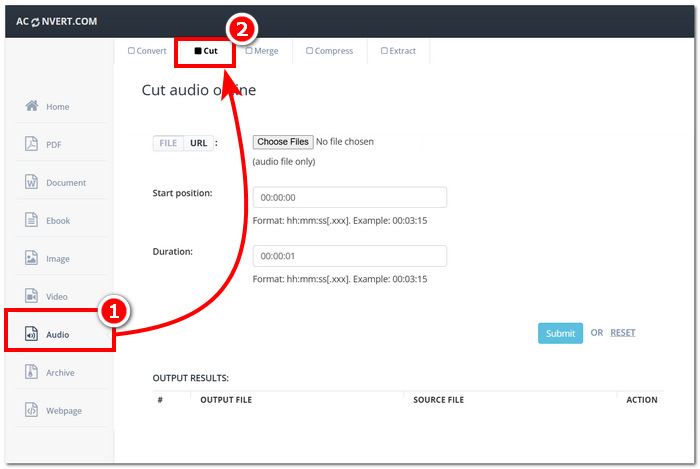
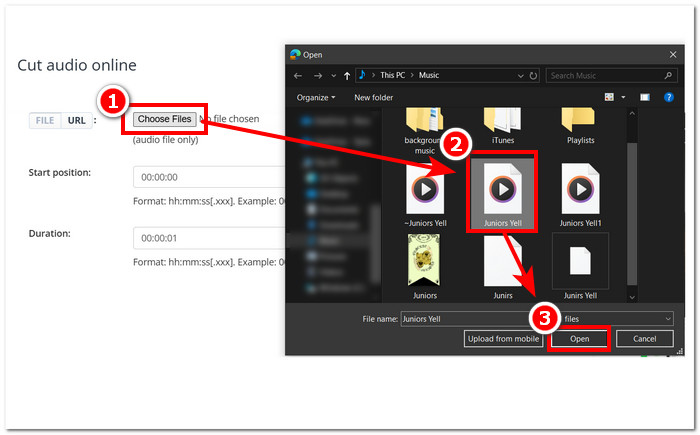
ขั้นตอนที่ 3 คลิก Choose Files แล้วเลือกไฟล์ WAV ที่คุณต้องการตัดหรือครอป.
ขั้นตอนที่ 4 เมื่อคุณเลือกไฟล์ WAV แล้ว ให้กรอกตำแหน่งเริ่มต้นและระยะเวลาในช่องที่กำหนด จากนั้นคลิกปุ่ม Submit เพื่อเริ่มตัดไฟล์ WAV ของคุณ.
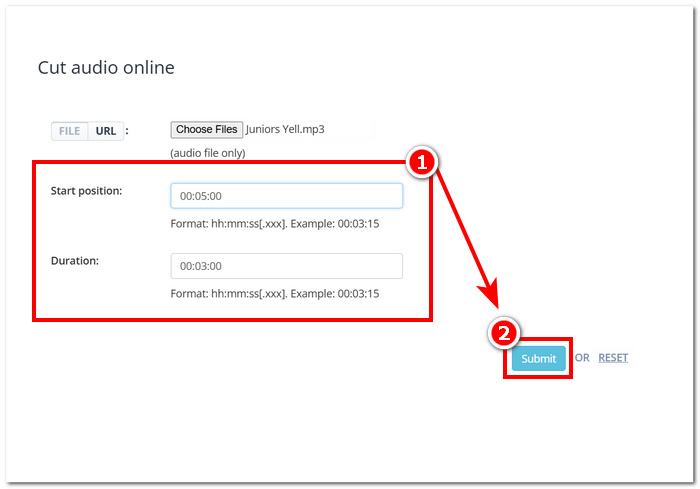
ตำแหน่งเริ่มต้นหมายถึงจุดเริ่มต้นที่การตัดของคุณเริ่มต้น และระยะเวลาหมายถึงระยะเวลาโดยรวมที่คุณต้องการให้ไฟล์ WAV ของคุณ
ขั้นตอนที่ 5 เมื่อเครื่องมือประมวลผลไฟล์เสร็จแล้ว คุณสามารถดาวน์โหลดไฟล์ WAV ที่ตัดแล้วได้โดยคลิกปุ่ม Save ในส่วน Action ที่ด้านล่างของหน้าอินเทอร์เฟซ.
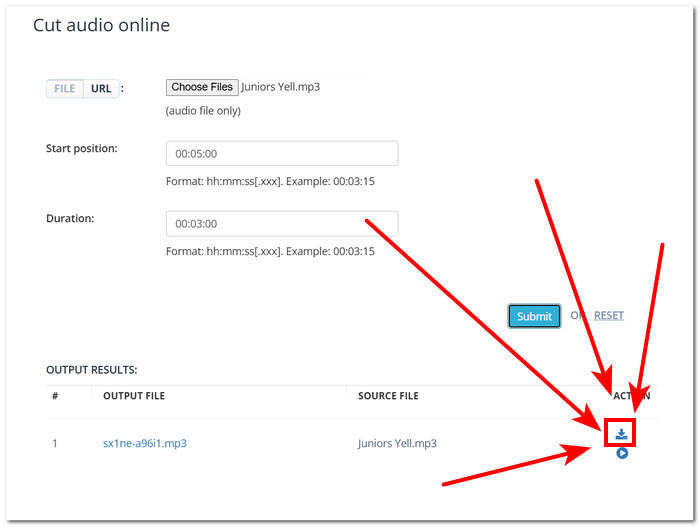
Aconvert เป็นโซลูชันที่เร็วที่สุดสำหรับการตัดแต่งไฟล์ WAV ของคุณในเวลาเร่งด่วน เนื่องจากช่วยให้ตัดแต่งได้อย่างราบรื่นและให้ผลลัพธ์ทันที เครื่องมือบนเว็บนี้อาจสะดวกสำหรับผู้ใช้ แต่สิ่งสำคัญคือต้องทราบด้วยว่าเครื่องมือนี้มีโฆษณาแบบป๊อปอัปที่อาจทำให้เกิดข้อกังวลเกี่ยวกับความปลอดภัยของไฟล์และคุณภาพการส่งออก
ส่วนที่ 4 คำถามที่พบบ่อยเกี่ยวกับการตัดแต่งไฟล์ WAV
ไฟล์ WAV ยังคงใช้อยู่หรือไม่?
ใช่ ไฟล์ WAV ยังคงถูกใช้ในปัจจุบัน และจะยังคงใช้ต่อไปเนื่องจากไฟล์เหล่านี้มีประสิทธิภาพในการเก็บรักษาและจัดเก็บข้อมูลเสียงโดยไม่สูญเสียข้อมูล และเข้ากันได้กับซอฟต์แวร์และอุปกรณ์เสียงมากมาย
คุณสามารถตัดไฟล์ WAV ใน Windows Media Player ได้หรือไม่?
ไม่สามารถทำได้ Windows Media Player ทำหน้าที่เพียงเป็นโปรแกรมเล่นสื่อสำหรับไฟล์ WAV ของคุณเท่านั้น และไม่มีฟีเจอร์ในตัวสำหรับตัดหรือครอปไฟล์ WAV.
Final Cut Pro รองรับ WAV หรือไม่?
ใช่ Final Cut Pro รองรับ WAV และคุณสามารถตัด รวม และแก้ไขไฟล์ WAV ได้อย่างง่ายดาย
จะตัดไฟล์ WAV โดยไม่สูญเสียคุณภาพได้อย่างไร?
หากต้องการตัดไฟล์ WAV โดยไม่สูญเสียคุณภาพ ควรใช้ซอฟต์แวร์และเครื่องมือบนเว็บที่เชื่อถือได้ เช่น Video Converter Ultimate หรือ Audacity ที่ FVC เลือกใช้ การใช้เครื่องมือที่เชื่อถือได้จะช่วยให้คุณส่งออกเสียงคุณภาพสูงและรักษาคุณภาพเสียงต้นฉบับของไฟล์ WAV ไว้ได้เสมอ
มีซอฟต์แวร์ใดที่ใช้ตัดไฟล์ WAV?
Audacity เป็นโปรแกรมซอฟต์แวร์ที่ได้รับความนิยมสำหรับการแก้ไขไฟล์ WAV เมื่อใช้ซอฟต์แวร์ขั้นสูง เช่น Audacity โปรดแน่ใจว่าคุณคุ้นเคยกับอินเทอร์เฟซเป็นอย่างดี เนื่องจากการใช้งานในฐานะมือใหม่อาจค่อนข้างสับสนและยุ่งยาก
สรุป
การตัดแต่งไฟล์ WAV เป็นกระบวนการที่ไม่ซับซ้อน และเป็นฟังก์ชันพื้นฐานที่พบได้ทั่วไปในโปรแกรมตัดต่อเสียง ใช้ซอฟต์แวร์ที่เหมาะสมอย่าง FVC-picked Video Converter Ultimate, Audacity และ Aconvert เพื่อช่วยตัดไฟล์ WAV ของคุณ ให้สามารถลบส่วนที่ไม่ต้องการออกได้อย่างมีประสิทธิภาพและยังคงคุณภาพเสียงขณะส่งออกในระดับสูง.
-
 ฉันจะแปลง MP4 เป็น WAV ออนไลน์ฟรีได้อย่างไร
 พยายามอย่างยิ่งที่จะแปลง MP4 เป็น WAV หรือไม่? ไม่ทราบว่าตัวแปลงใดที่สามารถช่วยคุณได้อย่างสมบูรณ์แบบโดยไม่ต้องเสียเงิน? อ่านโพสต์นี้และคำถามทั้งหมดของคุณจะได้รับคำตอบ
-
 รีวิว 10 เครื่องเล่นเพลง MP3 ฟรีที่ดีที่สุด
 เครื่องเล่นเพลง MP3 ที่ดีที่สุดคืออะไร? ฉันจะใส่เพลงลงในเครื่องเล่น MP3 ได้อย่างไร? จะดาวน์โหลดเครื่องเล่นเพลง MP3 ได้อย่างไร? โพสต์นี้ให้รายละเอียดเกี่ยวกับเครื่องเล่น MP3 ฟรีที่ดีที่สุด 10 รายการสำหรับ Windows PC และ Mac
-
 8 เครื่องเล่น MOV ที่ดีที่สุดสำหรับ PC และ Mac เพื่อเล่นไฟล์วิดีโอ QuickTime MOV
 เพียงเรียนรู้เพิ่มเติมเกี่ยวกับเครื่องเล่น MOV ที่ดีที่สุด 8 ตัวที่มีให้ทั้ง Windows และ Mac คุณสามารถเลือกไฟล์ที่ต้องการและเหมาะสมเพื่อเล่นไฟล์ MOV ด้วยคุณภาพดั้งเดิม
