


 Video Converter Ultimate
 บันทึกหน้าจอ
 ซ่อมวิดีโอ
 ดาวน์โหลดอย่างปลอดภัย
แก้ไขไฟล์ M4A สำหรับ Windows, macOS, ออนไลน์ และโทรศัพท์มือถือ
เนื่องจากไฟล์ M4A ไม่ได้ถูกออกแบบมาให้รองรับกับอุปกรณ์ทุกประเภท ซอฟต์แวร์ตัดต่อเสียงจำนวนมากจึงทำงานกับรูปแบบไฟล์นี้ได้ลำบาก ทำให้ผู้ใช้แก้ไขไฟล์ได้ยาก อย่างไรก็ตาม โดยพื้นฐานแล้ว M4A รองรับเกือบทุกอุปกรณ์ ทำงานได้ค่อนข้างเบากับอุปกรณ์ของคุณเพราะมีการบีบอัด ใช้พื้นที่จัดเก็บน้อยลง และยังคงให้คุณภาพเสียงที่ดี ไม่ต้องกังวลไป เพราะการแก้ไขไฟล์ M4A ยังทำได้อยู่ โดยใช้เครื่องมือซอฟต์แวร์ที่เราคัดสรรอย่างดีสำหรับ Windows และ macOS เครื่องมือออนไลน์สำหรับเบราว์เซอร์ รวมถึงแอปบนอุปกรณ์พกพา.

ส่วนที่ 1. แก้ไขไฟล์ M4A บน Windows 11/10/8/7 และ macOS
1. โปรแกรมแก้ไข M4A แบบครบวงจร
เครื่องมือ Video Converter Ultimate ที่ FVC คัดสรร นี้เป็นโปรแกรมตัดต่อ M4A ที่ใช้งานได้หลากหลายและใช้งานง่าย เป็นเครื่องมือแบบติดตั้งบนคอมพิวเตอร์ และถือเป็นโปรแกรมตัดต่อ M4A แบบครบวงจร เพราะมีฟีเจอร์ต่าง ๆ เช่น เครื่องมือตัด M4A, รวมไฟล์, บีบอัด, ลบเสียงรบกวน, เพิ่มระดับเสียง เป็นต้น ด้วยการทำงานได้ทั้งเป็นโปรแกรมตัดต่อเสียงและวิดีโอ พร้อมอินเทอร์เฟซที่เรียบง่าย จึงเป็นซอฟต์แวร์ชั้นเยี่ยมสำหรับทั้งอุปกรณ์ Windows และ Mac เพื่อช่วยให้คุณเริ่มต้นใช้งานโปรแกรมตัดต่อ M4A แบบครบวงจร นี่คือคู่มือแบบย่อที่จะช่วยให้คุณใช้งานซอฟต์แวร์ได้อย่างมีประสิทธิภาพ.
ขั้นตอนที่ 1 ดาวน์โหลดและติดตั้ง Video Converter Ultimate ที่ FVC คัดสรร ลงบนเดสก์ท็อปของคุณ.
ดาวน์โหลดฟรีสำหรับ Windows 7 หรือใหม่กว่าดาวน์โหลดอย่างปลอดภัย
ดาวน์โหลดฟรีสำหรับ MacOS 10.7 หรือใหม่กว่าดาวน์โหลดอย่างปลอดภัย
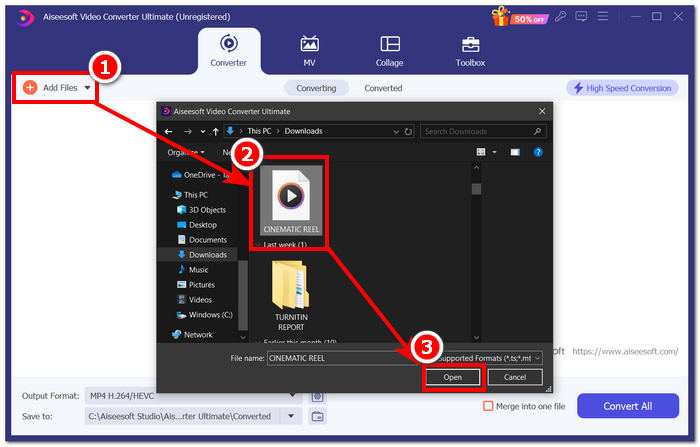
ขั้นตอนที่ 2 บนหน้าอินเทอร์เฟซของเครื่องมือ ให้คลิกปุ่ม Add Files เพื่อเพิ่มไฟล์ M4A ของคุณเข้าสู่โปรแกรม.
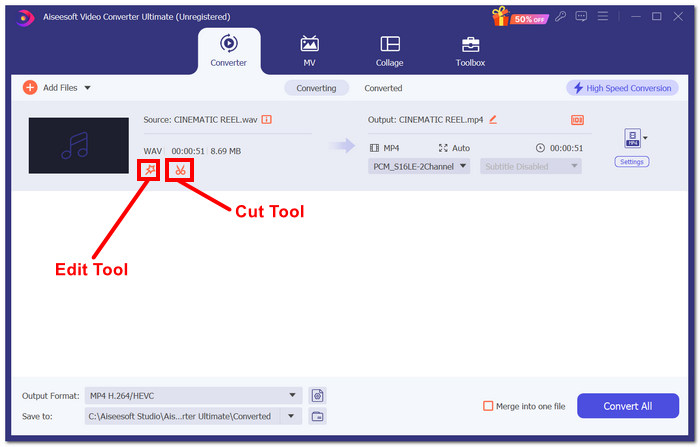
ขั้นตอนที่ 3 ตอนนี้คุณสามารถแก้ไขไฟล์ M4A ของคุณได้แล้ว โดยเลือกเครื่องมือ Edit และ Cut ซึ่งอยู่ถัดจากไฟล์ M4A ที่คุณอัปโหลดหลังจากไฟล์ถูกเพิ่มเข้ามาในเครื่องมือเรียบร้อยแล้ว.
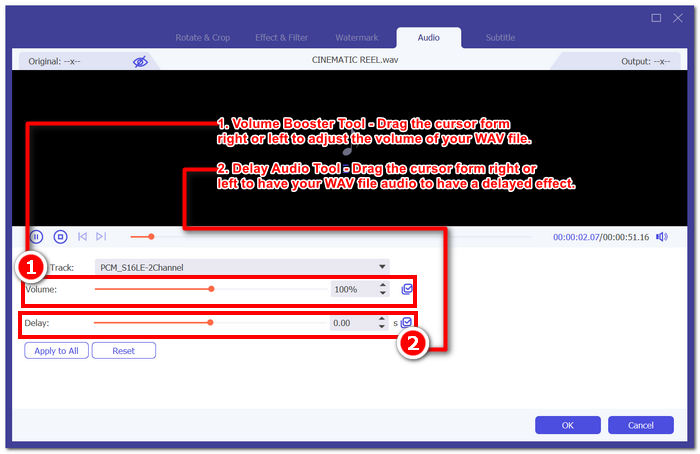
หมายเหตุ: คลิกที่ไอคอน Magic Wand หากคุณต้องการใช้ฟังก์ชันเพิ่มเสียง (Volume Booster) และหน่วงเวลาสัญญาณเสียง (Audio Delay) กับไฟล์ M4A ของคุณ.
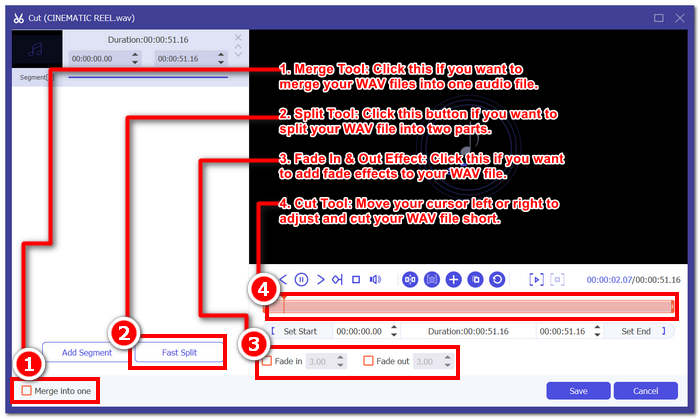
มิฉะนั้น ให้คลิกที่ไอคอนกรรไกรเพื่อใช้ฟีเจอร์เช่น เพิ่มเอฟเฟกต์เฟด ตัด แยก และผสานให้กับไฟล์ M4A ของคุณ
ขั้นตอนที่ 4 หลังจากแก้ไขและตัดไฟล์ M4A ของคุณได้ตามต้องการแล้ว ให้คลิกปุ่ม Convert All เพื่อเริ่มดาวน์โหลดไฟล์ไปยังโฟลเดอร์ที่คุณกำหนดบนเดสก์ท็อป.

ซอฟต์แวร์ที่ FVC เลือกใช้นั้นสมกับชื่อเสียงในฐานะเครื่องมือแก้ไข M4A แบบครบวงจร เครื่องมือนี้รองรับไฟล์เสียงและวิดีโอหลากหลายรูปแบบ เช่น MP3, M4A, MP4, AAC, WMA, WAV และอื่นๆ อีกมากมาย นอกจากนี้ ผู้ใช้ยังมั่นใจได้ว่าจะได้ไฟล์คุณภาพสูงเสมอ เนื่องจากเครื่องมือนี้รองรับการอัปโหลดไฟล์ได้ไม่จำกัดขนาดพร้อมเทคโนโลยีการส่งออกความเร็วสูงเพื่อการประมวลผลและการส่งออกไฟล์ WAV ของคุณได้เร็วขึ้นในขณะที่ยังคงคุณภาพของไฟล์เอาไว้
2. โปรแกรมแก้ไข M4A แบบโอเพ่นซอร์สและทรงพลัง
Audacity โปรแกรมแก้ไข M4A แบบโอเพ่นซอร์สที่ใช้บันทึกเสียงได้ด้วย ถือเป็นโปรแกรมยอดนิยมที่ใครๆ ก็รู้จัก ด้วยประสบการณ์หลายปีในการผลิตเสียง โปรแกรมนี้จึงถือเป็นเครื่องมือที่ได้รับความนิยมและใช้งานกันแพร่หลายที่สุด โปรแกรมนี้ขึ้นชื่อในเรื่องความสามารถในการบันทึกเสียงดนตรี ตัดต่อ มิกซ์ และรวมเพลงเข้าด้วยกัน นอกจากนี้ยังใช้แก้ไขและสร้างไฟล์ M4A เพื่อใช้ในพอดคาสต์ได้อีกด้วย โปรแกรมนี้เข้ากันได้กับรูปแบบไฟล์อื่นๆ เช่น WAV, MP3, MP2 เป็นต้น ทำให้เป็นเครื่องมือที่มีความยืดหยุ่นสำหรับการแก้ไขและบันทึก M4A ได้อย่างง่ายดาย
ขั้นตอนที่ 1 ดาวน์โหลดและติดตั้ง Audacity ลงบนเดสก์ท็อปของคุณ.
ขั้นตอนที่ 2 เมื่อคุณติดตั้ง Audacity แล้ว ให้เปิดโปรแกรม บนหน้าอินเทอร์เฟซ ให้เปิดไฟล์ M4A ที่คุณต้องการแก้ไขโดยคลิกที่เมนู File มุมซ้ายบนของหน้าจอ จากนั้นคลิก Open.
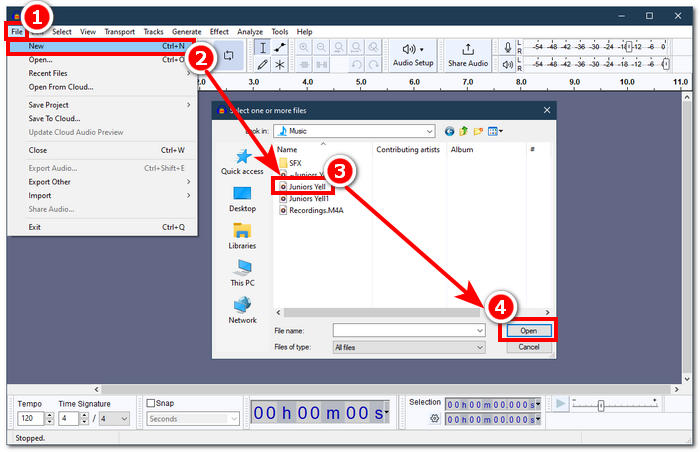
ต้องใช้ปลั๊กอิน FFmpeg เพื่อใช้ไฟล์ M4A กับ Audacity โปรดแน่ใจว่าคุณได้ติดตั้งปลั๊กอินก่อนดำเนินการแก้ไข M4A
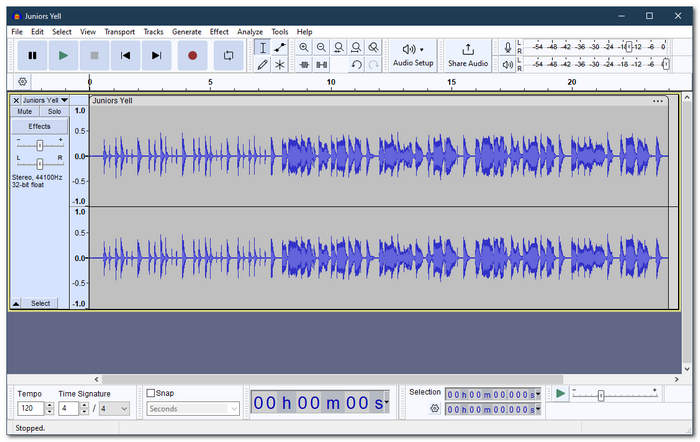
ขั้นตอนที่ 3 เมื่อไฟล์ M4A ถูกอัปโหลดเข้าสู่เครื่องมือแล้ว คุณสามารถใช้เครื่องมือต่าง ๆ ที่มีให้เพื่อแก้ไขไฟล์ได้ทันที.
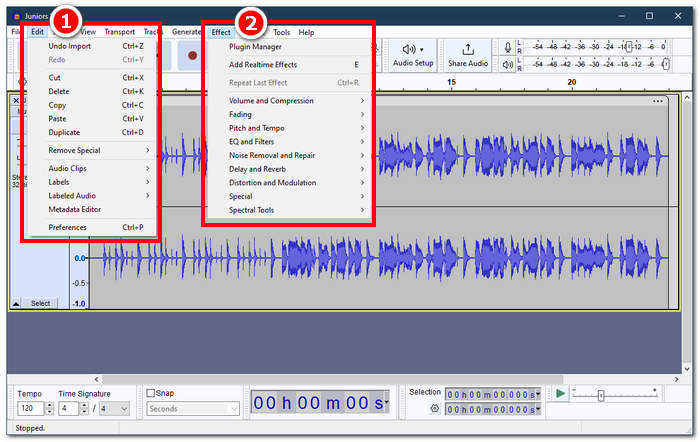
หมายเหตุ: หากต้องการตัด ลบส่วนต่าง ๆ ใส่เอฟเฟ็กต์ คัดลอก วาง ทำซ้ำ หรือรวมแทร็กเสียงใน Audacity ให้คลิกที่เมนู Edit ซึ่งอยู่ในแถบเมนูด้านบนซ้ายของเครื่องมือ หากต้องการปรับระดับเสียง ใส่เอฟเฟ็กต์เฟด ปรับคีย์และความเร็ว (tempo) และอื่น ๆ ให้คลิกที่เมนู Effect ซึ่งอยู่ในตำแหน่งเดียวกัน.
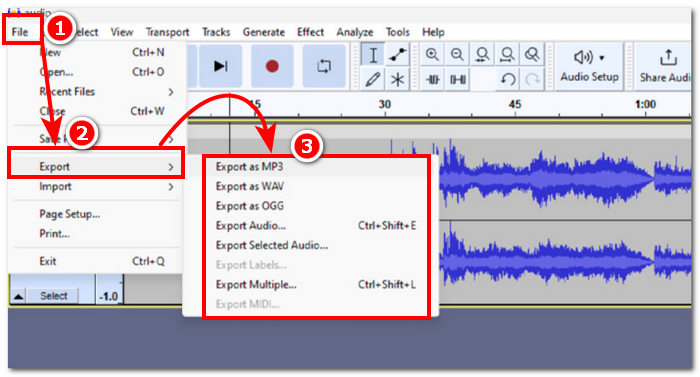
ขั้นตอนที่ 4 เมื่อคุณพอใจกับการเปลี่ยนแปลงทั้งหมดที่ทำในไฟล์ M4A แล้ว ให้ส่งออกไฟล์เสียงโดยไปที่ File > Export Audio.
สำหรับการแก้ไข M4A แบบง่ายๆ Audacity เป็นแอปพลิเคชันที่ยอดเยี่ยมเนื่องจากไม่มีค่าใช้จ่ายและช่วยให้ทำงานได้อย่างมีประสิทธิภาพ นอกจากนี้ คุณสมบัติการติดตามสียังมีประโยชน์เนื่องจากช่วยให้สามารถติดตามส่วนการติดฉลากได้หลายแทร็ก ข้อเสียของการทำงานบนแทร็กจำนวนมากในครั้งเดียวคือโปรแกรมสามารถจัดการแทร็กได้เพียงจำนวนหนึ่งเท่านั้นในครั้งเดียว
ส่วนที่ 2. แก้ไขไฟล์ M4A ออนไลน์
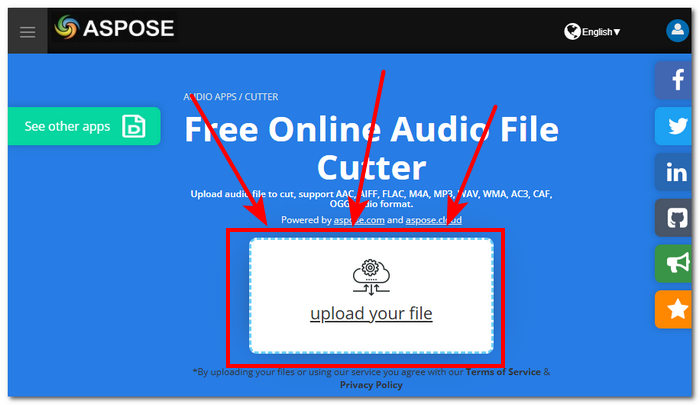
หากต้องการแก้ไขไฟล์ M4A ออนไลน์หรือผ่านเครื่องมือบนเว็บ Aspose Audio Cutter เป็นทางเลือกที่เหมาะมากสำหรับการตัดต่อไฟล์ M4A แบบเร่งด่วนและทันที เครื่องมือนี้ใช้เฉพาะสำหรับการตัดไฟล์ M4A อย่างแม่นยำ และยังรองรับไฟล์รูปแบบอื่น ๆ เช่น AAC, AIFF, FLAC, M4A, MP3, WAV และอีกมากมาย วิธีใช้ก็เพียงอัปโหลดไฟล์ M4A ของคุณ แล้วเลือกช่วงเวลา/ระยะเวลาที่ต้องการตัดออกจากไฟล์ M4A และบันทึก.
ขั้นตอนที่ 1 ไปที่เว็บไซต์ทางการของ Aspose Audio Cutter.
ขั้นตอนที่ 2 อัปโหลดหรือวางไฟล์ M4A ที่คุณต้องการแก้ไขลงในช่องที่กำหนดบนเว็บไซต์.
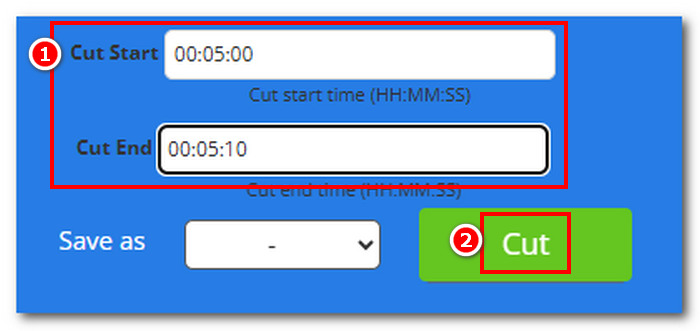
ขั้นตอนที่ 3 ใส่เวลาเริ่มและเวลาสิ้นสุดของช่วงที่ต้องการตัดอย่างแม่นยำ เพื่อกำจัดส่วนของไฟล์ M4A ที่คุณต้องการลบออก จากนั้นคลิกปุ่ม Cut เพื่อเริ่มกระบวนการ.
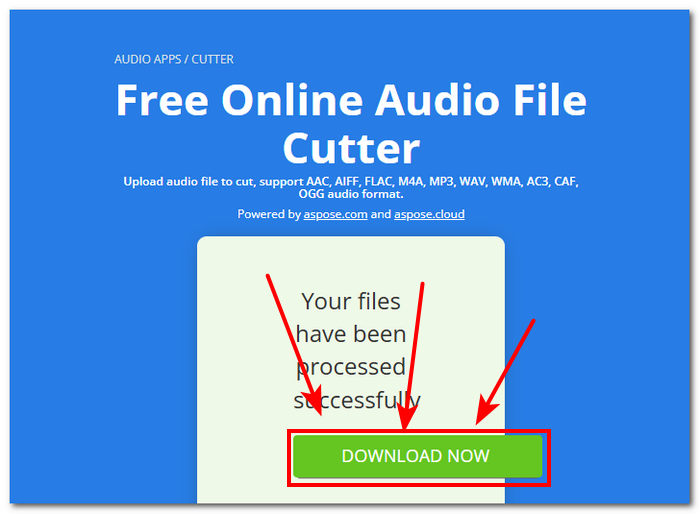
ขั้นตอนที่ 4 เมื่อคุณตัดไฟล์ M4A เสร็จแล้ว ให้คลิกปุ่ม Download Now เพื่อบันทึกไฟล์ลงบนเดสก์ท็อปของคุณ.
จากนั้นคุณสามารถเปิดไฟล์นี้ในโปรแกรมเล่นไฟล์ M4A ของคุณเพื่อเช็คผลลัพธ์.
Aspose Audi Cutter เป็นเครื่องมือที่ใช้งานง่ายพร้อมอินเทอร์เฟซที่ใช้งานง่ายซึ่งออกแบบมาโดยเฉพาะสำหรับการสร้างการตัดที่แม่นยำในไฟล์ M4A บริการนี้รวดเร็วและไม่จำเป็นต้องติดตั้งแอปพลิเคชันเพื่อใช้งาน ดังนั้นคุณสมบัติจึงจำกัดอยู่แค่คุณสมบัติการตัดเท่านั้น และไม่สามารถทำงานแก้ไข M4A อื่นๆ เช่น การเพิ่มเอฟเฟกต์เฟด การตัดแต่ง การแยก และอื่นๆ
ส่วนที่ 3. แก้ไขไฟล์ M4A บนโทรศัพท์มือถือ
WavePad Mobile ได้รับแรงบันดาลใจจากซอฟต์แวร์เดสก์ท็อปเวอร์ชัน จึงมีอินเทอร์เฟซแบบเดียวกัน ซึ่งทำให้คุ้นเคยกับแอปได้ง่ายขึ้น แอปมือถือนี้ดาวน์โหลดได้ฟรีบนอุปกรณ์ Android และ iOS พร้อมรองรับรูปแบบเสียงที่หลากหลายเพื่อให้มั่นใจว่าเครื่องมือนี้ใช้งานได้หลากหลายเมื่อแก้ไขไฟล์เสียง นอกจากนี้ ความสามารถในการแก้ไข M4A ยังมีคุณสมบัติและเอฟเฟกต์มากมาย เช่น การตัด การตัดแต่ง การคัดลอก การวาง การแทรก การปิดเสียง และการตัดแต่งไฟล์ M4A โดยอัตโนมัติอย่างง่ายดาย
ขั้นตอนที่ 1 ไปที่ร้านค้าแอปบนมือถือของคุณแล้วดาวน์โหลดแอป WavePad เวอร์ชันมือถือ.
ขั้นตอนที่ 2 เมื่อติดตั้งแอปแล้ว ให้โหลดไฟล์ M4A ของคุณเข้าสู่แอปโดยแตะที่ไอคอน Open ซึ่งอยู่ด้านบนของอินเทอร์เฟซแอป แล้วรอจนไฟล์ถูกโหลด.
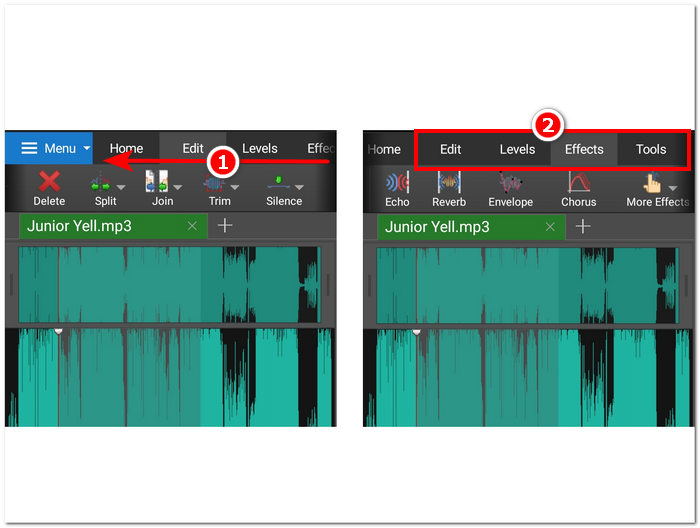
ขั้นตอนที่ 3 เมื่อไฟล์ M4A ของคุณถูกโหลดในแอปแล้ว ให้ลองสำรวจฟีเจอร์ต่าง ๆ ของแอปเพื่อแก้ไขไฟล์ คุณสามารถทำได้โดยวางนิ้วไว้ที่ส่วนบนสุดของตัวเครื่องมือ แล้วปัดจากขวาไปซ้ายเพื่อดูฟีเจอร์ต่าง ๆ เช่น ตัด คัดลอก รวม วาง และอื่น ๆ เมื่อคุณพบเครื่องมือที่ต้องการใช้กับไฟล์ M4A ของคุณแล้ว ให้แตะที่เครื่องมือนั้นเพื่อใช้งานกับไฟล์.
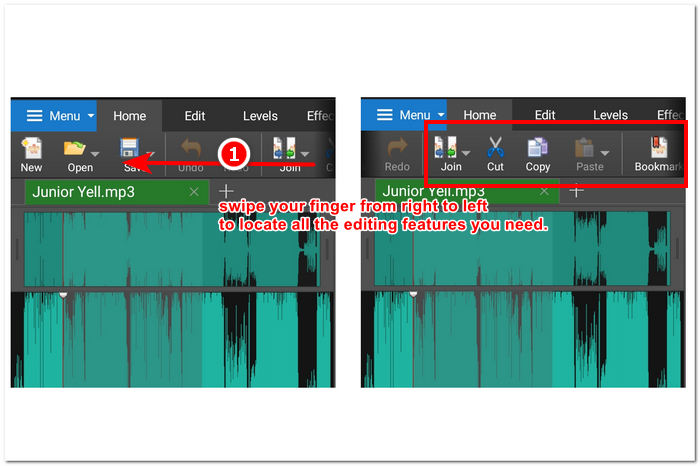
คุณยังสามารถสำรวจและดูเอฟเฟกต์และฟีเจอร์อื่นๆ ที่มีให้สำหรับแก้ไขไฟล์ M4A ของคุณได้โดยการปัดนิ้วจากขวาไปซ้ายในช่องที่มีส่วนแก้ไข ซึ่งคุณสามารถใช้เอฟเฟกต์กับไฟล์ M4A ของคุณได้และอื่นๆ อีกมากมาย
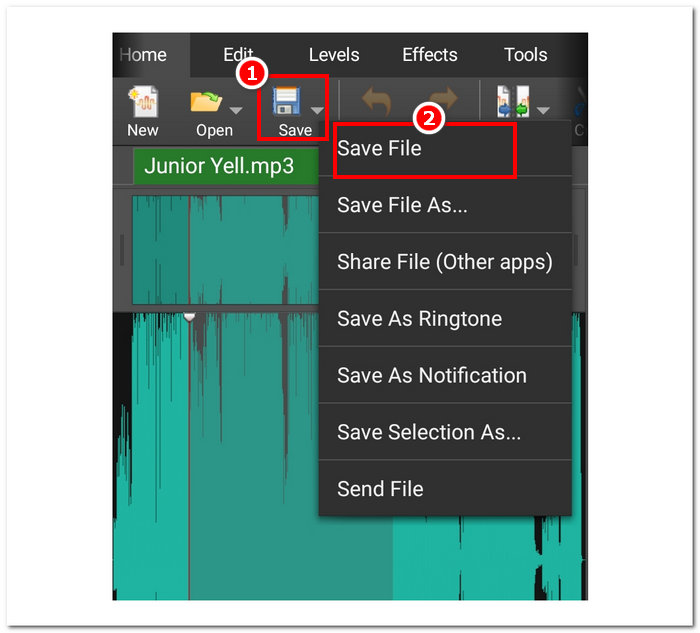
ขั้นตอนที่ 4 เมื่อคุณแก้ไขไฟล์ M4A เสร็จแล้ว ให้กลับไปที่หน้า Home แตะปุ่ม Save แล้วเลือก Save File เพื่อดาวน์โหลดไฟล์ M4A ที่แก้ไขแล้วลงในอุปกรณ์มือถือของคุณ.
กล่าวได้ว่า WavePad Mobile เป็นแอปแก้ไขไฟล์ M4A บนมือถือที่ทรงพลังอย่างแน่นอน ช่วยให้ผู้ใช้สามารถทำสิ่งต่างๆ ได้เกือบทุกอย่างที่เป็นไปได้กับไฟล์ M4A แอปนี้เหมาะสำหรับผู้ใช้ที่มีแต่เพียงอุปกรณ์พกพาและต้องเดินทางตลอดเวลา
ส่วนที่ 4 คำถามที่พบบ่อยเกี่ยวกับวิธีการแก้ไขไฟล์ M4A
M4A แย่กว่า MP3 หรือเปล่า?
ไม่ถือว่าแย่กว่า MP3 แต่ขึ้นอยู่กับวัตถุประสงค์การใช้งาน โดยทั่วไป M4A มักให้คุณภาพเสียงที่ดีกว่า และได้บิตเรตที่มีประสิทธิภาพมากกว่า เนื่องจากใช้อัลกอริทึมการบีบอัดที่ล้ำหน้ากว่า หากต้องการดูความแตกต่างระหว่าง M4A กับ MP3 เพิ่มเติม คุณสามารถดูได้ที่นี่.
M4A มีข้อเสียอะไรบ้าง?
ไฟล์ M4A ไม่ได้รับการรองรับอย่างกว้างขวางโดยอุปกรณ์และแพลตฟอร์ม ดังนั้นคุณจะต้องใช้เครื่องมือแปลงก่อนจึงจะสามารถใช้งานได้ นอกจากนี้ ผู้ใช้มักพบปัญหาความเข้ากันได้เมื่อใช้ M4A เป็นไฟล์เสียง ซึ่งทำให้ไฟล์นี้ไม่เหมาะสำหรับการใช้งาน โดยเฉพาะอย่างยิ่งเมื่อต้องแชร์
มีซอฟต์แวร์ฟรีที่สามารถแปลง M4A เป็นข้อความหรือไม่
ใช่ มีซอฟต์แวร์ฟรีมากมายสำหรับการแปลงไฟล์ M4A เช่น Google Docs Voice Typing และ Otter.ai เครื่องมือเหล่านี้มีความน่าเชื่อถือเนื่องจากผสานเทคโนโลยีการจดจำเสียงพูดเพื่อแปลงไฟล์เสียงในไฟล์ M4A เหล่านี้เป็นข้อความ
ฉันสามารถแปลงไฟล์ M4A เป็นรูปแบบอื่นหลังจากแก้ไขได้หรือไม่
ใช่ โปรแกรมแก้ไข M4A หลายโปรแกรม เช่น Video Converter Ultimate ที่ได้รับเลือกโดย FVC มีเครื่องมือแปลงในตัวที่ช่วยให้ผู้ใช้สามารถบันทึกหรือส่งออกไฟล์ M4A ที่แก้ไขแล้วด้วยรูปแบบเสียงที่แตกต่างกันได้
ฉันจะมั่นใจได้อย่างไรว่าคุณภาพไฟล์ M4A ที่ฉันแก้ไขจะได้รับการรักษาไว้
เพื่อให้แน่ใจว่าคุณจะได้ไฟล์ส่งออกคุณภาพสูงสุดเสมอเมื่อบันทึกไฟล์ M4A ที่แก้ไขแล้ว โปรดหลีกเลี่ยงการบีบอัดข้อมูลมากเกินไป และตรวจสอบให้แน่ใจว่าใช้เครื่องมือที่เชื่อถือได้ซึ่งรองรับคุณภาพการส่งออกแบบไม่มีการสูญเสีย
สรุป
เนื่องจากปัญหาความเข้ากันได้และการสนับสนุนที่จำกัดจากโปรแกรมแก้ไขเสียงบางโปรแกรม การแก้ไขไฟล์ M4A บนแพลตฟอร์มต่างๆ รวมถึง Windows, macOS, เครื่องมืออินเทอร์เน็ต และโทรศัพท์มือถือ จึงอาจเป็นเรื่องยาก ไฟล์ M4A เป็นตัวกลางที่ยอดเยี่ยมระหว่างคุณภาพและการบีบอัด ทำให้มีประสิทธิภาพในการจัดเก็บในขณะที่ยังคงความเที่ยงตรงของเสียงที่ดี ซึ่งแตกต่างจากรูปแบบที่ได้รับการยอมรับอย่างกว้างขวาง เช่น WAV อย่างไรก็ตาม คุณสามารถแก้ไขไฟล์ M4A ของคุณได้อย่างง่ายดาย รับประกันผลลัพธ์คุณภาพสูงและตัวเลือกการแก้ไขที่หลากหลาย ด้วยเครื่องมือและโปรแกรมที่เหมาะสม เช่น FVC Video Converter Ultimate เวอร์ชันเดสก์ท็อป เวอร์ชันเว็บของ Aspose Audio Cutter และเวอร์ชันมือถือของ WavePad
-
 เครื่องบันทึกเมาส์และคีย์บอร์ดที่ดีที่สุด 5 อันดับแรกสำหรับ Windows และ Mac
 ต่อไปนี้คือโปรแกรมบันทึกเมาส์และคีย์บอร์ดที่ดีที่สุดห้าอันดับแรกที่สามารถบันทึกการเคลื่อนไหวของเมาส์และการคลิกแป้นพิมพ์ของคุณและทำซ้ำเหตุการณ์ต่างๆ
-
 เครื่องบันทึกหน้าจอ AVI ฟรี 4 อันดับแรกเพื่อจับภาพวิดีโอหน้าจอเป็นไฟล์ AVI
 ในการบันทึกหน้าจอในไฟล์ AVI คุณภาพสูงบทความนี้จะระบุและแบ่งปันเครื่องบันทึกหน้าจอ AVI ฟรี 4 อันดับแรกในโพสต์นี้ เรียนรู้รายละเอียดเพิ่มเติมเพื่อค้นหารายการที่ต้องการ
-
 หนังบู๊! รีวิวเครื่องบันทึกหน้าจอ - จุดด้อยข้อดีและทางเลือกที่ดีที่สุด
 Action Screen Recorder เป็นซอฟต์แวร์บันทึกเกมที่ต้องการเพื่อจับภาพวิดีโอการเล่นเกมหรือไม่? เพียงเรียนรู้รายละเอียดเพิ่มเติมจากบทวิจารณ์และทางเลือกอื่น ๆ จากบทความ
