


 Video Converter Ultimate
 บันทึกหน้าจอ
 ซ่อมวิดีโอ
 ดาวน์โหลดอย่างปลอดภัย
การบีบอัดภาพแบบแบตช์: คู่มือสำหรับผู้เริ่มต้นเพื่อการบีบอัดที่ง่ายดาย
บางครั้งเราจำเป็นต้องบีบอัดไฟล์รูปภาพจำนวนมาก และการบีบอัดไฟล์แต่ละไฟล์ซ้ำๆ กันนั้นเป็นเรื่องน่ารำคาญ หากคุณสงสัยว่ามีเครื่องมือที่สามารถบีบอัดรูปภาพของคุณพร้อมๆ กันได้หรือไม่ คำตอบคือมี!
ในบทความนี้ คุณจะได้เรียนรู้ 3 วิธีในการบีบอัดรูปภาพแบบเป็นชุด เราเข้าใจความจำเป็นของการทำแบบนี้ เพราะการบีบอัดทีเดียวหลายไฟล์ช่วยประหยัดเวลาได้มาก และเป็นประโยชน์อย่างยิ่งสำหรับผู้ที่ต้องบีบอัดไฟล์รูปภาพจำนวนมาก แล้วจะรออะไรอยู่ล่ะ มาลุยกันเลย!

ส่วนที่ 1. บีบอัดรูปภาพเป็นกลุ่มออนไลน์ฟรี (เร็วที่สุด)
เมื่อพูดถึงการบีบอัดรูปภาพแบบเป็นชุด เครื่องมือออนไลน์ที่ดีที่สุดสำหรับงานนี้คือ FVC Free Image Compressor ซึ่งใช้งานได้ฟรีทั้งหมด และสามารถเข้าถึงได้ง่ายบนอุปกรณ์ต่าง ๆ ตราบใดที่คุณมีอินเทอร์เน็ตสำหรับใช้งานเว็บ ถึงแม้เครื่องมือนี้จะให้ใช้ได้ฟรี แต่ความสามารถในการบีบอัดรูปภาพของมันไม่ธรรมดาเลย เครื่องมือนี้ช่วยให้คุณบีบอัดไฟล์รูปภาพได้สูงสุด 40 ไฟล์ในคลิกเดียว และในด้านคุณภาพผลลัพธ์ เครื่องมือนี้มีการปรับให้เหมาะสมอย่างดีและใช้อัลกอริทึมการบีบอัดขั้นสูง นอกจากนี้ เครื่องมือนี้ยังรองรับรูปแบบไฟล์ภาพหลากหลาย เช่น JPEG, PNG, SVG และ GIF แบบเคลื่อนไหว.
ขั้นตอนการบีบอัดรูปภาพแบบเป็นชุดออนไลน์ด้วย FVC Free Image Compressor มีดังนี้:
ขั้นตอนที่ 1 เปิดเบราว์เซอร์ของคุณและเข้าไปที่เว็บไซต์ทางการของเครื่องมือนี้.
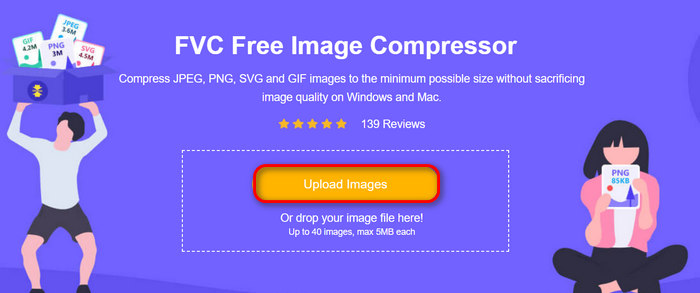
ขั้นตอนที่ 2 หลังจากนั้นคลิก Upload Images เพื่ออัปโหลดรูปภาพที่คุณต้องการบีบอัด โดยเลือกได้สูงสุด 40 รูป.
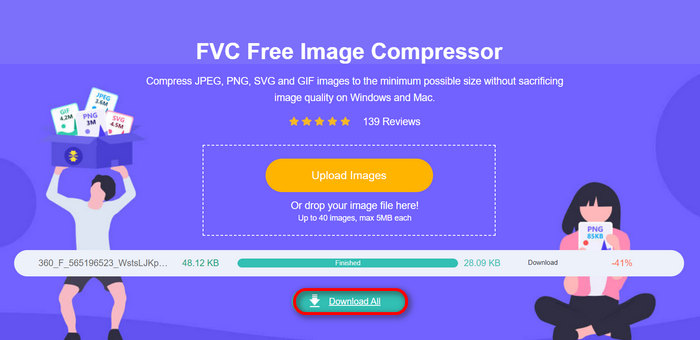
ขั้นตอนที่ 3 หลังจากบีบอัดรูปภาพเสร็จแล้ว คุณสามารถดูตัวอย่างได้โดยตรวจสอบขนาดไฟล์ใหม่หลังการบีบอัด จากนั้นคลิก Download All เพื่อบันทึกรูปภาพของคุณ.
เมื่อพูดถึงความสะดวก ความง่าย และคุณภาพในการบีบอัดรูปภาพเป็นชุด FVC Free Image Compressor ถือเป็นตัวเลือกที่ดีที่สุด ยิ่งไปกว่านั้น ยังฟรี 100% ดังนั้น หากคุณมีงบประมาณจำกัดและต้องการประหยัดเวลาในการบีบอัดรูปภาพเป็นชุด ลองใช้เครื่องมือนี้เลย!
ตอนที่ 2. การบีบอัดรูปภาพแบบแบตช์ด้วย Photoshop
เมื่อพูดถึงวิธีการบีบอัดรูปภาพแบบมืออาชีพ หนึ่งในเครื่องมือที่ผู้ใช้ส่วนใหญ่เลือกใช้คือซอฟต์แวร์ Photoshop เครื่องมือนี้ได้รับการยกย่องอย่างสูงในด้านคุณสมบัติที่น่าประทับใจ ทำให้เป็นตัวเลือกที่ยอดเยี่ยมสำหรับการบีบอัดรูปภาพจำนวนมากพร้อมกัน นี่คือคำแนะนำทีละขั้นตอนเกี่ยวกับวิธีบีบอัดรูปภาพแบบเป็นชุดโดยใช้ Photoshop:
ขั้นตอนที่ 1 ก่อนอื่นให้คุณบันทึกรูปภาพทั้งหมดที่ต้องการบีบอัดแบบเป็นชุดไว้ในโฟลเดอร์เดียวกันก่อน.
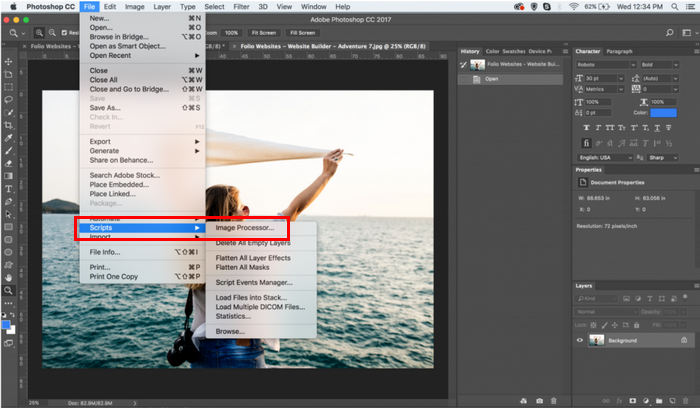
ขั้นตอนที่ 2 เปิด Photoshop จากนั้นไปที่ แท็บ File คลิก Script แล้วเลือก Image Processor.
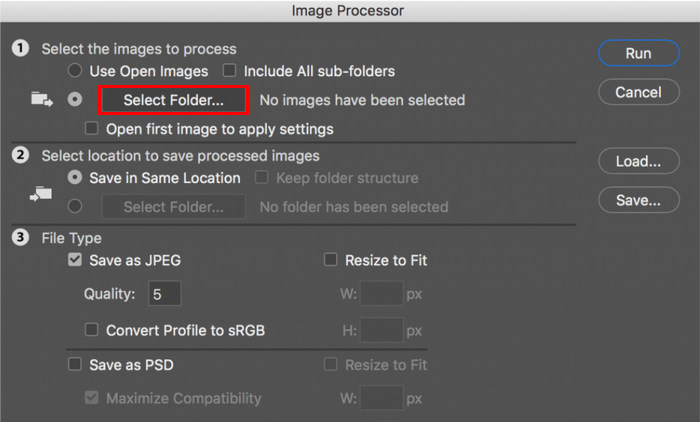
ขั้นตอนที่ 3 จากนั้นนำเข้ารูปภาพที่ต้องการบีบอัดโดยคลิก Select Folder ใต้หัวข้อ Select the images to process.
ขั้นตอนที่ 4 หลังจากนั้นจะมีโฟลเดอร์ใหม่ถูกสร้างขึ้นโดยอัตโนมัติภายในโฟลเดอร์ต้นฉบับ และโฟลเดอร์ใหม่นี้จะเป็นที่จัดเก็บหรือบันทึกรูปภาพที่ถูกบีบอัดแล้ว.
ขั้นตอนที่ 5 ใต้หัวข้อ File Type ให้ปรับการตั้งค่าเพื่อย่อขนาดไฟล์รูปภาพของคุณ โดยติ๊กเลือกช่อง Resize to Fit และกำหนดความสูงและความกว้างสูงสุดของรูปภาพที่บีบอัด.
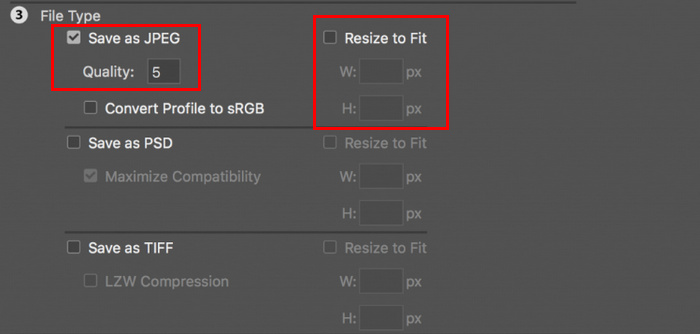
ขั้นตอนที่ 6 ในช่อง Quality ให้กรอกตัวเลขระหว่าง 1 ถึง 12 โดยโปรดสังเกตว่ายิ่งตัวเลขสูง ขนาดไฟล์ก็จะยิ่งใหญ่ขึ้น ในขณะเดียวกัน หากคุณกำลังบีบอัดไฟล์รูปแบบ JPG อย่าลืมติ๊กเลือกช่อง Save as JPEG.
ขั้นตอนที่ 7 จากนั้นคลิกปุ่ม Run Action เพื่อดูรายการแอ็กชันที่มีให้ใช้งาน.
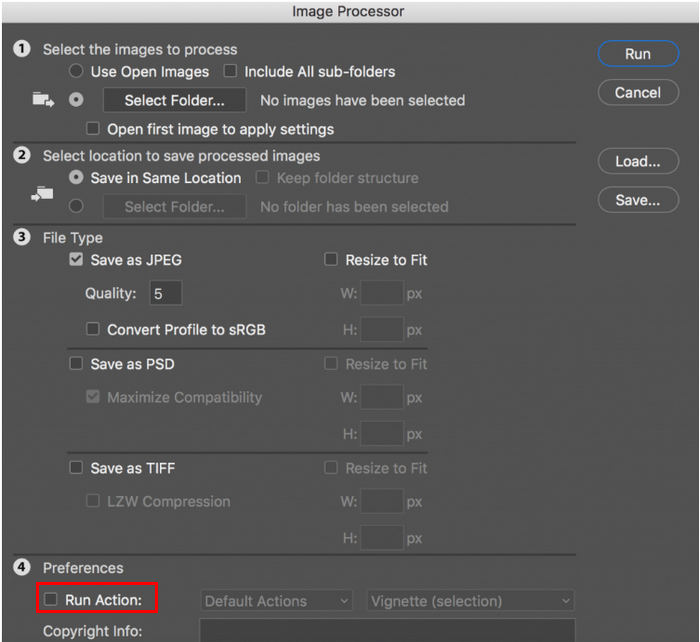
ขั้นตอนที่ 8 เมื่อตั้งค่าทุกอย่างเรียบร้อยแล้ว ให้คลิกปุ่ม Run รูปภาพทั้งหมดในโฟลเดอร์ของคุณจะถูกประมวลผลและบันทึกไปยังโฟลเดอร์ปลายทางที่กำหนดไว้.
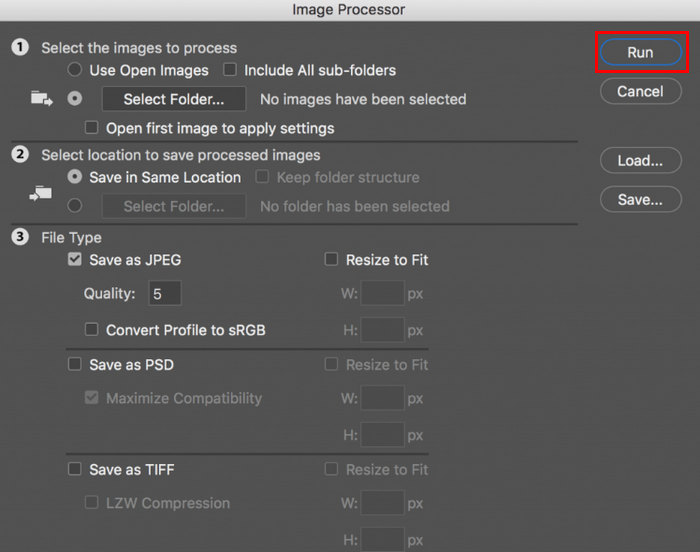
Photoshop เป็นเครื่องมือที่ยอดเยี่ยมสำหรับการบีบอัดรูปภาพจำนวนมาก เหมาะสำหรับผู้ที่ต้องการผลลัพธ์ระดับมืออาชีพ อย่างไรก็ตาม เครื่องมือนี้ต้องสมัครสมาชิกก่อนจึงจะใช้งานได้ และต้องใช้เวลาเรียนรู้นานมาก ซึ่งอาจทำให้ผู้ใช้ไม่สามารถใช้เครื่องมือนี้ในการบีบอัดรูปภาพเป็นกลุ่มได้อย่างมีประสิทธิภาพ
ส่วนที่ 3. การบีบอัดรูปภาพแบบแบตช์บน Windows 10
หากคุณใช้ระบบปฏิบัติการ Windows 10 บนอุปกรณ์คอมพิวเตอร์ของคุณ คุณสามารถบีบอัดรูปภาพเป็นชุดผ่านแอป Windows Paint ได้ แอปวาดภาพนี้ขึ้นชื่อในด้านความสามารถในการวาดและร่างภาพ นอกจากนี้ ยังมีคุณสมบัติแก้ไขภาพที่ยอดเยี่ยม เช่น การครอบตัด การปรับขนาด เป็นต้น
วิธีบีบอัดรูปภาพแบบเป็นชุดบน Windows 10 มีดังนี้:
ขั้นตอนที่ 1 คลิกขวาที่ไฟล์รูปภาพที่คุณต้องการบีบอัด เลือก Open With แล้วเลือก Paint.
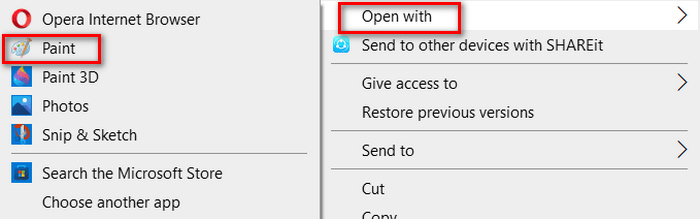
ขั้นตอนที่ 2 ไปที่แท็บ Home แล้วเลือก Resize and Skew.
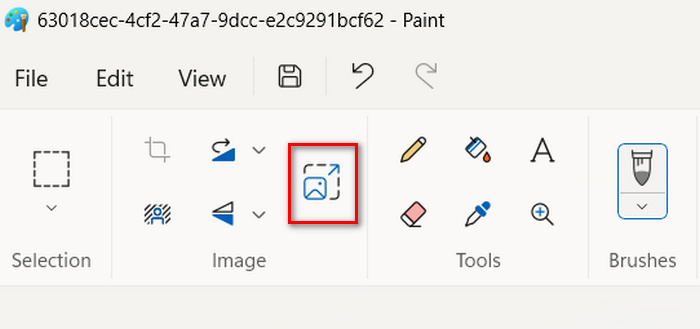
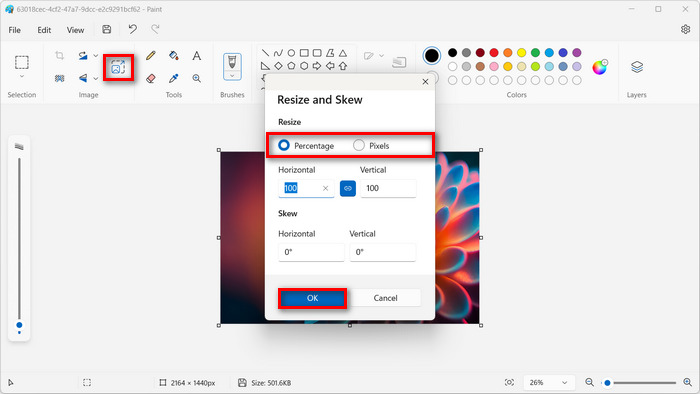
ขั้นตอนที่ 3 หลังจากนั้นให้คลิกปุ่ม Resize and Skew ที่นี่คุณสามารถปรับขนาดภาพได้โดยเปลี่ยนเป็นแบบ percentage หรือขนาดเป็นหน่วย pixel เมื่อได้ขนาดตามที่ต้องการแล้ว ให้คลิกปุ่ม OK.
ขั้นตอนที่ 4 เมื่อปรับขนาดเรียบร้อยแล้ว ให้คลิก File และเลือก Save เพื่อบันทึกรูปภาพที่ถูกบีบอัด.
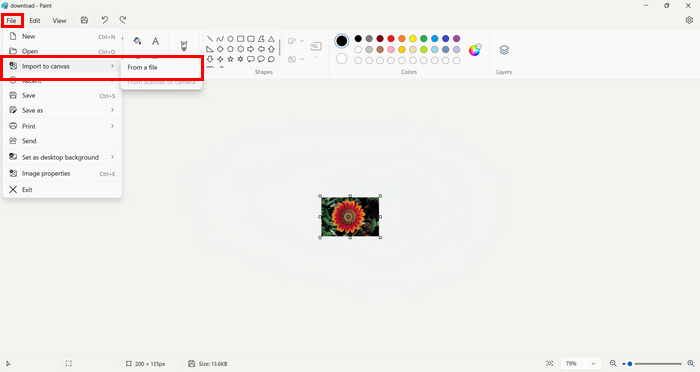
ขั้นตอนที่ 5 หลังจากนั้น กลับไปที่ แท็บ File คลิก Import to Canvas แล้วเลือก From a File.
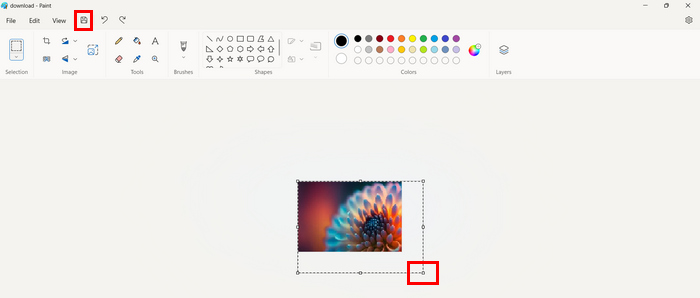
ขั้นตอนที่ 6 เลือกรูปที่คุณต้องการบีบอัด แล้วลากให้พอดีกับขนาดพรีเซ็ต ขั้นตอนนี้อาจไม่ใช่การบีบอัดแบบเป็นชุดในลักษณะดั้งเดิม แต่ช่วยให้ขั้นตอนทำงานรวดเร็วกว่าการใช้เครื่องมือบีบอัดรูปภาพบางตัว เมื่อเสร็จแล้วให้คลิกปุ่ม Save.
Windows Paint เป็นเครื่องมือที่ดีสำหรับการบีบอัดรูปภาพ แต่ก็ยังขาดเครื่องมือบีบอัดแบบแบตช์โดยเฉพาะ
ส่วนที่ 4. การบีบอัดรูปภาพแบบเป็นชุดบน Mac
Preview คือเครื่องมือดูรูปภาพในตัวที่ช่วยให้ผู้ใช้ Mac สามารถดูไฟล์รูปภาพต่างๆ ได้ แต่เหนือสิ่งอื่นใด เครื่องมือนี้ยังมีประโยชน์อย่างยิ่งในการจัดการและแก้ไขรูปภาพ โดยเฉพาะในการบีบอัดไฟล์รูปภาพแบบเป็นชุด
โดยทำตามขั้นตอนด้านล่าง:
ขั้นตอนที่ 1 ในหน้าต่าง Finder ให้เลือกทุกรูปภาพที่คุณต้องการปรับขนาด.
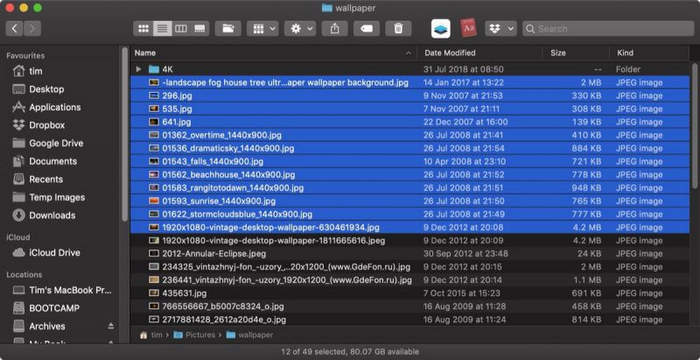
ขั้นตอนที่ 2 จากนั้นคลิกขวาที่ไฟล์เหล่านั้น เลือก Open With แล้วเลือก Preview.
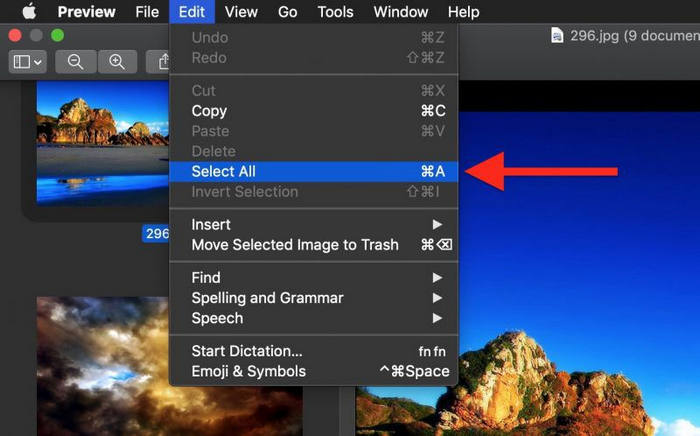
ขั้นตอนที่ 3 ต่อไปเลือก Edit แล้วเลือก Select All จากแถบเมนูของ Preview หรือใช้คีย์ลัด Command A เพื่อเลือกภาพที่เปิดอยู่ทั้งหมด.
ขั้นตอนที่ 4 เมื่อเลือกรูปภาพทั้งหมดแล้ว ให้ไปที่ Tools แล้วเลือก Adjust Size.
ขั้นตอนที่ 5 จากนั้นเปลี่ยนขนาดมิติของไฟล์รูปภาพของคุณโดยพิมพ์ค่า Width และ Height ใหม่ รวมถึงความละเอียด เมื่อทำเสร็จแล้ว ระบบจะแสดงขนาดใหม่ที่ด้านล่าง เมื่อเรียบร้อยแล้วให้คลิก OK.
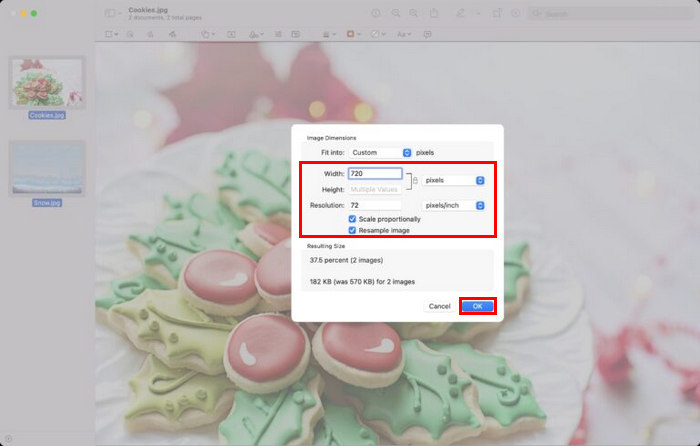
รูปภาพจะถูกปรับขนาดและบันทึกไปยังตำแหน่งเดิมโดยการแทนที่ไฟล์ต้นฉบับ
ส่วนที่ 5. คำถามที่พบบ่อยเกี่ยวกับการบีบอัดภาพแบบแบตช์
ซอฟต์แวร์สำหรับบีบอัดรูปภาพจำนวนมากคืออะไร
ซอฟต์แวร์ที่ดีที่สุดสำหรับบีบอัดรูปภาพครั้งละจำนวนมากคือ Photoshop เครื่องมือนี้ช่วยให้คุณบีบอัดรูปภาพหลาย ๆ รูปพร้อมกันได้ พร้อมทั้งยังคงคุณภาพที่ดีไว้ ข้อเสียอย่างเดียวคือคุณไม่สามารถใช้งานฟีเจอร์ทั้งหมดได้ หากไม่ได้สมัครแพ็กเกจแบบพรีเมียม.
ฉันจะบีบอัดรูปภาพทั้งหมดในโฟลเดอร์ได้อย่างไร
หากต้องการบีบอัดรูปภาพทั้งหมดในโฟลเดอร์ คุณสามารถใช้เครื่องมือ FVC Free Image Compressor ได้ เพียงคลิกปุ่ม Add File แล้วระบบจะพาคุณไปยังไลบรารี ซึ่งคุณสามารถเลือกโฟลเดอร์ที่เก็บไฟล์รูปภาพที่ต้องการบีบอัดไว้ จากนั้นเลือกทุกรูปในโฟลเดอร์ แต่อย่าลืมจำกัดไม่เกิน 40 ไฟล์ เมื่อเสร็จแล้ว ระบบจะบีบอัดรูปภาพของคุณโดยอัตโนมัติ และบันทึกไว้ในโฟลเดอร์ที่ถูกบีบอัดแล้ว.
คุณสามารถบีบอัดรูปถ่ายหลายรูปโดยไม่สูญเสียคุณภาพได้หรือไม่?
ใช่ คุณสามารถบีบอัดรูปภาพหลายภาพโดยไม่สูญเสียคุณภาพ เพียงแค่ใช้เครื่องมือบีบอัดที่เหมาะสม เช่น FVC Free Image Compressor และ Photoshop เครื่องมือเหล่านี้มีคุณสมบัติที่ยอดเยี่ยมที่จะช่วยรักษาคุณภาพของรูปภาพที่ถูกบีบอัด
สรุป
ด้วยวิธีการเหล่านี้ คุณสามารถบีบอัดรูปภาพเป็นชุดได้อย่างมีประสิทธิภาพและประสิทธิผล ดังนั้น ไม่ว่าเครื่องมือในบทความนี้จะมีลักษณะอย่างไร คุณก็สามารถใช้วิธีการต่างๆ มากมายที่เหมาะกับคุณได้ ลองใช้วิธีการเหล่านี้วันนี้เพื่อปรับปรุงการจัดการรูปภาพและเพิ่มประสิทธิภาพเวิร์กโฟลว์ของคุณ
-
 วิธีการบีบอัดไฟล์ JPEG บน Windows และ Mac [คู่มือฉบับสมบูรณ์]
 กำลังมองหาเครื่องมือที่มีประสิทธิภาพในการบีบอัดไฟล์ JPEG บนอุปกรณ์ Windows และ Mac ของคุณอยู่ใช่หรือไม่ อ่านบทความนี้เลยเพื่อเรียนรู้วิธีบีบอัดไฟล์อย่างราบรื่น 5 วิธี
-
 3 วิธีในการปรับขนาดรูปภาพให้เหลือ 20KB: การบีบอัดแบบไร้รอยต่อ
 กังวลเกี่ยวกับวิธีการปรับขนาดไฟล์รูปภาพให้เหลือ 20KB หรือไม่ บทความนี้จะแนะนำวิธีการ 3 วิธีในการปรับขนาดรูปภาพให้เหลือ 20KB อย่างรวดเร็วและราบรื่น
-
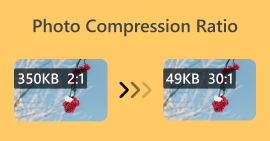 อัตราส่วนการบีบอัดภาพ: ฉันจำเป็นต้องรู้อะไรบ้าง? [รีวิว]
 เรียนรู้ว่าอัตราส่วนการบีบอัดภาพคืออะไรและส่งผลต่อคุณภาพของภาพอย่างไร รวมถึงรับคำแนะนำเกี่ยวกับวิธีเปลี่ยนอัตราส่วนการบีบอัดเมื่อทำไม่ถูกต้อง
