


 Video Converter Ultimate
 บันทึกหน้าจอ
 ซ่อมวิดีโอ
 ดาวน์โหลดอย่างปลอดภัย
5 วิธีที่จะช่วยคุณริป DVD บน Mac ด้วยขั้นตอนโดยละเอียด
ดีวีดีอาจมีภาพยนตร์เก่า ๆ มากมายที่คุณรัก หรือวิดีโอช่วงเวลาสำคัญในชีวิตของคุณ ในฐานะที่เป็นสื่อจัดเก็บข้อมูลแบบกายภาพ ดีวีดีสามารถเก็บรักษาวิดีโออันล้ำค่าของเราได้อย่างถาวร อย่างไรก็ตาม ในตอนที่เราบันทึกและเปิดดูดีวีดี เรามักเสี่ยงที่จะทำให้ผิวแผ่นเป็นรอย หรือเผลอทำแผ่นแตกได้ เมื่อเกิดเหตุการณ์เช่นนี้ ข้อมูลวิดีโอที่เราเก็บไว้บนดีวีดีจะสูญหาย และทำให้เราไม่สามารถเล่นเนื้อหานั้นได้อีกต่อไป ดังนั้นวิธีที่ปลอดภัยที่สุดคือการริปวิดีโอออกมาจากดีวีดีและเก็บสำรองไว้ในรูปแบบไฟล์อิเล็กทรอนิกส์ แล้วเราจะริปดีวีดีบน Mac ได้อย่างไร? ในบทความนี้ เราจะนำเสนอ 5 วิธี พร้อมเครื่องมือที่ใช้งานได้จริงแต่ละตัว คุณยังจะได้พบขั้นตอนการใช้งานอย่างละเอียดที่นี่ หวังว่าเนื้อหาของเราจะเป็นประโยชน์กับคุณ.

ส่วนที่ 1. 5 วิธีในการริป DVD
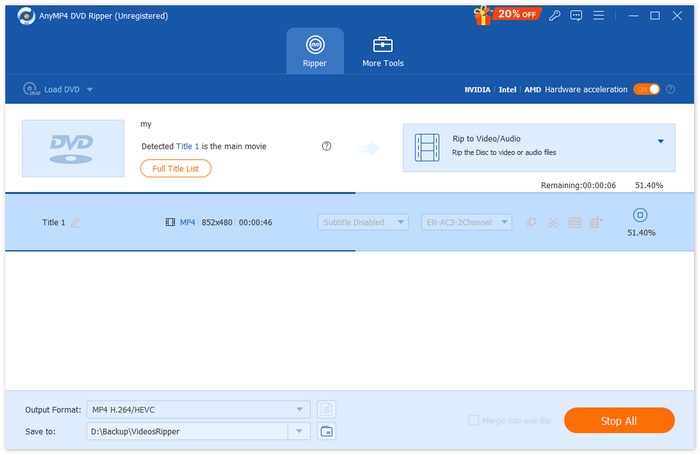
AnyMP4 DVD Ripper
เนื่องจากคุณอาจต้องแก้ไขและประมวลผลวิดีโอในแผ่น DVD ของคุณ เราขอแนะนำให้เลือกโปรแกรมแปลง DVD ที่มีคุณสมบัติครบครัน โดยเฉพาะอย่างยิ่งโปรแกรมที่มีฟังก์ชันการแก้ไขวิดีโออย่างสมบูรณ์ ด้วยเหตุนี้ เราจึงขอแนะนำโปรแกรมตัดต่อวิดีโอและแปลง DVD ระดับมืออาชีพอย่าง AnyMP4 DVD Ripper โปรแกรมนี้สามารถอ่านเนื้อหาในแผ่น DVD ของคุณและแปลงวิดีโอเป็นรูปแบบวิดีโอยอดนิยมต่างๆ เช่น MP4, MOV, AVI, FLV, MKV, MPEG เป็นต้น ก่อนส่งออกวิดีโอ คุณสามารถใช้ฟังก์ชันการแก้ไขเพื่อปรับเอฟเฟกต์และความยาวของวิดีโอได้
ดาวน์โหลดฟรีสำหรับ Windows 7 ขึ้นไปดาวน์โหลดอย่างปลอดภัย
ดาวน์โหลดฟรีสำหรับ macOS 10.7 ขึ้นไปดาวน์โหลดอย่างปลอดภัย
นี่คือขั้นตอนที่คุณต้องทำเพื่อคัดลอก DVD บน Mac โดยใช้ AnyMP4 DVD Ripper
ขั้นตอนที่ 1: ดาวน์โหลดและติดตั้ง AnyMP4 DVD Ripper บนคอมพิวเตอร์ Mac ของคุณ ใส่แผ่นดีวีดีลงในไดรฟ์ของคอมพิวเตอร์.
ดาวน์โหลดฟรีสำหรับ Windows 7 ขึ้นไปดาวน์โหลดอย่างปลอดภัย
ดาวน์โหลดฟรีสำหรับ macOS 10.7 ขึ้นไปดาวน์โหลดอย่างปลอดภัย
ขั้นตอนที่ 2: หลังจากวิเคราะห์ดีวีดีของคุณเสร็จแล้ว คุณสามารถแก้ไขไตเติลดีวีดี แทร็กเสียง และเลือกฟอร์แมตไฟล์ขาออกที่คุณต้องการได้.

ขั้นตอนที่ 3: คลิก "Rip All" เพื่อเริ่มริปดีวีดีของคุณได้อย่างง่ายดาย.
โปรแกรมริปเปอร์ WinX DVD
จากชื่อ WinX DVD Ripper เราอาจสงสัยว่าโปรแกรมนี้สามารถใช้ได้กับคอมพิวเตอร์ที่ใช้ระบบปฏิบัติการ Windows เท่านั้น แต่ตอนนี้แพลตฟอร์มดังกล่าวได้เปิดตัวเวอร์ชันสำหรับคอมพิวเตอร์ Mac แล้ว โดยถือเป็นโปรแกรมริป DVD ที่ดีที่สุดตัวหนึ่ง โปรแกรมนี้จึงสามารถแปลงวิดีโอเป็นรูปแบบทั่วไป เช่น MP4, HEVC, MOV, AVI, MKV เป็นต้น ในเวลาเพียง 5 นาที ไม่ว่า DVD ของคุณจะเป็นรุ่นใหม่ รุ่นเก่า หรือแม้กระทั่งรุ่นที่มีความเสียหาย WinX DVD Ripper ก็มีกลยุทธ์ที่เหมาะสมที่จะช่วยคุณได้ เครื่องมือนี้มีตัวเลือกการสำรองข้อมูลมากมายที่สามารถคัดลอกไฟล์บนดิสก์ไปยังฮาร์ดไดรฟ์ของคอมพิวเตอร์ได้อย่างสมบูรณ์ คุณภาพของวิดีโอจะไม่เสียหายในระหว่างกระบวนการนี้
นี่คือขั้นตอนที่คุณสามารถปฏิบัติตามเพื่อริป DVD ลง Mac ด้วย WinX DVD Ripper สำหรับ Mac
ขั้นตอนที่ 1: ดาวน์โหลด WinX DVD Ripper for Mac ลงในอุปกรณ์ของคุณ และเปิดโปรแกรมบนเดสก์ท็อป.
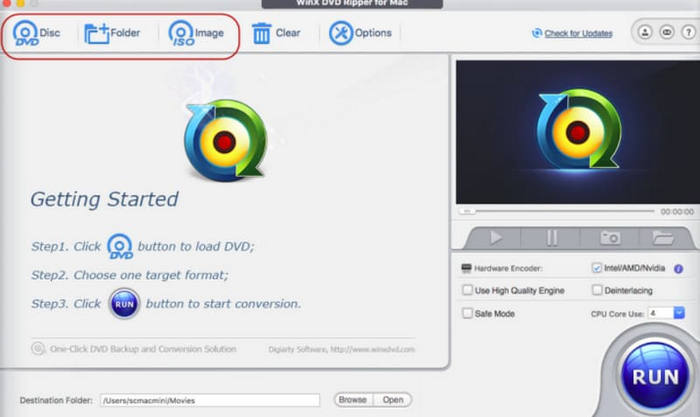
ขั้นตอนที่ 2: ใส่แผ่นดีวีดีแล้วคลิก Disc เพื่อให้โปรแกรมโหลดเนื้อหาบนแผ่นดีวีดีของคุณ.
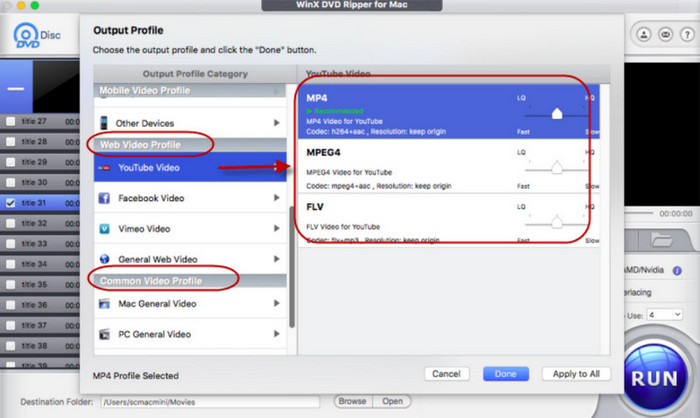
ขั้นตอนที่ 3: หลังจากโหลดเสร็จ คุณจะเห็นหน้าต่าง Output Profile คุณสามารถเลือกฟอร์แมตเป้าหมายสำหรับวิดีโอและเสียงขาออกได้.
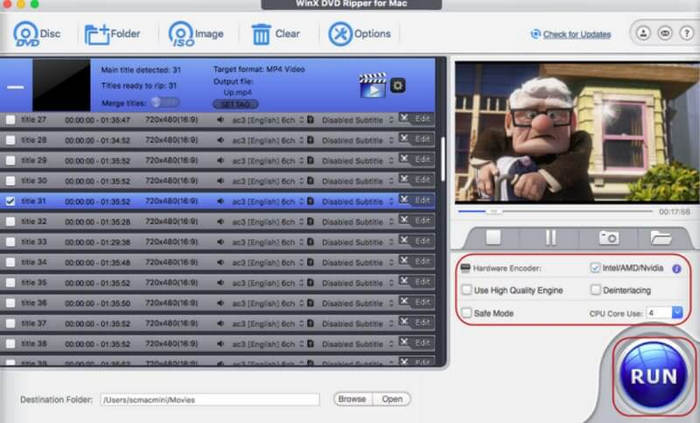
ขั้นตอนที่ 4: ตั้งค่าเส้นทางสำหรับบันทึกวิดีโอที่แปลงแล้ว สุดท้ายคลิก RUN เพื่อเริ่มกระบวนการริป.
WinX DVD Ripper เป็นเครื่องมืออันดับหนึ่งของอุตสาหกรรมมาโดยตลอด หลังจากลองใช้แล้ว เราพบว่ามีการตั้งค่าสำหรับ DVD อย่างละเอียดและสามารถริปได้อย่างรวดเร็ว ถือเป็นตัวเลือกระดับมืออาชีพ
เครื่องเล่น VLC
ฟังก์ชันที่ใช้บ่อยที่สุดของ VLC Player คือการเล่นไฟล์วิดีโอและเสียง อย่างไรก็ตาม ด้วยความสามารถที่ทรงพลัง ทำให้โปรแกรมเล่นดีวีดีตัวนี้มักถูกมองว่าเป็นทั้งโปรแกรมตัดต่อและแปลงวิดีโอที่มีประโยชน์ สิ่งที่น่าแปลกใจที่สุดคือมันยังรองรับการริปดีวีดีได้ด้วย และสามารถทำได้ทั้งบนคอมพิวเตอร์ Windows และ Mac แต่ก่อนเริ่มใช้งาน คุณต้องตรวจสอบให้แน่ใจว่าเวอร์ชันซอฟต์แวร์ของคุณเป็น 0.9.6 ขึ้นไป หากไม่ใช่ กรุณาอัปเดตเวอร์ชันซอฟต์แวร์โดยเร็ว.
หากไม่เป็นเช่นนั้น โปรดอัปเดตเวอร์ชันซอฟต์แวร์โดยเร็วที่สุด
ทำตามขั้นตอนต่อไปนี้เพื่อริพ DVD บน Mac โดยใช้ VLC Player
ขั้นตอนที่ 1: ตรวจสอบให้แน่ใจว่าคุณติดตั้ง VLC Player บนคอมพิวเตอร์ Mac แล้ว เปิดโปรแกรม และใส่แผ่นดีวีดีที่คุณต้องการริป.
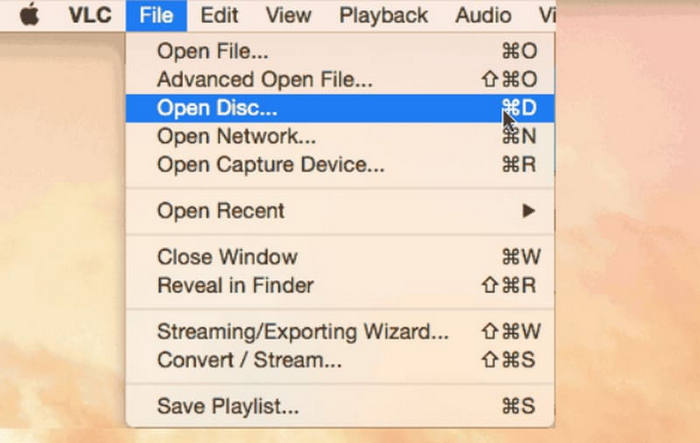
ขั้นตอนที่ 2: คลิก File > Open Disc เลือกดีวีดีที่คุณต้องการริปเพื่อโหลดแผ่นเข้าโปรแกรม.
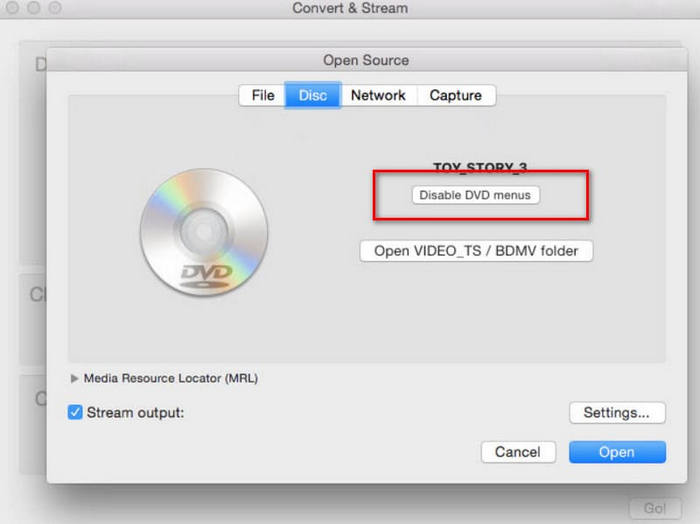
ขั้นตอนที่ 3: หาปุ่ม Disable DVD menus แล้วคลิก.
ขั้นตอนที่ 4: เปิดใช้ช่องทำเครื่องหมาย Stream output แล้วคลิก Settings... เพื่อเปิดหน้าต่างใหม่.
ขั้นตอนที่ 5: เลือกเส้นทางบันทึกโดยคลิก Browse.... จากนั้นคลิก Save เพื่อบันทึกการเปลี่ยนแปลง.
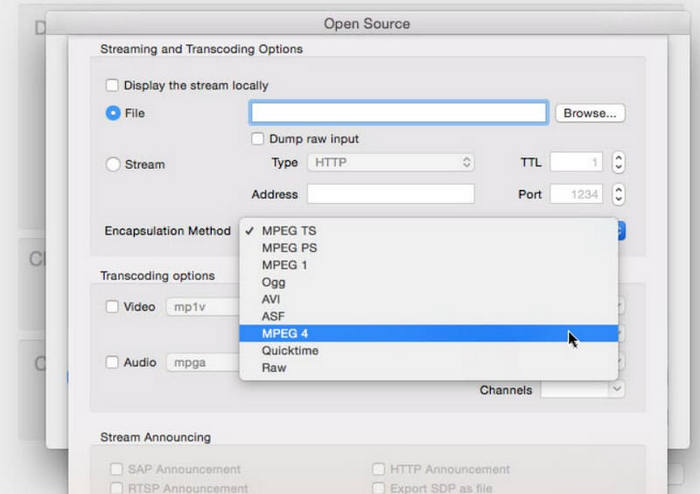
ขั้นตอนที่ 6: เลือก MPEG4 ใต้แท็บ Encapsulation Method สุดท้ายคลิก OK เพื่อริปดีวีดีของคุณ.
VLC Player ใช้งานง่ายมาก และข้อดีที่โดดเด่นที่สุดข้อหนึ่งก็คือฟรีโดยสิ้นเชิง ซอฟต์แวร์ริป DVD สำหรับ Mac ฟรีนี้ใช้งานง่ายมากสำหรับผู้ที่ไม่มีงบประมาณมากนัก อย่างไรก็ตาม ฟังก์ชันการแก้ไขและตัวเลือกของโปรแกรมยังค่อนข้างจำกัดเมื่อเทียบกับโปรแกรมริประดับมืออาชีพ
หน้าต่างฟรี
คอมพิวเตอร์ Mac ยังรองรับการริพแผ่น DVD อีกด้วย ดังนั้นคุณจึงสามารถทำเช่นนี้บนระบบคอมพิวเตอร์ของคุณได้เช่นกัน อีกครั้ง คุณจะต้องมีไดรฟ์ออปติคัลที่สามารถอ่านแผ่นได้เพื่อช่วยคุณ
นี่คือวิธีการริป DVD ฟรี
ขั้นตอนที่ 1: ใส่ดีวีดีลงในไดรฟ์ โปรแกรมเล่นดีวีดีจะเริ่มเล่นเนื้อหาบนแผ่น ให้หยุดการเล่น.
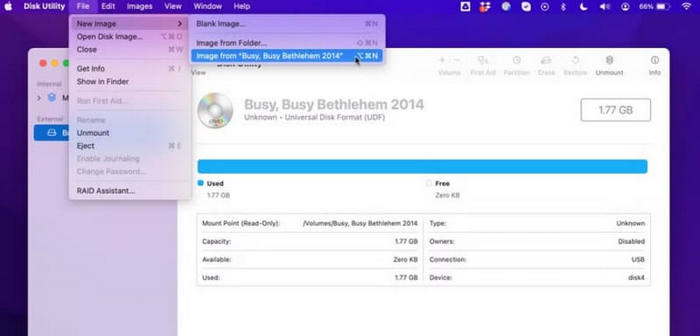
ขั้นตอนที่ 2: เปิด Finder แล้วเลือก Applications > Utilities > Disk Utility.
ขั้นตอนที่ 3: เลือกชื่อดีวีดีที่แสดงอยู่ใต้แท็บ External เลือก File > New image > Image from.
ขั้นตอนที่ 4: จากนั้นคุณต้องตั้งชื่อไฟล์และเส้นทางบันทึก แล้วตั้งค่า Format เป็น read-only และเลือก Save.
วิธีนี้ง่ายมาก เราไม่จำเป็นต้องดาวน์โหลดหรือติดตั้งซอฟต์แวร์ใดๆ เพื่อใช้งาน อย่างไรก็ตาม การตั้งค่าส่วนบุคคลที่เราสามารถทำได้นั้นมีจำกัดมาก และโดยทั่วไปแล้ว เราสามารถส่งออกวิดีโอได้เท่านั้น
เบรกมือ
Handbrake เป็นหนึ่งในโปรแกรมตัดต่อวิดีโอที่ดีที่สุดมาโดยตลอด เช่นเดียวกับ VLC Player มันให้บริการฟรีทั้งหมด และนั่นก็ไม่ส่งผลต่อประสิทธิภาพการทำงานที่ยอดเยี่ยมของมันเลย Handbrake มีความยืดหยุ่นสูง โดยผู้ใช้ Windows, Mac และ Linux ต่างก็สามารถหาเวอร์ชันที่เหมาะกับตนเองได้.
นี่คือวิธีใช้ซอฟต์แวร์ริป DVD ฟรีสำหรับ Mac
ขั้นตอนที่ 1: ดาวน์โหลดและติดตั้ง Handbrake เวอร์ชันสำหรับ Mac บนคอมพิวเตอร์ของคุณ.
ขั้นตอนที่ 2: ใส่แผ่นลงในไดรฟ์ออปติคอล ระบบจะขอให้คุณเลือกดีวีดีต้นทาง เมื่อโหลดดีวีดีเสร็จแล้ว เมนูดรอปดาวน์ Title จะปรากฏขึ้น.
ขั้นตอนที่ 3: ขยายเมนู Preset แล้วเลือกฟอร์แมตไฟล์ขาออกสำหรับวิดีโอ จากนั้นปรับค่าพารามิเตอร์บางอย่างของไฟล์วิดีโอ.
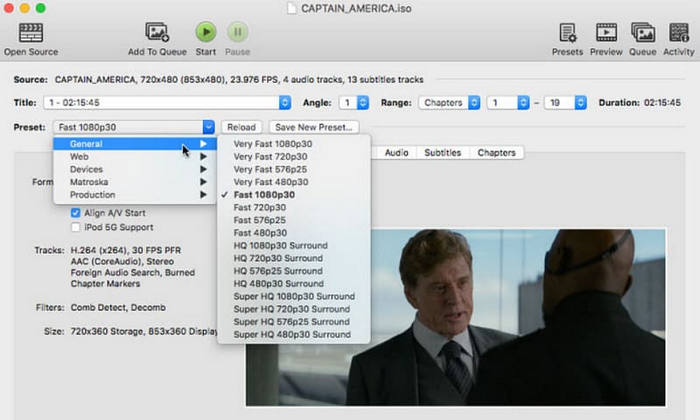
ขั้นตอนที่ 4: คลิก Save as เพื่อเลือกเส้นทางบันทึก สุดท้ายคลิก Start Encode.
Handbrake รองรับรูปแบบวิดีโอมากมายและมีชุดเครื่องมือแก้ไขวิดีโอพื้นฐานที่ครบชุด
ส่วนที่ 2 คำถามที่พบบ่อยเกี่ยวกับการริปดีวีดีบน Mac
ฉันจะริพแผ่น DVD ป้องกันการคัดลอกได้ฟรีบน Mac ได้อย่างไร
โปรแกรมริปดีวีดีระดับมืออาชีพบางโปรแกรม เช่น Handbrake และ WinX DVD Ripper สามารถช่วยคุณดำเนินการนี้ได้ คุณสามารถอ่านคู่มือผู้ใช้เพื่อเรียนรู้วิธีการใช้งาน
การริพซีดีของคุณเป็นเรื่องถูกกฎหมายหรือไม่?
การริปวิดีโอเพื่อการใช้งานส่วนตัวถือเป็นสิ่งที่ถูกกฎหมาย อย่างไรก็ตาม การพยายามเผยแพร่เนื้อหาในซีดีที่ได้รับการป้องกันหรือใช้เพื่อแสวงหากำไรถือเป็นสิ่งที่ไม่ถูกกฎหมาย
เมื่อคุณริปซีดี มันจะไปอยู่ที่ไหน?
เพลงที่คุณริปจะถูกบันทึกไว้ในโฟลเดอร์เพลงของคอมพิวเตอร์โดยอัตโนมัติ แน่นอนว่าคุณสามารถเปลี่ยนเส้นทางการบันทึกก่อนส่งออกได้เช่นกัน
สรุป
นี่คือคู่มือโดยละเอียดเกี่ยวกับวิธีการริพดีวีดีบน Mac คุณจะพบการดำเนินการที่เป็นไปได้ 5 ประการที่นี่ ซึ่งรวมถึงเครื่องมือที่ต้องชำระเงินและแพลตฟอร์มฟรี คุณสามารถเลือกได้ตามความต้องการของคุณ เราหวังว่าเนื้อหาของเราจะให้ความช่วยเหลือที่แท้จริงและมีประสิทธิภาพแก่คุณได้
-
 3 วิธีในการเขียน Video_TS ลง DVD บน Windows และ Mac
 หากคุณมีไฟล์ TS อยู่แล้วและต้องการบันทึกลงใน DVD โปรดอ่านคู่มือนี้ เราจะสอนวิธีการเบิร์น Video_TS ลง DVD บนคอมพิวเตอร์ Windows หรือ Mac อย่างละเอียด
-
 รีวิวเครื่องเล่นดีวีดีฟรี 5 รุ่นสำหรับ Windows 10 ประจำปี 2025
 เครื่องเล่นดีวีดีฟรีที่ดีที่สุดสำหรับ Windows 10 คืออะไร วิธีรับ Windows Media Player เล่น DVD โพสต์นี้แสดงรายการเครื่องเล่นดีวีดีฟรีที่ดีที่สุด 5 รายการสำหรับ Windows 10
-
 ดาวน์โหลดซอฟต์แวร์เครื่องเล่นดีวีดีสำหรับ Mac ฟรี 2025
 วิธีเล่นดีวีดีบน Mac โดยไม่มีไดรฟ์ดีวีดี ฉันจะใช้เครื่องเล่น DVD ภายนอกกับ Mac ของฉันได้อย่างไร? โพสต์นี้แชร์เครื่องเล่น DVD ฟรี 5 เครื่องสำหรับ Mac
