


 Video Converter Ultimate
 บันทึกหน้าจอ
 ซ่อมวิดีโอ
 ดาวน์โหลดอย่างปลอดภัย
คู่มือฉบับสมบูรณ์เกี่ยวกับวิธีการริพเสียงจากดีวีดีด้วยตัวช่วย 4 ตัว
ทุกวันนี้คุณยังซื้อดีวีดีหรือเพลิดเพลินกับภาพยนตร์และเพลงผ่านเครื่องเล่นดีวีดีที่บ้านอยู่ไหม? รูปแบบดีวีดีค่อย ๆ กลายเป็นสิ่งที่คนหนุ่มสาวยุคปัจจุบันไม่ค่อยคุ้นเคยและห่างเหินมากขึ้น ผู้คนมักชอบดูวิดีโอออนไลน์บนแพลตฟอร์มสตรีมมิง หรือดาวน์โหลดตอนต่าง ๆ ลงในหน่วยความจำของอุปกรณ์เพื่อค่อย ๆ รับชม มีคนไปที่ร้านโสตทัศนูปกรณ์น้อยลงเรื่อย ๆ แต่สิ่งนี้ไม่ได้หมายความว่าดีวีดีหมดความจำเป็นหรือไม่ถูกใช้งานอย่างแพร่หลายอีกต่อไป สตูดิโอภาพยนตร์และดนตรีจำนวนมากยังคงเลือกเผยแพร่คอนเทนต์คุณภาพสูงสุดของตนในรูปแบบดีวีดี แฟนภาพยนตร์และดนตรีบางส่วนเองก็ยังสะสมดีวีดีที่บรรจุไฟล์วิดีโอและเสียงคุณภาพสูงกันอยู่ เป็นที่รู้กันว่าเราสามารถเปิดเนื้อหาในแผ่นได้โดยใช้เครื่องเล่นเฉพาะหรือไดรฟ์ออปติคัลเท่านั้น หากต้องการเพลิดเพลินกับเพลงจากแผ่นได้ทุกที่ทุกเวลา เราจำเป็นต้องใช้เครื่องมือมืออาชีพเพื่อริปเสียงออกจากดีวีดี แล้วเราจะทำอย่างไร และควรเลือกใช้เครื่องมือใด? ในบทความนี้ เราจะมอบคู่มือที่ละเอียดที่สุดให้กับคุณ.

ส่วนที่ 1. การแยกเสียงออกจากแผ่น DVD
หากคุณต้องการริปไฟล์เสียงจาก DVD ทางเลือกแรกคือการใช้โปรแกรมตัดต่อวิดีโอระดับมืออาชีพเพื่อส่งออกไฟล์จาก DVD และแปลงเป็นรูปแบบเสียงดิจิทัล เราขอแนะนำให้ใช้โปรแกรมแปลงวิดีโอระดับมืออาชีพอย่าง AnyMP4 DVD Ripper ซึ่งรองรับการแปลงวิดีโอได้มากกว่า 500 รูปแบบ ด้วยความเร็วในการริป 50 เท่า มากกว่า 1,000 รูปแบบ และสามารถส่งออกไฟล์ที่แปลงแล้วได้เร็วกว่า 30 เท่า สามารถริป DVD จากหลายภูมิภาคได้โดยไม่สูญเสียคุณภาพ คุณจึงไม่ต้องกังวลเรื่องคุณภาพ ปุ่มและฟังก์ชันต่างๆ ของ AnyMP4 DVD Ripper มองเห็นได้ชัดเจนและใช้งานได้สะดวกมากในการริปเสียง นอกจากนี้ เราจะอธิบายขั้นตอนการใช้งานโดยละเอียดในส่วนนี้ด้วย
ดาวน์โหลดฟรีสำหรับ Windows 7 ขึ้นไปดาวน์โหลดอย่างปลอดภัย
ดาวน์โหลดฟรีสำหรับ macOS 10.7 ขึ้นไปดาวน์โหลดอย่างปลอดภัย
หากต้องการแยก/ดึงเสียงจาก DVD โดยใช้ FVC Video Converter Ultimate คุณจำเป็นต้องทำดังนี้
ขั้นตอนที่ 1. ก่อนอื่น คุณต้องดาวน์โหลดและติดตั้งเครื่องมือลงในอุปกรณ์ จากนั้นใส่แผ่นดีวีดีลงในไดรฟ์.
ดาวน์โหลดฟรีสำหรับ Windows 7 ขึ้นไปดาวน์โหลดอย่างปลอดภัย
ดาวน์โหลดฟรีสำหรับ macOS 10.7 ขึ้นไปดาวน์โหลดอย่างปลอดภัย
ขั้นตอนที่ 2. โปรแกรมจะตรวจจับและวิเคราะห์ดีวีดีของคุณโดยอัตโนมัติ หากไม่ตรวจจับ คุณสามารถคลิกปุ่ม “Load DVD” เพื่อเพิ่มดีวีดีด้วยตนเอง.
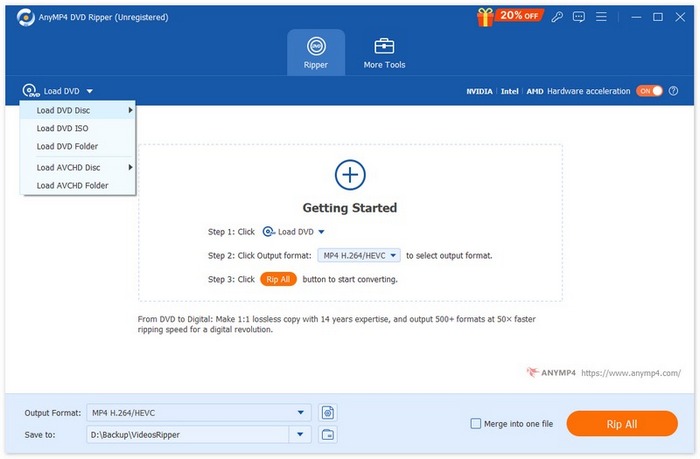
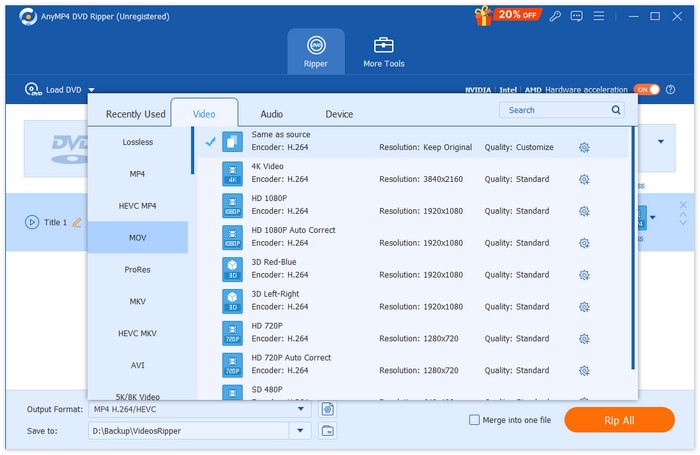
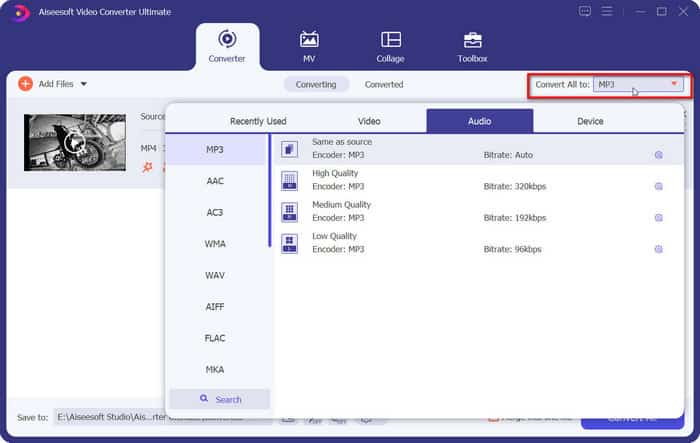
ขั้นตอนที่ 3. หลังจากนั้น ให้คลิกปุ่ม "Output Format" ด้านล่าง แล้วเลือกฟอร์แมตเสียงเอาต์พุตที่คุณต้องการภายใต้แท็บ “Audio”.
ขั้นตอนที่ 4. คุณยังสามารถตัดต่อหรือผสานแทร็กเสียงตามที่ต้องการได้ เมื่อจัดการเสร็จแล้ว ให้คลิกปุ่ม “Rip All” เพื่อดึงแทร็กเสียงออกจากดีวีดีของคุณ.
หากคุณต้องการแก้ไขไฟล์เสียง ให้คลิก Cut หรือ Edit.
ขั้นตอนที่ 5. สุดท้าย คลิก Convert All เพื่อส่งออกไฟล์เสียงของคุณ.

ส่วนที่ 2. การแยกเพลงประกอบจากแผ่น DVD
หากคุณต้องการซอฟต์แวร์ฟรีที่จะช่วยคุณริปเพลงจาก DVD VLC Media Player คือคำตอบ ฟังก์ชันหลักคือการเล่นวิดีโอ เพลง และอื่นๆ อีกมากมาย นอกจากนี้ยังสามารถใช้งานร่วมกับฟอร์แมต DVD และเล่นเนื้อหาบน DVD ได้อีกด้วย ยิ่งไปกว่านั้น เครื่องมือข้ามแพลตฟอร์มนี้ยังช่วยให้ผู้ใช้สามารถแยกไฟล์วิดีโอหรือไฟล์เสียงออกจาก DVD ได้ นอกจากนี้ยังมีเครื่องมือตัดต่อเสียงง่ายๆ ให้เลือกใช้งานในอินเทอร์เฟซ VLC Media Player ใช้งานได้กับอุปกรณ์หลากหลาย ดังนั้นผู้ใช้ Windows และ Mac จึงสามารถเลือกใช้เป็นเครื่องมือริปได้
นี่คือสิ่งที่คุณต้องทำเพื่อแยกเพลง/ซาวด์แทร็กจาก DVD ด้วย VLC Media Player
ขั้นตอนที่ 1. ดาวน์โหลดและติดตั้ง VLC Media Player เวอร์ชันล่าสุดบนคอมพิวเตอร์ของคุณ.
ขั้นตอนที่ 2. ใส่แผ่นดีวีดีลงในไดรฟ์ของอุปกรณ์.
ขั้นตอนที่ 3. เปิด VLC Media Player แล้วคลิก Media > Convert/Save ที่ด้านบนของหน้าต่างโปรแกรม.
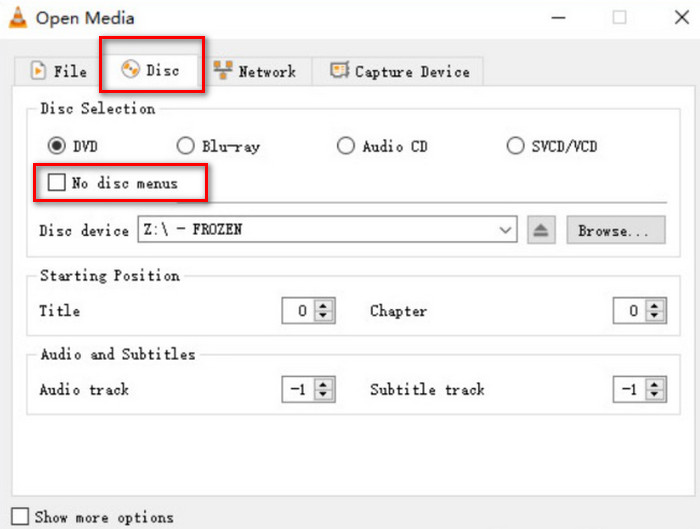
ขั้นตอนที่ 4. จะมีหน้าต่าง Open Media เปิดขึ้นมา ไปที่แท็บ Disc.
ขั้นตอนที่ 5. ทำเครื่องหมายตัวเลือก No disc menus และเลือกดีวีดีของคุณในส่วน Disc device.
ขั้นตอนที่ 6. คลิก Convert/Save ที่ด้านล่าง.
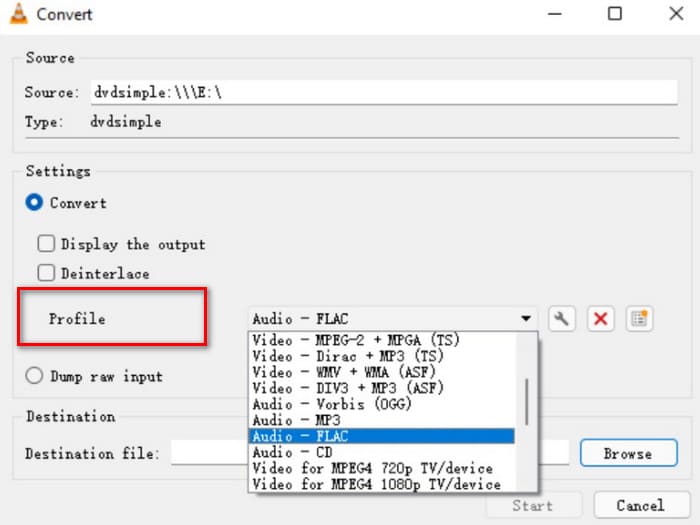
ขั้นตอนที่ 7. ไปที่หน้าต่าง Convert แล้วเลือก Profile เลือกฟอร์แมตเสียงสำหรับไฟล์ที่ริป จากนั้นคลิก Start.
ส่วนที่ 3. ริปเพลงจากดีวีดี
หากคุณมีคอมพิวเตอร์ที่ใช้ระบบปฏิบัติการ Windows เราขอแนะนำโปรแกรมริป DVD คุณภาพสูงชื่อ XMedia Recode โปรแกรมนี้ออกแบบมาสำหรับคอมพิวเตอร์ที่ใช้ระบบปฏิบัติการ Windows และให้บริการฟรีโดยสมบูรณ์ นอกจากจะช่วยให้คุณแยกไฟล์เสียงแบบ Lossless ออกจากแผ่น DVD แล้ว แพลตฟอร์มนี้ยังให้คุณปรับพารามิเตอร์ต่างๆ ได้ เช่น ช่องสัญญาณ บิตเรต อัตราสุ่มตัวอย่าง และอื่นๆ ด้วยวิธีนี้ คุณจะได้ฟังเพลงคุณภาพสูงสุดและฟังได้บนอุปกรณ์หลากหลายประเภท
นี่คือสิ่งที่คุณต้องทำเพื่อริพเสียงจาก DVD บน XMedia Recode
ขั้นตอนที่ 1. ดาวน์โหลด XMedia Recode เวอร์ชันที่คุณต้องการลงในคอมพิวเตอร์.
ขั้นตอนที่ 2. ใส่แผ่นดีวีดี แล้วคลิก Open disc เพื่อโหลดแผ่น.
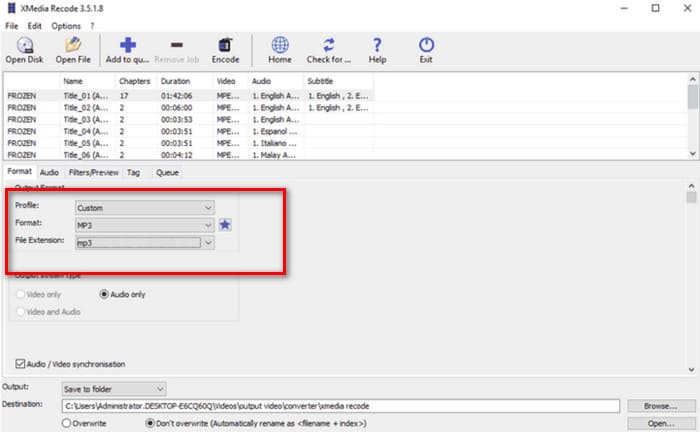
ขั้นตอนที่ 3. ไปที่แท็บ Format เปิดใช้ตัวเลือก Audio เท่านั้น แล้วเลือกฟอร์แมตเสียงดิจิทัล.
ขั้นตอนที่ 4. เลือกโฟลเดอร์สำหรับเก็บไฟล์เสียงของคุณในส่วน Destination จากนั้นคลิก Add to queue > Encode.
ส่วนที่ 4 วิธีการริปเสียงจากดีวีดี
นอกจาก VLC Media Player แล้ว ยังมีอีกหนึ่งทางเลือกที่ยอดเยี่ยมในบรรดาเครื่องมือฟรี คือ HandBrake ซึ่งเป็นโปรแกรมตัดต่อเสียงและวิดีโอแบบโอเพนซอร์ซ โดยข้อดีที่ใหญ่ที่สุดคือรองรับไฟล์ได้หลากหลายและให้บริการฟรีอย่างสมบูรณ์ คุณสามารถใช้ HandBrake ส่งออกไฟล์จากดีวีดีและแปลงเป็นฟอร์แมตยอดนิยมต่าง ๆ เช่น MKV และ MP4 ได้ คุณสามารถปรับแต่งขั้นตอนทั้งหมดให้ตรงกับนิสัยการใช้งานของคุณเอง ทำให้ใช้งานได้ง่ายมาก หน้าตาของ HandBrake จะค่อนข้างดั้งเดิม แต่การทำงานลื่นไหลมาก.
หากคุณต้องการรับเสียงจาก DVD ด้วย HandBrake ให้ทำตามคำแนะนำด้านล่าง
ขั้นตอนที่ 1. ดาวน์โหลด HandBrake จากเว็บไซต์ทางการมาติดตั้งบนคอมพิวเตอร์ของคุณ.
ขั้นตอนที่ 2. ใส่แผ่นดีวีดีลงในไดรฟ์ที่เชื่อมต่อ HandBrake จะตรวจจับแผ่นโดยอัตโนมัติ ไฟล์ทั้งหมดจะปรากฏบนหน้าจอ คุณสามารถปรับช่องสัญญาณ ระบบเข้ารหัสเสียง ฯลฯ ได้.
ขั้นตอนที่ 3. ไปที่ Summary > Format เพื่อเลือกฟอร์แมตเอาต์พุต จากนั้นคลิก Browse เพื่อเลือกเส้นทางจัดเก็บเสียงที่ริปออกมา.
ขั้นตอนที่ 4. สุดท้าย คลิก Start Encode เพื่อเริ่มกระบวนการ.

ส่วนที่ 5 คำถามที่พบบ่อยเกี่ยวกับการริปเสียงจากดีวีดี
ฉันสามารถริปเฉพาะเสียงจาก DVD ได้ไหม
แน่นอน คุณทำได้ คุณสามารถริปไฟล์ก่อนแล้วเลือกรูปแบบเสียงเมื่อส่งออกได้ โปรแกรมริปหลายตัวยังอนุญาตให้ผู้ใช้เลือกเฉพาะไฟล์เสียงที่จะส่งออกได้ด้วย
ซอฟต์แวร์ใดดีที่สุดสำหรับการริพเสียงจาก DVD?
FVC Video Converter Ultimate เป็นตัวเลือกที่ดีที่สุดในทุกด้าน ไม่เพียงแต่ใช้งานได้หลากหลาย แต่ยังใช้งานง่ายอย่างยิ่งอีกด้วย
การริพไฟล์ดีวีดีเสียงเป็นเรื่องถูกกฎหมายหรือไม่?
คุณสามารถริปดีวีดีออกมาแล้วเพลิดเพลินกับมันด้วยเครื่องเล่นดีวีดีได้อย่างง่ายดายโดยไม่ยุ่งยาก อย่างไรก็ตาม คุณต้องไม่ใช้เนื้อหาเหล่านี้เพื่อวัตถุประสงค์ทางการค้า.
สรุป
ในบทความนี้ เราจะแนะนำเครื่องมือสี่ตัวที่มีฟีเจอร์แตกต่างกัน เพื่อช่วยให้คุณริปไฟล์เสียงจาก DVD ได้อย่างมีประสิทธิภาพ เครื่องมือเหล่านี้ใช้งานง่ายและเป็นมิตรกับผู้ใช้ทุกกลุ่ม นอกจากนี้ เรายังมีคู่มือทีละขั้นตอนที่ครบถ้วนเพื่อให้คุณทำตามได้ หากคุณต้องการบริการที่ครอบคลุมที่สุด เราขอแนะนำให้ใช้ AnyMP4 DVD Ripper
ดาวน์โหลดฟรีสำหรับ Windows 7 ขึ้นไปดาวน์โหลดอย่างปลอดภัย
ดาวน์โหลดฟรีสำหรับ macOS 10.7 ขึ้นไปดาวน์โหลดอย่างปลอดภัย
-
 3 วิธีในการเขียน Video_TS ลง DVD บน Windows และ Mac
 หากคุณมีไฟล์ TS อยู่แล้วและต้องการบันทึกลงแผ่น DVD โปรดอ่านคู่มือนี้ เราจะสอนวิธีเบิร์น Video_TS ลงแผ่น DVD บนคอมพิวเตอร์ Windows หรือ Mac อย่างละเอียด
-
 วิธีการลบลายน้ำจาก Wondershare DVD Creator อย่างง่ายดาย
 บทความนี้ครอบคลุมข้อมูลเกี่ยวกับวิธีการเอาลายน้ำออกจาก Wondershare DVD Creator ในการรับข้อมูลทั้งหมดที่คุณต้องการ คุณจะต้องอ่านสิ่งนี้
-
 การตรวจสอบและวิเคราะห์เชิงลึกของ My Bloody Valentine 3D
 คุณกำลังมองหารีวิว My Bloody Valentine 3D อย่างละเอียดอยู่หรือเปล่า? ลองอ่านบทความนี้เพื่อเปิดเผยแต่ละแง่มุมของภาพยนตร์
