


 Video Converter Ultimate
 บันทึกหน้าจอ
 ซ่อมวิดีโอ
 ดาวน์โหลดอย่างปลอดภัย
ทำความรู้จักกับเครื่องบันทึกเสียง M4A ที่ดีที่สุดพร้อมบทช่วยสอน
M4A เป็นนามสกุลไฟล์สำหรับเสียงเท่านั้น ใช้สำหรับจัดเก็บไฟล์เสียงในรูปแบบหนึ่งที่เรียกว่า MPEG-4 Audio นี่เป็นตัวเลือกที่ยอดเยี่ยมสำหรับผู้ใช้บนอินเทอร์เน็ตที่ชอบดาวน์โหลดเพลงจำนวนมากออนไลน์ แทนที่จะต้องใช้ดาต้าอินเทอร์เน็ตจำนวนมากและเสียเวลารอดาวน์โหลด คุณสามารถเพลิดเพลินกับไฟล์เสียงที่ดาวน์โหลดในรูปแบบ M4A ด้วยคุณภาพเสียงที่แทบไม่ต่างจากไฟล์ MP3 แม้ตอนนี้คุณอาจมีคำถามอยู่ในใจหลายอย่าง การอ่านบทความด้านล่างนี้จะช่วยให้คุณเข้าใจมากขึ้น และรู้ว่ามี เครื่องบันทึกเสียงแบบ M4A ตัวไหนบ้างที่รองรับการอัดเสียงเป็นไฟล์ M4A พร้อมวิธีใช้งานทีละขั้นตอน.

ส่วนที่ 1 เครื่องบันทึก M4A ออนไลน์ที่ดีที่สุดสำหรับ Windows และ Mac
FVC เครื่องบันทึกเสียงฟรี
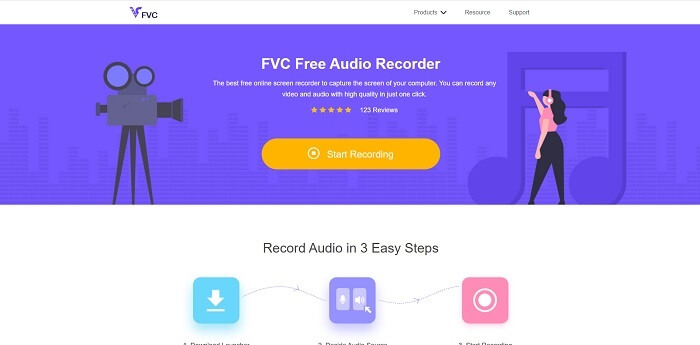
เครื่องมือฟรีที่ไม่ต้องจ่ายเงินและใช้งานได้ผ่านอินเทอร์เน็ตคือ FVC Free Audio Recorder เครื่องบันทึกเสียงออนไลน์ตัวนี้ช่วยให้ผู้ใช้สามารถอัดเสียงได้ทุกที่ที่มีอินเทอร์เน็ต รองรับการบันทึกโดยไม่มีการจำกัดเวลาและไม่มีข้อจำกัดด้านระบบปฏิบัติการ คุณสามารถอัดเสียงจากระบบเสียงของคอมพิวเตอร์ ไมโครโฟนเพื่อใส่เสียงพูดของคุณ หรืออัดทั้งสองแหล่งพร้อมกันก็ได้ หากอยากรู้จักเครื่องมือนี้มากขึ้น ด้านล่างคือวิธีใช้งานแบบทีละขั้นตอน.
ขั้นตอนที่ 1. เปิดลิงก์นี้เพื่อไปยังหน้าเว็บไซต์หลักของเครื่องมือ.
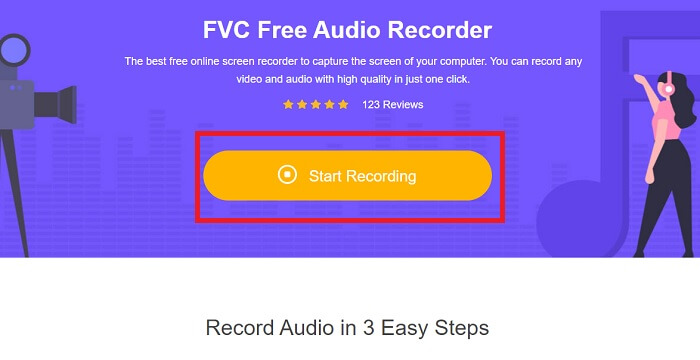
ขั้นตอนที่ 2. เปิดใช้งานเครื่องมือโดยคลิกที่ Start Recording.
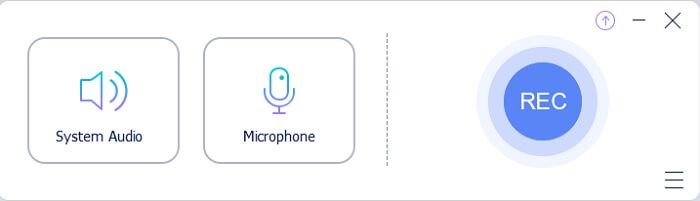
ขั้นตอนที่ 3. แถบเครื่องมือแบบนี้จะปรากฏขึ้นบนหน้าจอของคุณ.
ขั้นตอนที่ 4. เปิด Speaker และ Microphone เพื่อเพิ่มแหล่งเสียงอินพุต จากนั้นคลิกปุ่มวงกลมเพื่อเริ่มบันทึกเสียง.
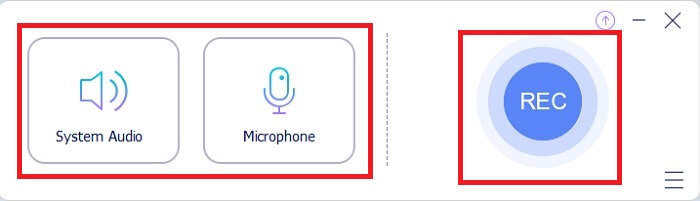
ขั้นตอนที่ 5. เมื่อบันทึกเสร็จแล้ว ให้คลิกปุ่มสี่เหลี่ยมเพื่อหยุด ไฟล์บันทึกเสียงจะถูกบันทึกลงคอมพิวเตอร์ของคุณโดยอัตโนมัติ.
ส่วนที่ 2 อีก 7 ทางเลือก M4A Recorder สำหรับ Windows และ Mac
1. เครื่องบันทึกหน้าจอ FVC
หากคุณต้องการทำมากขึ้นในขณะที่บันทึก เครื่องมือนี้เหมาะสำหรับคุณ FVC Screen Recorder ซึ่งเป็นเครื่องมืออเนกประสงค์ที่ช่วยให้ผู้ใช้สามารถบันทึกเสียง วิดีโอ การเล่นเกม และอื่นๆ อีกมากมายได้อย่างยอดเยี่ยม หากเราจะพูดถึงเวอร์ชันที่ดีกว่ามากซึ่งรองรับ M4A เวอร์ชันนี้เหมาะสำหรับคุณ เครื่องมือจ่ายต่อการใช้งานนี้ไม่ได้มีไว้สำหรับการบันทึกหน้าจอเท่านั้น แต่ยังใช้เครื่องบันทึกเสียงที่สามารถสร้างรูปแบบไฟล์ M4A ไม่เพียงแค่นั้น ยังรองรับแพลตฟอร์มต่างๆ ที่คุณอาจนึกถึง ดังนั้น ไม่ต้องกังวลหากคุณเปลี่ยนแพลตฟอร์ม คุณยังสามารถใช้สิ่งนี้ได้ ได้รับเลือกจากผู้ใช้หลายคนทางเว็บให้เป็นเครื่องบันทึกหน้าจอในอุดมคติ หากต้องการทราบข้อมูลเพิ่มเติมเกี่ยวกับวิธีการใช้เครื่องมือนี้ เราควรดำเนินการตามขั้นตอนเพื่อแนะนำเส้นทางการบันทึกเสียงของคุณ
ขั้นตอนที่ 1. เลือกแพลตฟอร์มที่คุณใช้งานอยู่ในปัจจุบันเพื่อดาวน์โหลดเครื่องมือนี้ หลังจากดาวน์โหลดแล้ว ให้ดูที่มุมล่างซ้ายของเบราว์เซอร์เพื่อทำการติดตั้ง ปรับค่าการตั้งค่า (Preference) ตามที่ต้องการ จากนั้นคลิก Finish เพื่อเริ่มใช้งานเครื่องมือ.
ดาวน์โหลดฟรีสำหรับ Windows 7 ขึ้นไปดาวน์โหลดอย่างปลอดภัย
ดาวน์โหลดฟรีสำหรับ MacOS 10.7 ขึ้นไปดาวน์โหลดอย่างปลอดภัย
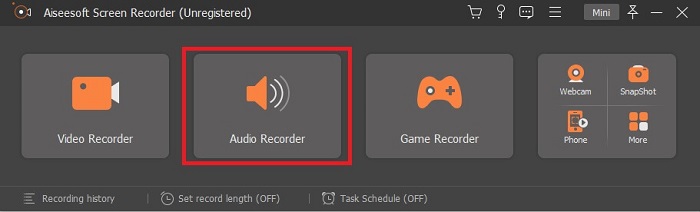
ขั้นตอนที่ 2. แถบเครื่องมือแบบนี้จะปรากฏบนหน้าจอของคุณ คลิกที่ Audio Recorder เพื่อไปต่อ.
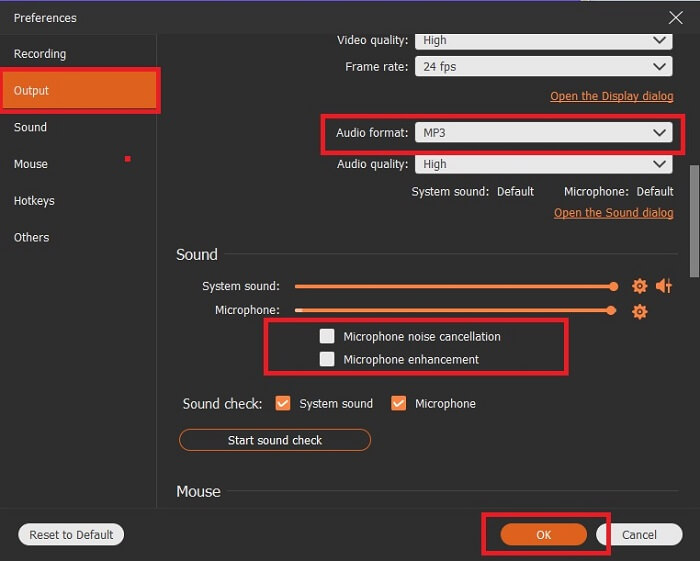
ขั้นตอนที่ 3. บนแถบเครื่องมือ คุณจะเห็นไอคอนรูปเฟือง ให้คลิกเข้าไป ปรับการตั้งค่า Output และ Sound Settings ของการบันทึก แล้วคลิก OK เพื่อไปยังขั้นตอนถัดไป.
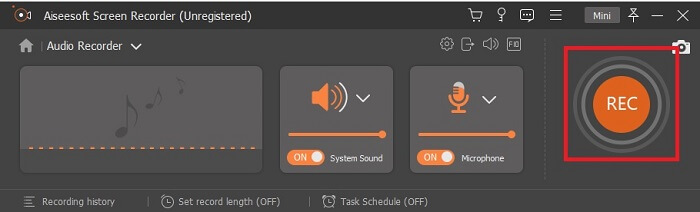
ขั้นตอนที่ 4. เปิด On ที่ Speaker เพื่อเพิ่มเสียงจากระบบ และคลิกที่ Microphone เพื่อเพิ่มเสียงพูดของคุณ เมื่อตั้งค่าขั้นตอนนี้เรียบร้อยแล้ว ให้คลิกปุ่มรูปดิสก์เพื่อเริ่มบันทึกเสียง.
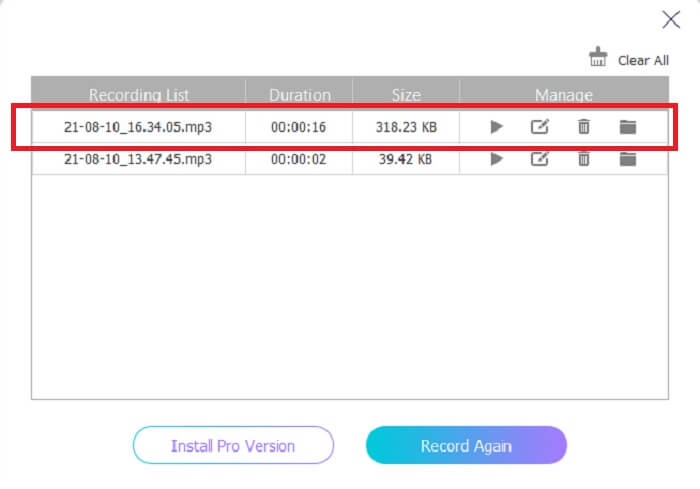
ขั้นตอนที่ 5. เมื่อบันทึกเสร็จแล้ว ให้คลิกปุ่มสี่เหลี่ยมเพื่อหยุด จากนั้นคลิกปุ่ม Save และกด Next เพื่อเสร็จสิ้นการสร้างไฟล์บันทึกเสียง จากนั้นรายการบันทึกเสียงทั้งหมดของคุณจะปรากฏบนหน้าจอจากใหม่ไปเก่า ให้คลิกที่ไฟล์แรกแล้วเพลิดเพลินกับรูปแบบไฟล์เสียงที่คุณสร้างขึ้น.

2. ความกล้า
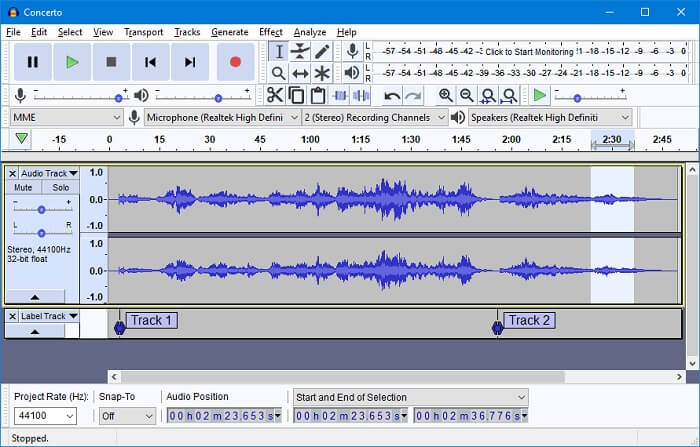
หนึ่งในเครื่องบันทึกเสียงที่คุณอาจใช้คือ Audacity เครื่องมือดาวน์โหลดโอเพ่นซอร์สฟรีที่อนุญาตให้ผู้ใช้ทำการบันทึกเสียง ผู้ใช้บางคนเลือกสิ่งนี้เป็นเครื่องบันทึกเสียงเนื่องจากความพร้อมใช้งานและงานของมัน แต่สิ่งนี้สามารถวางไว้ในเครื่องบันทึกเสียงที่ดีที่สุด 10 อันดับแรกได้อย่างง่ายดาย โปรแกรมมีตัวเลือกที่จำกัดสำหรับความสามารถในการผสม
ข้อดี
- ฟรีและโอเพ่นซอร์ส
- ไม่จำเป็นต้องใช้ RAM จำนวนมากเพื่อให้ทำงานได้
- ให้การแก้ไขพื้นฐาน
จุดด้อย
- ให้การแก้ไขพื้นฐาน
- UI ไม่สะดุดตาผู้ใช้
3. วาโวซอรัส
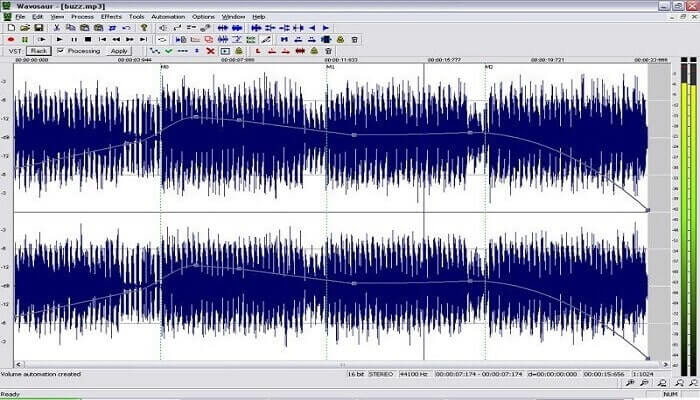
หาก Audacity ไม่ใช่ตัวเลือกหลักของคุณสำหรับการเป็นเครื่องบันทึกเสียง M4A คุณสามารถใช้ Wavosaur แทนได้ โปรแกรมนี้สามารถตัดต่อ มิกซ์ และทำอย่างอื่นได้อีกมากมาย นอกจากนี้ยังใช้ทำเพลงที่มีการเรียบเรียงซับซ้อนได้ด้วย อินเทอร์เฟซอาจจะดูเก่าไปบ้าง แต่ก็ยังใช้งานได้มีประสิทธิภาพในฐานะโปรแกรมบันทึกเสียง.
ข้อดี
- ตอนนี้มีคุณสมบัติการทำซ้ำ
- โปรแกรมแก้ไขเสียงฟรี
- การแก้ไขเสียงที่ไม่ทำลาย
จุดด้อย
- มี .exe ที่อาจเป็นอันตรายต่อคอมพิวเตอร์ของคุณ
- ไม่สามารถใช้ได้กับทุกแพลตฟอร์มยกเว้น windows
4. เสียง Boo
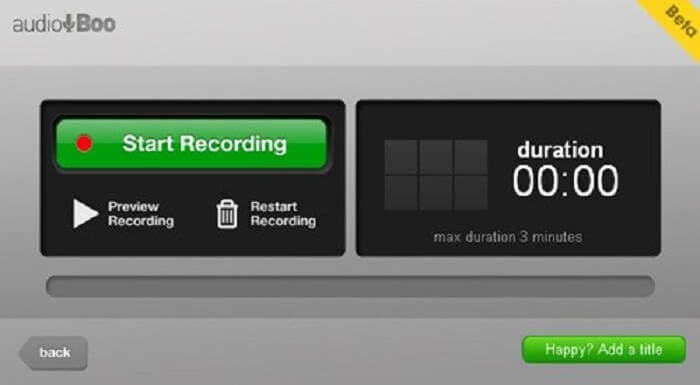
แพลตฟอร์มมือถือและเว็บที่ช่วยให้ผู้ใช้สามารถบันทึกได้ประมาณ 3 นาที หากคุณกำลังพยายามบันทึกคลิปเสียงสั้น ๆ คุณจะต้องใช้เครื่องมือนี้ ชื่อใหม่ของ Audio Boo คือ Audio Boo 2 ดังนั้นหากคุณต้องการดาวน์โหลดเครื่องมือ คุณต้องถอนการติดตั้งเวอร์ชันเก่าของ Audio Boo เพื่อติดตั้งเวอร์ชันที่ใหม่กว่า
ข้อดี
- ไม่มีโฆษณาในเครื่องมือ
- สามารถสร้างรูปแบบเสียงหลักได้
- คุณภาพของเสียงก็โอเค
จุดด้อย
- การบันทึกที่จำกัด
- ไม่พบเครื่องมือนี้เนื่องจากเปลี่ยนชื่อเป็น Audiobook 2
5. เวฟแพด
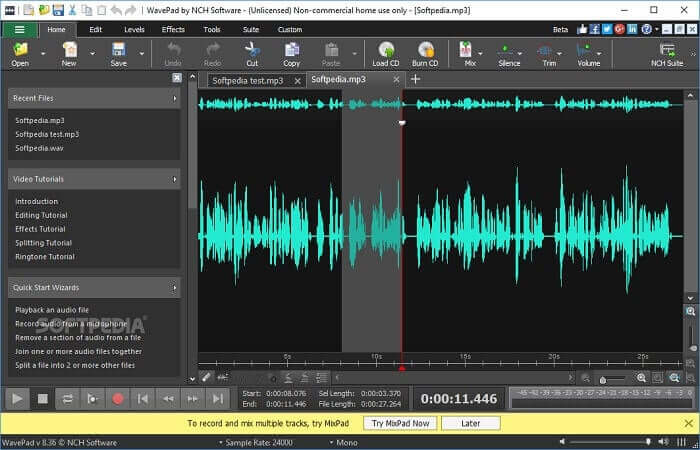
เครื่องมือที่อนุญาตให้ผู้ใช้เพิ่มเอฟเฟกต์พิเศษให้กับการบันทึกของคุณ Wavepad กลายเป็นที่นิยมเนื่องจากการเลื่อนขึ้นและลงตลอดจนเปลี่ยนจังหวะของการบันทึก มีคุณลักษณะการแก้ไขเสียงอยู่ที่นั่น แต่ถ้าคุณไม่เข้าใจฟังก์ชันและวิธีใช้งาน คุณลักษณะนี้ยังมีวิดีโอเกี่ยวกับวิธีการใช้เครื่องมือแก้ไขอีกด้วย
ข้อดี
- เครื่องมือที่ใช้งานง่ายสำหรับผู้ใช้ใหม่
- สามารถตัดเสียงที่บันทึกและเปลี่ยนเป็นไฟล์เสียงอื่นได้โดยการแทรก
- คุณยังสามารถพากย์เสียงสำหรับแพลตฟอร์มสื่อต่างๆ ได้อีกด้วย
จุดด้อย
- ไม่สามารถใช้เป็นโฆษณาเชิงพาณิชย์ได้ โดยทั่วไปมันไม่ฟรี แต่มีเวอร์ชันฟรี
- ทำงานเป็นแทร็กบันทึกเสียงเดียวเท่านั้น
6. Adobe Audition
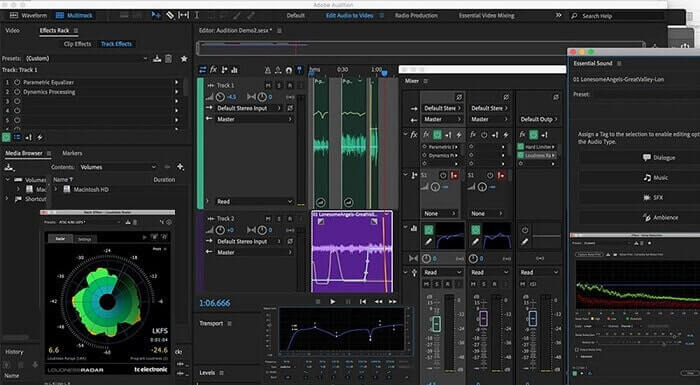
การบันทึกเสียงหลักที่ Adobe สามารถเสนอให้กับผู้ใช้คือ Adobe Audition มีเครื่องมือแก้ไขเสียงที่ทำลายและไม่ทำลายซึ่งเป็นที่นิยมในพอดคาสต์ หากคุณกำลังมองหาเนื้อหาระดับมืออาชีพที่ตรงตามมาตรฐาน นี่คือสิ่งที่คุณต้องการ นอกจากนี้ เนื่องจากการสนับสนุนเฉพาะที่ Adobe มอบให้กับเครื่องมือต่างๆ
ข้อดี
- มิกซ์เสียงได้ดีมาก
- คุณสมบัติตัดเสียงรบกวน
- ส่วนการแก้ไขต่างๆ
จุดด้อย
- ไม่มีเครื่องมือสร้างเพลง
- มันแพงเกินไปเหมือนซอฟต์แวร์ Adobe อื่น ๆ
7. มิกซ์คราฟ 9
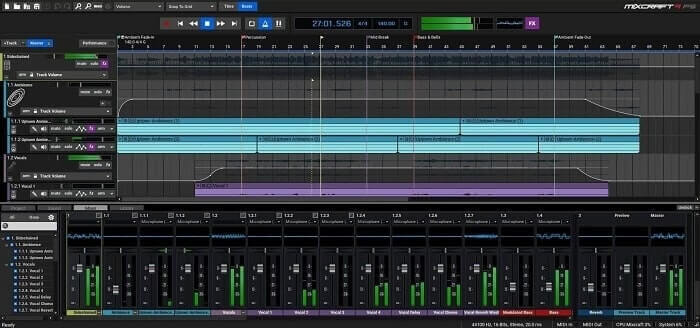
เครื่องมือที่เป็นกรรมสิทธิ์ซึ่งพัฒนาโดย Acoustica คือ Mixcraft 9 หนึ่งในเครื่องบันทึกเสียงที่ดีที่สุดสำหรับการผลิตเพลงที่มีอยู่บนเว็บ เครื่องมือนี้ให้คุณสมบัติ เครื่องมือ และเอฟเฟกต์ที่หลากหลายแก่คุณ นอกจากนี้ยังมีตัวแก้ไขเปียโนโรลล์และตัวเลือกอื่นๆ หากคุณกำลังมองหาการบันทึกเสียงเพื่อผลิตเพลง นี่เป็นอีกทางเลือกหนึ่ง
ข้อดี
- การผลิตเพลงที่ดีที่สุด
- ประกอบด้วยเครื่องมือและปลั๊กอินเกือบทั้งหมด
- อินเทอร์เฟซที่มีน้ำหนักเบา
จุดด้อย
- อินเทอร์เฟซมืด ดังนั้นเครื่องมือบางอย่างจึงไม่สามารถอ่านได้
- ไม่ใช่ตัวเลือกที่ดีที่สุดสำหรับมือใหม่เพราะมีตัวเลือกมากมาย
ส่วนที่ 3 แผนภูมิเปรียบเทียบ
| คุณสมบัติเครื่องมือ | FVC เครื่องบันทึกเสียงฟรี | เครื่องบันทึกหน้าจอ FVC | ความกล้า | วาโวซอรัส | เสียง Boo | เวฟแพด | Adobe Audition | Mixcraft 9 |
| การบันทึกเสียง |  | | | | | | | |
| เครื่องมือแก้ไข |  | | | | | | | |
| ตัดเสียงรบกวน | | | | | | | | |
| รูปแบบที่มีจำหน่าย | MP3 และ M4A | MP3, WMA, AAC, M4A, FLAC, OGG, Opus และอีกมากมาย | WAV, AIFF และ MP3 | WAV และ MP3 | MP3 | AAC, M4A, MP4, DCT | AC-3, M4A, MAT, VOX, W64, WAV และอีกมากมาย | WMV และ AVI |
ส่วนที่ 4. คำถามที่พบบ่อยเกี่ยวกับ M4A Recorder
เหตุใดเครื่องบันทึก android จึงใช้ไฟล์ M4A
เครื่องบันทึก Android ทุกตัวใช้ไฟล์ .m4a เนื่องจากถูกบีบอัดได้ดีกว่า mp3 อุปกรณ์มือถือ Android เช่น LG, Huawei และอีกมากมาย แต่ไม่ใช่ว่า Android ทั้งหมดจะใช้รูปแบบไฟล์ประเภทนี้
ฉันสามารถแปลง M4A เป็นรูปแบบเสียงอื่นได้หรือไม่? ต้องแปลงอย่างไร?
หากต้องการแปลงไฟล์เสียง M4A คุณสามารถใช้ M4A Converter นี้และเลือกประเภทไฟล์เสียงที่ต้องการได้ เพียงเปิดลิงก์แล้วคลิกตัวเรียกใช้งาน (launcher) ของเครื่องมือ จากนั้นเลือกฟอร์แมตเสียงที่ต้องการ เช่น MP3.
เหตุใดฉันจึงไม่สามารถเล่นไฟล์ M4A ในคลังเพลง Android ของฉันได้
สาเหตุหลักที่คุณไม่สามารถเล่นไฟล์เสียง M4A ได้ อันดับแรกคือโปรแกรมเล่นเพลงหลักของคุณไม่รองรับไฟล์ประเภทนี้ แต่คุณสามารถใช้ โปรแกรมเล่นไฟล์ M4A ตัวอื่นแทนได้.
สรุป
เพื่อสรุปรายละเอียดข้างต้น เครื่องบันทึกเสียง M4A ทุกตัวมีคุณสมบัติเฉพาะตัวในฐานะเครื่องบันทึกเสียง บางตัวสร้างรูปแบบ M4A และบางตัวไม่ทำ แต่สุดท้ายเราต้องเลือกเครื่องบันทึกเสียงที่ดีที่สุดที่เราต้องใช้ เพราะถ้าคุณเลือกเครื่องมือที่ซับซ้อนซึ่งมีตัวเลือกมากมายที่คุณอาจไม่ต้องการในฐานะผู้ใช้ มันจะเริ่มสร้างความเจ็บปวดให้กับคุณ แต่ถ้าคุณเลือกวิธีง่ายๆ ในการบันทึกที่มีรูปแบบเสียงเดียวกัน คุณอาจต้องพิจารณาใหม่
FVC Screen Recorder เป็นโปรแกรมบันทึกหน้าจอแบบอเนกประสงค์ที่คุณสามารถใช้ได้ทั้งตอนนี้และในอนาคต เครื่องมือนี้อาจไม่ได้ซับซ้อนมากนัก แต่คุณภาพเสียงที่ได้ก็ไม่แพ้เครื่องมืออื่น แทนที่จะทำให้ชีวิตยุ่งยาก ลองใช้เครื่องมือนี้ดีกว่า พูดง่าย ๆ มันเปรียบเสมือนรหัสลัดแทนการใช้เครื่องมืออื่น ๆ เลือกสิ่งที่ดีที่สุดสำหรับคุณ และตัวเลือกที่ดีที่สุดนั้นก็คือ FVC Screen Recorder.
-
 เครื่องบันทึกเมาส์และคีย์บอร์ดที่ดีที่สุด 5 อันดับแรกสำหรับ Windows และ Mac
 ต่อไปนี้คือโปรแกรมบันทึกเมาส์และคีย์บอร์ดที่ดีที่สุดห้าอันดับแรกที่สามารถบันทึกการเคลื่อนไหวของเมาส์และการคลิกแป้นพิมพ์ของคุณและทำซ้ำเหตุการณ์ต่างๆ
-
 เครื่องบันทึกหน้าจอ AVI ฟรี 4 อันดับแรกเพื่อจับภาพวิดีโอหน้าจอเป็นไฟล์ AVI
 ในการบันทึกหน้าจอในไฟล์ AVI คุณภาพสูงบทความนี้จะระบุและแบ่งปันเครื่องบันทึกหน้าจอ AVI ฟรี 4 อันดับแรกในโพสต์นี้ เรียนรู้รายละเอียดเพิ่มเติมเพื่อค้นหารายการที่ต้องการ
-
 หนังบู๊! รีวิวเครื่องบันทึกหน้าจอ - จุดด้อยข้อดีและทางเลือกที่ดีที่สุด
 Action Screen Recorder เป็นซอฟต์แวร์บันทึกเกมที่ต้องการเพื่อจับภาพวิดีโอการเล่นเกมหรือไม่? เพียงเรียนรู้รายละเอียดเพิ่มเติมจากบทวิจารณ์และทางเลือกอื่น ๆ จากบทความ
