


 Video Converter Ultimate
 บันทึกหน้าจอ
 ซ่อมวิดีโอ
สุดยอดตัวแปลง MPG เป็น GIF เพื่อแปลง MPG เป็น GIF [รุ่นไม่มีค่าใช้จ่าย & พรีเมี่ยม]
วิธีที่ดีที่สุดในการแสดงความรู้สึกของคุณต่อคนที่คุณรักคือการสร้างข้อความที่มีความหมาย แต่คุณต้องการที่จะรู้ว่าอะไรจะดีไปกว่าการแสดงออกในแบบที่ต่างออกไป? คุณสามารถใช้ GIF หรือที่เรียกว่ารูปแบบการแลกเปลี่ยนกราฟิก นี่คือภาพที่คุณส่ง แต่ได้รับการอัพเกรด ภาพเคลื่อนไหวเหล่านี้สร้างขึ้นเพื่อแสดงความรู้สึกของคุณต่อผู้อื่นโดยตรงหรือโดยอ้อม คุณรู้หรือไม่ว่าแอพส่งข้อความส่วนใหญ่รองรับ GIF เช่นเดียวกับ Messenger ในตัวของเรา แต่ในโทรศัพท์รุ่นเก่าบางรุ่น ไม่มีรูปแบบนี้ แม้ว่า GIF จะสนุก แต่ไม่ใช่ทุกเวลาที่จะให้อารมณ์ที่คุณต้องการแสดงออกมา
ดังนั้น คุณจึงเข้ามาเพื่อรู้ว่ วิธีที่ดีที่สุดในการแปลงไฟล์ MPG เป็น GIF คืออะไร การสร้าง GIF ของตัวเองนี่น่าตื่นเต้นใช่ไหม แทนที่จะเสียเวลาค้นหาว่าควรใช้เครื่องมือไหน ทำไมไม่ลองสร้าง GIF ของคุณเองด้วยการใส่สไตล์เฉพาะตัวลงไป วิธีที่ดีที่สุดที่จะรู้ว่าต้องทำอย่างไร คืออ่านบทความนี้ให้จบ เพราะในนี้มีข้อมูล ขั้นตอน และเครื่องมือที่จำเป็นสำหรับงานนี้พร้อมสรรพ ถ้าอย่างนั้นไม่พูดอ้อมค้อมอีกต่อไป มาดูรายละเอียดสำคัญในบทความนี้กันต่อเลย อ่านต่อเพื่อทำความรู้จักรายชื่อโปรแกรมแปลงไฟล์เหล่านี้ให้มากขึ้น.

ส่วนที่ 1 4 เครื่องมือที่ดีที่สุดในการแปลง MPG เป็น GIF รูปแบบ PC หรือ Mac
1. FVC Video Converter Ultimate
หากคุณอยากแชร์ข้อความตลก ๆ โดยไม่ต้องพิมพ์รายละเอียดเยอะ เครื่องมือนี้จะช่วยคุณได้ เครื่องมือนี้ให้คุณ แปลง mpg เป็น gif แบบเคลื่อนไหว และยังพัฒนาโดย FVC อีกด้วย FVC Video Converter Ultimate อนุญาตให้ผู้ใช้แปลงไฟล์ได้ทุกชนิดให้เป็นฟอร์แมตที่เล่นได้ตามที่คุณต้องการ บางทีคุณอาจสงสัยว่าทำไมต้องเลือกเครื่องมือนี้ มีอะไรพิเศษหรือไม่ คำตอบคือ มี เครื่องมือนี้เป็นแบบอเนกประสงค์ สามารถเป็นทั้งโปรแกรมริปเปอร์ (ripper) โปรแกรมทำ MV โปรแกรมทำคอลลาจ และอื่น ๆ อีกมากมาย นั่นหมายความว่าเครื่องมือนี้ทำได้มากกว่าโปรแกรมอื่นที่มีให้เลือกใช้ อีกหนึ่งคุณสมบัติที่ยอดเยี่ยมคือการแปลงไฟล์ด้วยความเร็วสูงมาก ช่วยให้คุณแปลงวิดีโอได้ในเวลาอันสั้นด้วยเครื่องมือนี้ หากอยากรู้วิธีใช้เครื่องมือนี้ ให้ทำตามขั้นตอนต่อไปนี้อย่างระมัดระวัง เพื่อให้การแปลงไฟล์เป็นฟอร์แมตคุณภาพที่คุณต้องการสำเร็จลุล่วง.
ขั้นตอนที่ 1 ติดตั้งโปรแกรมบน PC หรือ Mac ของคุณ ทำตามคำแนะนำหลังติดตั้งเสร็จแล้วคลิก Finish เพื่อเริ่มใช้งานโปรแกรม.
ดาวน์โหลดฟรีสำหรับ Windows 7 หรือใหม่กว่าดาวน์โหลดอย่างปลอดภัย
ดาวน์โหลดฟรีสำหรับ MacOS 10.7 หรือใหม่กว่าดาวน์โหลดอย่างปลอดภัย
ขั้นตอนที่ 2 หลังจากกระบวนการติดตั้งเสร็จสิ้น จะมีหน้าต่างอินเทอร์เฟซขนาดเล็กแบบนี้แสดงขึ้นมาบนหน้าจอของคุณ.
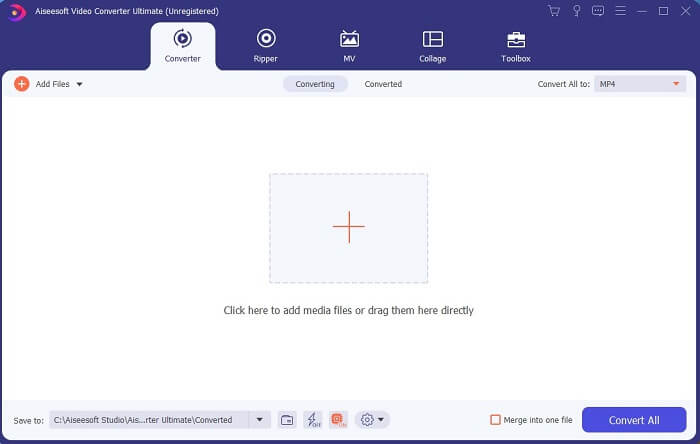
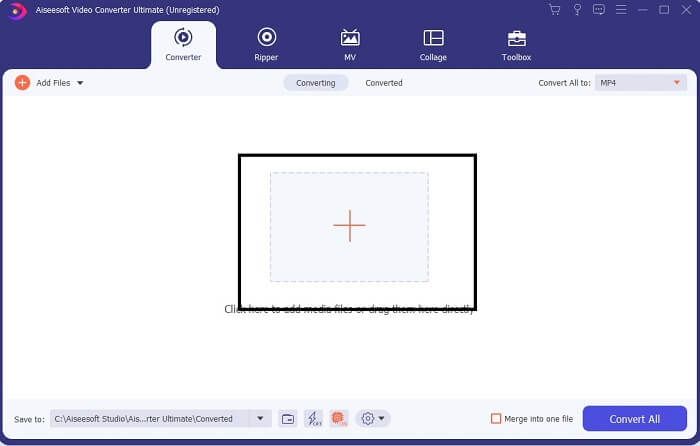
ขั้นตอนที่ 3 คลิกสัญลักษณ์ เครื่องหมายบวก เพื่อเพิ่มไฟล์ แล้วคลิก Open เพื่อเริ่มการแปลงไฟล์ หรือคุณสามารถ ลากแล้ววาง ไฟล์วิดีโอลงในโปรแกรมได้โดยตรง จำนวนวิดีโอไม่ใช่ปัญหาเลย.
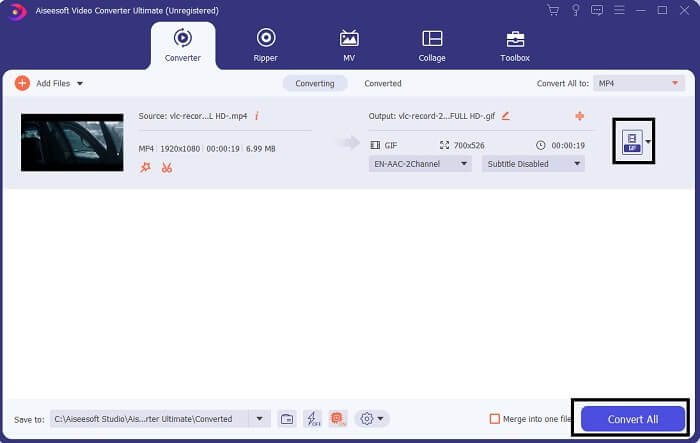
ขั้นตอนที่ 4 คลิกปุ่ม ดรอปดาวน์ ที่มุมขวาบนของอินเทอร์เฟซ แล้วเลื่อนลงมาคลิกเลือกฟอร์แมต GIF เลือกความละเอียดที่คุณต้องการ ไม่ว่าจะเป็น Large (ใหญ่) Medium (กลาง) หรือ Small (เล็ก) หากทุกอย่างพร้อมแล้ว ให้คลิก Convert All เพื่อเริ่มการแปลงไฟล์.
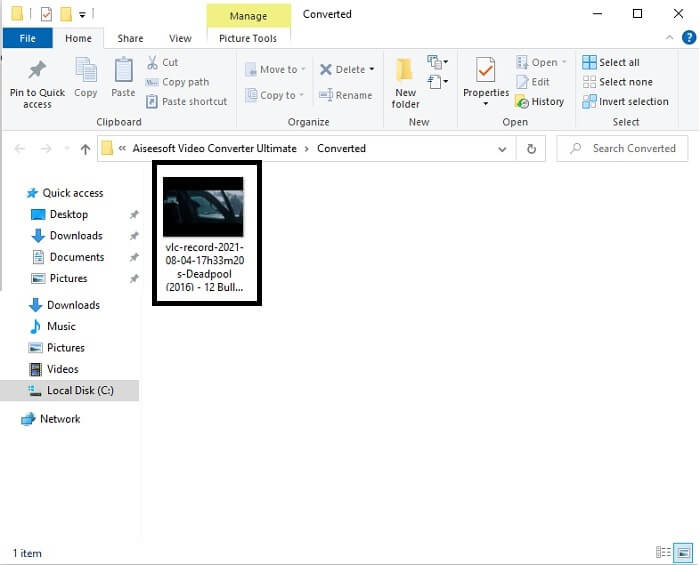
ขั้นตอนที่ 5 หลังจากแปลงไฟล์เสร็จ จะมีหน้าต่างตัวจัดการไฟล์เด้งขึ้นมาให้คุณ และจะแสดงไฟล์ผลลัพธ์สุดท้าย ตอนนี้คุณก็สามารถเพลิดเพลินกับไฟล์ GIF ของคุณได้แล้ว นอกจากนี้คุณยังสามารถ แปลงไฟล์ .gif ให้เป็น .mpg ได้ในขั้นตอนเดียวกัน เพียงแค่เปลี่ยนฟอร์แมตเท่านั้น.
2. FVC โปรแกรมแปลงวิดีโอออนไลน์ฟรี
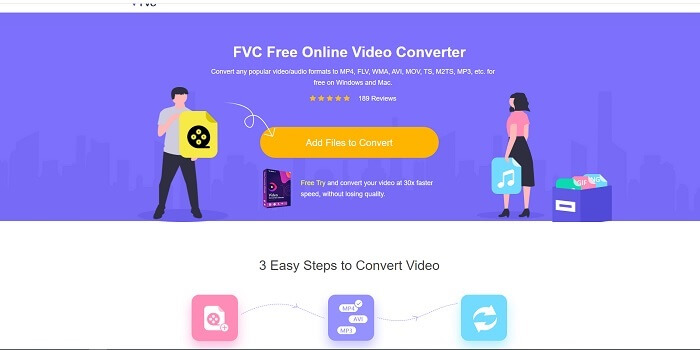
บางทีคุณอาจกำลังคิดว่า ถ้าคุณไม่มีเงิน ฉันจะยังคงพบกับการเปลี่ยนแปลงแบบเดียวกับครั้งแรกได้หรือไม่ คำตอบคือ อ้วนมาก ใช่ FVC มอบประสบการณ์ที่ดีที่สุดให้กับลูกค้าที่ไม่มีเงินและผู้ที่ต้องการลองใช้เครื่องมือของตน แม้ว่าเครื่องมือนี้จะทำการแปลงอย่างง่ายเท่านั้น ดังนั้นอย่าคาดหวังมากเกินไปเพราะเวอร์ชันพรีเมียมสามารถให้ได้ และไม่สามารถแปลงรูปแบบวิดีโอและไฟล์เสียงได้หลายรูปแบบให้เร็วขึ้น
กระบวนการแปลงไฟล์ที่โปรแกรมนี้ให้มานั้นดีกว่าโปรแกรมแปลงไฟล์แบบพรีเมียมและแบบฟรีอื่น ๆ เสียอีก FVC Free Online Video Converter พร้อมช่วยคุณให้รอดพ้นจากปัญหา ตามชื่อเลย นี่คือเครื่องมือออนไลน์ฟรีที่ให้คุณแปลงไฟล์ได้อย่างเต็มประสิทธิภาพ ไม่เหมือนโปรแกรมอื่น เครื่องมือนี้ไม่มีโฆษณา ไม่มีมัลแวร์ ไม่ต้องลงทะเบียน ไม่ต้องล็อกอิน และไม่ต้องให้ข้อมูลส่วนตัวก่อนใช้งาน หากคุณกำลังมองหาโปรแกรมแปลงไฟล์แบบใช้งานง่าย นี่คือเครื่องมือที่เหมาะกับคุณ ทำตามขั้นตอนเหล่านี้เพื่อเรียนรู้ว่าเครื่องมือนี้ทำงานอย่างไรในฐานะโปรแกรมแปลงไฟล์.
ขั้นตอนที่ 1 ไปยังเว็บไซต์ทางการโดยคลิกลิงก์นี้ ลิงก์.
ขั้นตอนที่ 2 หน้าเว็บควรจะมีหน้าตาแบบนี้ จากนั้นคลิก Add Files to Convert เพื่อเปิดใช้งานเครื่องมือออนไลน์นี้.
ดาวน์โหลดเวอร์ชันเดสก์ท็อปเพื่อแปลงไฟล์แบบเป็นชุดได้.
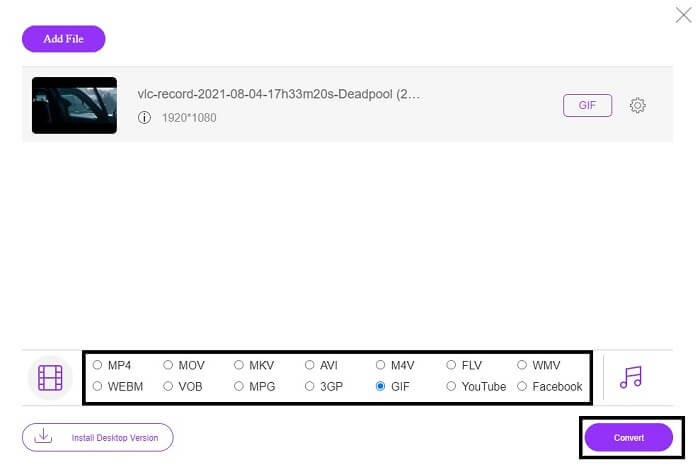
ขั้นตอนที่ 3 เลือกวิดีโอที่คุณต้องการแปลง หลังจากเลือกวิดีโอแล้ว ให้เลือกฟอร์แมตไฟล์ GIF สำหรับข้อมูลเพิ่มเติม คุณยังสามารถเลือกฟอร์แมตวิดีโอและเสียงอื่น ๆ ได้ด้วย ลองเข้าไปดูก่อนได้หากคุณสนใจ.
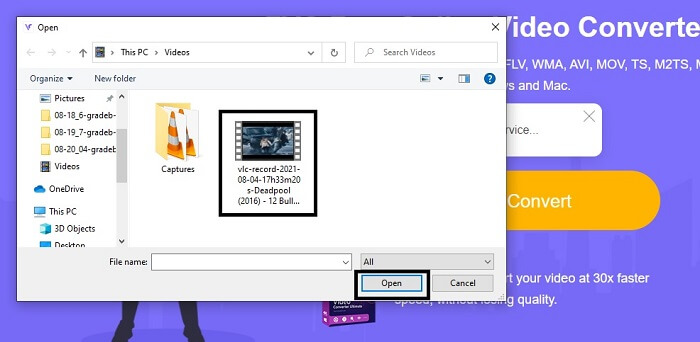
ขั้นตอนที่ 4 เลือกตำแหน่งที่คุณต้องการบันทึกไฟล์ผลลัพธ์ จากนั้นหากทุกอย่างเรียบร้อยแล้ว ให้คลิก Convert เพื่อเริ่มการแปลงไฟล์ การแปลงจะใช้เวลาเพียงไม่กี่วินาที.
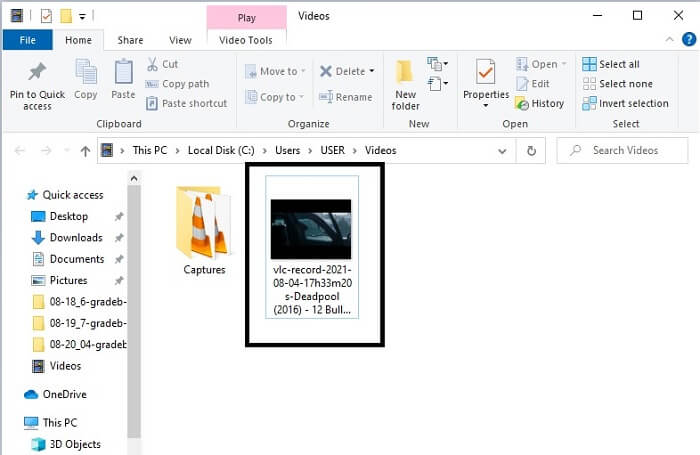
ขั้นตอนที่ 5 เพื่อตรวจสอบว่าคุณแปลงไฟล์สำเร็จหรือไม่ คุณสามารถไปที่ตัวจัดการไฟล์หรือ File Explorer แล้วค้นหาไฟล์ GIF ที่แปลงเสร็จแล้ว คลิกเปิดและเพลิดเพลินได้เลย.
3. VLC Media Player
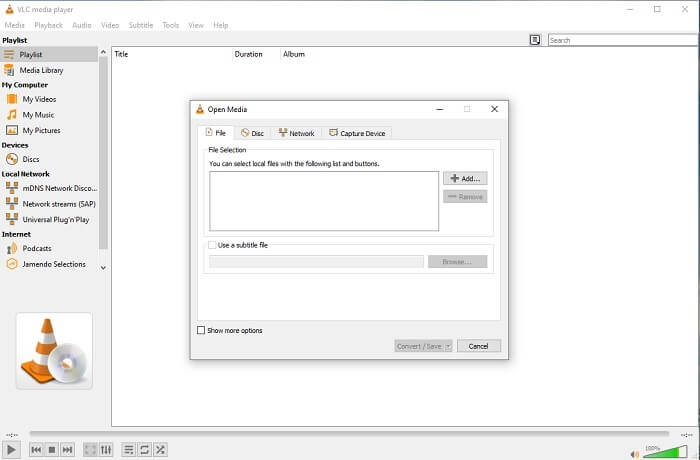
เครื่องมือนี้เป็นที่รู้จักในฐานะหนึ่งในโปรแกรมเล่นมีเดียที่ทรงพลังที่สุด แต่คุณรู้หรือไม่ว่า โปรแกรม VLC ก็สามารถแปลงไฟล์ MPG เป็น GIF ได้เช่นกัน อย่างไรก็ตาม ฟอร์แมตที่รองรับมีค่อนข้างจำกัด เฉพาะฟอร์แมตที่เป็นที่รู้จักเท่านั้น แม้ VLC จะขึ้นชื่อว่าเป็นโปรแกรมเล่นมีเดียที่ดีที่สุด แต่ฟังก์ชันการแปลงไฟล์ของมันก็อาจไม่ใช่ตัวเลือกที่ดีที่สุดสำหรับคุณ ดังนั้น หากคุณต้องการโปรแกรมแปลงไฟล์ที่ดีกว่า ขอแนะนำให้เลือกใช้ เครื่องมือออนไลน์ ด้านบนแทน แต่หากคุณต้องการใช้ดูวิดีโอ VLC Media Player คือทางเลือกที่เหมาะสม เพราะเครื่องมืออีกตัวไม่มีฟังก์ชันเล่นวิดีโอ เนื่องจากจุดประสงค์หลักของมันคือการแปลงไฟล์.
4. ซัมซาร์
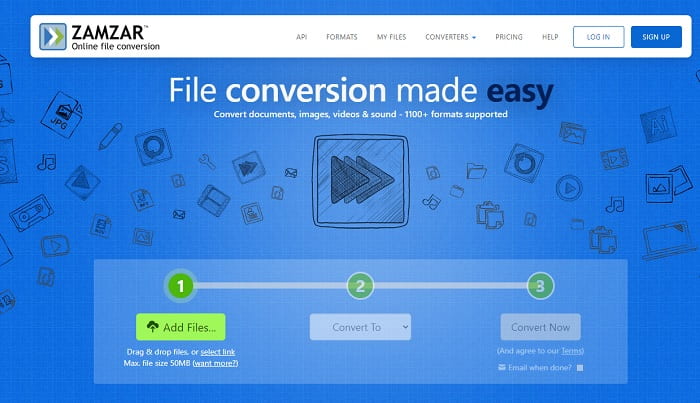
เครื่องมือออนไลน์อื่นที่ให้การแปลงที่ยอดเยี่ยมคือ Zamzar เช่นเดียวกับตัวแปลงออนไลน์อื่น ๆ พวกเขาใช้อินเทอร์เฟซเดียวกัน และยังมีคำแนะนำในจุดเกี่ยวกับวิธีการแปลง แต่กระบวนการแปลงและดาวน์โหลดนั้นแตกต่างกัน แม้ว่าจะเป็นเวอร์ชันฟรี แต่คุณสามารถแปลงขนาดไฟล์ได้สูงสุด 50 MB เท่านั้น เพราะหลังจากที่คุณแปลงวิดีโอ คุณต้องไปที่ขั้นตอนการดาวน์โหลด เป็นเรื่องที่ยุ่งยากมากสำหรับผู้ที่ออกจากการแปลงและรอให้ผลิตภัณฑ์เล่น
ส่วนที่ 2 แผนภูมิเปรียบเทียบ
| คุณสมบัติเครื่องมือ/s | FVC Video Converter Ultimate | ตัวแปลง FVC ออนไลน์ฟรี | เครื่องเล่นสื่อ VLC | Zamzar |
| ตัวแปลง |  | | | |
| เครื่องมือแก้ไข | |  | | |
| ตัวแปลงที่ทรงพลัง | | | | |
| จำเป็นต้องลงทะเบียน | | | | |
| แพลตฟอร์ม | แอพบนเดสก์ท็อป | แอพบนเว็บ | แอพบนเดสก์ท็อป | แอพบนเว็บ |
| ช่วงราคา | $25.00 1 เดือน/1 PC $55.20 ซื้อครั้งเดียวสำหรับพีซี 1 เครื่อง $119.00 อายุการใช้งาน 5 PC | เป็นเครื่องมือออนไลน์ฟรี | เป็นเครื่องมือออนไลน์ฟรี | เครื่องมือออนไลน์ฟรี แต่ยังให้เบี้ยประกันภัยรายเดือน สำหรับพื้นฐาน: $9 สำหรับมือโปร: $16 สำหรับธุรกิจ: $25 |
MPG เทียบกับ GIF
จัดทำโดยกลุ่มผู้เชี่ยวชาญด้านภาพเคลื่อนไหว (MPEG) MPG เป็นรูปแบบวิดีโอดิจิทัลทั่วไปสำหรับจัดเก็บข้อมูลวิดีโอ เสียง และข้อมูลเมตา มีประโยชน์มากเมื่อสร้างภาพยนตร์เพื่อแชร์บนอินเทอร์เน็ต ไฟล์เหล่านั้นใน MPG มักจะมีการบีบอัดวิดีโอ/เสียง MPEG-1 หรือ MPEG-2
GIF เป็นรูปแบบภาพทั่วไปสำหรับกราฟิกบนเว็บ นอกจากการบันทึกรูปภาพขนาดเล็กและรูปภาพที่มีข้อความแล้ว GIF ยังสามารถมีและแสดงแอนิเมชั่นพื้นฐานบนเว็บไซต์ได้อีกด้วย เป็นรูปแบบที่ไม่มีการสูญเสีย และการบีบอัด GIF จะไม่ทำให้ความคมชัดของภาพลดลง
ส่วนที่ 3 คำถามที่พบบ่อยเกี่ยวกับ MPG ถึง GIF
มีวิธีใช้ Photoshop และแปลงวิดีโอเป็น GIF หรือไม่?
ใช่ คุณสามารถแปลงไฟล์ MPG เป็น GIF ด้วย Photoshop ได้ และไม่ใช่แค่ไฟล์ MPG เท่านั้น คุณยังสามารถเลือกฟอร์แมตอื่น ๆ แล้วแปลงเป็น GIF ได้อีกด้วย อีกหนึ่งฟีเจอร์พิเศษของมันคือคุณสามารถปรับแต่งและเพิ่มคุณภาพ GIF ให้ดีขึ้นได้ คลิกที่นี่เพื่อเรียนรู้วิธี แปลง MP4 เป็น GIF.
เครื่องมือบันทึกหน้าจอที่ดีที่สุดในการบันทึก GIF คืออะไร
โปรแกรมอัดหน้าจอที่ดีที่สุดที่คุณสามารถใช้สำหรับงานนี้คือ FVC Screen Recorder เครื่องมือนี้ไม่ได้ดีแค่การอัดวิดีโอเท่านั้น แต่ยังมีตัวบันทึกเสียงในตัว และตัวบันทึกเกมเพลย์เพื่อคุณภาพการเล่นเกมที่ดียิ่งขึ้น อย่างไรก็ตาม โปรแกรมนี้ต้องชำระเงินก่อนใช้งาน แต่อย่าเพิ่งเสียใจ เพราะยังมี เครื่องมือออนไลน์ ที่สามารถทำการบันทึกหน้าจอได้เช่นกัน.
เหตุใดจึงสร้าง GIF
ฟอร์แมตนี้ถูกสร้างขึ้นมาเพื่อใช้แสดงภาพในขณะที่ประหยัดพื้นที่จัดเก็บ ผู้สร้าง GIF คือ สตีฟ วิลไฮต์ (Steve Wilhite) นักวิทยาการคอมพิวเตอร์ชาวอเมริกัน โดยได้รับความร่วมมือจากบริษัทเทคโนโลยียักษ์ใหญ่ CompuServe ในช่วงปลายปี 1987 คลิกที่นี่เพื่อเรียนรู้ข้อมูลเพิ่มเติมเกี่ยวกับ GIF.
สรุป
ในที่สุด เมื่อคุณรู้วิธีสร้าง GIF ให้กับตัวเองแล้ว คุณควรลองใช้มันและสนุกมากขึ้น เพียงแค่ใช้เครื่องมือง่ายๆ นี้ คุณสามารถสร้างความแตกต่างได้ แทนที่จะค้นหาผ่านเว็บ ตอนนี้คุณเป็นผู้ผลิต GIF ที่ผ่านการรับรองแล้ว เช่นกัน ตอนนี้ คุณสามารถแสดงความรู้สึกในแบบของคุณเองด้วยการสัมผัสและความเชี่ยวชาญส่วนตัวที่พัฒนาขึ้นโดยการอ่านบทความนี้ หวังว่าคุณจะสนุกกับชีวิตของ GIF ที่ดีกว่าที่คุณสร้างและแชร์ GIF ที่ดีที่สุดของคุณให้โลกรู้
-
 [คำแนะนำ] วิธีแปลงวิดีโอ M4V เป็น GIF แบบเคลื่อนไหวบน Windows/Mac
 หากคุณต้องการสร้างไฟล์ GIF แบบเคลื่อนไหวจากวิดีโอ M4V ที่คุณชื่นชอบ คุณสามารถเรียนรู้เกี่ยวกับ 2 วิธีที่ง่ายและมีประสิทธิภาพในการแปลงวิดีโอ M4V เป็น GIF ด้วยการตั้งค่าแบบกำหนดเอง
-
 WebM to GIF – 3 ฟรี WebM to GIF Converters เพื่อสร้าง GIF ของคุณเอง
 WebM เป็น GIF หรือไม่ จะเปลี่ยนวิดีโอเป็น GIF ได้อย่างไร? มีตัวแปลง WebM เป็น GIF ฟรีหรือไม่ โพสต์นี้แบ่งปัน 3 วิธีฟรีเพื่อช่วยคุณแปลง WebM เป็น GIF
-
 วิธีแปลงวิดีโอ MKV เป็น GIF แบบเคลื่อนไหวโดยไม่ต้องใช้ Photoshop/FFmpeg
 หลังจากดาวน์โหลดและดูภาพยนตร์ MKV บนคอมพิวเตอร์ของคุณแล้ว คุณอาจต้องการแบ่งปันช่วงเวลาที่ยอดเยี่ยมกับเพื่อน ๆ หรือบนอินเทอร์เน็ตในรูปแบบ GIF ในบทความนี้ คุณสามารถเรียนรู้เกี่ยวกับ 2 วิธีที่ง่ายที่สุดในการแปลง MKV เป็น GIF

