


 Video Converter Ultimate
 บันทึกหน้าจอ
 ซ่อมวิดีโอ
ทำความเข้าใจวิธีการนำเข้าไฟล์ AVI ลงใน iMovie บน Mac OS
อย่างที่ทุกคนทราบกันดีว่า iMovie นั้นขึ้นชื่อในด้านการตัดต่อวิดีโอบน Mac หากคุณใช้เครื่องมือนี้ คุณจะเข้าใจทันทีว่าทำไมมันถึงเป็นหนึ่งในโปรแกรมตัดต่อที่ดีที่สุด แต่ในขณะที่เราพูดถึงความยอดเยี่ยมของ iMovie ก็ยังมีบางกรณีที่คุณไม่สามารถนำเข้าวิดีโอเพื่อแก้ไขได้ ปัญหานี้มักเกิดขึ้นบ่อยเมื่อคุณนำเข้าไฟล์รูปแบบ AVI เนื่องจาก AVI รองรับโค้เดกได้หลากหลายจึงเป็นที่นิยมในหมู่ผู้ใช้ แต่อย่างไรก็ตาม การใช้รูปแบบนี้ก็มีความท้าทาย โดยเฉพาะเมื่อโค้เดกนั้นไม่ถูกซอฟต์แวร์ที่คุณใช้รองรับ ดังนั้นคุณจึงสงสัยว่าจะแปลง AVI ให้เป็นรูปแบบไฟล์สำหรับ iMovie อย่างไรเพื่อจะได้ตัดต่อวิดีโอภายหลัง ด้านล่างนี้คือเครื่องมือบางอย่างที่คุณสามารถใช้แปลงไฟล์ AVI และเรียนรู้เหตุผลว่าทำไมคุณจึงโหลดไฟล์วิดีโอลงใน iMovie ไม่ได้.

ส่วนที่ 1 ทำไม iMovie ไม่สามารถนำเข้าไฟล์ AVI รูปแบบ
แม้ว่า iMovie จะใช้ได้กับ Mac เท่านั้น ดังนั้นอย่าคาดหวังให้ตัวแปลงสัญญาณของ Windows มีลำดับความสำคัญน้อยกว่า แต่มีสาเหตุบางประการที่ทำให้คุณไม่สามารถนำเข้าวิดีโอได้ ในรายการ เราจะพูดถึง 2 เหตุผลที่คุณไม่สามารถนำเข้ารูปแบบอื่นไปยัง iMovie
เหตุผลข้อที่หนึ่ง: iMovie รองรับโค้เดกเพียงไม่กี่ชนิด นี่อาจเป็นสาเหตุที่คุณไม่สามารถตัดต่อใน iMovie ได้ เนื่องจากปัญหาความเข้ากันได้ของโค้เดก ในกรณีของไฟล์ AVI จะต้องถูกเข้ารหัสเป็นข้อมูล MJPEG ไม่เช่นนั้นไฟล์จะไม่ถูกนำเข้า.
เหตุผลข้อที่สอง: iMovie หรือ Mac OS ของคุณยังไม่ได้อัปเดต เหตุผลนี้เข้าใจได้ง่าย เพราะหากซอฟต์แวร์หรือระบบปฏิบัติการของคุณไม่ใช่เวอร์ชันล่าสุด ก็มีโอกาสสูงที่มันจะไม่รองรับรูปแบบไฟล์รุ่นใหม่ ๆ.
นี่คือสาเหตุที่พบบ่อยที่สุดที่ทำให้คุณตัดต่อใน iMovie ไม่ได้ แต่ทุกปัญหาย่อมมีทางออก ดังนั้นต่อไปนี้คือวิธีแก้ปัญหา และคุณจำเป็นต้องเรียนรู้วิธีแปลงไฟล์ AVI ให้เป็นรูปแบบที่ iMovie เข้าถึงได้ พร้อมโค้เดกที่รองรับ.
ส่วนที่ 2 แปลง AVI เป็นรูปแบบที่เข้ากันได้กับ iMovie ด้วยความช่วยเหลือของตัวแปลง AVI ที่ดีที่สุด
1. FVC แปลงวิดีโอออนไลน์ฟรี
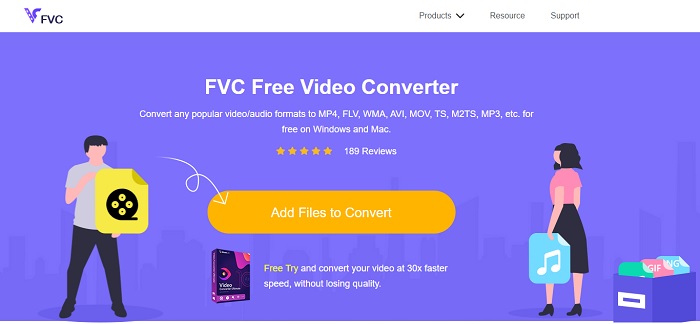
เครื่องมือฟรีสำหรับแปลง AVI เป็น iMovie นี้สามารถช่วยคุณแปลงไฟล์ได้ งานพื้นฐานต่างจากเครื่องมือด้านล่าง FVC Free Video Converter สามารถใช้งานได้ฟรีแบบออนไลน์โดยไม่ต้องดาวน์โหลด นอกจากนี้ เครื่องมือออนไลน์นี้ยังเป็นเวอร์ชันฟรีของโปรแกรมด้านล่างตามที่กล่าวไว้ พวกเขาให้การบีบอัดไฟล์ได้ดี แต่ความแตกต่างระหว่างสองตัวนี้คือ เครื่องมือนี้ไม่มีฟีเจอร์หลัก ๆ แบบเวอร์ชันพรีเมียม และไม่มีรูปแบบไฟล์ให้เลือกมากเท่าไรก็ตาม ถึงอย่างนั้นมันก็ยังถือว่าเป็นเครื่องมือออนไลน์ที่ดีที่สุดเมื่อเทียบกับตัวแปลงอื่น ๆ ที่คุณพึ่งพาได้ ดังนั้นก่อนอื่น มาดูวิธีการใช้เครื่องมือนี้กันเลย โดยทำตามขั้นตอนง่าย ๆ ด้านล่าง.
ขั้นตอนที่ 1. คลิกลิงก์นี้เพื่อไปยังหน้าเว็บหลักของเครื่องมือ.
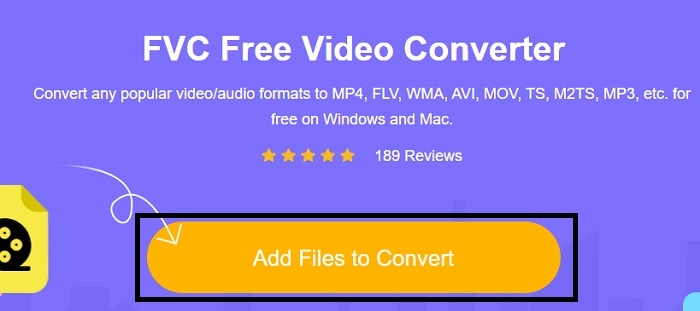
ขั้นตอนที่ 2. กดปุ่ม Add Files to Convert เพื่อเปิดตัวโปรแกรมแปลงไฟออนไลน์.
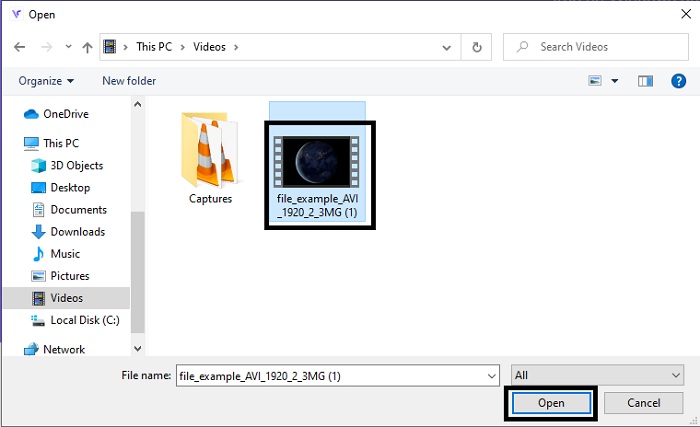
ขั้นตอนที่ 3. จากนั้นเลือกไฟล์ AVI แล้วกด open เพื่อนำเข้ามายังหน้าอินเทอร์เฟซ.
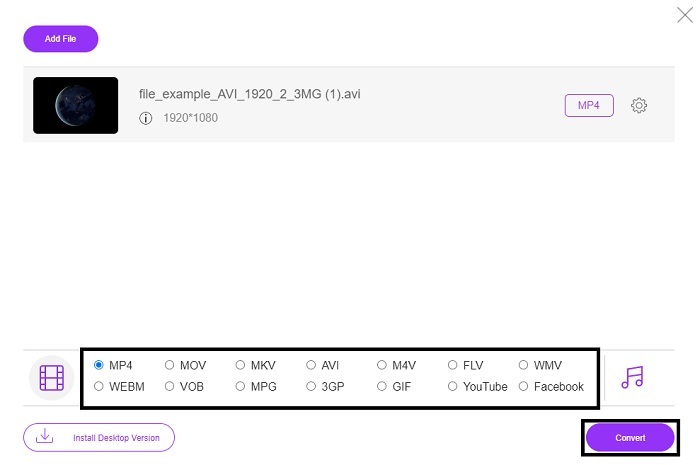
ขั้นตอนที่ 4. เลือกรูปแบบไฟล์สำหรับ iMovie ที่คุณต้องการ หลังจากเลือกแล้ว ให้คลิก Convert เพื่อเริ่มกระบวนการแปลง.
ขั้นตอนที่ 5. ไปที่ตัวจัดการไฟล์ (File Manager) แล้วค้นหาไฟล์ที่แปลงสำเร็จแล้ว.
2. FVC Video Converter Ultimate
ดังที่เราได้กล่าวไว้ก่อนหน้านี้ เครื่องมือออนไลน์ไม่ได้ให้คุณสมบัติการแก้ไขและรูปแบบอื่นๆ แก่คุณเช่นกัน FVC Video Converter Ultimate สามารถใช้เป็นทางเลือกแทน iMovie โดยเฉพาะในการแก้ไขเช่นกัน ให้ผู้ใช้และลูกค้าสามารถจัดการไฟล์สื่อทุกไฟล์และปรับปรุง แก้ไข หรือสร้างเวอร์ชันที่ใหม่กว่าได้ แต่เครื่องมือนี้ต้องได้รับการชำระเงิน แต่ก็ไม่ต้องจ่ายแพง ไม่ต้องกังวลเพราะทุกเพนนีที่คุณจะจ่ายสำหรับเครื่องมือนี้ยังคงคุ้มค่า
ดังนั้นหลังจากที่คุณแปลง AVI ให้เป็นรูปแบบของ iMovie แล้ว ภายหลังก็สามารถนำไปปรับแต่งเพิ่มเติมก่อนไปใช้งานใน iMovie หรือจะไม่ต้องนำเข้า iMovie เลยแล้วตัดต่อด้วยเครื่องมือนี้ก็ได้ หากเราจะพูดถึงข้อดีของเครื่องมือนี้ทั้งหมด คงต้องใช้บทความอีกสองสามบทถึงจะอธิบายได้ครบ ดังนั้นโดยไม่เสียเวลา มาดูขั้นตอนการแปลง AVI เป็นรูปแบบใหม่ให้สำเร็จ โดยทำตามขั้นตอนด้านล่าง.
ขั้นตอนที่ 1. ก่อนใช้งานเครื่องมือนี้ คุณต้องดาวน์โหลดมาติดตั้งในคอมพิวเตอร์ก่อน เลือกระบบปฏิบัติการที่ตรงกับคอมพิวเตอร์ของคุณ หลังจากดาวน์โหลดเสร็จ ให้ทำตามขั้นตอนการติดตั้งจนจบ แล้วคลิก Finish เพื่อเปิดโปรแกรม.
ดาวน์โหลดฟรีสำหรับ Windows 7 หรือใหม่กว่าดาวน์โหลดอย่างปลอดภัย
ดาวน์โหลดฟรีสำหรับ MacOS 10.7 หรือใหม่กว่าดาวน์โหลดอย่างปลอดภัย
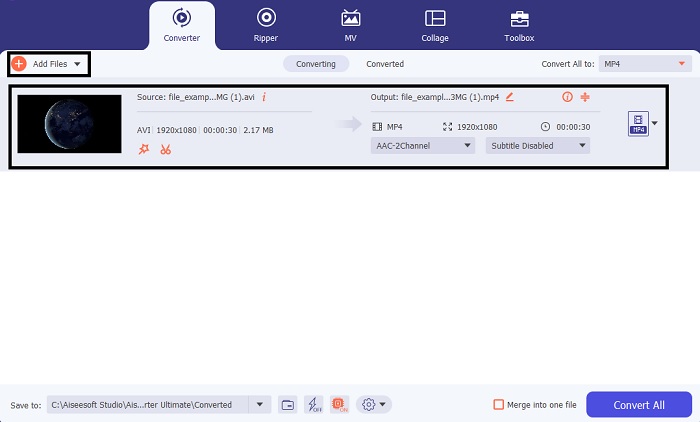
ขั้นตอนที่ 2. หากต้องการใส่ไฟล์ AVI เพื่อแปลง ให้คลิกปุ่ม Add Files หรือไอคอนเครื่องหมายบวก (+) จะเลือกแบบใดก็ได้ จากนั้นเลือกไฟล์ที่คุณต้องการแปลง แล้วคลิก open เพื่อดำเนินการต่อ.
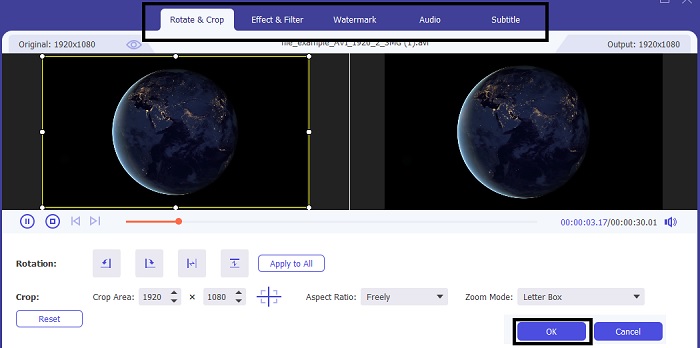
ขั้นตอนที่ 3. บนอินเทอร์เฟซของโปรแกรม FVC คุณจะเห็นปุ่มรูปร่างคล้ายไม้กายสิทธิ์ ให้คลิกปุ่มนั้น จากนั้นจะมีหน้าต่างใหม่แสดงขึ้นบนหน้าจอ ซึ่งคุณสามารถปรับแต่งวิดีโอให้ดีขึ้นได้ ขั้นตอนนี้เป็นเพียงตัวเลือกเสริม หากคุณอยากตัดต่อก่อนการแปลงไฟล์ เพื่อที่ภายหลังจะได้ไม่ต้องใช้ iMovie ในการแก้ไขอีกหากไม่ต้องการ เสร็จแล้วกด OK เพื่อบันทึก.
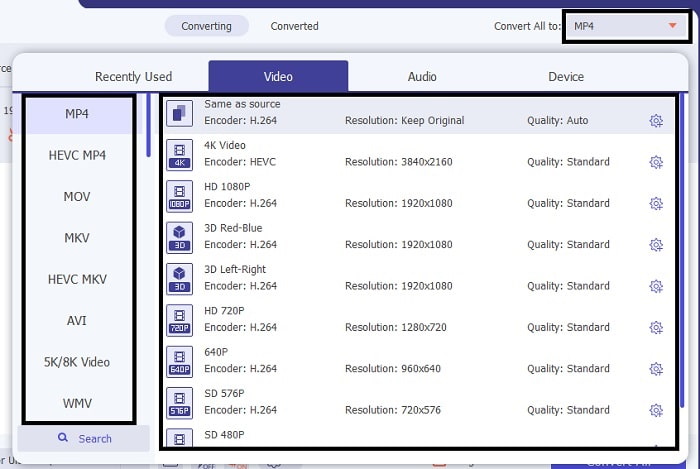
ขั้นตอนที่ 4. หลังจากทำทุกขั้นตอนเรียบร้อยแล้ว ให้คลิกปุ่มเมนูแบบดรอปดาวน์ แล้วเลือกรูปแบบไฟล์ iMovie ที่คุณต้องการ หากคุณได้เลือกรูปแบบใหม่ของไฟล์ AVI แล้ว ให้คลิก Convert All เพื่อสั่งให้โปรแกรมเริ่มแปลงไฟล์.
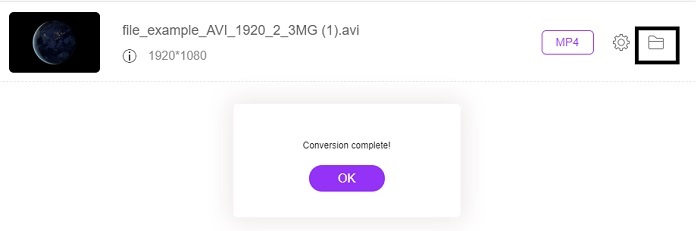
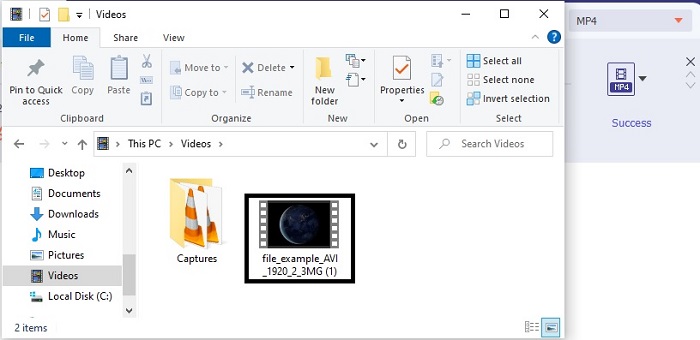
ขั้นตอนที่ 5. การแปลงไฟล์จะใช้เวลาเพียงไม่กี่วินาที เมื่อเสร็จแล้ว โฟลเดอร์ที่บรรจุไฟล์รูปแบบใหม่ของคุณจะปรากฏขึ้นบนหน้าจอ คลิกที่ไฟล์เพื่อเปิดดู และขอแสดงความยินดีที่ตอนนี้คุณสามารถนำไปตัดต่อใน iMovie ได้แล้ว.
ส่วนที่ 3 คำถามที่พบบ่อยเกี่ยวกับ AVI เพื่อ iMovie
ใครคือผู้สร้าง iMovie?
iMovie ถูกสร้างขึ้นโดย Apple Inc. เพื่อเป็นเครื่องมือแก้ไขที่เป็นกรรมสิทธิ์ของพวกเขา ข้อเท็จจริงอื่นๆ เกี่ยวกับ Apple Inc. พวกเขายังได้พัฒนาโปรแกรมเล่น QuickTime และรูปแบบ MOV เป็นเครื่องเล่นสื่อและรูปแบบดั้งเดิมสำหรับผู้ใช้ Mac
ทางเลือกที่ดีที่สุดสำหรับรูปแบบ AVI บน Mac คืออะไร?
โดยปกติแล้วรูปแบบที่เหมาะสมที่สุดคือ MOV เพราะถูกออกแบบมาสำหรับใช้งานบน Mac หากคุณอยากรู้วิธีแปลงไฟล์ AVI ให้เป็นรูปแบบ MOV ให้คลิกลิงก์นี้เพื่อเรียนรู้เพิ่มเติมเกี่ยวกับตัวแปลงไฟล์ AVI เป็น MOV.
ข้อเสียของการใช้รูปแบบ AVI คืออะไร?
กล่าวไว้ข้างต้นว่ารูปแบบนี้สามารถมีตัวแปลงสัญญาณที่แตกต่างกันซึ่งเป็นสิ่งที่ดี แต่รูปแบบ AVI จะไม่ถูกบีบอัด ดังนั้นการมีวิดีโอ 2 ถึง 3 นาทีจึงคาดว่าไฟล์จะมีขนาดใหญ่ อย่างไรก็ตาม หากคุณต้องการเรียนรู้เพิ่มเติมเกี่ยวกับ AVI ให้คลิกที่นี่เพื่อทราบว่า AVI คืออะไร
สรุป
ก่อนหน้านี้เราอาจจะมืดแปดด้านและสับสน เพราะไม่รู้เลยว่าจะจัดการกับปัญหานี้อย่างไร แต่ตอนนี้เรารู้แน่ชัดแล้วว่าคุณต้องแปลงไฟล์ AVI ก่อน จึงจะสามารถตัดต่อบน iMovie ได้ ดังนั้นคุณไม่ต้องถามอีกต่อไปว่าจะนำเข้าไฟล์ AVI ลงใน iMovie แล้วตัดต่อทีหลังได้อย่างไร หากคุณเลือกใช้ FVC Video Converter Ultimate ขอปรบมือให้กับตัวเองเลย เพราะคุณได้เลือกเครื่องมือที่สามารถแก้ปัญหาทุกอย่างเกี่ยวกับการแปลงไฟล์ การรวมไฟล์ การปรับคุณภาพ การบีบอัด และปัญหาอื่น ๆ ที่คุณอาจต้องเจอในอนาคต เลือกสิ่งที่ดีที่สุดสำหรับคุณ และสิ่งที่ดีที่สุดก็คือ FVC Video Converter Ultimate.
-
 คู่มือที่เป็นรูปธรรมเพื่อช่วยให้คุณแปลง AVI เป็น FLV ได้ฟรี
 ในการแปลง AVI เป็น FLV คุณต้องมีโปรแกรมแปลงวิดีโอที่มีประสิทธิภาพ โชคดีที่คุณสามารถเรียนรู้สองข้อและคำแนะนำทีละขั้นตอนได้จากบทความเดียวนี้
-
 วิธีแปลงวิดีโอ AVI เป็นไฟล์ GIF แบบเคลื่อนไหวบน Windows/Mac
 ต้องการเลือกกลุ่ม AVI ที่น่าสนใจเพื่อสร้างมีม GIF หรือไม่ บทความนี้จะบอก 2 วิธีที่ดีที่สุดในการตัดวิดีโอ AVI และแปลง AVI เป็นไฟล์ GIF แบบเคลื่อนไหวได้ฟรี
-
 [2 โซลูชั่นที่ดีที่สุด] วิธีเล่นภาพยนตร์ AVI บน iPhone/iPad ได้อย่างง่ายดาย
 ไม่สามารถเล่นภาพยนตร์ AVI บน iPhone/iPad ของคุณและไม่ต้องการดาวน์โหลดเครื่องเล่นวิดีโอของบริษัทอื่นใช่หรือไม่ คุณสามารถเรียนรู้ 2 วิธีที่มีประสิทธิภาพในการแปลงวิดีโอ AVI เพื่อเล่นบน iPhone
