


 Video Converter Ultimate
 บันทึกหน้าจอ
 ซ่อมวิดีโอ
เรียนรู้วิธีเล่นวิดีโอย้อนกลับด้วย 3 Elite Software
มีวิดีโอมากมายที่อัปโหลดอยู่ตลอดเวลาในแพลตฟอร์มแชร์วิดีโอต่าง ๆ ซึ่งได้ใส่เอฟเฟ็กต์ย้อนกลับเข้าไปแล้ว เพื่อให้วิดีโอดูแปลกตาและน่าสนใจยิ่งขึ้นสำหรับผู้ชม ดังนั้นในบทความนี้เราจะมาพูดถึงวิธีเล่นวิดีโอแบบย้อนกลับพร้อมขั้นตอนอย่างละเอียดและซอฟต์แวร์หลายตัวที่คุณสามารถใช้ได้ อ่านต่อไปเพื่อทำความเข้าใจการกลับด้านวิดีโอให้มากขึ้น.

ส่วนที่ 1 วิธีที่ดีที่สุดในการเล่นวิดีโอแบบย้อนกลับ
โปรแกรมคอนเวอร์เตอร์สุดเจ๋งนี้ได้ก้าวแรกในด้านการตัดต่อวิดีโอไปแล้ว โดยเฉพาะการเล่นย้อนกลับ มีผู้ใช้จำนวนมากเลือกใช้เครื่องมือนี้เพื่อทำให้วิดีโอของตนโดดเด่น Video Converter Ultimate ได้พิสูจน์ให้ลูกค้าประจำเห็นแล้วว่าทำได้ดียิ่งกว่าที่คาดหวัง นอกจากนี้ซอฟต์แวร์นี้ยังมีฟีเจอร์ขั้นสูงมากมายที่คุณใช้เพื่อทำให้วิดีโอดูแปลกตาสำหรับผู้ชมได้ ดังนั้นคุณอยากรู้วิธีเล่นวิดีโอแบบย้อนกลับและบันทึกไว้หรือไม่ หากใช่ให้ทำตามขั้นตอนด้านล่างและลองทำด้วยตัวเอง.
ขั้นตอนที่ 1. ก่อนที่คุณจะใช้ Video Converter Ultimate ได้ คุณต้องดาวน์โหลดโปรแกรมมาก่อน จากนั้นติดตั้งและทำการตั้งค่าแบบรวดเร็วและง่ายดาย.
ดาวน์โหลดฟรีสำหรับ Windows 7 หรือใหม่กว่าดาวน์โหลดอย่างปลอดภัย
ดาวน์โหลดฟรีสำหรับ MacOS 10.7 หรือใหม่กว่าดาวน์โหลดอย่างปลอดภัย
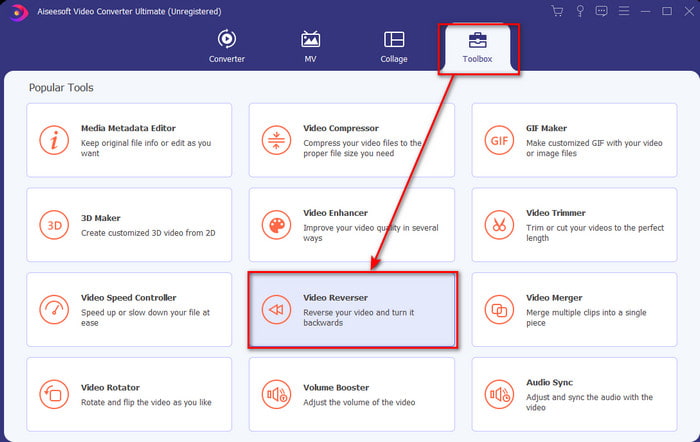
ขั้นตอนที่ 2. ไปที่เมนูToolbox แล้วหาVideo Reverserให้พบ.
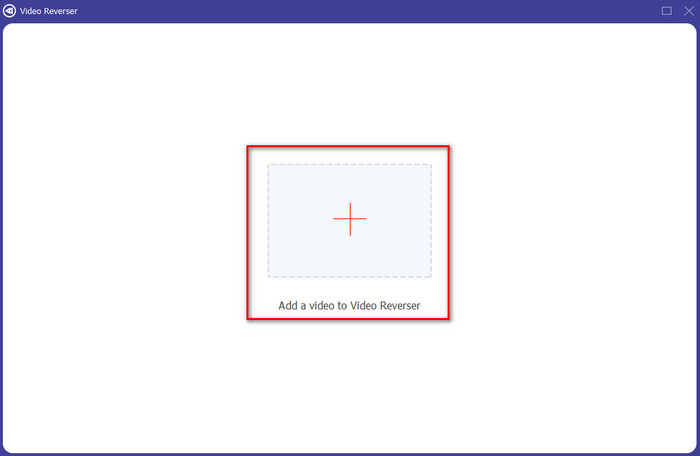
ขั้นตอนที่ 3. ในการเพิ่มไฟล์ ให้คลิกปุ่ม + แล้วจะมีหน้าต่างโฟลเดอร์ปรากฏขึ้น เลือกไฟล์วิดีโอและคลิกOpenเพื่อใส่ไฟล์.
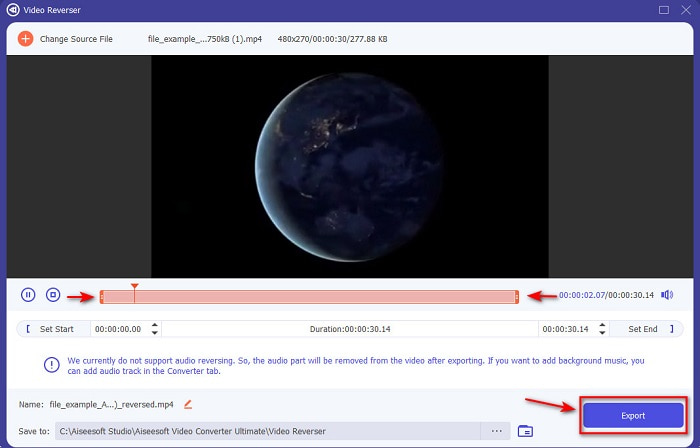
ขั้นตอนที่ 4. เปลี่ยนค่าplayback in and out หากต้องการทำให้วิดีโอสั้นลง จากนั้นคลิกExportเพื่อเริ่มบันทึกวิดีโอย้อนกลับลงในเดสก์ท็อปของคุณ.
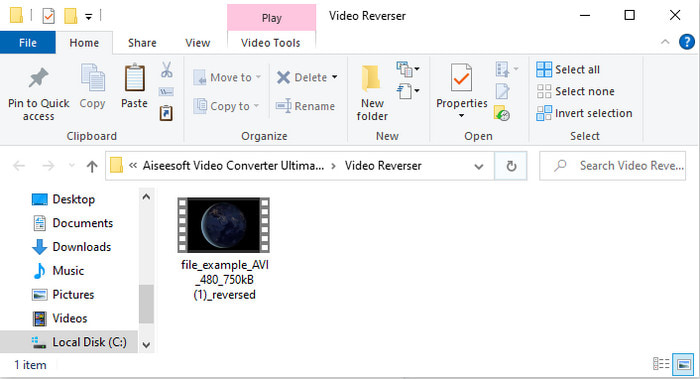
ขั้นตอนที่ 5. หลังจากส่งออกวิดีโอเสร็จแล้ว จะมีโฟลเดอร์ที่มีวิดีโอย้อนกลับปรากฏบนหน้าจอของคุณ คลิกไฟล์เพื่อดูวิดีโอที่ถูกย้อนกลับ.
ข้อดี
- มีคุณสมบัติขั้นสูงมากมายและจัดการได้ง่ายกว่า Adobe Premiere Pro
- รองรับรูปแบบวิดีโอทั้งหมด ดังนั้น ไม่ต้องกังวลหากวิดีโอของคุณอยู่ในรูปแบบ AVI, MP4, MKV, MOV หรืออื่นๆ
- เหมาะสำหรับมือโปรและผู้เริ่มต้นที่ต้องการเครื่องมือง่ายๆ ที่มีคุณสมบัติการแปลงที่มหัศจรรย์
จุดด้อย
- จ่ายเงินแล้ว แต่ราคาของมันจะถูกลงมากหากเราเปรียบเทียบกับซอฟต์แวร์ Premiere Pro
- ก่อนที่คุณจะสามารถเข้าถึงเครื่องมือ คุณจะต้องดาวน์โหลดก่อน
ส่วนที่ 2 วิธีการเล่นวิดีโอย้อนกลับบน iMovie
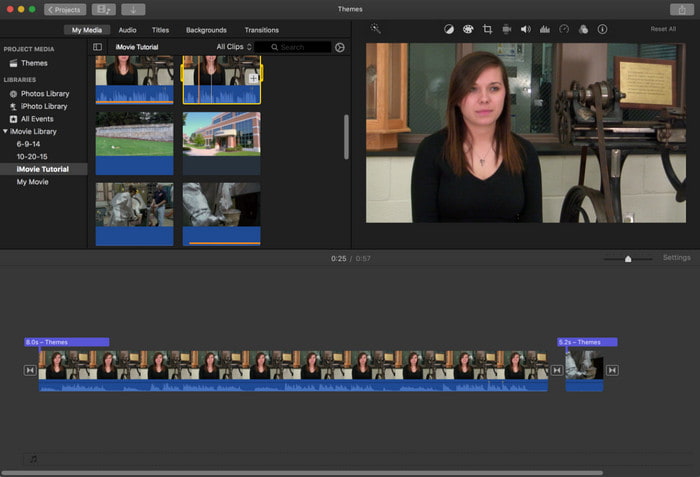
iMovieเป็นโปรแกรมตัดต่อวิดีโอพื้นฐานที่มีให้ใช้ฟรีบน Mac เครื่องมือนี้ติดตั้งมากับเครื่องอยู่แล้ว คุณจึงไม่ต้องดาวน์โหลดเพิ่มเพื่อใช้งาน ดังนั้นหากคุณอยากรู้วิธีเล่นวิดีโอแบบย้อนกลับบน iMovieให้ทำตามขั้นตอนด้านล่าง.
ขั้นตอนที่ 1 เปิด iMovie บน Mac ของคุณ แล้วลากไฟล์ไปไว้ในTimeline
ขั้นตอนที่ 2. คลิกปุ่มรูปนาฬิกา แล้วติ๊กเลือกReverse จากนั้นปรับความเร็วเป็นปกติ ช้า เร็ว และอื่น ๆ ได้ตามต้องการ.
ขั้นตอนที่ 3. หากต้องการบันทึกผลลัพธ์ ให้คลิกปุ่มExportแล้วบันทึกลงในคลังรูปภาพของคุณ.
ข้อดี
- ไม่จำเป็นต้องดาวน์โหลด และฟรีสำหรับผู้ใช้ Mac ทุกคน
- ใช้งานง่ายสำหรับการแก้ไขอย่างรวดเร็วที่คุณต้องการทำทันที
- มีคุณสมบัติบันทึกอัตโนมัติจึงไม่จำเป็นต้องสั่ง + S
จุดด้อย
- การส่งออกวิดีโอที่นี่อาจใช้เวลานาน
- มันขาดคุณสมบัติขั้นสูงที่คุณต้องการในฐานะบรรณาธิการมืออาชีพ
ส่วนที่ 3 วิธีทำให้การเล่นวิดีโอย้อนกลับโดยใช้ Adobe Premiere Pro
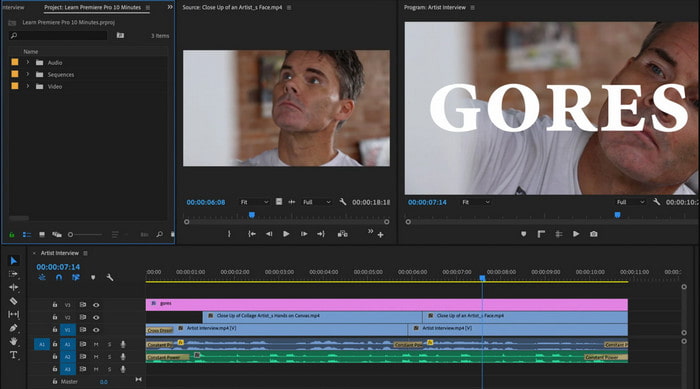
Adobe Premiere Proเป็นโปรแกรมตัดต่อวิดีโอระดับมืออาชีพที่ช่วยให้คุณได้งานคุณภาพสูงสุด แต่ตัวโปรแกรมอาจดูซับซ้อนสำหรับผู้เริ่มต้นที่ไม่มีประสบการณ์ตัดต่อวิดีโอ หากคุณอยากเรียนรู้วิธีทำให้วิดีโอเล่นย้อนกลับใน Premiere Proให้คัดลอกขั้นตอนด้านล่างนี้ไปทำตาม.
ขั้นตอนที่ 1. ดาวน์โหลด Adobe Premiere Pro ลงในเครื่องของคุณแล้วเปิดโปรแกรม.
ขั้นตอนที่ 2. ลากและวางไฟล์วิดีโอลงในMedia Portแล้วเลื่อนไปยังTimeline จากนั้นคลิกเลือกวิดีโอและคลิกขวา แล้วไปที่Speed/Duration
ขั้นตอนที่ 3. ติ๊กเลือกReverse Speedแล้วตั้งค่าระยะเวลาตามที่คุณต้องการ จากนั้นคลิกOK
ข้อดี
- เป็นตัวเลือกที่ดีที่สุดสำหรับตัวแก้ไขระดับมือโปร เนื่องจากรองรับคุณสมบัติขั้นสูงสำหรับเอาต์พุตแบบมืออาชีพ
- มันสามารถทำการตัดต่ออย่างหนัก และคุณจะต้องผลิตวิดีโอที่มีการตัดต่อคุณภาพสูง
- รองรับรูปแบบวิดีโอเกือบทั้งหมด
จุดด้อย
- มีราคาแพงมากหากคุณต้องการย้อนกลับหรือแก้ไขง่ายๆ
- การเรียนรู้วิธีใช้สิ่งนี้จะใช้เวลามาก โดยทั่วไปจะไม่เป็นมิตรกับผู้ใช้
- บางครั้งซอฟต์แวร์ขัดข้องโดยไม่ทราบสาเหตุ
ส่วนที่ 4 คำถามที่พบบ่อยเกี่ยวกับการเล่นวิดีโอย้อนกลับ
วิธีเล่นวิดีโอย้อนกลับบน iPhone
iPhone ไม่มีฟังก์ชันตัดต่อแบบย้อนกลับที่ติดตั้งมาให้ แต่คุณสามารถดาวน์โหลดแอปต่าง ๆ เพื่อช่วยย้อนวิดีโอบน iPhone ได้อย่างง่ายดาย เช่นแอปที่เราแนะนำไว้ที่นี่ หากคุณอยากรู้เพิ่มเติมให้คลิกลิงก์นี้เพื่อไปดูวิดีโอย้อนกลับตัวอื่น ๆ ที่คุณสามารถใช้ได้.
เหตุใดวิดีโอของฉันจึงลดคุณภาพหลังจากการย้อนกลับ
อาจเป็นเอาต์พุตที่คุณตั้งค่าไว้ตรงกลางหรือต่ำ แต่เพื่อหลีกเลี่ยงปัญหานี้ คุณสามารถตั้งค่าให้สูงเพื่อให้วิดีโอย้อนกลับไม่สูญเสียคุณภาพ อย่างไรก็ตาม คาดว่าไฟล์จะมีขนาดที่ใหญ่กว่าไฟล์คุณภาพต่ำมาก
ฉันจะเพิ่มเสียงในวิดีโอย้อนกลับได้อย่างไร
เครื่องมือทั้งหมดที่กล่าวมานี้สามารถย้อนวิดีโอของคุณได้ แต่เสียงจะไม่ถูกย้อนกลับด้วย หากคุณอยากรู้วิธีใส่เพลงประกอบให้วิดีโอของคุณ ลองอ่านบทความนี้ ซึ่งเราอธิบายวิธีใส่เสียงให้วิดีโอเพื่อทำให้วิดีโอดียิ่งขึ้น.
สรุป
ตอนนี้เมื่อเรารู้วิธีเล่นวิดีโอแบบย้อนกลับแล้ว ก็ถึงเวลาลงมือทำจริง ด้วยความช่วยเหลือของเครื่องมือที่ยอดเยี่ยมซึ่งคุณสามารถหาได้บนอินเทอร์เน็ต อย่างไรก็ตาม หากคุณต้องการทำวิดีโอย้อนกลับที่พิเศษกว่า iMovie แต่ราคาถูกกว่า Premiere Pro เครื่องมือที่เหมาะกับคุณคือVideo Ultimate Converter ตามเสียงเรียกร้องของลูกค้า ซอฟต์แวร์นี้ยอดเยี่ยมในทุกด้านที่คุณต้องการสำหรับการย้อนวิดีโอ ดังนั้นก่อนจะเริ่มเส้นทางการทำวิดีโอย้อนกลับ คุณต้องเลือกเครื่องมือที่เหมาะสมซึ่งจะทำให้วิดีโอของคุณโดดเด่นเกินใคร หากอยากรู้เพิ่มเติม ให้ดาวน์โหลดเครื่องมือนี้ก่อนแล้วปล่อยให้โปรแกรมทำงานแทนคุณ.
-
 บทช่วยสอนที่เป็นรูปธรรม – วิธีผสานสองแทร็กเสียงในความกล้า
 Audacity มีชื่อเสียงในด้านการแก้ไขเสียง คุณดาวน์โหลด Audacity แต่ไม่รู้ว่าจะรวมแทร็กเสียงใน Audacity ได้อย่างไร โพสต์นี้จะบอกวิธีผสานแทร็กใน Audacity
-
 2 วิธีที่มีประสิทธิภาพในการผสานไฟล์ MPEG เพื่อรวมรายการทีวีเก่า Old
 เมื่อคุณมีละครโทรทัศน์เก่าในรูปแบบ MPEG คุณสามารถเรียนรู้เพิ่มเติมเกี่ยวกับ 2 วิธีที่มีประสิทธิภาพในการรวมไฟล์ MPEG เป็นภาพยนตร์หนึ่งเรื่องตามความต้องการของคุณ
-
 2 วิธีในการบีบอัดวิดีโอ AMV ให้มีขนาดเล็กลง
 ไม่ว่าคุณจะต้องการอัปโหลดหรือดาวน์โหลด Animated MV แบบออนไลน์ขนาดไฟล์ใหญ่ของ AMV ก็เป็นเรื่องน่าเบื่อ โพสต์นี้แชร์ 2 วิธีง่ายๆในการลดขนาดไฟล์ AMV บนคอมพิวเตอร์เพื่อแก้ปัญหานี้
