


 Video Converter Ultimate
 บันทึกหน้าจอ
 ซ่อมวิดีโอ
 ดาวน์โหลดอย่างปลอดภัย
รวมไฟล์ M4A: ขั้นตอนง่ายๆ และรวดเร็วในการรวมเสียง
การใช้ไฟล์ M4A นั้นยากพออยู่แล้ว เพราะอุปกรณ์และซอฟต์แวร์เสียงทั้งหมดไม่ได้รองรับรูปแบบไฟล์เสียงนี้ การแก้ไขหรือปรับแต่งไฟล์จึงกลายเป็นอีกหนึ่งความท้าทายสำหรับผู้ใช้ แน่นอนว่ามีวิธีการมากมายในการรวมไฟล์ M4A หลายไฟล์ให้กลายเป็นไฟล์เสียงไฟล์เดียว และการใช้เครื่องมือของบุคคลที่สามอย่างซอฟต์แวร์หรือเครื่องมือออนไลน์ก็ทำให้ทำได้จริง บทความแนะนำนี้จะช่วยให้ผู้ใช้ที่กำลังประสบปัญหาค้นหาเครื่องมือที่เชื่อถือได้สำหรับรวมไฟล์ M4A ของตน พร้อมทั้งมีคำอธิบายวิธีใช้งานคร่าว ๆ เพื่อช่วยให้เริ่มต้นใช้งานซอฟต์แวร์และเครื่องมือออนไลน์เหล่านั้นได้ง่ายขึ้น.

ส่วนที่ 1. วิธีที่เร็วที่สุดในการรวมไฟล์ M4A บน Windows/Mac [เพื่อคุณภาพสูง]
อันดับแรกในรายการคือ FVC-picked Video Converter Ultimate ซอฟต์แวร์นี้สามารถใช้ตัดต่ออย่างแม่นยำ ตัดช่วงเสียง บีบอัดไฟล์ และในกรณีนี้คือรวมไฟล์ M4A ได้อย่างมีประสิทธิภาพ การรวมไฟล์ M4A ช่วยให้ผู้ใช้สามารถอัปโหลดไฟล์ M4A หลายไฟล์พร้อมกันได้โดยไม่ต้องเสียเวลานำไปแปลงก่อน ใช้งานได้ค่อนข้างรวดเร็วและง่ายดาย เพราะตัวโปรแกรมมีการจัดระเบียบเมนูที่ดีและใช้งานง่าย จึงกลายเป็นตัวเลือกยอดนิยมสำหรับผู้เริ่มต้น.
ขั้นตอนที่ 1 ดาวน์โหลดและเปิดใช้งาน FVC-picked Video Converter Ultimate บนเดสก์ท็อปของคุณ.
ดาวน์โหลดฟรีสำหรับ Windows 7 หรือใหม่กว่าดาวน์โหลดอย่างปลอดภัย
ดาวน์โหลดฟรีสำหรับ MacOS 10.7 หรือใหม่กว่าดาวน์โหลดอย่างปลอดภัย
ขั้นตอนที่ 2 เมื่อติดตั้งซอฟต์แวร์เสร็จแล้ว ให้คลิกปุ่ม Add Files และเลือกไฟล์ M4A ที่คุณต้องการรวม.
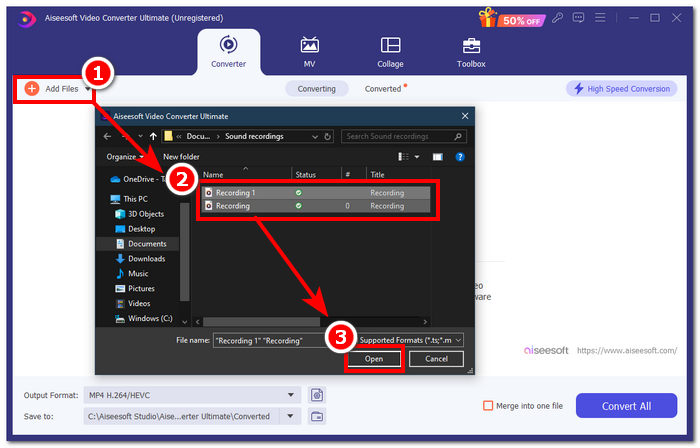
ขั้นตอนที่ 3 เมื่อไฟล์ M4A ของคุณถูกอัปโหลดเข้าสู่หน้าต่างโปรแกรมแล้ว ให้คลิกเครื่องหมายถูกในช่องที่มุมล่างขวาของโปรแกรมเพื่อเปิดใช้งานฟังก์ชันการรวมไฟล์ M4A จากนั้นคลิกปุ่ม Convert All ที่อยู่ข้าง ๆ เพื่อเริ่มกระบวนการรวมไฟล์.
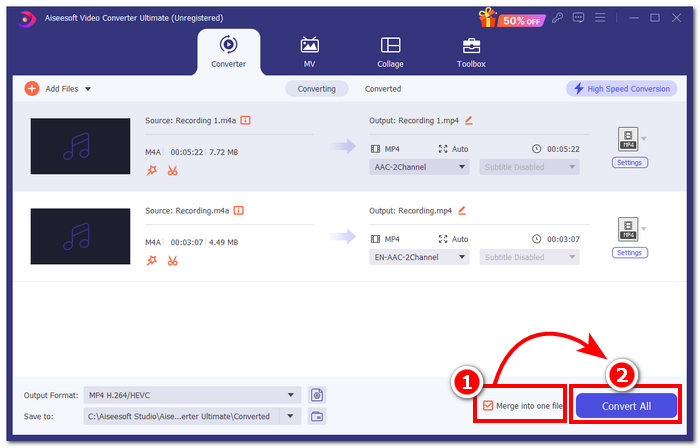
ขั้นตอนที่ 4 เมื่อกระบวนการรวมไฟล์เสร็จสิ้น หน้าต่างใหม่จะเปิดขึ้นบนหน้าจอของคุณ ไฟล์ M4A ที่รวมเรียบร้อยแล้วจะอยู่ในหน้าต่างนั้น ขอแสดงความยินดี คุณได้รวมไฟล์ M4A ของคุณเรียบร้อยแล้ว.
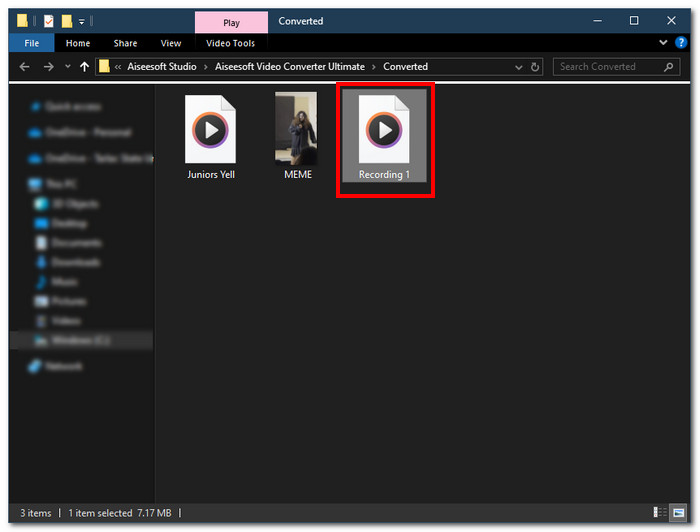
Video Converter Ultimate ที่ FVC เลือกเป็นซอฟต์แวร์ที่เร็วที่สุดในบรรดาซอฟต์แวร์ที่อยู่ในรายการ เนื่องจากผสานรวมเทคโนโลยีการประมวลผลความเร็วสูงเพื่อให้แน่ใจว่าจะได้ผลลัพธ์ที่มีคุณภาพโดยไม่มีการสูญเสียข้อมูล ในขณะเดียวกันก็มีอินเทอร์เฟซที่ใช้งานง่ายซึ่งทำให้การรวมไฟล์ M4A ของคุณราบรื่น แตกต่างจากซอฟต์แวร์อื่นที่รองรับเฉพาะรูปแบบไฟล์เสียงจำนวนจำกัด ซอฟต์แวร์นี้รองรับรูปแบบไฟล์เสียงและวิดีโอหลากหลายรูปแบบ รวมถึง M4A, MP3, MP4, WAV, AAC เป็นต้น
ส่วนที่ 2. รวมไฟล์ M4A บน Mac ด้วย GarageBand [สำหรับผู้สร้างดนตรี]
สำหรับผู้ที่ชื่นชอบดนตรีมืออาชีพหรือผู้สร้างในระบบนิเวศของ Apple GarageBand คือเครื่องมือรวมไฟล์ M4A ที่เหมาะสำหรับคุณ การรวมไฟล์ M4A โดยใช้อุปกรณ์ Mac ของคุณนั้นเป็นเรื่องง่าย เนื่องจาก GarageBand ของ Apple เป็นโปรแกรมแก้ไขเสียงที่ติดตั้งไว้ล่วงหน้าในอุปกรณ์ของคุณ หากต้องการรวมไฟล์ M4A สองไฟล์เป็นไฟล์เสียงเดียว เพียงทำตามขั้นตอนด้านล่าง GarageBand เป็นหนึ่งในเครื่องมือซอฟต์แวร์ที่ทำงานได้อย่างตรงไปตรงมาและง่ายดาย
ขั้นตอนที่ 1 ดาวน์โหลดและเปิดใช้งาน GarageBand บนเครื่อง Mac ของคุณ.
ขั้นตอนที่ 2 บนหน้าต่างหลัก ให้โหลดไฟล์ M4A ของคุณโดยคลิกที่ File > Open ซึ่งอยู่มุมบนซ้ายของโปรแกรม.
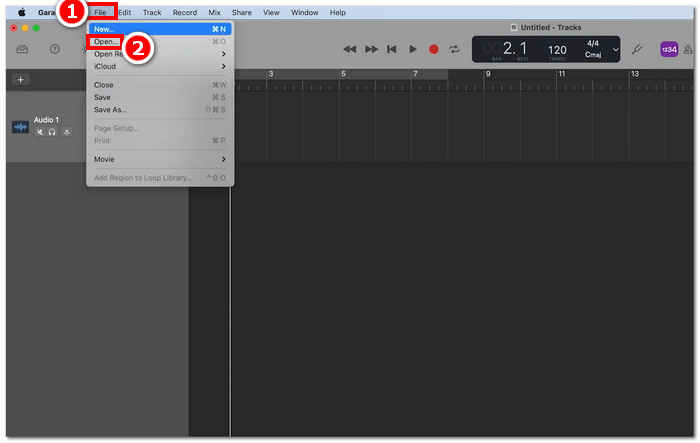
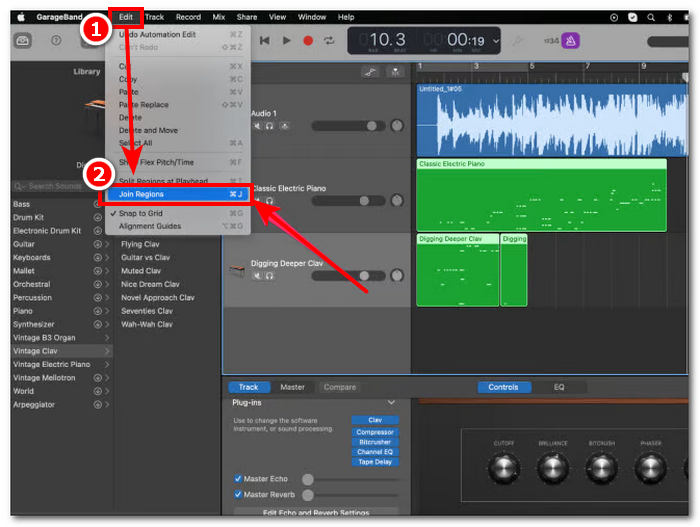
ขั้นตอนที่ 3 เมื่อไฟล์ M4A ของคุณถูกโหลดเข้าสู่โปรแกรมแล้ว ให้คลิก Edit > Join Regions เพื่อเริ่มรวมไฟล์ M4A ที่อัปโหลดไว้.
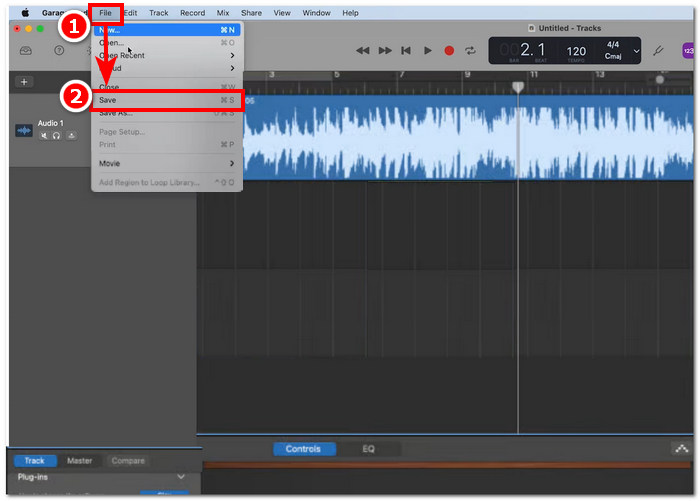
ขั้นตอนที่ 4 เมื่อไฟล์ M4A ของคุณถูกรวมเป็นแทร็กเสียงเดียวแล้ว คุณสามารถบันทึกหรือดาวน์โหลดได้โดยคลิกที่ File > Save ที่อยู่มุมบนซ้ายของโปรแกรม.
GarageBand นั้นนับได้ว่าเป็นหนึ่งในซอฟต์แวร์ที่ใช้งานง่ายแต่ทำงานได้อย่างมืออาชีพสำหรับการรวมและตัดต่อไฟล์ M4A การทำตามขั้นตอนข้างต้นเป็นวิธีที่ดีในการจัดระเบียบไฟล์ M4A สองไฟล์หรือมากกว่านั้นให้กลายเป็นไฟล์เสียงไฟล์เดียว ทำให้สะดวกต่อการแชร์มิกซ์เสียง.
ส่วนที่ 3. รวมไฟล์ M4A บน Windows ด้วย VLC [สำหรับผู้ใช้ขั้นพื้นฐาน]
น่าแปลกใจที่ VLC Media Player สามารถรวมไฟล์ M4A เป็นไฟล์เดียวได้ ช่วยให้กระบวนการรวมไฟล์ราบรื่นและตรงไปตรงมามากขึ้นโดยใช้ประโยชน์จากการตั้งค่าในโปรแกรมดูสื่อและไฟล์ เครื่องเล่นเสียงและวิดีโอยอดนิยมที่มีประโยชน์และฟรีนี้ ไม่ว่าจะต้องการรวมไฟล์ในรูปแบบใด VLC ก็สามารถแปลงและรวมไฟล์ได้อย่างมีประสิทธิภาพ
ขั้นตอนที่ 1 ดาวน์โหลดและเปิดใช้งาน VLC Media Player บนเดสก์ท็อปของคุณ.
ขั้นตอนที่ 2 บนหน้าต่างหลัก ให้คลิกที่ Media > Open Multiple Files ตรงมุมบนซ้ายของโปรแกรม เมื่อคุณคลิกแล้วจะมีหน้าต่างใหม่ปรากฏขึ้น จากนั้นคลิกปุ่ม + Add และเลือกไฟล์ M4A ที่คุณต้องการรวม.
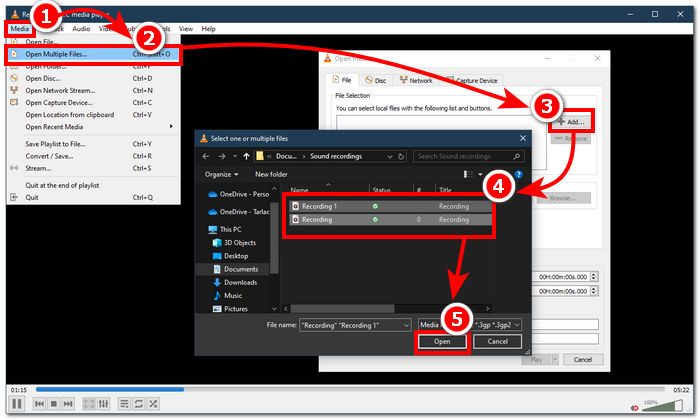
ขั้นตอนที่ 3 เมื่อไฟล์ M4A ของคุณอยู่ในช่องรายการไฟล์แล้ว ให้คลิกปุ่มลูกศรลงข้างปุ่ม Play ที่ด้านล่างของหน้าต่างโปรแกรม จากนั้นเลือก Convert.
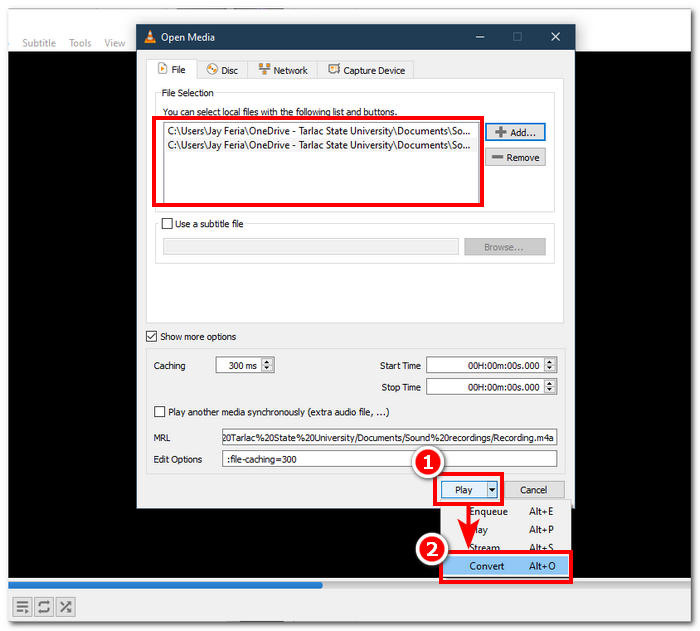
ขั้นตอนที่ 4 จะมีหน้าต่างใหม่ปรากฏขึ้น ให้คลิกติ๊กถูกที่ช่อง Append ‘-converted’ to filename จากนั้นไปที่การตั้งค่าโปรไฟล์แล้วเลือก Audio เมื่อทุกอย่างตั้งค่าเรียบร้อยแล้ว ให้คลิกปุ่ม Start แล้วไฟล์ M4A ที่ถูกรวมของคุณจะถูกบันทึกไว้ในโฟลเดอร์เดียวกับที่เก็บไฟล์ M4A เดิมของคุณ.
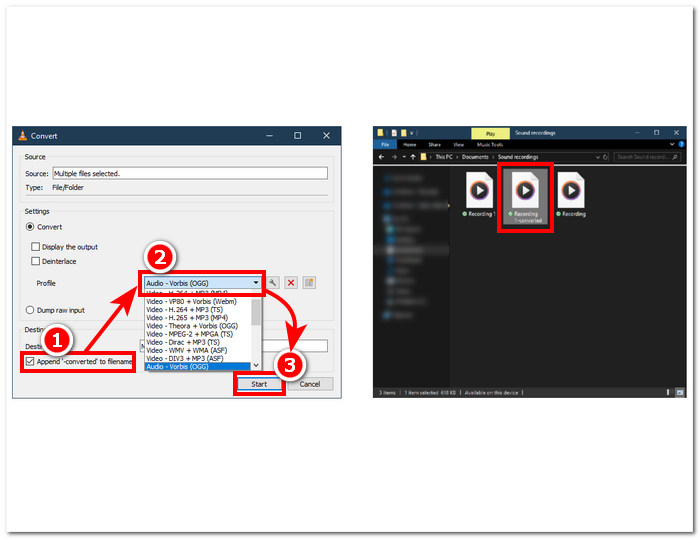
อย่าลืมปรับความยาวเสียงเมื่อคุณรวมไฟล์เข้าด้วยกัน เพื่อให้ซิงก์กับวิดีโอได้อย่างถูกต้อง หากเสียงล่าช้าใน VLC บทความนี้จะเป็นประโยชน์: วิธีแก้ปัญหาเสียงล่าช้าใน VLC.
ปฏิบัติตามขั้นตอนที่ให้ไว้เพื่อให้แน่ใจว่าคุณสามารถรวมไฟล์ M4A ของคุณเข้าด้วยกันได้อย่างราบรื่น VLC Media Player ไม่เพียงแต่เป็นเครื่องเล่นทั่วไปสำหรับสื่อทุกประเภท แต่ยังสามารถใช้เป็นโปรแกรมแก้ไขเมตาข้อมูลและสามารถรวมไม่เพียงแค่ M4A เท่านั้น แต่ยังรวมถึงวิดีโอด้วย
ส่วนที่ 4. รวมไฟล์ M4A ออนไลน์ [สำหรับไฟล์ M4A ขนาดเล็ก]
หากคุณกำลังมองหาเครื่องมือรวมไฟล์ M4A ที่มีประสิทธิภาพและประหยัดเวลามากกว่า คุณอาจต้องใช้เครื่องมือออนไลน์ หากต้องการรวมไฟล์ M4A ออนไลน์ คุณต้องใช้เครื่องมือที่เชื่อถือได้ เนื่องจากมีเครื่องมือรวมไฟล์ M4A มากมายบนอินเทอร์เน็ตที่เข้าใจผิดได้ง่าย โชคดีที่ Audio Joiner ช่วยคุณได้ เนื่องจากเป็นเครื่องมือบนเว็บสำหรับการรวมไฟล์ M4A โดยพื้นฐานแล้วเครื่องมือนี้ทำงานโดยการอัปโหลดไฟล์ M4A ของคุณไปยังเว็บไซต์ และด้วยการคลิกเพียงครั้งเดียว เครื่องมือจะรวมไฟล์เสียงของคุณเป็นหนึ่งเดียวทันที
ขั้นตอนที่ 1 ไปที่เว็บไซต์ทางการของ Audio Joiner เพื่อเข้าใช้บริการ.
ขั้นตอนที่ 2 เมื่อเข้าสู่หน้าเว็บแล้ว ให้คลิกปุ่มสีเขียว + Add Tracks และเลือกไฟล์ M4A ที่คุณต้องการรวม.
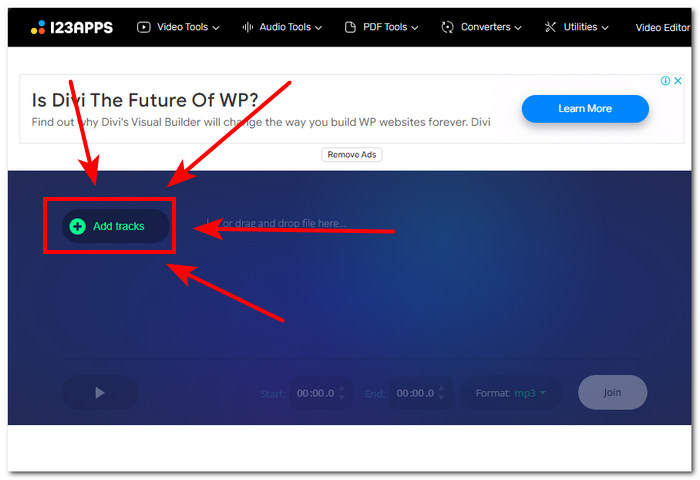
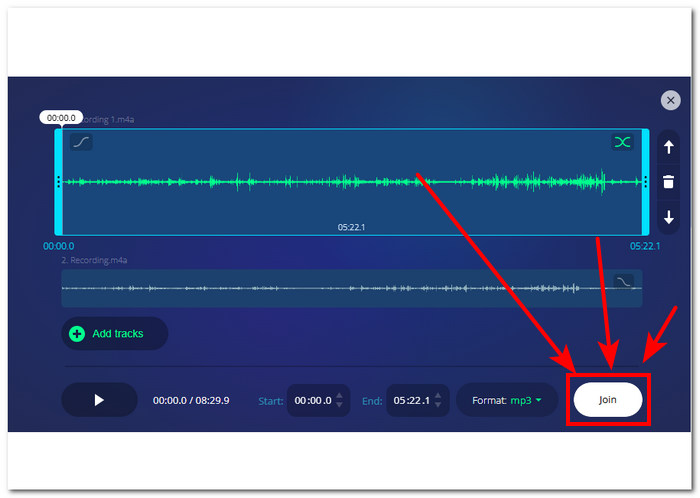
ขั้นตอนที่ 3 เมื่อไฟล์ M4A ของคุณถูกโหลดเข้าสู่เครื่องมือแล้ว ให้คลิกปุ่ม Join ที่มุมล่างขวาของหน้าเว็บไซต์ แล้วรอให้กระบวนการรวมไฟล์เสร็จสิ้น.
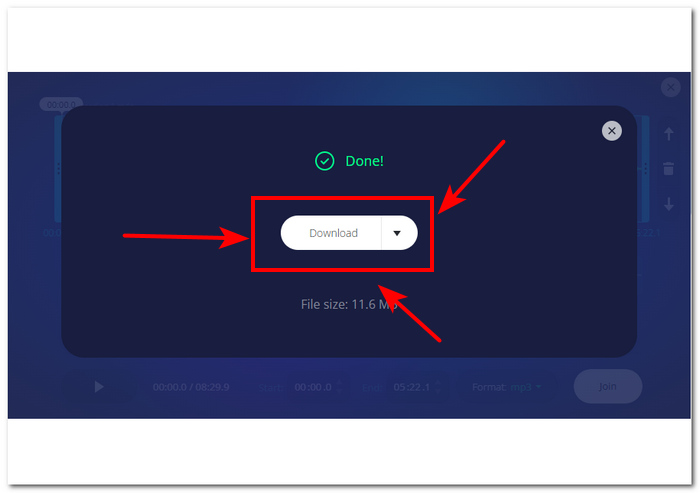
ขั้นตอนที่ 4 เมื่อการรวมไฟล์เสร็จแล้ว คุณสามารถคลิกปุ่ม Download บนหน้าจอเพื่อดาวน์โหลดและบันทึกไฟล์ M4A ที่รวมแล้วไว้บนเดสก์ท็อปของคุณ.
แม้ว่าจะสะดวกสำหรับผู้ใช้ที่ไม่ต้องการเสียเวลาติดตั้งเครื่องมือซอฟต์แวร์ แต่เครื่องมือรวมไฟล์ M4A บนเว็บนี้ก็ทำงานด้วยโฆษณาแบบป๊อปอัป และน่าเสียดายที่มันโหลดไฟล์เสียงของคุณช้าลง
ส่วนที่ 5 คำถามที่พบบ่อยเกี่ยวกับวิธีการรวมไฟล์ M4A
วิธีการที่ง่ายที่สุดในการรวมไฟล์เสียงคืออะไร?
วิธีที่ง่ายที่สุดในการรวมไฟล์ M4A คือการใช้เครื่องมือออนไลน์ ซึ่งช่วยให้คุณสามารถรวมไฟล์เสียงได้ทันทีด้วยการคลิกเพียงครั้งเดียว อย่างไรก็ตาม โปรดระวังการใช้เครื่องมือดังกล่าว เนื่องจากมีความเสี่ยงบางประการ
คำสั่งรวมแทร็กใน GarageBand คืออะไร?
ปุ่มลัดคำสั่งแป้นพิมพ์สำหรับการรวมแทร็กใน GarageBand คือการกด Command + J พร้อมกัน
คุณสามารถใช้เครื่องเล่น Windows Media ในการมิกซ์เพลงได้หรือไม่
น่าเสียดายที่ Windows Media Player ยังคงไม่มีคุณลักษณะหรือฟังก์ชันในตัวที่ช่วยให้คุณมิกซ์หรือรวมเพลงได้
มีวิธีรวมไฟล์ M4A โดยไม่สูญเสียคุณภาพหรือไม่
ใช่ มีหลายวิธีในการรวมไฟล์ M4A โดยไม่สูญเสียคุณภาพ เครื่องมือบางตัวมีการปรับการตั้งค่าที่กำหนดไว้ และบางตัวก็ให้การส่งออกคุณภาพสูงโดยตรงทุกครั้ง เช่น Video Converter Ultimate ที่ FVC เลือก
ฉันสามารถรวมไฟล์ M4A บนสมาร์ทโฟนของฉันได้หรือไม่
ใช่ การรวมไฟล์ M4A สามารถใช้งานได้บนเดสก์ท็อปและเว็บเบราว์เซอร์ รวมถึงอุปกรณ์พกพาด้วย GarageBand นำเสนอเวอร์ชันเดสก์ท็อปในเวอร์ชันมือถือ แต่ใช้งานได้เฉพาะบนอุปกรณ์ iOS เท่านั้น ในขณะที่ WavePad สำหรับอุปกรณ์พกพาใช้งานได้ทั้งบน iOS และ Android
สรุป
การรู้วิธีรวมแทร็ก M4A ถือเป็นทักษะที่ยอดเยี่ยมเมื่อเริ่มเรียนรู้การตัดต่อเสียง เพราะจะช่วยให้คุณตัดแต่งและจัดระเบียบโปรเจกต์ของคุณได้ดีขึ้น เพื่อไม่ให้มีจำนวนแทร็กทำงานพร้อมกันมากเกินความจำเป็น หากต้องการรวมไฟล์ M4A อย่างมีประสิทธิภาพ ผู้ใช้อาจต้องอาศัยซอฟต์แวร์หรือเครื่องมือออนไลน์ที่เชื่อถือได้ ดังนั้น การเริ่มต้นทำตามขั้นตอนของเราจะช่วยให้คุณฝึกฝนและเชี่ยวชาญทักษะนี้ได้ ซึ่งเป็นพื้นฐานที่มีประโยชน์มากก่อนจะขยับไปใช้แพลตฟอร์มการบันทึกเสียงที่ซับซ้อนยิ่งขึ้น.
-
 วิธีการแปลง M4A เป็น MP3 พร้อมตัวแปลงเสียงฟรี 4 ตัว
 ไม่สามารถเล่น M4A และต้องแปลงเป็น MP3? มีวิธีใดในการแปลง M4A เป็น MP3 ออนไลน์ฟรีหรือไม่? โพสต์นี้แชร์ 4 วิธีฟรีที่จะช่วยคุณแปลง M4A เป็น MP3 ด้วย iTunes ตัวแปลงเสียงออนไลน์และมืออาชีพ
-
 ดาวน์โหลดเครื่องเล่น MP3 - 10 เครื่องเล่นเพลง MP3 ฟรีที่ดีที่สุดในปี 2021
 เครื่องเล่นเพลง MP3 ที่ดีที่สุดคืออะไร? ฉันจะใส่เพลงลงในเครื่องเล่น MP3 ได้อย่างไร? จะดาวน์โหลดเครื่องเล่นเพลง MP3 ได้อย่างไร? โพสต์นี้ให้รายละเอียดเกี่ยวกับเครื่องเล่น MP3 ฟรีที่ดีที่สุด 10 รายการสำหรับ Windows PC และ Mac
-
 รับเครื่องเล่น MP4 ที่ดีที่สุดของคุณเพื่อเล่นไฟล์ MP4 ด้วยภาพคุณภาพสูง
 อ่านและรับเครื่องเล่น MP4 ที่ดีที่สุดจากคำแนะนำของซอฟต์แวร์เครื่องเล่นวิดีโอ MP4 ล่าสุด 10 รายการ คุณสามารถเล่นไฟล์วิดีโอ MP4 บน Windows และ Mac ได้อย่างราบรื่นโดยไม่ล่าช้า
