


 Video Converter Ultimate
 บันทึกหน้าจอ
 ซ่อมวิดีโอ
 ดาวน์โหลดอย่างปลอดภัย
วิธีการเฟดเสียงใน Premiere Pro อย่างมืออาชีพ [2024]
จังหวะเสียงที่สมบูรณ์แบบเป็นสิ่งจำเป็นสำหรับวิดีโอ เมื่อใดก็ตามที่เสียงค่อย ๆ เฟดเข้าและเฟดออกได้อย่างลงตัวในวิดีโอ ก็มักจะน่าตื่นเต้น นั่นจึงเป็นเหตุผลที่ผู้ใช้จำนวนมาก ตั้งแต่บรรณาธิการมืออาชีพไปจนถึงผู้ที่ชื่นชอบ ต่างก็ใส่ใจปรับแต่งเพื่อให้แน่ใจว่าเสียงของตนจะเข้ากับจังหวะของแต่ละฉากได้อย่างพอดี ในคู่มือนี้ เราจะแสดงวิธีเฟดเสียงใน Premiere Pro เพื่อช่วยให้คุณสร้างวิดีโอคุณภาพระดับมืออาชีพพร้อมเสียงที่ไร้ที่ติ มาเริ่มกันเลย.

ตอนที่ 1: เอฟเฟกต์ Fade Out และ Fade In ใน Premiere Pro คืออะไร
Premiere Pro มีเอฟเฟกต์เฟดอินและเฟดเอาต์หลายแบบ การทำความเข้าใจเอฟเฟกต์แต่ละแบบถือเป็นสิ่งสำคัญในการแยกแยะจุดประสงค์เฉพาะของแต่ละแบบ ในที่นี้ เราจะมาสำรวจเอฟเฟกต์เฟดหลักสามแบบ ได้แก่ Constant Gain, Constant Power และ Exponential Fade
ได้รับอย่างต่อเนื่อง
Constant Gain จะเปลี่ยนเสียงด้วยอัตราคงที่ในขณะที่ค่อยๆ เฟดเข้าและเฟดออกระหว่างการเปลี่ยนผ่านระหว่างคลิป วิธีนี้บางครั้งอาจส่งผลให้เกิดการเปลี่ยนแปลงกะทันหัน เนื่องจากไม่ได้สร้างการเปลี่ยนผ่านที่ราบรื่น โดยทั่วไป การเปลี่ยนผ่านเหล่านี้จะถูกปรับด้วยตนเองโดยใช้คีย์เฟรมเพื่อควบคุมกระบวนการเฟดเข้าและเฟดออกได้ดีขึ้น
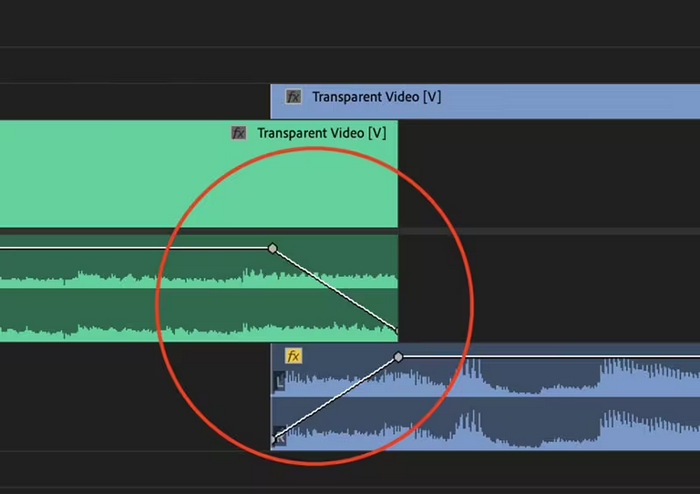
พลังคงที่
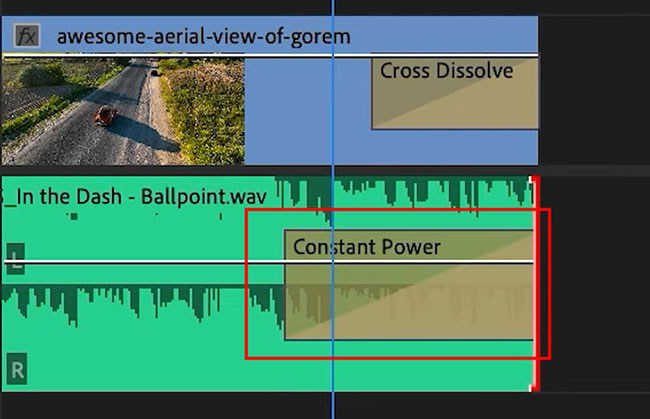
การเฟดแบบครอสเฟดของ Constant Power จะสร้างเอฟเฟกต์การเปลี่ยนฉากที่ราบรื่นและค่อยเป็นค่อยไป ซึ่งคล้ายกับการละลายภาพระหว่างคลิป วิธีการนี้จะเริ่มเฟดเสียงก่อน จากนั้นจึงเฟดออกในตอนท้ายของคลิป ดังที่แสดง คีย์เฟรมจะค่อยๆ ลดลงในคลิปแรกและค่อยๆ เพิ่มขึ้นในคลิปที่สอง เมื่อเปรียบเทียบกับการเฟดแบบครอสเฟดอื่นๆ Constant Power มักถูกมองว่าดีที่สุดสำหรับการเปลี่ยนฉากเสียง เนื่องจากสามารถสร้างเอฟเฟกต์ที่ราบรื่นกว่าและค่อยๆ เปลี่ยนเกนระหว่างคลิปได้โดยไม่มีการเปลี่ยนแปลงที่สังเกตเห็นได้ระหว่างการเปลี่ยนฉาก
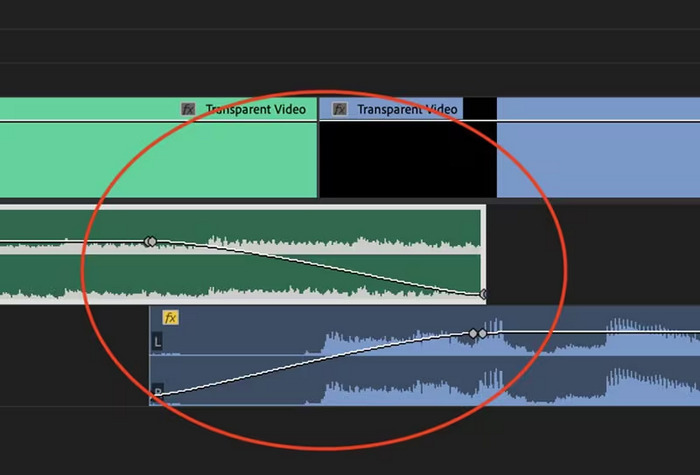
การเฟดแบบเอ็กซ์โพเนนเชียล
การเฟดแบบ Exponential Fade ตรงข้ามกับ Constant Power โดยเฟดเอาต์ในคลิปแรกและเฟดในคลิปที่สอง ทำให้เกิดเส้นโค้งลอการิทึมที่ราบรื่น การเฟดประเภทนี้ให้ประสบการณ์การฟังที่แตกต่างออกไป ทำให้มีประโยชน์สำหรับการเปลี่ยนผ่านเสียงต่างๆ การเฟดประเภทนี้ให้เสียงที่ราบรื่นและเป็นธรรมชาติ ซึ่งมีประสิทธิภาพโดยเฉพาะกับแทร็กเสียงที่ซับซ้อนมากขึ้น
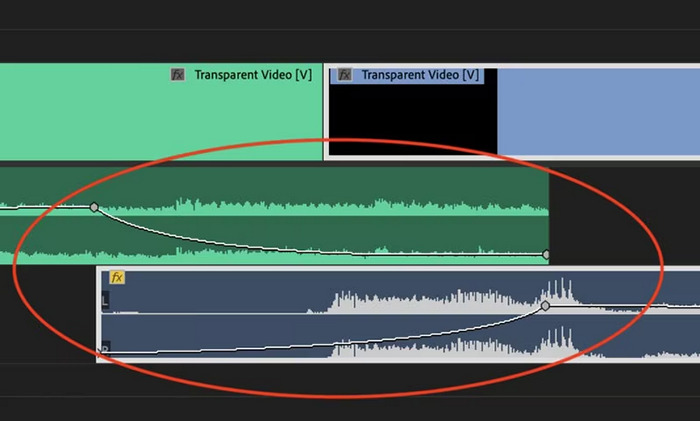
ตอนที่ 2: วิธีการเฟดอินหรือเฟดเอาต์เสียงใน Premiere Pro
ตอนนี้ เนื่องจากเราเข้าใจเอฟเฟกต์เฟดเข้าและเฟดเอาต์ต่างๆ ใน Premiere Pro กันแล้ว มาดำเนินการต่อเพื่อดูวิธีใช้งานเอฟเฟกต์เหล่านี้กัน
วิธีการเฟดเสียงใน Premiere Pro มีดังนี้:
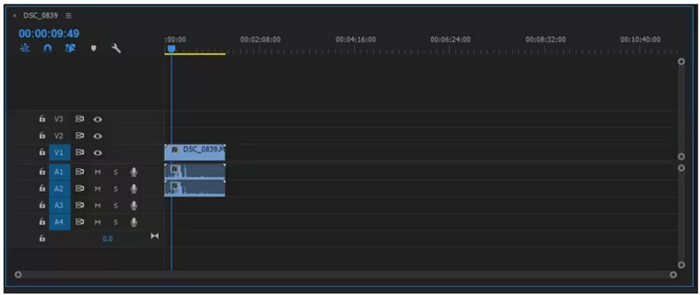
ขั้นตอนที่ 1 ในการนำเข้าคลิปเสียงที่คุณต้องการเฟดให้ออกจากไทม์ไลน์ ให้ไปที่แท็บ Import ในเมนู File หรือเพียงแค่ลากไฟล์ไปยังอินเทอร์เฟซหลักของโปรแกรม.
ขั้นตอนที่ 2 ไปที่แผง Effect แล้วขยายโฟลเดอร์ audio transition เพื่อเลือกเอฟเฟกต์ crossfade อย่างใดอย่างหนึ่ง คุณสามารถเลือก Constant Gain, Constant Power หรือ Exponential Fade ก็ได้.
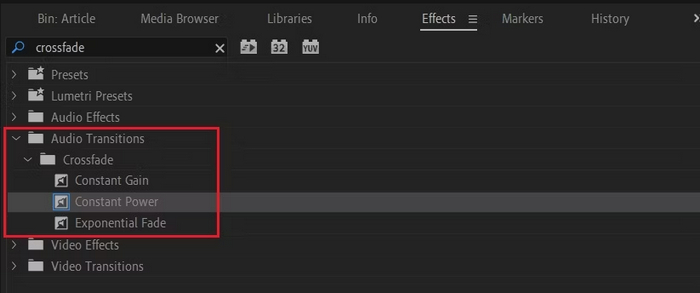
ขั้นตอนที่ 3 เพื่อใช้ประเภทการเฟดที่คุณต้องการ ให้คลิกหรือวางประเภทที่คุณเลือกลงในไทม์ไลน์.
ขั้นตอนที่ 4 พิมพ์ระยะเวลาของการเฟดในหน้าต่างป๊อปอัปที่ปรากฏขึ้น แล้วคลิก OK.
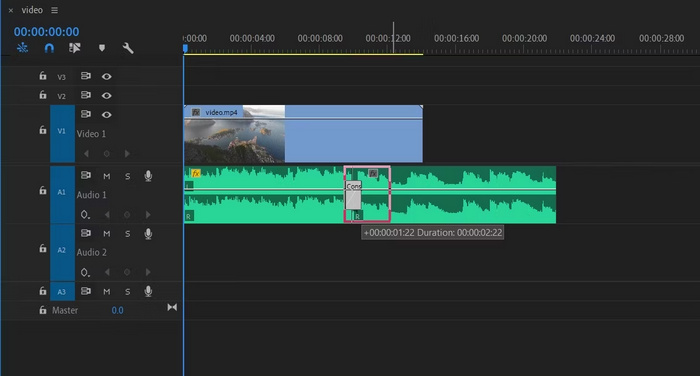
Premiere Pro มีตัวเลือกต่างๆ สำหรับการเฟดเอาต์และเฟดอินเสียง ทำให้เป็นเครื่องมือที่เหมาะสำหรับผู้ที่กำลังมองหาวิธีการแบบมืออาชีพในการหลีกเลี่ยงการเริ่มและหยุดกะทันหันของเสียง คุณสมบัติเหล่านี้ช่วยให้การเปลี่ยนผ่านเป็นไปอย่างราบรื่น ช่วยเพิ่มประสบการณ์การฟังโดยรวมของทุกโปรเจ็กต์ นอกจากนี้ เครื่องมือนี้ยังมีความยืดหยุ่นและแม่นยำ ทำให้เหมาะสำหรับผู้ใช้ใหม่และผู้ใช้ขั้นสูง อย่างไรก็ตาม การใช้เครื่องมือเฉพาะนี้อาจต้องใช้เวลาในการปรับแต่งด้วยตนเอง ซึ่งผู้เริ่มต้นอาจพบว่าเอฟเฟกต์บางอย่างใช้งานยาก อย่างไรก็ตาม นี่ยังคงเป็นหนึ่งในเครื่องมือที่ดีที่สุดในการเพิ่มการเฟดเอาต์และเฟดอินอย่างมืออาชีพ
ส่วนที่ 3: ทางเลือกอื่นของ Premiere Pro สำหรับการเฟดเอาต์หรือเฟดอินเสียงที่ง่ายกว่า
หากคุณกำลังมองหาเครื่องมือทางเลือกเนื่องจากอินเทอร์เฟซของ Premiere Pro ที่ซับซ้อน เครื่องมือที่ FVC คัดสรรอย่าง Video Converter Ultimate ถือเป็นตัวเลือกที่ดีที่สุด โปรแกรมแปลงวิดีโอและเสียงแบบครบวงจรนี้มีอินเทอร์เฟซที่ใช้งานง่ายและเข้าใจไม่ยาก ทำให้ผู้ใช้สามารถเฟดอินหรือเฟดเอาท์เสียงได้อย่างสะดวกและมีประสิทธิภาพ นอกจากนี้ เครื่องมือนี้ยังรองรับรูปแบบเสียงหลากหลายประเภท จึงช่วยลดความเครียดในเรื่องปัญหาความเข้ากันได้ของไฟล์.
วิธีการเฟดเสียงโดยใช้ Video Converter Ultimate มีดังนี้:
ขั้นตอนที่ 1 ให้ติดตั้งโปรแกรม Video Converter Ultimate บนอุปกรณ์คอมพิวเตอร์ของคุณ.
ดาวน์โหลดฟรีสำหรับ Windows 7 หรือใหม่กว่าดาวน์โหลดอย่างปลอดภัย
ดาวน์โหลดฟรีสำหรับ MacOS 10.7 หรือใหม่กว่าดาวน์โหลดอย่างปลอดภัย
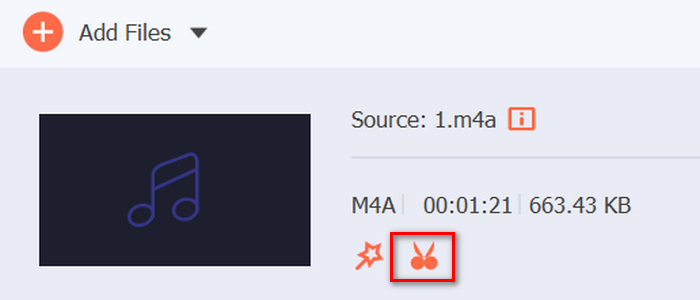
ขั้นตอนที่ 2 จากนั้นเพื่อเพิ่มไฟล์เสียงที่คุณต้องการแก้ไข ให้คลิกปุ่ม Add Files.
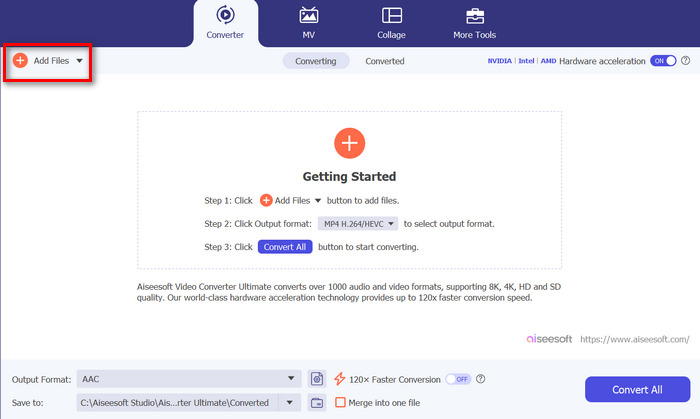
ขั้นตอนที่ 3 ตอนนี้ให้คลิกปุ่ม Cut ระบบจะพาคุณไปยังหน้าต่างอีกบานหนึ่งซึ่งคุณสามารถตั้งค่าเฟดเข้าและเฟดออกของไฟล์เสียงได้.
ขั้นตอนที่ 4 ทำเครื่องหมายในช่องตัวเลือก Fade In และ Fade Out แล้วตั้งค่าระยะเวลาของเอฟเฟ็กต์แต่ละแบบตามความต้องการของคุณ.
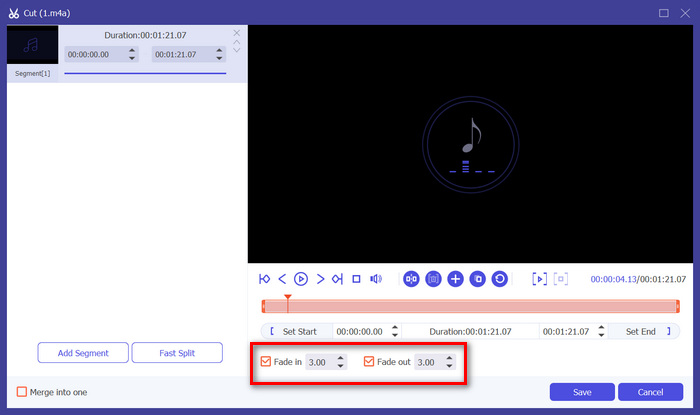
ขั้นตอนที่ 5 เมื่อตั้งค่าเรียบร้อยแล้ว คุณสามารถพรีวิวเสียงโดยการเล่นเพื่อเช็กว่าการเปลี่ยนแปลงที่ทำไปถูกต้องและตรงตามต้องการหรือไม่.
ขั้นตอนที่ 6 สุดท้ายคลิกปุ่ม Save ระบบจะพาคุณกลับไปยังหน้าหลัก จากนั้นคลิกปุ่ม Convert All เพื่อส่งออกไฟล์เสียง.
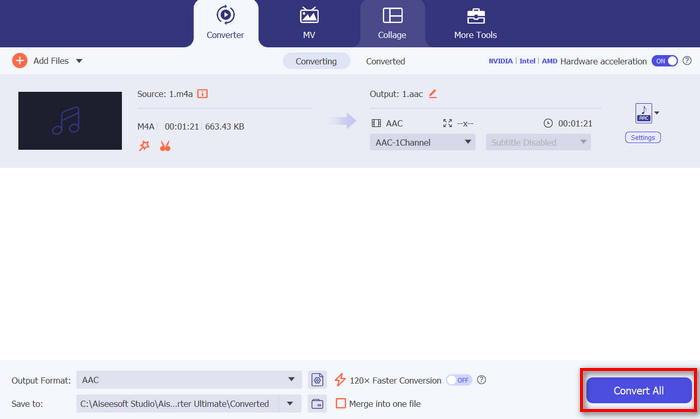
สิ่งที่ทำให้ Video Converter Ultimate เป็นเครื่องมือทางเลือกที่ดีที่สุดในการเฟดเอาท์หรือเฟดอินเสียง คือความง่ายในการใช้งานและความมีประสิทธิภาพ โปรแกรมนี้ช่วยให้ผู้ใช้สร้างทรานซิชันเสียงที่ลื่นไหลในระดับมืออาชีพได้อย่างรวดเร็ว โดยไม่ต้องพบกับความซับซ้อนแบบซอฟต์แวร์ระดับสูงอื่น ๆ จึงเป็นตัวเลือกที่เชื่อถือได้และเป็นมิตรต่อผู้ใช้สำหรับทุกคนที่ต้องการยกระดับกระบวนการตัดต่อเสียง นอกจากนี้ ยังมีฟีเจอร์แก้ไขเสียงอื่น ๆ เช่น บีบอัดไฟล์เสียง ตัดเสียง เร่ง/ลดความเร็วเสียง และอื่น ๆ ก่อนที่คุณจะส่งออกไฟล์เสียงที่ต้องการ.
ส่วนที่ 4: คำถามที่พบบ่อยเกี่ยวกับการเฟดเสียงใน Premiere Pro
การเฟดอินและการเฟดเอาต์ในเสียงคืออะไร?
การเฟดอินและเฟดเอาต์เป็นเทคนิคการแก้ไขเสียงที่ใช้เพิ่มหรือลดระดับเสียงของแทร็กเสียงเพื่อให้เกิดการเปลี่ยนผ่านที่ราบรื่น เอฟเฟกต์เฟดอินจะเริ่มจากความเงียบแล้วค่อยๆ เพิ่มระดับเสียงจนดังสุด ในขณะที่เอฟเฟกต์เฟดเอาต์จะเริ่มจากระดับเสียงสูงสุดแล้วค่อยๆ ลดระดับเสียงจนเงียบ
ทางลัดในการเฟดเอาต์ใน Premiere Pro คืออะไร?
สำหรับ Mac ทางลัดในการออกใน Premiere Pro คือ Shift+Command+D ในขณะที่สำหรับ Windows คือ Shift+Ctrl+D
จะทำให้เสียงจางลงบน iPhone ได้อย่างไร?
หากต้องการเฟดเอาท์เสียงบน iPhone คุณสามารถใช้แอป iMovie ได้
วิธีทำมีดังนี้:
ขั้นตอนที่ 1 เปิด iMovie และโหลดโปรเจกต์ของคุณ
ขั้นตอนที่ 2 คลิกขวาที่เสียงในไทม์ไลน์
ขั้นตอนที่ 3 แตะปุ่ม Audio
ขั้นตอนที่ 4 แตะ Fade เพื่อแสดงตัวควบคุมเฟดที่จุดเริ่มต้นและจุดสิ้นสุดของคลิป
ขั้นตอนที่ 5 ลากตัวควบคุมเฟดที่ท้ายคลิปเพื่อกำหนดระยะเวลาการเฟดเอาท์.
สรุป
Premiere Pro เป็นเครื่องมือที่มีความหลากหลายสูง ช่วยให้ผู้ใช้แก้ไขไฟล์เสียงได้อย่างง่ายดาย ตอนนี้เมื่อคุณรู้แล้ววิธีเฟดเสียงใน Premiere ก็ไม่มีเหตุผลใดที่คุณจะไม่สร้างทรานซิชันที่ลื่นไหลและดูเป็นมืออาชีพให้กับโปรเจกต์ของตัวเอง นอกจากนี้ หากคุณรู้สึกว่าโปรแกรมนี้ใช้งานยาก ก็สามารถลองใช้ Video Converter Ultimate เป็นทางเลือกที่ใช้งานง่ายกว่าได้ ขอให้สนุกกับการสร้างทรานซิชันเสียงที่ลื่นไหล!
-
 สุดยอดคอมเพรสเซอร์ GIF 10 อันดับสำหรับผู้ใช้เดสก์ท็อปและออนไลน์
 ในโพสต์นี้ คุณจะได้เรียนรู้เกี่ยวกับโปรแกรมบีบอัด GIF ที่ดีที่สุดเพื่อช่วยคุณแก้ไขปัญหาเกี่ยวกับไฟล์ GIF ขนาดใหญ่ ลองตรวจสอบและรับข้อมูลเชิงลึกที่ดีที่สุด
-
 5 แอปบันทึกเสียงที่ได้รับเลือกมากที่สุดบน Android และ iOS [อัปเดตปี 2023]
 ไม่ทราบว่าคุณควรใช้แอปบันทึกเสียงอะไร? ถ้าใช่ บทความนี้จะช่วยคุณเลือกว่าแอปใดจะช่วยคุณในการบันทึกเสียง
-
 เครื่องมือแปลง MP4 เป็น MP3 ที่ยอดเยี่ยมที่คุณควรพิจารณาใช้
 ปลดล็อกพลังแห่งความเก่งกาจด้านเสียงด้วยตัวแปลง MP4 เป็น MP3 ที่ได้รับความนิยมสูงสุดของเรา สัมผัสประสบการณ์การแปลงที่ไร้รอยต่อ คุณภาพเสียงที่ยอดเยี่ยม และการประมวลผลที่รวดเร็วปานสายฟ้าแลบ
