


 Video Converter Ultimate
 บันทึกหน้าจอ
 ซ่อมวิดีโอ
 ดาวน์โหลดอย่างปลอดภัย
การสร้างริงโทนบน iPhone โดยใช้ GarageBand และทางเลือกอื่น
เบื่อกับการตื่นนอนด้วยเสียงริงโทนเดิมๆ ที่แสนจะจืดชืดใน iPhone อยู่หรือเปล่า? แม้ว่า iPhone จะจำกัดการเข้าถึงริงโทนสุดฮิตทั้งหลาย แต่ก็ไม่ได้หมายความว่าคุณจะลองทำเองไม่ได้เลย ในเมื่อริงโทนได้กลายเป็นส่วนหนึ่งของชีวิตเรา ทั้งในฐานะแจ้งเตือนหรือเสียงนาฬิกาปลุก ความสามารถในการใช้หรือเปลี่ยนริงโทนก็สะท้อนตัวตนและรสนิยมของเราได้พอสมควร แล้วใครกันล่ะจะไม่อยากให้ตัวเองได้รับการแจ้งเตือนหรือปลุกตื่นด้วยเสียงที่ตัวเองเลือกเองจริงไหม? แม้จะดูยุ่งยาก แต่เราก็หาวิธีสร้างริงโทนด้วย GarageBandได้สำเร็จแล้ว มาดูวิธีสร้างเสียง, แปลงเสียงที่มีอยู่ และตั้งค่าไว้ใน iPhone ของคุณด้วย GarageBand และวิธีทางเลือกอื่นๆ ได้เลยวันนี้ แล้วเริ่มโชว์ตัวตนและรสนิยมของคุณผ่านริงโทนเก๋ๆ กันได้เลย.

ส่วนที่ 1. วิธีการสร้างริงโทนใน GarageBand
ก่อนที่เราจะแสดงวิธีสร้างริงโทนใน GarageBand ให้คุณดู สิ่งสำคัญคือต้องรู้ก่อนว่า GarageBand คืออะไร GarageBand คือเวิร์กสเตชันเสียงดิจิทัลที่พัฒนาโดย Apple สำหรับ iOS, macOS และ iPadOS โดยเฉพาะ ดังนั้นจึงใช้งานง่ายมากและสามารถใช้งานได้ฟรีบนระบบปฏิบัติการที่กล่าวถึงข้างต้น
ขั้นตอนที่ 1 เปิดGarageBand บน Mac ของคุณ หรือดาวน์โหลดลงบน iPhone หรืออุปกรณ์ Apple เครื่องใดก็ได้ที่คุณต้องการใช้ก่อน.
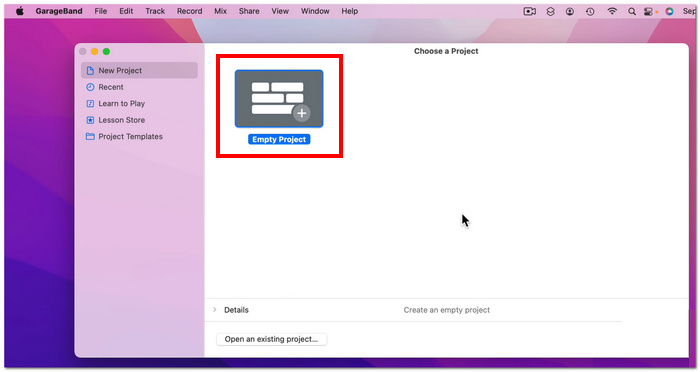
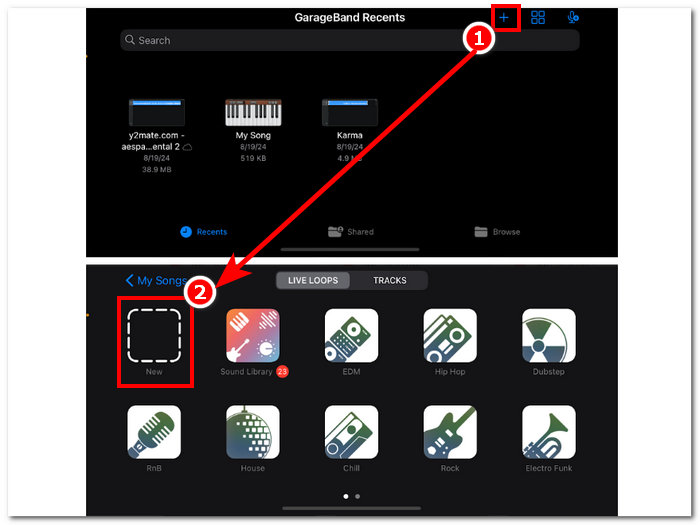
ขั้นตอนที่ 2 บนหน้าตาแอป ให้แตะปุ่ม + แล้วเลือกตัวเลือกโปรเจกต์ใหม่ (New project).
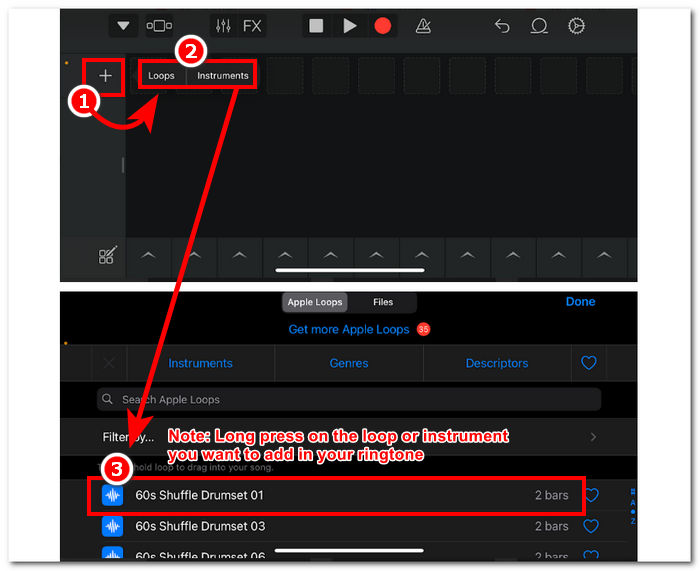
ขั้นตอนที่ 3 จากนั้นคุณจะถูกพาไปยังไทม์ไลน์ของGarageBand เพื่อเพิ่มเครื่องดนตรีหรือLoop ที่ต้องการใส่ในริงโทนของคุณ เพียงแตะปุ่ม + จากนั้นกดค้างที่ลูปหรือเครื่องดนตรีที่ต้องการ แล้วลากมาใส่ในไทม์ไลน์.
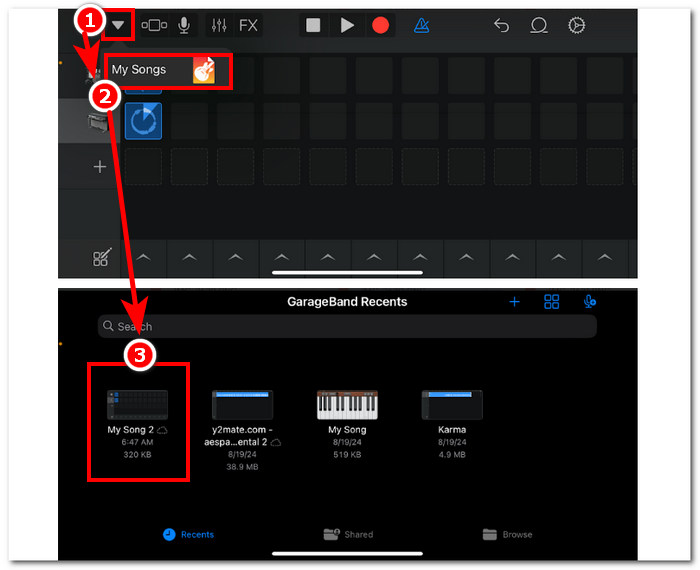
ขั้นตอนที่ 4 เมื่อต้องการบันทึกริงโทนที่คุณสร้างใหม่ ให้แตะปุ่มลูกศรชี้ลงที่มุมซ้ายบนของหน้าจอ แล้วแตะ My Songs ไฟล์ของคุณจะถูกบันทึกลงในการจัดเก็บไฟล์โดยอัตโนมัติ.
ส่วนที่ 2 วิธีการสร้างเพลงที่มีอยู่แล้วเป็นริงโทนบน GarageBand
เพื่อให้เพลงที่น่าตื่นเต้นเป็นเสียงเรียกเข้าของคุณ เราเลือกใช้เพลงจาก Apple Music เนื่องจากมีข้อจำกัดบางประการห้ามใช้เพลงใน iPhone ซึ่งเรียกว่าการป้องกัน DRM
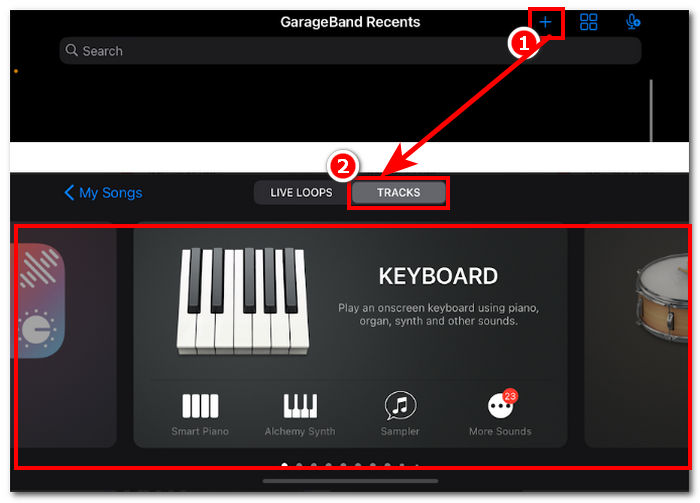
ขั้นตอนที่ 1 เปิดแอป GarageBand บน iPhone ของคุณ แตะปุ่ม + แล้วเลือกเครื่องดนตรีใดก็ได้ตามต้องการ.
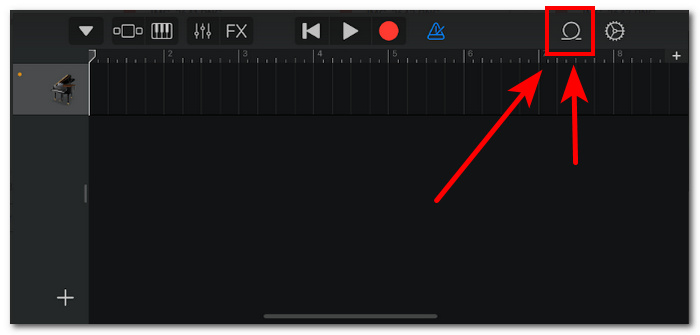
ขั้นตอนที่ 2 เมื่อเข้าสู่มุมมองมัลติแทร็กของแอปแล้ว ให้แตะไอคอนLoop ที่มุมขวาบนของหน้าจอ.
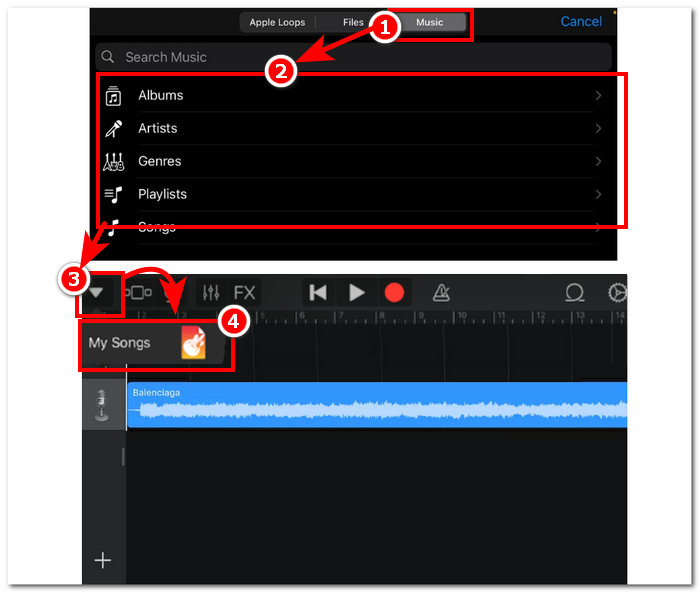
ขั้นตอนที่ 3 ในส่วนของลูป ให้แตะที่หมวด Music แล้วเลือกเพลงที่คุณต้องการทำเป็นริงโทน เพิ่มลงในไทม์ไลน์ได้โดยการแตะหรือกดค้าง เมื่อเพลงอยู่ในไทม์ไลน์แล้ว ให้แตะปุ่มลูกศรลง แล้วไปที่ My Songs.
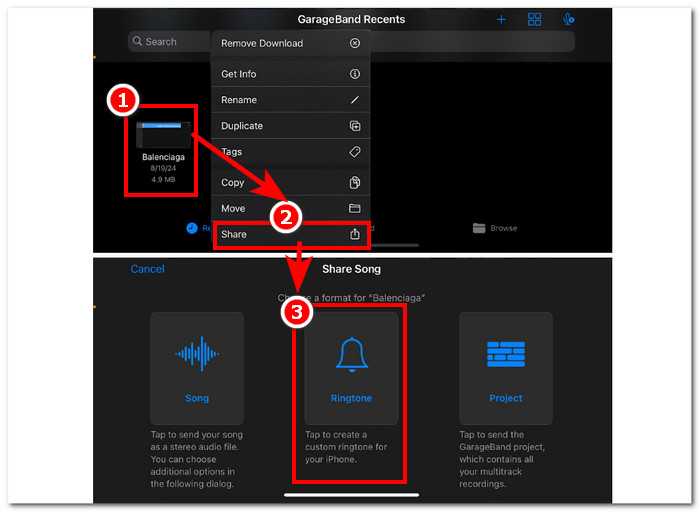
ขั้นตอนที่ 4 กดค้างที่ริงโทนที่คุณเพิ่งสร้าง จากนั้นแตะ Share และเลือก Ringtone เพื่อทำให้เป็นริงโทนแบบกำหนดเองบน iPhone ของคุณ.
ส่วนที่ 3. ทางเลือกของ GarageBand ในการสร้างริงโทน
หากคุณต้องการสร้างริงโทนและปรับแต่งให้มีเอกลักษณ์ไม่เหมือนใคร การใช้เครื่องมือซอฟต์แวร์คือทางเลือกที่ดีที่สุด ด้วยการรองรับไฟล์ได้มากถึง 1000 รูปแบบ FVC-picked Video Converter Ultimate เป็นโปรแกรมแบบ all-in-one ที่ไม่ได้มีไว้เพียงสำหรับทำริงโทนเท่านั้น แต่ยังสามารถแปลง แก้ไข เพิ่มคุณภาพ และบีบอัดไฟล์วิดีโอและเสียงได้ด้วย จึงเหมาะอย่างยิ่งสำหรับการปรับแต่งริงโทน แตกต่างจาก GarageBand ที่ค่อนข้างจำกัดด้านฟีเจอร์การปรับแต่ง ยิ่งไปกว่านั้น เทคโนโลยีประมวลผลความเร็วสูงยังถูกผสานเข้ากับระบบของ FVC-picked Video Converter Ultimate เพื่อรับประกันคุณภาพเสียงแบบไม่สูญเสียรายละเอียดและอัตราการแปลงไฟล์ที่รวดเร็ว.
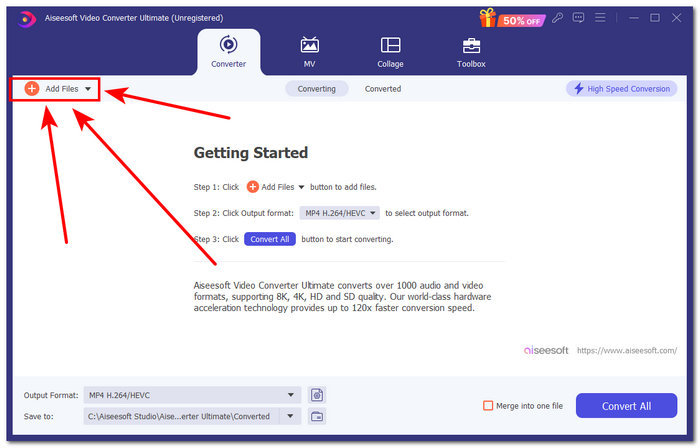
ขั้นตอนที่ 1 บน Mac ของคุณ ดาวน์โหลดและติดตั้งFVC-picked Video Converter Ultimate เปิดโปรแกรมบนอุปกรณ์ แล้วโหลดไฟล์เสียง/เพลงที่คุณต้องการสร้างและปรับแต่งให้เป็นริงโทน โดยคลิกที่ลิงก์ Add Files ที่มุมบนซ้ายของหน้าตาโปรแกรม.
ดาวน์โหลดฟรีสำหรับ Windows 7 หรือใหม่กว่าดาวน์โหลดอย่างปลอดภัย
ดาวน์โหลดฟรีสำหรับ MacOS 10.7 หรือใหม่กว่าดาวน์โหลดอย่างปลอดภัย
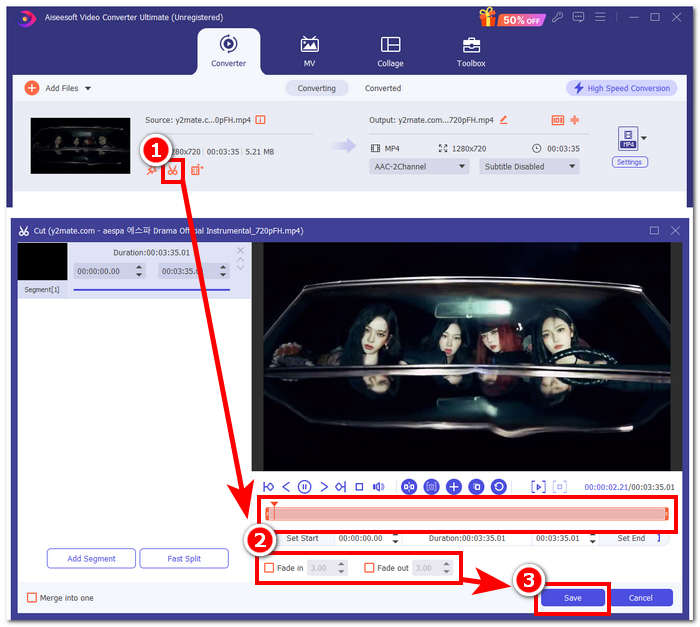
ขั้นตอนที่ 2 คลิกไอคอนกรรไกร ใกล้ภาพตัวอย่างไฟล์เสียงของคุณ หน้าต่างใหม่จะปรากฏขึ้นบนหน้าจอ ให้คุณเพิ่มเอฟเฟกต์เฟดและตัดต่อไฟล์เสียงได้ เมื่อคุณพอใจกับการปรับแต่งแล้ว เพียงคลิกปุ่ม Save เพื่อเสร็จสิ้นขั้นตอน.
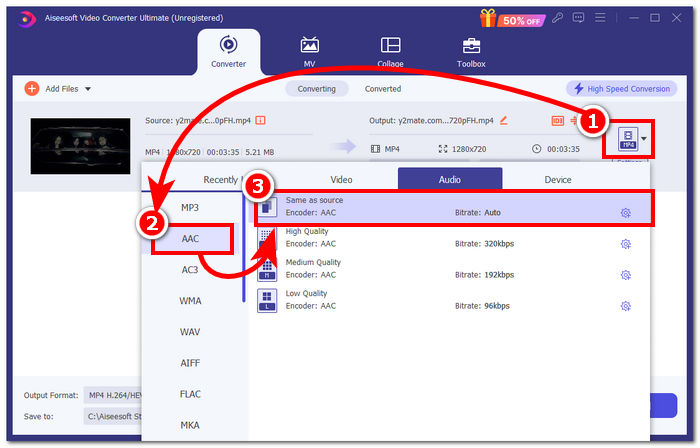
ขั้นตอนที่ 3 เมื่อคุณปรับแต่งไฟล์เสียงเรียบร้อยแล้ว ให้เปลี่ยนรูปแบบไฟล์จาก MP4 หรือ MP3 เป็น AAC ซึ่งเป็นฟอร์แมตที่ iPhone ใช้สำหรับริงโทน.
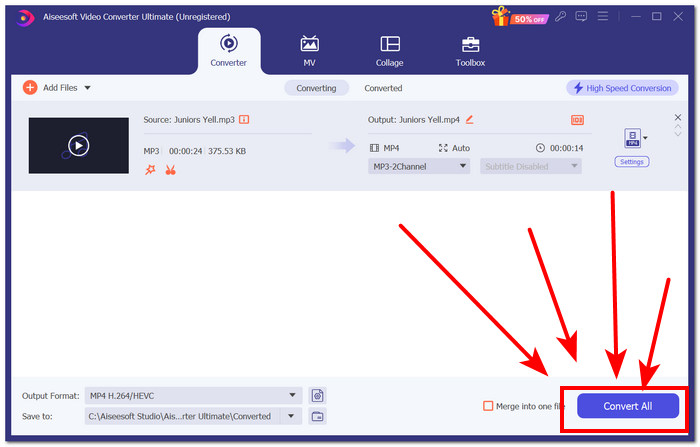
ขั้นตอนที่ 4 คลิกปุ่ม Convert All ริงโทนของคุณจะถูกบันทึกลงในอุปกรณ์โดยอัตโนมัติ เมื่อการแปลงเสร็จสมบูรณ์ คุณสามารถค้นหาริงโทนได้ในโฟลเดอร์ดาวน์โหลด.
ส่วนที่ 4. วิธีตั้งเสียงเรียกเข้าใน iPhone จากไฟล์ด้วย GarageBand
การตั้งเพลงเป็นริงโทนโดยใช้ GarageBand จากไฟล์ของคุณอาจเป็นขั้นตอนที่ค่อนข้างยุ่งยาก ซึ่งหมายความว่าคุณต้องดาวน์โหลดเพลงก่อน จากนั้นจึงให้เพลงนั้นผ่านแอป RingtoneMaker ซึ่งคุณต้องติดตั้งลงในอุปกรณ์ของคุณ
ขั้นตอนที่ 1 ดาวน์โหลดเพลงที่คุณต้องการลงในอุปกรณ์ของคุณ.
คุณสามารถค้นหาเพลงบน YouTube และดาวน์โหลดโดยใช้โปรแกรมดาวน์โหลด YouTube เป็น MP3 ออนไลน์
ขั้นตอนที่ 2 เมื่อต้องการเปลี่ยนเพลงให้เป็นริงโทน ให้เปิดแอป RingtoneMaker แล้วนำเข้าเพลงที่ดาวน์โหลดเข้าไปในแอป หลังจากโหลดเสร็จ ให้แตะปุ่ม Make Ringtone แล้วดำเนินการต่อโดยเลือกแอป GarageBand.
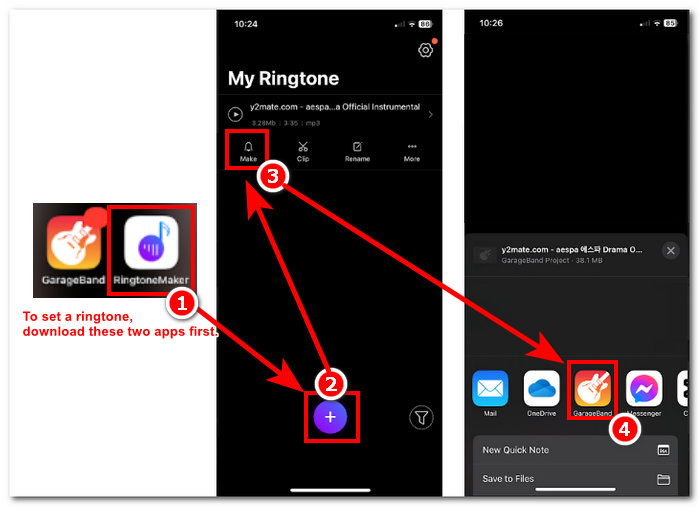
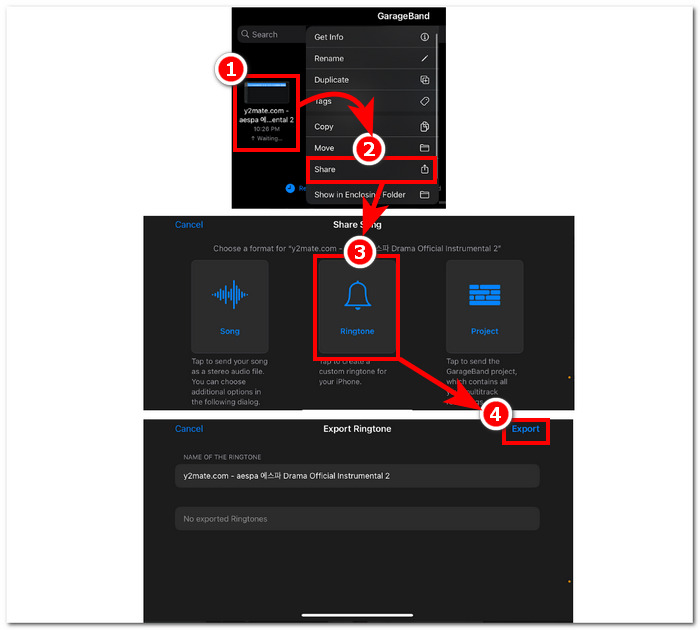
ขั้นตอนที่ 3 หลังจากถูกเปลี่ยนหน้าไปยังแอป GarageBand แล้ว ให้หาเพลงที่คุณนำเข้าไว้แล้วแตะที่เพลงนั้น จากนั้นทำตามเส้นทางเมนูนี้: Share > Ringtone > Export เพียงเท่านี้คุณก็สร้างเพลงที่มีอยู่ให้กลายเป็นริงโทนได้สำเร็จแล้ว.
ส่วนที่ 5 คำถามที่พบบ่อยเกี่ยวกับวิธีการสร้างริงโทนใน GarageBand
GarageBand ดีพอสำหรับผู้เริ่มต้นหรือไม่?
ใช่แล้ว GarageBand เป็นเครื่องมือสร้างริงโทนที่ดีหรืออาจจะดีกว่าสำหรับระบบนิเวศของ Apple อินเทอร์เฟซที่เรียบง่ายนั้นเหมาะสำหรับผู้ใช้ทุกประเภท ตั้งแต่มือใหม่ไปจนถึงมืออาชีพ เครื่องมือในตัวที่ออกแบบมาเพื่อสร้างโทนเสียงที่ติดหูและทันสมัยโดยเฉพาะ และบทช่วยสอนมากมายที่มีให้ใช้งานทางออนไลน์ ทำให้เป็นเครื่องมือที่เหมาะสำหรับผู้เริ่มต้น
ริงโทน Garage เป็นฟรีหรือเปล่า?
ใช่ GarageBand เป็นโปรแกรมฟรีที่ให้คุณดาวน์โหลดและใช้งานบนอุปกรณ์ Apple ทั้งหมดได้ ช่วยให้ผู้ใช้สามารถใช้ฟีเจอร์ต่างๆ ของโปรแกรมเพื่อสร้าง แต่งเพลง และส่งออกไฟล์ได้ โดยไม่ต้องเสียค่าธรรมเนียมหรือสมัครสมาชิกเพิ่มเติม
มีแอพริงโทนฟรีมั้ย?
ใช่ มีแอพริงโทนมากมายให้คุณลองใช้งาน เช่น RingtoneMaker, Sedge, Audiko และอื่นๆ อีกมากมาย ดังนั้นผู้ใช้จึงสามารถเลือกใช้แอพและซอฟต์แวร์ต่างๆ ได้เอง เราขอแนะนำให้ผู้ใช้ค้นคว้าว่าต้องการแอพริงโทนประเภทใด
สรุป
Apple กำหนดข้อจำกัดบางประการเกี่ยวกับวิธีที่ผู้ใช้สามารถสร้างและตั้งค่าเสียงเรียกเข้าโดยใช้แอปพลิเคชัน GarageBand ของตนเอง แอปพลิเคชันนี้ทำงานได้อย่างมีประสิทธิภาพ โดยเฉพาะอย่างยิ่งเมื่อตั้งค่าเพลงที่ดาวน์โหลดลงใน iPhone ของคุณแล้ว อย่างไรก็ตาม แอปพลิเคชันนี้อาจขาดคุณสมบัติการปรับแต่งบางอย่าง เช่น สิ่งที่ FVC เลือก Video Converter Ultimate สามารถทำเพื่อให้เป็นส่วนตัวมากขึ้น อย่างไรก็ตาม แอปพลิเคชันนี้ยังคงมีประสิทธิภาพและเป็นวิธีเดียวที่ผู้ใช้ iOS สามารถสร้างเสียงเรียกเข้าบนอุปกรณ์ของตนได้
-
 Best Walkthrough วิธีแปลง WAV เป็นริงโทนในเวลาไม่นาน
 ต้องการแปลงไฟล์ WAV เป็นเสียงเรียกเข้าอย่างง่ายดายหรือไม่? เครื่องมือที่ใช้งานง่ายของเราทำงานให้สำเร็จ! เพลิดเพลินกับการแปลงไฟล์เสียงคุณภาพสูงได้ในพริบตา ไม่ต้องปวดหัวเรื่องเทคโนโลยี ลองวันนี้!
-
 วิธีสร้างบันทึกเสียงเป็นริงโทนบน iPhone และ Android
 หากคุณต้องการเปลี่ยนบันทึกเสียงเป็นเสียงเรียกเข้า โปรดอ่านบทความนี้ ไม่ว่าคุณจะใช้ iPhone หรือ Android คุณสามารถค้นหาวิธีแก้ปัญหาได้ในเนื้อหาของเรา
-
 เครื่องตัด MP3 5 ตัวเพื่อตัดเสียงใด ๆ ได้อย่างง่ายดาย [อัปเดตปี 2024]
 คุณต้องการเครื่องตัด MP3 เพื่อตัดเสียงหรือไม่? ในกรณีนั้น โปรดอ่านบทความนี้เนื่องจากเรามีเครื่องมือสำหรับการตัดเสียงอย่างง่ายดาย
