


 Video Converter Ultimate
 บันทึกหน้าจอ
 ซ่อมวิดีโอ
 ดาวน์โหลดอย่างปลอดภัย
คู่มือครอบคลุมในการสร้างริงโทนจากบันทึกเสียง
อย่างไรก็ตาม ปัจจุบันมีนักพัฒนาจำนวนมากที่สร้างซอฟต์แวร์ทำเสียงเรียกเข้าไว้แล้ว นั่นหมายความว่าคุณสามารถตัดท่อนที่ชอบจากเพลงโปรดของคุณ หรืออัดเสียงพูดของคุณเองให้เป็นเสียงเรียกเข้าได้อย่างอิสระ ในบทความนี้ เราจะอธิบายวิธีทำให้บันทึกเสียง (Voice Memo) กลายเป็นเสียงเรียกเข้า หวังว่าคุณจะได้คำตอบที่กำลังมองหาอยู่.

ส่วนที่ 1 วิธีที่ดีที่สุดในการสร้างบันทึกเสียงเป็นริงโทน
หากคุณกำลังมองหาโปรแกรมทำเสียงเรียกเข้าที่มีฟังก์ชันครบครัน ขอแนะนำ FVC-picked Video Converter Ultimate ซึ่งถือเป็นผู้นำแม้ในตลาดซอฟต์แวร์ตัดต่อมัลติมีเดียที่มีการแข่งขันสูง สมาร์ตโฟนแต่ละรุ่นอาจรองรับไฟล์เสียงเรียกเข้าคนละรูปแบบ แต่นั่นไม่ใช่ปัญหาสำหรับ Video Converter Ultimate จากชื่อก็บอกอยู่แล้วว่า ฟังก์ชันหลักคือการแปลงรูปแบบไฟล์ ดังนั้นไม่ว่าคุณจะบันทึกหรือดาวน์โหลดไฟล์บันทึกเสียงมาในรูปแบบใดก็ตาม คุณสามารถแปลงให้ตรงกับรูปแบบไฟล์ที่สมาร์ตโฟนของคุณรองรับได้ คุณยังสามารถใช้โปรแกรมนี้แยกเสียงออกจากวิดีโอโดยตรง ทำให้มีตัวเลือกเสียงเรียกเข้าที่หลากหลายมากขึ้น นอกจากนี้ยังสามารถปรับระดับเสียง เลือกแทร็ก ปรับความยาว ฯลฯ ของไฟล์เสียงปลายทางได้อีกด้วย ด้วย Video Converter Ultimate การทำให้บันทึกเสียงกลายเป็นเสียงเรียกเข้าตามใจต้องการจะไม่ใช่เรื่องเพ้อฝันอีกต่อไป.
ดาวน์โหลดฟรีสำหรับ Windows 7 หรือใหม่กว่าดาวน์โหลดอย่างปลอดภัย
ดาวน์โหลดฟรีสำหรับ MacOS 10.7 หรือใหม่กว่าดาวน์โหลดอย่างปลอดภัย
ที่นี่เราจะบอกคุณวิธีแก้ไขบันทึกเสียงที่บันทึกหรือดาวน์โหลดเพื่อให้คุณสามารถใช้เป็นเสียงเรียกเข้าได้
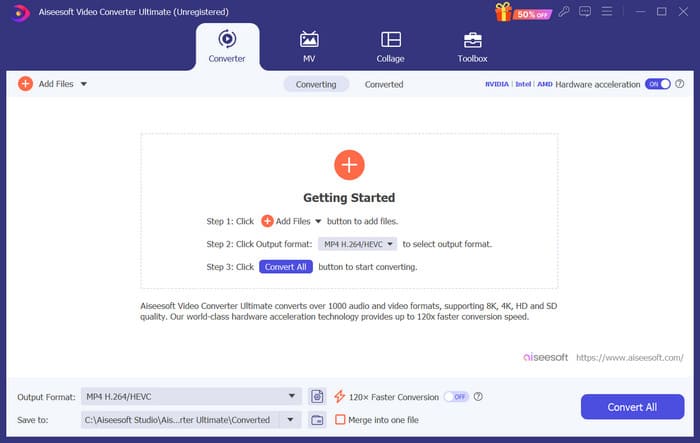
ขั้นตอนที่ 1 ดาวน์โหลดและติดตั้ง Video Converter Ultimate บนคอมพิวเตอร์ของคุณ จากนั้นเปิดโปรแกรมบนเดสก์ท็อป.
ขั้นตอนที่ 2 คลิก Add Files เพื่ออัปโหลดไฟล์เสียงที่คุณต้องการแก้ไข.
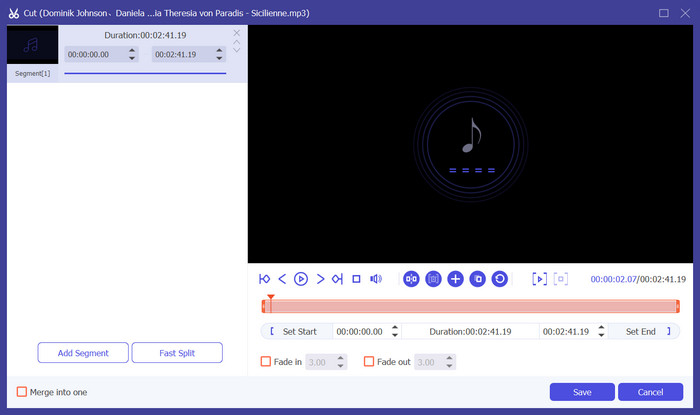
ขั้นตอนที่ 3 หากต้องการตัดต่อความยาวเสียง ให้คลิก Cut คุณสามารถปรับความยาวไฟล์ได้ เมื่อจัดการตัดต่อเสร็จแล้ว ให้คลิก Save.
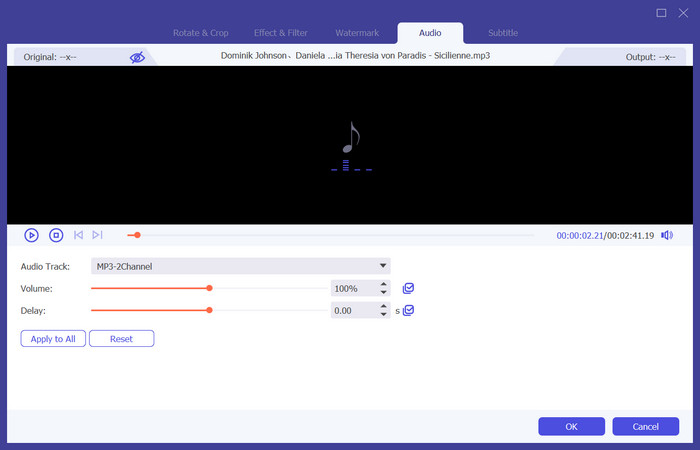
ขั้นตอนที่ 4 หากต้องการปรับระดับเสียงและแทร็กเสียงของบันทึกเสียง ให้คลิก Edit ในหน้าต่างที่เด้งขึ้นมา คุณสามารถปรับค่าต่าง ๆ ได้ตามต้องการ เมื่อแก้ไขเสร็จแล้ว ให้คลิก OK.
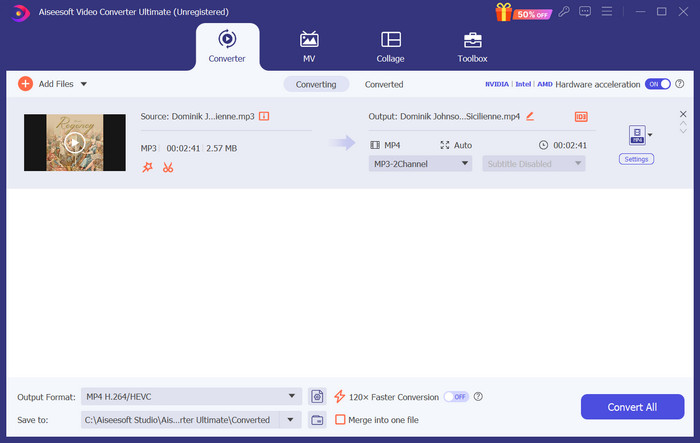
ขั้นตอนที่ 5 หากต้องการเปลี่ยนรูปแบบไฟล์ ให้คลิกเมนูดรอปดาวน์ถัดจาก Output Format จากนั้นเลือกประเภทไฟล์เสียงที่ต้องการเป็นผลลัพธ์.
ขั้นตอนที่ 6 เมื่อต้องการส่งออกไฟล์เสียงเรียกเข้าที่แก้ไขเสร็จแล้ว ให้คลิก Convert All.
ส่วนที่ 2. วิธีสร้างบันทึกเสียงเป็นริงโทนบน iPhone
เราขอแนะนำ GarageBand หากคุณต้องการสร้างเสียงเรียกเข้าสำหรับบันทึกเสียงบน iPhone ของคุณ นี่คือแอปพลิเคชันที่พัฒนาโดย Apple ผู้ใช้สามารถใช้แอปพลิเคชันนี้เพื่อสร้างเพลงบนอุปกรณ์ iOS ของตนเองได้ แอปพลิเคชันนี้มีเครื่องมือมากมายสำหรับการผลิตเพลง การบันทึก การตัดต่อ และการมิกซ์เสียง นอกจากนี้ GarageBand ยังสามารถบูรณาการกับซอฟต์แวร์อื่นๆ ของ Apple ได้ ซึ่งหมายความว่าเราสามารถโอนโปรเจ็กต์ระหว่าง GarageBand และซอฟต์แวร์อื่นๆ เพื่อการแก้ไขเพิ่มเติมได้อย่างง่ายดาย แอปพลิเคชันนี้เป็นที่นิยมในหมู่ผู้ใช้ระดับมืออาชีพและผู้เริ่มต้นเนื่องจากอินเทอร์เฟซที่ใช้งานง่าย ฟีเจอร์มากมาย และการเข้าถึงได้ การตั้งค่าทั้งหมดสามารถทำได้บนโทรศัพท์โดยไม่ต้องใช้ความช่วยเหลือจากอุปกรณ์อื่น
นี่คือสิ่งที่คุณต้องทำเพื่อเปลี่ยนบันทึกเสียงเป็นเสียงเรียกเข้า
ขั้นตอนที่ 1 ก่อนตั้งค่าเสียงเรียกเข้า คุณต้องไปที่แอป Voice Memo บน iPhone เพื่อเลือกบันทึกเสียงที่ต้องการก่อน.
ขั้นตอนที่ 2 หลังจากเลือกบันทึกเสียงเป้าหมายแล้ว ให้กดที่ไอคอนจุดสามจุด จากนั้นเลือก Save to Files และแตะ Save อีกครั้งเพื่อยืนยันการทำรายการ.
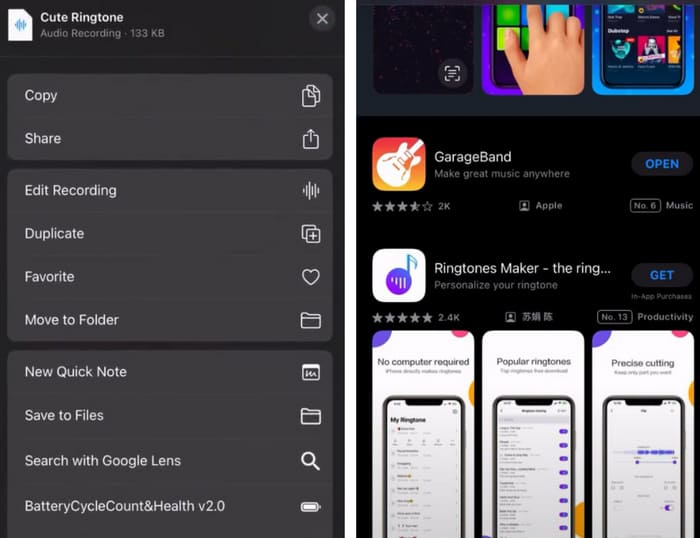
ขั้นตอนที่ 3 เปิดแอป GarageBand บน iPhone แล้วแตะที่ Project.
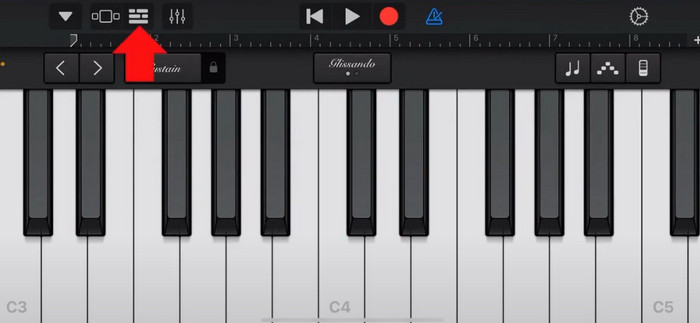
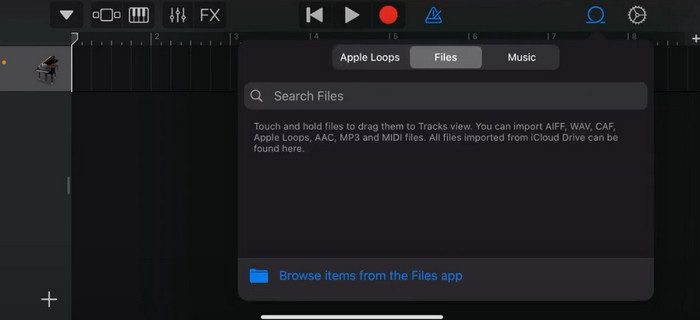
ขั้นตอนที่ 4 เลือก Loop > Files จากนั้นแตะ Browse items from the Files app เพื่อเลือกบันทึกเสียงที่คุณต้องการ.
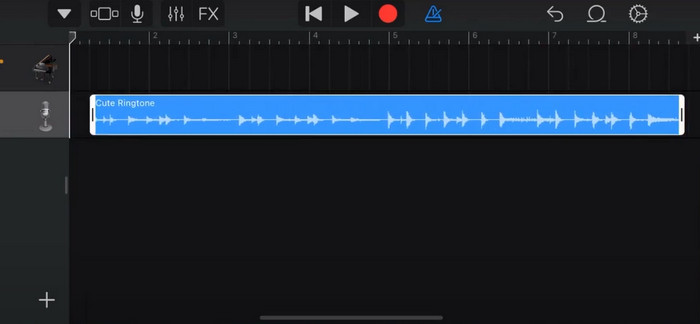
ขั้นตอนที่ 5 ลากและวางไฟล์ลงบนไทม์ไลน์.
ขั้นตอนที่ 6 ปิดการทำงานของ Metronome จากนั้นแตะไอคอนลูกศรลง > My Songs.
ขั้นตอนที่ 7 แตะค้างที่คลิป จากนั้นเลือก Share.
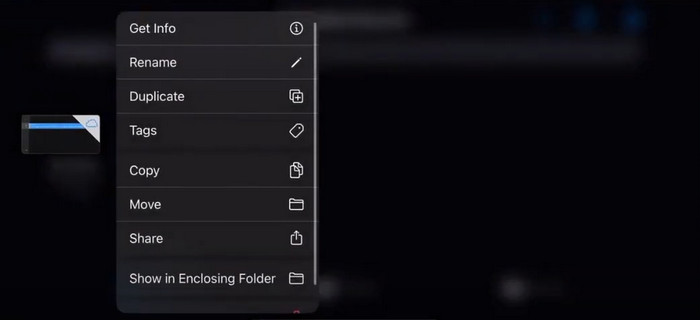
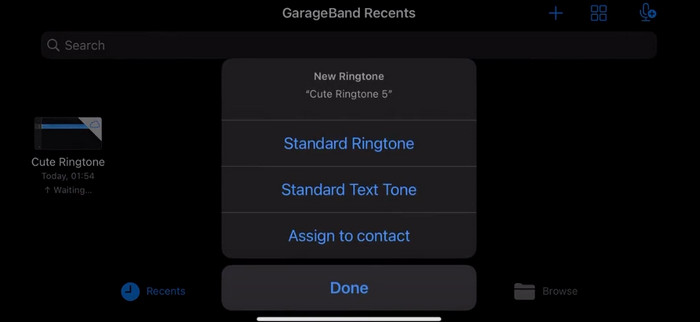
ขั้นตอนที่ 8 เลือก Ringtone จากตัวเลือกทั้งหมด แล้วกด Export สุดท้าย แตะ Use sound as > Standard Ringtone เพียงเท่านี้คุณก็สร้างเสียงเรียกเข้าจากบันทึกเสียงได้สำเร็จแล้ว.
ส่วนที่ 3 วิธีการบันทึกเสียงเป็นริงโทนบน Android
หากคุณใช้โทรศัพท์ Android และต้องการเปลี่ยนเพลงที่บันทึกไว้เป็นเสียงเรียกเข้า คุณสามารถทำได้โดยตรงในแอปการตั้งค่าของโทรศัพท์ ขั้นตอนนี้ง่ายมาก และไม่จำเป็นต้องดาวน์โหลดซอฟต์แวร์ใดๆ สำหรับกระบวนการนี้ อย่างไรก็ตาม หากคุณต้องการแก้ไขเสียงที่บันทึกไว้ คุณสามารถเลือกซอฟต์แวร์ตัดต่อเสียงและวิดีโอระดับมืออาชีพ เช่น FVC-picked Video Converter Ultimate
ต่อไป เราจะสอนวิธีทำเสียงเรียกเข้าจากเสียงบันทึกบน Android ในส่วนนี้เราจะใช้สมาร์ตโฟน Samsung เป็นตัวอย่าง ก่อนเริ่มต้น คุณต้องตรวจสอบให้แน่ใจว่าคุณได้บันทึกไฟล์เสียงเก็บไว้ในแอป Voice Recorder แล้ว.
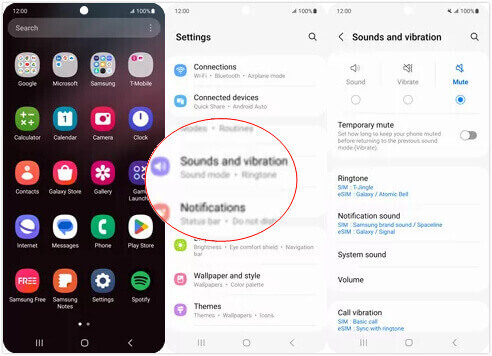
ขั้นตอนที่ 1 เปิด การตั้งค่า (Settings) บนสมาร์ตโฟนของคุณ แล้วเลือก เสียงและการสั่น (Sounds and vibration).
ขั้นตอนที่ 2 ตรวจสอบให้แน่ใจว่าได้เลือก เสียง (Sound) ภายใต้เมนู โหมดเสียง (Sound mode) แล้ว จากนั้นเลือกเสียงแจ้งเตือน (Notification sound).
ขั้นตอนที่ 3 เลือกไฟล์เสียงที่คุณได้บันทึกไว้ เสร็จแล้วกลับไปยังหน้าจอหลักเพื่อให้การตั้งค่ามีผล.
ส่วนที่ 4. คำถามที่พบบ่อยเกี่ยวกับการสร้างบันทึกเสียงเป็นริงโทน
เสียงเรียกเข้าสำหรับ Android มีรูปแบบอะไร?
เสียงเรียกเข้าสำหรับอุปกรณ์ Android สามารถมาในรูปแบบไฟล์เสียงต่างๆ แต่รูปแบบที่รองรับมากที่สุดคือ MP3, AAC, M4A, OGG และ WAV
ฉันจะบันทึกเสียงเป็นเพลงบน iPhone ได้อย่างไร?
เปิดแอพ Voice Memos บน iPhone ของคุณแล้วค้นหาบันทึกเสียงที่คุณต้องการบันทึกเป็นเพลง โปรดแตะที่บันทึกเสียงเพื่อเปิด จากนั้นกดไอคอนแชร์เพื่อดูตัวเลือกการแชร์ที่มีให้ คุณสามารถเลือกบันทึกบันทึกเสียงลงในแอพ Files ได้ หลังจากนั้น คุณสามารถเปิดแอพเพลงบน iPhone ของคุณที่รองรับการนำเข้าไฟล์เสียง แอพเช่น GarageBand หรือ Music Memos เหมาะที่สุด
จะบันทึกเสียงบน Android Samsung ได้อย่างไร?
หากต้องการบันทึกเสียงบนอุปกรณ์ Android ของ Samsung ให้ใช้แอป Voice Recorder ที่มีมาให้ในตัวเครื่อง เปิดแอปแล้วแตะ Record เพื่อเริ่มอัดเสียง เมื่ออัดเสร็จแล้ว คุณสามารถบันทึกไฟล์เสียงและตั้งชื่อไฟล์เพื่อให้ง่ายต่อการค้นหาในภายหลัง.
สรุป
ในบทความนี้ เราได้ตอบคำถามเกี่ยวกับวิธีทำให้บันทึกเสียงกลายเป็นเสียงเรียกเข้า พร้อมทั้งแนะนำหนึ่งในเครื่องมือแก้ไขเสียงเรียกเข้าที่ดีที่สุดอย่าง FVC Video Converter Ultimate นอกจากนี้ ยังสรุปวิธีเปลี่ยนบันทึกเสียงให้เป็นเสียงเรียกเข้าบน iPhone และสมาร์ตโฟน Android ไว้ให้แล้ว โดยมีคำแนะนำแบบทีละขั้นตอนในแต่ละส่วน เผื่อกรณีที่คุณพบปัญหาระหว่างทาง.
-
 3 วิธีแก้ปัญหาที่ดีที่สุดสำหรับการบีบอัดไฟล์ WAV ให้มีขนาดเล็กลง
 หากคุณกำลังมองหาวิธีบีบอัดไฟล์เสียง WAV โปรดอ่านเนื้อหาของเรา เราจะแนะนำเครื่องมือต่างๆ ให้คุณทราบในสามแง่มุม
-
 บทช่วยสอนการบีบอัดเสียงเชิงลึกในปี 2024 (ทีละขั้นตอน)
 คุณจำเป็นต้องบีบอัดเสียงแต่ต้องการความช่วยเหลือในการพิจารณาว่าจะเริ่มต้นอย่างไร ในโพสต์นี้ เราจะนำเสนอตัวเลือกที่ดีที่สุดในการลดขนาดไฟล์ของแทร็กของคุณ
-
 โปรแกรมบีบอัดเสียงที่มีประสิทธิภาพสำหรับผู้ใช้ออฟไลน์และออนไลน์
 มีปัญหากับไฟล์เสียงขนาดใหญ่ใช่ไหม มีโปรแกรมบีบอัดไฟล์เสียงมากมายสำหรับผู้ใช้ออฟไลน์และออนไลน์ ตรวจสอบพวกเขาออกที่นี่
