


 Video Converter Ultimate
 บันทึกหน้าจอ
 ซ่อมวิดีโอ
 ดาวน์โหลดอย่างปลอดภัย
4 ทางเลือกในการสร้างริงโทนสำหรับ iPhone โดยไม่ต้องใช้ iTunes
เมื่อพูดถึงการตั้งค่าและสร้างเสียงเรียกเข้าที่กำหนดเองบน iPhone มาอย่างยาวนาน iTunes ถือเป็นเครื่องมือหลักสำหรับผู้ใช้จำนวนมาก อย่างไรก็ตาม ไม่ใช่ทุกคนที่รู้สึกว่า iTunes สะดวกหรือใช้งานง่าย โชคดีที่มีวิธีการอื่นหลายวิธีที่ช่วยให้คุณสร้างเสียงเรียกเข้า iPhone ได้โดยไม่ต้องใช้ iTunes.
ในบทความนี้ เราจะมาสำรวจ 4 วิธีในการตั้งเสียงเรียกเข้าบน iPhone ของคุณอย่างง่ายดาย ช่วยให้คุณปลดปล่อยความคิดสร้างสรรค์ได้อย่างเต็มที่ ไม่ว่าคุณจะชอบใช้แอพ เครื่องมือออนไลน์ หรือซอฟต์แวร์อื่น ๆ ทางเลือกเหล่านี้จะช่วยให้คุณได้เสียงเรียกเข้าที่สมบูรณ์แบบตามที่คุณต้องการ คุณพร้อมที่จะสร้างเสียงเรียกเข้าของคุณเองหรือยัง อ่านบทความนี้เลย!

ส่วนที่ 1. สร้างริงโทนสำหรับ iPhone โดยไม่ต้องใช้ iTunes ด้วยโปรแกรมสร้างริงโทนที่มีฟีเจอร์ครบครัน
เมื่อพูดถึงการมองหาทางเลือกที่เหมาะสมในการสร้างเสียงเรียกเข้า iPhone โดยไม่ต้องใช้ iTunes วิธีแก้ปัญหาที่ลงตัวคือ FVC ที่คัดสรรไว้คือ Video Converter Ultimate เครื่องมือที่ครบครันนี้ช่วยให้ผู้ใช้ iPhone สามารถสร้างและปรับแต่งเสียงเรียกเข้าของตนเองได้ นอกจากนี้ ด้วยอินเทอร์เฟซที่ใช้งานง่ายและความสามารถที่ยอดเยี่ยม เครื่องมือนี้จะช่วยให้ขั้นตอนต่าง ๆ ง่ายขึ้น ทำให้ผู้ใช้สามารถแก้ไขเสียงเรียกเข้าได้อย่างง่ายดาย เช่น การตัดต่อ ปรับระดับเสียง และเพิ่มเอฟเฟกต์เฟดเข้า (fade-in) หรือเฟดออก (fade-out) ด้วยวิธีนี้ ผู้ใช้จึงสามารถทำให้เสียงเรียกเข้าของตนออกมาได้ตรงตามที่ต้องการจริง ๆ.
ขั้นตอนที่ 1. บนคอมพิวเตอร์ของคุณ ให้ดาวน์โหลดและติดตั้งเครื่องมือนี้.
ดาวน์โหลดฟรีสำหรับ Windows 7 หรือใหม่กว่าดาวน์โหลดอย่างปลอดภัย
ดาวน์โหลดฟรีสำหรับ MacOS 10.7 หรือใหม่กว่าดาวน์โหลดอย่างปลอดภัย
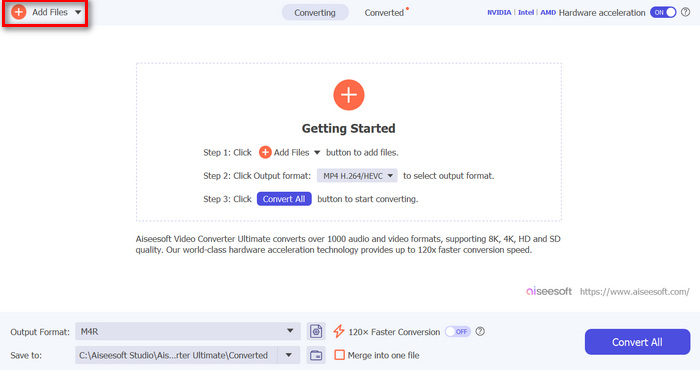
ขั้นตอนที่ 2. หลังจากนั้น ให้นำเข้าไฟล์เสียงที่คุณต้องการปรับแต่งให้เป็นเสียงเรียกเข้าบน iPhone โดยคลิกปุ่ม Add Files.
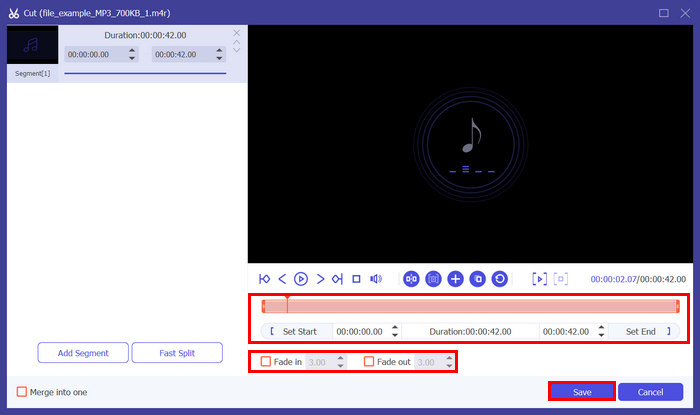
ขั้นตอนที่ 3. ต่อไป เพื่อปรับแต่งเสียงเรียกเข้าของคุณ ให้คลิกปุ่ม Cut จากนั้นคุณสามารถแยกไฟล์เสียงได้อย่างง่ายดายโดยเลื่อนเส้น Bar ไปยังตำแหน่งที่ต้องการแบ่งเสียง แล้วคลิกปุ่ม Split นอกจากนี้ หากต้องการเพิ่มเอฟเฟกต์เฟด ให้ติ๊กที่ช่อง Fade in และ Fade out หลังจากนั้นให้ปรับเวลาเริ่มและสิ้นสุดของไฟล์เสียงตามที่ต้องการ เสร็จแล้วให้คลิกปุ่ม Save.
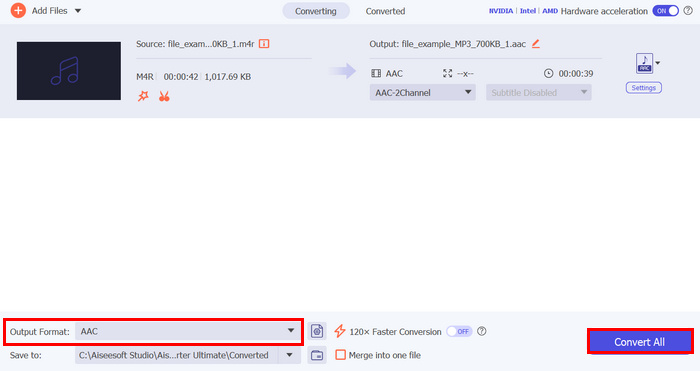
ขั้นตอนที่ 4. ตอนนี้ให้คลิกปุ่ม Convert All เพื่อเริ่มแปลงไฟล์ MP3 ของคุณให้เป็นเสียงเรียกเข้า iPhone ไฟล์ที่แปลงแล้วจะถูกบันทึกลงในโฟลเดอร์บนคอมพิวเตอร์ของคุณโดยอัตโนมัติ.
Video Converter Ultimate ที่ FVC เลือกนั้นเป็นหนึ่งในทางเลือกที่ดีที่สุดเมื่อต้องสร้างริงโทนสำหรับ iPhone โดยไม่ต้องใช้ iTunes ความสะดวกในการใช้งาน อินเทอร์เฟซที่ใช้งานง่าย และคุณสมบัติการแก้ไขเสียงที่ครอบคลุมทำให้เป็นตัวเลือกชั้นยอดสำหรับโซลูชันการสร้างริงโทน
ส่วนที่ 2. สร้างริงโทนบน iPhone โดยไม่ต้องใช้ iTunes ด้วยแอปริงโทนฟรี
หากคุณต้องการใช้แอพบน iPhone ของคุณโดยตรงเพื่อสร้างเสียงเรียกเข้า คุณสามารถลองใช้ Ringtones Maker: แอพ Ring แอพนี้ได้รับการออกแบบมาเพื่อสร้างเสียงเรียกเข้าโดยแยกส่วนต่างๆ ออกจากไฟล์เสียงหรือวิดีโอ หลังจากนั้น คุณสามารถปรับแต่งเสียงเรียกเข้าของคุณได้โดยการตัดเสียง เพิ่มเอฟเฟกต์การเฟด และเปลี่ยนระดับเสียง เมื่อต้องการทำเช่นนี้ ให้ทำตามขั้นตอนต่อไปนี้:
ขั้นตอนที่ 1. บน App Store ของคุณ ให้ดาวน์โหลดและติดตั้งเครื่องมือนี้.
ขั้นตอนที่ 2. จากนั้น แตะปุ่ม Plus เพื่อเพิ่มไฟล์เสียงที่คุณต้องการแปลงเป็นเสียงเรียกเข้า iPhone คุณสามารถนำเข้าได้จากวิดีโอหรือจากแอปไฟล์ (Files).
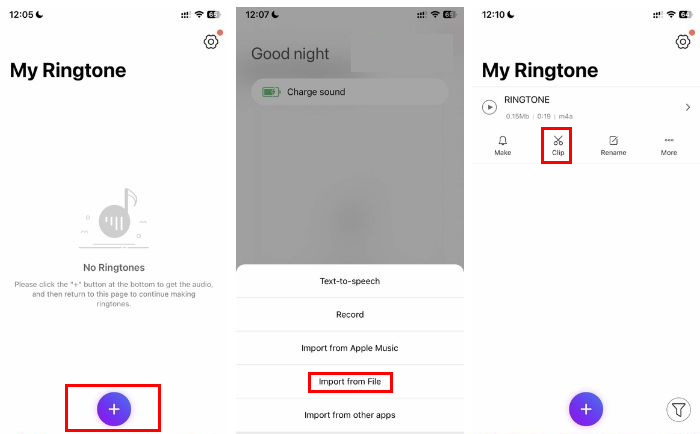
ขั้นตอนที่ 3. จากนั้นแตะที่ตัวเลือก Clip จากตรงนี้คุณสามารถปรับจุดเริ่มต้นและจุดสิ้นสุดของเสียงเรียกเข้า รวมถึงตั้งค่าเฟดเข้า เฟดออก และปรับระดับเสียงได้.
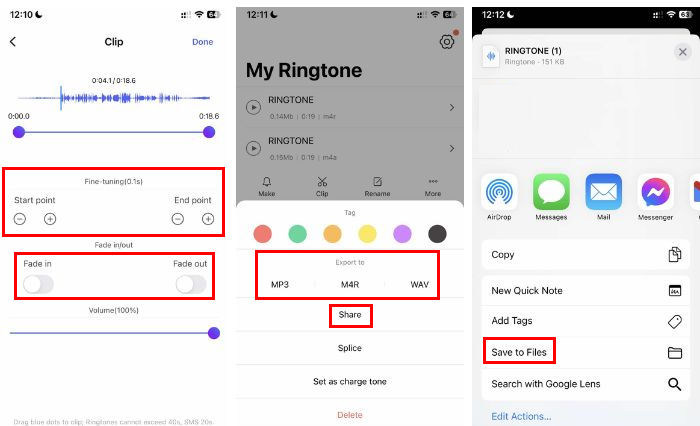
ขั้นตอนที่ 4. เมื่อแก้ไขและปรับแต่งเรียบร้อยแล้ว ให้เลือกฟอร์แมตเอาต์พุตที่คุณต้องการ.
ขั้นตอนที่ 5. ขั้นตอนสุดท้าย เมื่อต้องการบันทึกไฟล์ลงในอุปกรณ์ของคุณ ให้แตะตัวเลือก Share และเลือก Save to Files.
ข้อดีของแอปสร้างริงโทนนี้สำหรับการสร้างริงโทนสำหรับ iPhone โดยไม่ต้องใช้ iTunes คือมันฟรี และมีคุณสมบัติการแก้ไขเสียงมากมายที่เป็นประโยชน์มากในแง่ของการแก้ไขและปรับแต่ง อย่างไรก็ตาม มีโฆษณาจำนวนมากเมื่อใช้เครื่องมือนี้ ซึ่งทำให้แอปทำงานล่าช้าเล็กน้อย
ส่วนที่ 3. สร้างริงโทนสำหรับ iPhone โดยไม่ต้องใช้ iTunes ด้วย GarageBand
อีกหนึ่งเครื่องมือทางเลือกในการสร้างเสียงเรียกเข้า iPhone โดยไม่ต้องใช้ iTunes คือการใช้ GarageBand แอปสร้างและแก้ไขเพลงชื่อดังนี้ช่วยให้การเปลี่ยนไฟล์เสียงใด ๆ ให้กลายเป็นเสียงเรียกเข้า iPhone เป็นเรื่องง่าย ดังนั้นด้วยเครื่องมือนี้ ผู้ใช้สามารถสร้างเสียงเรียกเข้าที่กำหนดเองได้ด้วยไฟล์เสียงและลูปต่าง ๆ แก้ไขเสียงเรียกเข้าด้วยการตัดต่อ การเฟด และเอฟเฟกต์ต่าง ๆ รวมถึงจัดเรียงและมิกซ์แทร็กเสียงเพื่อให้ได้เสียงเรียกเข้าที่เป็นเอกลักษณ์ของตัวเอง หากต้องการใช้เครื่องมือนี้ ให้ทำตามขั้นตอนด้านล่าง:
ขั้นตอนที่ 1. จาก App Store ให้ดาวน์โหลดและติดตั้งแอป GarageBand จากนั้นเปิดแอปและเลือกเครื่องดนตรีใดก็ได้ เช่น Keyboard.
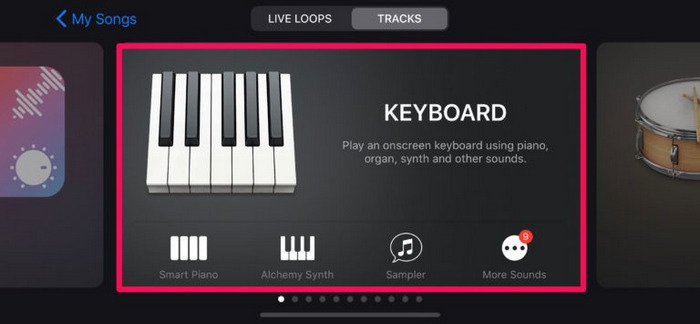
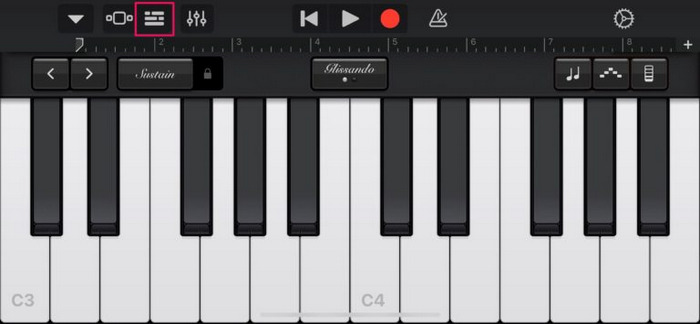
ขั้นตอนที่ 2. ตอนนี้แตะที่ไอคอนโปรเจกต์ จากนั้นคุณจะเห็นไอคอนลูป ให้แตะที่ไอคอนนั้น.
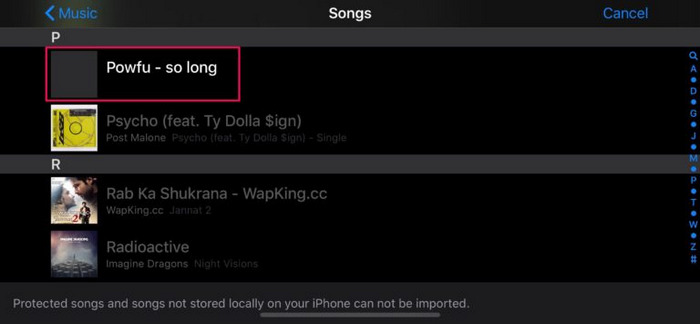
ขั้นตอนที่ 3. ต่อไป ให้หาเพลงที่คุณต้องการใช้เป็นเสียงเรียกเข้า แล้วกดค้างที่เพลงนั้นเพื่อเปิดในเมนูโปรเจกต์.
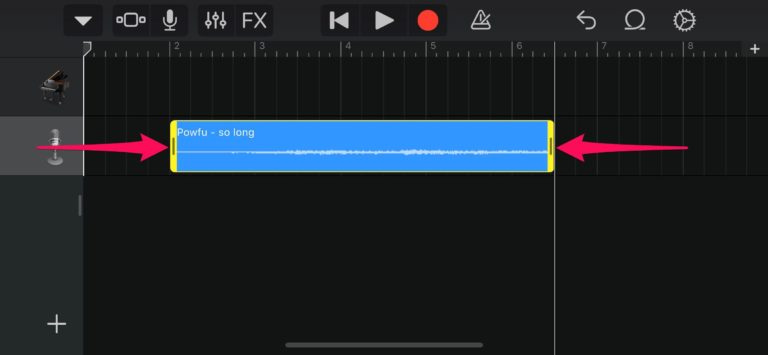
ขั้นตอนที่ 4. คราวนี้ให้แตะที่แทร็ก แล้วลากปลายแทร็กเพื่อทำการตัดแต่งไฟล์เสียงตามที่คุณต้องการ.
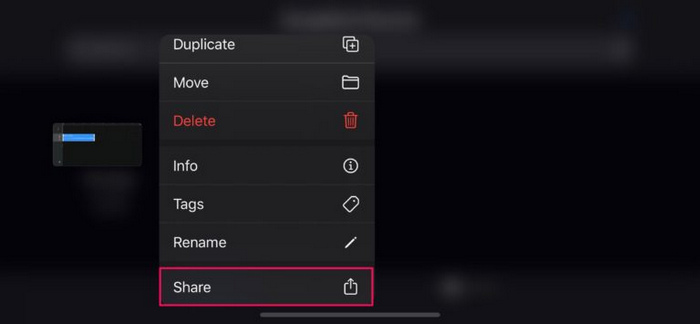
ขั้นตอนที่ 5. โปรเจกต์ของคุณจะปรากฏภายใต้เมนู Recents เป็น My Song ให้กดค้างที่โปรเจกต์นั้นเพื่อเข้าถึงตัวเลือกเพิ่มเติม แล้วแตะที่ Share.
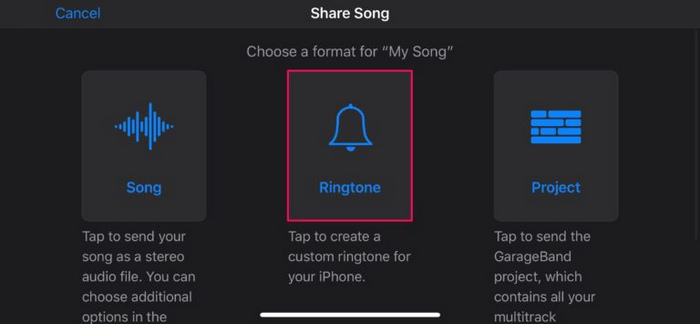
ขั้นตอนที่ 6. จากนั้นให้เลือก Ringtone เพื่อส่งออกโปรเจกต์ของคุณเป็นเสียงเรียกเข้า ตั้งชื่อเสียงเรียกเข้านั้น แล้วแตะ Export ที่มุมขวาบน.
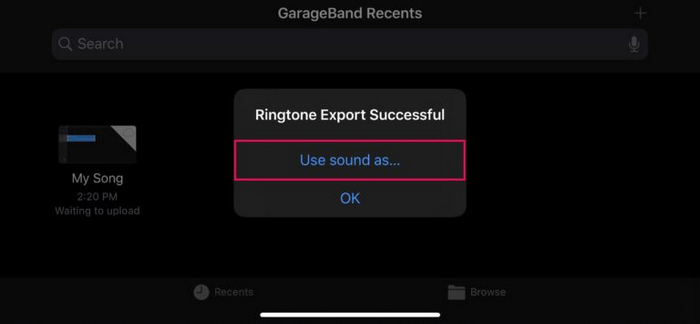
ขั้นตอนที่ 7. สุดท้าย ให้แตะ Use sound as… เพื่อกำหนดให้เป็นเสียงเรียกเข้าหลักของคุณ.
แอปนี้ยังเป็นวิธีที่ดีในการสร้างริงโทนสำหรับ iPhone โดยไม่ต้องใช้ iTunes อย่างไรก็ตาม กระบวนการนี้ค่อนข้างซับซ้อนเมื่อเทียบกับเครื่องมือสร้างริงโทนเฉพาะอื่นๆ
ส่วนที่ 4. วิธีตั้งเสียงเรียกเข้าบน iPhone โดยไม่ต้องใช้ iTunes
การตั้งค่าเสียงเรียกเข้าบน iPhone โดยไม่ต้องใช้ iTunes สามารถทำได้ง่ายๆ เนื่องจากมาพร้อมฟีเจอร์ในตัวที่ให้ผู้ใช้ปรับแต่งการตั้งค่าอุปกรณ์ได้เอง รวมถึงเสียงเรียกเข้า โดยไม่ต้องใช้ซอฟต์แวร์เพิ่มเติม หากต้องการทำเช่นนี้ ให้ทำตามขั้นตอนต่อไปนี้:
ขั้นตอนที่ 1. บน iPhone ของคุณ ไปที่ Settings แล้วเลือก Sounds & Haptics.
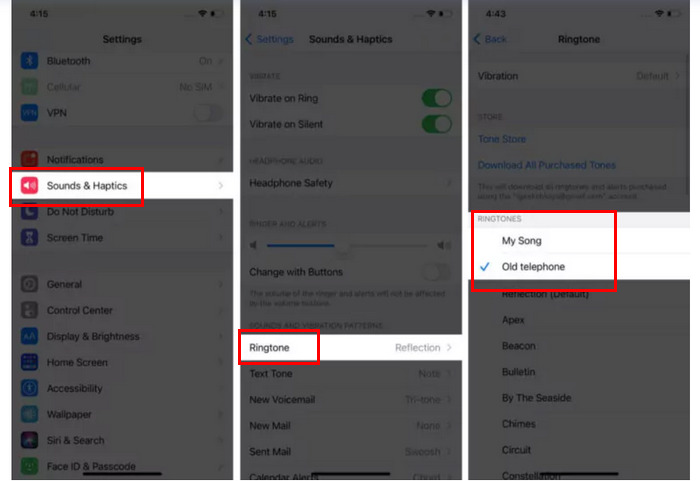
ขั้นตอนที่ 2. หลังจากนั้น ให้แตะ Ringtones เพื่อดูเสียงเรียกเข้าทั้งหมดที่มีอยู่.
ขั้นตอนที่ 3. จากนั้น เพียงแตะที่เสียงเรียกเข้าที่คุณสร้างขึ้นเองซึ่งต้องการใช้เป็นเสียงเรียกเข้า แค่นี้ก็เรียบร้อย.
วิธีนี้ง่ายและสะดวก ช่วยให้คุณตั้งค่าเสียงเรียกเข้าได้โดยตรงจาก iPhone เพียงแต่คุณต้องสร้างหรือแก้ไขเสียงเรียกเข้าแบบกำหนดเองก่อน อย่างไรก็ตาม ความง่ายและประสิทธิภาพของวิธีนี้ทำให้เป็นตัวเลือกที่ยอดเยี่ยมสำหรับการตั้งค่าเสียงเรียกเข้าบน iPhone
ส่วนที่ 5. คำถามที่พบบ่อยเกี่ยวกับการสร้างริงโทนสำหรับ iPhone โดยไม่ใช้ iTunes
คุณสามารถรับเสียงเรียกเข้าสำหรับ iPhone โดยไม่ต้องใช้ iTunes ได้หรือไม่?
ใช่ ในความเป็นจริงมีเครื่องมือต่างๆ มากมายที่สามารถเป็นทางเลือกที่ดีสำหรับ iTunes เมื่อต้องสร้างริงโทนสำหรับ iPhone เช่น Ringtones Maker: The Ring App, GarageBand และ Video Converter Ultimate ที่ได้รับเลือกโดย FVC เครื่องมือเหล่านี้ช่วยให้คุณสามารถสร้างและปรับแต่งริงโทนได้โดยตรงบนอุปกรณ์หรือคอมพิวเตอร์ของคุณ โดยมีคุณสมบัติต่างๆ เช่น การตัดแต่ง ปรับระดับเสียง และการเพิ่มเอฟเฟกต์การเฟด
คุณสามารถสร้างเสียงเรียกเข้าของคุณเองบน Zedge ได้หรือไม่?
ไม่ Zedge เป็นแพลตฟอร์มที่ออกแบบมาเพื่อให้ผู้ใช้สามารถแชร์และดาวน์โหลดริงโทน วอลเปเปอร์ และคอนเทนต์มือถืออื่นๆ ที่สร้างไว้แล้ว หากคุณต้องการสร้างริงโทนของคุณเอง คุณจะต้องใช้แอปหรือซอฟต์แวร์อื่นๆ ที่ออกแบบมาสำหรับการแก้ไขเสียงและการสร้างริงโทน
คุณสามารถตั้งค่าเสียงเรียกเข้าแบบกำหนดเองบน iPhone ของคุณโดยไม่ต้องใช้แอพใดๆ ได้หรือไม่?
ใช่ และเพื่อที่จะทำสิ่งนี้ได้ คุณต้องบันทึกไฟล์เสียงที่คุณต้องการใช้เป็นเสียงเรียกเข้าในรูปแบบเสียง M4R โปรดตรวจสอบให้แน่ใจว่าสามารถเข้าถึงได้บนอุปกรณ์ของคุณ หลังจากนั้น บน iPhone ของคุณ ไปที่การตั้งค่า เลือกเสียงและสัมผัส แตะที่เสียงเรียกเข้า และเลือกเสียงเรียกเข้าแบบกำหนดเองของคุณจากรายการ
สรุป
การสร้างเสียงเรียกเข้าบน iPhone โดยไม่ใช้ iTunes นั้นไม่เพียงแต่ทำได้จริง แต่ยังสะดวกสบายด้วยวิธีการทางเลือกหลายรูปแบบ แต่ละวิธีมีฟีเจอร์และข้อดีที่แตกต่างกัน ทำให้คุณสามารถเลือกเครื่องมือสร้างเสียงเรียกเข้าที่เหมาะกับความต้องการของคุณได้ พร้อมเริ่มสร้างเสียงเรียกเข้าของคุณเองหรือยัง? ลองใช้วิธีเหล่านี้แล้วเพลิดเพลินไปกับเสียงเรียกเข้าที่เป็นเอกลักษณ์ของคุณเองได้เลย!
-
 วิธีสร้างริงโทนใน GarageBand: คำแนะนำทีละขั้นตอน
 เรียนรู้วิธีสร้างเสียงเรียกเข้าใน GarageBand และใช้ทางเลือกอื่น นี่คือทุกสิ่งที่คุณจำเป็นต้องเรียนรู้เพื่อสร้างเสียงเรียกเข้าและตั้งค่าจาก iPhone ของคุณ
-
 เปลี่ยนวิดีโอ YouTube เป็นริงโทน MP3: สำหรับ iPhone และ Android
 เรียนรู้วิธีแปลง YouTube เป็นเสียงเรียกเข้า MP3 โดยลองใช้ซอฟต์แวร์และเครื่องมือออนไลน์ที่แนะนำ เริ่มแปลงวันนี้และเปลี่ยนเสียงเรียกเข้าแบบเดิมๆ ของคุณ
-
 เครื่องมือแปลง YouTube เป็นริงโทน: 5 เครื่องมือที่ใช้งานง่ายที่สุด
 กำลังมองหาวิธีแปลงวิดีโอ YouTube เป็นริงโทนอยู่หรือเปล่า? ลองดูเครื่องมือแปลงทั้ง 5 รายการนี้ แล้วเล่นริงโทนของคุณได้ทุกที่โดยไม่ต้องเชื่อมต่ออินเทอร์เน็ต
