


 Video Converter Ultimate
 บันทึกหน้าจอ
 ซ่อมวิดีโอ
 ดาวน์โหลดอย่างปลอดภัย
คำแนะนำโดยละเอียดเกี่ยวกับวิธีการย้อนกลับเสียงใน Audacity [2024]
การย้อนกลับแทร็กเสียงสามารถเพิ่มมิติและสีสันที่เป็นเอกลักษณ์ให้กับการผลิตเพลงของคุณ สร้างเอฟเฟกต์เสียงที่น่าดึงดูดสำหรับการเล่าเรื่องที่สร้างสรรค์ สไตล์นี้ใช้กันอย่างแพร่หลายและได้รับความนิยมเมื่อต้องเพิ่มความลึกและความคิดริเริ่มให้กับโปรเจ็กต์เสียง ดังนั้น หากคุณกำลังแก้ไขเสียงใน Audacity และต้องการเพิ่มความแปลกใหม่ด้วยการย้อนกลับ คุณมาถูกที่แล้ว!
ในบทความนี้ เราจะแนะนำคุณทีละขั้นตอนโดยละเอียดเกี่ยวกับวิธีการย้อนกลับเสียงใน Audacity และแบ่งปันเคล็ดลับอันมีค่าที่จะช่วยให้คุณใช้ประโยชน์จากฟีเจอร์นี้ให้ได้มากที่สุด เมื่ออ่านคู่มือนี้จบ คุณจะพร้อมที่จะย้อนกลับแทร็กเสียงและสำรวจขอบเขตความคิดสร้างสรรค์ใหม่ๆ ได้อย่างง่ายดาย ดังนั้น เตรียมตัวแปลงโฉมโปรเจ็กต์เสียงของคุณและค้นพบศักยภาพอันน่าตื่นเต้นของการย้อนกลับเสียงได้เลย!

ส่วนที่ 1 วิธีการย้อนกลับเสียงใน Audacity
Audacity เป็นโปรแกรมที่ออกแบบมาเพื่อให้ผู้ใช้สามารถแก้ไขไฟล์เสียงโดยไม่ต้องใช้เครื่องมือพรีเมียมราคาแพง ช่วยให้มั่นใจได้ว่าจะได้ผลลัพธ์ที่มีคุณภาพสูงโดยไม่มีค่าใช้จ่าย เนื่องจากเป็นเครื่องมือโอเพ่นซอร์ส จึงทำให้ทุกคนเข้าถึงได้ฟรี และมีคุณสมบัติมากมายที่มักพบในซอฟต์แวร์ที่ต้องชำระเงิน ในบรรดาคุณสมบัติต่างๆ ของ Audacity นั้น โดดเด่นด้วยความสามารถในการย้อนกลับแทร็กเสียง คุณสมบัตินี้ช่วยให้ผู้ใช้สามารถสร้างสรรค์เสียงที่ต้องการได้เอง โดยปกติแล้ว ผู้ตัดต่อจะย้อนกลับเสียงเพื่อให้โปรเจ็กต์ของตนมีเอฟเฟกต์พิเศษ
ต่อไปนี้คือวิธีการย้อนกลับเสียง (Reverse Audio) ใน Audacity
ขั้นตอนที่ 1 ดาวน์โหลดและติดตั้ง Audacity บนคอมพิวเตอร์ของคุณ.
ขั้นตอนที่ 2 เปิดโปรแกรม แล้วไปที่เมนู File มุมซ้ายบน จากนั้นเลือก Open แล้วค้นหาไฟล์เสียงบนคอมพิวเตอร์ของคุณเพื่อเลือกไฟล์ หรือจะลากและวางไฟล์เสียงที่คุณต้องการย้อนกลับเข้าไปในโปรแกรมก็ได้.
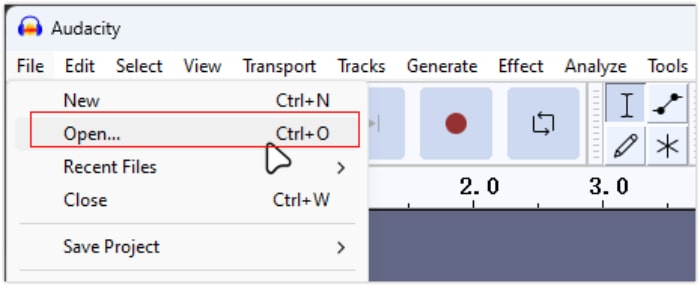
ขั้นตอนที่ 3 จากนั้นคลิกที่แทร็กเสียง ไปที่แท็บ Select แล้วเลือก All เพื่อเลือกไฟล์เสียงทั้งไฟล์.
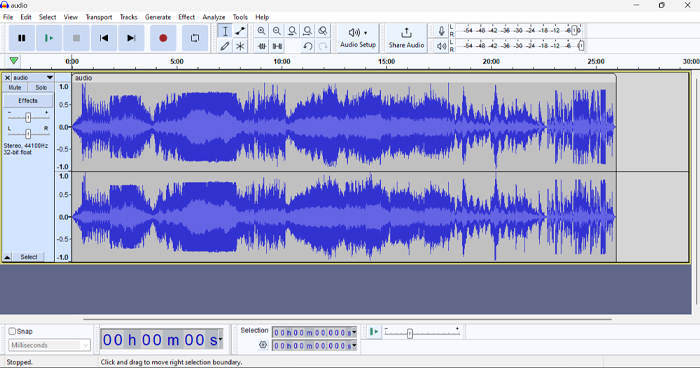
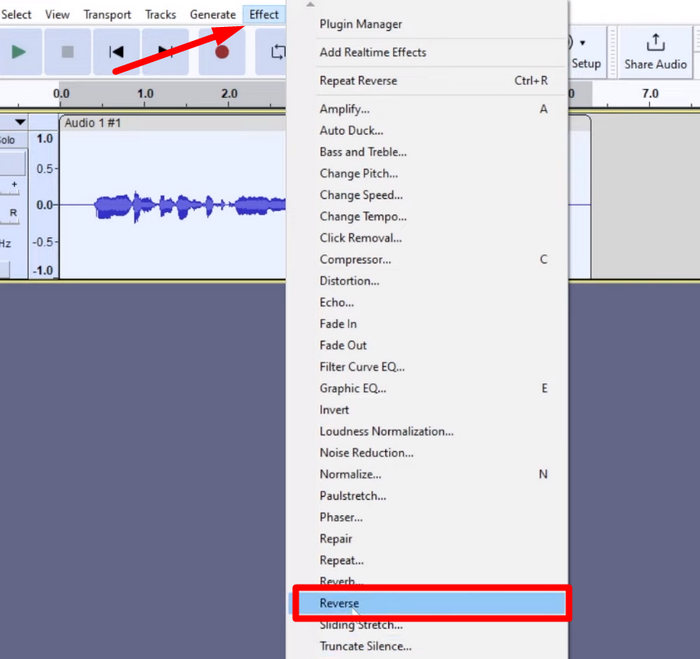
ขั้นตอนที่ 4 เพื่อย้อนกลับเสียง ให้ไปที่แท็บ Effect แล้วเลือก Reverse จากเมนูดรอปดาวน์ Audacity จะประมวลผลและย้อนกลับคลิปเสียงที่เลือกไว้.
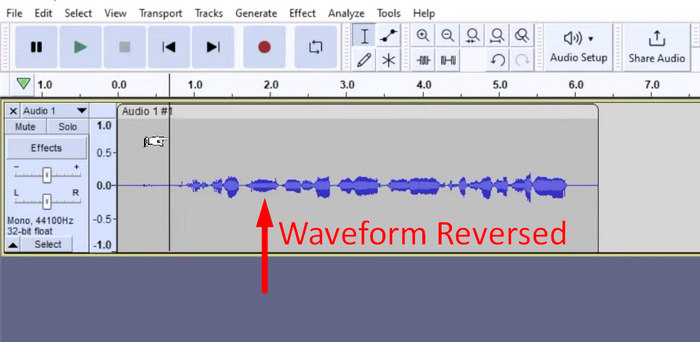
ขั้นตอนที่ 5 คุณสามารถพรีวิวเสียงที่ถูกย้อนกลับได้โดยกดปุ่ม Spacebar บนคีย์บอร์ด หรือใช้ปุ่มควบคุมการเล่นที่มุมซ้ายบนของหน้าต่าง Audacity แล้วคลิกปุ่ม Play.
ขั้นตอนที่ 6 สุดท้าย หากต้องการส่งออกไฟล์เสียงที่ย้อนกลับแล้ว ให้กลับไปที่เมนู File แล้วเลือก Export วิธีนี้ไฟล์เสียงของคุณจะถูกบันทึกเป็นไฟล์ใหม่ อย่าลืมเลือกฟอร์แมตไฟล์เสียงที่คุณต้องการก่อนทำการส่งออก.
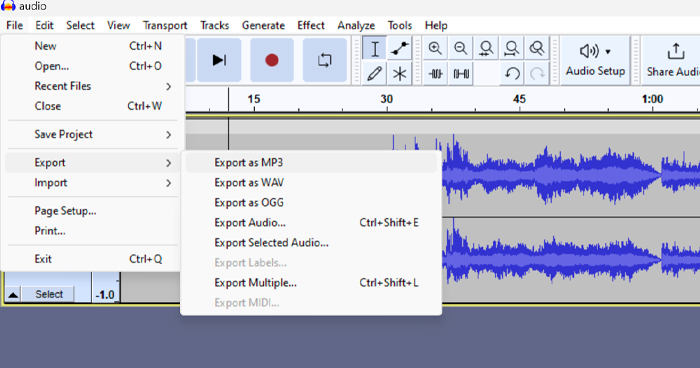
เนื่องจากปัญหาบางประการเกี่ยวกับการสูญเสียงานโดยไม่คาดคิด ให้บันทึกโครงการของคุณเป็นประจำขณะแก้ไขเพื่อป้องกันการสูญเสียความคืบหน้า คุณสามารถบันทึกงานของคุณได้อย่างรวดเร็วโดยใช้ Ctrl + S บน Windows หรือ Cmd + S บน Mac นอกจากนี้ พิจารณาใช้ชื่อไฟล์ที่อธิบายรายละเอียดและจัดระเบียบไฟล์ของคุณในโฟลเดอร์เฉพาะเพื่อให้โครงการของคุณเป็นระเบียบเรียบร้อยและเข้าถึงได้ง่าย
ส่วนที่ 2 วิธีการย้อนกลับส่วนหนึ่งของเสียงใน Audacity
มีบางกรณีที่ผู้ใช้ต้องการย้อนกลับเฉพาะส่วนของเสียงใน Audacity อาจเป็นเพราะมีเฉพาะส่วนที่ต้องการเน้นหรือสร้างเอฟเฟกต์ที่โดดเด่น ขั้นตอนด้านล่างนี้เกือบจะเหมือนกับวิธีการย้อนกลับแทร็กทั้งหมด อย่างไรก็ตาม การเลือกส่วนของเสียงนั้นค่อนข้างยุ่งยากและต้องเน้นในแต่ละขั้นตอนเพื่อหลีกเลี่ยงความสับสน โดยเฉพาะอย่างยิ่งสำหรับผู้เริ่มต้น
ต่อไปนี้คือวิธีการย้อนกลับเฉพาะบางส่วนของเสียงใน Audacity
ขั้นตอนที่ 1 เมื่ออยู่ที่หน้าหลักของโปรแกรม ให้ไปที่เมนู File มุมซ้ายบนแล้วเลือก Open จากนั้นค้นหาไฟล์เสียงบนคอมพิวเตอร์ของคุณเพื่อเลือกไฟล์ หรือจะลากและวางไฟล์เสียงที่คุณต้องการย้อนกลับเข้าไปในโปรแกรมก็ได้.
ขั้นตอนที่ 2 จากนั้น หากต้องการเลือกเฉพาะบางส่วนของเสียงเพื่อย้อนกลับ ให้ใช้ฟีเจอร์ Zoom เพื่อซูมเข้าไปที่คลื่นเสียง แล้วลากเมาส์เพื่อเลือกช่วงหรือส่วนของเสียงที่คุณต้องการย้อนกลับเพียงบางส่วน.
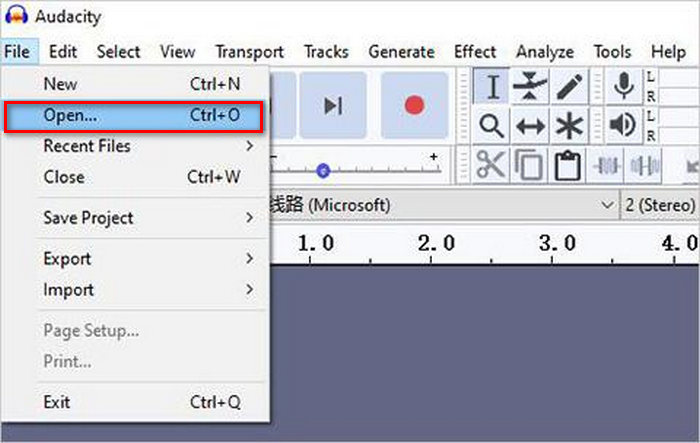
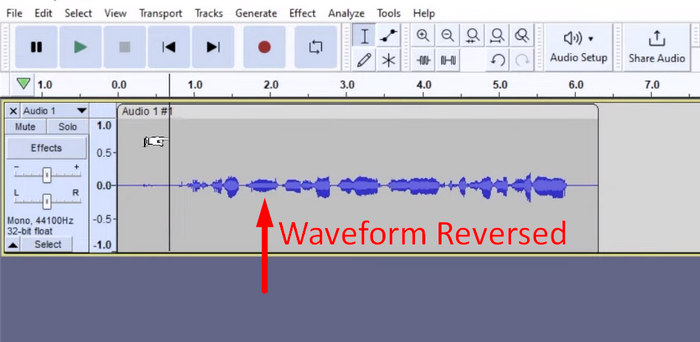
ขั้นตอนที่ 3 เพื่อย้อนกลับเสียง ให้ไปที่แท็บ Effect แล้วเลือก Reverse จากเมนูดรอปดาวน์ Audacity จะประมวลผลและย้อนกลับเฉพาะคลิปเสียงที่เลือกไว้.
ขั้นตอนที่ 4 คุณสามารถพรีวิวเสียงที่ถูกย้อนกลับได้โดยกดปุ่ม Spacebar บนคีย์บอร์ด หรือใช้ปุ่มควบคุมการเล่นที่มุมซ้ายบนของหน้าต่าง Audacity แล้วคลิกปุ่ม Play.
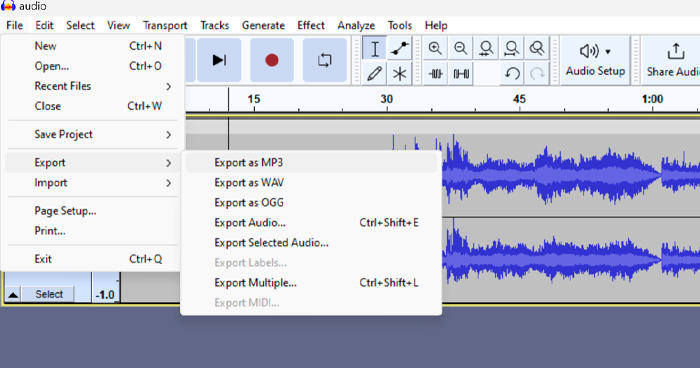
ขั้นตอนที่ 5 สุดท้าย หากต้องการส่งออกไฟล์เสียงที่ย้อนกลับแล้ว ให้เลือก Export ภายใต้เมนู File จากนั้นเลือก Export as และเลือกฟอร์แมตไฟล์เสียงที่คุณต้องการก่อนทำการส่งออก.
เมื่อเลือกเฉพาะบางส่วนของเสียงเพื่อย้อนกลับใน Audacity ให้แน่ใจว่าคุณซูมเข้าไปที่คลื่นเสียงอย่างละเอียดเพื่อให้เห็นจุดเริ่มต้นและจุดสิ้นสุดของช่วงที่ต้องการได้อย่างชัดเจน วิธีนี้ช่วยให้เลือกได้อย่างแม่นยำและหลีกเลี่ยงการรวมส่วนของเสียงที่ไม่ต้องการเข้าไป นอกจากนี้ ก่อนทำการย้อนกลับ หากจำเป็นคุณสามารถใช้เครื่องมือ Clip Split เพื่อแบ่งเสียงออกเป็นช่วงย่อย ๆ เช่น การตัดไฟล์เสียง MP3 เพื่อให้จัดการและแก้ไขเฉพาะบางส่วนได้อย่างเป็นอิสระมากขึ้น วิธีนี้จะช่วยเพิ่มการควบคุมในการตัดต่อ และทำให้เสียงที่ย้อนกลับได้เอฟเฟกต์ตามที่ต้องการอย่างราบรื่น.
ส่วนที่ 3. ย้อนกลับเสียง/วิดีโอด้วยทางเลือก Audacity
ในขณะเดียวกัน หากคุณต้องการวิธีย้อนกลับเสียงหรือวิดีโอที่ง่ายและสะดวกกว่า คุณสามารถใช้ตัวเลือกอื่นที่ใช้แทน Audacity ได้ คือโปรแกรม FVC-picked Video Converter Ultimate เครื่องมือวิดีโอและเสียงแบบครบชุดนี้เป็นที่รู้จักในด้านความสามารถในการแปลงไฟล์ที่ทรงพลัง นอกจากนั้นยังเหมาะมากสำหรับผู้ใช้ที่ต้องการวิธีย้อนกลับเสียงหรือวิดีโอที่สะดวก.
ขั้นตอนที่ 1 บนคอมพิวเตอร์ของคุณ ให้ดาวน์โหลดและติดตั้ง FVC-picked Video Converter Ultimate.
ดาวน์โหลดฟรีสำหรับ Windows 7 หรือใหม่กว่าดาวน์โหลดอย่างปลอดภัย
ดาวน์โหลดฟรีสำหรับ MacOS 10.7 หรือใหม่กว่าดาวน์โหลดอย่างปลอดภัย
ขั้นตอนที่ 2 เปิดโปรแกรม แล้วไปที่แท็บ Moretools จากนั้นเลือก Video Reverser.
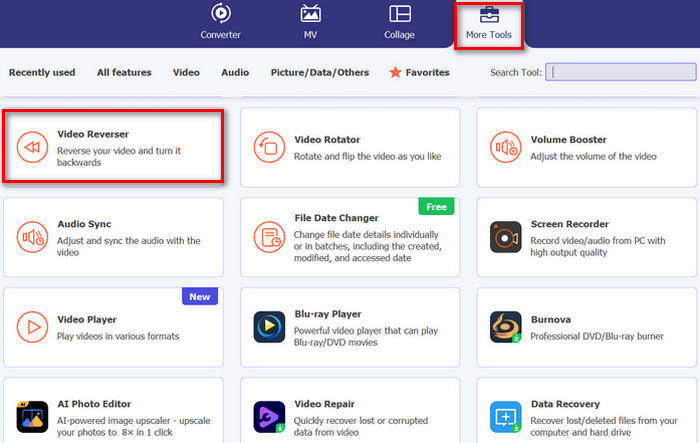
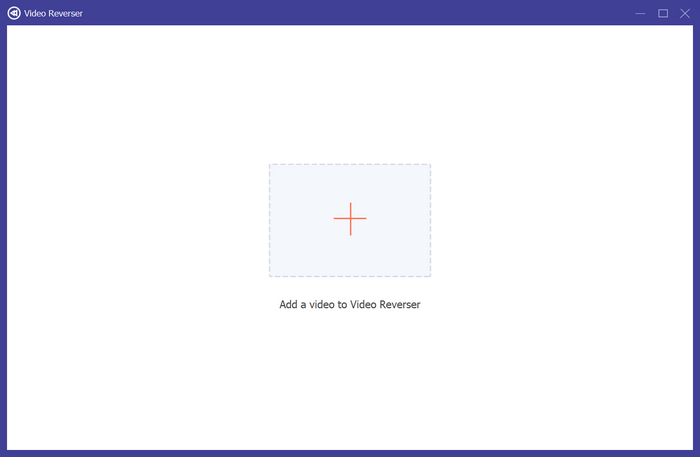
ขั้นตอนที่ 3 จากนั้นนำเข้าไฟล์เสียงหรือวิดีโอที่คุณต้องการย้อนกลับ โดยคลิกปุ่ม Add a Video to Video Reverser.
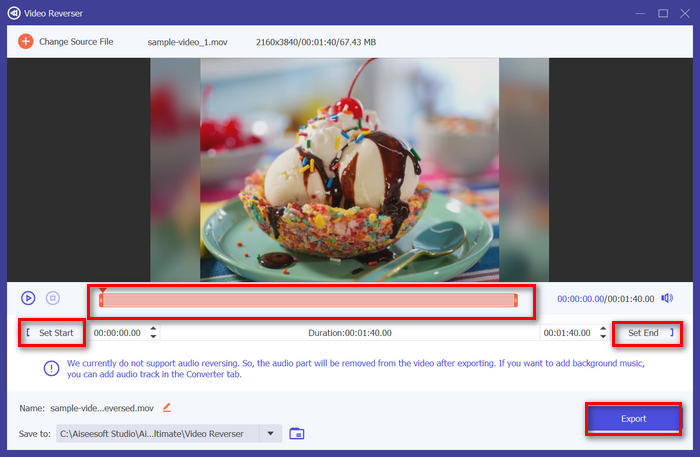
ขั้นตอนที่ 4 เมื่อเข้าสู่หน้าต่าง Video Reverser หากคุณต้องการย้อนกลับทั้งไฟล์ ก็เพียงไปที่ปุ่ม Export เพื่อย้อนกลับไฟล์ของคุณโดยอัตโนมัติ แต่ถ้าคุณต้องการย้อนกลับเฉพาะบางส่วน สามารถเลื่อนแถบปรับแล้วเลือกช่วงของเสียงหรือวิดีโอที่ต้องการย้อนกลับอย่างระมัดระวัง หรือคุณจะใส่เวลาเริ่มต้นและเวลาสิ้นสุดของส่วนไฟล์ที่ต้องการย้อนกลับด้วยการพิมพ์ค่าเวลาโดยตรงก็ได้ เสร็จแล้วเพียงคลิกปุ่ม Export.
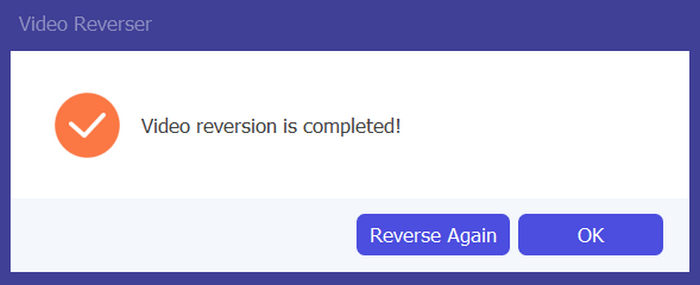
ขั้นตอนที่ 5 เมื่อการส่งออกเสร็จสมบูรณ์ คุณจะได้รับข้อความแจ้งเตือน และสามารถเข้าไปที่โฟลเดอร์บนคอมพิวเตอร์เพื่อเปิดดูวิดีโอที่ถูกย้อนกลับแล้วได้.
นั่นแหละ ง่ายสุดๆ ใช่ไหม? คุณไม่จำเป็นต้องสับสนกับอินเทอร์เฟซที่ซับซ้อนอีกต่อไป ด้วย Video Converter Ultimate ที่ FVC คัดเลือกมา ทุกสิ่งที่คุณต้องการจะอยู่แค่ปลายนิ้วของคุณ
ส่วนที่ 4 คำถามที่พบบ่อยเกี่ยวกับการย้อนกลับเสียงใน Audacity
จะเลิกทำเอฟเฟ็กต์เสียงย้อนกลับใน Audacity ได้อย่างไร?
หากคุณได้ย้อนกลับไฟล์เสียงใน Audacity และต้องการย้อนกลับ คุณสามารถย้อนกลับไปยังไฟล์เสียงต้นฉบับได้อย่างง่ายดาย เพียงไปที่เมนู Edit ที่มุมบนซ้ายของอินเทอร์เฟซ Audacity แล้วเลือก Undo Reverse นอกจากนี้ คุณยังสามารถใช้แป้นพิมพ์ลัด Ctrl + Z สำหรับ Windows หรือ Cmd + Z สำหรับ Mac เพื่อย้อนกลับการดำเนินการล่าสุด วิธีนี้จะทำให้ไฟล์เสียงกลับเป็นสถานะดั้งเดิมก่อนที่จะใช้เอฟเฟกต์ย้อนกลับ
Audacity รองรับรูปแบบเสียงใดบ้างสำหรับการย้อนกลับเสียง?
Audacity รองรับรูปแบบเสียงยอดนิยมต่างๆ เช่น WAV, MP3, FLAC, AIFF และ OGG
คุณสามารถบิดเบือนเสียงใน Audacity ได้หรือไม่?
ใช่ คุณสามารถบิดเบือนเสียงใน Audacity ได้ Audacity มีเอฟเฟกต์และเครื่องมือต่างๆ มากมายที่ช่วยให้คุณบิดเบือนเสียงในแทร็กเสียงของคุณได้ เมื่อต้องการเพิ่มเอฟเฟกต์นี้ ให้ไปที่ Effect (เอฟเฟกต์) คลิก Distortion and Modulation (การบิดเบือนและการปรับเสียง) แล้วเลือก Distortion (การบิดเบือน)
คุณสามารถแปลงเสียงใน Audacity ได้หรือไม่?
ได้ คุณสามารถทำได้ Audacity รองรับฟอร์แมตไฟล์เสียงหลากหลาย หากคุณพบว่าไฟล์เสียงใดไม่รองรับกับอุปกรณ์ของคุณ ตัวอย่างเช่น คุณสามารถใช้ Audacity เพื่อแปลงไฟล์ AIFF เป็น MP3 ได้อย่างง่ายดาย.
สรุป
โดยสรุปแล้ว การเรียนรู้วิธีย้อนกลับเสียงใน Audacity นั้นทำได้ง่าย และช่วยเพิ่มเอฟเฟกต์ที่แปลกใหม่ให้กับโปรเจกต์เสียงหรือวิดีโอของคุณ เพียงทำตามขั้นตอนอย่างละเอียดด้านบนเพื่อเริ่มย้อนกลับแทร็กเสียงของคุณได้ทันที หากต้องการทางเลือกที่ง่ายกว่า ลองใช้โปรแกรม FVC-picked Video Converter Ultimate พร้อมจะสร้างสรรค์แล้วหรือยัง? เลือกวิธีใดวิธีหนึ่งแล้วลองทำได้เลยตอนนี้
-
 เข้าร่วม MOV ฟรี - วิธีรวมไฟล์ MOV สองไฟล์เป็นไฟล์เดียว
 อาจเป็นเรื่องยากสำหรับผู้เริ่มต้นที่จะเข้าร่วมคลิปวิดีโอ MOV หลาย ๆ คลิปด้วยกัน มีวิธีที่ง่ายและรวดเร็วในการรวมไฟล์ MOV หรือไม่? ถ้ามีแล้วจะใช้ยังไง? โพสต์นี้จะช่วยให้คุณได้รับคำตอบเหล่านี้
-
 4 วิธีในการรวมวิดีโอเข้าด้วยกันฟรีบน Windows / Mac / ออนไลน์
 นี่คือ 4 วิธีง่ายๆในการรวมวิดีโอเข้าด้วยกันเป็นวิดีโอใหม่ ไม่ จำกัด ขนาดไฟล์วิดีโอหรือรูปแบบ คุณสามารถเข้าร่วม 2, 3, 4 และคลิปวิดีโออื่น ๆ ในรูปแบบและความละเอียดที่แตกต่างกันได้สำเร็จ
-
 คู่มือการเข้าร่วมไฟล์ M4V บน Windows และ Mac ฟรี
 หากคุณกำลังมองหาวิธีแก้ปัญหาในการรวมไฟล์วิดีโอ M4V เป็นไฟล์เดียว อย่าพลาดข้อความนี้ เราจะพูดถึงสองวิธีที่ดีที่สุดในการรวมไฟล์วิดีโอ M4V
