


 Video Converter Ultimate
 บันทึกหน้าจอ
 ซ่อมวิดีโอ
เครื่องมือออฟไลน์และออนไลน์ในการแปลง TRP เป็น FLV ที่คุณควรรู้
TRP เป็นรูปแบบไฟล์ที่ใช้สำหรับจัดเก็บไฟล์ทีวีที่บันทึกไว้ เนื่องจากมีโปรแกรมเล่นสื่อเพียงไม่กี่ตัวที่สามารถจัดการไฟล์ประเภทนี้ในเวอร์ชันดั้งเดิมได้ คุณอาจจำเป็นต้องแปลงไฟล์เป็นรูปแบบอื่นก่อนจึงจะรับชมได้ เพื่อรองรับการแปลงไฟล์ TRP เป็นไฟล์ FLV คุณต้องใช้เครื่องมือซอฟต์แวร์ที่เหมาะสม โชคดีที่การทำเช่นนี้จะง่ายขึ้นมากหากใช้ซอฟต์แวร์ของเราหรือเครื่องมือออนไลน์คู่กัน ซึ่งจะไม่ทำให้คุณรู้สึกยุ่งยากตลอดกระบวนการแปลงไฟล์ ทำตามขั้นตอนที่เราจะให้เพื่อแปลงวิดีโอ TRP ของคุณเป็นรูปแบบ FLVได้สำเร็จ.

ส่วนที่ 1 วิธีการออฟไลน์เพื่อแปลง TRP เป็น FLV
รูปแบบไฟล์ TRP นั้นค่อนข้างไม่เป็นที่คุ้นเคยสำหรับผู้บริโภควิดีโอทั่วไป และไม่ค่อยถูกใช้โดยผู้สร้างสรรค์วิดีโอ ด้วยเหตุนี้เอง ซอฟต์แวร์และเครื่องมือออนไลน์ส่วนใหญ่จึงไม่รองรับไฟล์วิดีโอประเภทนี้ นั่นคือเหตุผลที่ Video Converter Ultimate เป็นหนึ่งในตัวเลือกที่ควรพิจารณาเมื่อคุณต้องการแปลงวิดีโอจากรูปแบบหนึ่งไปเป็นอีกรูปแบบหนึ่ง ซอฟต์แวร์นี้สามารถแปลงไฟล์ TRP ของคุณไปเป็นรูปแบบใดก็ได้ที่คุณต้องการได้ในคลิกเดียว.
เครื่องมือแปลงวิดีโอนี้มีคุณลักษณะการแก้ไขขั้นสูง และมีอินเทอร์เฟซแบบกราฟิกที่ใช้งานง่าย แม้ว่าคุณจะไม่มีความรู้หรือทักษะทางเทคนิคก็ตาม ด้วยความช่วยเหลือของแอปพลิเคชันนี้ คุณสามารถแปลงไฟล์และรับประโยชน์จากเวลาในการแปลงที่รวดเร็วและเอาต์พุตคุณภาพสูง ที่นี่เราให้ขั้นตอนง่าย ๆ ที่คุณต้องปฏิบัติตาม:
ขั้นตอนที่ 1: ดาวน์โหลดไฟล์ .exe โดยคลิกปุ่ม ดาวน์โหลดฟรี ด้านล่างให้ตรงกับระบบปฏิบัติการที่คุณใช้อยู่ เมื่อดาวน์โหลดเสร็จแล้ว ให้เปิดไฟล์เพื่อเริ่มกระบวนการติดตั้ง รอจนติดตั้งเสร็จ จากนั้นเปิดใช้งานซอฟต์แวร์.
ดาวน์โหลดฟรีสำหรับ Windows 7 หรือใหม่กว่าดาวน์โหลดอย่างปลอดภัย
ดาวน์โหลดฟรีสำหรับ MacOS 10.7 หรือใหม่กว่าดาวน์โหลดอย่างปลอดภัย
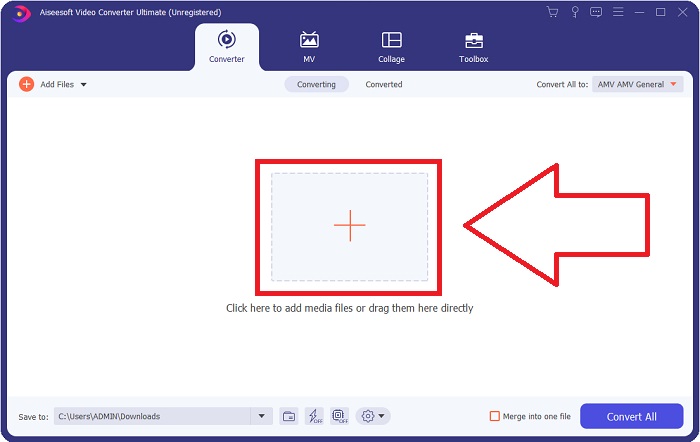
ขั้นตอนที่ 2. เมื่อซอฟต์แวร์เริ่มทำงาน อินเทอร์เฟซจะปรากฏขึ้น จากนั้นคลิกปุ่ม + ตรงกลางหน้าจอเพื่อเริ่มนำเข้าวิดีโอที่คุณต้องการแปลง หรือจะลากและวางไฟล์ก็ได้.
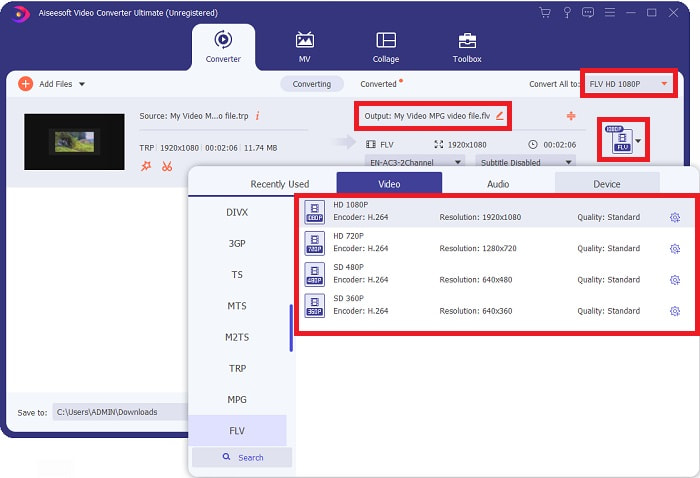
ขั้นตอนที่ 3: คุณจะเห็นรูปแบบไฟล์ปัจจุบันของวิดีโอบริเวณด้านขวาของไฟล์ หากต้องการเลือกรูปแบบที่ต้องการแปลง ให้คลิกที่ส่วนนี้ แล้วรูปแบบไฟล์ทั้งหมดที่มีจะปรากฏขึ้น ค้นหา FLV หรือพิมพ์ในช่องค้นหา นอกจากนี้ยังมีตัวเลือกระดับคุณภาพวิดีโอให้เลือกทางด้านขวา.
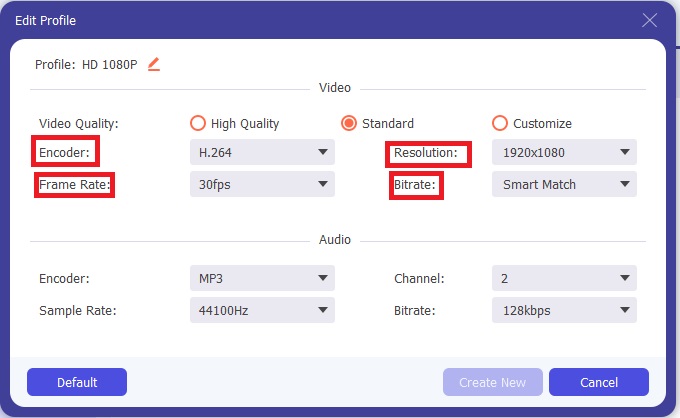
ขั้นตอนที่ 4: สำหรับฟังก์ชันเพิ่มเติมที่กล่าวถึง ให้คลิกไอคอนรูปเฟืองด้านขวาของตัวเลือกคุณภาพวิดีโอที่คุณเลือก จะมีอินเทอร์เฟซอีกหน้าต่างหนึ่งปรากฏขึ้น จากนั้นคุณสามารถแก้ไขการตั้งค่าวิดีโอและเสียงได้หลากหลายตามต้องการ คลิกปุ่ม สร้างใหม่ เพื่อบันทึกการเปลี่ยนแปลง.
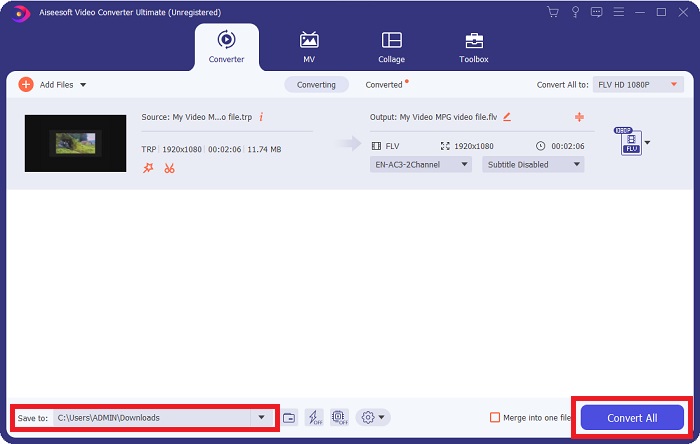
ขั้นตอนที่ 5: เมื่อคุณปรับแต่งและแก้ไขทุกอย่างเรียบร้อยแล้ว ให้คลิกปุ่ม แปลงทั้งหมด ที่มุมล่างขวาของอินเทอร์เฟซเพื่อเริ่มกระบวนการแปลงไฟล์ และรอจนเสร็จสิ้น.
ส่วนที่ 2 วิธีการออนไลน์เพื่อแปลง TRP เป็น FLV
การแปลงไฟล์วิดีโอออนไลน์เป็นอีกทางเลือกหนึ่ง หากคุณต้องการทำงานให้เสร็จผ่านเว็บทูลโดยไม่ต้องติดตั้งซอฟต์แวร์เต็มรูปแบบ ในกรณีนี้ เราก็มีเครื่องมือออนไลน์ที่เป็นคู่กันกับซอฟต์แวร์คือ FVC Free Video Converter Online ซึ่งยังคงมีตัวเลือกเสริมเหมือนในซอฟต์แวร์ แต่ไม่รองรับฟีเจอร์ทั้งหมด อย่างไรก็ตาม เครื่องมือนี้ก็ยังสามารถทำงานตามจุดประสงค์ได้ภายในเวลาอันเหมาะสม หากต้องการใช้เว็บทูลนี้ ให้ทำตามขั้นตอนด้านล่าง:
ขั้นตอนที่ 1: ไปยังหน้าคอนเวอร์เตอร์โดยตรงด้วยการคลิกลิงก์นี้ จากนั้นเริ่มต้นด้วยการดาวน์โหลดตัวเรียกใช้งาน (launcher) ที่คุณต้องใช้ในการนำเข้าไฟล์ คลิกปุ่ม เพิ่มไฟล์เพื่อแปลง ตรงกลางหน้าเพื่อเริ่มกระบวนการ.
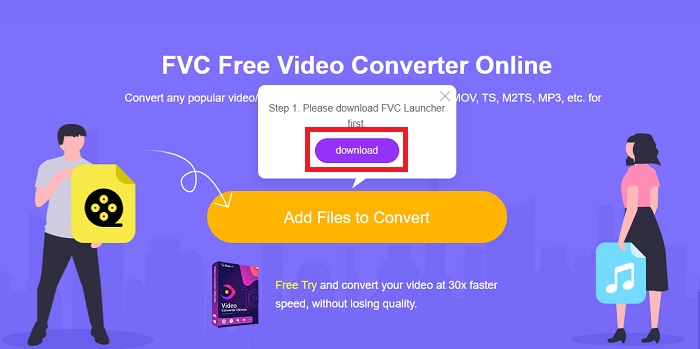
ขั้นตอนที่ 2: คลิกปุ่มดังกล่าวอีกครั้งแล้วอัปโหลดไฟล์วิดีโอที่คุณต้องการแปลง หลังจากนำเข้าไฟล์แล้ว จะมีอินเทอร์เฟซใหม่ปรากฏขึ้น แสดงรูปแบบไฟล์ทั้งหมดที่มีให้เลือก ในกรณีนี้ให้เลือก FLV.
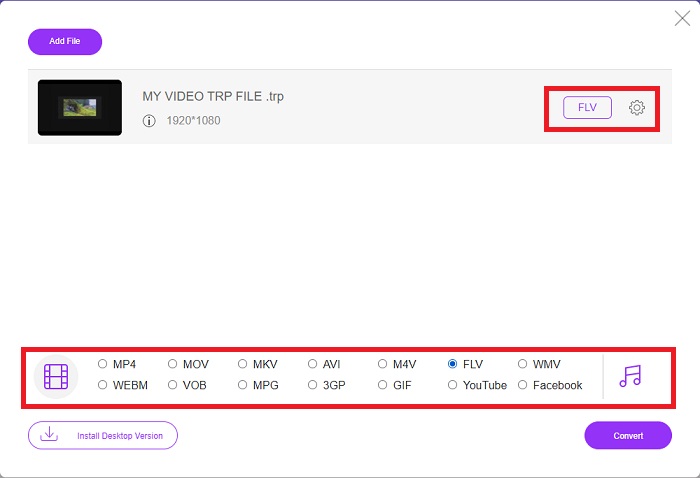
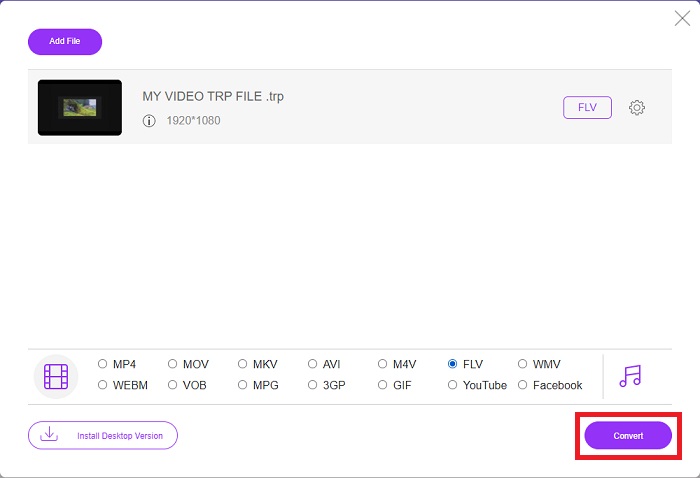
ขั้นตอนที่ 3: สำหรับตัวเลือกเพิ่มเติม เช่นเดียวกับในตัวซอฟต์แวร์ ให้คลิกที่ไอคอนรูปเฟืองทางด้านขวา การตั้งค่าวิดีโอและเสียงจะปรากฏขึ้นเพื่อให้คุณแก้ไขเพิ่มเติมในด้านความละเอียด อัตราเฟรม และอื่น ๆ เมื่อเสร็จแล้วให้คลิก ตกลง เพื่อบันทึกการเปลี่ยนแปลง สุดท้ายเริ่มกระบวนการแปลงไฟล์โดยคลิกปุ่ม แปลง ที่มุมล่างขวา.
ที่เกี่ยวข้อง:
ส่วนที่ 3 ขยายความรู้เกี่ยวกับ TRP และ FLV
หากต้องการทราบข้อมูลเพิ่มเติมเกี่ยวกับรูปแบบทั้งสองที่กล่าวถึง เราให้ข้อมูลโดยสังเขปและการเปรียบเทียบทั้งสองรูปแบบ
ไฟล์ TRP มักจะเชื่อมโยงกับ VLC ของ VideoLAN นามสกุลไฟล์ TRP สามารถรวบรวมด้วย MPEG-2 ตอนที่ 1 ถือภาพยนตร์ความละเอียดสูง ไฟล์ TRP สามารถบรรจุและจัดเก็บแพ็กเก็ตข้อมูลที่ส่งเป็นวิดีโอดิจิทัลและเสียงผ่านเครือข่ายการแพร่ภาพวิดีโอดิจิทัล ความถี่วิทยุ หรืออุปกรณ์บันทึกเชิงเส้น เช่น เครื่องบันทึกวิดีโอ สตรีมเสียงและวิดีโอหลายรายการ รวมถึงรหัสการแก้ไขข้อผิดพลาด รวมอยู่ในไฟล์ TRP ผู้ใช้ยังอาจรวมข้อมูลเมตา เช่น เวลาในการจับภาพ รหัสกล้อง และแหล่งที่มาในเนื้อหาของไฟล์
ในทางกลับกัน ไฟล์ที่มีนามสกุล .flv ย่อมาจาก Flash Video นามสกุลไฟล์ FLV หมายถึงไฟล์วิดีโอหรือไฟล์เสียงที่ส่งผ่านอินเทอร์เน็ตโดยใช้ Adobe Flash Player หรือ Adobe Air Flash Video เป็นรูปแบบวิดีโอหลักมานานแล้วสำหรับวิดีโอที่ฝังไว้เกือบทั้งหมดบนอินเทอร์เน็ต รวมถึงวิดีโอบน YouTube, Hulu และไซต์อื่นๆ ในทางกลับกัน ผู้ให้บริการสตรีมมิงและนักพัฒนาซอฟต์แวร์ได้ละทิ้ง Flash เพื่อสนับสนุน HTML5 และรูปแบบอื่นๆ นับตั้งแต่ Adobe หยุดให้บริการอย่างเป็นทางการ
| TRP | FLV | |
| นามสกุลไฟล์ | .trp | .flv |
| นักพัฒนา | ทีมงานโครงการ VideoLAN | Adobe Systems Incorporated |
| โปรแกรมสนับสนุน | ◆ SMPlayer ◆ VLC Media Player ◆ Apple QuickTime Player | ◆ ผู้เล่นจริง ◆ Apple QuickTime Player ◆ Mplayer ◆ VLC Media Player |
ส่วนที่ 4 คำถามที่พบบ่อยเกี่ยวกับการแปลง TRP เป็น FLV
วิธีการเปิดรูปแบบวิดีโอ TRP โดยใช้ VLC?
เมื่อติดตั้ง VLC Media Player บนคอมพิวเตอร์ของคุณแล้ว ให้ค้นหาไฟล์วิดีโอ TRP บนฮาร์ดไดรฟ์ของคุณ และเลือกด้วยปุ่มเมาส์ขวา เลือก "เครื่องเล่นสื่อ VLC" จากเมนูแบบเลื่อนลง "เปิดด้วย" ระบบจะเปิดไฟล์วิดีโอที่จะเล่นจากโปรแกรมนี้ทันทีที่เปิดตัว
ฉันจะแปลงไฟล์ FLV เป็น Windows Media Player ได้อย่างไร
คุณต้องเลือกไฟล์ FLV ที่คุณต้องการแปลงก่อน คุณสามารถเลือก WMV เป็นรูปแบบที่คุณต้องการแปลงไฟล์ FLV ของคุณ หากต้องการแปลงไฟล์ FLV ให้เลือก 'แปลง' จากเมนูแบบเลื่อนลง
ฉันสามารถเล่น TRP ได้ทุกที่หรือไม่?
การแปลง TRP เป็น MP4, AVI, MOV, MKV, FLV, WMV และรูปแบบอื่น ๆ ที่เป็นที่รู้จักกันอย่างแพร่หลาย เป็นตัวเลือกที่แนะนำหากคุณต้องการเล่นไฟล์ TRP ได้ทุกที่และบนหรือบนอุปกรณ์หรือเครื่องเล่นสื่อใด ๆ
สรุป
โดยรวมแล้ว Video Converter Ultimate และเครื่องมือออนไลน์ที่คู่กันคือสิ่งที่คุณกำลังมองหาเพื่อให้กระบวนการแปลงทั้งหมดเสร็จสิ้นในขณะที่ให้คุณสมบัติที่จำเป็นทั้งหมดที่คุณต้องการ มันไม่ทำให้เกิดความไม่สะดวก และยังสามารถใช้ได้ตลอดเวลาหากคุณมีซอฟต์แวร์ติดตั้งอยู่บนเดสก์ท็อปของคุณ คุณจะไม่มีทางรู้ว่าเมื่อใดที่คุณต้องการตัวแปลงแบบนี้ เราจึงขอแนะนำให้ใช้ซอฟต์แวร์นี้เพื่อความสะดวกของคุณ
-
 คู่มือที่ง่ายที่สุดเกี่ยวกับวิธีการแปลง TRP เป็น AVI บน Windows & Mac
 บางทีคุณอาจไม่คุ้นเคยกับรูปแบบวิดีโอ TRP และสงสัยว่าคุณจะแปลง TRP เป็น AVI ได้อย่างไร อ่านบทความนี้เพิ่มเติมเพื่อทราบรายละเอียดที่เกี่ยวข้องกับปัญหา
-
 3 โซลูชั่นเพื่อแปลง MTS เป็น FLV ฟรี & ออนไลน์
 ต้องการแปลง MTS เป็น FLV? นี่คือซอฟต์แวร์แปลง MTS เป็น FLV ฟรี 3 ตัวที่คุณสามารถลองแปลง MTS เป็น FLV บน Mac OS X และ Windows 10/8/7
-
 วิธีที่ดีที่สุดในการแปลง VOB เป็น FLV [รวมฟรีและออนไลน์]
 ต้องการแปลงไฟล์ VOB เป็นไฟล์ FLV หรือไม่? คุณสามารถทำงานให้เสร็จสมบูรณ์ได้อย่างง่ายดายด้วยตัวแปลงเดสก์ท็อปหรือออนไลน์ อ่านคู่มือนี้และเรียนรู้วิธีแปลง VOB เป็น FLV อย่างง่ายดายและรวดเร็ว
