


 Video Converter Ultimate
 บันทึกหน้าจอ
 ซ่อมวิดีโอ
 ดาวน์โหลดอย่างปลอดภัย
2 วิธีที่มีประสิทธิภาพในการแปลงวิดีโอ AVI เป็น GIF ฟรี
เมื่อคุณต้องการตัดช่วงการแสดงที่น่าสนใจหรือสีหน้าท่าทางที่มีชีวิตชีวาจากภาพยนตร์ AVI เรื่องโปรดของคุณ แล้วนำไปทำเป็นมีมเพื่อส่งให้เพื่อน ๆ แนะนำให้คุณแปลงวิดีโอ AVI เป็นไฟล์ GIF จะดีกว่า แม้ว่าวิดีโอ AVI จะรองรับบนเบราว์เซอร์และหลายแพลตฟอร์ม แต่ขนาดไฟล์ที่ใหญ่มากทำให้ส่งได้ยากและไม่รวดเร็ว ดังนั้นการแปลงคลิป AVI ให้เป็นไฟล์ GIF จึงเป็นวิธีที่ดีที่สุดในการกระจายมีม ในความเป็นจริงแล้ว GIF เป็นรูปแบบกราฟิกที่มีขนาดเล็กมาก จึงเหมาะสำหรับการเผยแพร่บนอินเทอร์เน็ต.
บางทีคุณอาจสงสัยว่ารูปแบบวิดีโอ AVI สามารถแปลงเป็นรูปแบบกราฟิก GIF ได้หรือไม่ คำตอบคือใช่ โปรดอ่านบทความนี้ต่อไป และคุณจะได้เรียนรู้ 2 วิธีง่ายๆ และมีประสิทธิภาพในการถ่ายโอนวิดีโอ AVI ไปยังไฟล์ GIF

ส่วนที่ 1: วิธีที่ดีที่สุดในการตัดวิดีโอ AVI และแปลง AVI เป็นไฟล์ GIF ได้อย่างง่ายดาย
เมื่อคุณต้องการแปลงวิดีโอ AVI ยาว ๆ ให้เป็นไฟล์ GIF สั้น ๆ เพื่อสร้างมีมหรือใส่ลงใน PowerPoint คุณต้องตัดต่อวิดีโอต้นฉบับและเก็บไว้เฉพาะส่วนที่ต้องการ ดังนั้น FVC Free Video to GIF Maker จึงเป็นตัวเลือกที่ดีที่สุดของคุณ เพราะเป็นซอฟต์แวร์อเนกประสงค์ที่สามารถตัดวิดีโอและแปลงช่วงวิดีโอ AVI ให้เป็น GIF ได้ นอกจากนี้ คุณยังสามารถปรับความละเอียดและอัตราเฟรมของ GIF เพื่อรักษาความลื่นไหลและคุณภาพได้ด้วย.
- 1. แปลงวิดีโอ AVI เป็นไฟล์ GIF แบบเคลื่อนไหวได้อย่างง่ายดายด้วยความเร็วในการประมวลผลที่เร็วขึ้น 30 เท่า
- 2. สามารถตัดวิดีโอ AVI ดั้งเดิมและเลือกส่วนที่ต้องการแปลงได้
- 3. ปรับแต่งความละเอียดของวิดีโอและอัตราเฟรมเพื่อสร้าง GIF ได้อย่างคล่องแคล่วและมีคุณภาพสูง
- 4. จัดเตรียมฟังก์ชันการแก้ไขเพื่อเพิ่มธีม เอฟเฟกต์ ลายน้ำ และคำบรรยาย
ดาวน์โหลดฟรีสำหรับ Windows 7 หรือใหม่กว่าดาวน์โหลดอย่างปลอดภัย
ดาวน์โหลดฟรีสำหรับ MacOS 10.7 หรือใหม่กว่าดาวน์โหลดอย่างปลอดภัย
ขั้นตอนที่ 1: ดาวน์โหลด FVC Free Video to GIF Maker บนคอมพิวเตอร์ของคุณและเปิดใช้งาน จากนั้นคลิกปุ่ม Add Files เพื่อเลือกวิดีโอ AVI ที่ต้องการ และเพิ่มไฟล์ AVI หลายไฟล์ลงในโปรแกรมสร้าง GIF ได้พร้อมกัน.
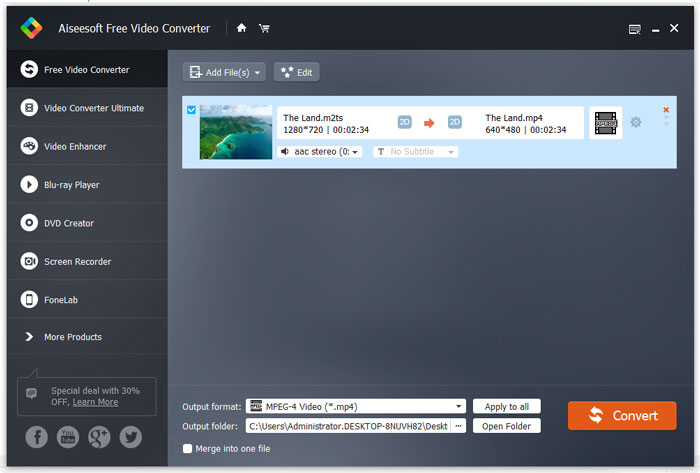
ขั้นตอนที่ 2: เมื่อต้องการตัดส่วนที่ต้องการออกมาเป็น GIF คุณสามารถใช้ฟีเจอร์ Clip ได้ คุณสามารถเลื่อนแถบเวลาเพื่อตัดช่วงวิดีโอได้อย่างอิสระ นอกจากนี้ คุณยังสามารถคลิกปุ่ม Edit เพื่อเพิ่มธีมสำเร็จรูปและคำบรรยายลงในวิดีโอได้ ก่อนบันทึกไฟล์ คุณยังสามารถพรีวิวเอฟเฟกต์ทั้งหมดได้ จากนั้นคลิกปุ่ม Save เพื่อบันทึกการตั้งค่า.
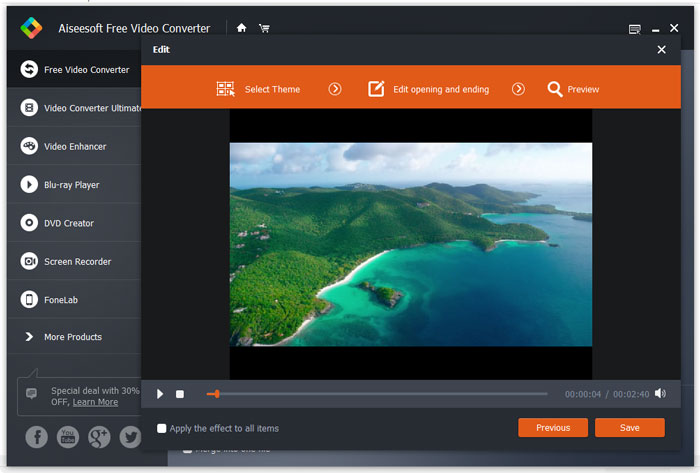
ขั้นตอนที่ 3: หลังจากกลับสู่หน้าหลักแล้ว ให้คลิกเมนู Output Format ที่ด้านล่างและเลือกฟอร์แมต GIF เพื่อส่งออก หากคุณยังต้องการเปลี่ยนการตั้งค่าแบบละเอียด ให้คลิกไอคอน Settings ที่ต่อจากชื่อวิดีโอ จากนั้นคุณสามารถคงความละเอียดวิดีโอต้นฉบับไว้ และปรับแต่งอัตราเฟรมได้ เมื่อต้องการแปลงวิดีโอ AVI หลายไฟล์เป็น GIF พร้อมกัน อย่าลืมคลิกปุ่ม Apply to all สุดท้ายให้คลิกปุ่ม Convert เพื่อบันทึกไฟล์ GIF.
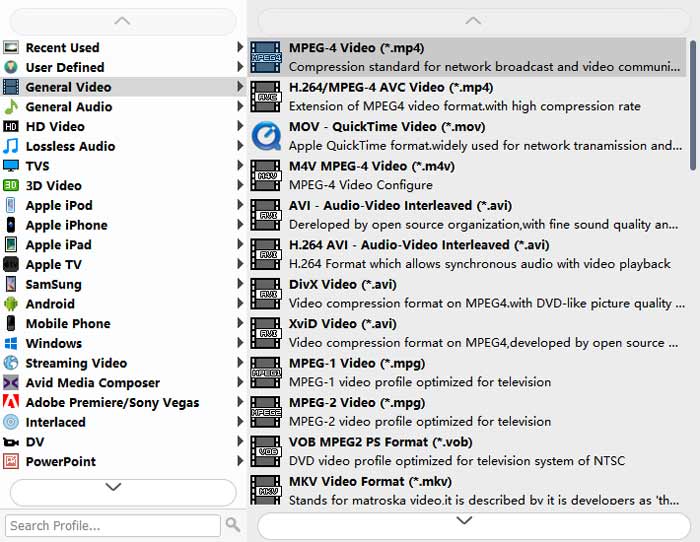
คุณสามารถอยู่ที่หน้านี้เพื่อดูความแตกต่างระหว่าง AVI และ MP4 ได้.
ส่วนที่ 2: วิธีการแปลงวิดีโอ AVI เป็นไฟล์ GIF ออนไลน์ฟรี
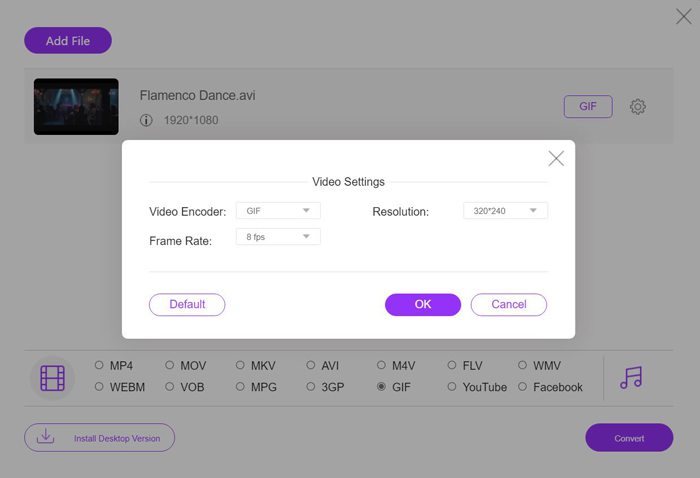
ยังมีโปรแกรมแปลงวิดีโอออนไลน์ฟรีที่ใช้งานง่ายให้คุณเลือกใช้ด้วย โดยไม่ต้องดาวน์โหลดซอฟต์แวร์ใด ๆ คุณก็สามารถแปลง AVI เป็นไฟล์ GIF แบบขยับได้อย่างง่ายดายผ่าน FVC Free Online Video Converter แม้ว่าคุณจะสามารถปรับพารามิเตอร์วิดีโอได้ แต่ตัวโปรแกรมรองรับความละเอียดสูงสุดแค่ 320x240 และอัตราเฟรม 8 fps สำหรับไฟล์ GIF ซึ่งจะทำให้ได้ไฟล์ GIF ที่ความลื่นไหลและคุณภาพต่ำ และคุณต้องตัดวิดีโอล่วงหน้าเอง เพราะโปรแกรมนี้ไม่รองรับการตัดต่อวิดีโอ ขั้นตอนรายละเอียดมีดังนี้
ขั้นตอนที่ 1: เปิดเว็บไซต์อย่างเป็นทางการของ FVC Free Online Video Converter บนเบราว์เซอร์ใดก็ได้ คลิกปุ่ม Add Files to Convert เพื่อติดตั้งตัวเรียกใช้งาน (launcher) ภายในไม่กี่วินาที จากนั้นคลิกปุ่มเดิมอีกครั้งเพื่อเลือกไฟล์วิดีโอที่ต้องการจากคอมพิวเตอร์เพื่อนำเข้าเข้าสู่โปรแกรมแปลงไฟล์.
ดาวน์โหลดเวอร์ชันเดสก์ท็อปเพื่อแปลงไฟล์แบบเป็นชุดได้.
ขั้นตอนที่ 2: เลือกฟอร์แมต GIF ในรายการวิดีโอด้านล่าง จากนั้นคลิกไอคอน Settings เพื่อเลือกความละเอียดและอัตราเฟรมของวิดีโอ เนื่องจากมีข้อจำกัด คุณจึงควรเลือกการตั้งค่าสูงสุดเพื่อรักษาคุณภาพให้ได้มากที่สุด จากนั้นคลิกปุ่ม OK เพื่อบันทึกการตั้งค่า แล้วคลิกปุ่ม Convert เพื่อเลือกโฟลเดอร์จัดเก็บและเริ่มแปลงไฟล์ AVI เป็น GIF.
AVI เทียบกับ GIF
ตามรูปแบบไฟล์การแลกเปลี่ยนทรัพยากร (RIFF) รูปแบบ AVI ถูกนำมาใช้โดย Microsoft ในปี 1992 สามารถบันทึกวิดีโอ/เสียงคุณภาพสูงได้ เนื่องจากใช้การบีบอัดน้อยกว่า แต่นั่นก็ทำให้ไฟล์ AVI มีขนาดใหญ่ขึ้นด้วย ซึ่งอาจเป็นปัญหาได้เมื่อมีเนื้อที่จำกัด
GIF เป็นรูปแบบภาพทั่วไปสำหรับกราฟิกบนเว็บ นอกจากการบันทึกรูปภาพขนาดเล็กและรูปภาพที่มีข้อความแล้ว GIF ยังสามารถมีและแสดงแอนิเมชั่นพื้นฐานบนเว็บไซต์ได้อีกด้วย เป็นรูปแบบที่ไม่มีการสูญเสีย และการบีบอัด GIF จะไม่ทำให้ความคมชัดของภาพลดลง
ส่วนที่ 3: คำถามที่พบบ่อยเกี่ยวกับการแปลง AVI เป็นไฟล์ GIF แบบเคลื่อนไหว
1. ฉันสามารถเพิ่มคำหรือลายน้ำเมื่อแปลงวิดีโอ AVI เป็น GIF ได้หรือไม่
ใช่คุณสามารถ. ผ่าน FVC Free Video to GIF Maker คุณสามารถใช้คุณสมบัติการแก้ไขเพื่อเพิ่มคำบรรยาย ลายน้ำ และธีมให้กับไฟล์ที่ส่งออกเมื่อแปลงวิดีโอ AVI เป็น GIF นอกจากนี้ คุณสามารถตัดวิดีโอต้นฉบับออกเป็นหลายส่วนได้อย่างอิสระ
2. การแปลง AVI เป็น GIF แบบเคลื่อนไหวจะทำลายคุณภาพวิดีโอหรือไม่
ใช่. รูปแบบ GIF ได้รับการออกแบบมาเพื่อกระจายไฟล์บนอินเทอร์เน็ต ดังนั้นวิดีโอที่บีบอัดด้วยรูปแบบ GIF จึงมีขนาดเล็กมากและคุณภาพต่ำเสมอ และรูปแบบ AVI มีอัตราการบีบอัดต่ำ ดังนั้นวิดีโอ AVI จึงมีขนาดใหญ่และมีคุณภาพสูง
3. การแปลงวิดีโอ AVI เป็น GIF ออนไลน์ปลอดภัยหรือไม่
แน่นอนว่ามันปลอดภัย FVC Free Online Video Converter จะไม่บันทึกไฟล์นำเข้าและส่งออกของคุณหลังจากที่คุณเสร็จสิ้นกระบวนการแปลง ดังนั้นคุณสามารถใช้ตัวแปลงนี้เพื่อถ่ายโอนไฟล์ AVI เป็น GIF ได้อย่างมั่นใจ
สรุป
ไฟล์ GIF จะดีกว่าสำหรับการแพร่กระจายบนอินเทอร์เน็ตมากกว่าวิดีโอ AVI และบทความนี้ได้แนะนำ 2 โซลูชันที่มีประสิทธิภาพในการแปลงวิดีโอ AVI เป็นไฟล์ GIF ซอฟต์แวร์ระดับมืออาชีพ - FVC Free Video to GIF Maker จะตอบสนองทุกความต้องการของคุณด้วยการตั้งค่าแบบกำหนดเองและคุณภาพสูง แต่ถ้าคุณไม่สนใจเรื่องคุณภาพ คุณสามารถลองใช้โปรแกรมแปลงไฟล์ออนไลน์ฟรีได้อย่างง่ายดาย ยินดีที่จะแสดงความคิดเห็นและคำแนะนำของคุณด้านล่าง
-
 คำแนะนำทีละขั้นตอนเกี่ยวกับการแปลง MP4 เป็น GIF บนเดสก์ท็อปหรือออนไลน์
 กำลังมองหาวิธีที่ดีที่สุดในการแปลงวิดีโอ MP4 ของคุณเป็น GIF แบบเคลื่อนไหวหรือไม่? นี่คือคำแนะนำโดยละเอียดใน Photoshop, Windows Movie Maker ตัวแปลงวิดีโอออนไลน์และอื่น ๆ
-
 วิธีแปลง AVI เป็น MP4 บนเดสก์ท็อปหรือออนไลน์ฟรี
 บางครั้งเมื่อเราดูภาพยนตร์บนโทรศัพท์เครื่องเล่นที่เราใช้จะแจ้งว่าไม่สามารถเล่นวิดีโอได้เนื่องจากไม่รองรับรูปแบบ AVI แล้วเราจะเปลี่ยน AVI เป็น MP4 อย่างรวดเร็วโดยไม่สูญเสียคุณภาพได้อย่างไร? นี่คือวิธีการฟรีมากมายที่คุณสามารถลองใช้ได้
-
 GIF Player - 5 เครื่องเล่น GIF ที่ดีที่สุดสำหรับ Windows PC, Mac, Android และ iPhone
 โปรแกรมอะไรเปิดไฟล์ GIF ฉันจะดู GIF บน Android ได้อย่างไร iPhone มีเครื่องเล่น GIF เพื่อเปิด GIF หรือไม่? โพสต์นี้แบ่งปัน 5 เครื่องเล่น GIF ที่ดีที่สุดสำหรับคุณ

