


 Video Converter Ultimate
 บันทึกหน้าจอ
 ซ่อมวิดีโอ
 ดาวน์โหลดอย่างปลอดภัย
วิธีตัดแต่ง GIF อย่างเชี่ยวชาญเพื่อปรับปรุงการเล่าเรื่องด้วยภาพของคุณ
GIF หรือภาพเคลื่อนไหวได้กลายเป็นสิ่งที่แพร่หลายในการสื่อสารออนไลน์และการสร้างเนื้อหา ไม่ว่าคุณจะต้องการเพิ่มรูปลักษณ์ให้กับโพสต์บนโซเชียลมีเดียของคุณ สร้างสื่อการตลาดที่สะดุดตา หรือเพียงแค่แสดงความเป็นตัวคุณผ่านแอนิเมชั่นแสนสนุก ก็ไม่มีทางปฏิเสธความน่าดึงดูดใจของ GIF ที่สร้างขึ้นมาอย่างดี อย่างไรก็ตาม ด้วยความนิยมของภาพเคลื่อนไหวเหล่านี้ ทำให้จำเป็นต้องแก้ไขและปรับแต่งให้เหมาะกับความต้องการเฉพาะของคุณ
หนึ่งในแง่สำคัญที่สุดของการทำงานกับไฟล์ GIF คือการรู้วิธีตัดแต่งให้ได้อย่างมีประสิทธิภาพ โชคดีที่ปัจจุบันมีเครื่องมือหลากหลายทั้งแบบออนไลน์และออฟไลน์ ที่ช่วยให้ขั้นตอนการตัด GIF เป็นเรื่องง่ายและตรงไปตรงมา ตั้งแต่ตัวเลือกที่เหมาะกับผู้เริ่มต้นไปจนถึงซอฟต์แวร์ระดับมืออาชีพสำหรับผู้เชี่ยวชาญ ทุกคนที่ต้องการยกระดับทักษะการตัดต่อ GIF ของตัวเองสามารถเลือกใช้ได้ตามต้องการ เอาล่ะ มาดูกันทีละขั้นตอนว่าเราจะตัด GIF แบบออนไลน์และออฟไลน์ได้อย่างไร.

ส่วนที่ 1 ตัด GIF ออฟไลน์
1. FVC Video Converter Ultimate
ฟังก์ชันตัด GIF ใน FVC Video Converter Ultimate ถือเป็นตัวเปลี่ยนเกมสำหรับผู้ที่จริงจังกับการทำ GIF คุณภาพระดับมืออาชีพ เครื่องมือนี้เป็นตัวเลือกที่ยอดเยี่ยมสำหรับการตัดแต่ง GIF ไม่ว่าคุณจะเป็นนักตัดต่อวิดีโอที่ต้องทำแอนิเมชันให้ลูกค้า หรือเป็นนักการตลาดโซเชียลมีเดียที่กำลังมองหาไอเดียใหม่ ๆ สำหรับโพสต์.
คุณสามารถตั้งค่าจุดเริ่มต้นและจุดสิ้นสุดของไฟล์ GIF ของคุณได้ คุณลักษณะนี้มีประโยชน์อย่างยิ่งเมื่อไฟล์ GIF ของคุณยาวเกินไป นอกจากนี้ยังช่วยให้คุณแยก GIF ได้อย่างง่ายดาย ยิ่งไปกว่านั้น คุณอาจใช้เอฟเฟ็กต์ต่างๆ เช่น จางเข้าและจางออก หากคุณต้องการเรียนรู้วิธีตัด GIF ออฟไลน์หรือบนพีซีของคุณ ให้ทำตามขั้นตอนที่กำหนด:
ขั้นตอนที่ 1 ดาวน์โหลดและติดตั้งโปรแกรม
ก่อนอื่น คลิกปุ่ม ดาวน์โหลดฟรี ปุ่มใดก็ได้ด้านล่างเพื่อเริ่มดาวน์โหลด จากนั้นทำตามขั้นตอนการติดตั้งให้โปรแกรมถูกติดตั้งลงในอุปกรณ์ของคุณอย่างสมบูรณ์ เมื่อติดตั้งเสร็จแล้ว ให้เปิดโปรแกรมเพื่อเข้าสู่หน้าหลัก.
ดาวน์โหลดฟรีสำหรับ Windows 7 ขึ้นไปดาวน์โหลดอย่างปลอดภัย
ดาวน์โหลดฟรีสำหรับ MacOS 10.7 ขึ้นไปดาวน์โหลดอย่างปลอดภัย
ขั้นตอนที่ 2 อัปโหลดไฟล์ GIF
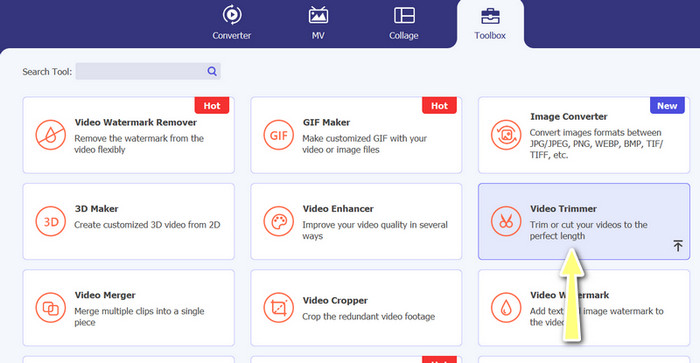
ตอนนี้ให้ไปที่แท็บ กล่องเครื่องมือ (Toolbox) แล้วเลือกตัวเลือก ตัวตัดวิดีโอ (Video Trimmer) จากนั้นคุณสามารถอัปโหลดไฟล์ GIF ได้โดยคลิกปุ่มสัญลักษณ์ บวก.
ขั้นตอนที่ 3 ตัดแต่งไฟล์ GIF
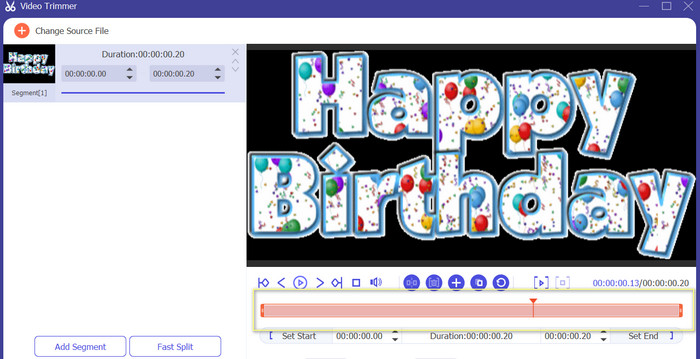
เมื่ออัปโหลด GIF แล้ว คุณจะเห็นได้จากอินเทอร์เฟซการแก้ไขของโปรแกรม การใช้แถบเลื่อนระบุจุดเริ่มต้นและจุดสิ้นสุดของไฟล์ GIF ที่คุณต้องการลบ
ขั้นตอนที่ 4 บันทึกไฟล์ GIF
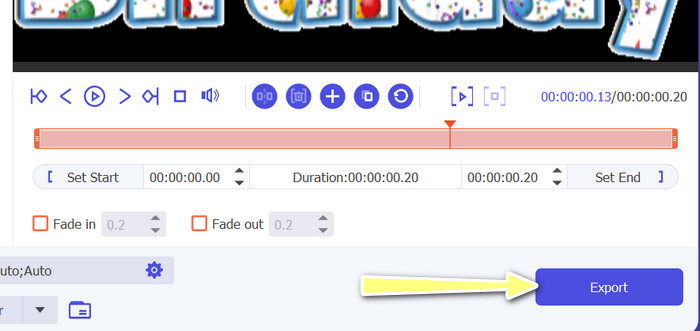
เมื่อคุณตัดส่วนต่าง ๆ ของ GIF เสร็จเรียบร้อยแล้ว ให้กดปุ่ม ส่งออก (Export) ที่มุมล่างขวาของหน้าต่างโปรแกรมเพื่อเริ่มประมวลผลและบันทึกไฟล์.
2. GIF Maker
การสร้าง GIF อาจเป็นเรื่องท้าทายสำหรับผู้ที่ไม่มีประสบการณ์ในการตัดต่อวิดีโอหรือการออกแบบกราฟิก นั่นคือที่มาของ GIF Maker ซึ่งเป็นวิธีที่ง่ายและมีประสิทธิภาพในการสร้าง แก้ไข แชร์ และตัด GIF แบบเคลื่อนไหว นอกจากนี้ โปรแกรมนี้ยังช่วยให้ผู้ใช้สามารถตัดแต่ง GIF ปรับความเร็วในการเล่น และเพิ่มข้อความหรือเอฟเฟ็กต์อื่นๆ เพื่อสร้าง GIF ที่สมบูรณ์แบบสำหรับความต้องการของพวกเขา ต่อไปนี้เป็นขั้นตอนในการตัด GIF แบบเคลื่อนไหวแบบออฟไลน์โดยใช้โทรศัพท์ของคุณ
ขั้นตอนที่ 1 ก่อนอื่น ให้ดาวน์โหลดโปรแกรมจาก Play Store โดยพิมพ์ชื่อแอปลงในแถบค้นหา จากนั้นติดตั้งลงบนอุปกรณ์มือถือของคุณ.
ขั้นตอนที่ 2 ตอนนี้ให้เปิดแอปบนมือถือของคุณ เมื่อเปิดขึ้นมา โปรแกรมจะแสดงไฟล์ทั้งหมดที่เก็บอยู่ในอุปกรณ์ รวมถึงไฟล์ GIF ด้วย จากนั้นให้เลือก GIF เป้าหมายที่คุณต้องการแก้ไข.
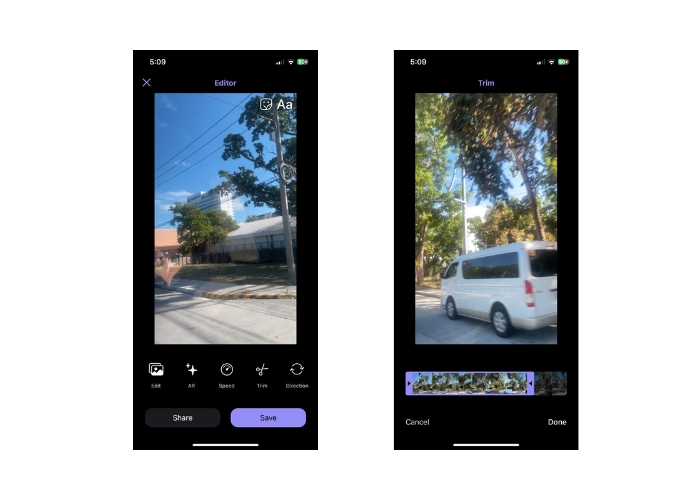
ขั้นตอนที่ 3 หลังจากนั้น ไฟล์ GIF จะถูกโหลดขึ้นมา แล้วแตะปุ่ม Trim จากนั้นกำหนดจุดเริ่มต้นและจุดสิ้นสุดของ GIF และปรับแถบเลื่อนให้ตรงตามช่วงที่ต้องการ.
ขั้นตอนที่ 4 สุดท้าย แตะปุ่ม เสร็จสิ้น (Done) เพื่อจบขั้นตอนการตัดไฟล์ GIF.
ส่วนที่ 2 ตัด GIF ออนไลน์
1. EZGIF
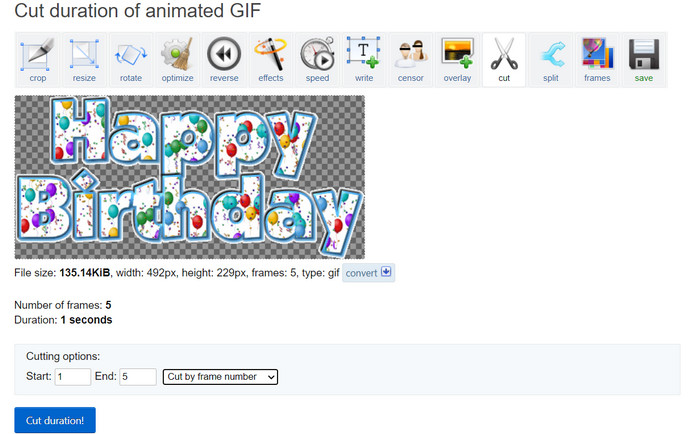
หากคุณต้องการขั้นตอนที่ง่ายในการตัดและแก้ไขไฟล์ GIF ออนไลน์ด้วยคอมพิวเตอร์ของคุณ คุณสามารถใช้ EZGIF ได้ ฟีเจอร์หลักของมันรวมถึงการครอปหรือปรับขนาด GIF การปรับความเร็วในการเล่น การใส่ข้อความหรือสติกเกอร์ เพิ่มประสิทธิภาพขนาดไฟล์ และแม้แต่แปลง GIF เป็นไฟล์วิดีโอรูปแบบอื่น เช่น MP4 หรือ WebM ทำตามขั้นตอนแบบย่อด้านล่างเพื่อเรียนรู้วิธีการตัด GIF ออนไลน์ด้วย EZGIF.
ขั้นตอนที่ 1 เปิดเบราว์เซอร์ที่คุณใช้งานบนคอมพิวเตอร์ แล้วเข้าไปที่เว็บไซต์ทางการของ EZGIF.
ขั้นตอนที่ 2 จากนั้นไปที่ตัวเลือก Cut เพื่อทำการตัดความยาว GIF แบบออนไลน์ แล้วคลิกปุ่ม Choose File ตามด้วยปุ่ม Upload.
ขั้นตอนที่ 3 ในส่วนตัวเลือกการตัด ให้กำหนดจุดเริ่มต้นและจุดสิ้นสุดโดยใช้หมายเลขเฟรม.
ขั้นตอนที่ 4 เมื่อตั้งค่าเรียบร้อยแล้ว ให้กดปุ่ม Cut duration เพื่อเริ่มตัดไฟล์ GIF.
2. GIPHY
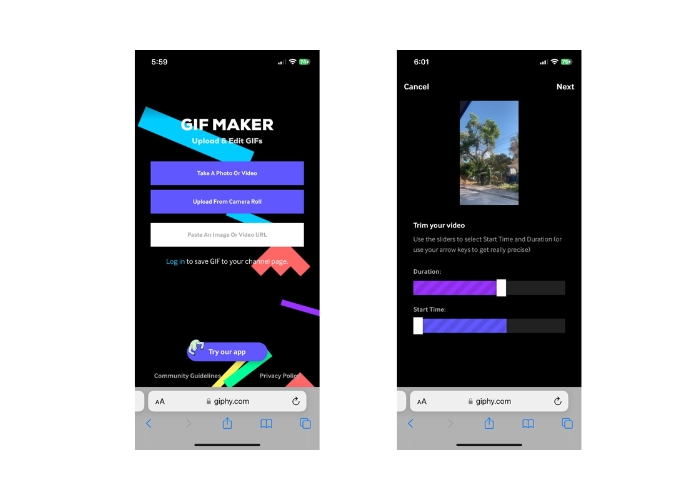
คุณอาจลองใช้แอปมือถือของ GIPHY เพื่อแก้ไขหรือตัด GIF ทางออนไลน์โดยใช้โทรศัพท์ของคุณ ด้วยแอปมือถือ Giphy ผู้ใช้สามารถเข้าถึงและแบ่งปัน GIF ที่พวกเขาชื่นชอบได้อย่างง่ายดาย รวมทั้งสร้าง GIF แบบกำหนดเองโดยใช้กล้องของสมาร์ทโฟนหรือไฟล์วิดีโอที่มีอยู่ นอกจากนี้ แอพนี้ยังมีคุณสมบัติการแก้ไข เช่น การตัดและการตัดแต่ง โดยไม่ต้องกังวลใจอีกต่อไป นี่คือขั้นตอนในการปฏิบัติตามเพื่อตัด GIF ออนไลน์บนอุปกรณ์มือถือของคุณ:
ขั้นตอนที่ 1 ดาวน์โหลดและติดตั้งแอป Giphy จากร้านค้าแอปของคุณ จากนั้นเปิดแอปและเลือกไฟล์ GIF ที่คุณต้องการแก้ไขจากคลังภาพหรือแกลเลอรีในโทรศัพท์.
ขั้นตอนที่ 2 ใช้แถบเลื่อนเพื่อเลือกจุดเริ่มต้นและจุดสิ้นสุดของส่วนที่คุณต้องการเก็บไว้ คุณยังสามารถเพิ่มข้อความหรือสติกเกอร์ลงใน GIF ได้อีกด้วย.
ขั้นตอนที่ 3 หลังจากแก้ไขเรียบร้อยแล้ว ให้แตะปุ่ม Next และปรับแต่งเพิ่มเติมตามที่คุณต้องการ จากนั้นคุณก็สามารถแชร์ผลงานของคุณกับผู้อื่นทางออนไลน์ได้.
ส่วนที่ 3 คำถามที่พบบ่อยเกี่ยวกับการตัด GIF ออนไลน์
ฉันสามารถเลิกทำการแก้ไขที่ทำกับ GIF โดยใช้ตัวตัดออนไลน์ได้หรือไม่
ขึ้นอยู่กับตัวตัด GIF ออนไลน์ที่คุณใช้ แต่หลายตัวเสนอปุ่มเลิกทำหรือตัวเลือกเพื่อเปลี่ยนกลับการเปลี่ยนแปลงที่ทำกับ GIF อย่างไรก็ตาม เป็นที่น่าสังเกตว่าไม่ใช่เครื่องมือตัด GIF ออนไลน์ทั้งหมดที่สามารถเลิกทำการแก้ไขได้ ดังนั้นจึงเป็นความคิดที่ดีเสมอที่จะบันทึกข้อมูลสำรองของไฟล์ต้นฉบับก่อนที่จะทำการเปลี่ยนแปลงใดๆ
ฉันสามารถทำงานร่วมกับผู้อื่นในโครงการแก้ไข GIF โดยใช้ตัวตัดออนไลน์ได้หรือไม่
เครื่องมือตัด GIF ออนไลน์ส่วนใหญ่ออกแบบมาเพื่อการใช้งานส่วนบุคคลและอาจไม่มีคุณลักษณะการทำงานร่วมกันในตัว อย่างไรก็ตาม เครื่องมือออนไลน์บางอย่างอนุญาตให้คุณอัปโหลดและแบ่งปัน GIF ที่แก้ไขของคุณกับผู้อื่นได้โดยการให้ลิงก์หรือฝังรหัสที่สามารถแบ่งปันบนแพลตฟอร์มโซเชียลมีเดียหรือเว็บไซต์ นอกจากนี้ คุณยังสามารถใช้เครื่องมือการทำงานร่วมกันของบุคคลที่สาม เช่น Google Drive หรือ Dropbox เพื่อแชร์ไฟล์ GIF ต้นฉบับและเวอร์ชันที่แก้ไขใดๆ กับผู้อื่นเพื่อรับคำติชมหรือการแก้ไขเพิ่มเติม
ฉันสามารถแปลง GIF เป็นรูปแบบไฟล์อื่นโดยใช้ตัวตัดออนไลน์ได้หรือไม่
ใช่ ตัวตัด GIF ออนไลน์จำนวนมากเสนอตัวเลือกในการแปลง GIF เป็นรูปแบบวิดีโอ เช่น MP4, AVI, WebM หรือ MOV การแปลง GIF เป็นรูปแบบไฟล์อื่นอาจมีประโยชน์หากคุณต้องการใช้ในโครงการตัดต่อวิดีโอหรืออัปโหลดไปยังแพลตฟอร์มที่รองรับไฟล์บางประเภทเท่านั้น
สรุป
การตัด GIF แบบออนไลน์ เป็นวิธีที่รวดเร็วและง่ายในการแก้ไขและปรับแต่งไฟล์ GIF แบบเคลื่อนไหว โดยไม่จำเป็นต้องใช้ซอฟต์แวร์เฉพาะทางหรือทักษะด้านเทคนิค เครื่องมือตัด GIF ออนไลน์มาพร้อมฟีเจอร์หลากหลาย เช่น การตัดช่วงเวลา ปรับขนาด ปรับความเร็วในการเล่น เพิ่มข้อความและสติกเกอร์ ปรับให้ไฟล์มีขนาดเล็กลง และแปลงเป็นไฟล์รูปแบบอื่น ในทางกลับกัน เครื่องมือแบบออฟไลน์จะไม่ถูกจำกัดด้วยความสามารถในการประมวลผลของเว็บไซต์หรือเซิร์ฟเวอร์ และทำงานบนคอมพิวเตอร์หรืออุปกรณ์ของคุณโดยตรง ส่งผลให้เครื่องมือออฟไลน์ให้การควบคุมการตัดต่อที่ละเอียดกว่า คุณภาพไฟล์ที่ดีกว่า และตัวเลือกการปรับแต่งที่มากกว่า โชคดีที่มีทั้งเครื่องมือออนไลน์และออฟไลน์จำนวนมากที่ช่วยให้คุณตัด GIF ได้อย่างสะดวก.
-
 5 ซอฟต์แวร์ล่าสุดที่คุณสามารถใช้เพื่อสร้าง GIF ย้อนกลับอย่างไม่น่าเชื่อ
 คุณต้องการทราบวิธีทำให้ GIF ของคุณดีขึ้นหรือไม่? จากนั้นลองย้อนกลับ GIF เพื่อเพิ่มเอฟเฟกต์ที่น่าทึ่งด้วยความช่วยเหลือของเครื่องมือเหล่านี้
-
 5 ตัวปรับขนาด GIF ที่ดีที่สุดที่มีในทุกแพลตฟอร์ม [2023]
 ต้องการทราบตัวปรับขนาด GIF ที่คุณสามารถใช้ได้หรือไม่ ในกรณีดังกล่าว ข้อมูลที่ให้ไว้ด้านล่างจะพูดถึงตัวปรับขนาดที่คุณสามารถใช้ได้บน GIF ของคุณบนทุกแพลตฟอร์ม
-
 [ฟรี]4 วิธีง่ายๆ ในการครอบตัด GIF แบบเคลื่อนไหวทางออนไลน์และออฟไลน์
 ต้องการครอบตัด GIF อย่างง่ายดายหรือไม่ คุณสามารถทำได้ด้วยความช่วยเหลือของตัวครอบตัด GIF ที่มีอยู่ในบทความนี้ อ่านให้ดี และเรียนรู้วิธีการทำ
